Set Custom Date, Time & Hour Format on Real Devices
Testing applications often requires validation across different date, time, and format scenarios. TestMu AI now supports dynamic configuration of date, time, 12/24-hour format, and automatic time toggle on real iOS (14+) and Android (10+) devices, both in manual sessions and via Appium automation hooks.
This enables use cases like testing scheduled alerts, AM/PM behaviors, time-bound features, and regional formatting validations.
Access Date & Time Settings on TestMu AI Real Devices
Step 1: Log into your TestMu AI dashboard and navigate to Real Devices > App Testing.
Step 2: Select your desired app and a supported device (iOS 14+ or Android 10+), then click Start to launch your session.
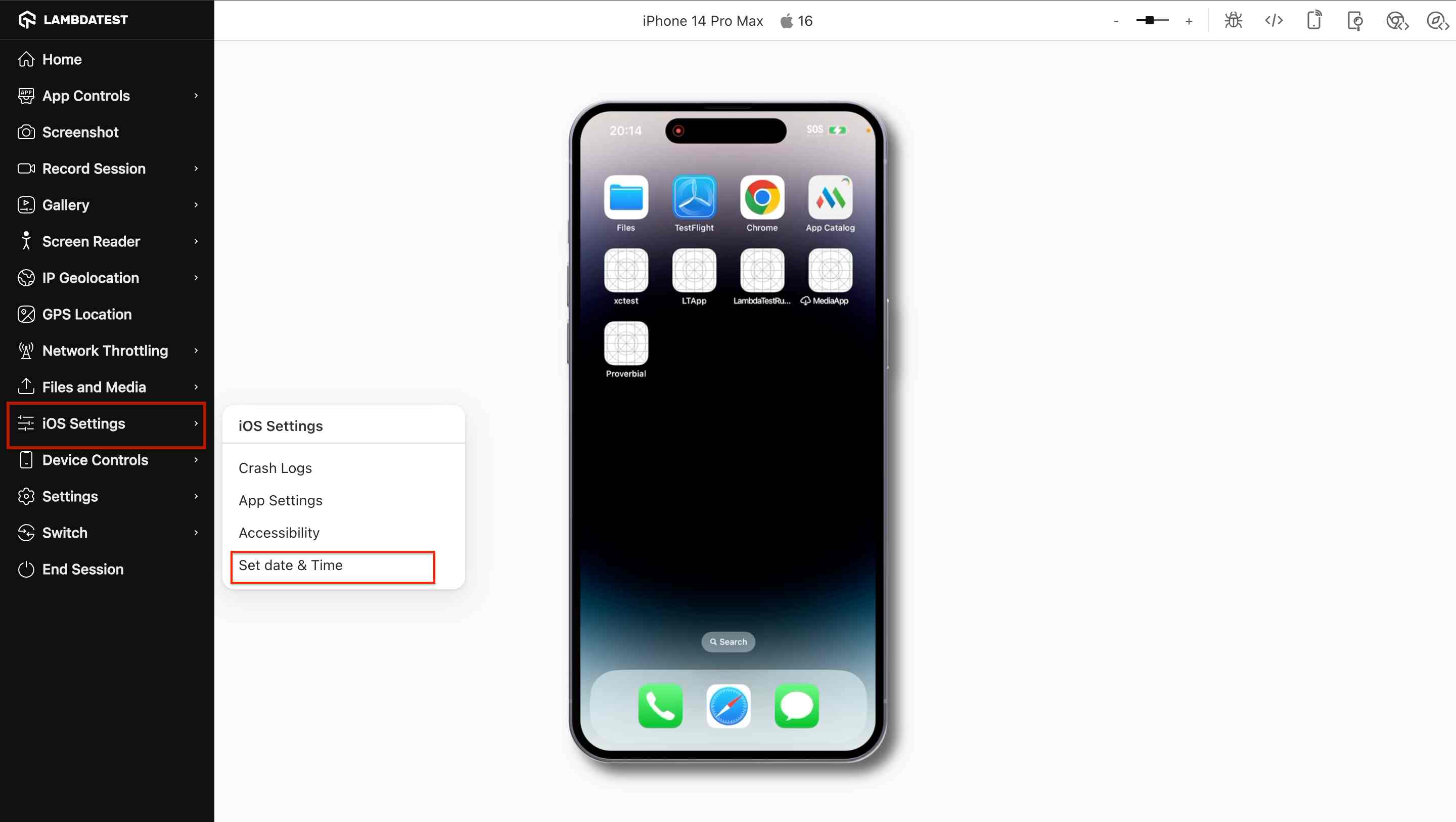
Step 3: Once the session starts, open the iOS Settings or Android Settings tab in the left sidebar, based on the device platform.
Step 4: Click on Set Date and Time to open the configuration modal.
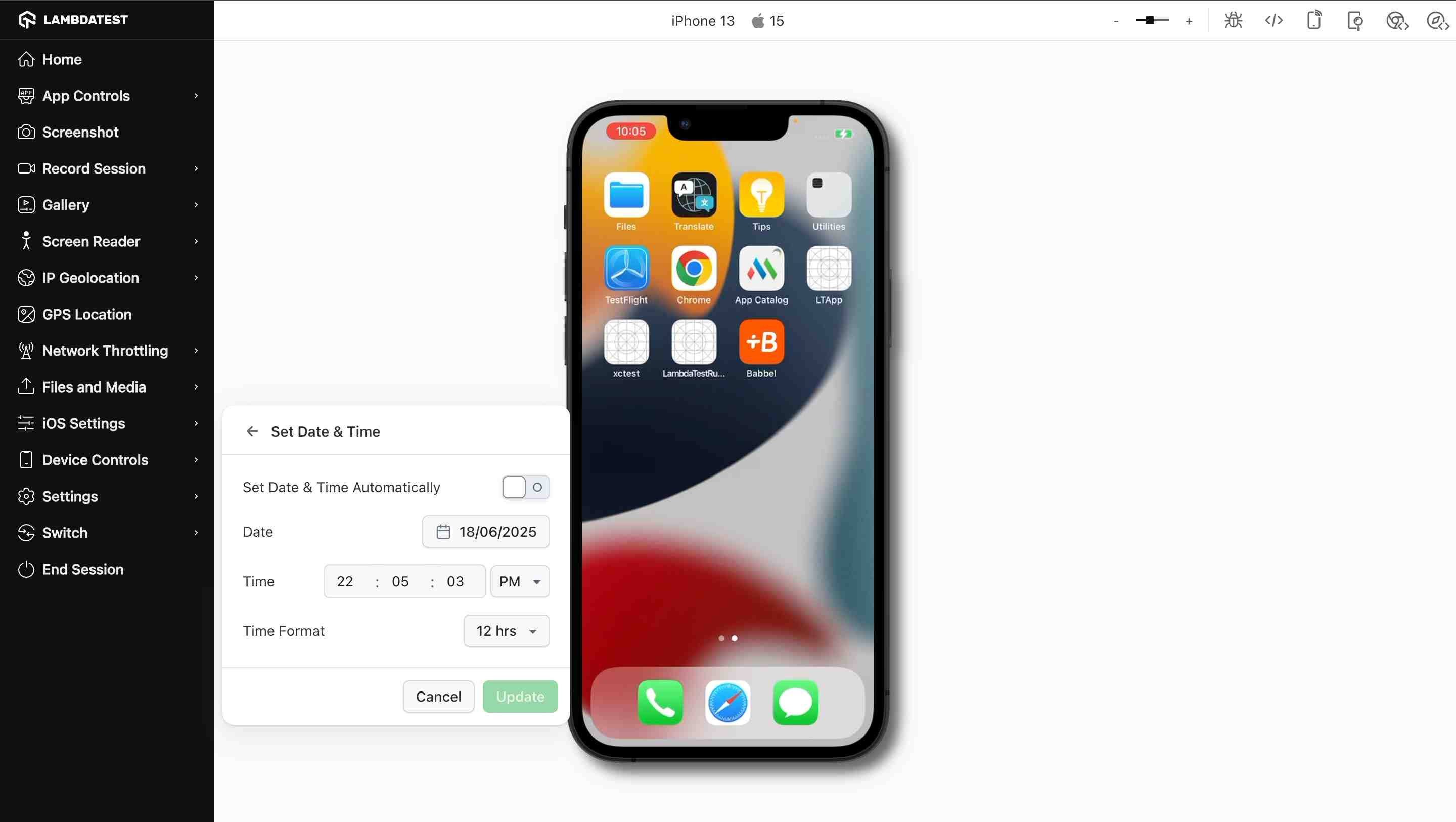
Step 5: In the modal, configure the date, time, and time format as needed, then click Update to apply the changes to the device.
On Android devices, certain models, particularly those from Motorola, Xiaomi, Oppo, and other Chinese OEMs, do not support custom date and time configuration. On such devices, the modal will display a Not Supported message.
Date & Time Configuration Options
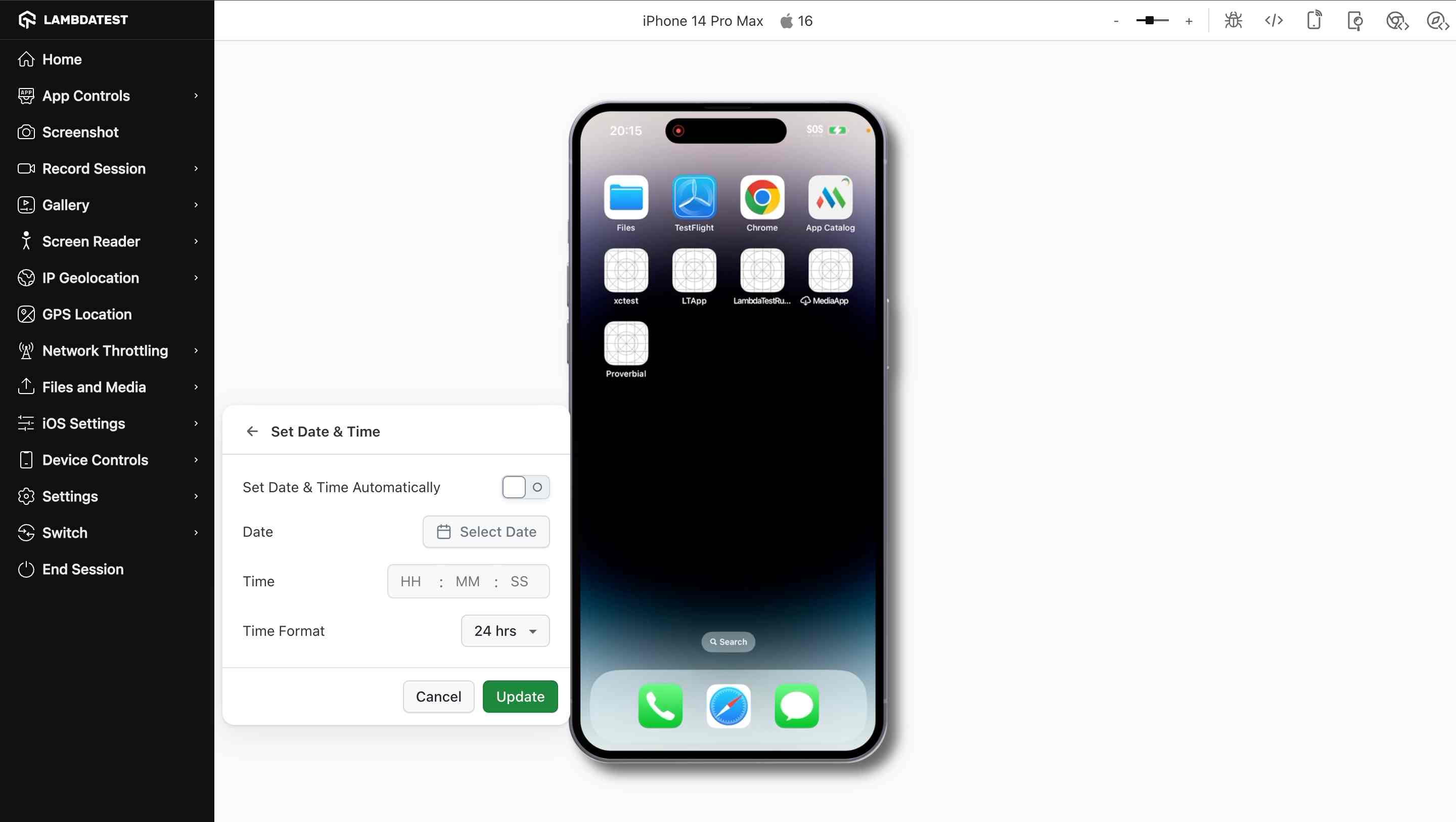
The modal includes four options to simulate various datetime-related behaviors:
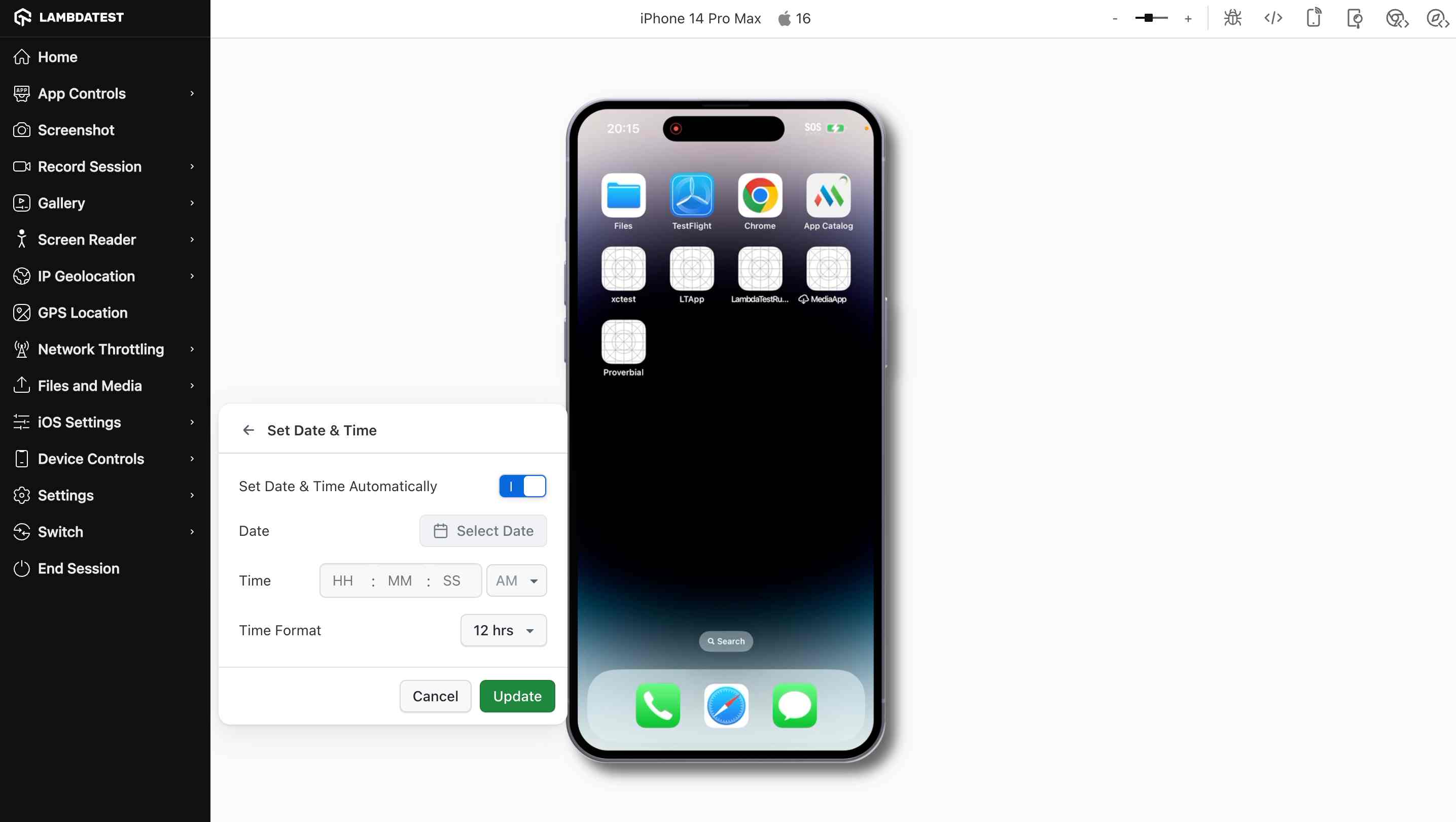
1. Set Date and Time Automatically
- Toggle ON: Syncs the device with network time.
- Toggle OFF: Unlocks manual controls for custom configuration.
- Disabling this is mandatory to manually edit date or time.
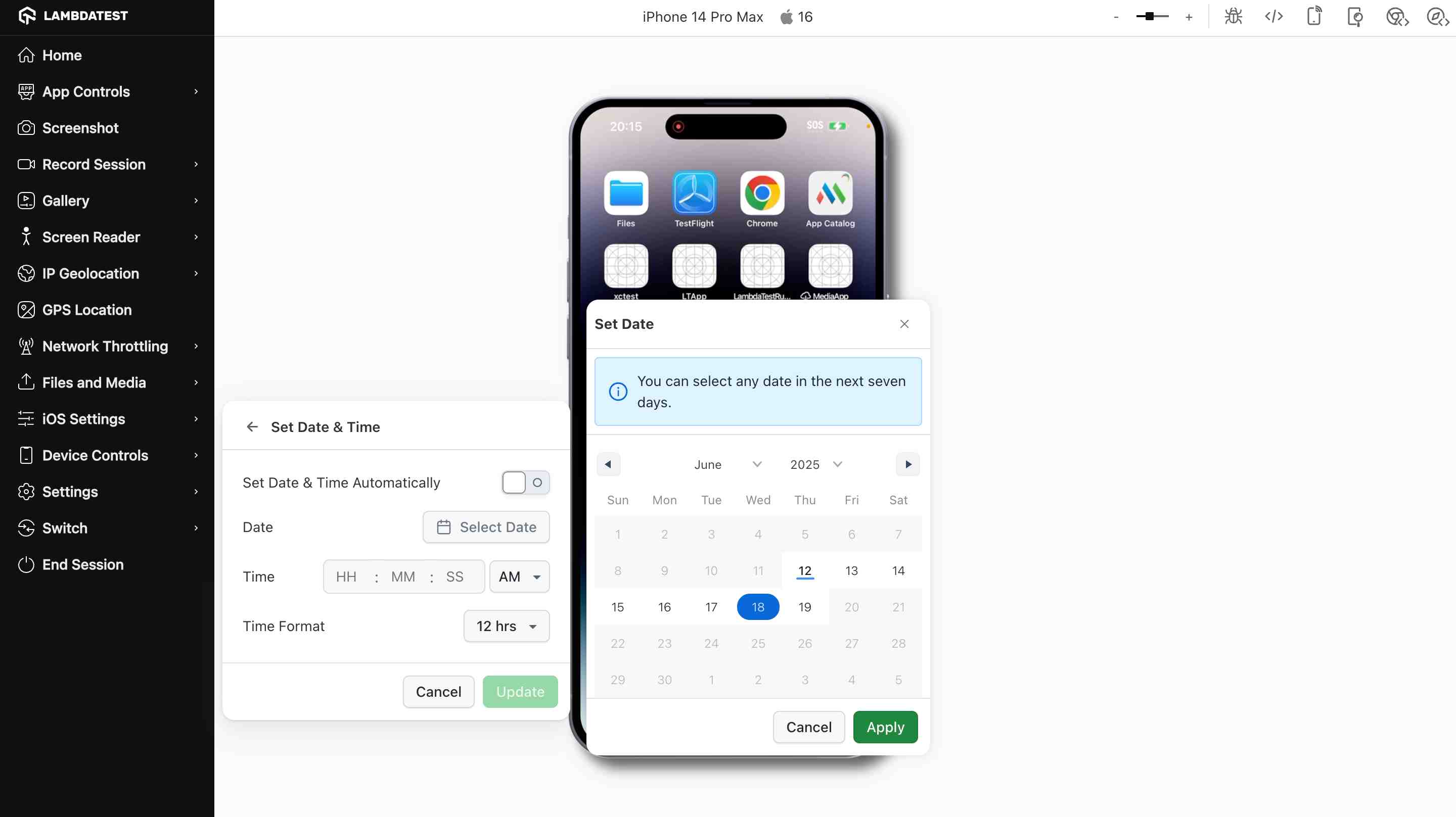
2. Date
- Opens a calendar picker with selectable dates up to 7 days ahead.
- Selecting a date updates the system date on the device.
- Past dates and dates beyond 7 days are grayed out and unselectable.
- An Apply button appears only when a valid date is selected.
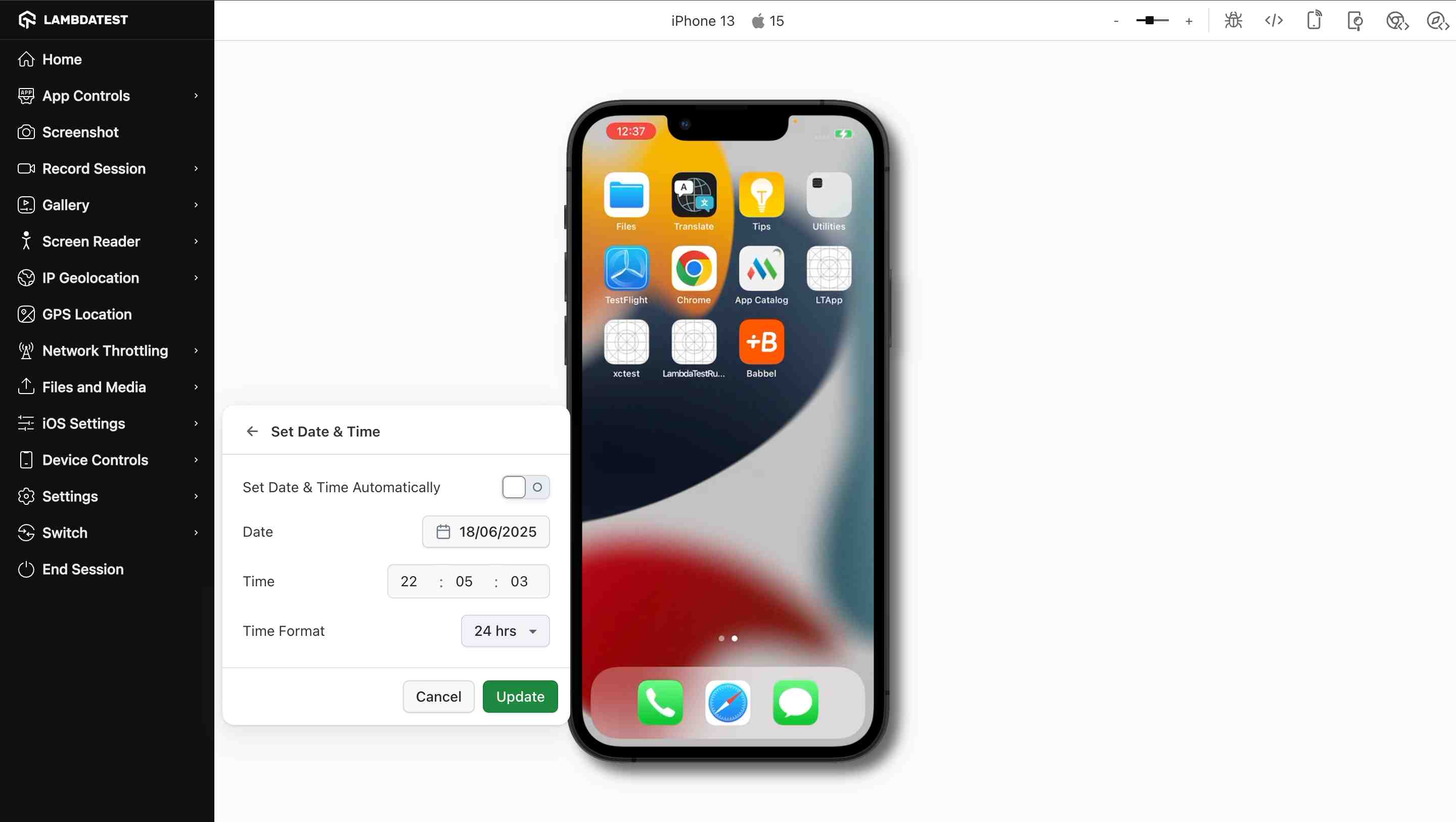
3. Time
- Allows custom time entry in
HH:MM:SSformat. - Picker adjusts based on selected hour-format (12 or 24-hour).
- Supports both manual typing and arrow key navigation for time input.
4. Time Format (12/24 Hour)
- Choose between 12-hour (AM/PM toggle) and 24-hour formats.
- 12-hour format shows AM/PM option in time picker.
- 24-hour format disables AM/PM selection automatically.
Supported Platforms:
| Platform | Configuration Methods | OS Versions Supported |
|---|---|---|
| iOS | Manual + Appium Executor | iOS 14 and above |
| Android | Manual + Appium Executor | Android 10 and above |
Custom date and time configuration is not supported on certain Android device models, particularly those from Motorola, Xiaomi, Oppo, and other Chinese OEMs. On these devices, the modal will display a Not Supported message during manual sessions, and the Appium hook will return the following error during automation:
Custom date and time hook is not supported on this device. Please try on another device_id.
Use Cases:
- Test scheduled notifications and alerts
- Validate time-sensitive app flows
- Check 12/24-hour format compatibility
- Simulate future or custom dates
- Debug calendar and time-based modules
- Verify auto/manual time toggle behavior
- Test date/time edge cases (e.g., midnight, EOM)


 Chat with Us