SmartUI Approval, Reject, Move, and Merge Functions Guide
SmartUI provides powerful baseline management functions that allow you to control how visual regression tests are handled. Understanding these functions is crucial for maintaining accurate baselines and avoiding confusion about which screenshots serve as reference points for future comparisons.
Every baseline change in SmartUI requires explicit user action. There is no automatic baseline updating - all baseline modifications must be intentionally triggered by users through approval workflows, CLI commands, or dashboard actions.
Core Functions Explained
Approve Function
What it does: Accepts the current screenshot as the new expected state and updates the baseline for future comparisons.
When to use:
- When visual changes are intentional and expected
- After UI updates, design changes, or feature implementations
- When screenshots represent the correct current state
Behavior:
- Moves screenshot to "Approved" tab
- Updates baseline automatically
- Creates audit trail with approver and timestamp
- Future builds will compare against this approved version
In CLI-based workflows, approval alone may not be sufficient for baseline persistence across different build contexts.
Reject Function
What it does: Marks screenshots as unacceptable without updating the baseline.
When to use:
- When visual differences are unexpected or represent bugs
- For temporary issues (loading states, animations)
- When changes are not ready for production
Behavior:
- Moves screenshot to "Rejected" tab
- Preserves original baseline
- Keeps screenshot available for future re-evaluation
- Does not affect future comparisons
Move to Baseline Function
What it does: Explicitly promotes approved screenshots to become the new baseline reference.
When to use:
- When you want to permanently establish a new reference point
- After major releases or design system updates
- When consolidating changes from multiple builds
Behavior:
- Takes approved screenshots and makes them the new baseline
- Overwrites existing baseline for the same test name + viewport
- Creates permanent reference for all future comparisons
- Essential for CLI workflows where approval alone isn't enough
Key Difference from Approve: Approve updates baseline for that specific build context, while Move to Baseline establishes a global reference.
Merge Function
What it does: Combines visual regression results from different branches or builds.
When to use:
- When merging feature branches into main
- Consolidating results from multiple environments
- Creating unified baselines from distributed testing
CLI Usage:
# Merge branches
npx smartui merge branch --source feature-branch --target main

# Merge builds
npx smartui merge build --source build-name --target baseline-build
Tracking Moves and Merges in the Dashboard
When you move a screenshot into its baseline build, SmartUI records where that screenshot came from and where it went. That provenance is surfaced in four places, so you can always tell whether an image was captured in a build or injected into it from a later one.
Source and Destination Builds in the Move Dialog
Choosing Approve & Update opens the Approve and Move Screenshot dialog. Above the reason field, a highlighted note names the exact build pair the move will act on.
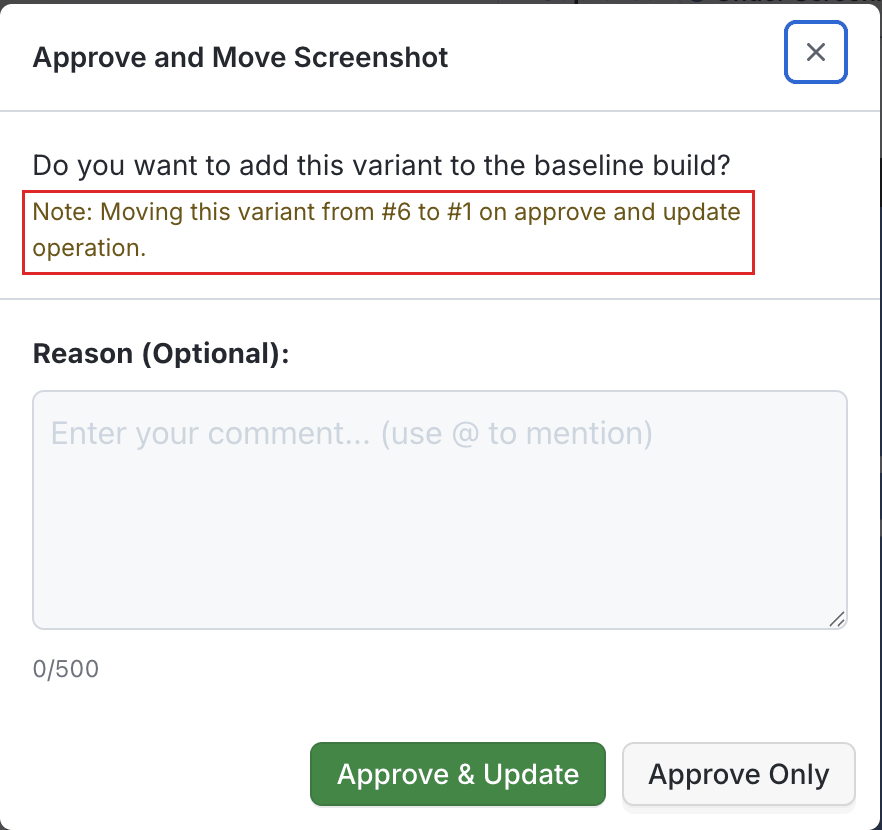
The note resolves the real pair for the screenshot in front of you rather than a fixed one, so a screenshot in build #6 whose baseline is build #1 reads Moving this variant from #6 to #1. It appears on both the single variant dialog and the Approve All Variants dialog, where the wording changes to cover every variant of that screenshot.
Read the note before confirming. It is the quickest way to catch a screenshot whose baseline is an older build than you expected, which happens when the project baseline pointer has moved back down the chain.
Merge Tag on the Comparison Page
Once a screenshot has been moved, its comparison page carries a merge tag next to the status chip.

The Added to Baseline chip tells you the verdict, and the tag beside it tells you the destination, so this screenshot was merged into build #1. Hover the tag to see the full label.
Merge Badges on Screenshot Cards at Build Level
On the build page, any screenshot involved in a move carries a badge in the top right corner of its thumbnail.
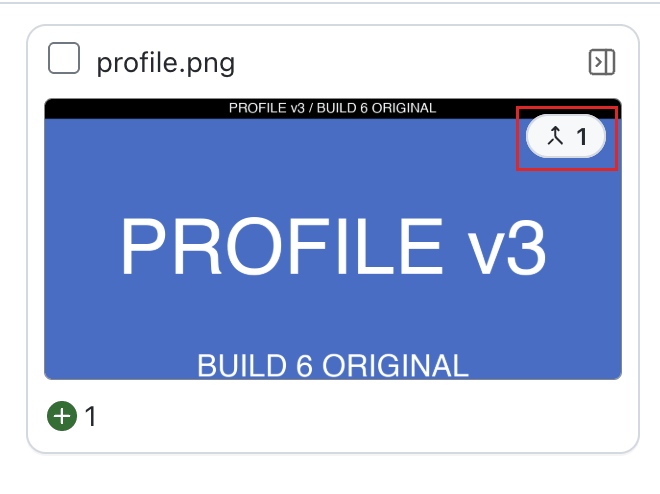
The number on the badge is the count of variants involved in the move, not a build number. A screenshot with six variants where only two were moved shows 2. The arrow gives you the direction:
| Badge arrow | Meaning | Where you see it |
|---|---|---|
| Arrow pointing up | Merged out of this build into its baseline | The source build, alongside the Added to Baseline marker |
| Arrow pointing down | Merged into this build from a later build | The destination build, on a screenshot that was never captured there |
A down arrow is worth pausing on. It marks an image that was injected from a later build rather than captured during that run, so the build no longer reflects only what was actually tested at that point in time.
Variant Level Details
Open the screenshot info drawer from the card to see which specific variants took part in the move.
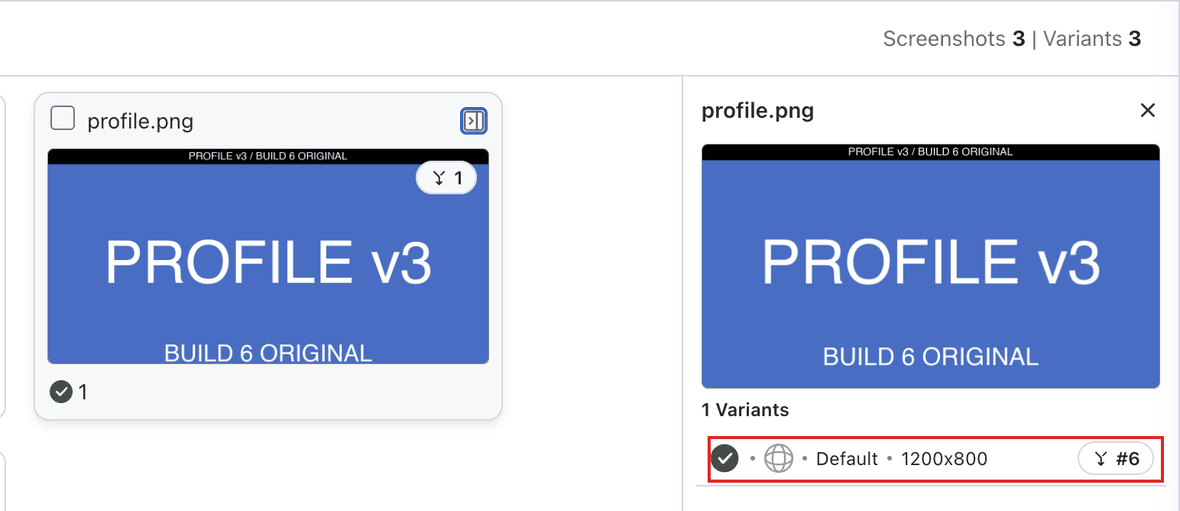
Each variant row lists its browser and resolution, and merged variants carry their own tag naming the build on the other side of the move. Variants that were not part of the move have no tag, which makes partial moves easy to spot: in a screenshot with six variants, only the rows you actually moved are tagged.
Workflow Types and Baseline Management
CLI-Based Workflows (Explicit User Control)
Characteristics:
- Each screenshot must be explicitly approved or moved
- Baseline management is manual and granular
- Greater control but requires more steps
- Best for complex, multi-environment setups
Required Actions:
- Run build → Compare against baseline
- Review differences → Approve valid changes
- Move approved screenshots to baseline (critical step)
- Next build uses updated baseline
Baseline Update Mechanism:
- Approval marks screenshots as accepted within current build
- Move to Baseline explicitly updates the global baseline reference
- Without Move to Baseline, subsequent builds may still compare against old baseline
- All baseline changes require explicit user intervention
Hooks/API/PDF Workflows (Capability-Driven)
Characteristics:
- Builds can be automatically marked as baseline via capabilities
- Less granular control over individual screenshots
- Simpler workflow for straightforward cases
- Best for continuous integration scenarios
Baseline Update Mechanism:
// SDK capability to auto-mark baseline
capabilities.setCapability("smartUI.baseline", true);
- When
smartUI.baseline: trueis set, the entire build becomes the new baseline - No individual screenshot approval needed
- Automatic progression of reference points
- Still requires explicit capability setting by user
Git-Integrated Projects (Branch-Based Automation)
Characteristics:
- Baseline automatically managed via Git branches
- Branch-specific baselines maintained
- Automatic baseline updates for baseline branch
- System-approved status for first builds
Baseline Update Mechanism:
- Baseline branch builds auto-update baseline
- Feature branches compare against baseline branch
- No manual Move to Baseline required for baseline branch
- Still requires user to configure baseline branch settings
Deep Dive: How Baseline Updates Actually Work
The Baseline Reference System
SmartUI maintains baseline references at multiple levels:
- Global Project Baseline: Default comparison point for all builds
- Branch-Specific Baselines: Different baselines per Git branch
- Build-Level Baselines: Specific builds marked as baseline
- Screenshot-Level References: Individual screenshot comparisons
Explicit User Action Requirements
Every baseline modification requires deliberate user intervention:
CLI Workflows:
# 1. Run tests (no baseline change)
npx smartui exec -- npm test

# 2. Approve screenshots (marks as accepted, no baseline change)
# Manual dashboard action required

# 3. EXPLICIT: Move to baseline (updates global baseline)
npx smartui move-to-baseline --build current-build
SDK with Capabilities:
// Explicit capability setting required
capabilities.setCapability("smartUI.baseline", true); // User must set this
Git Projects:
# Explicit baseline branch configuration required
export BASELINE_BRANCH="main" # User must configure
Common Customer Confusion Scenarios
Scenario 1: "I approved B1, why isn't it the baseline for B5?"
Problem: Customer approved screenshots in Build 1 (B1), ran Build 2 (B2) which became baseline, then when running Build 5 (B5), expected B1 screenshots to be the reference.
Root Cause: In CLI workflows, approval updates baseline within that build's context, but doesn't necessarily persist as the global baseline for future builds unless explicitly moved.
Solution:
# After approving in B1
npx smartui move-to-baseline --build B1

# Or use the dashboard "Move to Baseline" function
Scenario 2: "I approved and moved SS3 from B3 and SS4 from B4 to B2, but B5 shows SS1 as new"
Problem: Customer performed "approve and update" (move) operations on screenshots from different builds, expecting them to consolidate into a single baseline.
Root Cause: Move operations work on individual screenshots, not entire builds. If B2 doesn't contain SS1 (which was in B1), it won't be in the baseline.
Solution:
- Ensure all required screenshots are present in the target baseline build
- Use merge functions to combine results from multiple builds
- Consider using branch-based baselines for complex scenarios
Scenario 3: "I set smartUI.baseline=true, but baseline didn't update"
Problem: Customer expected automatic baseline updates but saw no changes.
Root Cause: The capability must be set correctly and the build must complete successfully for baseline marking to occur.
Solution:
// Ensure correct capability syntax
capabilities.setCapability("smartUI.baseline", true);

// Verify build completion
// Check SmartUI dashboard for baseline status
Ideal Usage Guidelines
For CLI Workflows
# 1. Run initial build to establish baseline
npx smartui exec -- npm test

# 2. Make necessary UI changes

# 3. Run comparison build
npx smartui exec -- npm test

# 4. Review and approve valid changes in dashboard

# 5. CRITICAL: Move approved changes to baseline
# Use dashboard "Move to Baseline" or CLI equivalent

# 6. Future builds will now use updated baseline
For SDK Integration
// Set capability explicitly for baseline marking
DesiredCapabilities capabilities = new DesiredCapabilities();
capabilities.setCapability("smartUI.baseline", true);

// Or use individual screenshot approval
SmartUI.takeScreenshot("screenshot-name");
// Then manually move to baseline via dashboard
Branch-Based Development
# Feature branch development
npx smartui --baselineBranch main exec -- npm test

# After approval, merge to main
npx smartui merge branch --source feature-branch --target main
Advanced Baseline Management
Multi-Level Baseline Strategy
# Different baselines for different environments
npx smartui --baselineBranch staging exec -- npm test  # Staging baseline
npx smartui --baselineBranch production exec -- npm test  # Production baseline

# Build-specific comparisons
npx smartui --baselineBuild "v2.1.0" exec -- npm test
Baseline Rollback
# Rollback to previous baseline
npx smartui --baselineBuild "previous-stable-build" exec -- npm test

# Mark old build as baseline again
npx smartui --markBaseline --baselineBuild "rollback-target"
Best Practices
1. Understand Your Workflow Type
- CLI: Requires explicit baseline management
- Hooks/API: Capability-driven baseline marking
- Git: Branch-based automatic baseline management
- PDF: Build-level baseline marking
2. Always Verify Baseline Changes
- Check dashboard after baseline operations
- Confirm next build uses updated baseline
- Maintain audit trail of baseline changes
- Only move validated, production-ready screenshots
- Document baseline update reasons
- Maintain separate baselines for different environments
3. Leverage Branch Merging
- Use for complex multi-branch workflows
- Maintain audit trails of merges
- Plan baseline consolidation carefully
4. Monitor Baseline Health
- Regularly review baseline age and completeness
- Update baselines after major releases
- Clean up outdated baselines
5. Document Decisions
- Add comments when approving/rejecting/moving
- Maintain change logs for baseline updates
- Train team on workflow differences
Troubleshooting Common Issues
"Baseline not updating after approval"
Cause: Using CLI workflow without moving to baseline Solution: Explicitly use "Move to Baseline" function
"Screenshots missing from baseline"
Cause: Moved screenshots from builds that don't contain all required images Solution: Ensure target baseline build has complete screenshot set
"Unexpected rejections in new builds"
Cause: Baseline updated with incomplete or incorrect screenshots Solution: Review baseline contents before moving
"Merge conflicts"
Cause: Conflicting screenshots between source and target Solution: Resolve conflicts manually before merging
"Capability not working"
Cause: Incorrect capability syntax or build failure Solution: Verify capability format and build status
Getting Help
If you encounter issues with baseline management or need clarification on approval workflows:
- Check the SmartUI Baseline Management Documentation
- Review Multiselect & Bulk Operations Guide
- Contact support at support@testmuai.com
Understanding these functions and their workflow differences will help you maintain accurate visual regression testing and avoid baseline-related confusion.


 Chat with Us