Accessibility Testing on HyperExecute using Cypress v10
This document provides a detailed, step-by-step walkthrough for executing automated accessibility tests using TestMu AI's Accessibility Tool on HyperExecute.
This documentation is applicable for Cypress v10 and later versions.
Please reach out to our support team to enable the Accessibility feature for your organization.
Prerequisites
- HyperExecute YAML file which contains all the necessary instructions.
- HyperExecute CLI in order to initiate a test execution Job .
- Your TestMu AI Username and Access key
- Setup your local machine as per your testing framework.
Step-by-Step Guide to Trigger Your Test
Step 1: Setup Your Test Suite
To configure and test the system, you may use your existing project. For demonstration purposes, this guide utilizes a sample repository.
Download or Clone the code sample from the TestMu AI GitHub repository to run your tests.
 View on GitHub
Download HyperExecute CLI
The HyperExecute CLI is used for triggering tests on HyperExecute. It is recommend to download the HyperExecute CLI binary on the host system to perform the tests on HyperExecute. The CLI download site for various platforms is displayed below:
| Platform | HyperExecute CLI download location |
|---|---|
| Windows | https://downloads.lambdatest.com/hyperexecute/windows/hyperexecute.exe |
| macOS | https://downloads.lambdatest.com/hyperexecute/darwin/hyperexecute |
| Linux | https://downloads.lambdatest.com/hyperexecute/linux/hyperexecute |
Setup Environment Variable
Export your environment variables LT_USERNAME and LT_ACCESS_KEY that are available in the TestMu AI Profile page.
Run the below mentioned commands in your terminal to setup the CLI and the environment variables.
- Linux / MacOS
- Windows
export LT_USERNAME="undefined"
export LT_ACCESS_KEY="undefined"
set LT_USERNAME="undefined"
set LT_ACCESS_KEY="undefined"
Step 2: Update the Necessary Capabilities and Configurations in your project
1. Install the Cypress CLI
You will have to pass the npm i lambdatest-cypress-cli command in your pre steps to install the TestMu AI Cypress CLI which will be used to execute your Cypress tests.
pre:
  - npm install
  - npm install cypress --save-dev
  - npm i lambdatest-cypress-cli
2. Add the capabilities in the YAML file
To enable the accessibility testing within your automated test suite, set the accessibility: true in the cypressOps flag of your YAML file. You can also define other settings capabilities as described below.
cypressOps:
  accessibility: true                 #Enable accessibility testing
  accessibilityWcagVersion: "wcag21a" #Specify WCAG version (e.g., WCAG 2.1 Level A)
  accessibilityBestPractice: false    #Exclude best practice issues from results
  accessibilityNeedsReview: true      #Include issues that need review
3. In the e2e.js file
Add this import statement in your e2e.js file to import the acceessibility scanner dependency
import 'lambdatest-cypress-cli/accessibility/scanner'
4. In the cypress.config.js file
Add this code snippet in your cypress.config.js file.
const { defineConfig } = require("cypress");
const lambdatestAccessibility = require('lambdatest-cypress-cli/accessibility/plugin');

module.exports = defineConfig({
    ...//
    e2e: {
      setupNodeEvents(on, config) {
        // implement node event listeners here
        lambdatestAccessibility(on, config);
        return config;
      },
    },
    ...//
});
Step 3: Execute and Monitor your Test
Run the below command in your terminal at the root folder of the project:
NOTE : In case of macOS, if you get a permission denied warning while executing CLI, simply run
chmod u+x ./hyperexecuteto allow permission. In case you get a security popup, allow it from your System Preferences → Security & Privacy → General tab.
./hyperexecute --config RELATIVE_PATH_OF_YOUR_YAML_FILE
OR use this command if you have not exported your username and access key in the step 1.
./hyperexecute --user undefined --key undefined --config RELATIVE_PATH_OF_YOUR_YAML_FILE
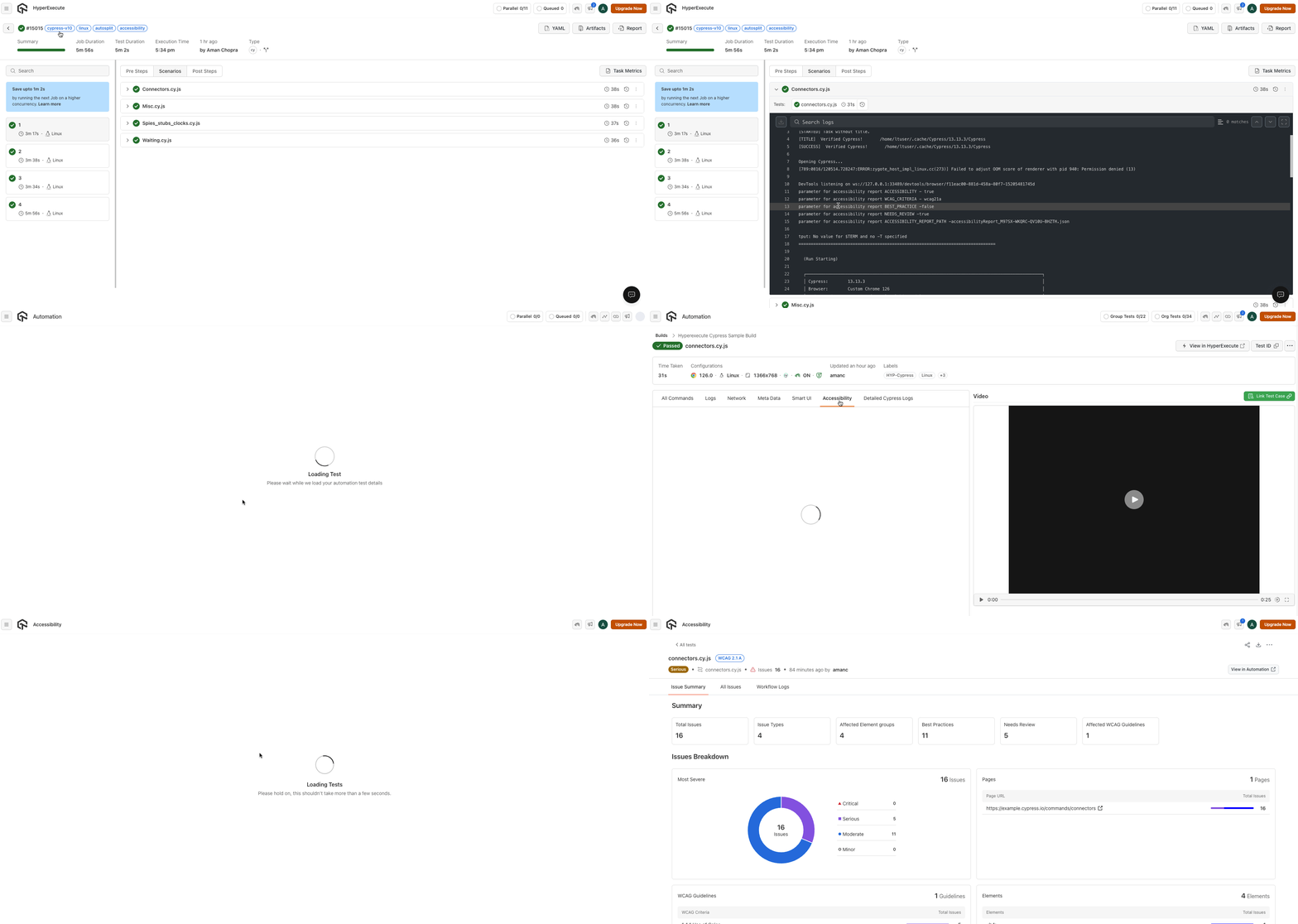
Now visit the Automation Dashboard and click on the Accessibility tab to check the report generated.


 Chat with Us