Dark Mode
TestMu AI’s Dark Mode feature allows you to manually toggle between light and dark themes on real iOS and Android devices during manual testing sessions.
This enables testers to validate UI appearance, color contrast, and theme switching for both mobile apps and web applications without writing automation scripts.
This feature is available exclusively with the Real Device Plus Live Plan.
To unlock this feature, purchase or upgrade to the required plan. If you need assistance, please contact your TestMu AI support representative, reach out to our [24×7 Chat Support], or email us at support@testmuai.com.
Use Cases
- Validate app UI elements render correctly in dark mode.
- Test color contrast and readability in dark themes.
- Verify icon and image visibility on dark backgrounds.
- Ensure theme inheritance across multiple app screens.
- Check browser and web application dark mode behavior.
Supported Devices
| Device Type | Supported OS Version |
|---|---|
| iPhone / iPad | iOS 13 and above |
| Android Phones/Tablets | Android 11 and above |
Steps to enable Dark Mode in Manual Testing
Step 1: Start a manual testing session on a real iOS or Android device in App Live or Browser Live.
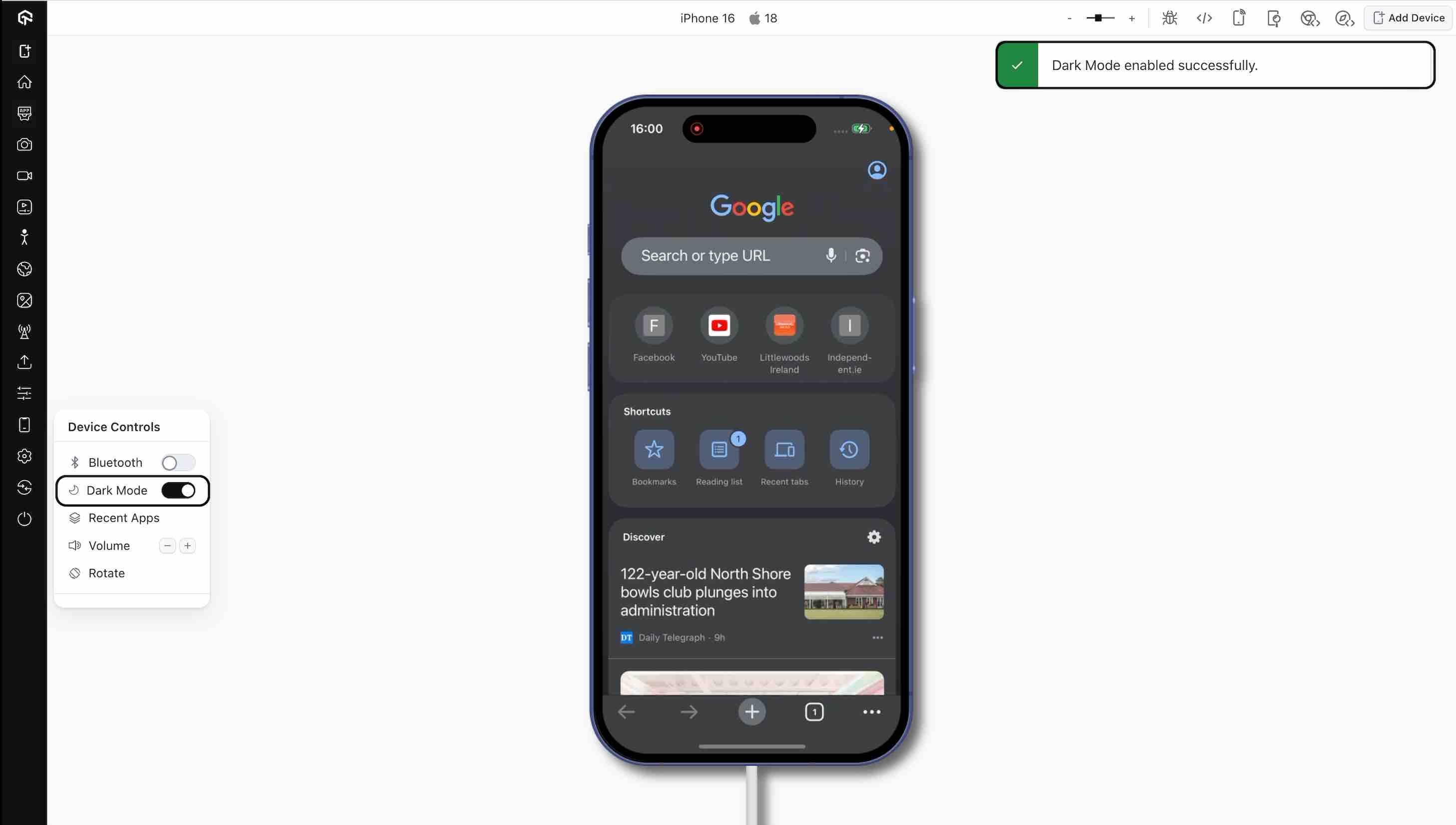
Step 2: Go to the Device Control tab and turn the toggle On for Dark Mode.
- Dark mode changes are applied at the system/browser level and may require refreshing the page for full effect.
- Some legacy websites may not fully support dark mode.
- Web applications must implement dark mode CSS for consistent theming beyond browser UI.


 Chat with Us