Integrating TestMu AI Report With Jenkins Pipeline
This documentation provides a comprehensive guide on how to integrate TestMu AI Report with your Jenkins Pipeline for web and app test automation.
Note: Before you proceed, make sure to integrate TestMu AI Plugin for Jenkins.
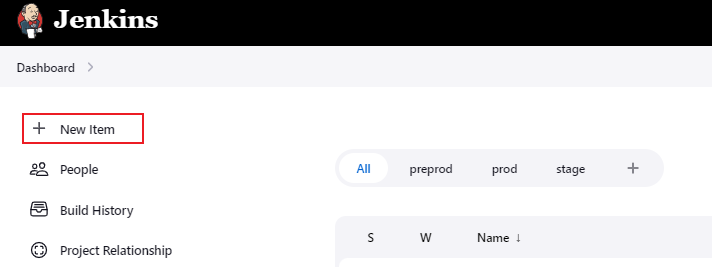
- Login to your Jenkins account. From the left menu, navigate to New Item.
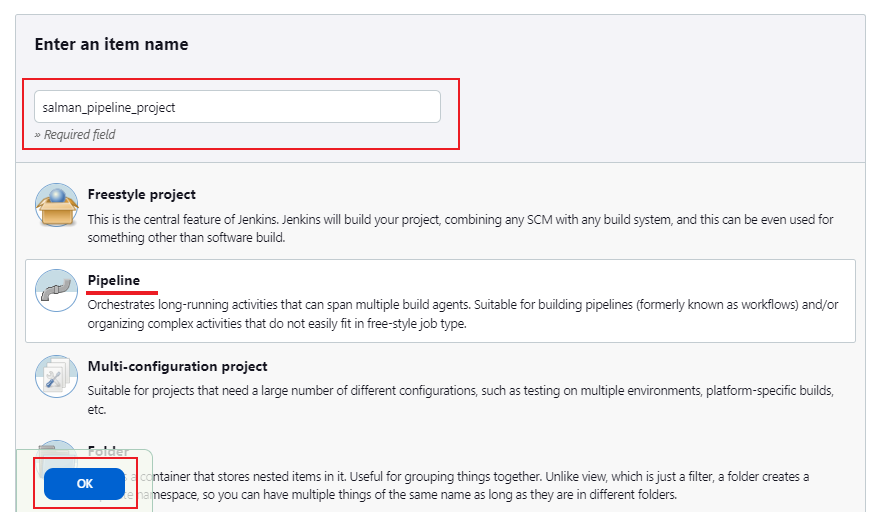
- Enter the Item name, select Pipeline and click OK.
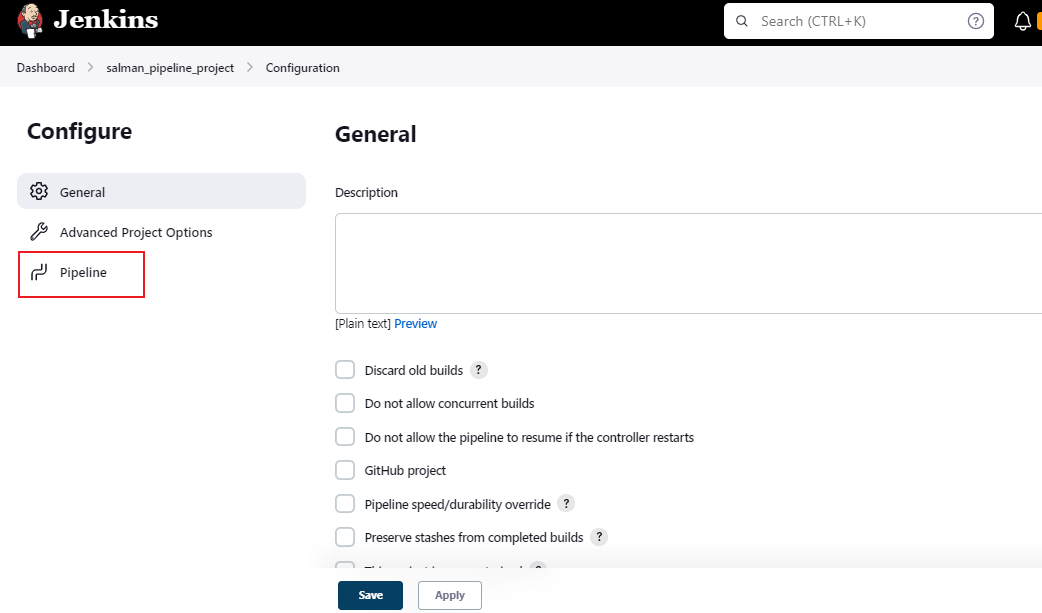
It will route you to a Configuration dashboard.
- From the left menu, click Pipeline.
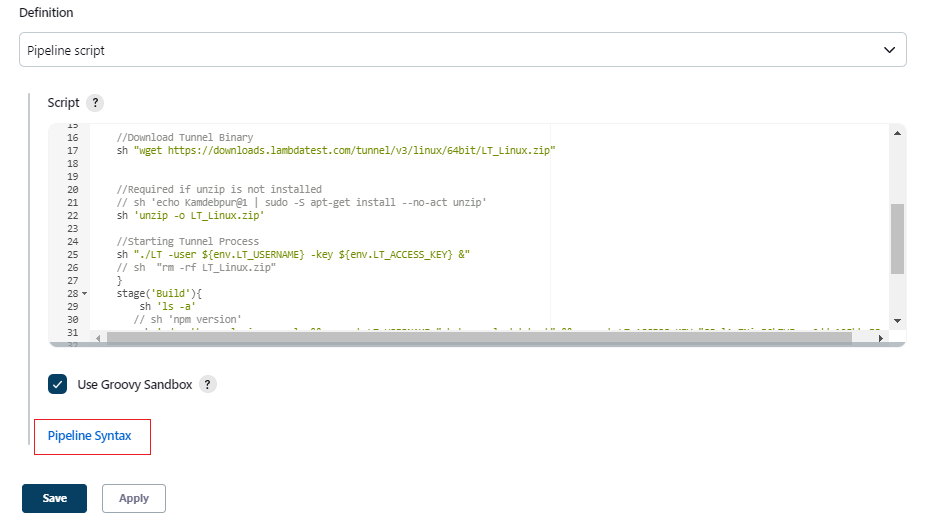
- In the Script field, enter your Jenkins pipeline script and click Pipeline Syntax.
Best Practices
Build naming
Define LT_BUILD_NAME in your Jenkins pipeline using ${BUILD_TAG}, and reference the same in your test capabilities. This ensures each TestMu AI run is correctly mapped to its corresponding Jenkins build.
Report publishing
Add a post { always { ... } } block to your pipeline so that the report is generated after every run, regardless of the status.
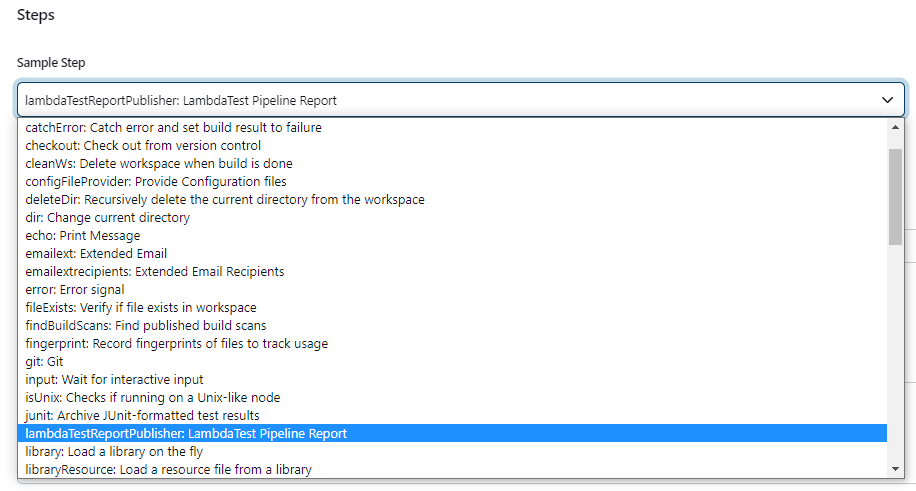
- From the Sample Step dropdown, select
lambdaTestReportPublisher:LambdaTest Pipeline Report.
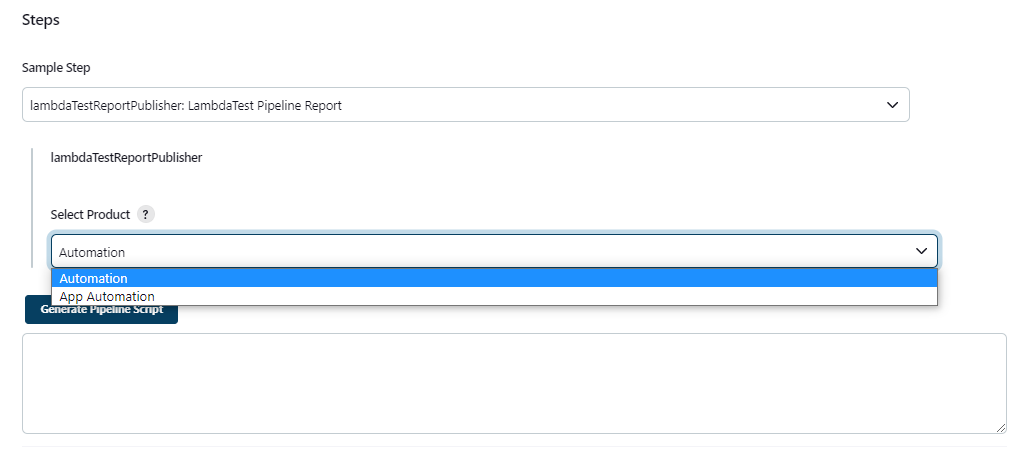
- Select either of the options: Automation or App Automation from the Select Product dropdown.
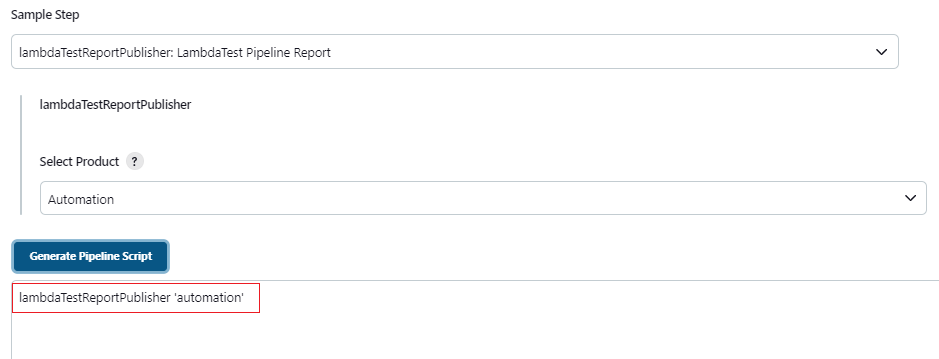
- After selecting the product, click Generate Pipeline Script and copy the generated pipeline syntax.
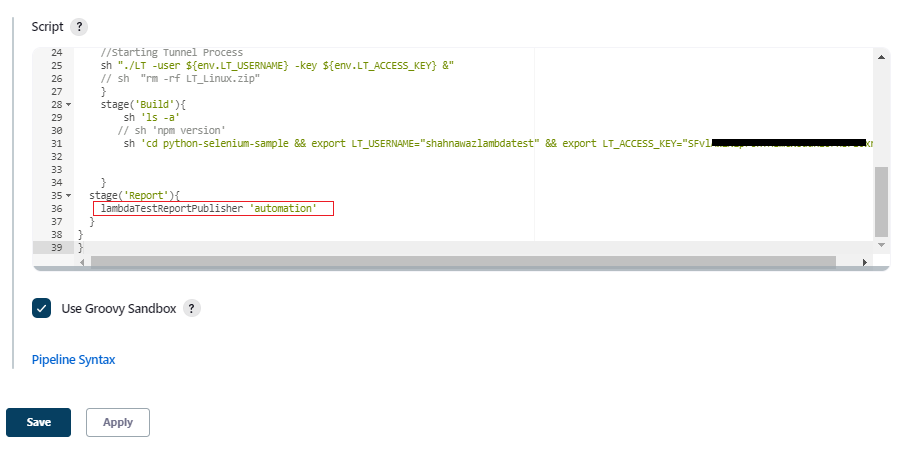
- To initiate the steps for TestMu AI Report creation, copy and paste the pipeline syntax in the Stage section of your Jenkins pipeline script. After that, click Save or Apply.
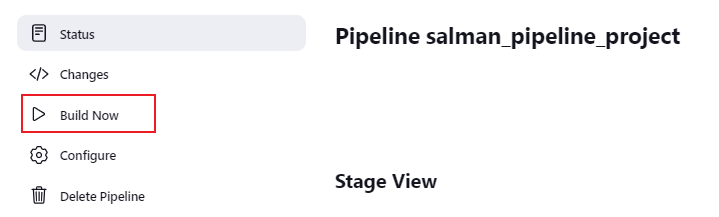
- To initiate the build process, navigate to the left menu and select Build Now. This will start the build process.
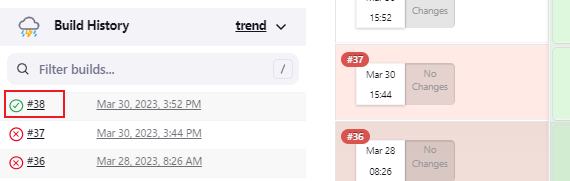
- Upon successful completion of the build process, click on the corresponding build.
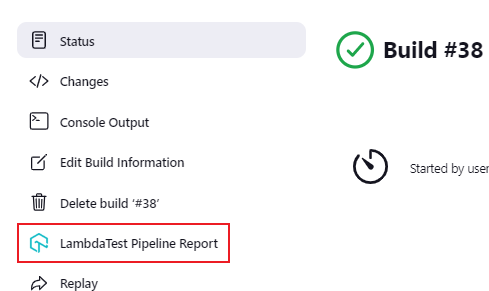
- To view the test report, click on the TestMu AI Pipeline Report.
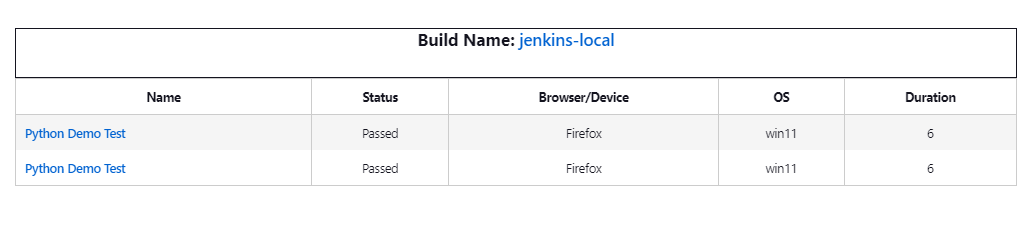
The test report will show up, containing build details such as Name, Status, Browser/Device, OS, and Duration.

 Chat with Us
 Ask the Community