Integrate TestMu AI With Jenkins Freestyle Project
Integrate TestMu AI Jenkins plugin with your Jenkins Freestyle project for:
- Configure your TestMu AI credentials for your Jenkins jobs.
- Set up and tear down the Lambda Tunnel binary file to perform automated cross browser testing even on your locally hosted web apps.
- Embed all the test results such as video logs, network logs, and screenshots of every step performed through TestMu AI with your Jenkins job results.
Note: Before you proceed, make sure to integrate TestMu AI plugin for Jenkins.
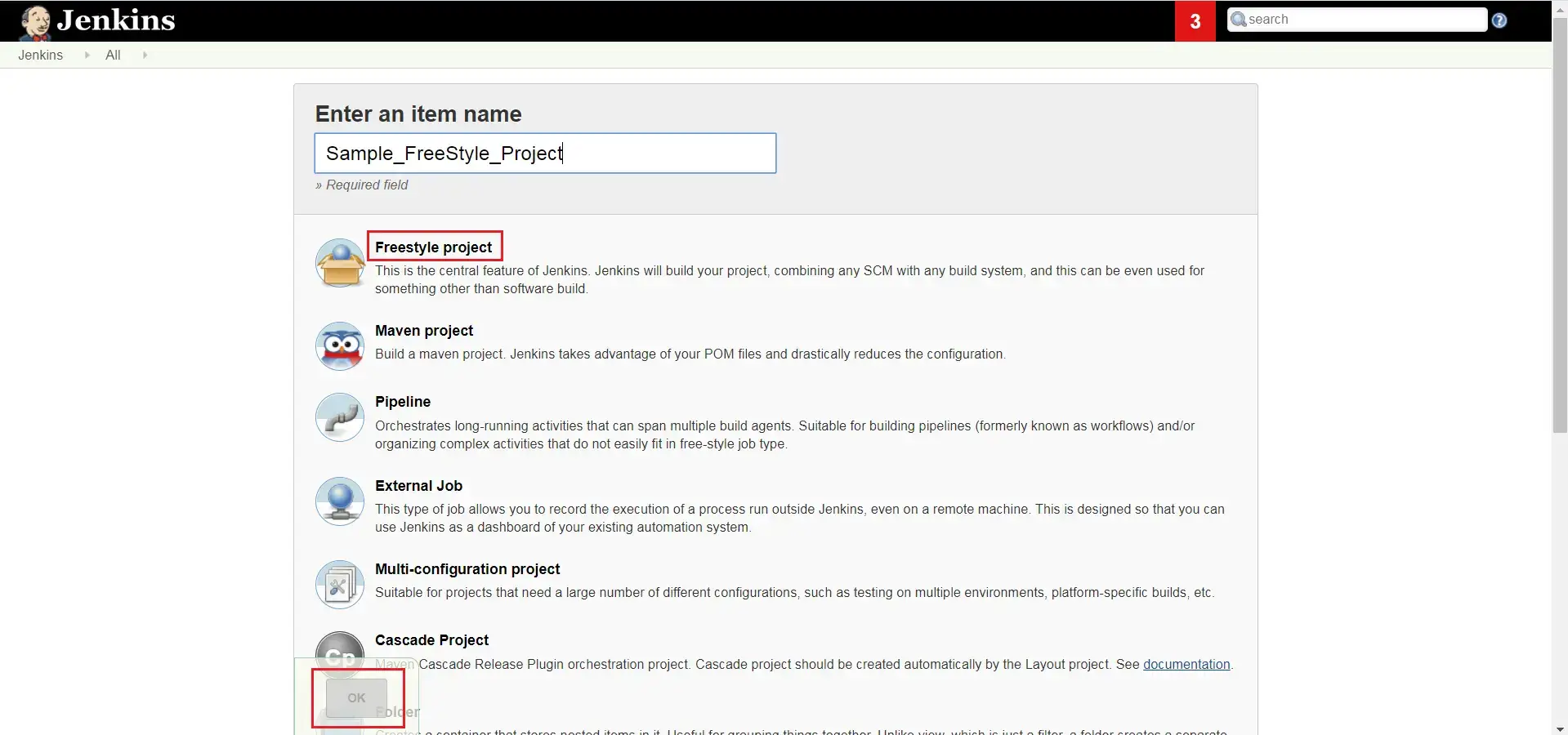
Step 1: Create a New Item in Jenkins and select Freestyle Project.
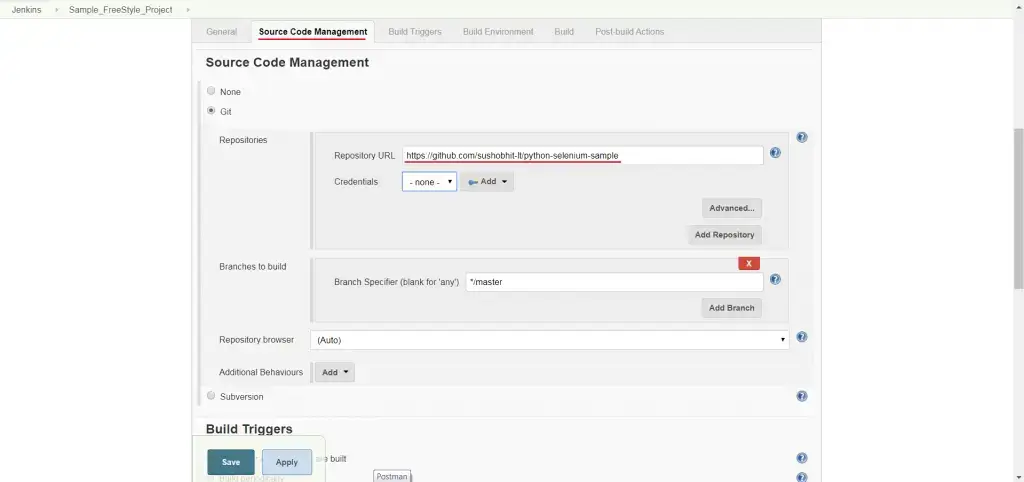
Step 2: Go to Source Code Management and feed the repository URL.
Step 3: Under the Built Environments, select TestMu AI and specify your desired capabilities. If you wish to run multiple jobs in parallel then you can Add Selenium Test Capability.
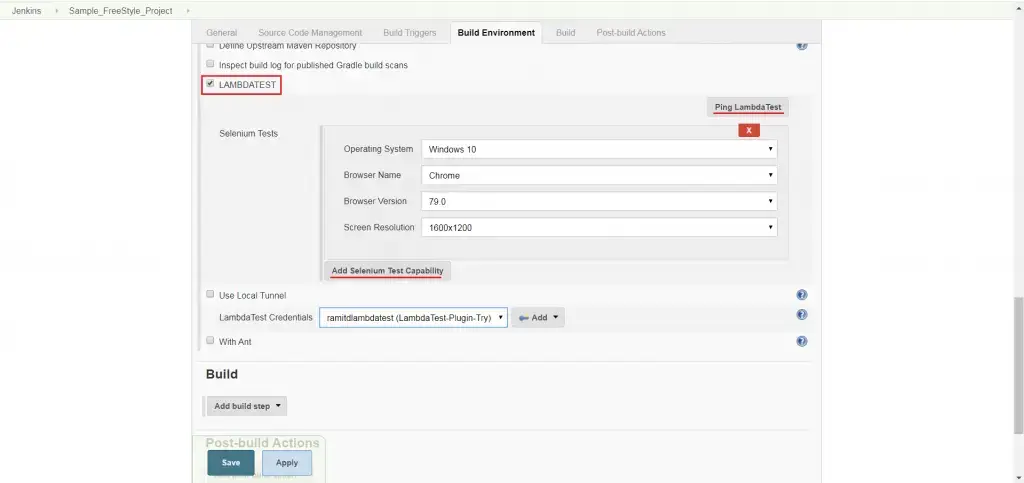
Note: It is recommended to check your network connectivity by pinging TestMu AI.
Step 4: Add a build step to Execute Shell.
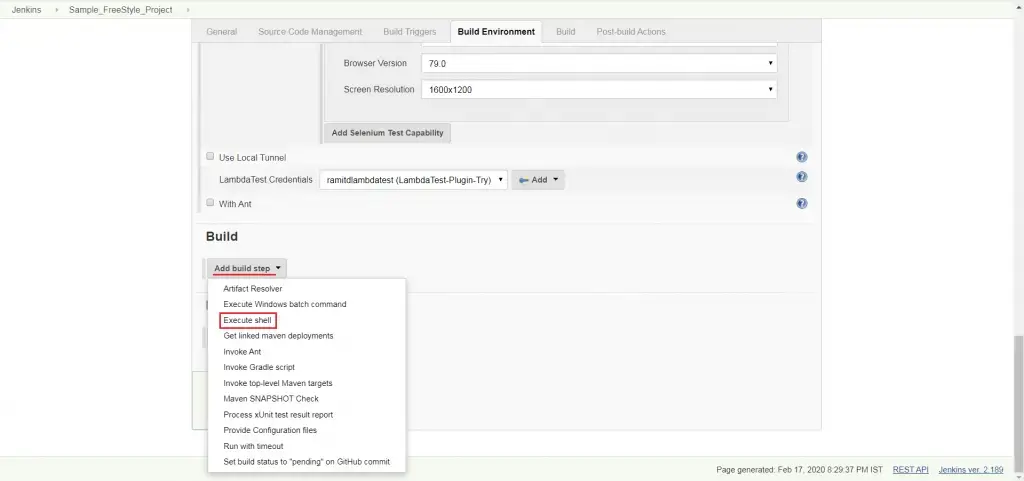
Step 5: Hit the below command to Execute Shell and hit save.
python google-search-lambdatest.py

Build naming
Define LT_BUILD_NAME in your script using ${BUILD_TAG}, and reference the same in your test capabilities. This ensures that each TestMu AI run is correctly mapped to its corresponding Jenkins build.
Step 6: Click on Apply & Save to set your configurations and then click on "Build Now" to execute your test.
Test On Locally Hosted Web Applications
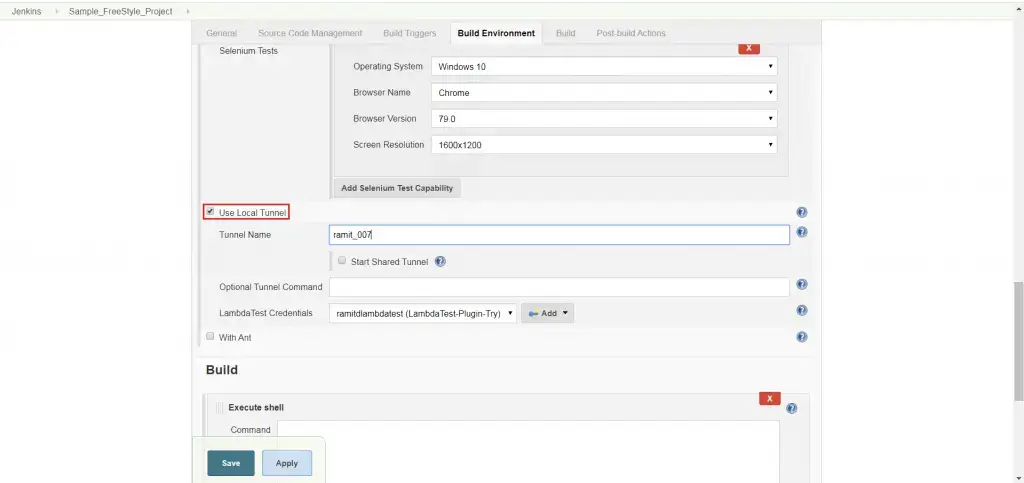
While specifying build environments, check the box to Use Local Tunnel. You can then specify a Tunnel name if you like, your TestMu AI Credentials will be automatically fetched.
Kudos! That is all you need to know for integrating your Jenkins freestyle project with TestMu AI. In case of any questions, feel free to give us a shout. You can also drop an email to support@testmu.ai. Happy testing! :)

 Chat with Us
 Ask the Community