How to integrate SimplyfyQA With TestMu AI
SimplifyQA is a test automation platform designed to leverage AI for creating, executing, and managing automated tests with ease. The platform's codeless approach democratizes test automation, allowing QA teams to achieve broader test coverage and faster release cycles without the need for extensive programming skills. SimplifyQA aims to streamline the entire QA workflow with its comprehensive suite of features supporting web, mobile, and API testing.
This document will guide you step-by-step method to integrate the SimplifyQA with TestMu AI's Real Device.
Prerequisites
- SimplifyQA subscription
- SimplifyQA agent installed in Local Machine
- TestMu AI Subscription
- Required .apk or .ipa files
Steps to integrate SimplifyQA
Step 1: Fetch your TestMu AI Credentials
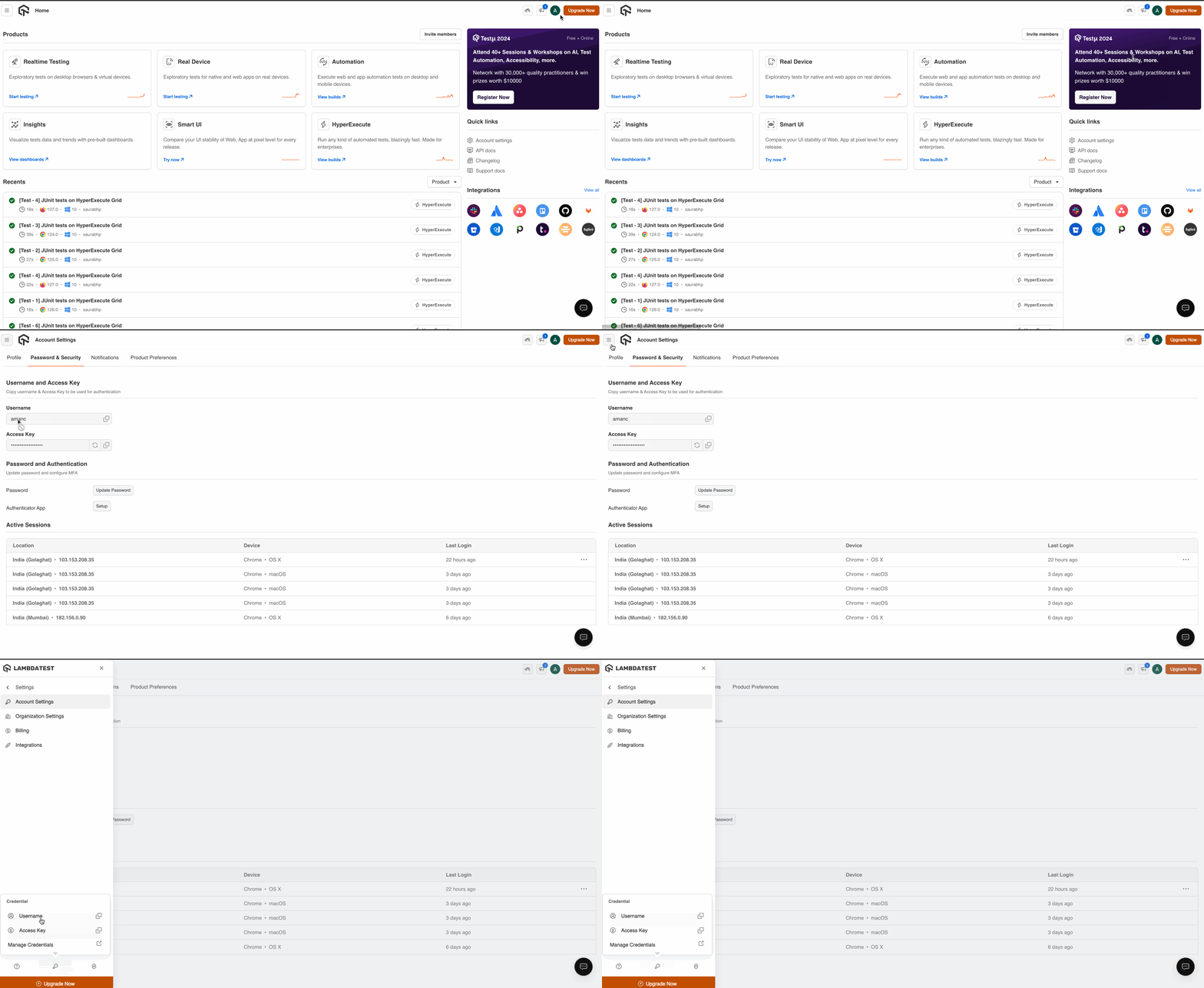
- Login to TestMu AI account and click on the profile icon.
- Navigate to Account Settings > Password and Security. Copy the provided Username and Access Key
Step 2: Setup your SimplifyQA platform
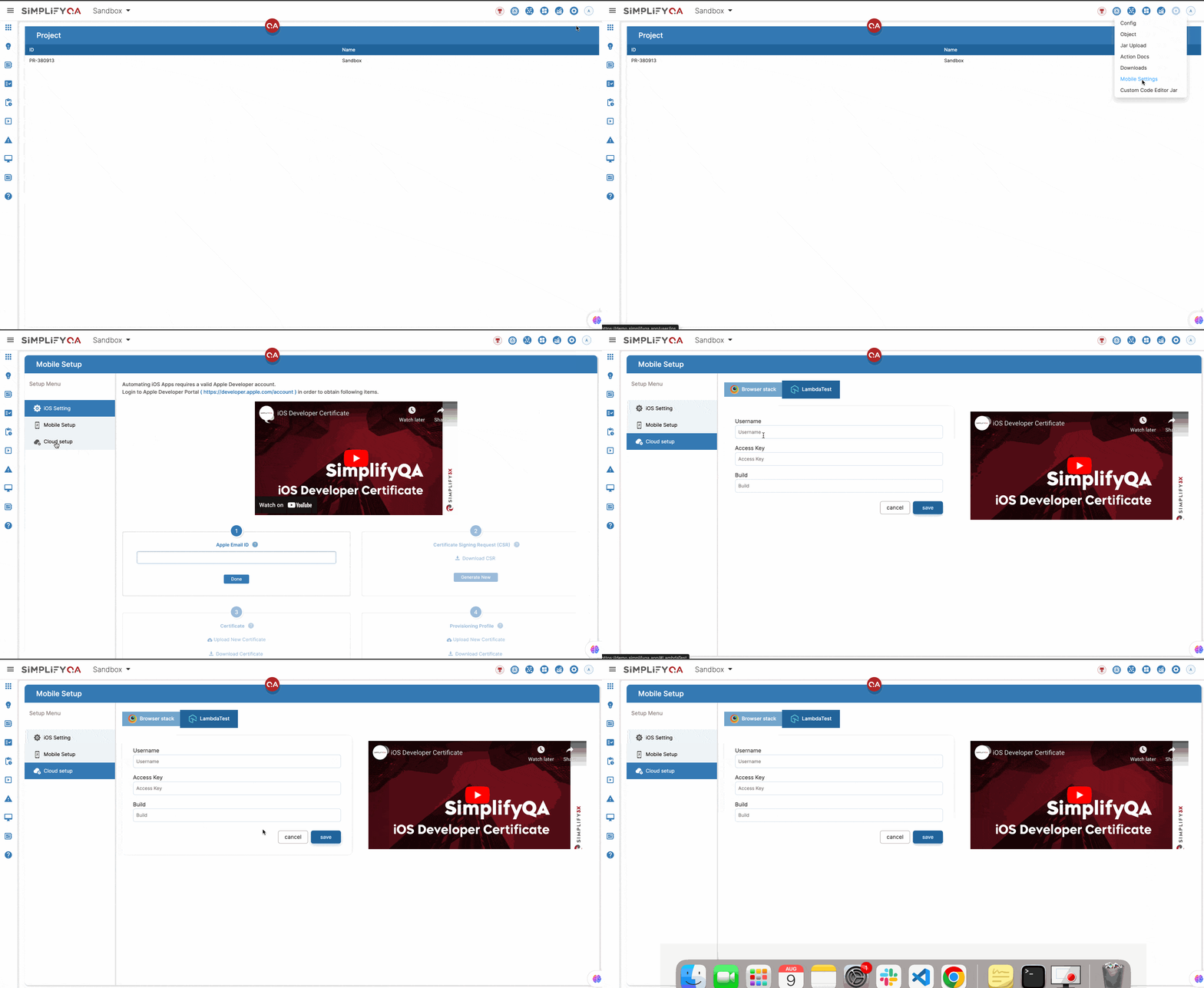
- Login to SimplifyQA as non-admin user. Click on the Settings icon > Mobile Settings .
- Go to Cloud Setup and navigate to TestMu AI tab. Enter details copied from TestMu AI and save the settings:
- Username – Your TestMu AI Username
- AccessKey – Your TestMu AI Access Key
- Build – Reference build numbers
Step 3: Upload your application
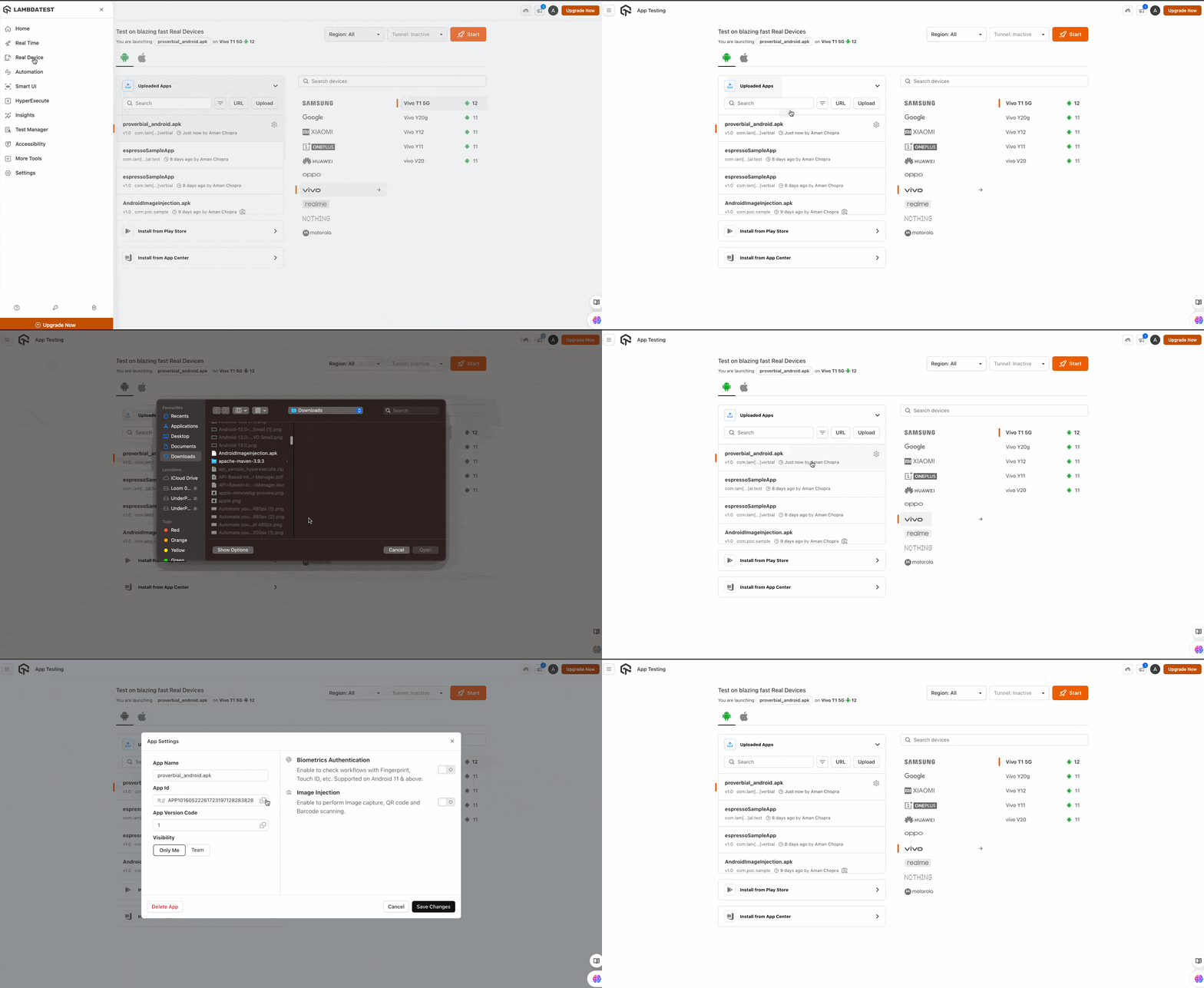
- Go to TestMu AI's Real Device > App Testing and upload your desired .apk file.
- After successfully uploading the APK, click on the settings icon and copy the provided App ID.
Step 4: Trigger your tests from SimplifyQA
- Record your test cases in SimplifyQA. Go to the Test Case module > click on + icon and select the Mobile to record your test cases.
Note: You should use Cloud Start App method instead of Launch App method.
- Click on test data and paste the App ID copied from Lambda Test in APP Id parameter.
- In the Execute Tab, choose Cloud Automation. Click on TestMu AI.
- Select Release, Sprint. In the Devices dropdown choose the device of your choice and click on Execute button.
To view the TestMu AI execution, navigate to automation in the left panel in TestMu AI.

 Chat with Us
 Ask the Community