Smart Root Cause Analysis (RCA)
Smart Root Cause Analysis (RCA) in SmartUI helps you instantly identify the underlying reasons for visual mismatches. By analyzing the DOM differences between the baseline and the comparison screenshot, RCA pinpoints exactly what changed—whether it's a style update, content change, or layout shift.
Why use Smart RCA?
- Speed: Instantly find why a pixel-level mismatch occurred.
- Precision: Distinguish between actual bugs and intended changes.
- Actionable Insights: Get direct info on CSS property changes or DOM structure modifications. visually failing tests with speed and confidence.
What Problems Does Smart RCA Solve?
Visual testing often tells you that something is wrong but not what caused it. Smart RCA eliminates the guesswork and manual debugging by providing immediate, actionable insights.
| Problem | Smart RCA Solution |
|---|---|
| The UI looks broken, but you don’t know why. | Click to inspect the exact HTML, CSS, and Text changes. |
| The visual diff isn't providing enough detail. | RCA shows an in-depth DOM comparison. |
| The team wastes time on manual debugging. | RCA provides an instant root cause, saving time. |
| The layout shifted because of a small style change. | RCA pinpoints the exact CSS properties that changed. |
| Invisible elements are affecting the layout. | RCA highlights changes to all elements, even invisible ones. |
How to Use Root Cause Analysis
Prerequisites
Smart RCA needs element data on both the baseline and the comparison screenshot. You get it in one of two ways:
- Web: the build was generated with the TestMu AI CLI (exec) command.
- Native apps on real devices: the build was generated with Appium hooks and the
smartUI.captureDomcapability. See Smart RCA for Native Apps on Real Devices.
Step 1: Activate RCA Mode
- Open a visual build from your SmartUI dashboard.
- In the comparison toolbar, click the RCA icon.
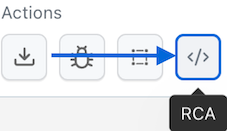
When RCA is activated, DOM diff boxes are automatically enabled. There's nothing manual to configure—you're ready to investigate immediately.
Step 2: Investigate DOM Differences Visually
As soon as RCA mode is on, you can interact with the highlighted differences to see the underlying code changes. The selection is visually precise, with overlays that follow the true element boundaries, not just approximate pixel areas.
| User Interaction | Visual Feedback & Result |
|---|---|
Default View  | A dark blue highlight box appears by default, pinpointing the exact DOM element where the primary issue is detected. |
Hover on a diff region 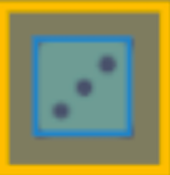 | A yellow bounding box appears, indicating the element is ready for selection. |
Click a diff region 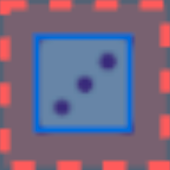 | A red box locks onto the selected DOM region, and the RCA panel opens on the right. |
Hover while selected  | A blue highlight box appears over the element, helping to transition focus between the screenshot and the RCA panel. |
Step 3: Understand Detailed Changes in the RCA Panel
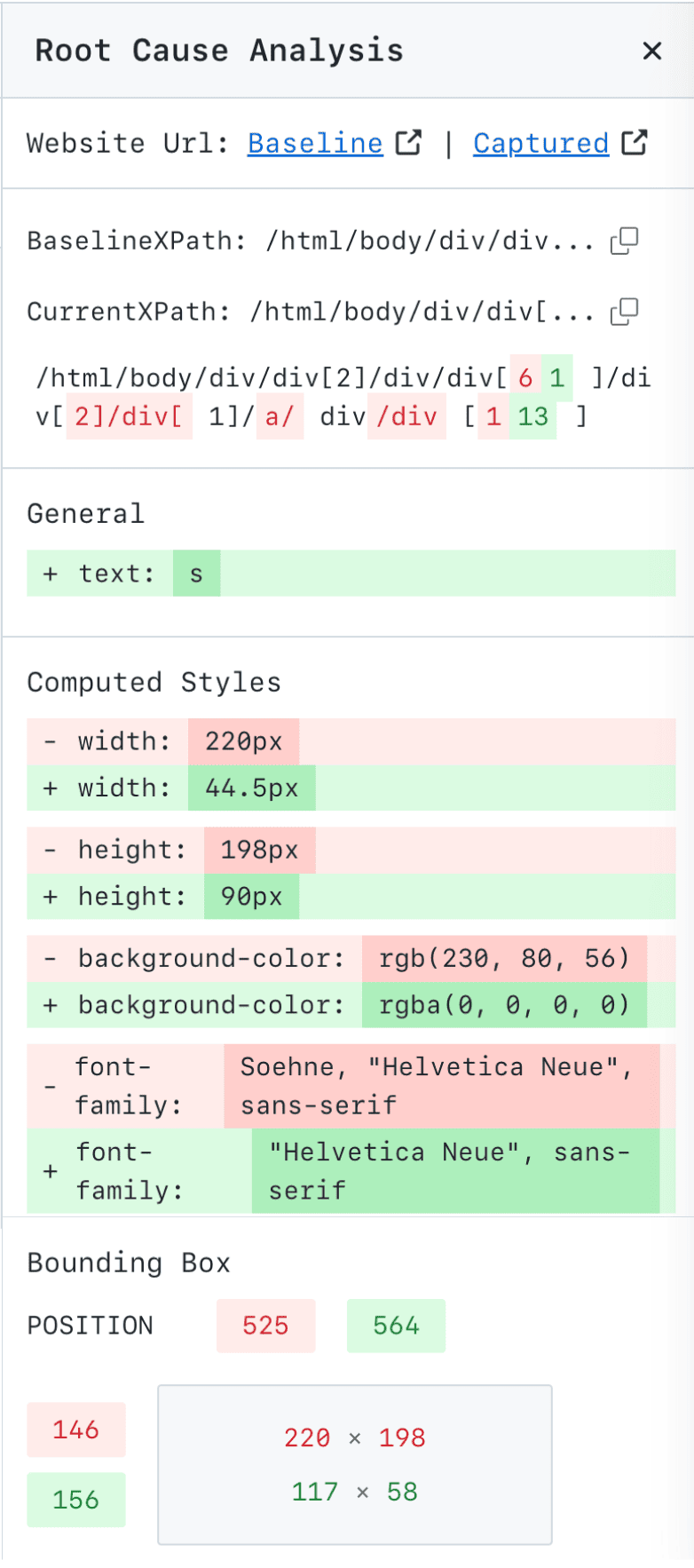
Once an element is selected, the RCA panel opens on the right sidebar. It displays structured diff breakdowns across several categories:
| Category | What You'll See |
|---|---|
| DOM Path | The full XPath for the element in both the baseline and captured screenshot. |
| Computed Styles | A list of all style changes. Removed properties are highlighted in red, and added properties are highlighted in green. |
| Bounding Box | The exact left/top position and width/height of the element, before and after the change. |
| Attribute Changes | A clear view of any added, removed, or modified HTML attributes. |
| Tag Transforms | Structural changes, such as a <div> becoming an <article>. |
| Text Modifications | A word-by-word diff of any edited content. |
| Layout Shifts | Details on how the layout was affected, using CSS diffs for properties like display, transform, margin, etc. |
Smart RCA for Native Apps on Real Devices Beta
Smart RCA also works for native Android and iOS apps tested with SmartUI Appium hooks on real devices. When you turn it on, every smartui.takeScreenshot call also saves the app's element tree (the Appium page source) next to the screenshot. SmartUI then compares the two trees and shows which element changed, and how its position, size or text changed.
Turn It On
Add smartUI.captureDom to the capabilities you already use for SmartUI with Appium hooks. Your test code does not change.
let capabilities = {
  platformName: "android",
  "lt:options": {
    deviceName: "Galaxy S24",
    platformVersion: "14",
    isRealMobile: true,
    app: "lt://APP_ID",
    visual: true,
    "smartUI.project": "<Your Project Name>",
    "smartUI.captureDom": true, // Save the element tree with each screenshot for Smart RCA
  },
};

// Take screenshots the same way as before
await driver.execute("smartui.takeScreenshot=<Name of your screenshot>");
Then run your test twice:
- Run once to create the baseline. The baseline must be captured with
smartUI.captureDomset totrue. - Run again after the app changes, with the same screenshot names.
- Open the comparison in SmartUI and click the RCA icon.
Baselines captured before you turned on smartUI.captureDom have no element data, so the RCA panel stays empty for them. Run the baseline again with the capability on, approve it, and then compare.
What the RCA Panel Shows for Native Apps
Native apps have no HTML or CSS, so the panel shows a smaller set of details than it does for web pages.
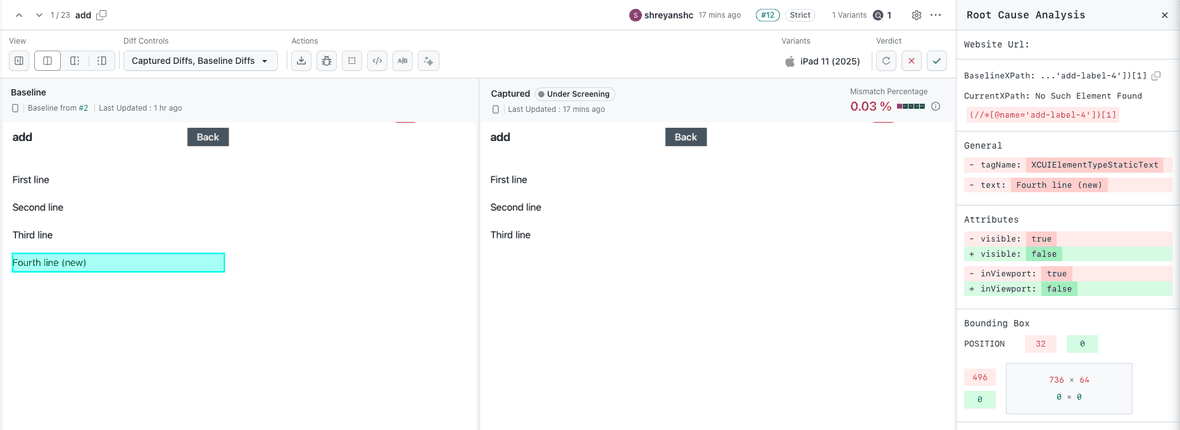
In the example below, an iOS build removed the Fourth line (new) label. The panel shows the element's path in the baseline, No Such Element Found for the comparison, its type and text, visible and inViewport changing from true to false, and its bounding box shrinking to 0 × 0.
| Category | What you see |
|---|---|
| Element path | The element's locator in the baseline and in the comparison. When an element has a resource-id (Android) or name (iOS), the path uses it. Otherwise it is a positional path from the screen root. |
| Bounding box | The element's position and size before and after the change, in screenshot pixels. |
| Text | Changes to the element's text, or to its content description or label when it has no text. |
| State | Changes to checkboxes, switches and text fields: checked, value and enabled. |
SmartUI captures these element types and properties:
| Platform | Source | What is captured |
|---|---|---|
| Android | UiAutomator2 page source | Visible elements with a non-empty box: class, resource-id, bounds, text or content-desc, checked, enabled, focused and selected. |
| iOS | XCUITest page source | Visible elements with a non-empty box: element type, name, frame (scaled to screenshot pixels), label or value, enabled and selected. |
Password and secure text fields are never captured: their text and value are left out of the element data.
Limitations
- Native screens only. The element tree is saved only when the app is in the
NATIVE_APPcontext. A hybrid app screen open in aWEBVIEWcontext, and mobile browser sessions, take the screenshot as usual with no element data. - No styles. The Appium page source has no colours, fonts or images, so Smart RCA cannot explain a colour, font size or image change on a native app. The pixel comparison still flags those changes.
- Tree size. SmartUI reads up to 128 levels and 5,000 elements per screen. On iOS, XCUITest itself stops at about 62 levels, so very deeply nested elements may not appear.
- Full page screenshots. With
fullPage: true, SmartUI captures the element tree for each scrolled part and joins the parts to match the stitched screenshot. If it cannot join them, it keeps the element tree of the first screen. - Capture time. Saving the element tree adds a second or two to each screenshot. If it fails or takes longer than 30 seconds, the screenshot is still saved, without element data.
- Not for uploads. Smart RCA is not available for Figma, PDF or uploaded image builds.
Troubleshooting
| Problem | What to check |
|---|---|
| The RCA panel is empty | Both the baseline and the comparison must be captured with smartUI.captureDom: true. Run the baseline again with the capability on. |
| No element is highlighted on a hybrid app screen | The app was in a WEBVIEW context when the screenshot was taken. Switch to NATIVE_APP before smartui.takeScreenshot. |
| A colour or font change has no RCA details | Expected: native page source has no style data. Use the pixel diff for these changes. |
| A moved element shows as removed and added | Give the element a stable resource-id (Android) or accessibility identifier (iOS) so SmartUI can match it across builds. |
Key Advantages of Smart RCA
- Accelerated Debugging: By pinpointing the exact line of code or style property that caused a failure, RCA drastically cuts down the time from bug detection to resolution.
- Reduced Friction: Eliminate the need to constantly switch between your testing tool, browser dev tools, and application code. All the information you need is in one unified view.
- Improved Collaboration: Share precise, actionable bug reports. Instead of describing a visual bug, you can link your team directly to the RCA view, showing them the exact DOM and CSS changes responsible.
- Focus on Meaningful Changes: The system intelligently filters out noise, ensuring you and your team are alerted only to significant changes that impact user experience.
- No False Triggers: RCA works only where DOM diff data is available, ensuring a smooth and guided experience without misleading information.


 Chat with Us