testRigor Integration
testRigor is a Generative AI-based codeless test automation tool that helps companies empower manual testers to create test automation through executable specifications in plain English. This innovative system enables your team to easily build and maintain tests, while its AI Native features significantly reduce the effort required for test maintenance.
TestMu AI integration with testRigor enables you to perform desktop web, mobile web and native app testing across 3000+ real browsers, devices, and operating systems.
Prerequisites
-
Create a TestMu AI account to begin testing your web application. If you do not have an account, register for free.
-
Ensure you have a testRigor account.
Creating Test Suite In testRigor
-
Sign in to your testRigor account.
-
After you log in to testRigor, it will prompt you to create a new test suite. You need to furnish details like test suite name, type of testing (Desktop Web, Mobile Web or Native and Hybrid Mobile), test URL and so on.
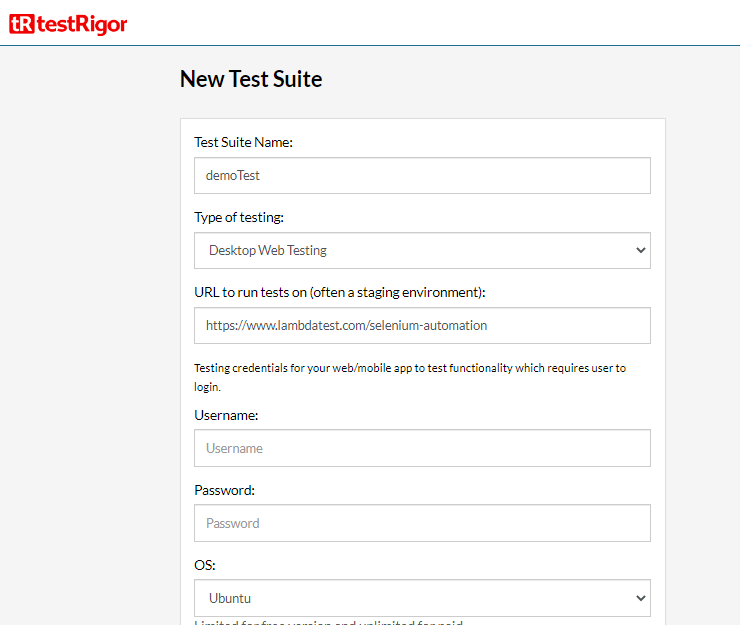
- Once you provide test suite details, click Create Test Suite and you will be routed to the testRigor dashboard.

Integrating TestMu AI With testRigor
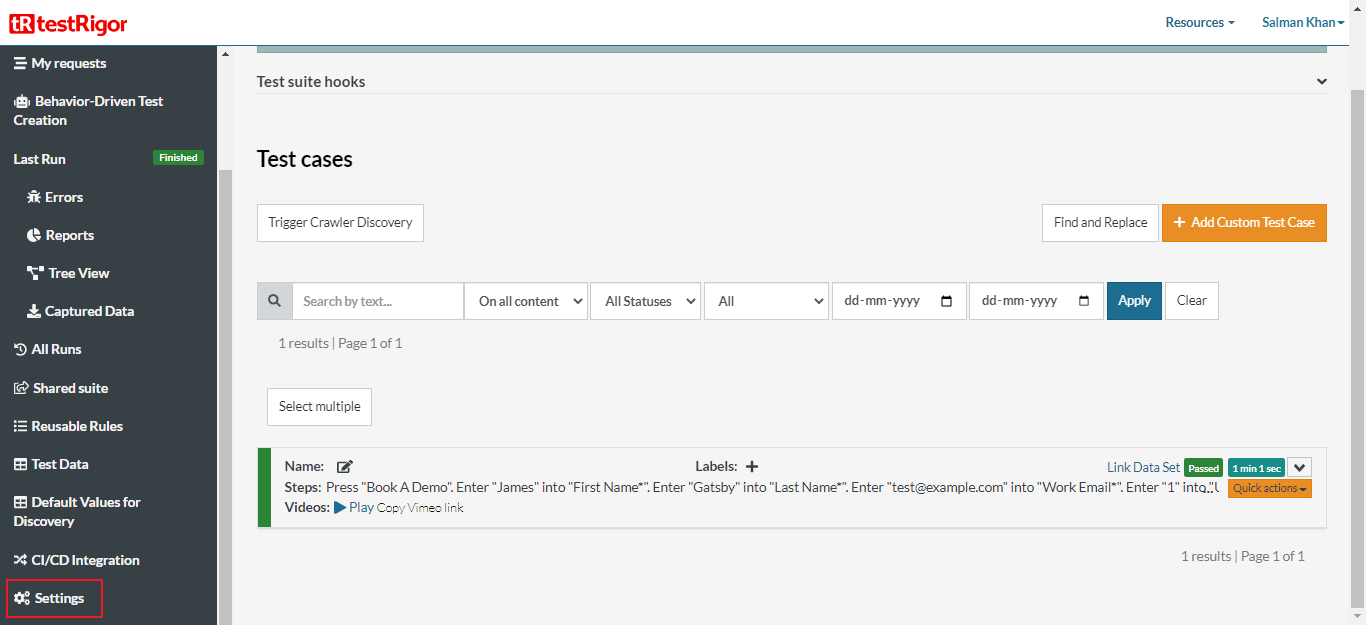
- In the testRigor dashboard, select Settings from the left sidebar.
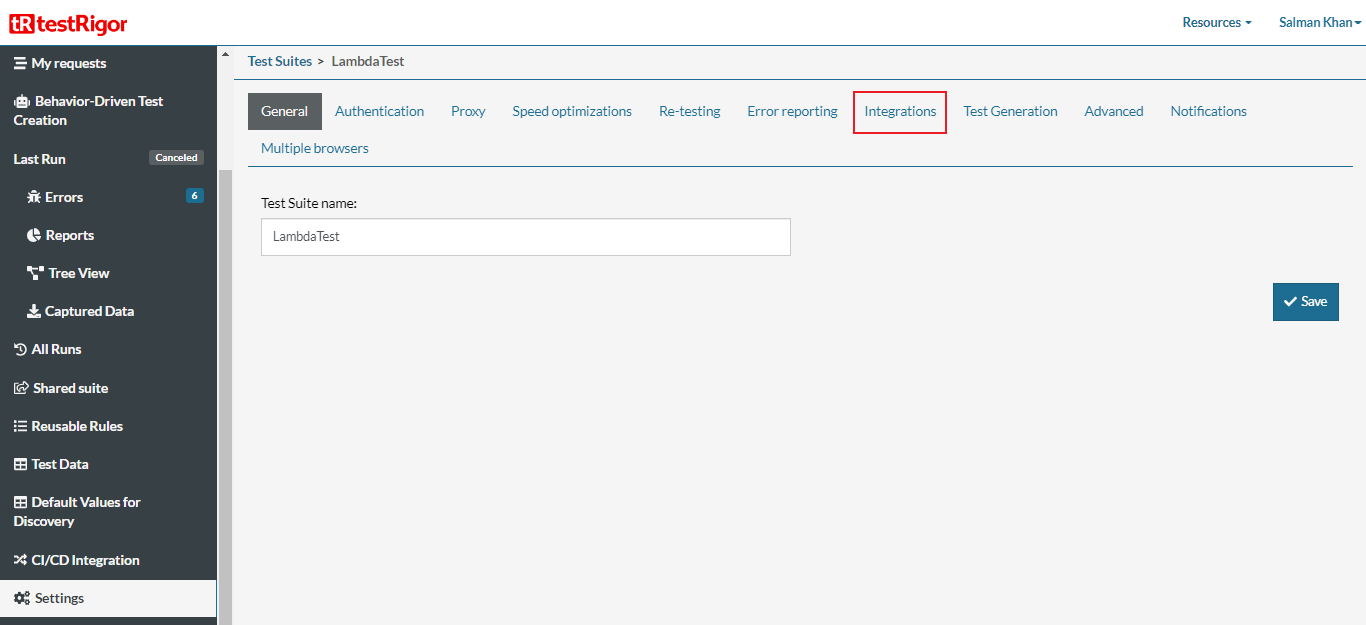
- Navigate to the Integrations tab.
- Click the Enable TestMu AI checkbox and enter your TestMu AI Username and Access Key. You can find your credentials in the TestMu AI Automation Dashboard.
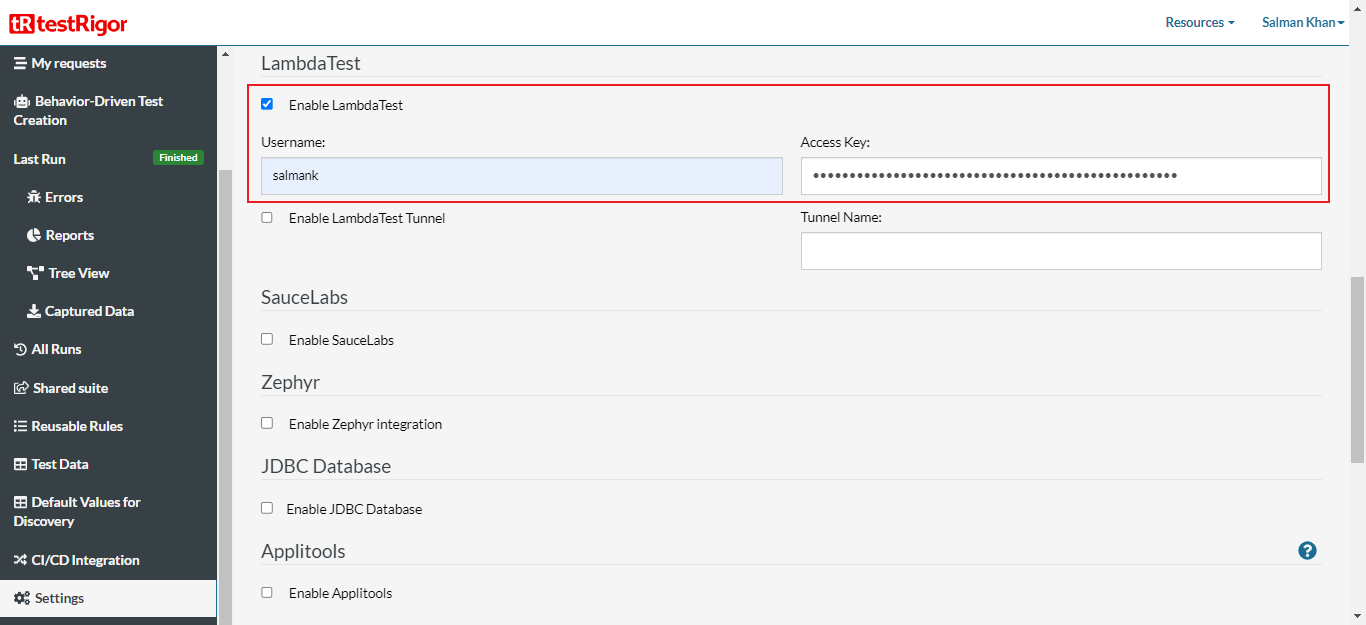
In case, you wish to test locally or privately hosted websites, you can select the Enable TestMu AI Tunnel checkbox and set your desired Tunnel Name.
- Click Save.
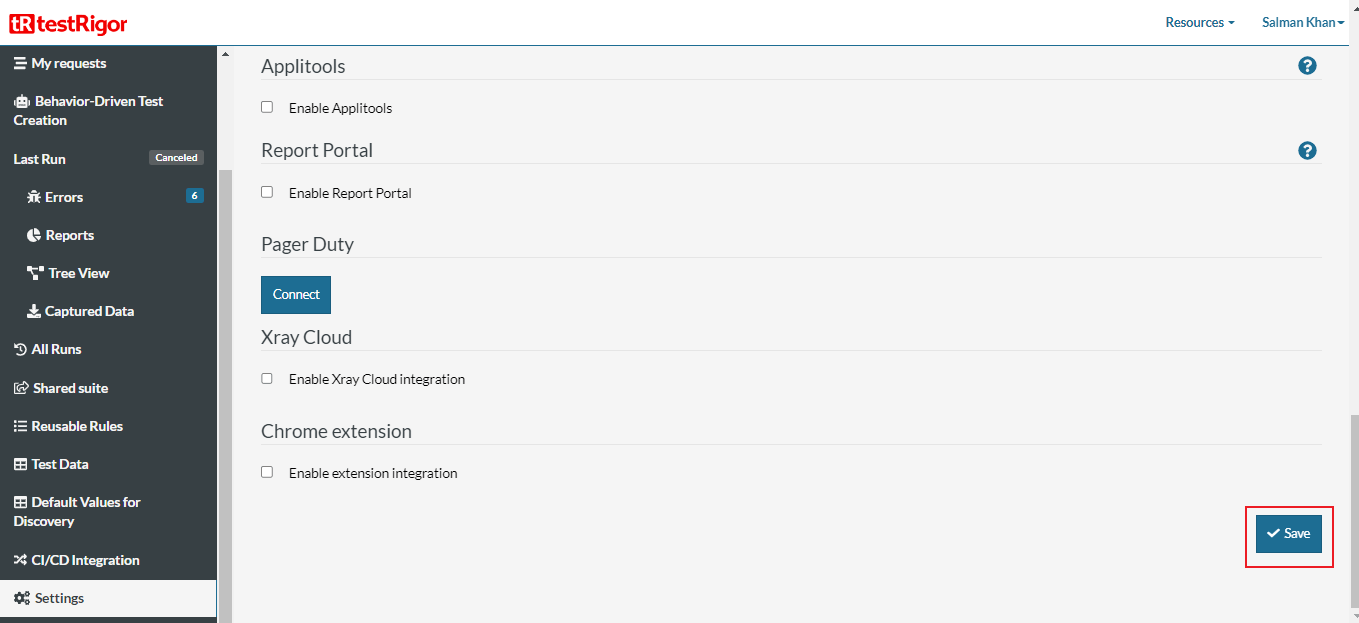
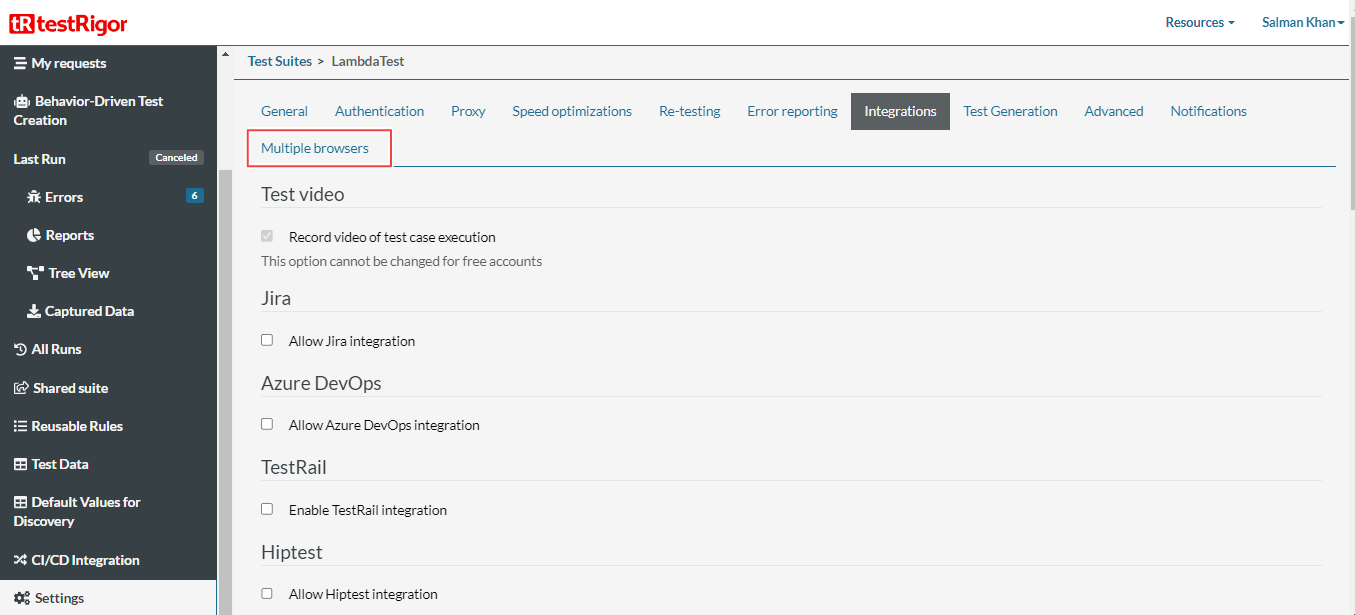
- Next, go to the Multiple browsers tab.
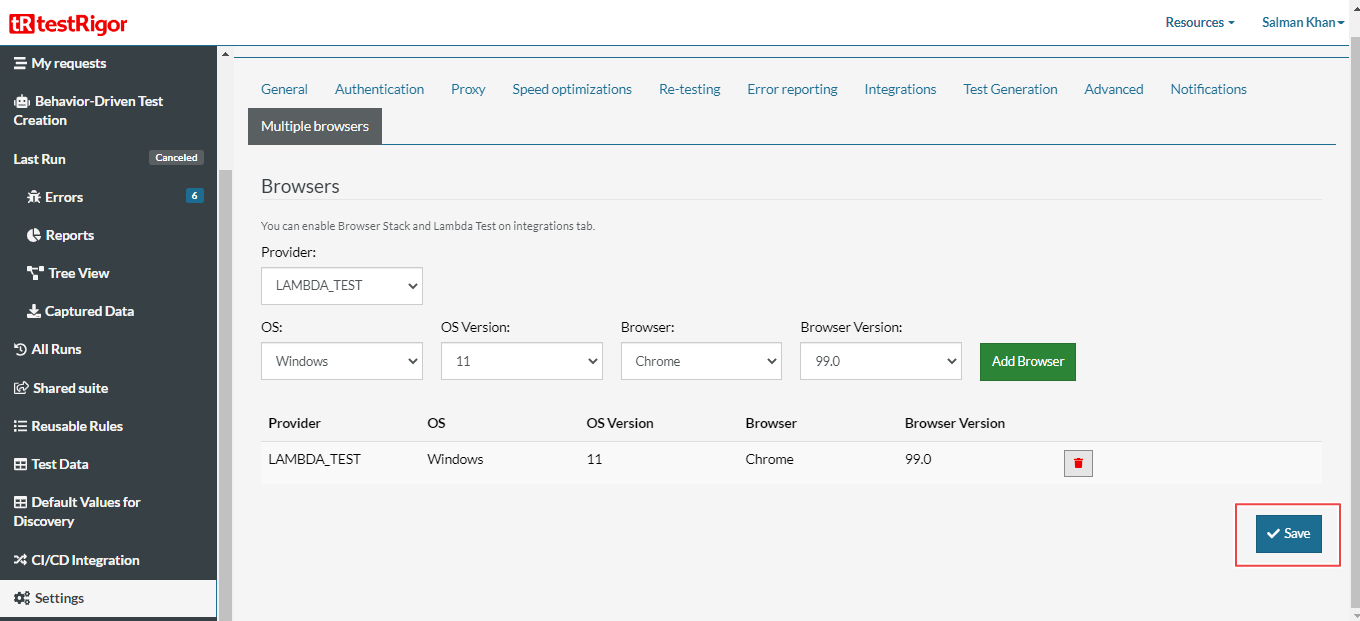
- Choose your cloud Provider as TestMu AI. Select OS, OS Version, Browser and Browser Version. Click Add Browser and then Save.
Running Tests With testRigor On The TestMu AI Platform
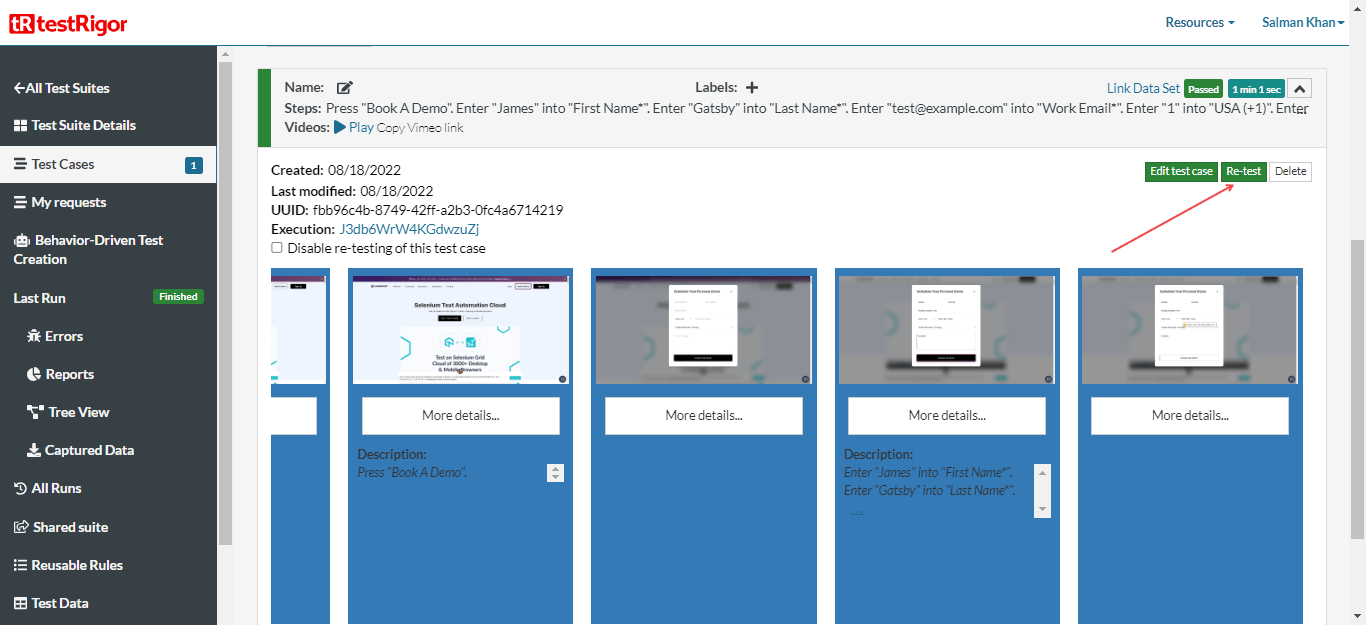
- From the testRigor's left sidebar, click Test Cases.
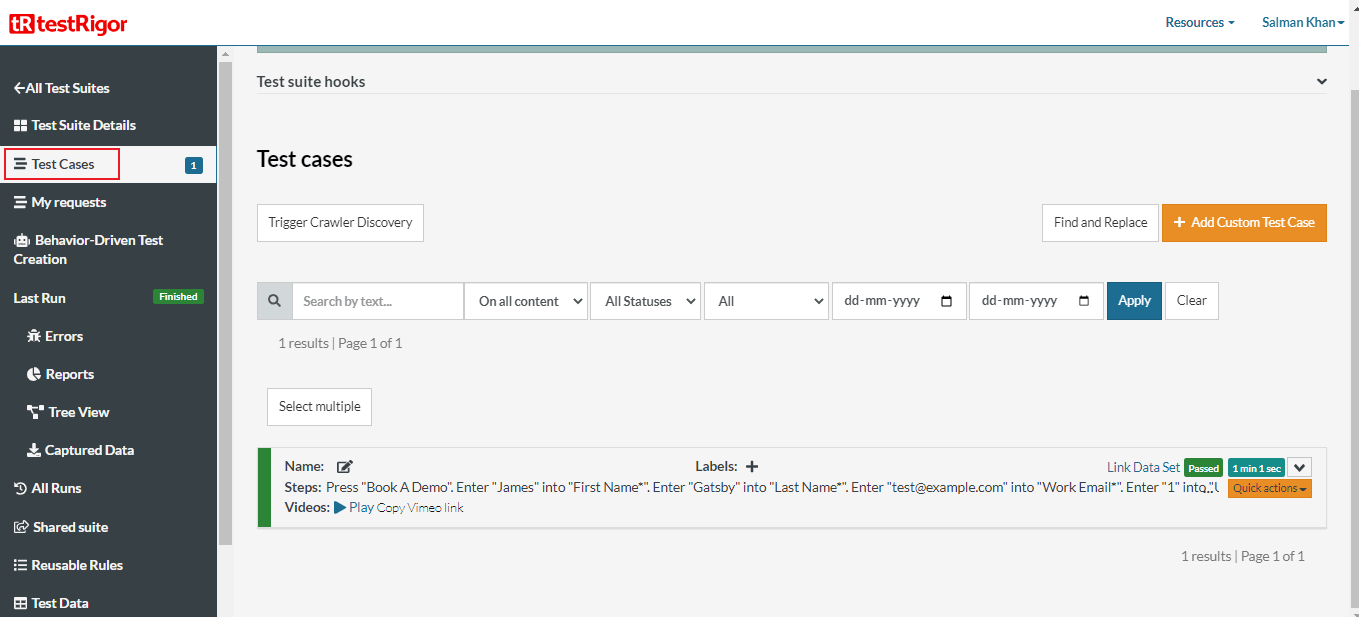
- Open the dropdown menu of the test case you want to re-run, and click Re-test.
The below test case demonstrates TestMu AI Selenium Automation's booking a demo functionality. First, it visits the TestMu AI Selenium Automation website, clicks on the "Book A Demo" button, enters the required fields and then presses the "Schedule Demo" button.
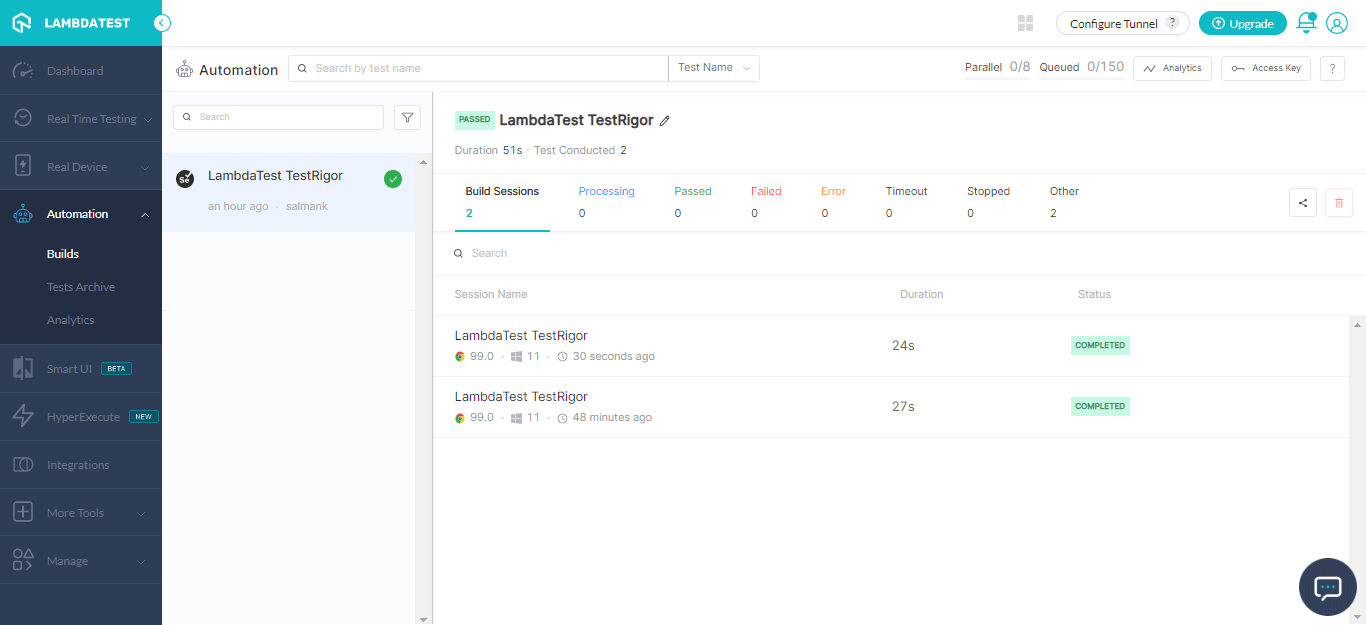
- Now visit the TestMu AI Automation Dashboard to view your test execution results.

 Chat with Us
 Ask the Community