Install Rook


Rook is publicly available from the LambdaTest/rook repository. Install it with Homebrew, the shell installer, or npm. Use one method per machine so an older executable from another method does not take precedence on PATH.
Installation commands run in your normal terminal. After installation, launch rook (or rook.cmd in PowerShell) without a subcommand to open the interactive terminal UI (TUI). Stay in that session for sign-in, project selection, exploration, generation, and testing; you do not need CI/headless mode for the walkthrough.
The latest public release checked on October 13, 2026 is v0.1.11. The public npm package and Homebrew formula also publish 0.1.11. Historical walkthroughs and CI examples can name an older, tested version; do not change a pipeline pin without checking its commands and result handling.
| Your environment | Start here |
|---|---|
| macOS or Linux, arm64 or x64 | Homebrew, shell installer, or npm |
| Windows x64 with PowerShell | Native Windows setup using npm |
| Windows with a Linux-based toolchain | WSL setup using the Linux installer |
Prerequisites
| Requirement | Why |
|---|---|
| A supported platform above | The shell installer supports macOS/Linux; the npm package also supplies a Windows x64 runtime. No Windows ARM64 runtime package is published. |
| TestMu AI account | Supplies authentication and credits. You can sign in after installation. |
| Your agent's dependencies | Rook invokes the target agent as you would. A local command, service, or supporting tool must already be available. |
The Homebrew and shell packages carry a matching Node.js runtime. You do not need Docker, a cluster, the Rook source code, or your own model API key. If you choose npm, npm must already be available to run the install command.
Install With Homebrew
The public formula is maintained in LambdaTest/homebrew-rook. Homebrew adds this tap automatically on a fresh installation:
Verifiedbrew install lambdatest/rook/rook
Use the fully qualified lambdatest/rook/rook formula name. Homebrew requires a third-party tap formula to be explicitly trusted; brew install rook can be rejected as an untrusted formula even after adding the tap.
To upgrade a Homebrew installation:
Verifiedbrew update
brew upgrade lambdatest/rook/rook
If you previously ran brew tap LambdaTest/rook https://github.com/LambdaTest/rook.git, your tap points at the repository that no longer contains the formula. Follow the public repository's one-time tap migration before upgrading. Review and preserve any local tap changes before its reset step. Do not force-untap or uninstall Rook to migrate the tap.
Install With the Shell Installer
The public install.sh script downloads and verifies the correct release for the current platform.
curl -fsSL https://raw.githubusercontent.com/LambdaTest/rook/main/install.sh | bash
The public installer:
- Detects macOS or Linux and the arm64 or x64 architecture.
- Finds the latest public GitHub release.
- Downloads the matching archive and its SHA-256 sidecar.
- Verifies the archive before extracting it.
- Installs the release under
~/.testmuai/rook-VERSION/, whereVERSIONis the selected semantic release. - Links
rookinto~/.local/binby default.
If ~/.local/bin is not on PATH, the installer prints the exact export command to add. Run it and open a new terminal.
Pin a release or change the binary directory
Pass installer options after bash -s --:
# Pin a specific public release.
curl -fsSL https://raw.githubusercontent.com/LambdaTest/rook/main/install.sh \
  | bash -s -- --version 0.1.11

# Link the executable into another writable directory.
curl -fsSL https://raw.githubusercontent.com/LambdaTest/rook/main/install.sh \
  | bash -s -- --dir "$HOME/bin"
Run the installer with --help to list its supported options:
curl -fsSL https://raw.githubusercontent.com/LambdaTest/rook/main/install.sh \
  | bash -s -- --help
The public installer uses --version and --dir flags and does not require GitHub authentication. It is a Bash installer for macOS and Linux, not a PowerShell installer; on Windows use npm or WSL.
Install With npm
The @testmuai/rook package is public on npm.
npm install -g @testmuai/rook
To upgrade an npm installation:
Verifiednpm install -g @testmuai/rook@latest
The npm package installs the rook executable and publishes platform runtime packages with it. If npm reports an engine error, update the Node.js version used to run npm to Node.js 20 or newer (since Rook 0.1.7; 0.1.6 and earlier need 22).
Repair an npm 0.1.1 or 0.1.2 installation
The 0.1.3 release fixes the npm update path. If an older install cannot update normally, use the public registry explicitly:
npm install -g @testmuai/rook@0.1.11 \
  --registry=https://registry.npmjs.org \
  --@testmuai:registry=https://registry.npmjs.org
Then run command -v rook and rook --version to make sure another installation is not shadowing it.
Install on Windows with PowerShell
Use 64-bit Windows and x64 Node.js 20 or newer. Install Node.js with npm from the official Node.js download page, then open a new PowerShell terminal. The public Rook npm package includes a matching Windows x64 runtime; Node.js is still needed to run npm and start its command shim.
Install and verify
node --version
node -p "process.platform + ' ' + process.arch"
npm.cmd --version
npm.cmd install -g @testmuai/rook@0.1.11
Get-Command rook.cmd
rook.cmd --version
The platform check should print win32 x64, and the pinned install should report 0.1.11. Use rook.cmd in PowerShell throughout this guide. Calling the .cmd shim also avoids the “running scripts is disabled” error that can affect npm's .ps1 shim; you do not need to weaken PowerShell's execution policy.
Sign in and open your workspace
# Replace this with the repository containing your target agent.
Set-Location 'C:\work\my-agent'
$env:ROOK_ENV = 'prod'
rook.cmd
Inside Rook's TUI, use the same slash commands as on macOS and Linux: /login, /doctor, then /project. The interactive startup walkthrough below explains the screen and keyboard controls. Follow the quickstart for exploration through results. Discovery, profile authoring, generation, and runs can spend credits or invoke your target; installation alone does neither.
If sign-in does not open a browser, open the URL printed by Rook on the same machine and keep the command running. To review saved evidence from another terminal in the same workspace:
rook.cmd ui --local --no-open
Open the printed loopback URL and leave that process running. For synchronized team results, use rook.cmd ui or Rook Projects. Browser sign-in is separate from CLI sign-in.
PATH, upgrades, and shell differences
If rook.cmd is not found, locate npm's global command directory:
$rookNpmPrefix = (npm.cmd prefix -g).Trim()
Test-Path (Join-Path $rookNpmPrefix 'rook.cmd')
$env:Path = "$rookNpmPrefix;$env:Path"
Get-Command rook.cmd
rook.cmd --version
If Test-Path returns False, resolve the npm installation error first. The PATH change above applies only to this terminal. For future terminals, add that directory to your user Path through Windows Environment Variables and reopen PowerShell. npm places global executables directly in its prefix on Windows, not in a bin subdirectory; see npm's executable locations.
Upgrade an npm installation with:
npm.cmd install -g @testmuai/rook@latest
rook.cmd --version
PowerShell uses $env:NAME = 'value', not Bash's export NAME=value. Use Get-Command rook.cmd -All to identify conflicting installations. Native Windows stores Rook's home state under your user home at .testmuai\rook; workspace records remain inside the repository at .testmuai\rook. See Environment and Secrets for scoped variables and credentials.
Each release includes a win-x64.tar.gz archive, but its bin/rook launcher is a POSIX shell script, not rook.exe or rook.cmd. There is no public install.ps1. Use the npm installation above for native Windows instead of running install.sh in PowerShell or Git Bash.
Use WSL for a Linux-based agent
If your target depends on Bash, Linux commands, or Linux-only packages, use a Linux distribution in Windows Subsystem for Linux. In its Linux terminal, follow the shell installer and run your agent, Rook, and profile hooks in that same environment.
WSL is optional for the native npm setup. Windows and WSL installations have separate runtimes, home directories, credentials, and paths; do not assume signing in or installing dependencies in one configures the other. The CI examples in these docs use Bash/Linux, not native PowerShell.
Verify the Installation
Verifiedcommand -v rook
rook --version
On Windows, use Get-Command rook.cmd and rook.cmd --version instead. These shell checks confirm that the installed executable is on your path; they do not start a test.
Start the Interactive TUI
Enter an agent repository and start Rook without a subcommand. Replace your-project with your actual folder:
cd your-project
export ROOK_ENV=prod
rook
On Windows PowerShell:
Set-Location 'C:\work\my-agent'
$env:ROOK_ENV = 'prod'
rook.cmd
You should see the Rook banner and an interactive prompt or a project chooser, not a command that prints output and exits. This capture shows a signed-in session in a new workspace, before an agent has been explored:
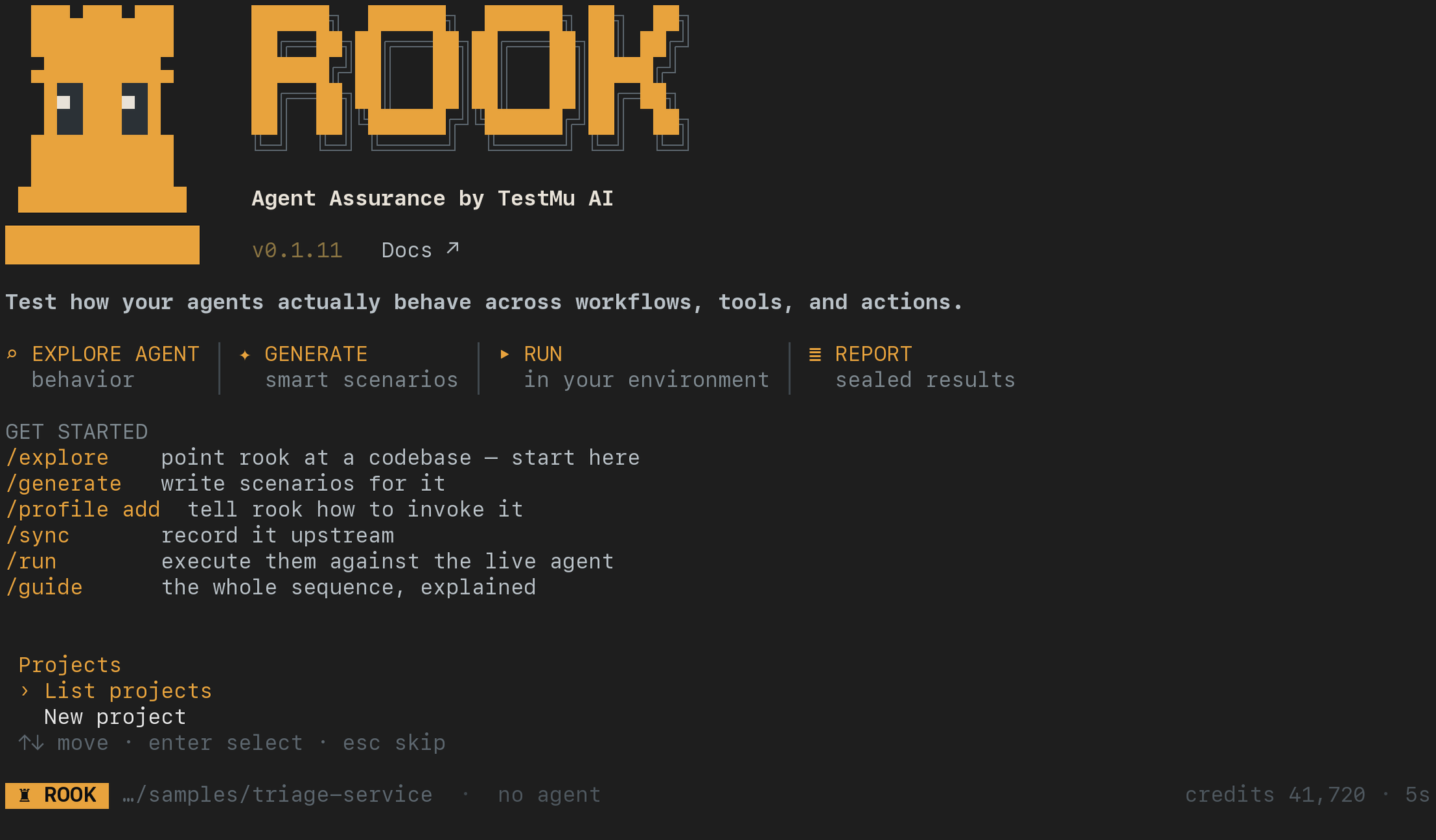
- If prompted to sign in, enter
/loginand complete the browser flow. Return to this same terminal when Rook reports that you are signed in. Browser UI sign-in and CLI sign-in are separate. - At Projects, use the arrow keys and Enter to list existing projects or create a new test project. Esc goes back; you can reopen the chooser with
/project. - Enter
/doctorto check this interactive session's authentication, services, workspace, and TTY state. Enter/planto check credits before paid work. - Continue with the first-agent walkthrough: explore the sample, select its agent, create a profile, generate a small suite, and run one reviewed scenario.
Type / to see commands, use Tab for completion, and use /exit when finished. Do not paste rook explore at the TUI prompt; enter /explore there. Shell commands remain useful for scripts, but this first-use workflow stays interactive.
If the TUI looks monochrome, check whether your terminal has NO_COLOR set or FORCE_COLOR=0. Those settings intentionally disable colors. For this session only, launch with env -u NO_COLOR -u FORCE_COLOR rook on macOS/Linux; in PowerShell, remove those two environment variables from the current session before starting rook.cmd. Rook's normal theme uses amber and muted text; not every output line is colored.
Public Releases and Checksums
Published versions and platform archives are available on the Rook releases page. Release assets follow this pattern:
Verifiedrook-<version>-darwin-arm64.tar.gz
rook-<version>-darwin-x64.tar.gz
rook-<version>-linux-arm64.tar.gz
rook-<version>-linux-x64.tar.gz
rook-<version>-win-x64.tar.gz
Each archive has a matching .sha256 file. Do not bypass a checksum mismatch; delete both downloads and fetch them again from the public release.
Troubleshoot Installation
| Symptom | What to do |
|---|---|
rook: command not found | Add the installer directory to PATH, open a new terminal, and run command -v rook. |
| Homebrew refuses to load an untrusted formula | Install the fully qualified lambdatest/rook/rook formula. |
| Unsupported OS or architecture | Use macOS/Linux arm64 or x64, or Windows x64 with npm. For a Linux-based Windows workflow, use WSL. |
Windows says rook.ps1 or npm.ps1 cannot run | Use rook.cmd or npm.cmd; do not disable execution-policy protections. |
rook.cmd is not recognized | Check npm.cmd prefix -g, the installed shim, and your user Path as described in Windows setup. |
| Release download is reset | Allow GitHub and release-assets.githubusercontent.com through the VPN or proxy, then retry. |
| Checksum verification fails | Delete the archive and checksum file. Download them again; never install an unverified archive. |
| npm reports an engine mismatch | Run npm with Node.js 20 or newer, then retry the global install. |
If a public install path still fails, open a Rook issue with the OS, architecture, install method, and full error output.
Open the Local or Hosted UI
The public CLI includes the local viewer: inside the TUI, enter /ui --local. No separate frontend installation or browser login is needed. Open the printed loopback URL and keep the TUI session running. It reads existing workspace files; follow the quickstart first if you have not created any test data. From a separate shell, the equivalent command is rook ui --local.
For shared review, open rook.lambdatest.com/projects, or enter /ui in the TUI. Public packages default to ROOK_ENV=prod. You do not need a private package or a source-repository installation. If an older CLI opens a different address, use the Projects link above and update to the current public release.
See local versus hosted review for the data, sign-in, and sharing differences.
Local UI: What You Can Open After Setup
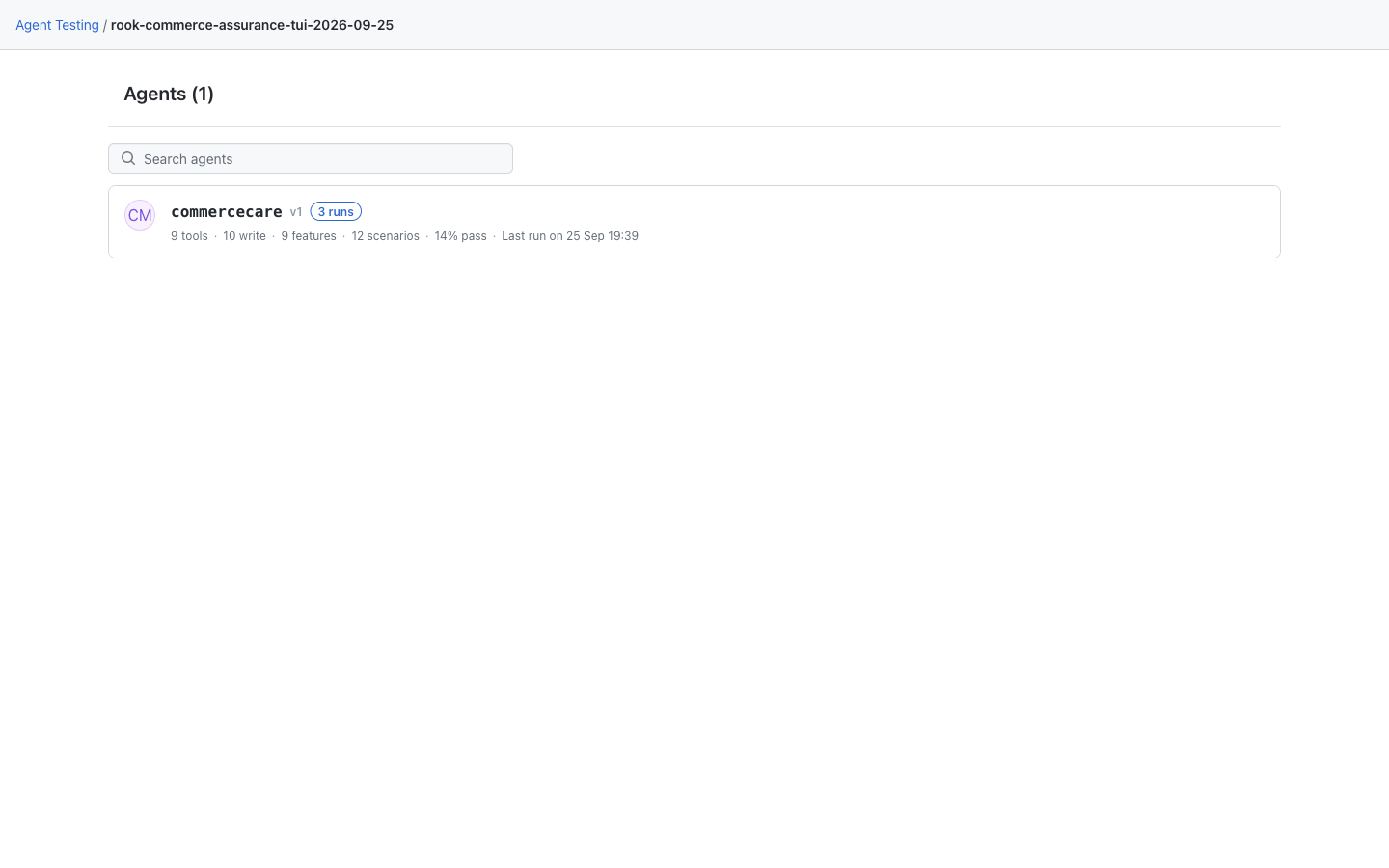
The local viewer starts at Agents. This screenshot shows saved CommerceCare demo records; installing Rook alone does not create an agent or test run. If your workspace is empty, complete discovery before expecting this inventory. The screenshot uses the redesigned viewer; see the rollout note and earlier layout if your public CLI looks different.
Hosted Web UI: Your Recorded Projects
The hosted UI opens at Projects after browser sign-in. The example project already contains synchronized test data. An empty organization shows onboarding instead; no separate Web UI package needs to be installed.

Next Step
If you use a coding assistant, choose its Rook skill setup guide after installing the CLI. Claude Code, Codex, Gemini CLI, Copilot CLI, OpenCode, Cursor CLI, Antigravity CLI, VS Code, Windsurf, and Antigravity IDE each have their own instructions. Installing the skill does not install or authenticate the CLI.
Continue with How to Get Started With Agent Assurance.


 Chat with Us