Author Your First Mobile Browser Test
In this guide, we'll walk you through how you can author your mobile browser tests using KaneAI
Steps to Author Your Mobile Browser Test
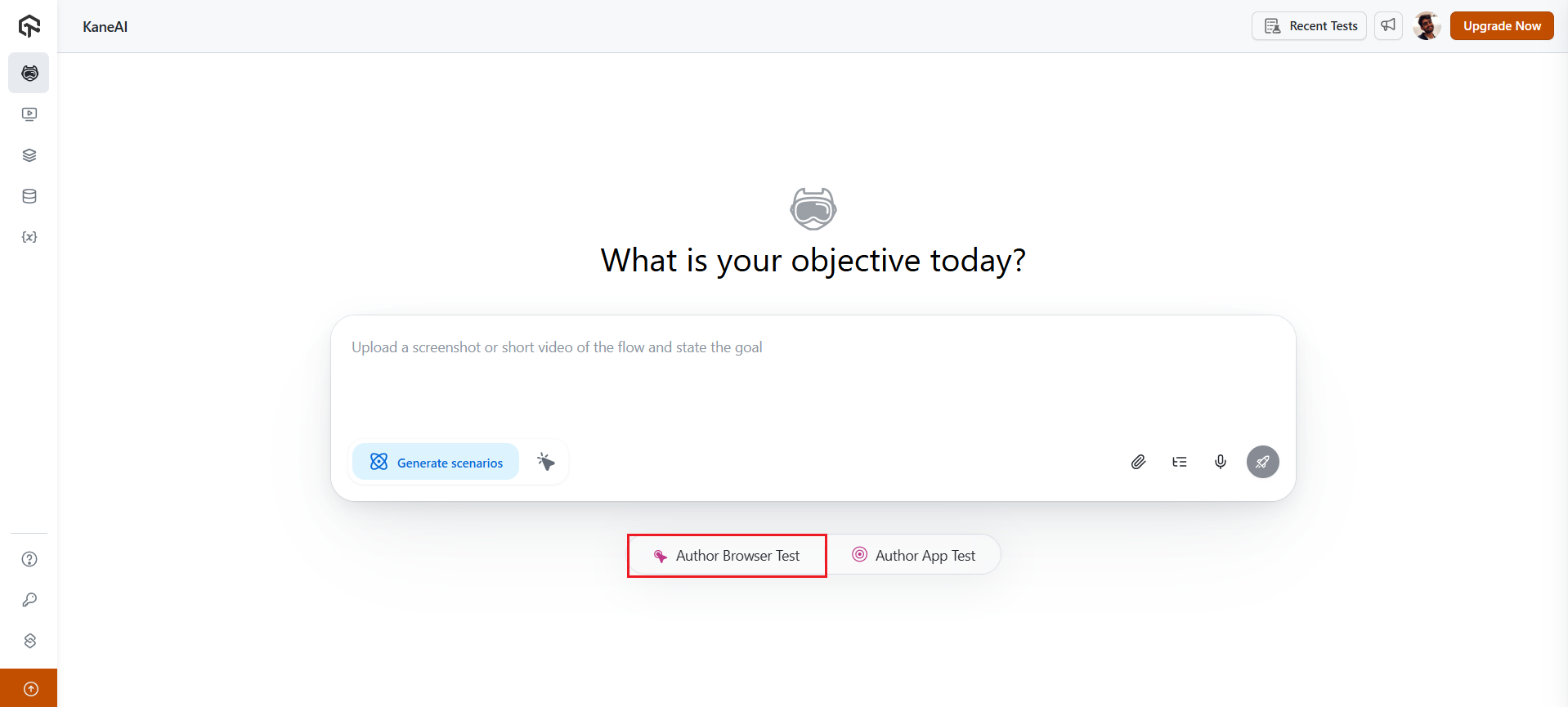
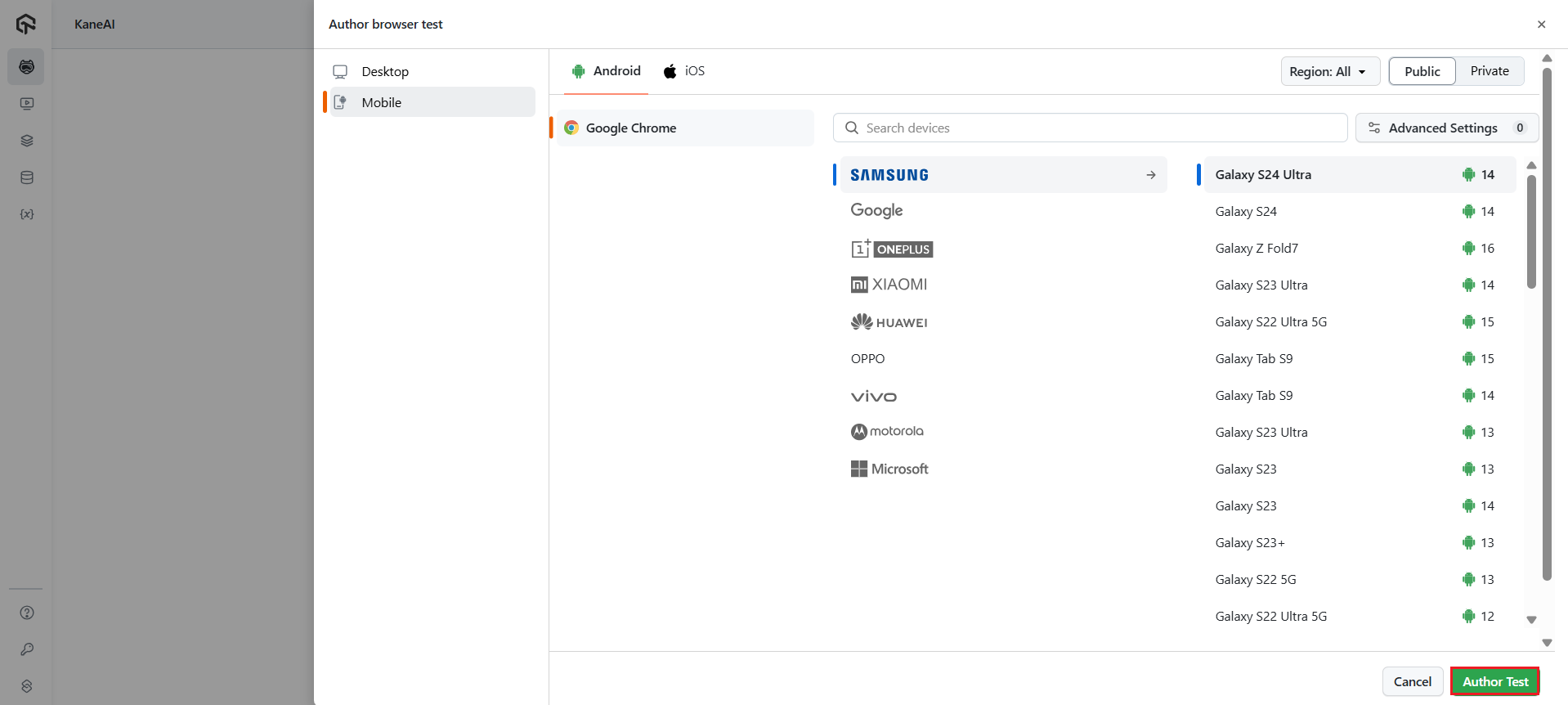
Step 1: From the KaneAI dashboard, click on Author Browser Test.
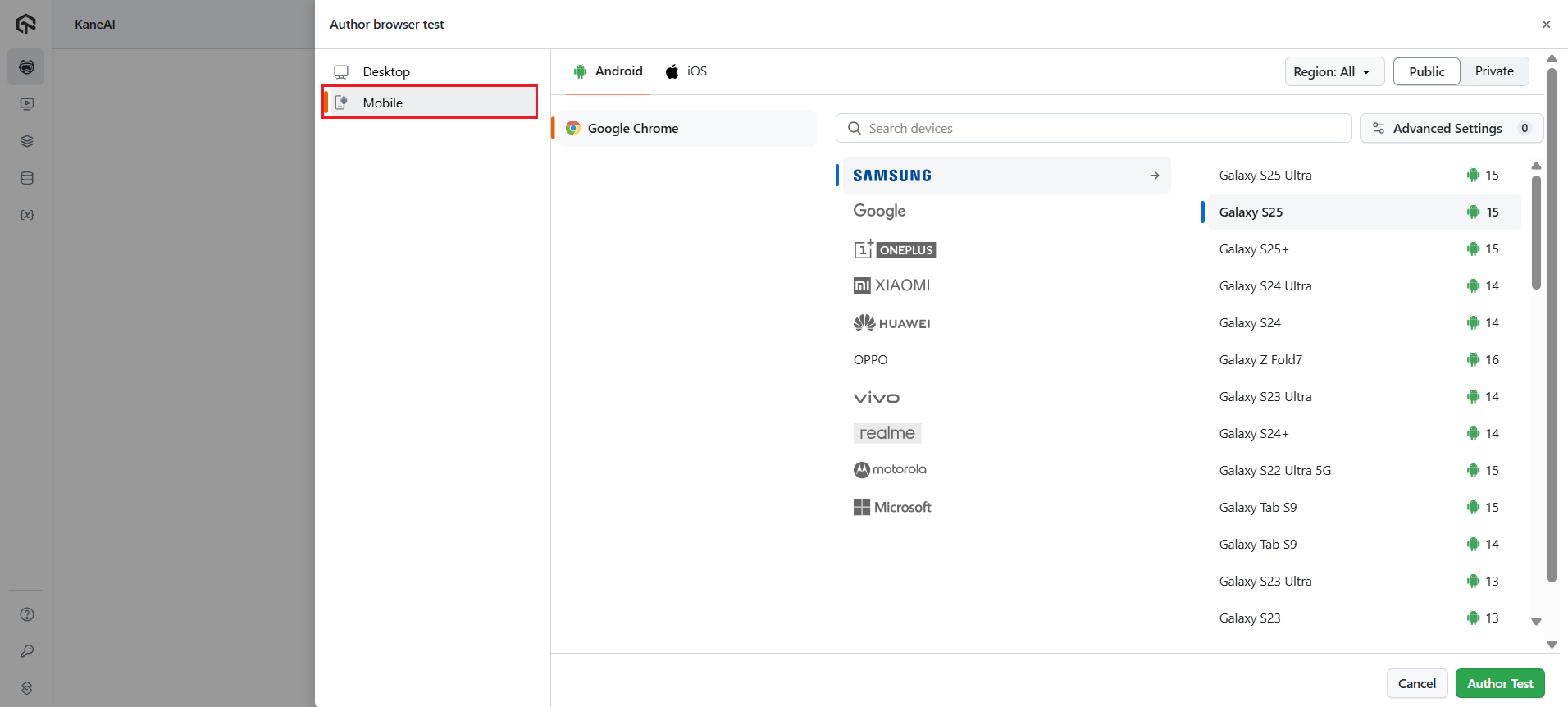
Step 2: A modal would appear from the side. Select Mobile from the sidebar.
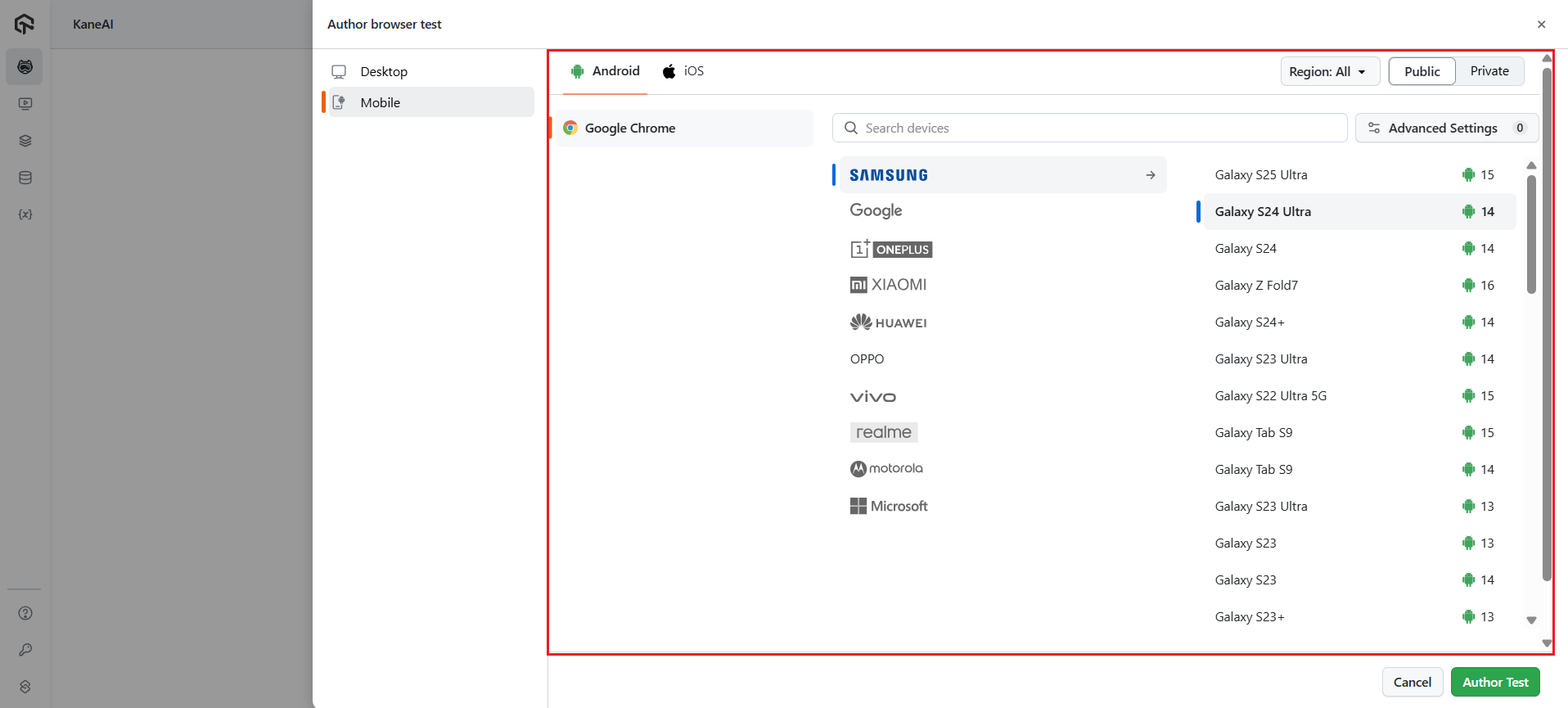
Step 3: Now, choose your preferred OS (Android or iOS), browser, device and the OS version.
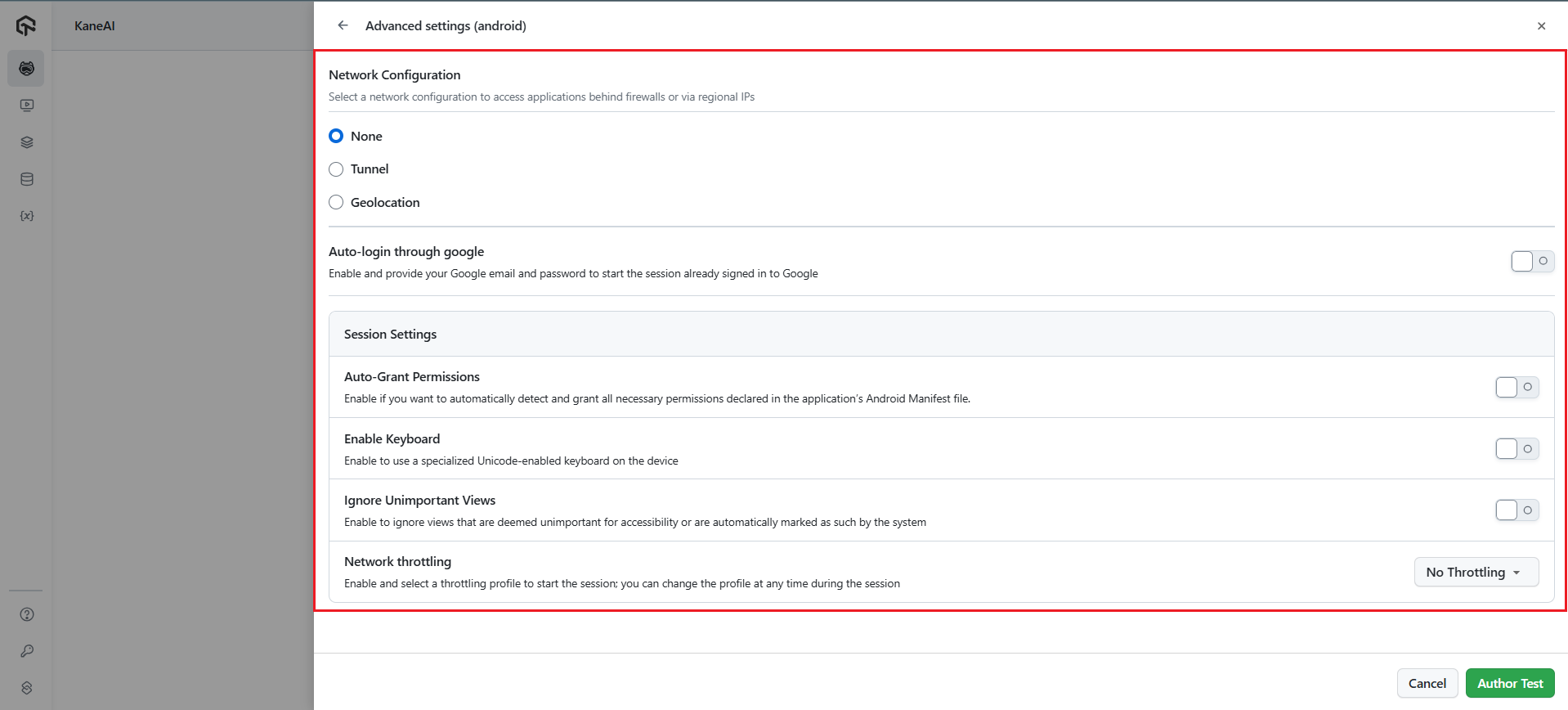
Step 4: You can also toggle on advanced settings such as network throttling or auto-login through Google from the Advanced Settings option.
Step 5: Once done, click on Author Test.
Step 6: Now tell KaneAI what you want to author using natural language without the need for coding or scripting knowledge required. KaneAI translates your instructions into executable test steps automatically.
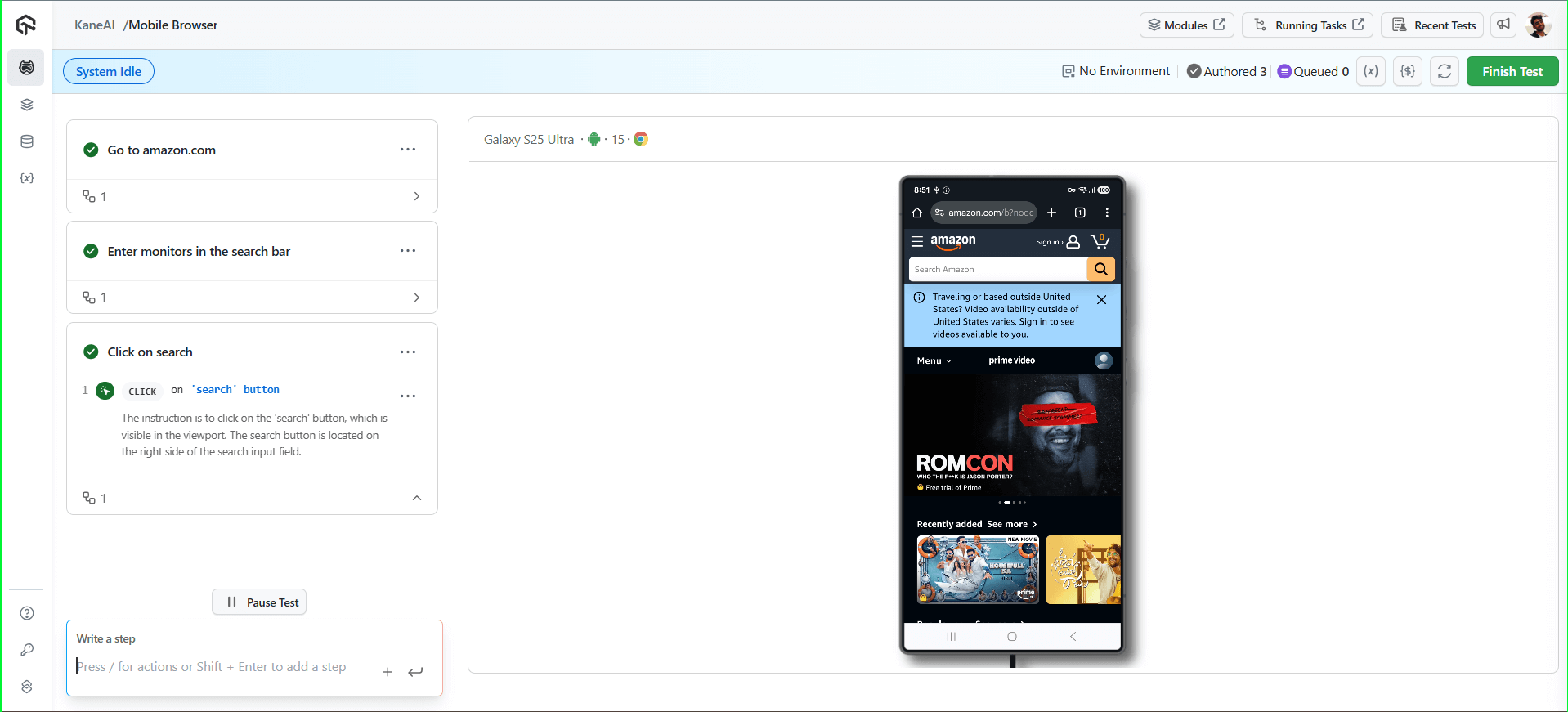
As you add each instruction, KaneAI queues them in real-time without waiting for completion. This allows you to build comprehensive test flows quickly and efficiently. Once you've outlined all your test steps, click Save in the top-right header to finalize your automated test case.
Your test is saved as Ready when every step has run and passed, which is also when automation code is generated. If some steps were never run, or a step errored, it saves as Unverified or Faulty instead and you can finish it later. See Save states.
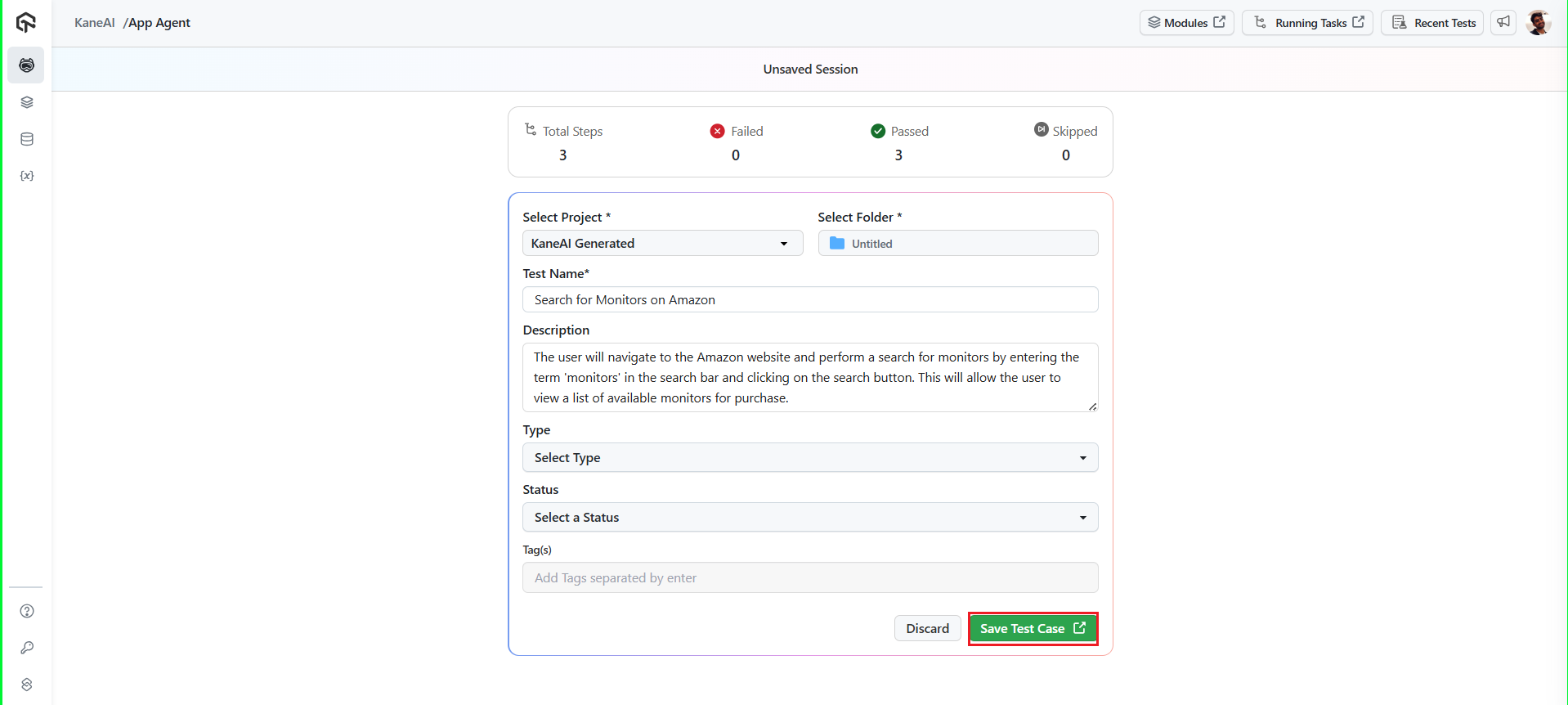
Step 7: Now, select your Project and the folder where you want to save your test cases. The Test Name and Description will be generated automatically, but you can also edit them. Select your test's Type and Status, as well as the necessary tags that will allow you to search for it later.
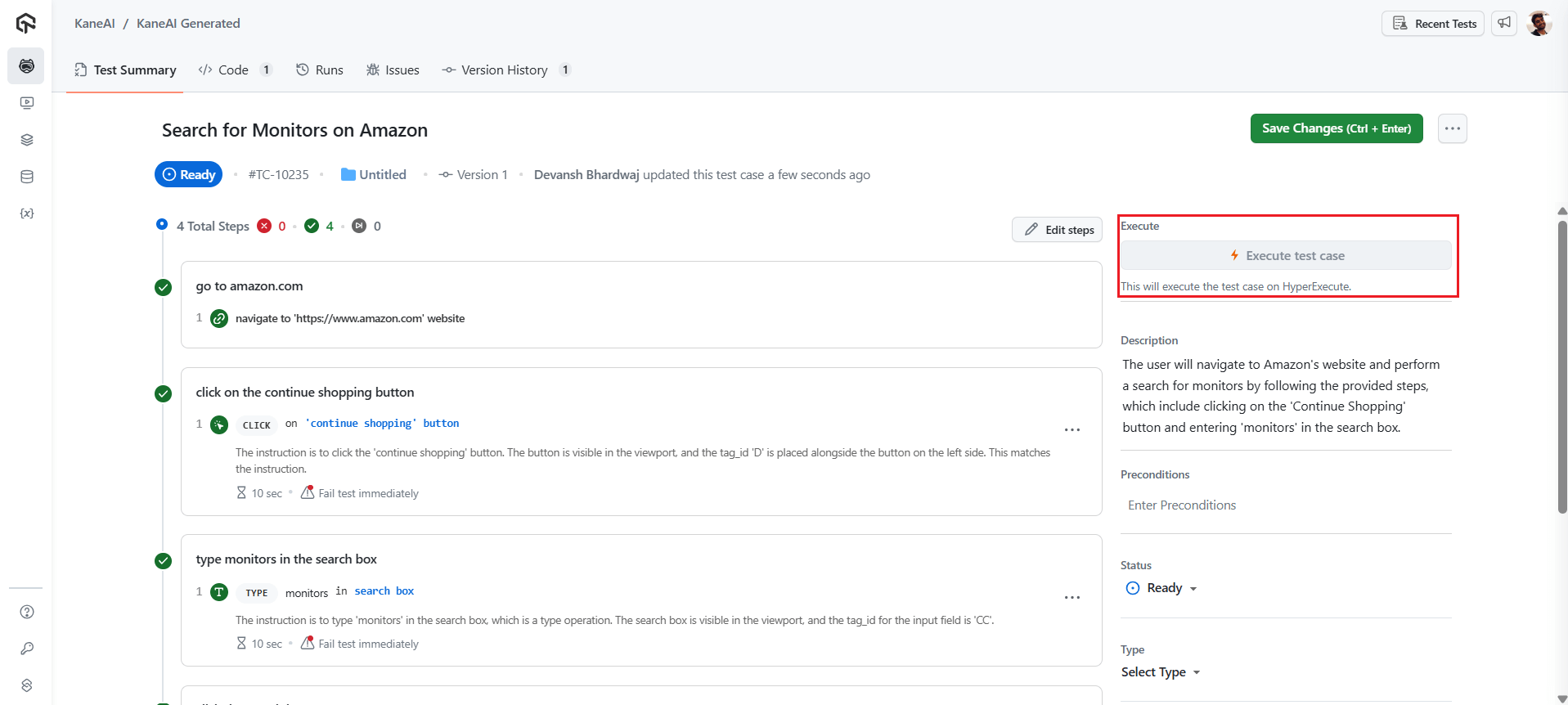
Step 8: To execute your test, click on the Execute test case button and you will be redirected to the HyperExecute dashboard where your tests will be executed.
Feature Support Matrix
| Feature / Action | Support Status | Notes |
|---|---|---|
| Element Scroll | Supported | |
| Key Events (e.g. Enter, Space, Tab) | Not Supported | |
| Clear Input Fields | Supported | |
| App Instructions (e.g. background, hide keyboard, show notifications) | Not Supported | |
| Textual & Visual Queries | Supported | Includes driver-based queries. |
| Sites with Permission Popups (notifications, cookies, location) | Supported (Android only) | Popups are auto-accepted on Android. iOS not supported currently. |
| Cookies & Local Storage | Supported | |
| Network Assertions | Not Supported | Not yet available for mobile web; only supported on web. |
| Negative Scenarios from App UX (e.g. switch app, go to home, go back) | Not Supported | These are app-specific and not currently available in browser testing mode. |
| Manual Interaction capture | Not Supported | Mobile browser sessions are authored with natural language instructions and slash commands. |
| Cursor placement and run actions | Supported | See Authoring Session. |
Have any feedback or request? Reach out to us via support@testmuai.com and we would be happy to hear from you.


 Chat with Us