Manual Interaction in KaneAI
Overview
Manual Interaction is how KaneAI turns what you do directly on your application into test steps. Instead of describing an action in words, you perform it — click, type, scroll, navigate — and the agent records it as a structured step.
This is especially useful when you need to reach a very specific UI state, handle a complex flow, or work with elements that are difficult to describe in words.
Manual Interaction is always active while your session is in the Authoring Steps state. There is nothing to switch on. Captured steps append to the end of the step list, exactly like instructions you type in Authoring Steps, because the cursor is pinned to the bottom in that state. When you want to interact with the application without those actions becoming steps, use Pause Recording.
For the full session model — the states, the cursor, and the run actions — see Authoring Session.
Supported platforms
| Platform | Capture support |
|---|---|
| Web browser on desktop | Supported |
| Mobile app on Android | Supported |
| Mobile app on iOS | Supported in portrait; not supported in landscape |
| Mobile browser | Not supported |
On platforms where capture is not supported, build the test using natural language instructions and slash commands.
How Manual Interaction works
While your session is in Authoring Steps, every action you perform on the application — clicking, typing, scrolling, or navigating through screens — is automatically captured by the agent and converted into a natural language test step. You do not need to describe these actions in words.
You can freely mix the two ways of authoring in a single session. Type an instruction when typing is easier, interact with the application when interacting is easier, and use slash commands for structured inputs. This is Hybrid Authoring, and it needs no mode switching — the cursor controls where each new step lands regardless of how you created it.
Slash commands are unaffected by capture and continue to work as documented: /api, /js, /db, /network, /totp, /upload, /download, /variable, /secret, /parameter.
A Manual interaction turned off marker can still appear in the step list when the agent reclaims the click stream on its own. There is no corresponding turned on marker, since capture is the default in Authoring Steps.
Pause Recording
Pausing the session is how you stop capture. Use it when you need to log in, navigate to a specific screen, dismiss an unrelated dialog, or explore the application without cluttering the step list.
The control is labelled Pause and sits above the step list. Pausing moves the session into the Paused state, and the application view confirms it with a Step recording paused indicator. The application stays fully interactive — pages load, forms accept input, navigation works — but the step list stops growing.
How to pause and resume
-
Open an active authoring session. It starts in Authoring Steps, where the application view shows a Recording steps indicator.
-
Click Pause.
- Interact with the application freely. The session is now Paused and nothing you do is captured.
- Click Resume when you are ready to capture steps again. Resume does not restart your device — the application stays exactly where it is, and the cursor returns to the bottom-most step.
What you can do while paused
Paused is more than a capture switch — it is where you restructure a test. Alongside interacting with the application without being recorded, you can:
- Edit, duplicate, and delete steps.
- Select several steps at once to group them into a module or delete them together.
- Place the cursor anywhere and insert steps at that point.
- Run the whole test, a range of steps, or a single step.
The step list stays exactly as it was at the moment you paused, apart from changes you make deliberately. See the state capability table for the full comparison.
Limitations of Instructions
Manual Interaction captures real-time UI actions, so it cannot record instructions that involve logic, validation, or reusable test components. These need to be added as natural language instructions.
The following instruction types are not captured through Manual Interaction:
Assertions
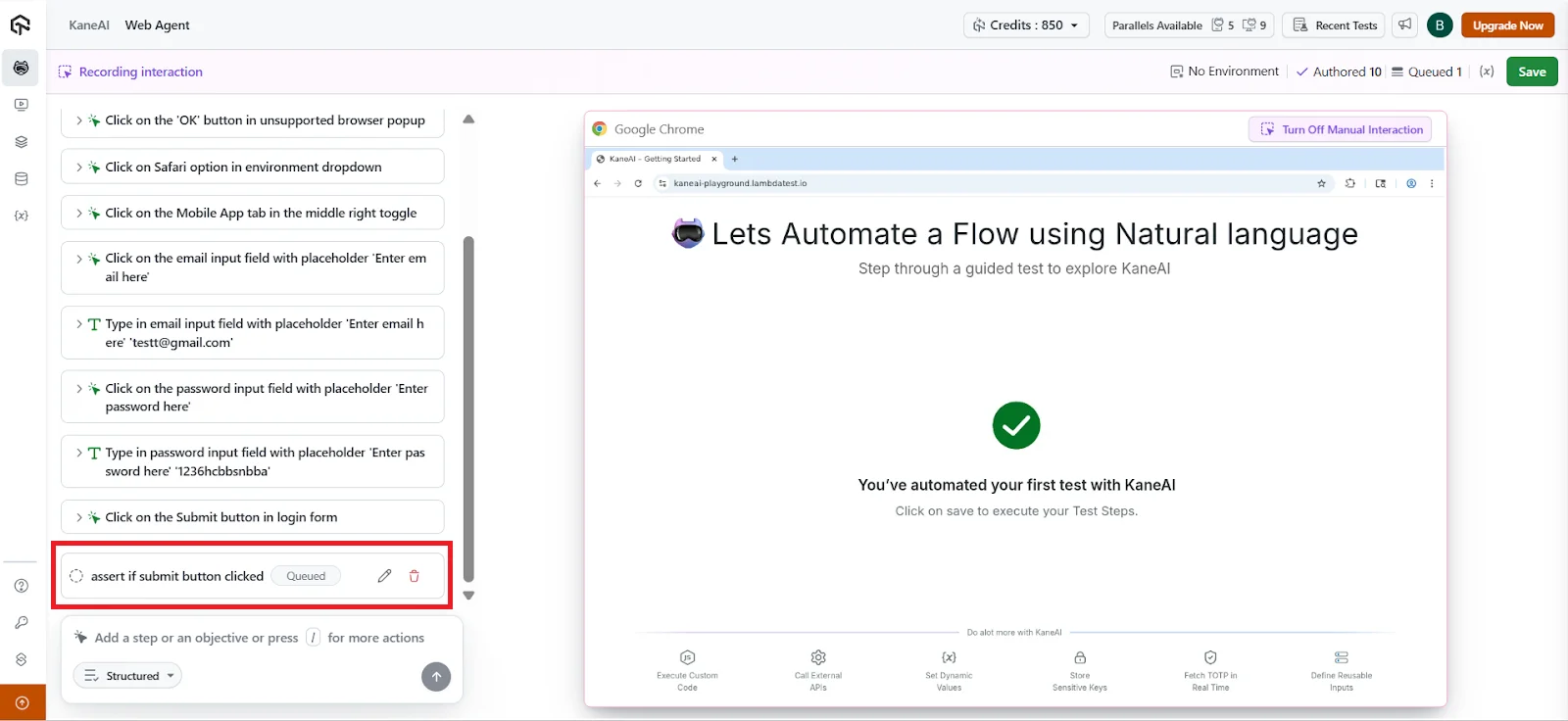
You can't record checks or validations by interacting. Any "verify", "confirm", or "assert" step must be added as a written instruction.
If–else logic
Conditional flows and branching logic aren't captured during manual actions. These must be written out in natural language if your test needs conditional behavior.
Modules and Reusable Blocks
Manual Interaction can't insert or reference modules. You'll need to add them separately.
Variables, Parameters, and Secrets
These structured inputs aren't detected during manual steps. You must define or call them through natural language instructions or slash commands.
Datasets or Dynamic Data
Using dataset-driven values or any form of dynamic data requires a written instruction, since they can't be recorded through interactions.
In short, Manual Interaction is great for capturing what you do on the screen, but any logic, validation, or reusable component needs to be added through natural language instructions. Because captured steps are inserted at the cursor like any other step, you can position an assertion exactly where it belongs rather than only at the end.
Visual indicators in test steps
Each step records how it was created — by natural language or by direct interaction — and the step list shows which. This helps you quickly understand and review how the test was authored.
Editing Manual Interaction Steps
Editing steps is available while the session is Paused.
Once a step is recorded through Manual Interaction, editing options are intentionally limited to preserve the accuracy of the recorded action. Currently, only the locator name can be edited for manual interaction steps.
You cannot modify the action type, element behavior, or interaction flow after recording. If the recorded step does not match the intended behavior, delete the step and record it again, or recreate it using a natural language instruction.
Editing a step that had already run and passed returns it to the Queued status and marks it as edited, which means it needs to run again before the test can be saved as Ready. See Step Statuses.
Manual Interaction Limitations
Web Browser on Desktop
-
Drag and drop on canvas based elements: Canvas elements rely on custom rendering, which makes drag and drop actions unreliable to record accurately.
-
Hover: Mouse hover actions that trigger tooltips or menus cannot be recorded.
Double click, right click, and press-and-hold (long press) are now supported in Manual Interaction. See Click Interactions for capture rules and platform support.
Mobile Apps
-
Two finger scroll: Multi touch gestures are not captured during recording.
-
Copy and paste: Clipboard based actions are not captured during recording.
-
Recent apps actions: System navigation actions like opening or switching recent apps are not supported.
-
Mobile keyboard actions such as backspace: Special keyboard keys and actions are not recorded accurately.
-
System level popups: Popups controlled by the operating system, such as permission dialogs, cannot be captured.
Platforms without capture
-
Mobile browser: Capture is not supported. Author these tests with natural language instructions and slash commands.
-
iOS in landscape: Capture is not supported. Rotate to portrait to record interactions.
Important Note on Text Input Behavior
Manual Interaction records all characters you attempt to type as part of the instruction, even if the application does not accept them.
For example, if an input field allows only numeric values and you try typing alphabets, those characters will still appear in the recorded instruction, even though they do not appear in the input field.
Common use cases
Use Case 1: Recording a complete workflow and converting it into a test
This is useful when you already know the exact flow and want KaneAI to capture it as an automated test.
Steps:
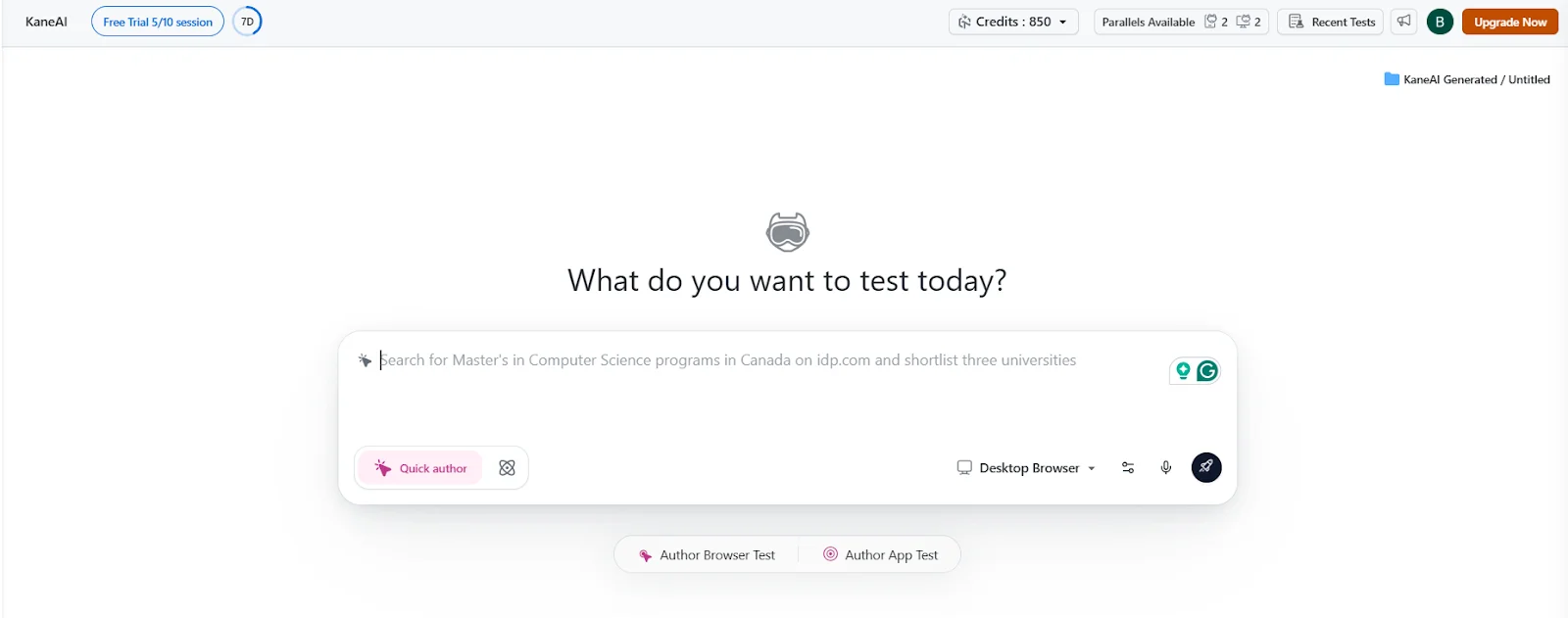
- Open KaneAI and start a new test. The session begins in Authoring Steps, so capture is already active.
-
Launch the application under test in the browser or mobile device.
-
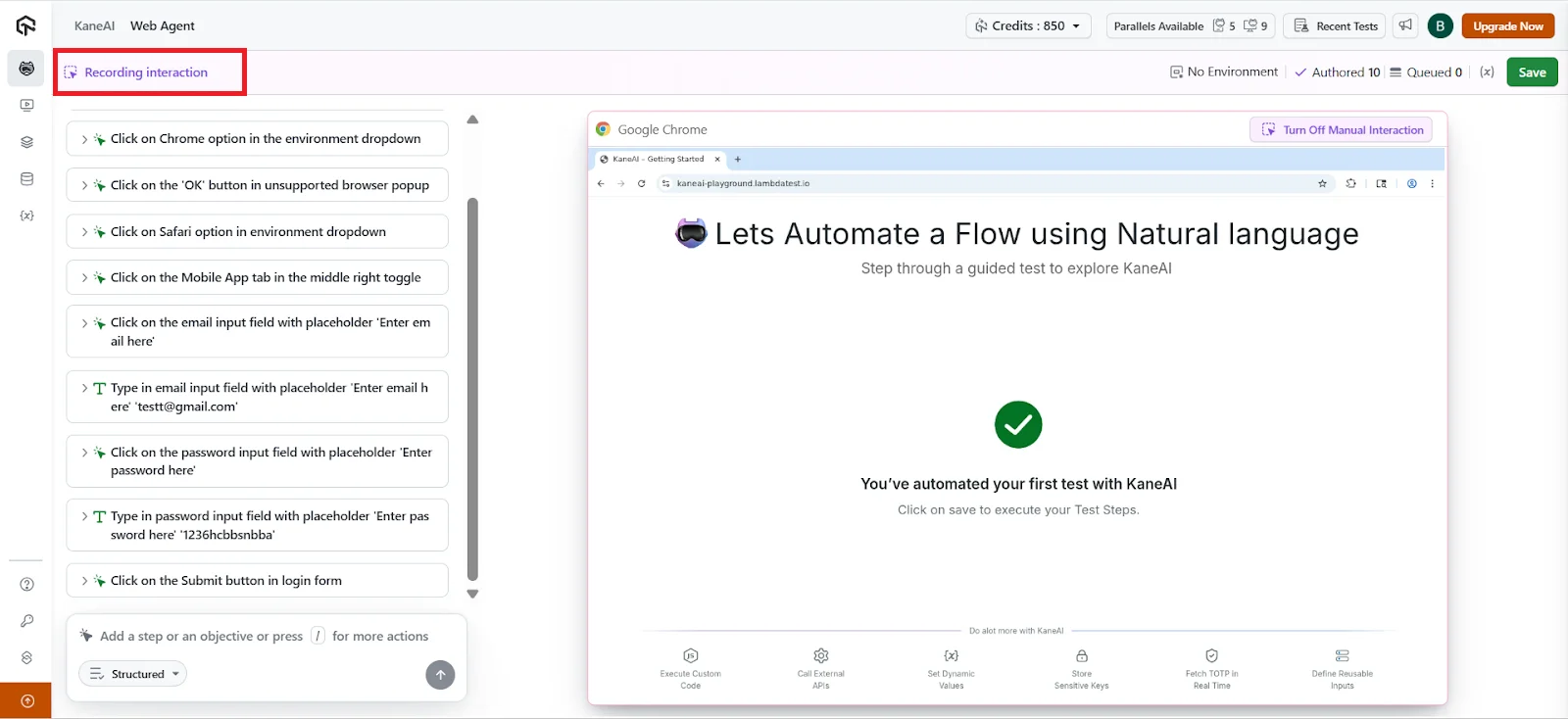
Perform the workflow exactly as a real user would. For example, logging in, navigating through pages, and submitting a form.
-
As you interact with the app, KaneAI records each action automatically as test steps.
- Pause the session, then review the generated steps and add assertions in natural language where needed.
- Save the test.
Use Case 2: Working with dynamic or lazy loaded UI elements
Ideal for infinite scroll lists or carousels that load items on demand.
Steps:
-
Start an authoring session.
-
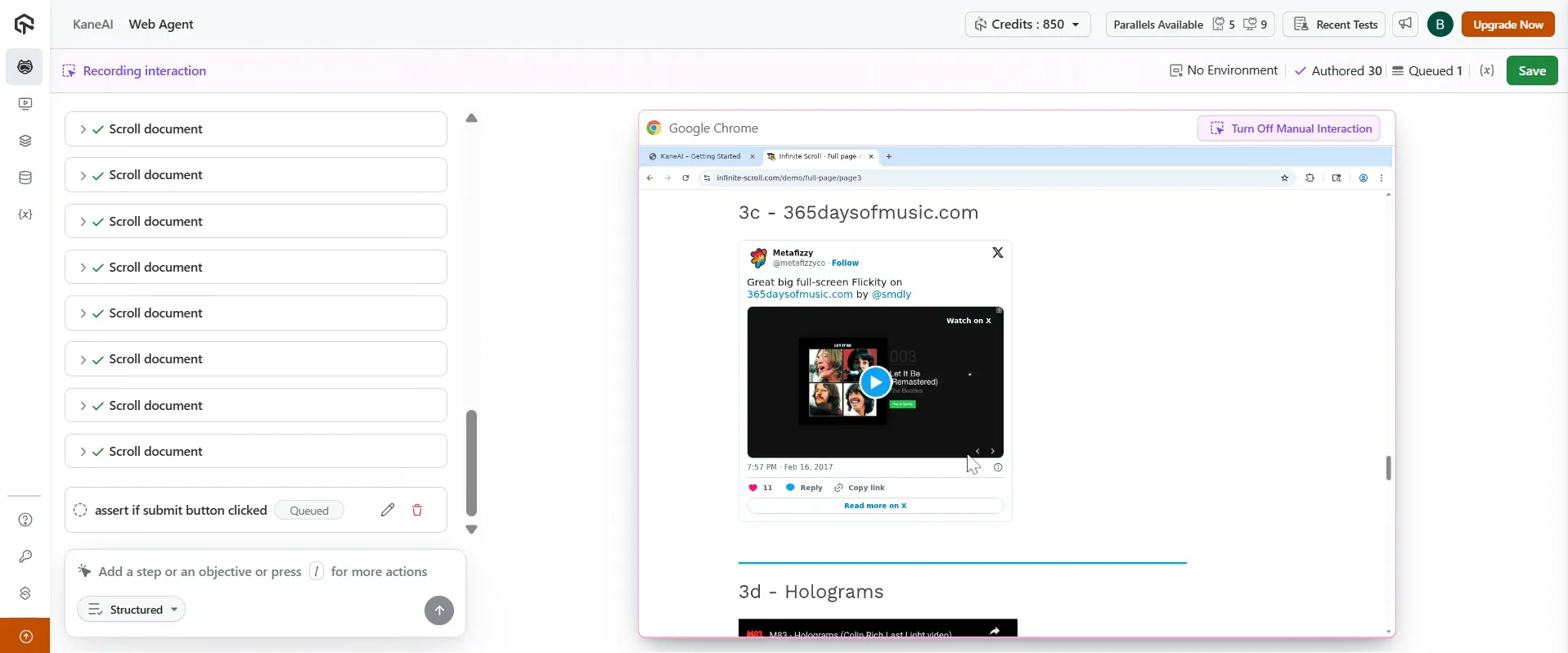
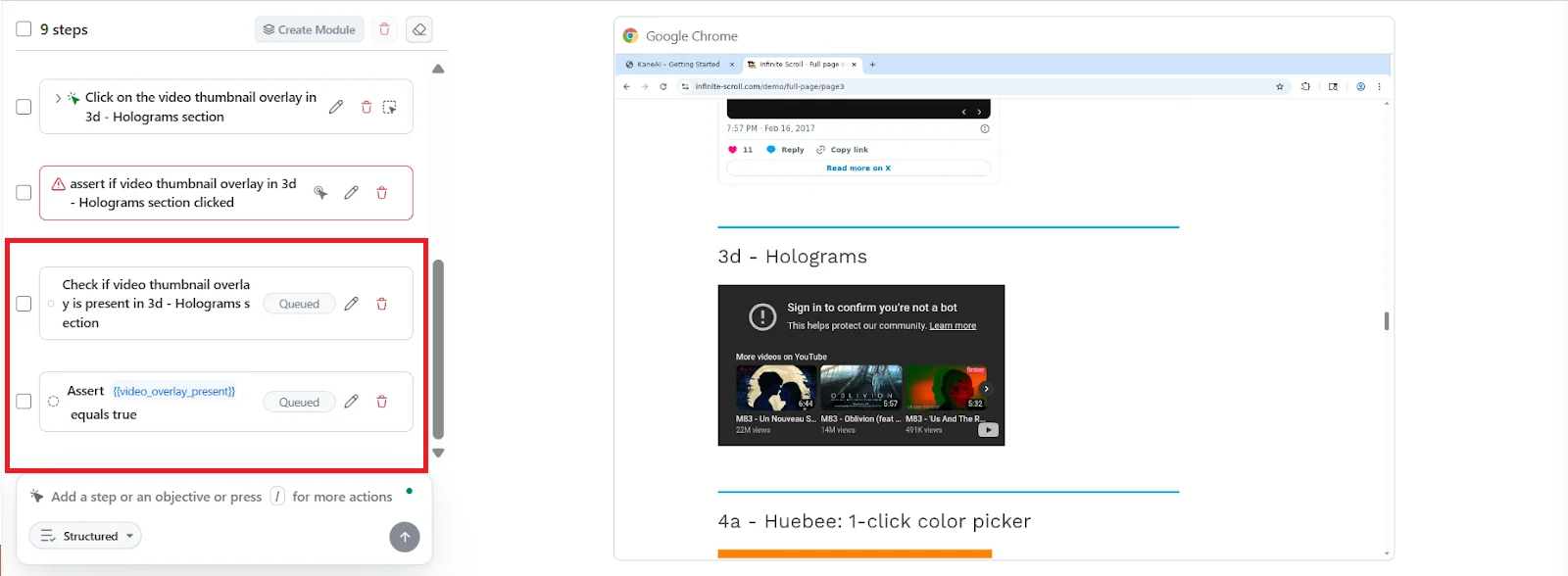
Scroll through the list or carousel until the desired element becomes visible.
-
Click or interact with the loaded element. The interaction is captured as a step.
-
Add assertions to verify the correct item or state using natural language.
Use Case 3: Hybrid Authoring — combining typed instructions and direct interaction
This approach gives you the best of both worlds, in a single session with no mode switching.
Steps:
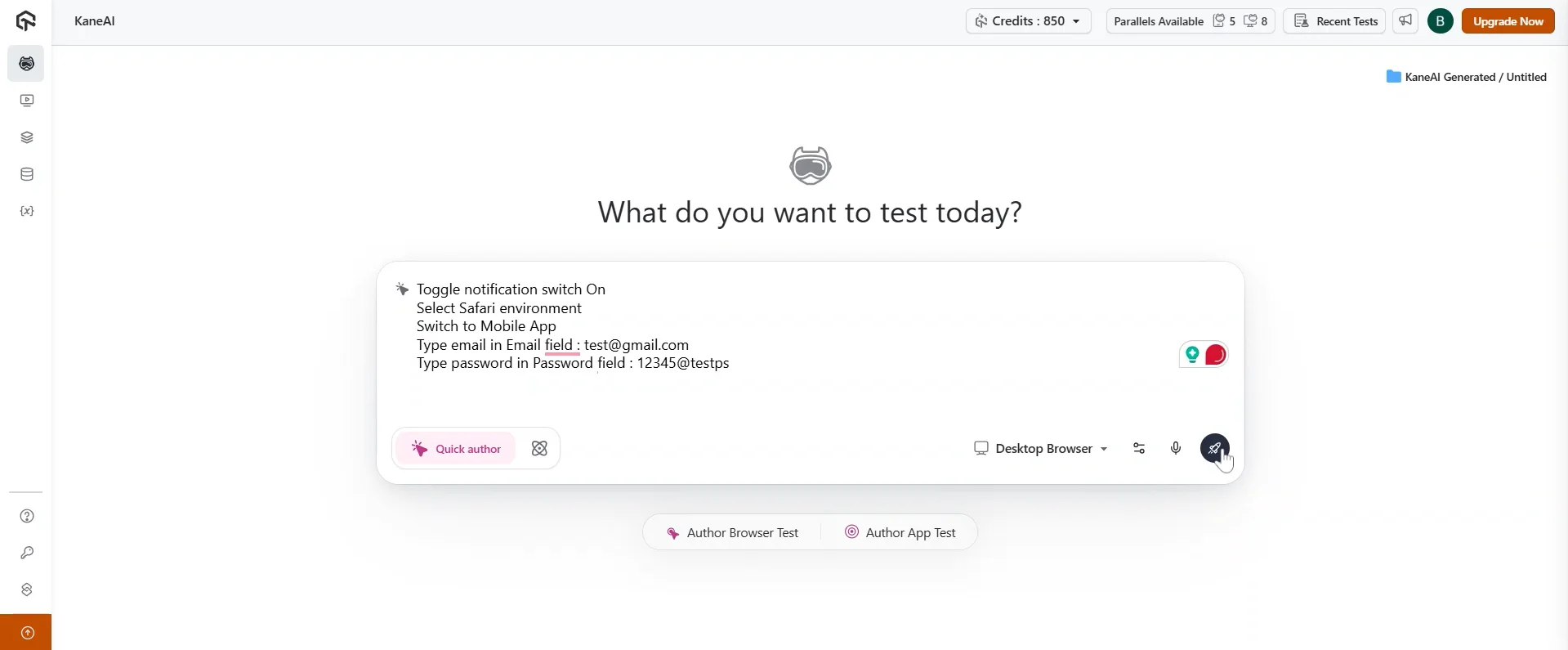
- Start writing your test using natural language instructions.
-
When you reach a step that is easier to perform than to describe, simply perform it on the application. It is captured as a step at the cursor.
-
Go back to typing whenever it is more convenient. Both kinds of step sit in the same list, in the order the cursor placed them.
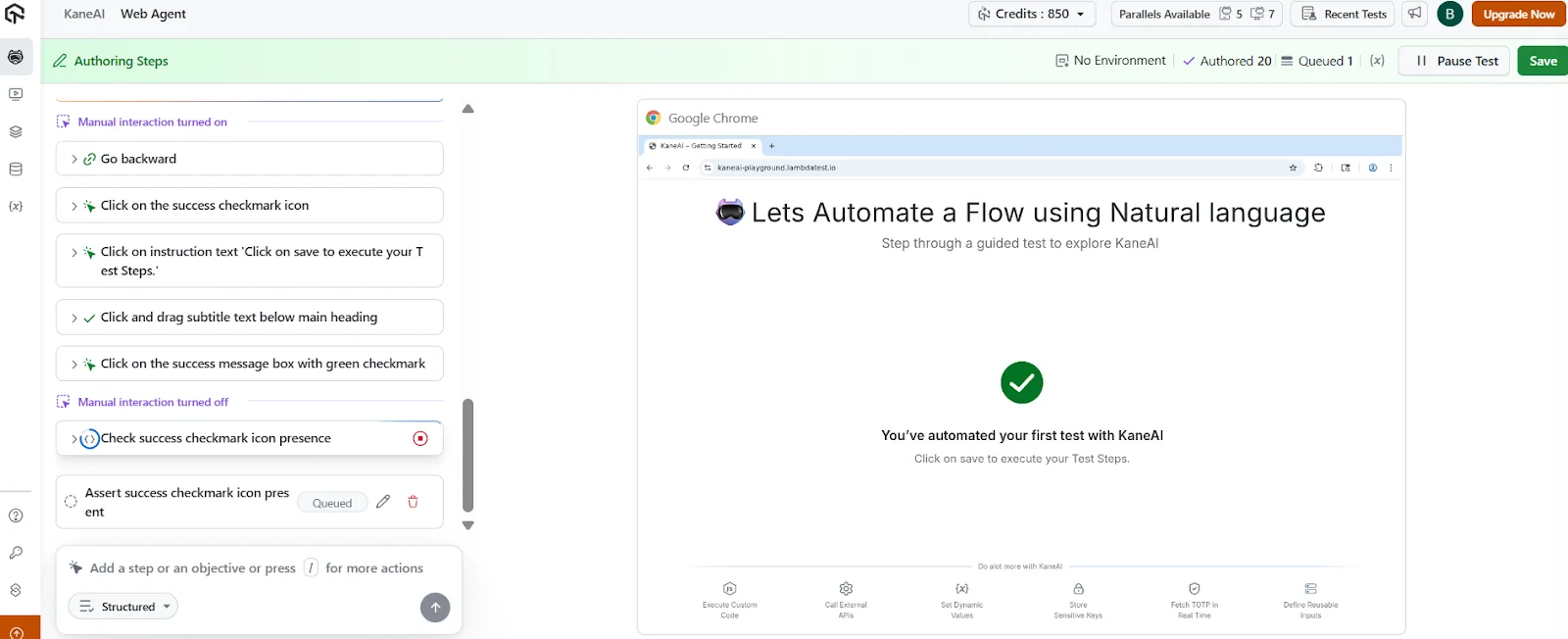
- Add assertions at appropriate steps to validate outcomes. Assertions always need to be typed.
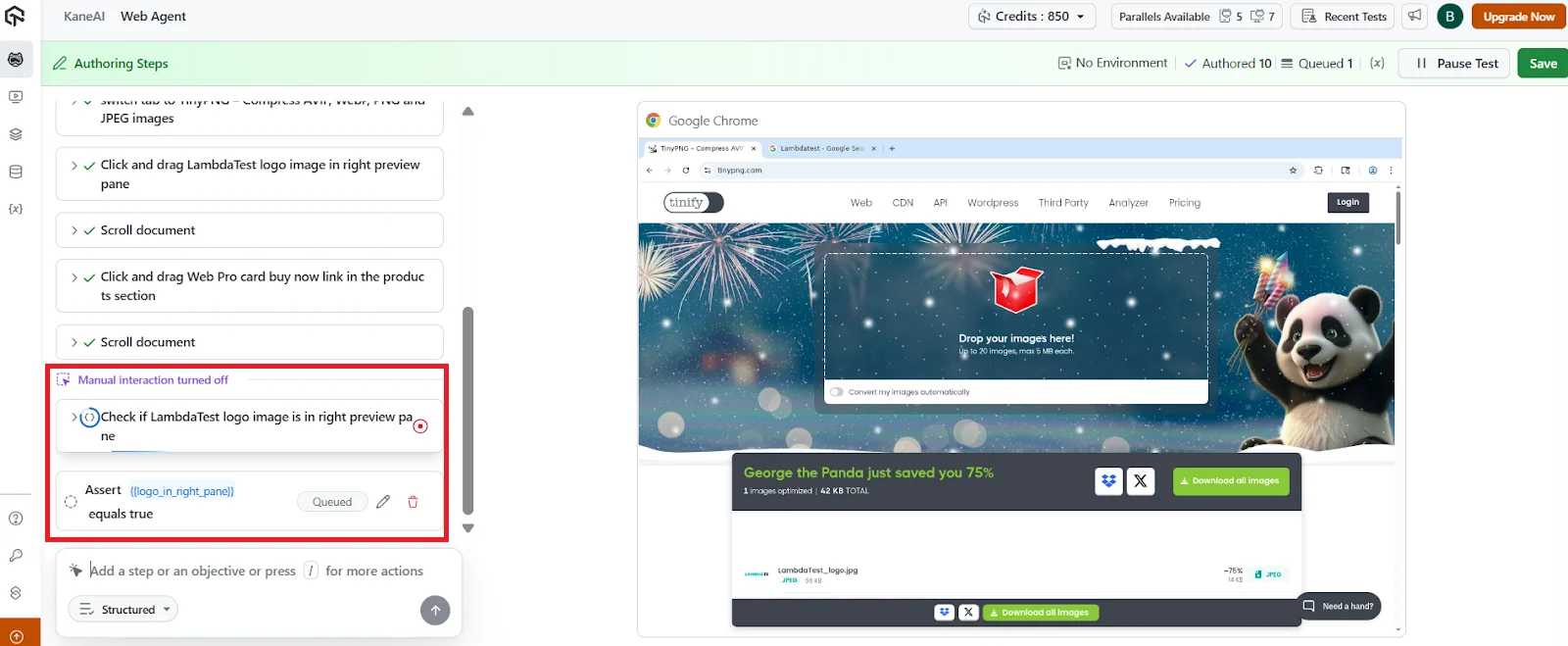
Use Case 4: Click and drag to adjust UI elements
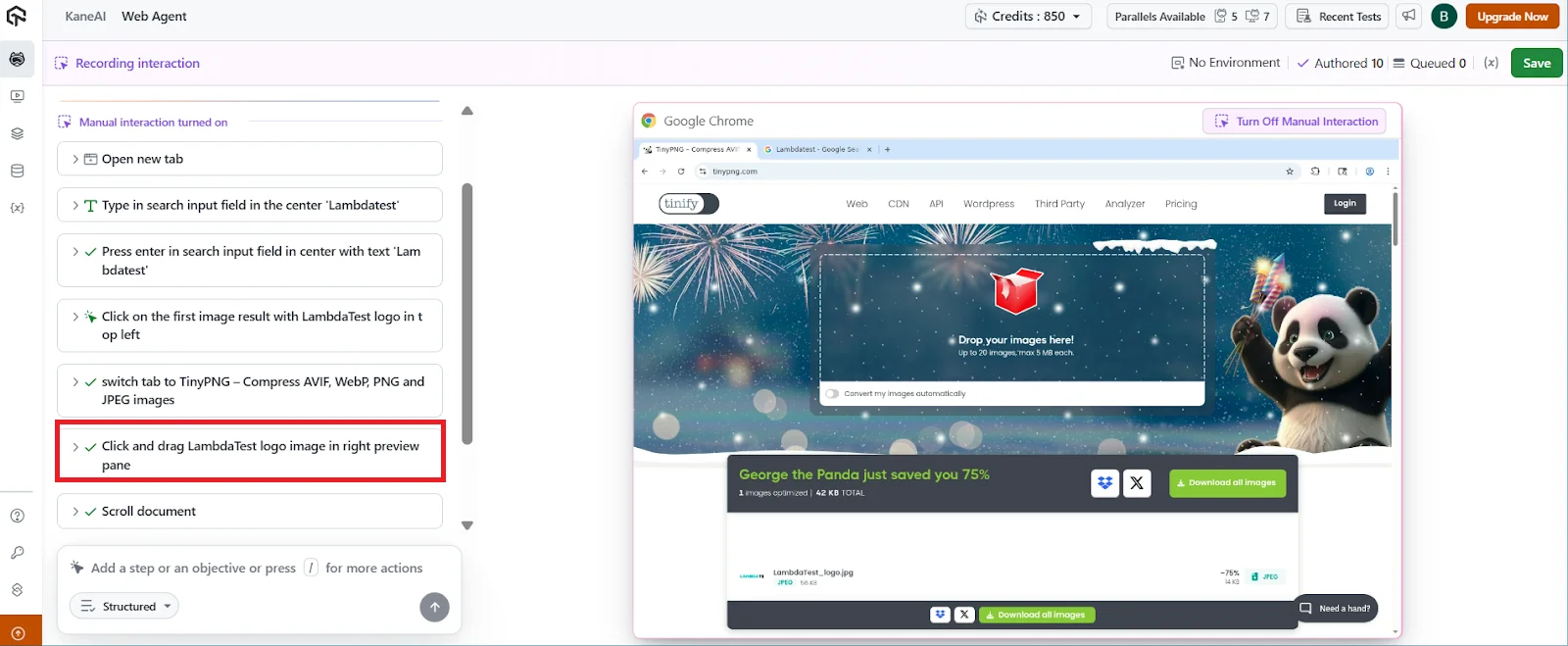
This use case applies when you need to move or adjust an element using a click and drag action, such as sliders, scrollbars, or draggable controls that are supported outside of canvas based elements.
Steps:
-
Start an authoring session.
-
Click on the element and drag it to the required position.
-
Release the mouse once the desired state is reached.
-
KaneAI records the click and drag action as a test step.
-
Add an assertion in natural language to verify the final state.
Use Case 5: Adjusting values using sliders (Only works on web)
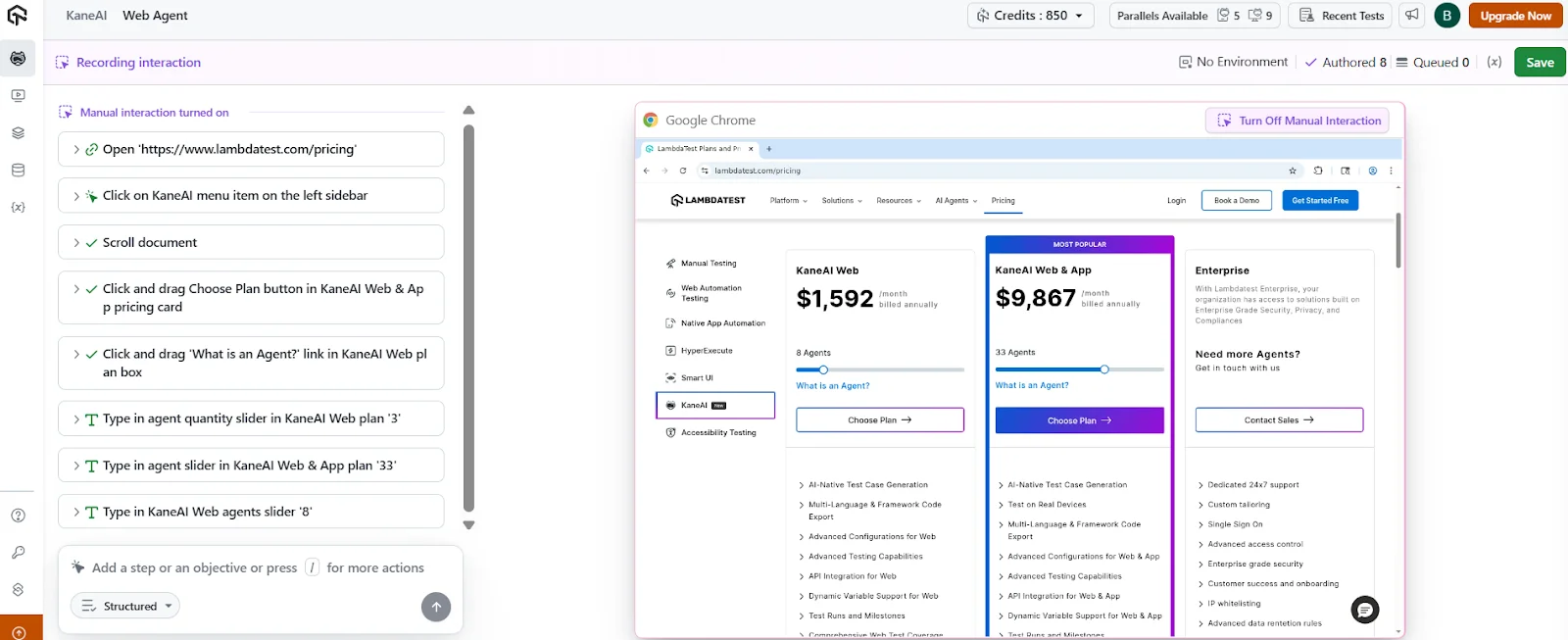
This use case applies when you need to change a value using a slider, such as volume controls, range selectors, brightness settings, or price filters.
Sliders are often easier to handle by interacting directly rather than describing exact movements in natural language.
Steps:
-
Start an authoring session.
-
Click on the slider handle.
-
Drag the slider to the required value or position.
-
Release the slider once the desired value is set.
-
KaneAI records the slider movement as a test step.
-
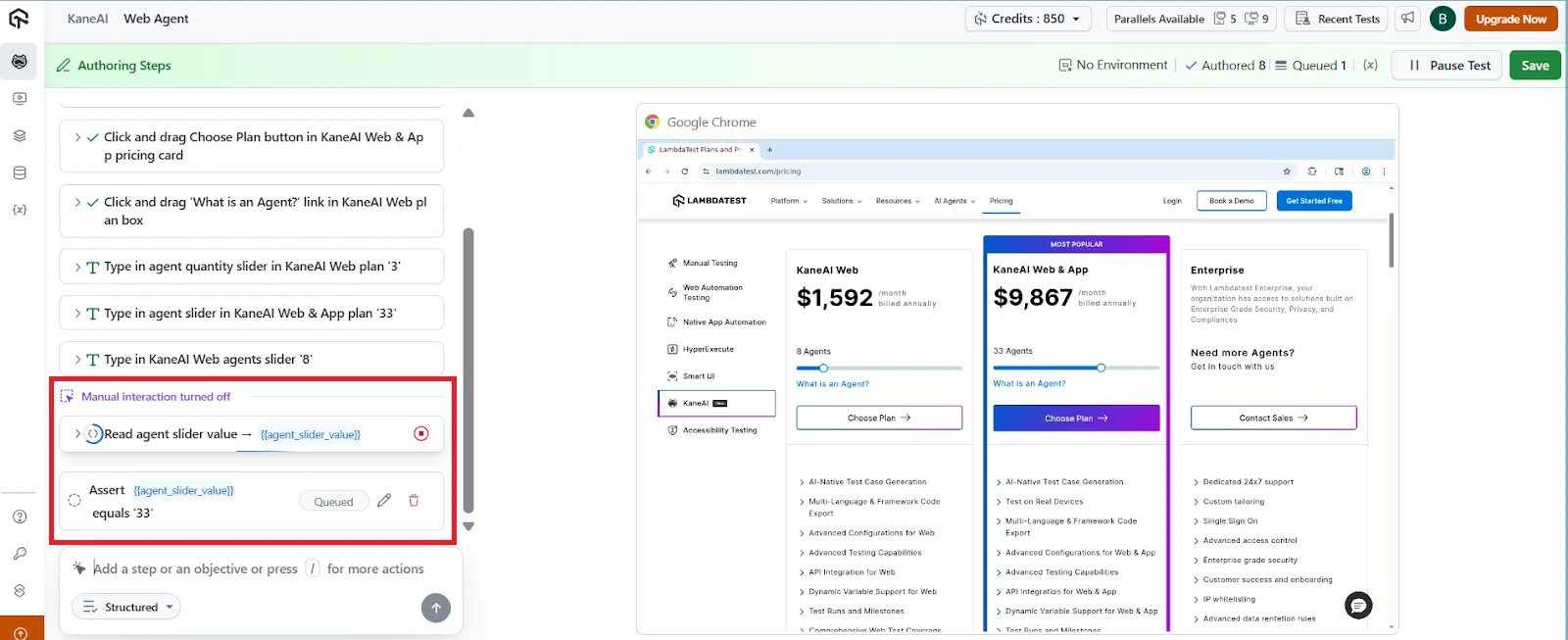
Add an assertion in natural language to verify the final value or state. For example, verify that the selected range or value is displayed correctly.
Notes specific to sliders
- Slider interactions are recorded as click and drag actions.
- Exact pixel-level precision may vary depending on the UI implementation.
- Always validate the outcome using an assertion rather than relying only on the recorded movement.
Use Case 6: Reaching a setup state without recording it
This use case applies when you need to navigate your app to a specific starting point (for example, logging in, accepting a cookie banner, or opening a particular screen), but you do not want any of those preparatory steps to appear in your test.
Steps:
-
Start an authoring session.
-
Click Pause Recording. The session moves to Paused.
-
Perform the setup actions you want to skip, such as logging in or navigating to the target screen.
-
Click Resume once the application is in the desired starting state. Your device is not restarted, so the state you just set up is preserved.
-
Continue interacting with the app or typing instructions. From this point onward, your actions are recorded as test steps.
-
Add assertions in natural language as needed to validate behavior.
Best practices
- Use Manual Interaction to reach complex UI states quickly.
- Use typed instructions for validations and assertions — they cannot be captured by interacting.
- Remember that captured steps append to the end of the step list. To move one elsewhere, pause afterwards and restructure.
- Review recorded steps to ensure they reflect the intended behavior.
- Avoid unsupported interactions to prevent incomplete steps.
- Use Pause Recording when you need to log in, navigate, or set up app state without those actions being captured as test steps.
Troubleshooting
My actions are not being recorded
Check the session state. Capture is active only in Authoring Steps — it stops in Paused and in Running. If the session is Paused, click Resume.
If the session is already in Authoring Steps, check that your platform supports capture. Mobile browser sessions and iOS in landscape do not capture interactions.
I clicked on the application and nothing happened
The session is probably Running. While the agent executes steps, the application view is covered and interaction is disabled. Wait for the run to finish.
Assertions are not getting recorded
This is expected behavior. Assertions cannot be captured by interacting and must be added using natural language instructions.
Some interactions are missing or incomplete
Check whether the interaction you are trying to perform is currently supported. Actions like drag and drop on canvas elements, hover, or certain mobile gestures are not available yet and will not be recorded.
Typed text does not appear in the input field
If the input field restricts certain characters, those characters may still appear in the recorded instruction even though they are not visible in the UI. This does not affect test execution.
Unable to interact with system popups
System level popups are not supported through Manual Interaction. These flows need to be handled using alternative approaches or natural language instructions where possible.
My actions stopped getting recorded mid-session
Check whether recording is paused. When Pause Recording is active the session is in the Paused state, so your interactions affect the application but are not captured as test steps. Click Resume to start capturing again.
Related Guides
Video Tutorial
This walkthrough was recorded before the Manual Interaction toggle was removed. The capture behaviour it demonstrates is unchanged, but the controls shown for turning Manual Interaction on and off no longer exist — capture is now always active in Authoring Steps.


 Chat with Us