Run Cerberus Tests On TestMu AI Selenium Grid
Cerberus Testing is an open-source tool that helps you cover the complete test cycle from a single place. It can be used for both Automation testing, as well as Manual testing.
TestMu AI now provides an integration with the Cerberus Testing tool, to help you perform cross-browser testing on over 2000 real desktop browsers, mobile viewports, and operating system combinations. With this document, you will learn how to integrate LamndaTest with the Cerberus Testing tool and get started with your first test.
Setting Up TestMu AI As The Executor Robot
Inside your Cerberus Testing tool, you need to set up TestMu AI as your Test Executor. So follow the below steps to set up TestMu AI as your Executor Robot:
-
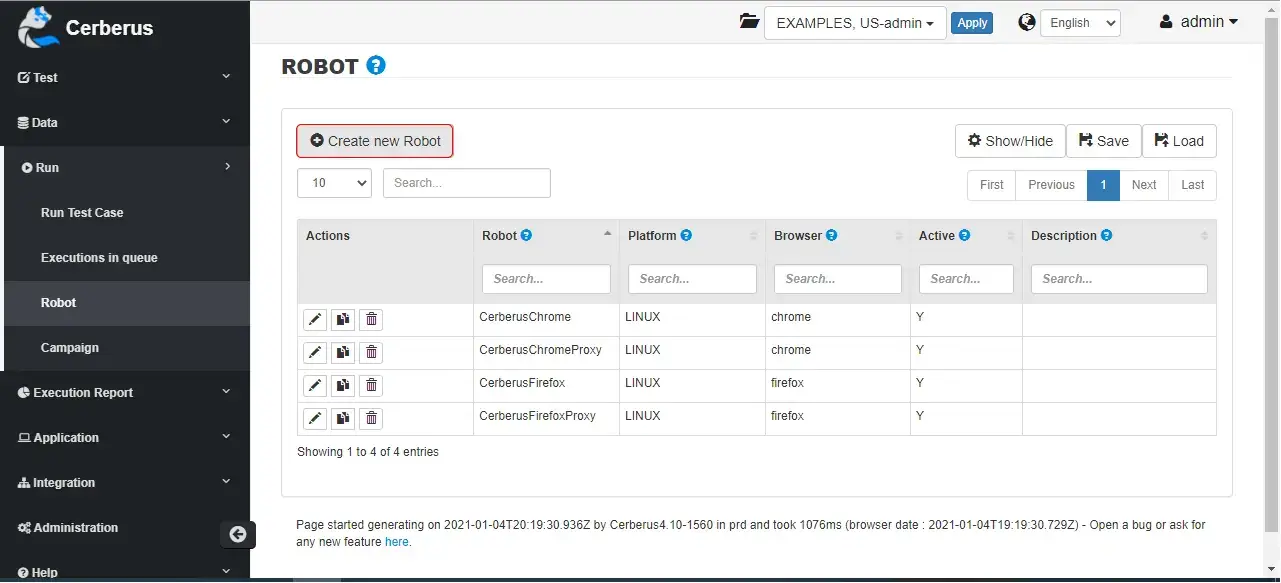
Click on 'Create' a new Robot
-
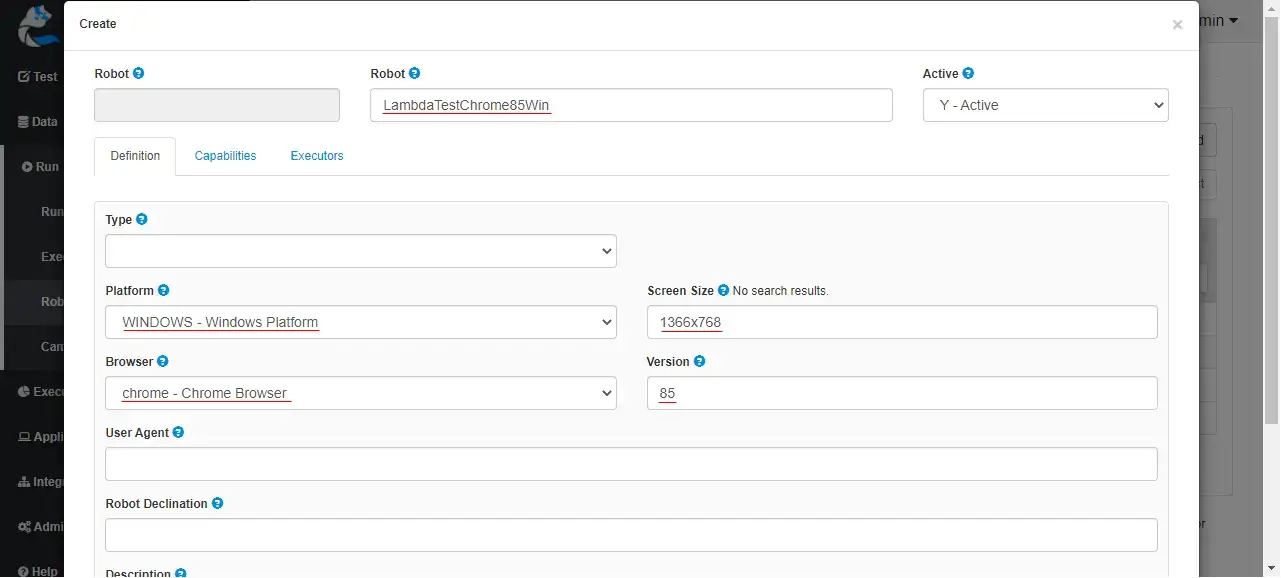
Enter the Robot name as per your choice, such as "TestMu AIChrome85Win". Also choose the platform, browser, browser version and screen size of your choice.
-
You can also add optional desired capabilities of your choice, in the Capabilities tab. To know more about Desired Capabilities, you can refer to our Selenium Autiomation Capabilities guide on our Capabilities Generator.
-
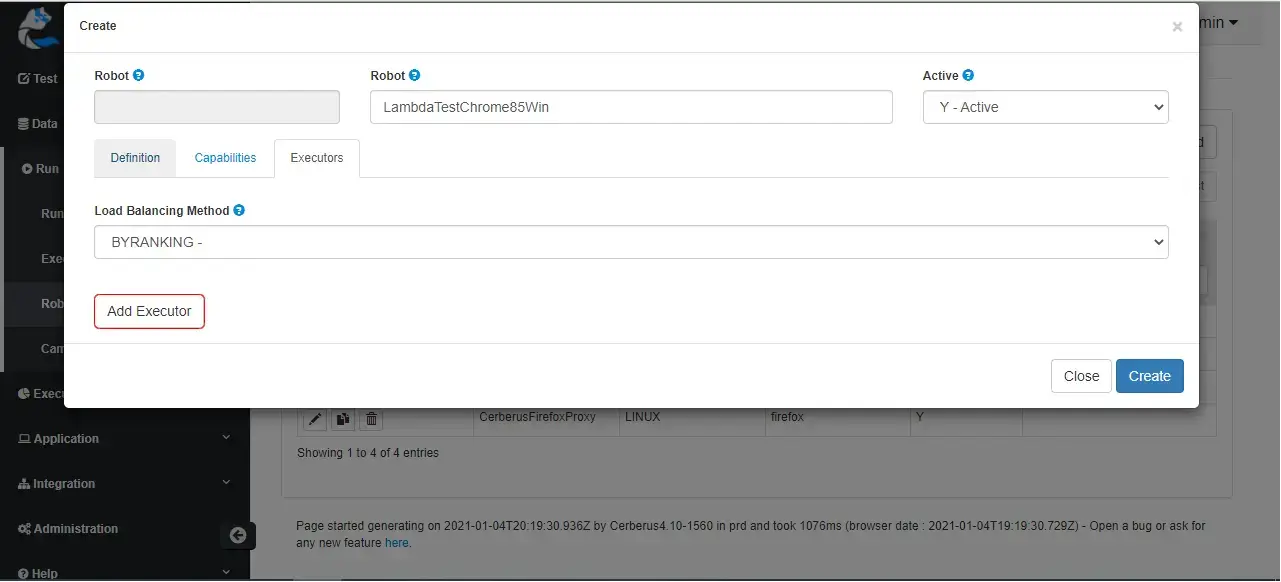
Then switch to Executors tab, and click on "Add Executor".
-
In this Add Executor window, you need to pass following values to their corresponding options, as stated below:
Host: hub.lambdatest.com
Port: 80
Host User: <YOUR_LAMBDATEST_USERNAME>
Host Password: <your LambdaTest access key>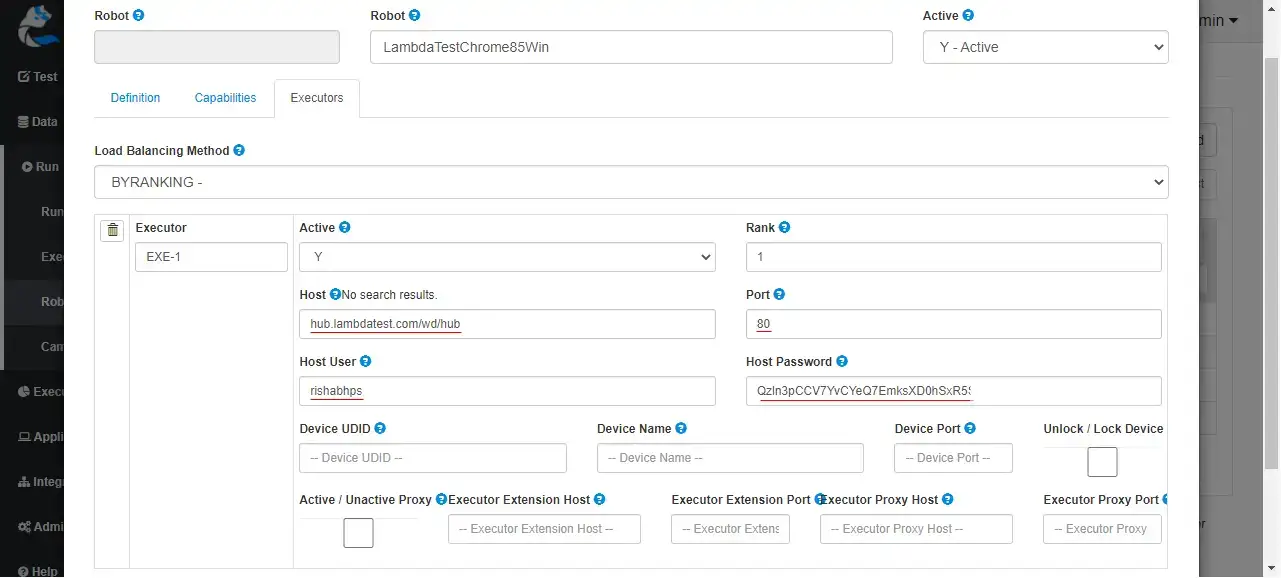
To get your TestMu AI username and access key, please refer our Capabilities Generator.
Once you are done, just click on the Create button and the TestMu AI Robot executor will be created successfully, and will look something like this: 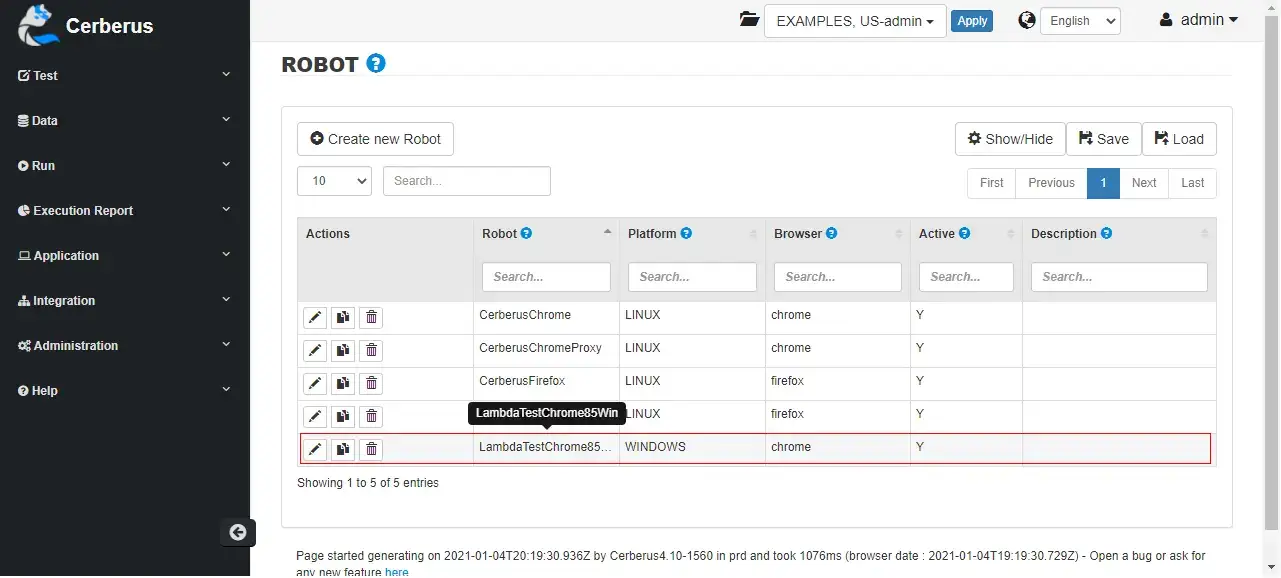
Executing Your Cerberus Test On TestMu AI
Since you have the TestMu AI Executor ready, you can now execute your tests from Cerberus directly on the TestMu AI platform. To do so:
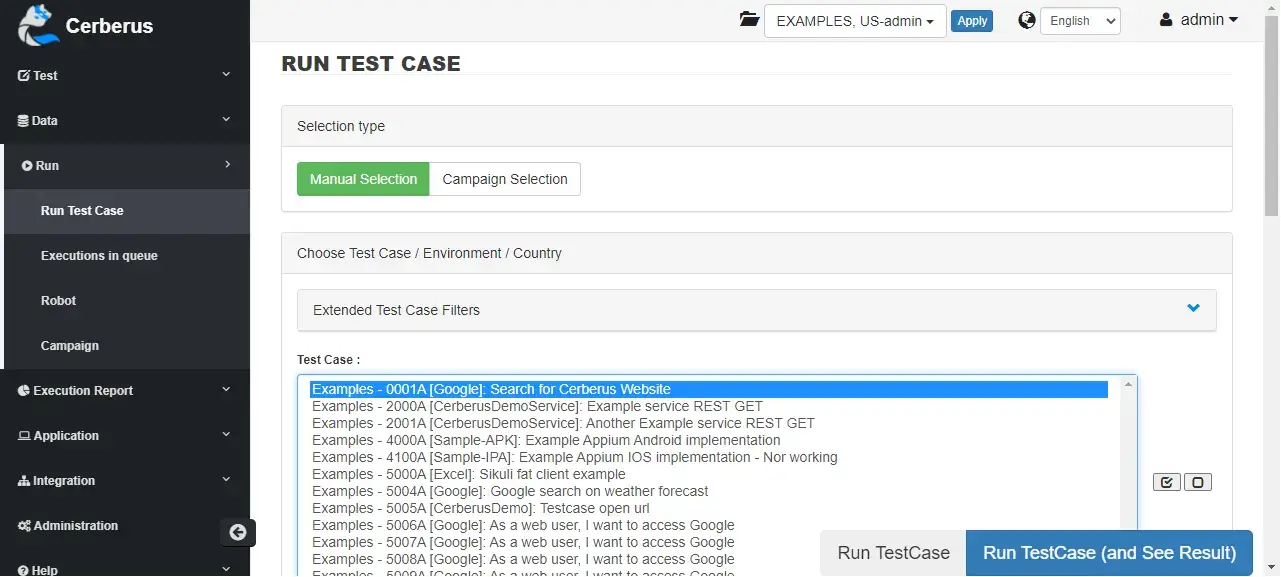
- Select your test from the "Run Test Case" section of Cerberus tool. For this demo purpose, we have used the existing sample test case available, as shown in the image below
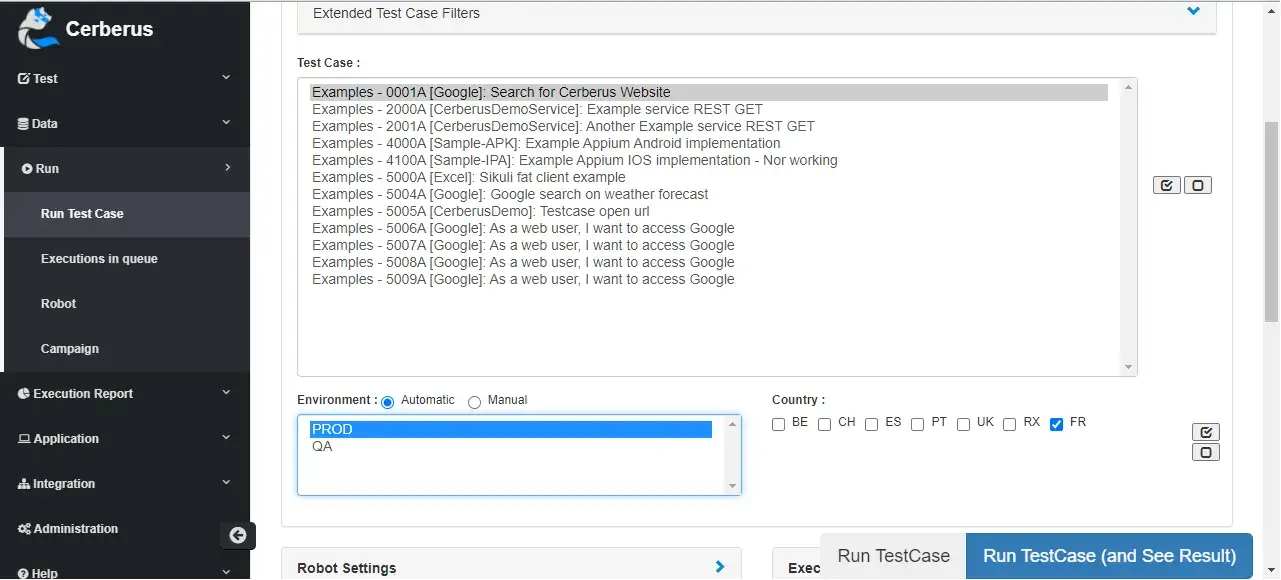
- Then you need to select the environment, and country of your choice, in which you want to run the test case.
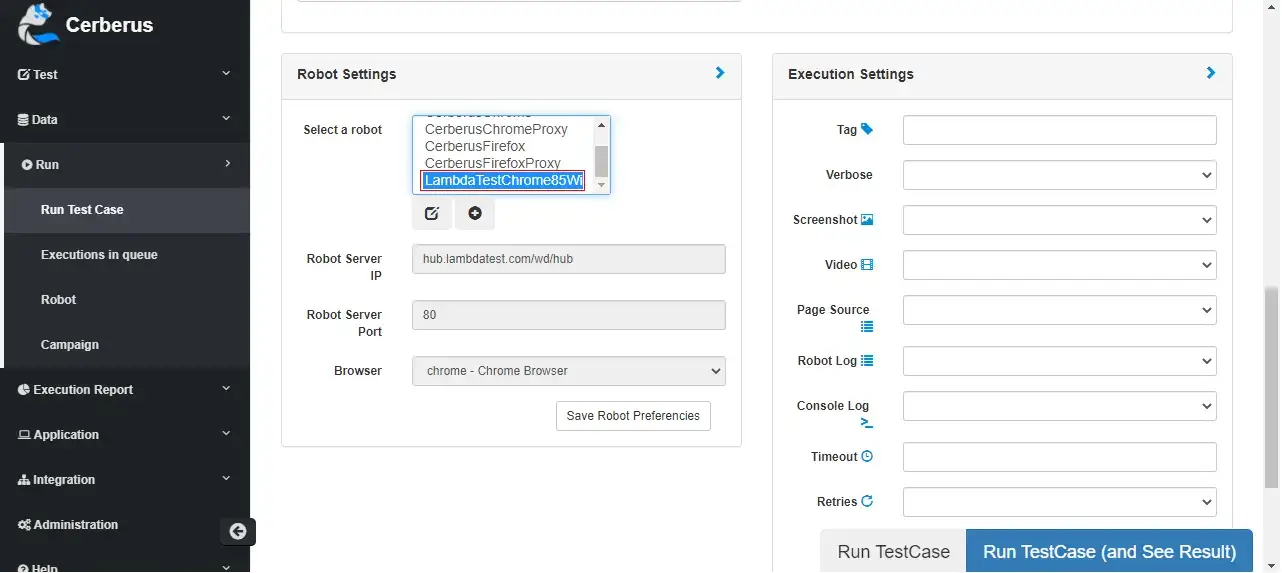
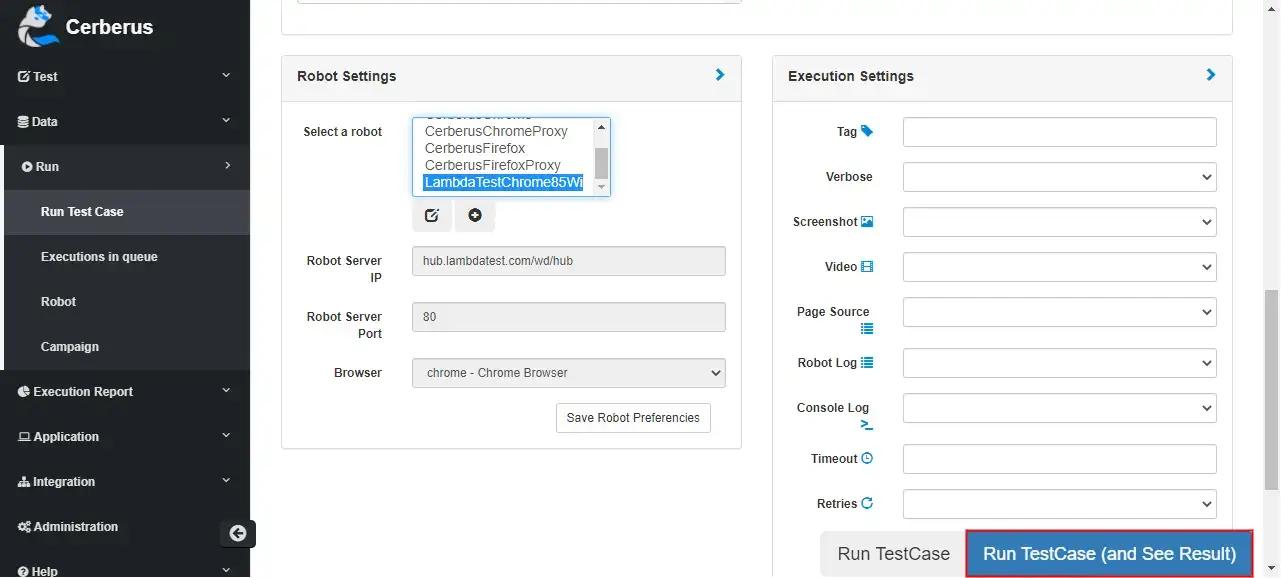
- Then you need to select the executor for your test case, in the Robot Settings section. Here, you need to select the earlier created TestMu AI Executor, from the list of available Robots.
- You can also fill in optional environment details, as per your choice. Then click on the Run TestCase (and See Results) button to execute your test case.
Now if you open your Automation dashboard, you can see your Cerberus test case running as per the chosen Robot Executor details. 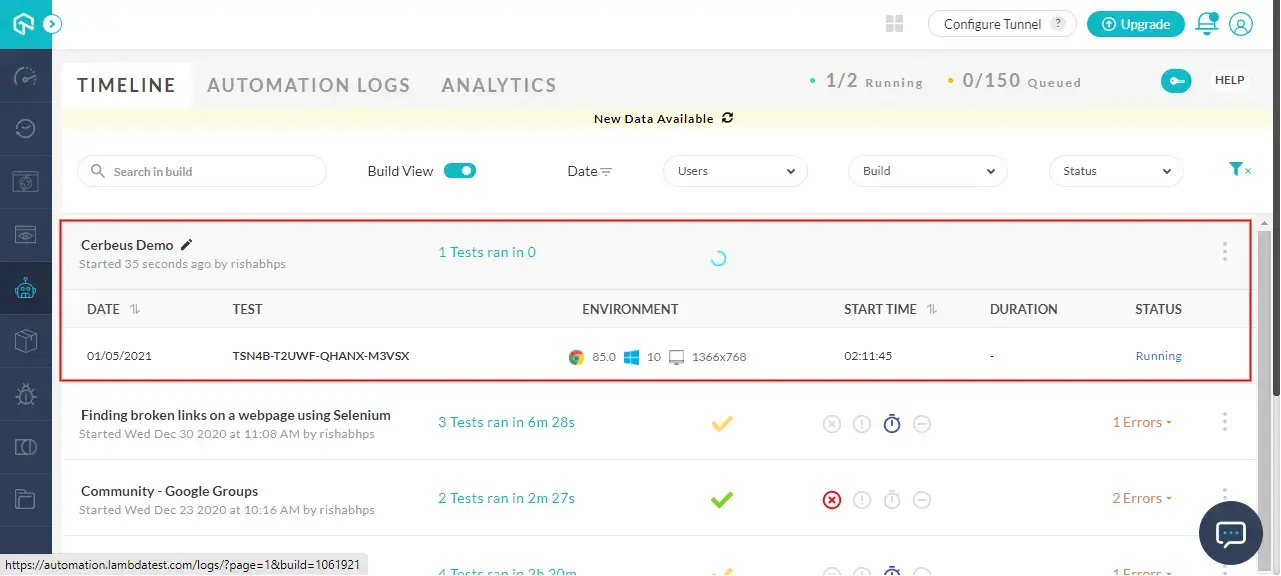
Once the test is complete, you can view the result of the test on TestMu AI, with all its details. You can view logs, mark bugs, and do much more for each executed test from your TestMu AI platform. To explore more about the TestMu AI's Automation Dashboard, refer inside TestMu AI platform guide.
Congrats! You have successfully executed your Cerberus test case on the TestMu AI platform, which provides you 3000+ browser and operating system combinations to perform cross-browser testing. If you have any doubt or face any issues, please feel free to contact us via 24/7 chat support, or you can also mail us at support@testmu.ai. Happy Testing!! 🙂

 Chat with Us
 Ask the Community