Import Test Cases from CSV
CSV import in Test Manager allows seamless import of existing test cases from various sources, making the transition and consolidation of testing assets effortless.
A CSV import can do two things:
- Create new test cases — the behaviour when no match key is chosen. Every row becomes a new test case.
- Update existing test cases — choose a match key while mapping fields, and Test Manager uses it to check each row against the test cases that already exist in the project or folder you're importing into. Rows that match update the existing test case in place instead of creating a duplicate, and each change is saved as a new version, so nothing is overwritten silently.
This lets you keep a spreadsheet as the source of truth for your suite: export your test cases, edit them in bulk, and re-import the same file to push the changes back.
The most reliable loop is export → edit → re-import. An exported CSV already contains the TestCaseId column, which is the safest thing to match on.
Before you begin
- Your file must be a valid
.csv, up to 10 MB. If it's larger, split it into smaller files and import them one after another. - To map Custom Fields, create the custom fields and link them to the project before starting the import.
- To import Jira Tickets, connect your Jira instance to Test Manager (refer here). If you forget to connect it before starting the import, don't worry, the test cases will automatically link to the appropriate Jira tickets once the integration is set up.
- Updating existing test cases requires permission to edit test cases in that project. Without it, your import can only create new test cases.
Steps for Importing Test Cases:
Follow these steps to import test cases using a CSV file:
1. Upload CSV file
- Choose Project: Select the project into which you want to import the test cases.
- CSV Upload Option: If you have created a new project, you’ll see the Drop your CSV or browse option. Alternatively, navigate to
Add Test Case > Import CSVto initiate the import.
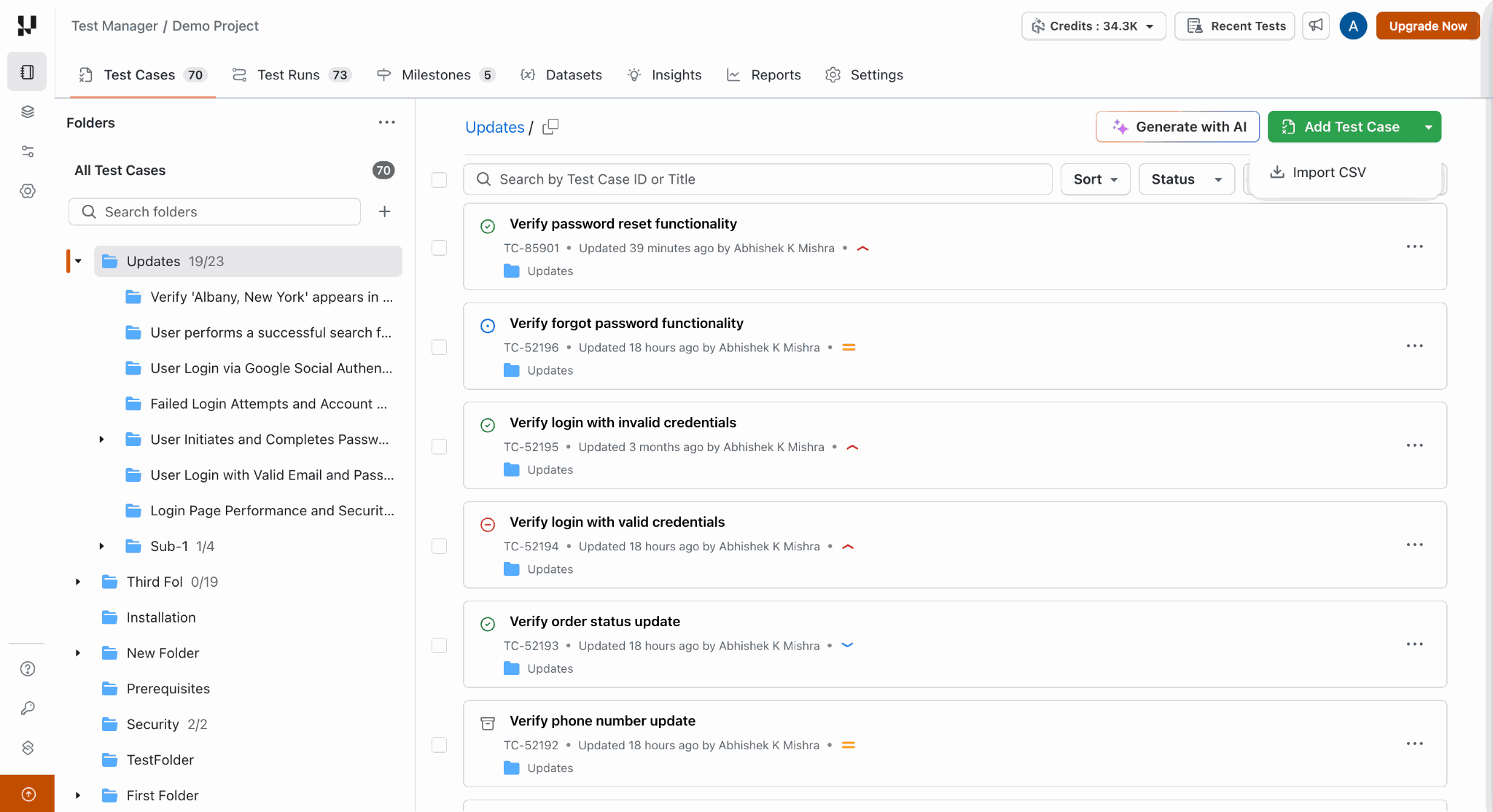
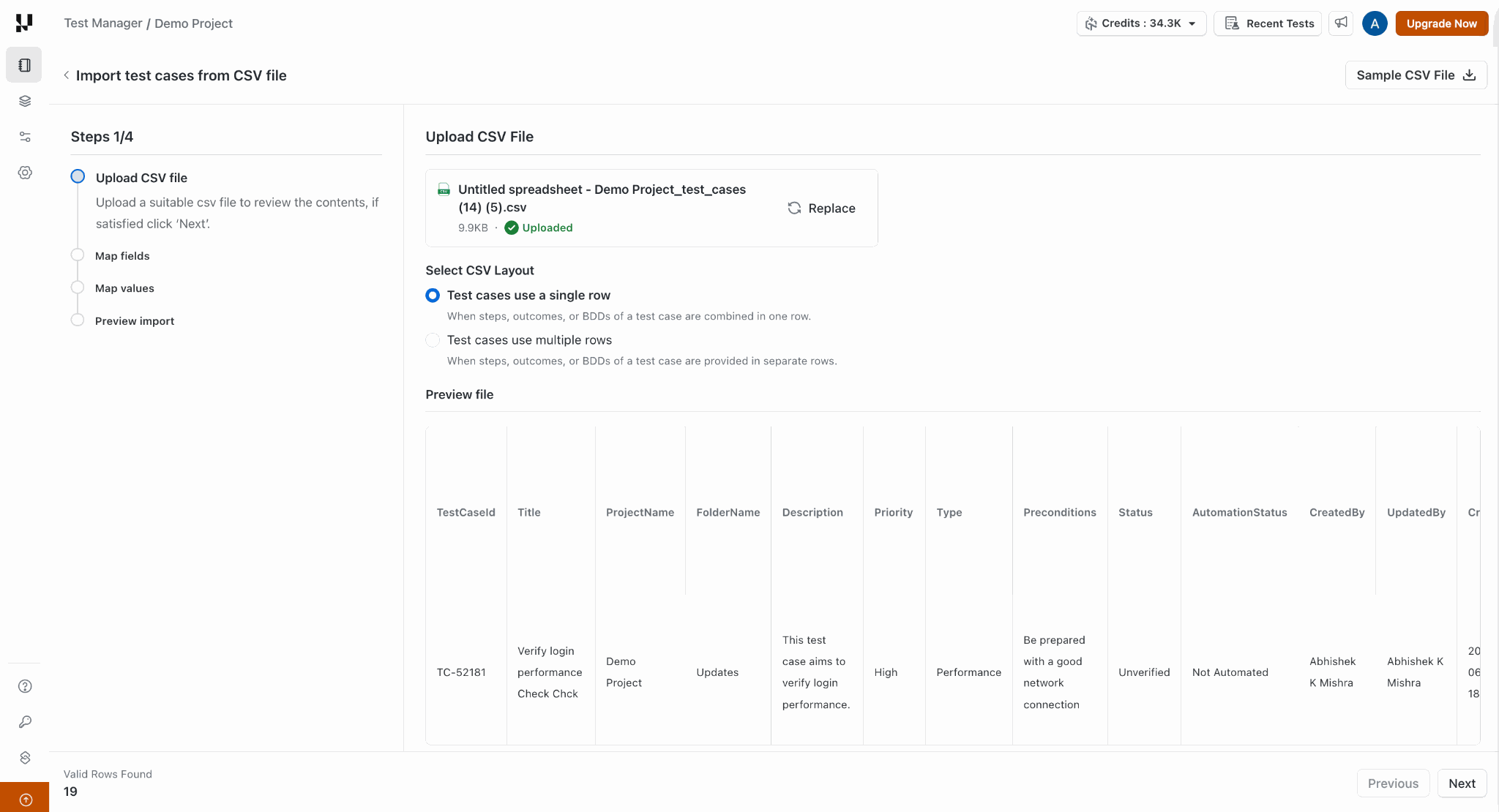
- Select CSV Layout: Tell Test Manager how your file is arranged:
- Test cases use a single row — steps, outcomes, or BDDs of a test case are combined in one row and indexed like:
1. Go to lambdatest.com 2. click on login button - Test cases use multiple rows — steps, outcomes, or BDDs of a test case are provided in separate rows.
- Test cases use a single row — steps, outcomes, or BDDs of a test case are combined in one row and indexed like:
- File Preview: After selecting your CSV file, a preview will appear displaying the contents of the file to be imported, along with the number of valid rows found.
- Next Step: Click Next to proceed to the Field Mapping stage.
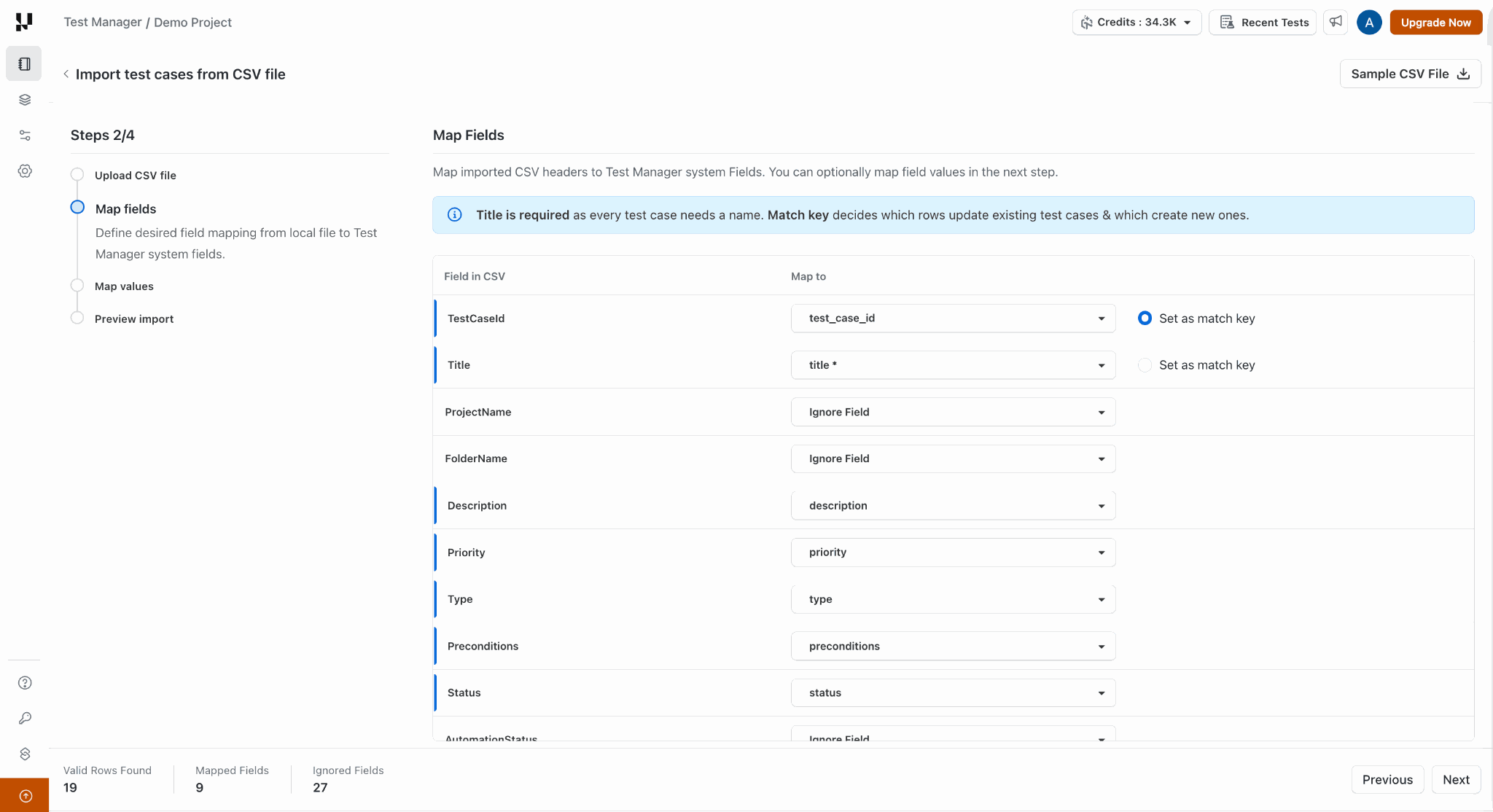
2. Map fields
In this step, you will map the CSV file headers to corresponding fields in Test Manager. This enables Test Manager to understand where each piece of information from the CSV should be placed. Following entities can be mapped & imported:
- Test Case Title: Using
Titleoption - Test Case ID: Using
Test Case IDoption — needed if you want to update existing test cases - Test Case Steps: Using
Stepsoption - Test Case Step Outcomes: Using
Outcomeoption - BDD Scenarios
- System Fields
- Custom Fields
- Folder Names: Using
Folderoption - Jira Tickets: Using
Link Jiraoption
You don't have to map every header:
- Skip a column — leave it as Ignore Field. Ignored columns are never written to a test case, and on an update they leave the existing value untouched.
- Create a custom field on the fly — if a column has no matching field in Test Manager, use Add New Field to create a custom field for it without leaving the import.
Create your custom fields before you start the import and map the columns to them directly. It keeps the mapping step quick and gives you full control over each field's type and settings.
Mapping at least one CSV header to the Title field is mandatory, as every test case needs a name. This is separate from matching — see the next section.
Choose a match key (to update existing test cases)
The match key is the column Test Manager uses to look up each row against the test cases that already exist in the scope you're importing into. That lookup is what decides the outcome of every row — whether it updates an existing test case, creates a new one, or is skipped. You'll find a Set as match key option next to the columns that can be used for matching.
No match key is selected for you — you have to choose one. If you don't select a match key, no lookup happens and every row is created as a new test case, exactly like earlier imports.
| Match key | When to use it | Things to watch out for |
|---|---|---|
| Test Case ID (recommended) | Your file has a TestCaseId column — for example, a CSV exported from Test Manager. | None. Test Case IDs are unique across your organization, so a match is never ambiguous. |
| Title | Your file has no Test Case ID column. | Titles can repeat. A row whose title matches more than one test case is skipped, and renaming a test case in your spreadsheet breaks its match. |
How the lookup works:
- Scope: the lookup only searches the project you're importing into, and the folder when you import into one. It never searches your whole organization, so identical test cases in other projects are ignored.
- Matched exactly once → the row updates that test case, or is left alone if nothing changed.
- Matched nothing → the row creates a new test case. This includes rows with a blank match key value and rows carrying a Test Case ID that doesn't exist in the scope, so a row is never silently dropped.
- Matched more than one → the row is skipped and nothing is modified. This can only happen when matching on Title.
- Values are compared after trimming spaces and ignoring letter casing, so
" tc-1358 "still matchesTC-1358. - Test Case IDs are assigned when a test case is created. If you created test cases through a CSV import, export them first to get their IDs before your next update import.
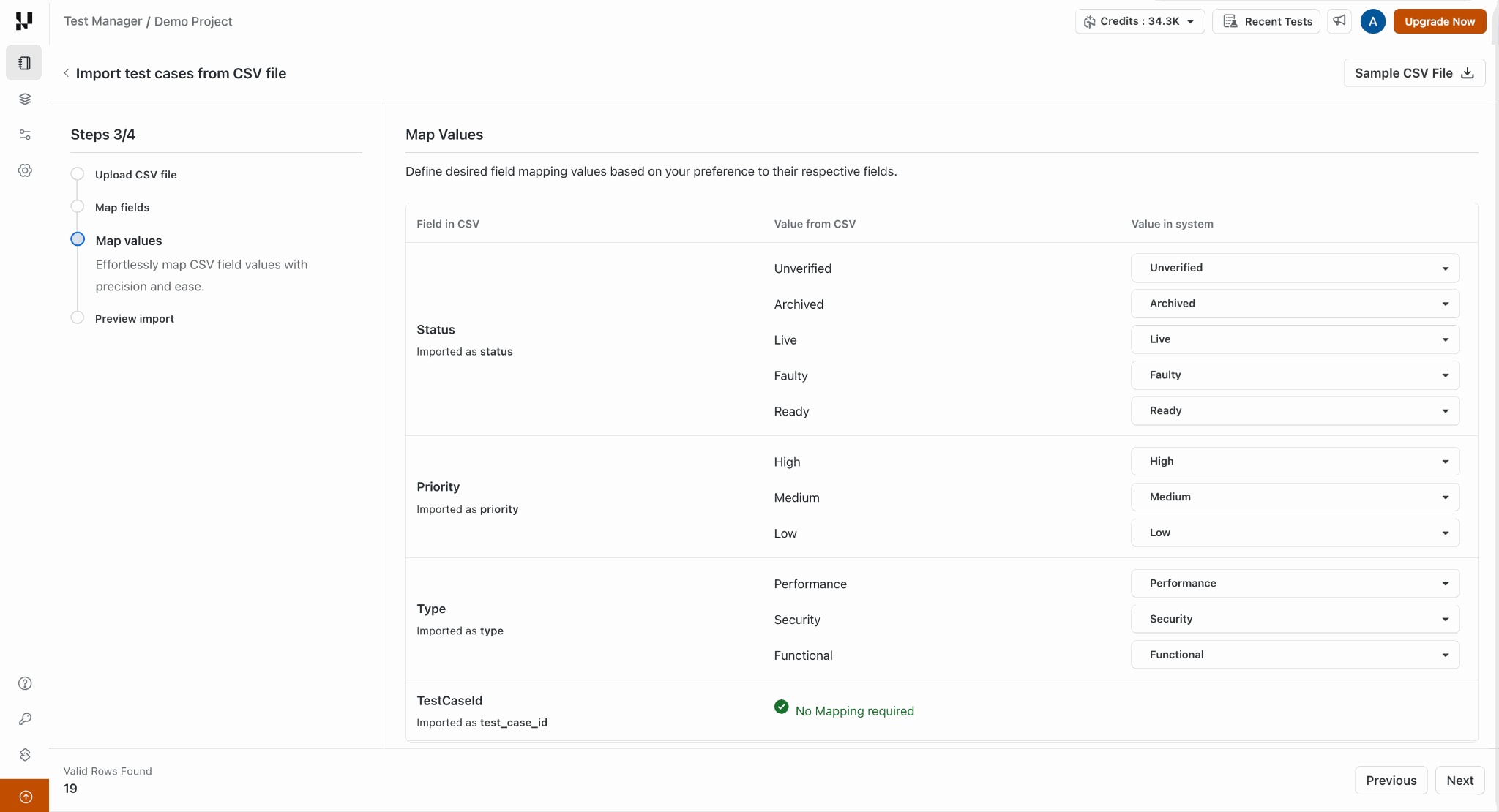
3. Map values
Once you've mapped the CSV headers to Test Manager fields, it's time to map the CSV field values to the selected fields.
- System Fields Values: Existing values will be automatically mapped. For any new values, you can map them to existing values or create new values using the
Create new valueoption. - Custom Fields Values: Values will be automatically generated and applied.
- Folder Names: If your CSV includes folder paths, you can select the appropriate delimiter to split the folder path when parsing. For example, use
/to split the folder path"folder1/folder2/folder3"
4. Preview import
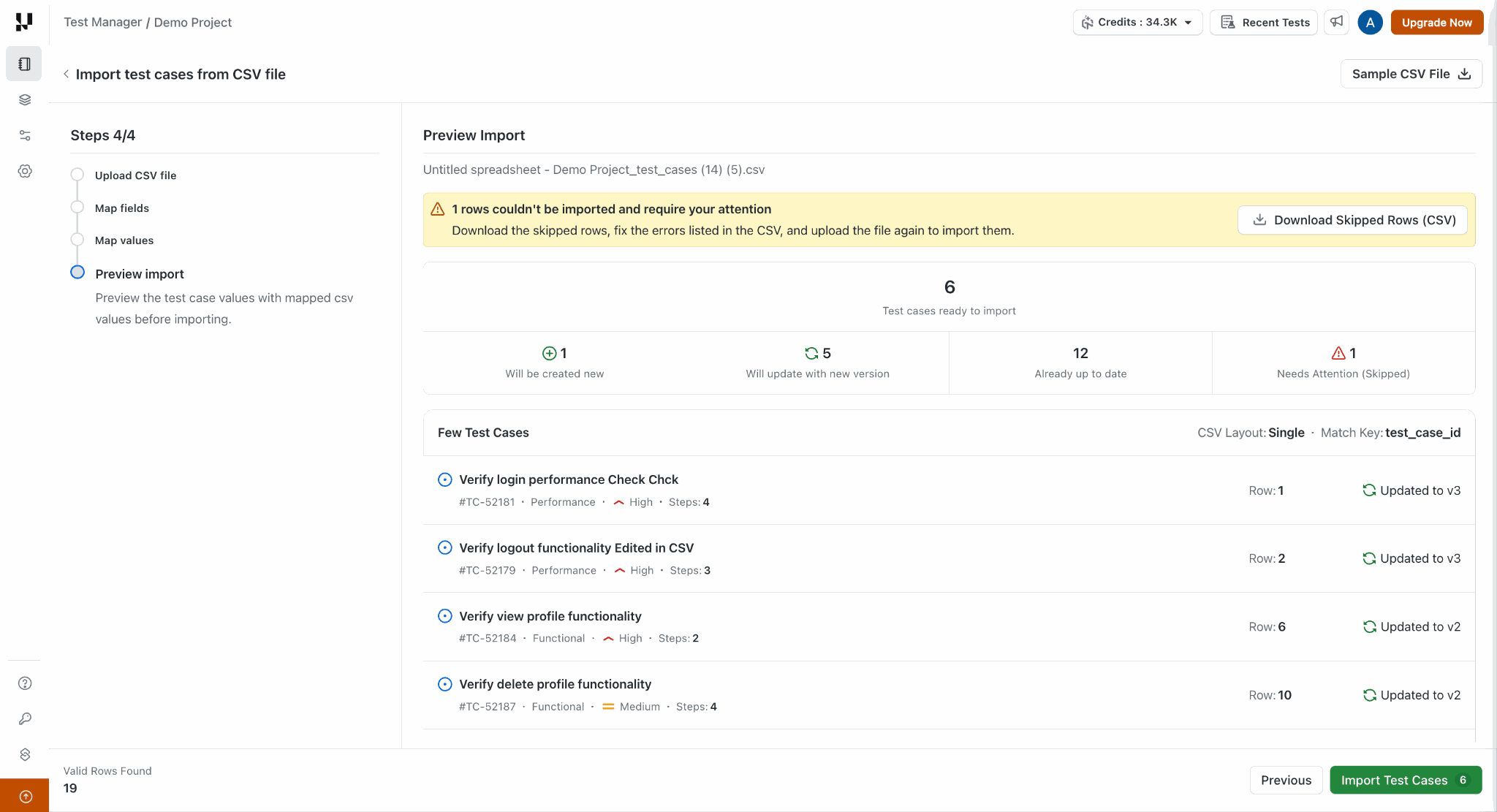
Before anything is written, Test Manager checks every row against your existing test cases and shows you a summary of what the import will do.
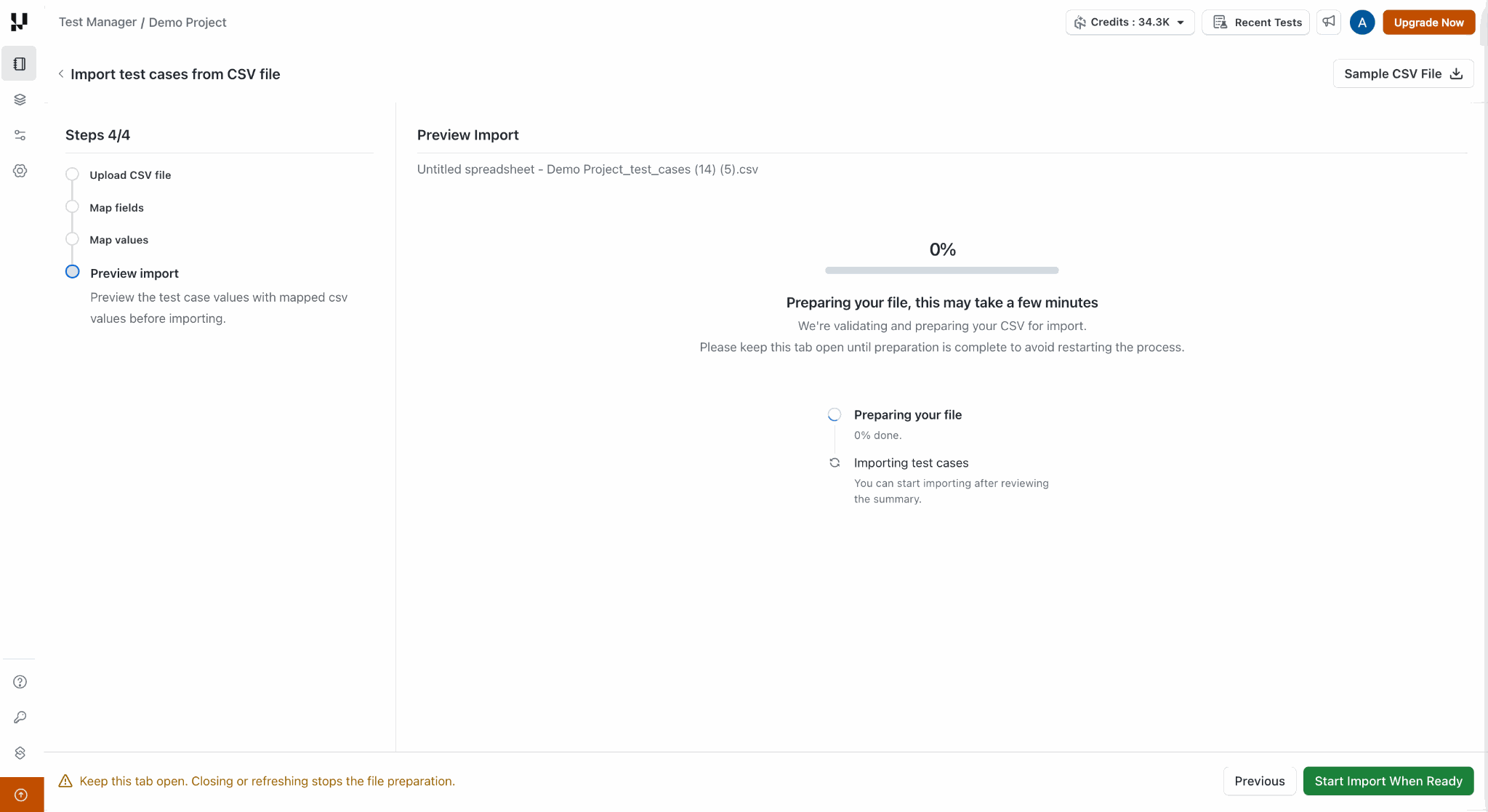
Preparing the file can take a few minutes for large imports. Keep the tab open until preparation finishes — closing or refreshing it stops the preparation and you'll have to start again.
The summary tells you how many test cases:
| Summary | What it means |
|---|---|
| Will be created new | The row didn't match any existing test case, so a new test case will be created and assigned a Test Case ID. |
| Will update with new version | The row matched exactly one test case and at least one mapped value is different. The test case will be updated and a new version recorded. |
| Already up to date | The row matched exactly one test case and nothing changed. Nothing is written, and no version is created. |
| Needs attention (Skipped) | The row can't be applied. It is skipped and the matching test case, if any, is left untouched. |
Alongside the counts you'll see the CSV layout and match key that were used, and a sample of test cases with the outcome for each. To review everything that was skipped, use Download Skipped Rows (CSV) — it lists each skipped row along with the reason, so you can fix them in your spreadsheet and import again.
Rows are skipped for these reasons:
- Ambiguous match — the title matches more than one existing test case. Add a Test Case ID column to match precisely. (Only possible when matching on Title.)
- Missing required field — a required field such as Title is empty, so the test case can't be created or updated.
- Duplicate in file — the same match key value appears on more than one row. The first row is applied and the rest are skipped.
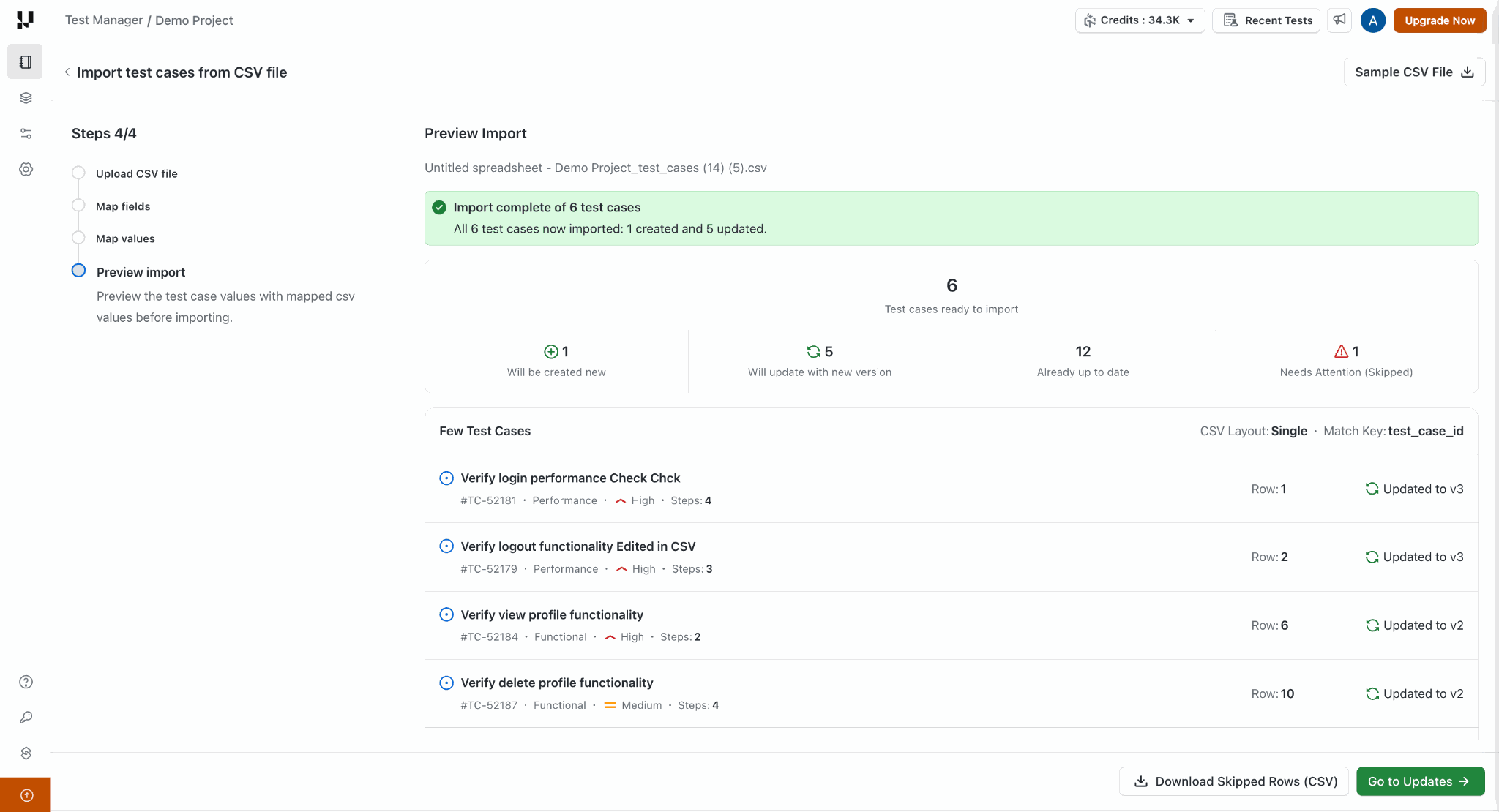
Once you're happy with the summary, start the import. Progress is shown as it runs, and the import continues in the background — you can keep working and check back later.
By default the Test Cases not having any folder defined for them, go into the Untitled folder.
Let's see the imported data:
What counts as a change
A matched test case is updated only when a mapped field's value actually differs from what's currently stored. Values are compared after trimming spaces, and steps are compared by their order and structure.
- Unmapped columns are never touched. Only the columns you mapped in Step 2 can change a test case. If you don't want a field to change, leave its column out of the mapping.
- Re-importing an unchanged file changes nothing. Every row resolves to Already up to date, so no duplicates and no versions are created.
Versions created by an import
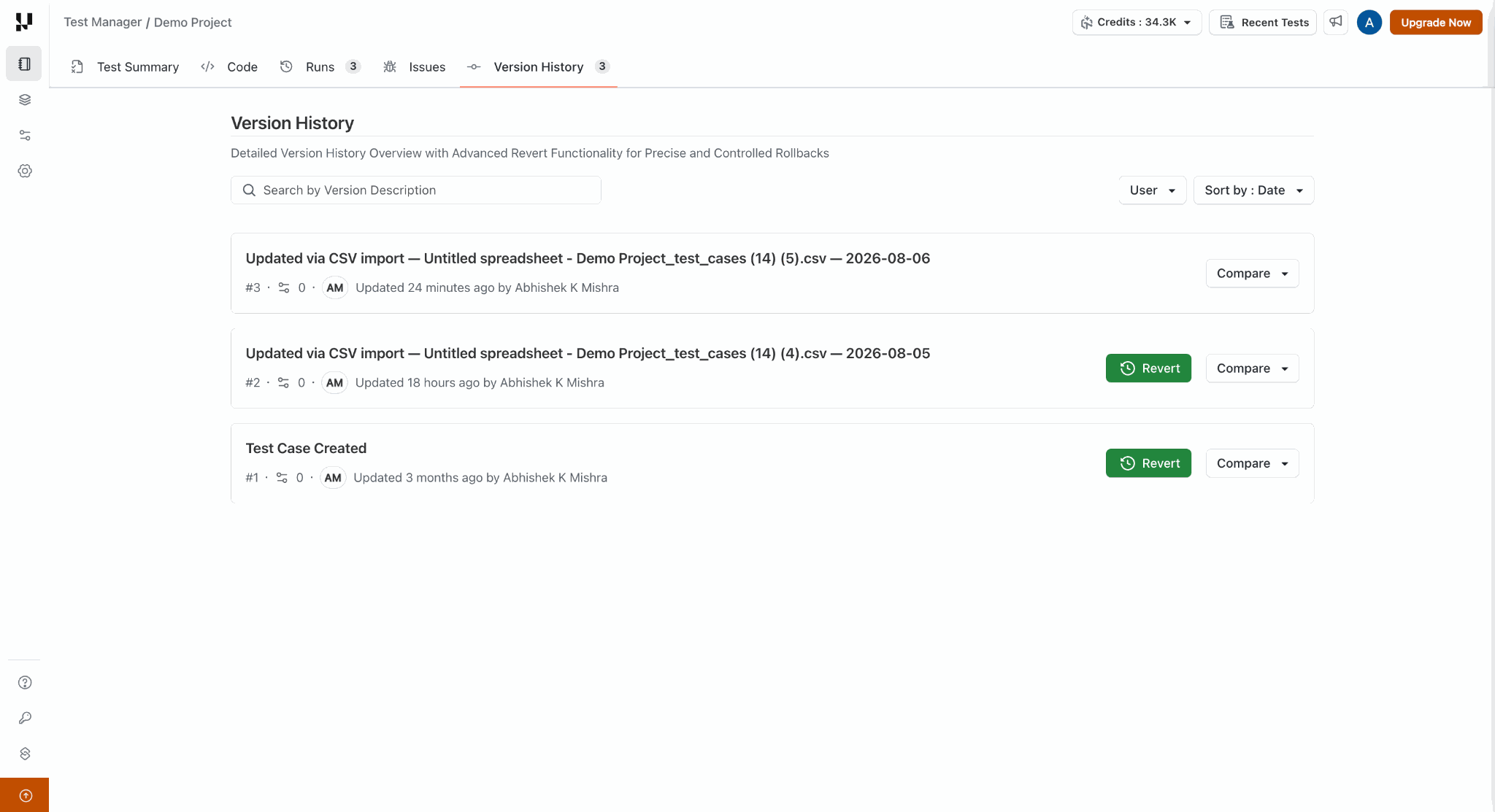
Every test case updated by a CSV import gets a new entry in its Version History, exactly like a manual edit. The version carries an auto-generated commit message identifying the import (the file name and date), and you can optionally set a single commit message for the whole import.
All the usual actions apply to these versions — compare, view an older version, and revert. Nothing is ever erased, so an unwanted change can always be rolled back. See Test Case Versioning for details.
Troubleshooting
| What you see | Why it happens | What to do |
|---|---|---|
| The file couldn't be read as CSV | The file isn't valid CSV. | Re-export or re-save the file as .csv and upload it again. |
| The file is over the 10 MB limit | The upload limit is 10 MB per file. | Split the file into smaller files and import them separately. |
| No test case rows were found | The file has only a header row, or is empty. | Add data rows and upload again. |
| Everything was created as new, even though the test cases already exist | No match key was selected, so no lookup was performed. | Go back to Map fields and set a match key, then check the preview again. |
| More test cases were created than you expected | The match key values were blank, or the Test Case IDs don't exist in the scope you're importing into (for example, they were removed, mistyped, or the file was exported from a different project). | Check the Test Case ID column in your CSV, and confirm you're importing into the correct project and folder. |
| A row matches more than one test case | You're matching on Title, and titles can repeat. | Add a Test Case ID column to your CSV and use it as the match key. |
| The same value appears twice in the file | Two rows share the same match key value. | Only the first row is applied. Merge or remove the duplicates and import again. |
| Nothing to import | Every row is either already up to date or skipped. | Review the skipped rows report or revisit your field mapping, then try again. |
| The import stopped partway | A system error interrupted the import. | Rows already applied stay applied, with their versions. Import the same file again to finish — the applied rows show as Already up to date. |


 Chat with Us