Test Case Versioning
Test Case Versioning allows teams to track every change made to a test case over time. It provides a complete audit trail, ensures traceability, supports rollbacks to earlier versions, and makes collaboration across teams more reliable.
Creating Versions
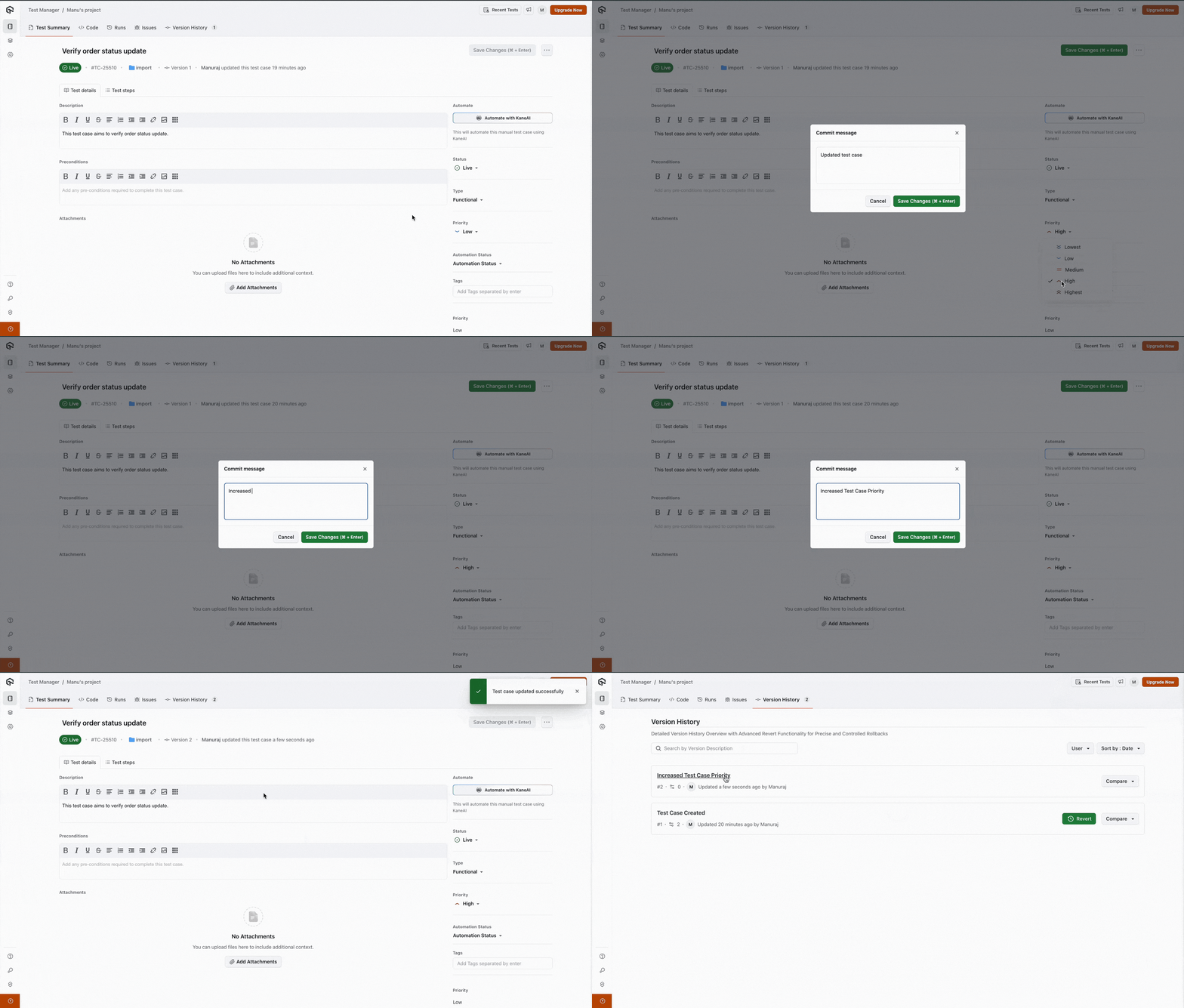
Every edit to a test case whether it’s updating steps, descriptions, or fields creates a new version once saved. Here’s how the save test case flow works:
-
After making changes to a test case, the
Save Changesbutton in the top right corner will be enabled. -
When saving, you can add a commit message to help identify the change in the audit history.
-
In the
Version Historytab, you can view all commits made to that test case.
Managing Versions
Version Comparison
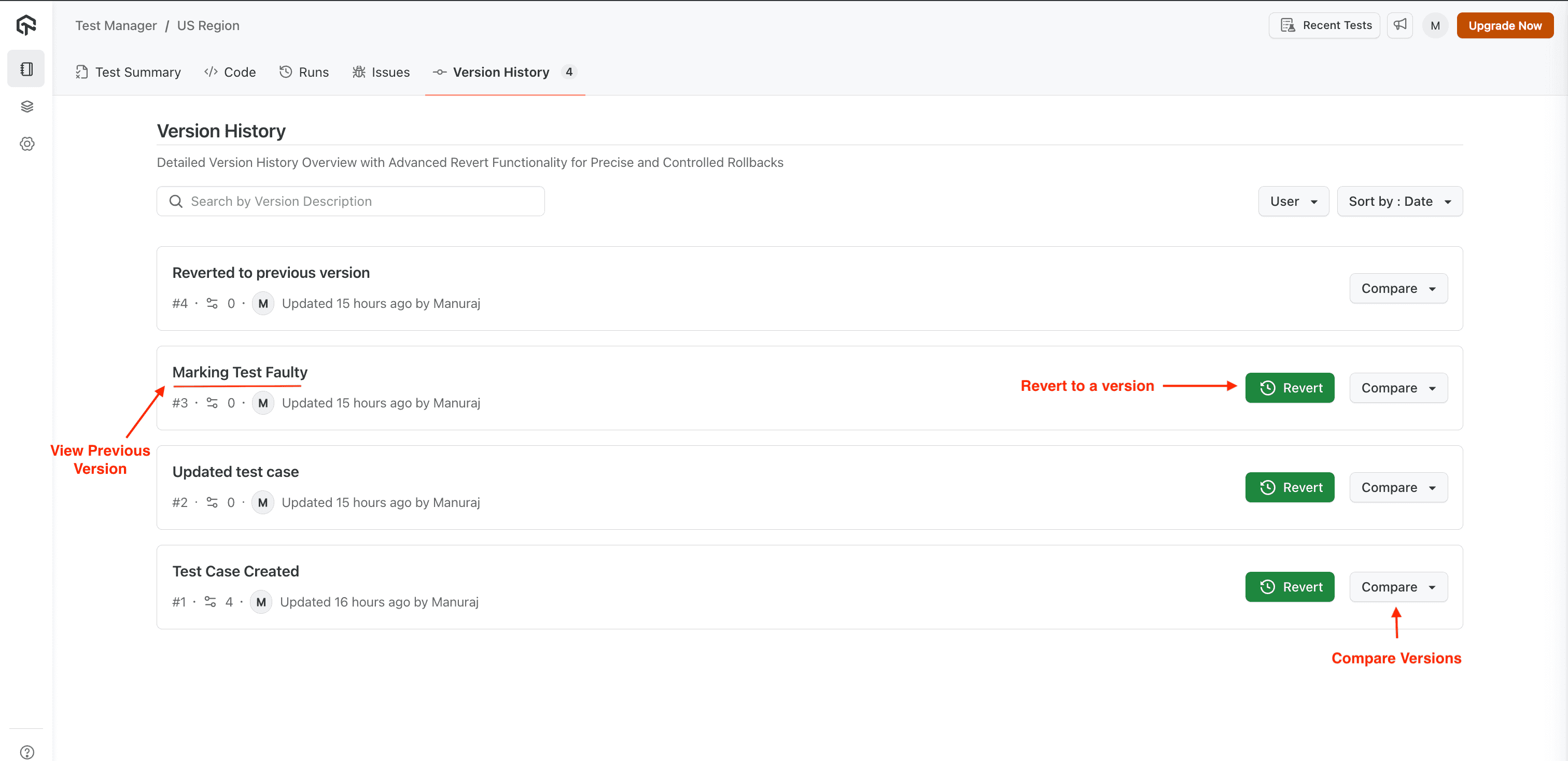
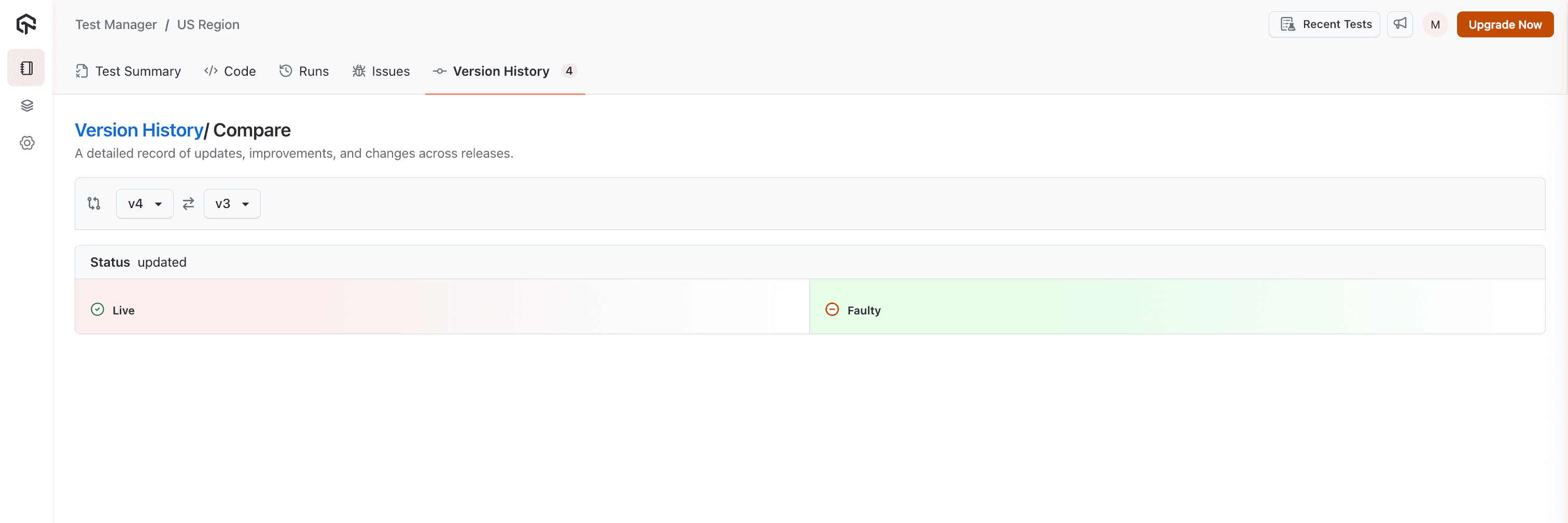
To see the change log and compare different versions of a test case, click the Compare button in the Version History tab.
View Older Versions
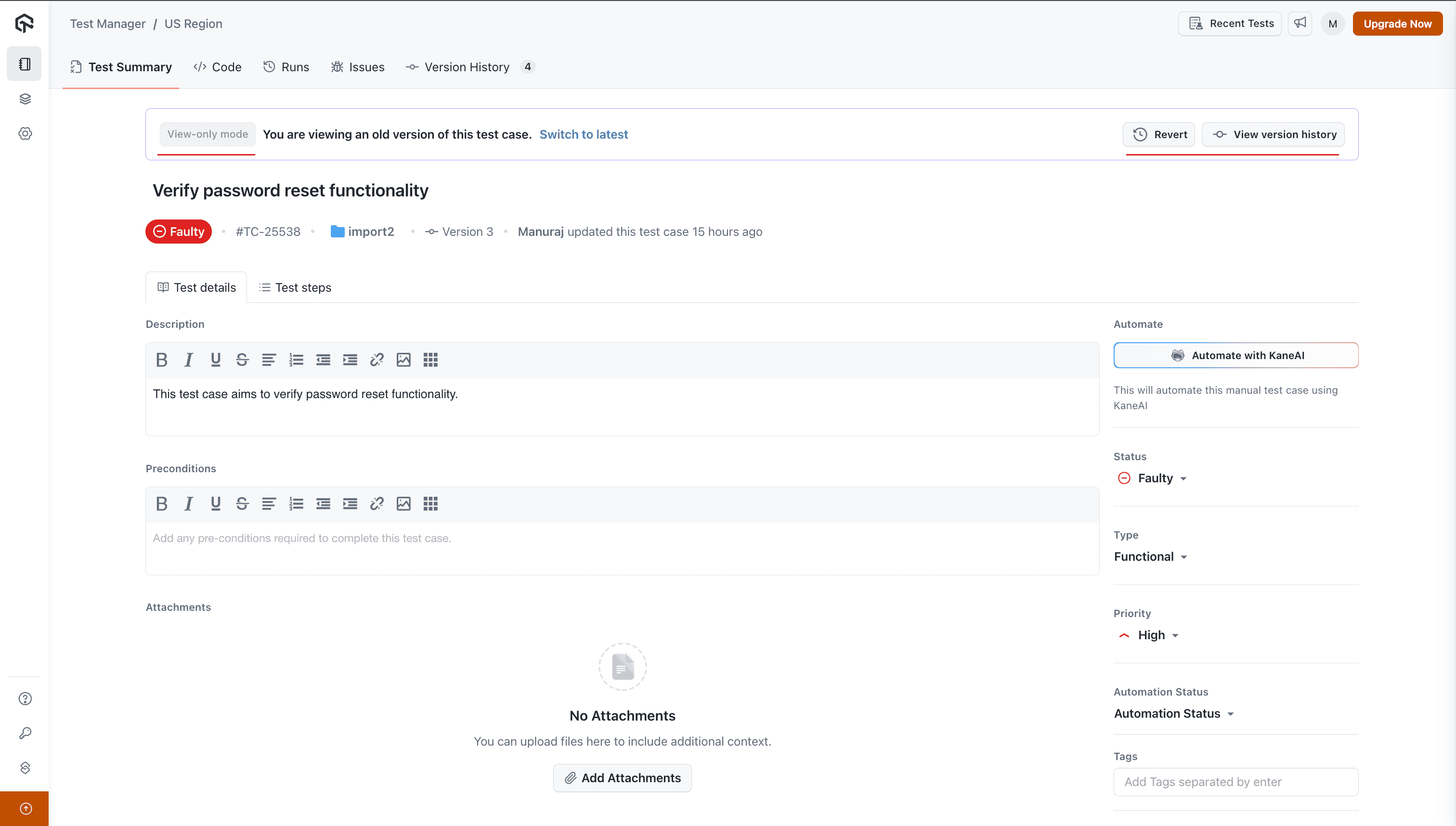
To view the details of a test case at a specific version, open the desired commit and switch to View Mode. This shows the state of the test case at that point in time.
Revert to a Version
When you revert a test case to a specific version, a new version is created that copies the contents of the selected version.
Archive and Unarchive Events
Archiving and unarchiving a test case are recorded in the Version History tab with the user who performed the action and when. These entries are markers rather than versions: they do not create a new version, they do not change the version count, and they carry no Compare or Revert action. See Archive and Restore Test Cases.


 Chat with Us