TestMu AI Docker Tunnel Extension
TestMu AI Docker Tunnel Extension allows you to perform cross browser testing of locally hosted websites and web applications across 3000+ browser and OS environments, thereby eliminating the need to manually launch the tunnel through the CLI. This allows for a seamless and hassle-free experience when establishing a secure connection for testing locally hosted websites on the TestMu AI platform.
Prerequisites
-
Install the Docker Desktop based on your operating system.
-
A TestMu AI account. Don't have an account, sign up on LambdaTest.
Setting up the TestMu AI Docker Tunnel Extension
Below are the steps to configure the TestMu AI Docker Tunnel Extension:
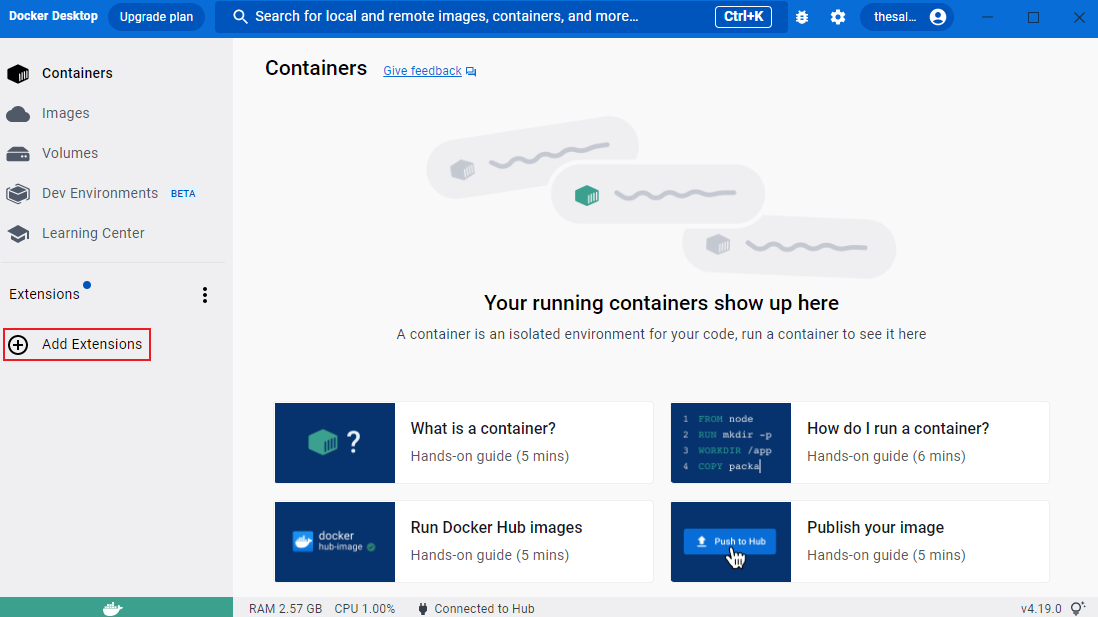
- Launch the Docker Desktop and and navigate to the left sidebar under the Extensions category. From here, select the + Add Extensions button to proceed further.
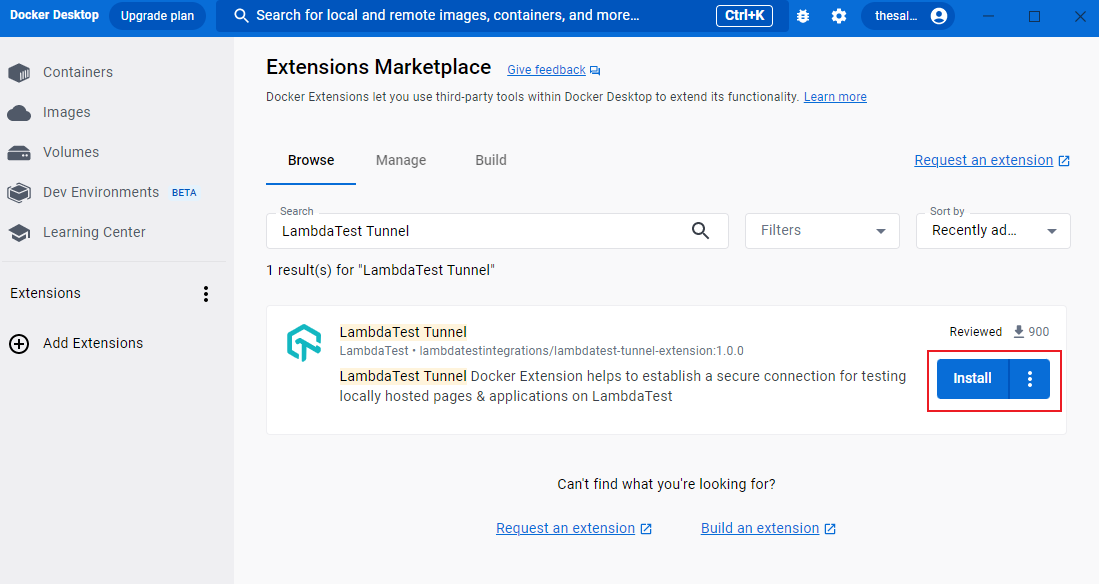
- It will redirect you to the Extensions Marketplace. Search for the TestMu AI Tunnel Extension and click on the Install button to begin the installation process.
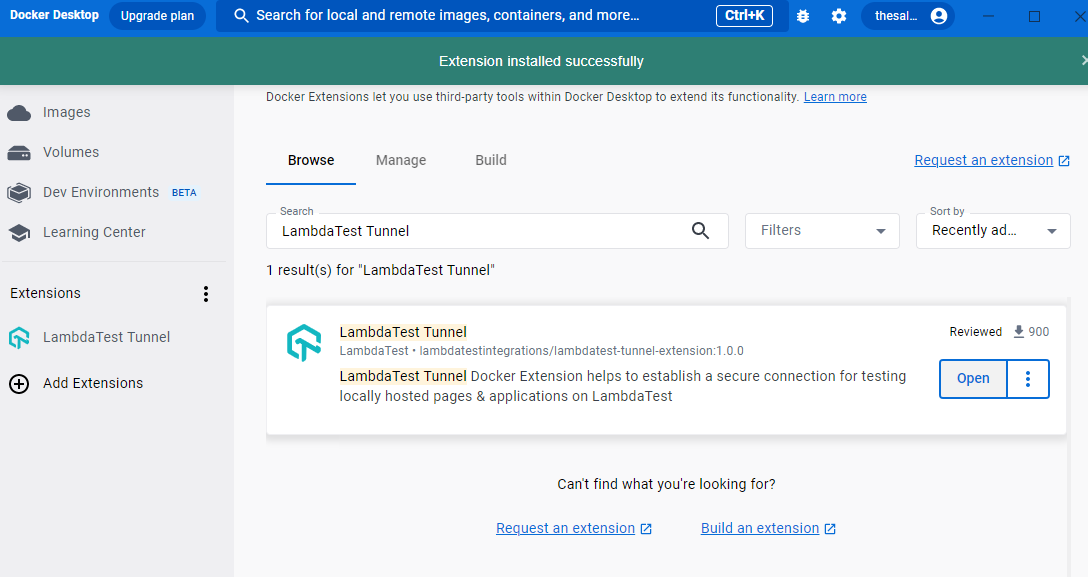
- Upon the successful installation of the TestMu AI Docker Tunnel Extension, you can go to TestMu AI Docker Tunnel page either via clicking on Open button from the browse list or by navigating to the TestMu AI Tunnel from the Extensions category.
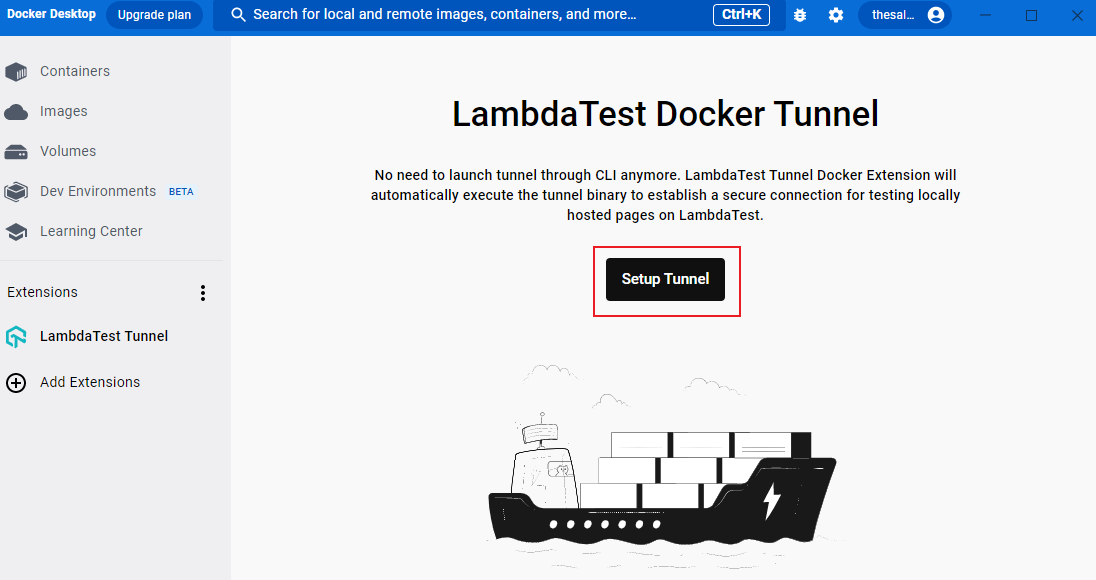
- Next, proceed to the TestMu AI Docker Tunnel page and click on the Setup Tunnel to configure the tunnel.
- In the Basic tab, you need to provide your TestMu AI Username, Access Token, and preferred Tunnel Name. Then, click on Launch Tunnel.
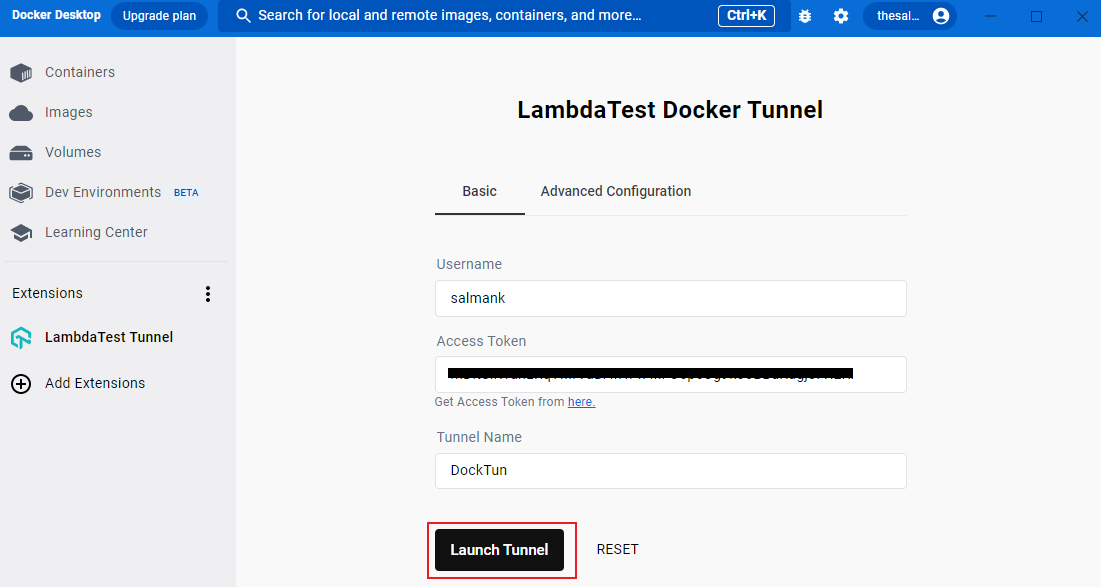
The respective fields can be reset using the RESET option, if required.
It will launch the TestMu AI Tunnel where you can notice different running Tunnel logs.
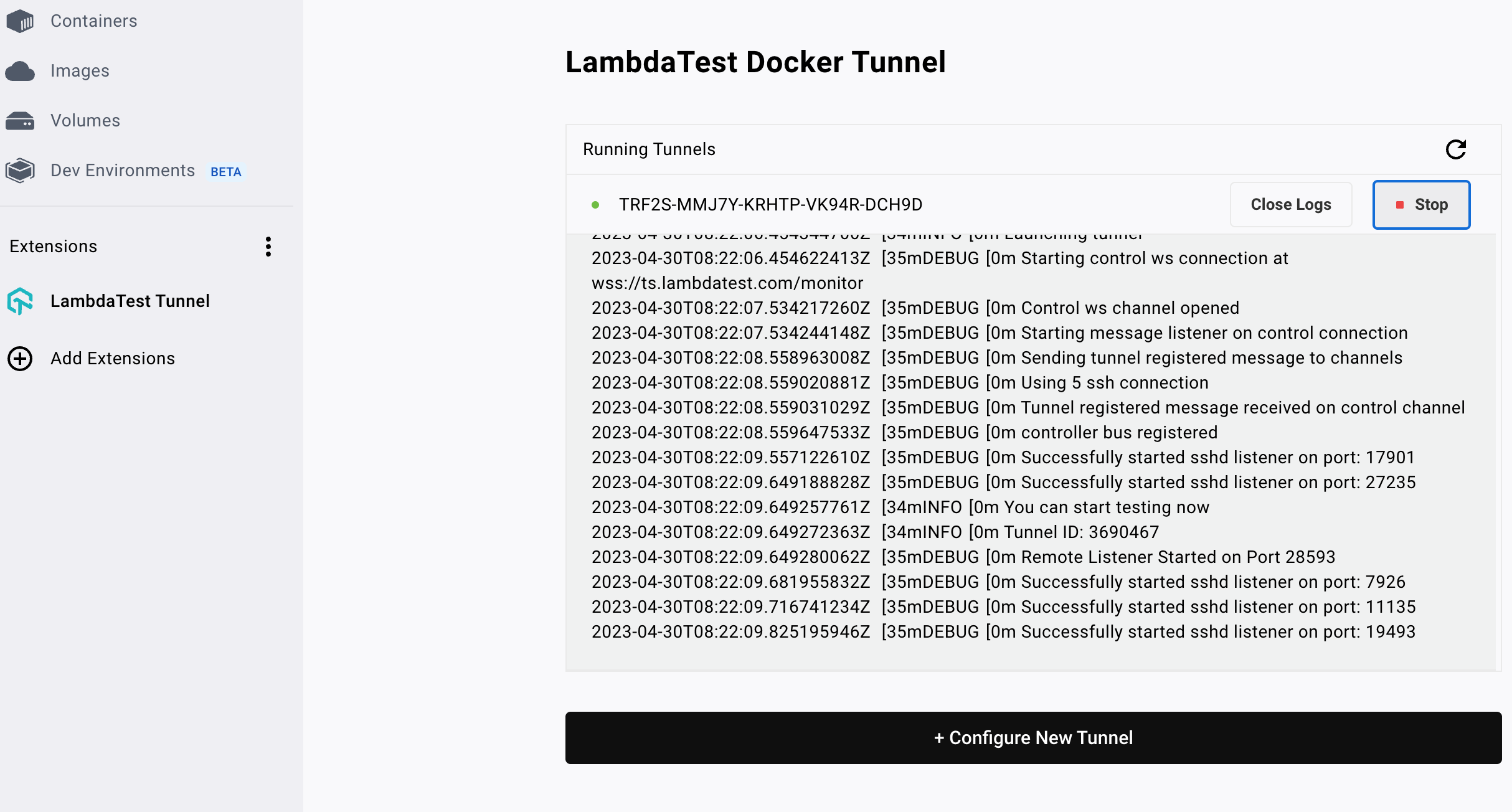
In case you wish to launch another tunnel, click on + Configure New Tunnel.
Local Testing with TestMu AI Docker Tunnel Extension
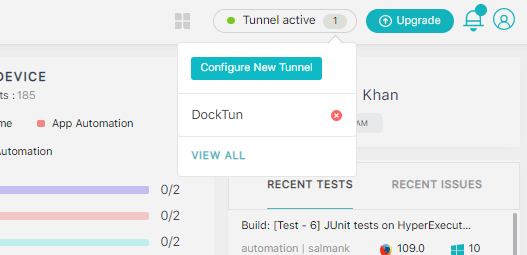
Visit the TestMu AI Dashboard, you'll find the Active Tunnel icon on right-side corner. Now that you have set up your TestMu AI Docker Tunnel, you can begin local testing of your website and web pages.
Head over to our documentation to get started: Testing Locally Hosted Pages.
Advanced Configurations in TestMu AI Docker Tunnel Extension
TestMu AI Docker Tunnel also allows you to create a secure tunnel with some Advanced Configurations.
To do so, click on the Advanced Configurations tab, and an entire list of settings will pop up. Here, you can add Environment, Local File Server Directory, Info API Ports, and more.
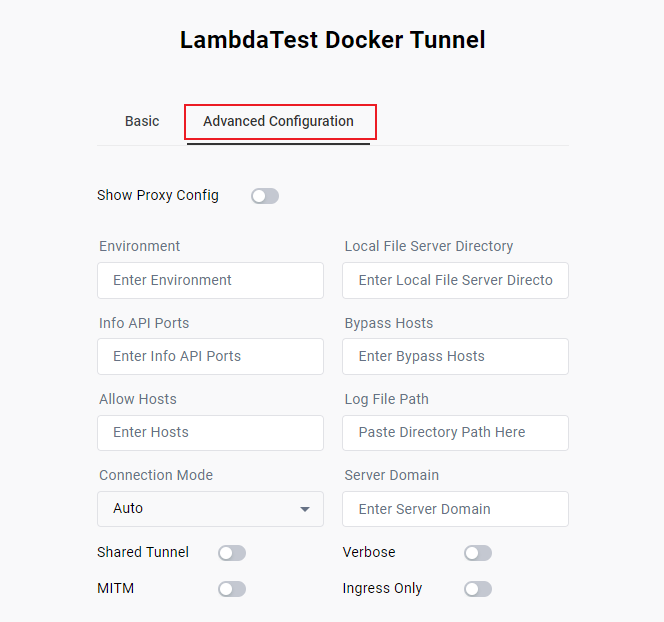
Furthermore, when enabling Show Proxy Config toggle button, you can see the options to add a Proxy Host, Proxy Port, Proxy User, and Proxy Password for a remote server, office network, or for your local machine.
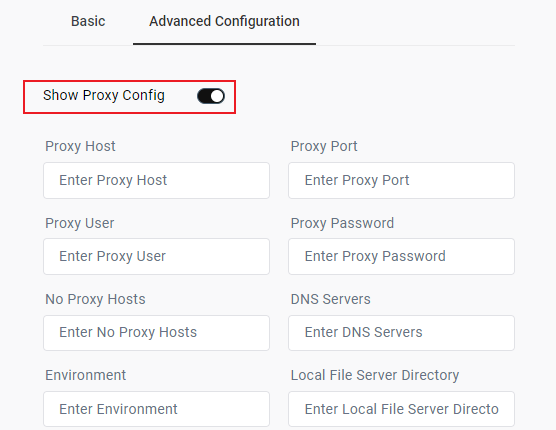
Following are the features that you can leverage using TestMu AI Docker Tunnel Extension.
-
DNS Servers: To add a list of DNS servers separated by commas.
-
Environment: Specify the type of test environment, whether you are running tests on stage, pre-prod, or on prod.
-
Local File Server Directory: To access a local folder or directory on your local machine.
-
Info API Ports: It shows the tunnel API server based on the specified port.
-
Bypass Hosts: Specify any hosts you want to bypass from the tunnel.
-
Log File Path: Specify the location of tunnel log file.
-
Connection Mode: It lets you choose the mode of connection.
-
Server Domain Name: Specify your domain name of the server.
-
Shared Tunnel: To share the tunnel with your teammates.
-
Verbose: Enable you view the detailed logs.
-
MITM: To test websites using self-signed certificates on your local machine or internal network.
-
Ingress Only: It routes the incoming traffic or inbound requests via the specified proxy.
Uninstalling the TestMu AI Docker Tunnel Extension
Here are steps to uninstall the TestMu AI Docker Tunnel Extension.
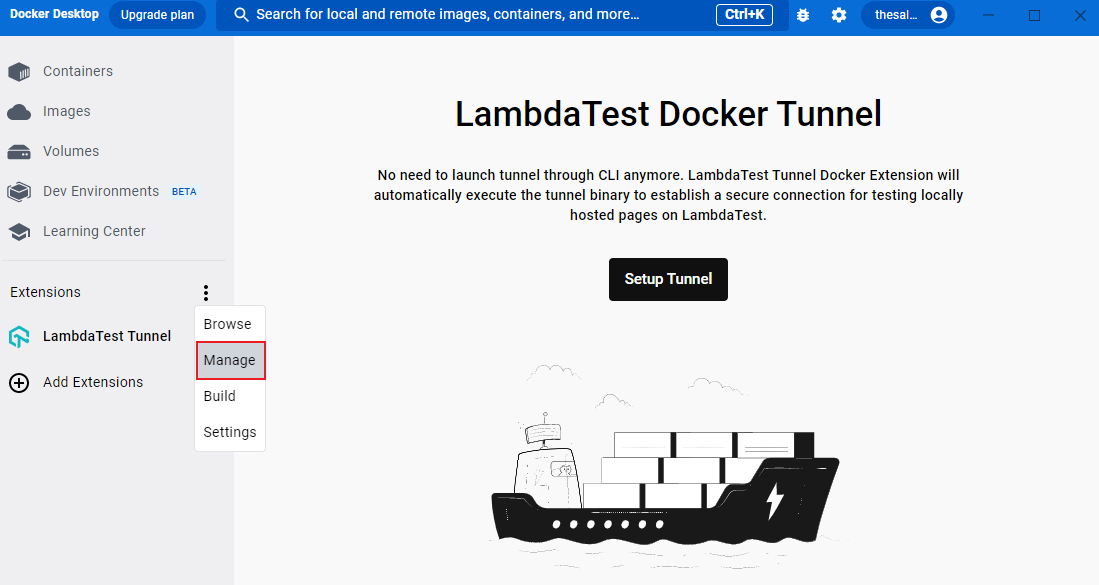
- From the TestMu AI Docker Tunnel Extension page, click the three dots menu from the left sidebar and select Manage.
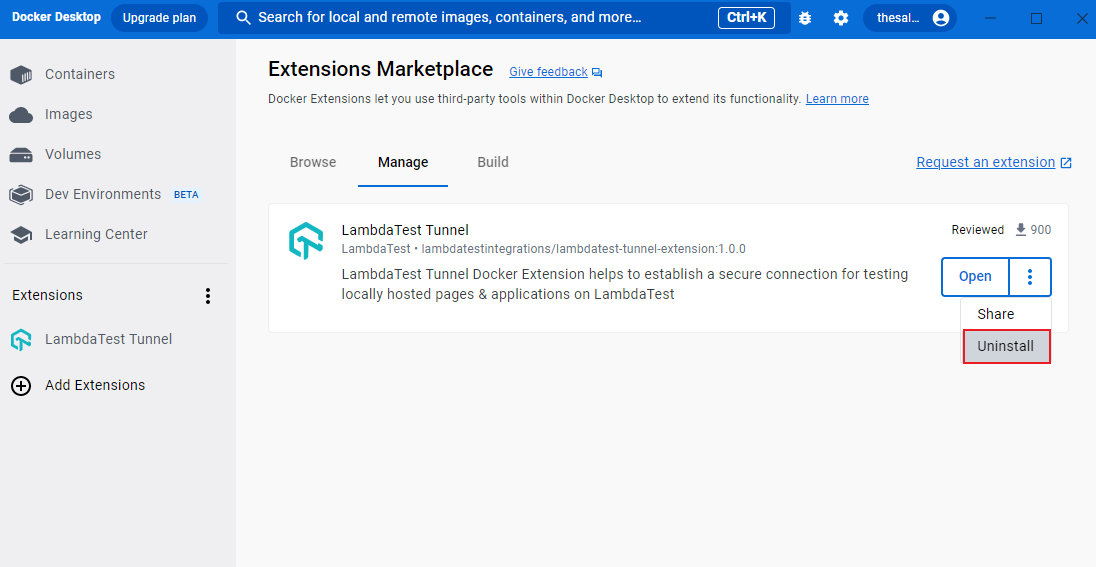
- In the Manage tab, navigate to the three dots menu and click Uninstall.

 Chat with Us
 Ask the Community