KaneAI - Using Parameters
This guide provides a detailed walkthrough for utilizing parameters in KaneAI to streamline test case management and execute tests with various data inputs. By leveraging data parameters, testers and developers can manage configurations effortlessly. Follow the step-by-step instructions below for successful implementation.
Key Features of Parameters in KaneAI
- Dynamic Data Input : Use parameters to define and input test data dynamically during test execution.
- Multiple Configurations : Simplify the execution of tests with different data sets.
- Seamless Test Management : Centralized management of parameters improves efficiency and reduces redundancy.
Seed Value and test case values
The Seed Value is defined with a global parameter in KaneAI > Variables > Parameters. It prepopulates a new parameter column when that parameter is first used in a test case. The test case stores its own value in row 1 of its Default Dataset, so you can use the same parameter with different values in different test cases without changing the global Seed Value.

If a Dataset cell is empty, KaneAI uses the empty value; it does not fall back to the Seed Value.
Define Parameters in a Web or App Agent Test
- Navigate to the specific web agent test URL and configure the test to accept input parameters.
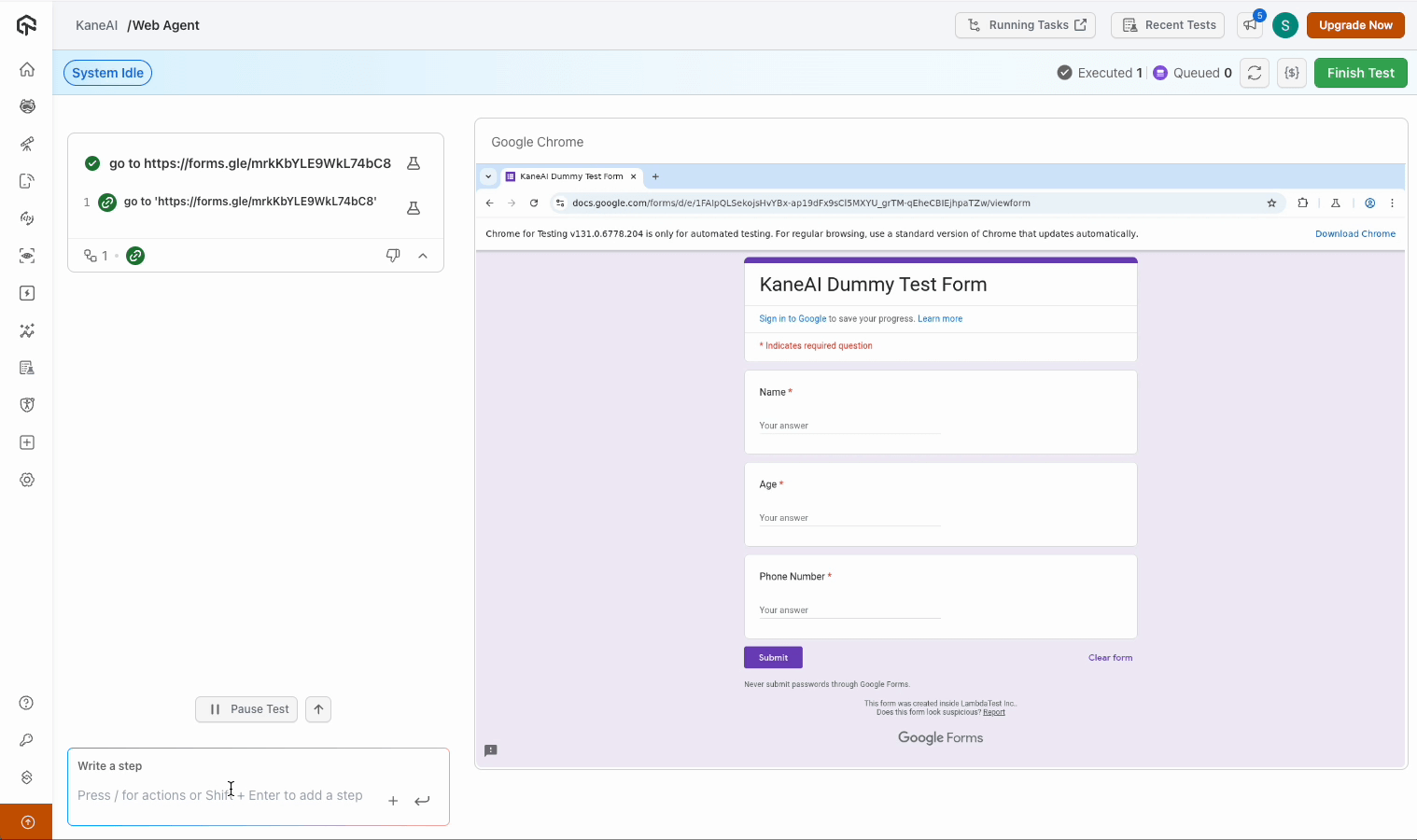
Create a parameter in a test
- Confirm that parameters are already defined in the system. To add a new parameter, use one of the following methods to define the parameter:
- Type a
slash (/)and select the Parameter option. - Click the Plus icon and choose the Parameter icon.
- Type a
Click Create Parameter to save.
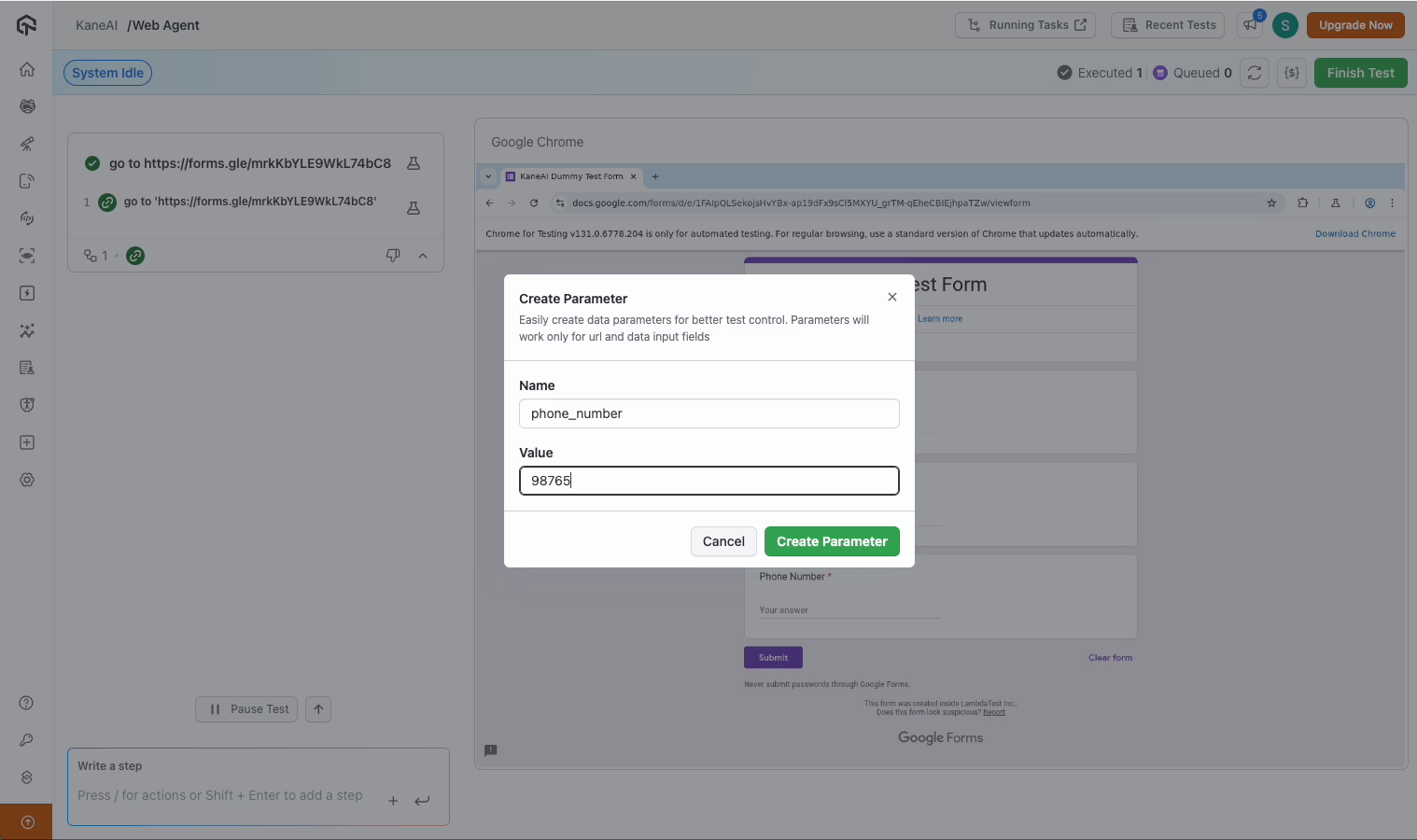
Reference the parameter in test step
Reference any parameter using dollar-curly braces syntax (e.g.,${phone_number}). Enter the name in its designated input field.
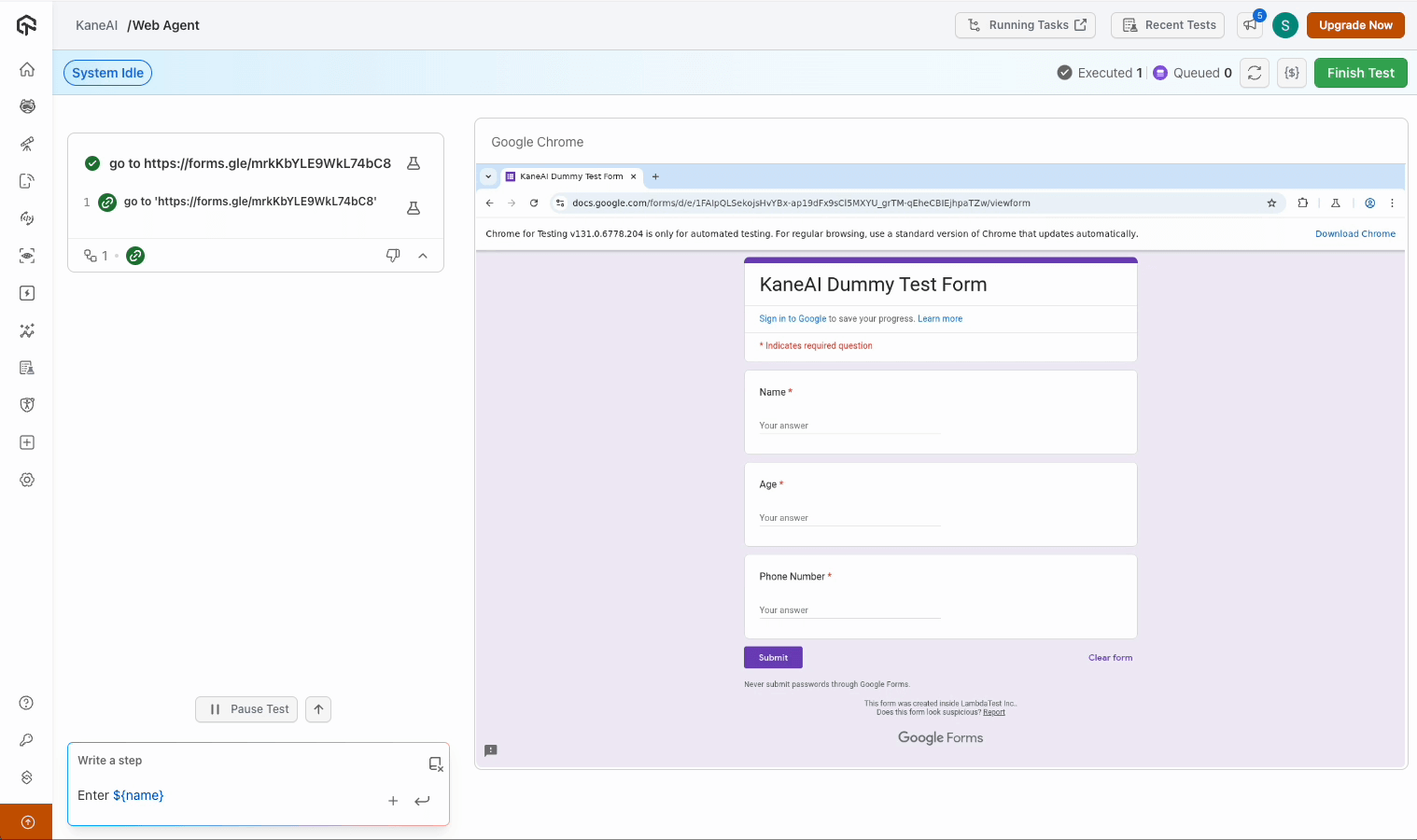
Set or change the value while authoring
When you insert a parameter into a test step, you can enter the value to use for that test case. You can also pause the authoring session, click the parameter in the step, and update it in the Parameter Value dialog. Enter New value for this test case and click Save. This replaces row 1 for that parameter in the test case's Default Dataset; it does not change the global Seed Value or another test case's value.

To run the same test case with further values, add rows to a Dataset and select it for the run. See Using Datasets.
From a Manual Interaction step
You can also convert a hard-coded value in a Manual Interaction step into a Parameter directly, without deleting or re-recording the step. This flow is available on both Desktop and Mobile App sessions, and works while the session is Paused, where step editing is available.
- Open the recorded Manual Interaction step.
- Select the portion of the instruction text you want to parameterize (for example, highlight
test.com).
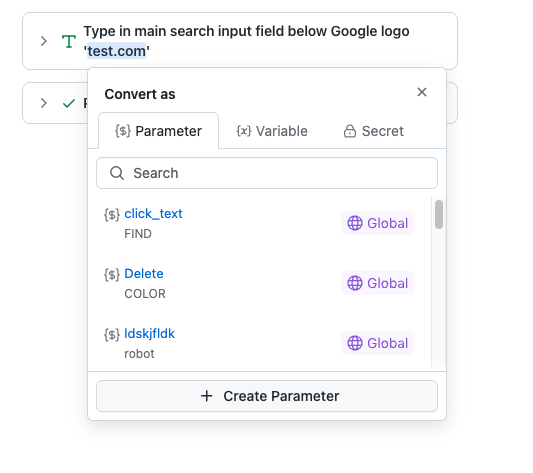
- In the Convert as popover that appears, switch to the
{$}Parameter tab. - Either pick an existing parameter from the searchable list, or click
+Create Parameter to define a new one inline. - The selected text in the step is replaced with the parameter reference (for example,
{{search_query}}). The parameterized step is now ready for data-driven execution.
This flow is only supported for Click and Type commands. For the full Convert as popover behavior across Parameters, Variables, and Secrets, see Creating variables from a Manual Interaction step.
Test Summary Page
Upon completing the test, review the Test Summary Page, where all utilized parameters are clearly displayed, and the corresponding generated code is readily available for seamless integration into future test scenarios.

Using parameters for test runs
Step 1: Navigate to Test Project
Open the Test Project dashboard and go to the Test Run section.
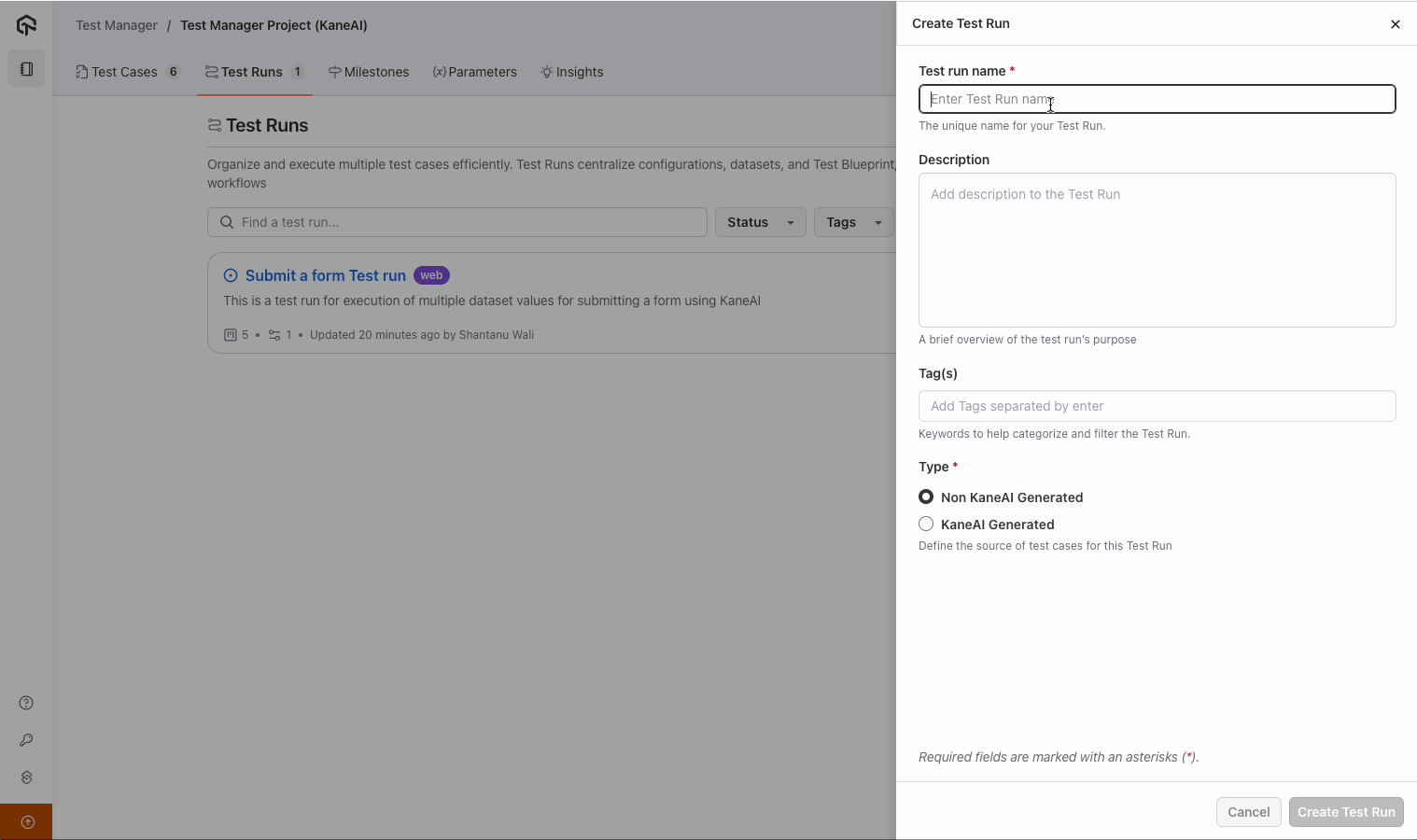
Step 2: Create a New Test Run
- Click Create New Test Run and name it (e.g., parameters test run).
- Select the KaneAI-generated test cases.
- Optionally, add a description or relevant tags.
- Click Create Test Run.
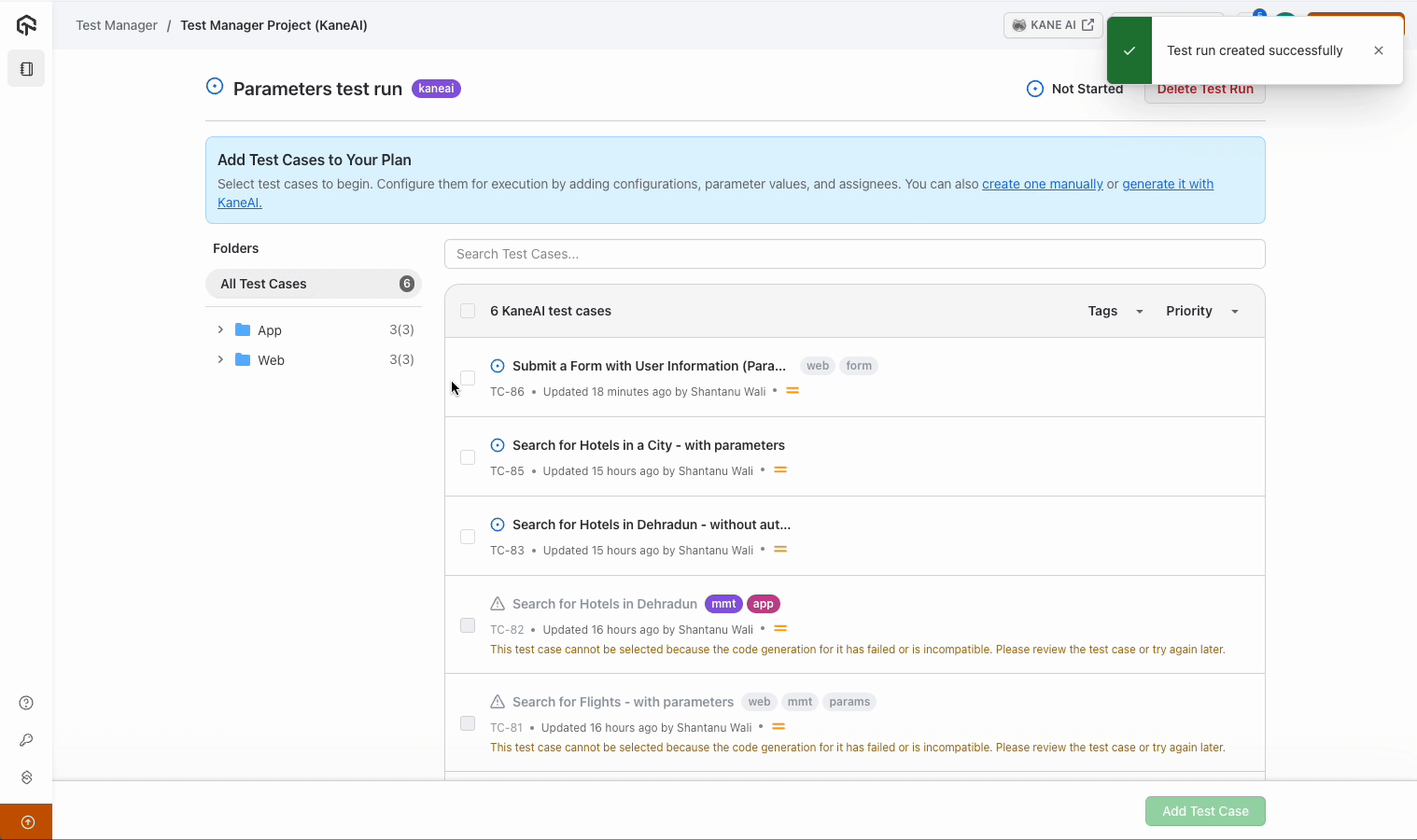
Step 3: Add Test Cases and Data Sets
- Select and add the desired test cases to the run.
- Specify configurations (e.g., Windows 10 Chrome).
- Attach the required data sets for the test run.

Step 4: Apply Data Sets
- Ensure the data sets containing necessary parameters are pre-filtered and accessible.
- Click Apply to confirm the Dataset selection.
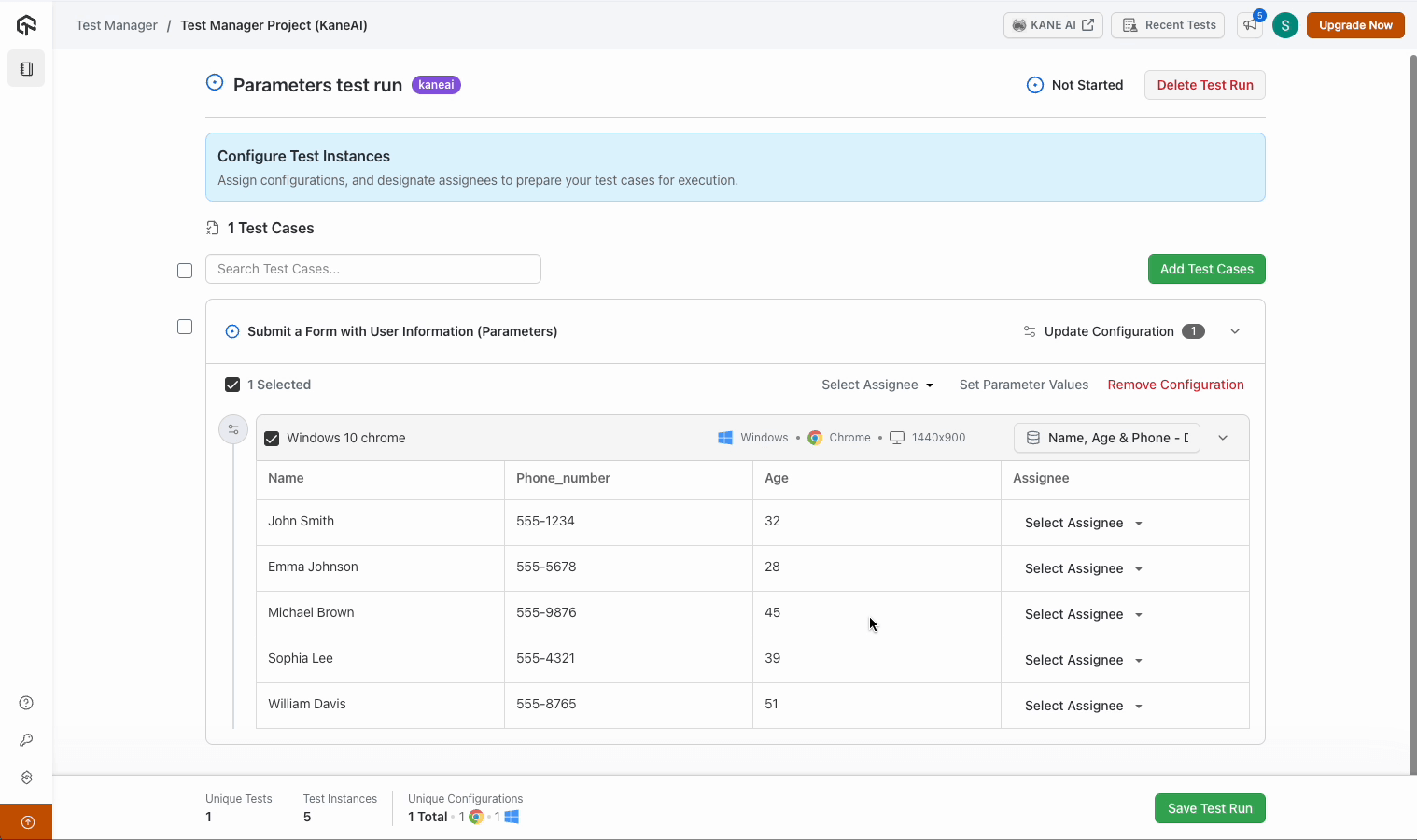
Step 5: Save and Prepare for Execution
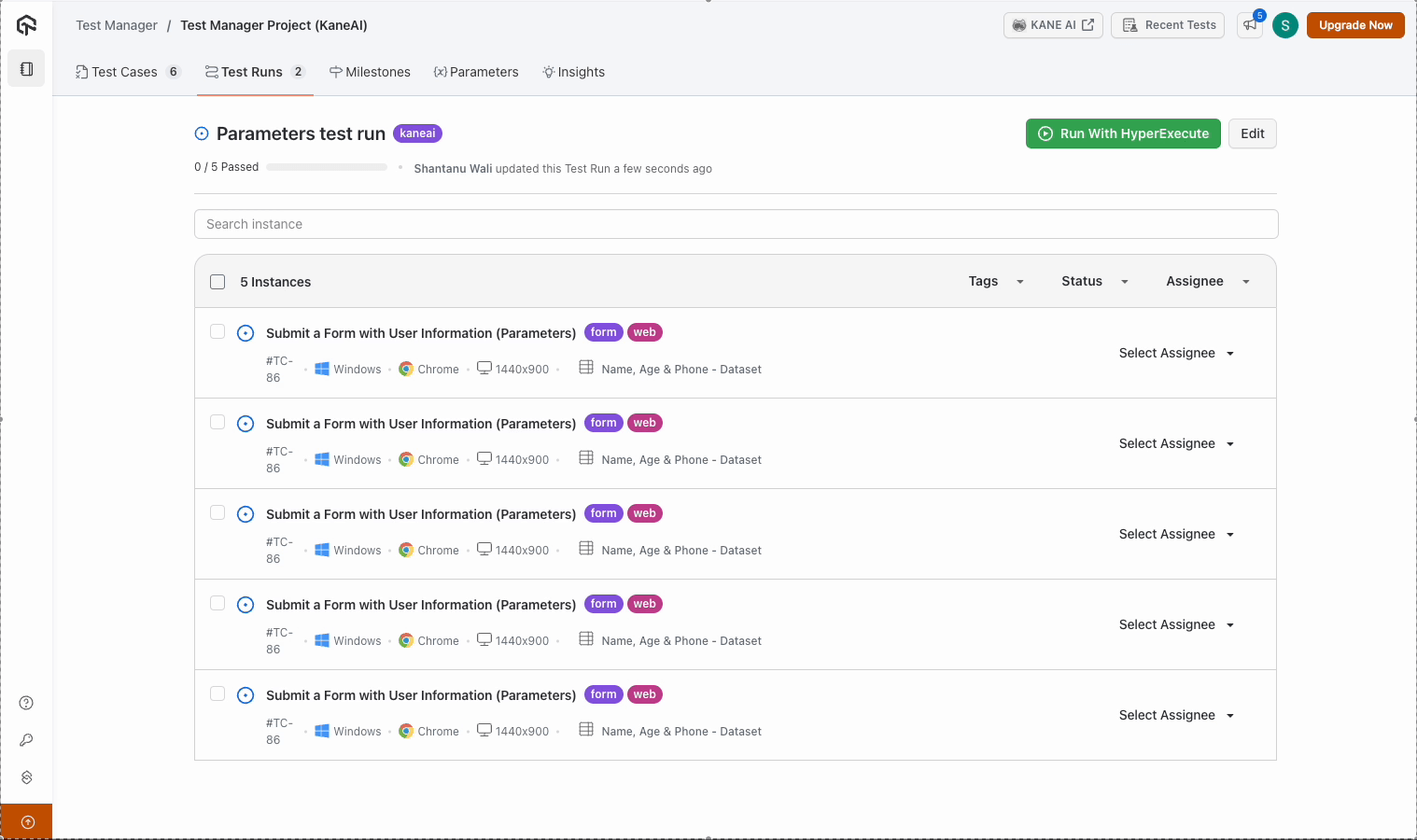
- Save the test run with the selected parameters and Datasets. The system will create test instances ready for execution in a hybrid environment.

Step 6: Execute Tests with Parameters
Utilize the parameters to run your test cases with different data sets and inputs. You can manage and monitor execution using the TestMu AI Test Manager interface.


 Chat with Us