KaneAI - Using Datasets on Test Manager
Datasets in KaneAI-TestMu AI allow you to manage and reuse input values for test cases efficiently. This guide explains how to create, edit, and manage these data sets while utilizing parameters to run test cases with a variety of inputs, improving flexibility and reducing manual data entry.
Accessing Datasets within a Project
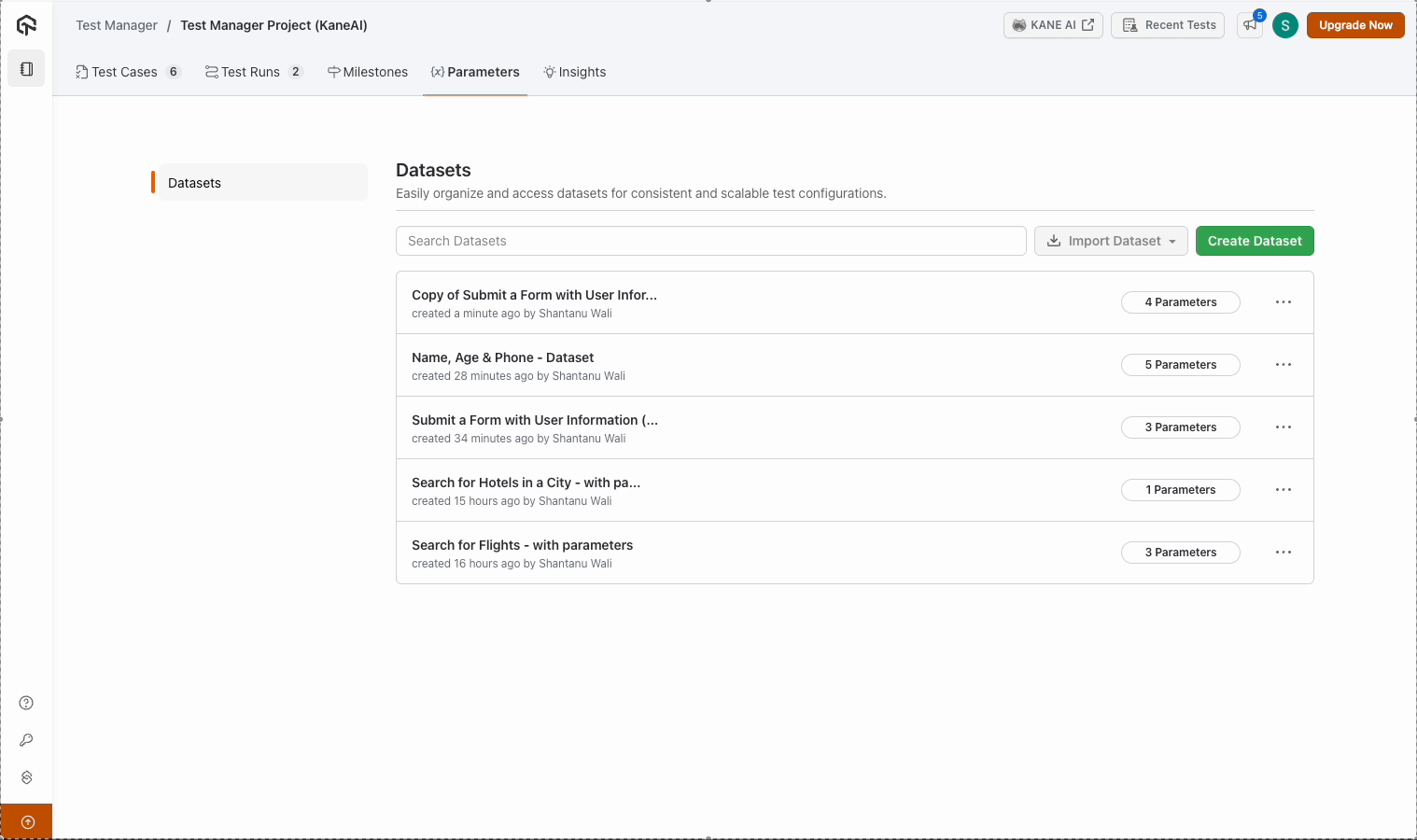
Navigate to Datasets within your Test Manager project and review the existing data sets.
Note : Parameters act as placeholders for data, enabling test cases to use varying inputs.
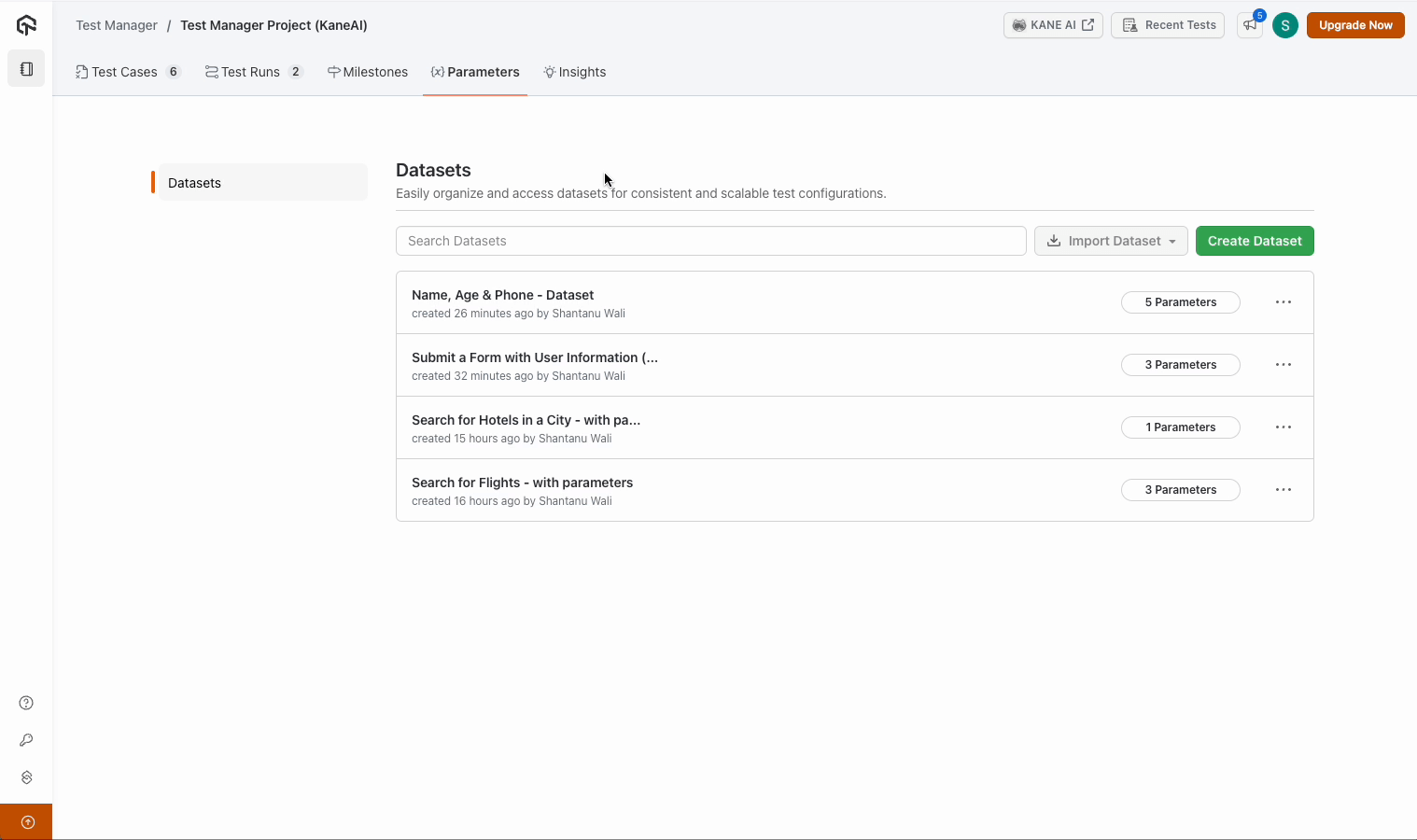
Every test case which uses parameters in KaneAI automatically generates a Default Dataset during authoring. Example: a Default Dataset might capture initial values like form submissions.
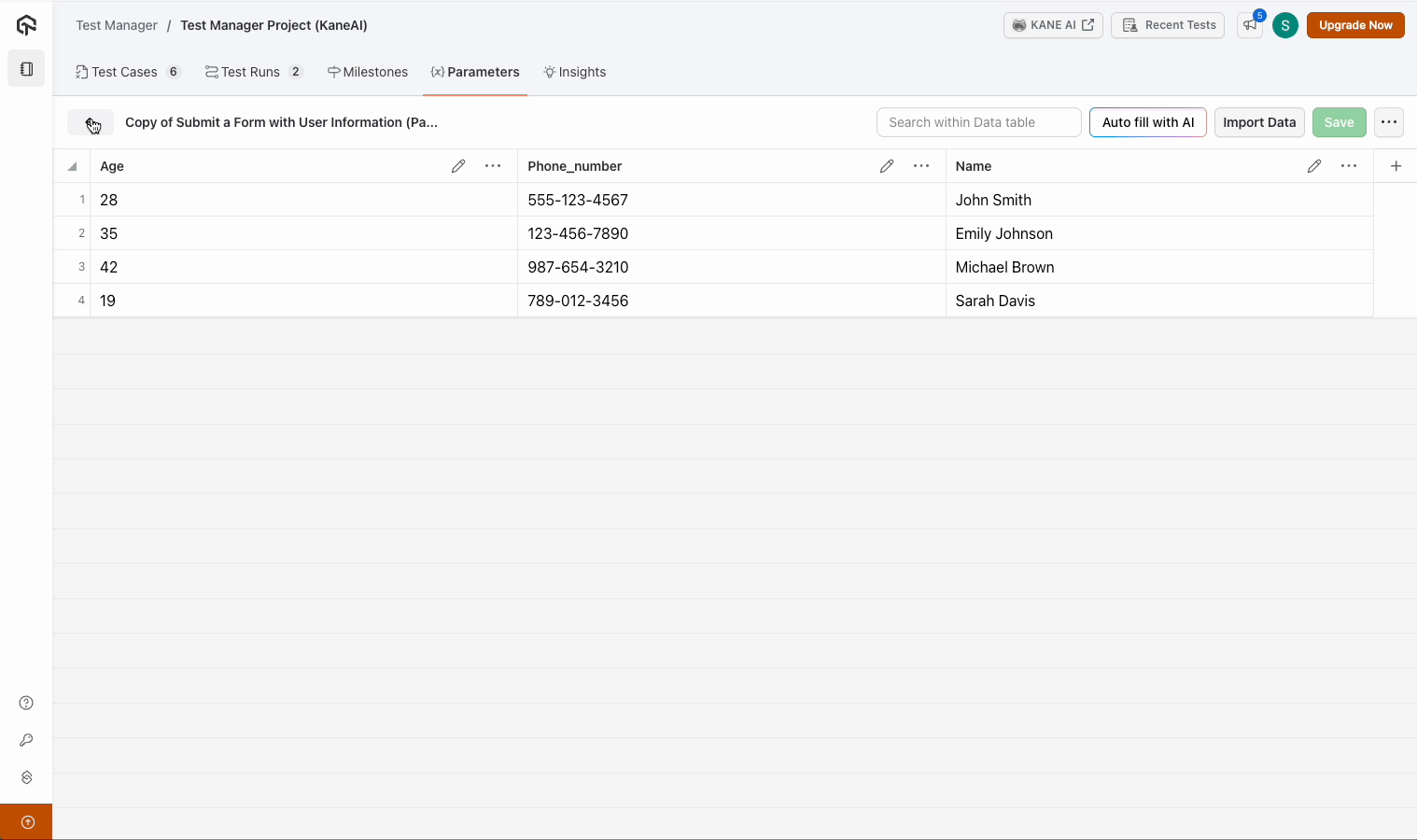
The Default Dataset is editable: you can change the values in row 1, add more rows, and edit their values. You cannot delete row 1 or add, rename, or delete its parameter columns because those columns follow the parameters used in the test case. Make a copy if you need to change the columns independently.

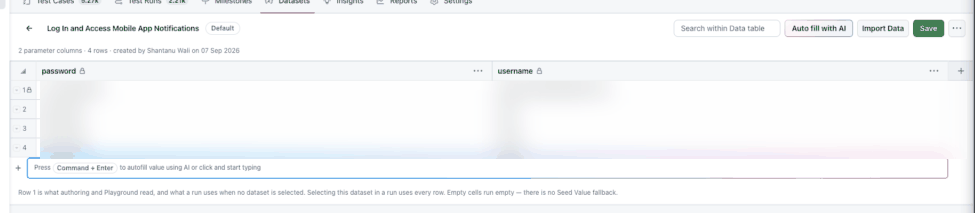
Row 1 supplies values during authoring and Playground execution. When no Dataset is selected for a test run, the test uses row 1 of its Default Dataset. Empty cells run empty; they do not fall back to the parameter's Seed Value.
Creating and Editing Datasets
- To create a dataset, navigate to the Datasets section, click "Create Dataset," and define parameters and values as needed.
- For existing datasets, edit values directly in the Default Dataset or create a copy when you need to change its parameter columns. You can access version history as described below.

Adding Data to Datasets
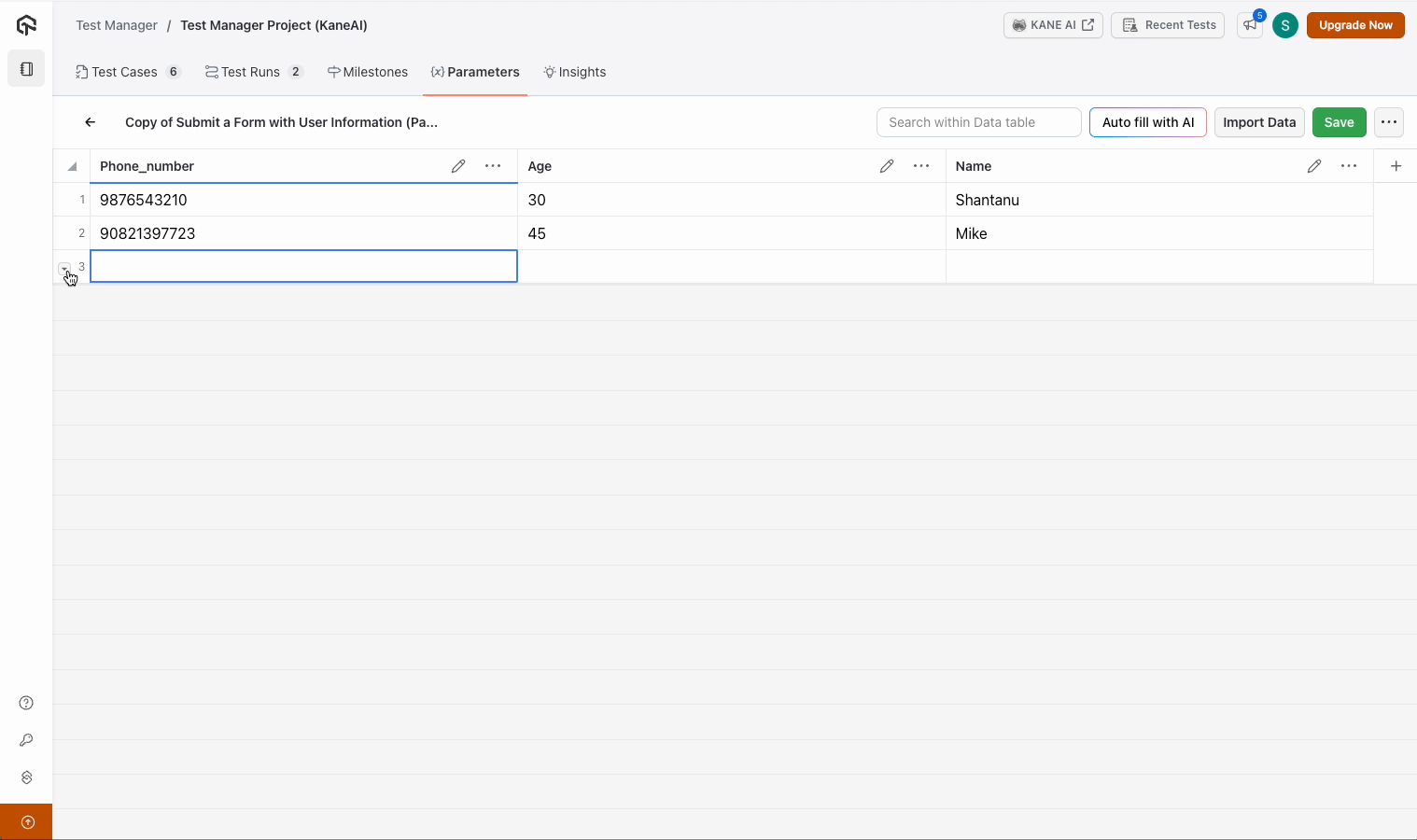
Open the editable Dataset. Click on "Add a Row After" or Add row, depending on the editor view. Enter your desired values (e.g., 5 or Mike), then save. Row 1 can be edited but cannot be deleted.
Autofill with AI
Alternatively, you can use the Autofill with AI option to automatically populate data fields. AI generates values based on the parameter's name, saving time and effort.

Importing Data via CSV Files
Prepare your data set in CSV format. Use the Import Data feature in the data set editor, verify the imported data, and save the changes to ensure synchronization.
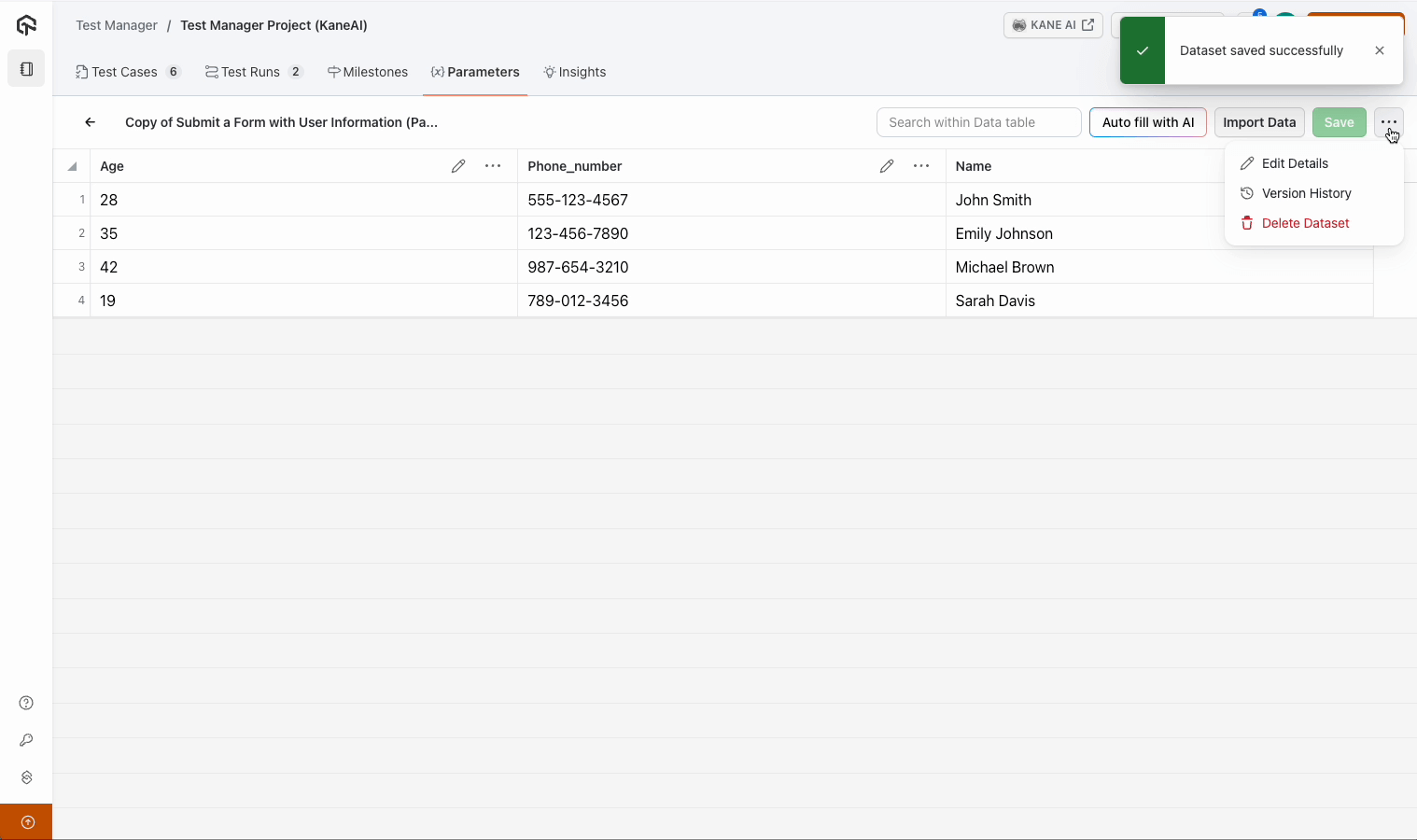
Utilizing Version History
- Version Tracking : All changes to data sets are recorded.
- Revert or Restore : Easily revert to a previous version if needed.
- Backup Assurance : Ensure data integrity with a maintained history of edits.
Executing Test Cases with Parameters
Combine multiple data sets with their respective parameters. Execute test cases using these data sets to simulate diverse input scenarios.
Choose a Dataset for each run configuration that needs data-driven input. The run creates a test instance for every row in the selected Dataset. If no Dataset is selected, it uses row 1 of the Default Dataset.
For Seed Values and per-test-case parameter values, see Using Parameters. To export the values and results used by each instance, see Test Run Output.


 Chat with Us