Custom Headers in KaneAI
Custom headers allow you to inject additional HTTP header information into your test sessions. You can use them to send tokens, session IDs, content-type overrides, or any other custom metadata with requests made during your tests.
Custom headers are supported on both Desktop Web and Mobile Browser platforms.
Header Value Types
Each custom header has a Type field that determines how the value is handled:
| Type | Description |
|---|---|
| String | A plain-text value that is sent as-is with the request (e.g., 1234567890). |
| Secret | A reference to an organization-level secret stored in KaneAI. Uses the {{secrets.org.<secret_name>}} syntax to keep sensitive values like tokens or API keys out of plain text. See KaneAI Secrets for more details. |
Configure Custom Headers for Desktop Web
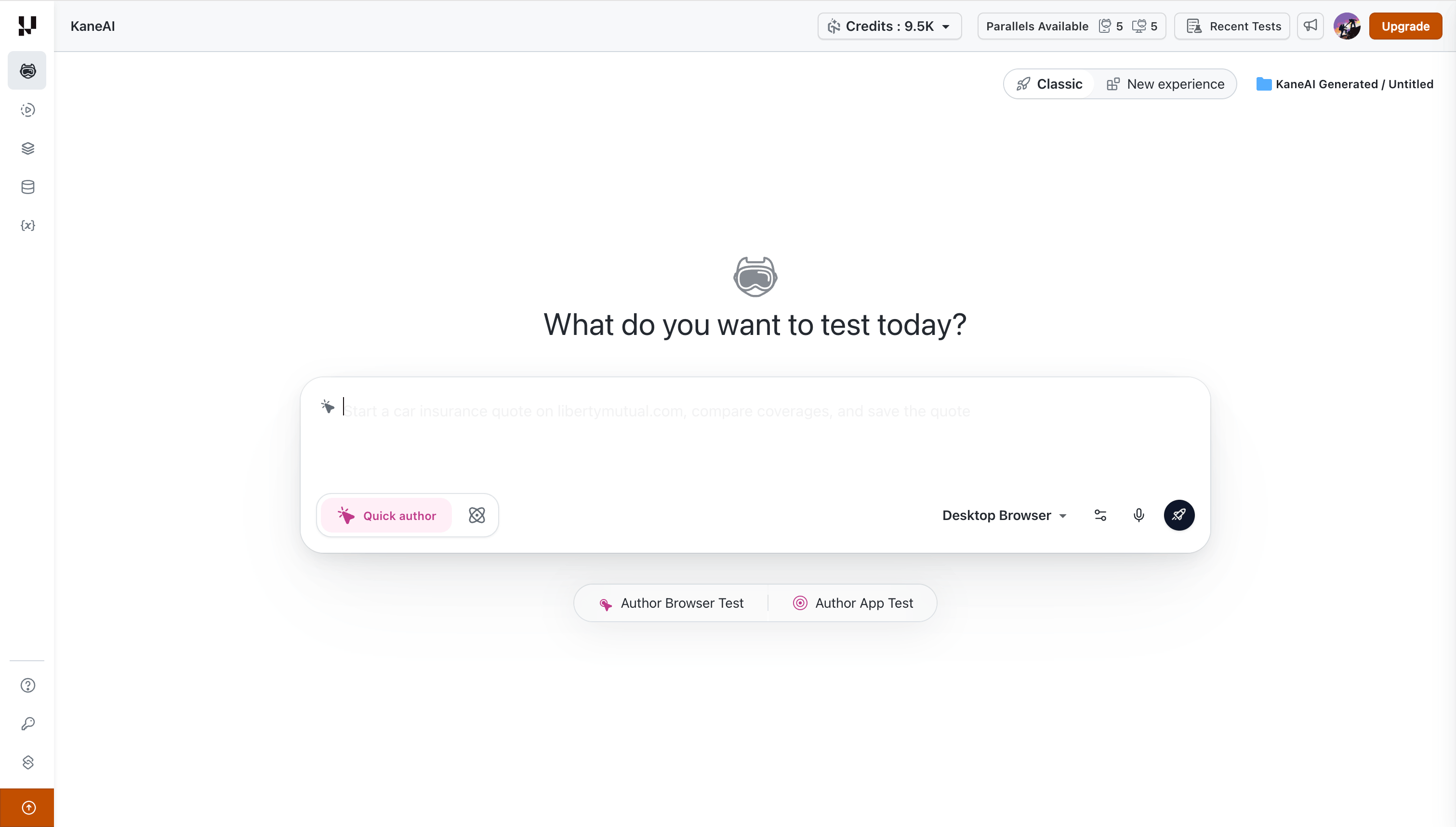
Step 1: Create a Web Test
Navigate to the KaneAI page and click the Desktop Browser option to create a new web test.
Step 2: Enable and Add Custom Headers
In the Create a Web Test dialog, enable the Custom Headers toggle. Add your headers by entering a Header Name and Header Value for each row. Click the + button to add more rows.
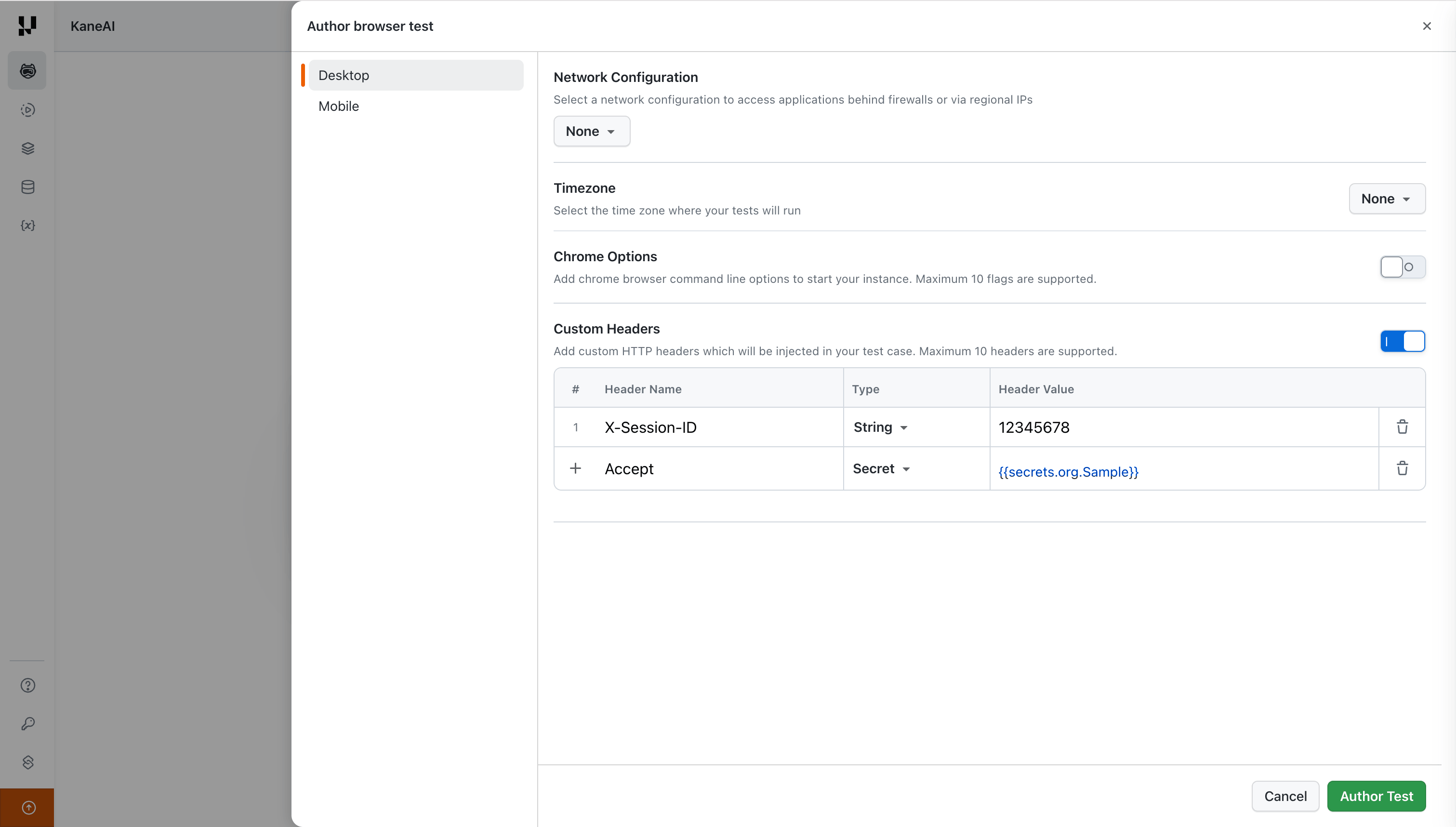
You can add up to 10 custom headers per session.
If you provide a default header (e.g., Accept) in the Custom Headers section, it will override the browser's default value for that header.
Step 3: Start the Test Session
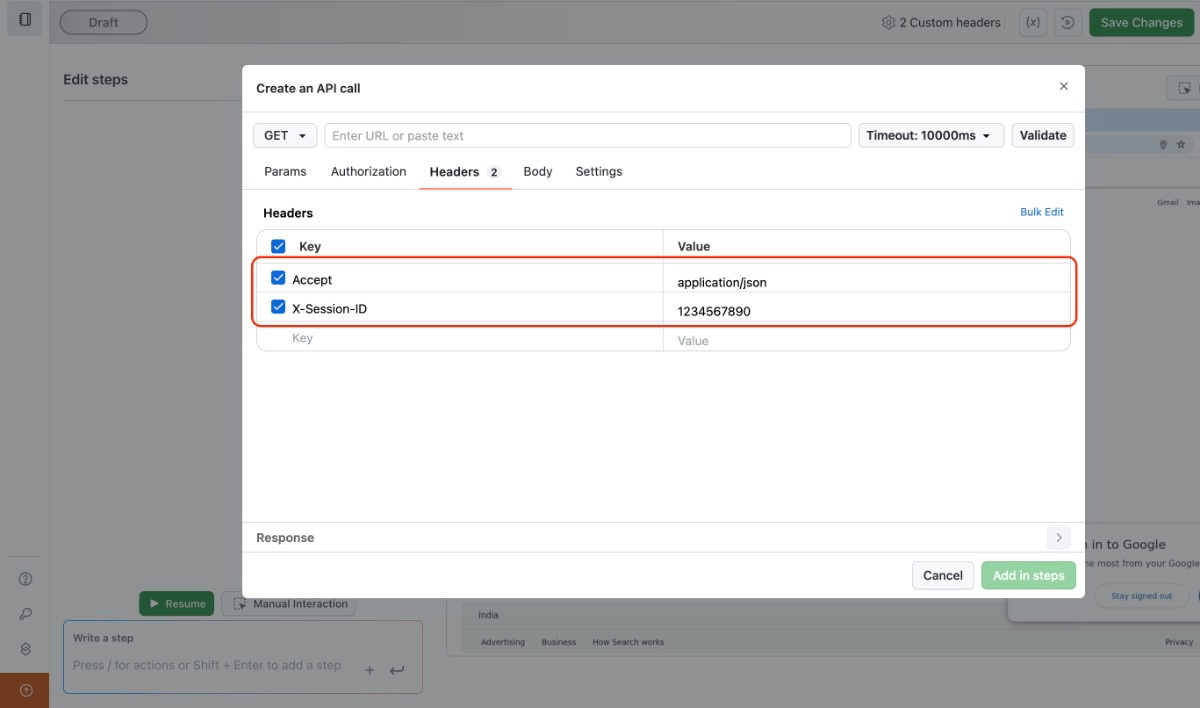
Click Start Testing to launch the session. The headers you configured will be applied to all HTTP requests made during the session, including navigation requests and API calls.
Configure Custom Headers for Mobile Browser
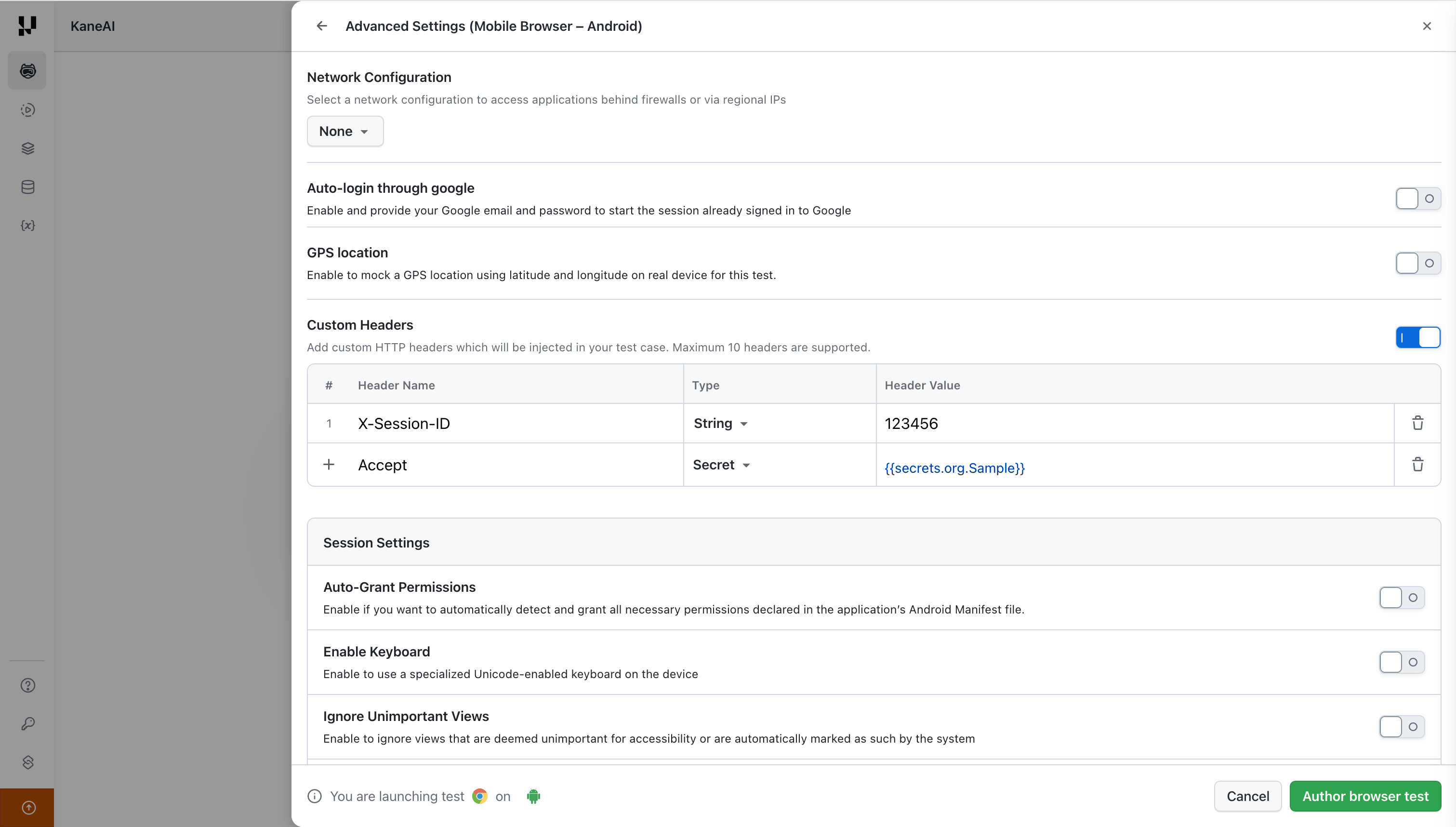
Custom headers are also available when authoring Mobile Browser tests. The configuration works the same way as Desktop Web, with an additional Type column to choose between String and Secret values.
Navigate to the advanced settings for your Mobile Browser test and enable the Custom Headers toggle. Add your headers with the appropriate type for each value.
View Custom Headers During Authoring
During an active authoring session, click Advanced Settings in the top navigation bar to view the custom headers applied to the current session.
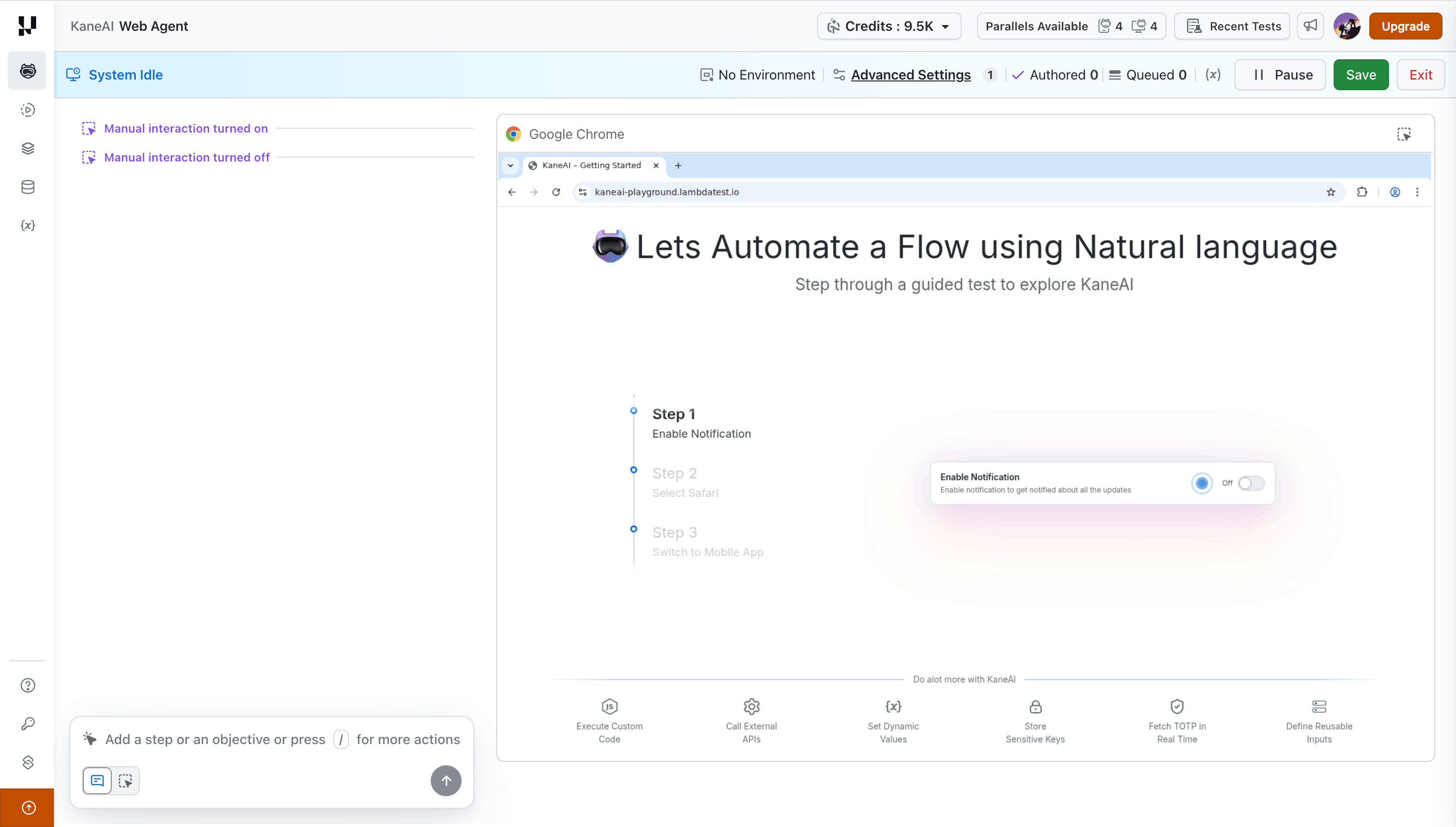
The Advanced Settings panel displays all configured custom headers along with their values. Secret values are shown in their {{secrets.org.<name>}} format.
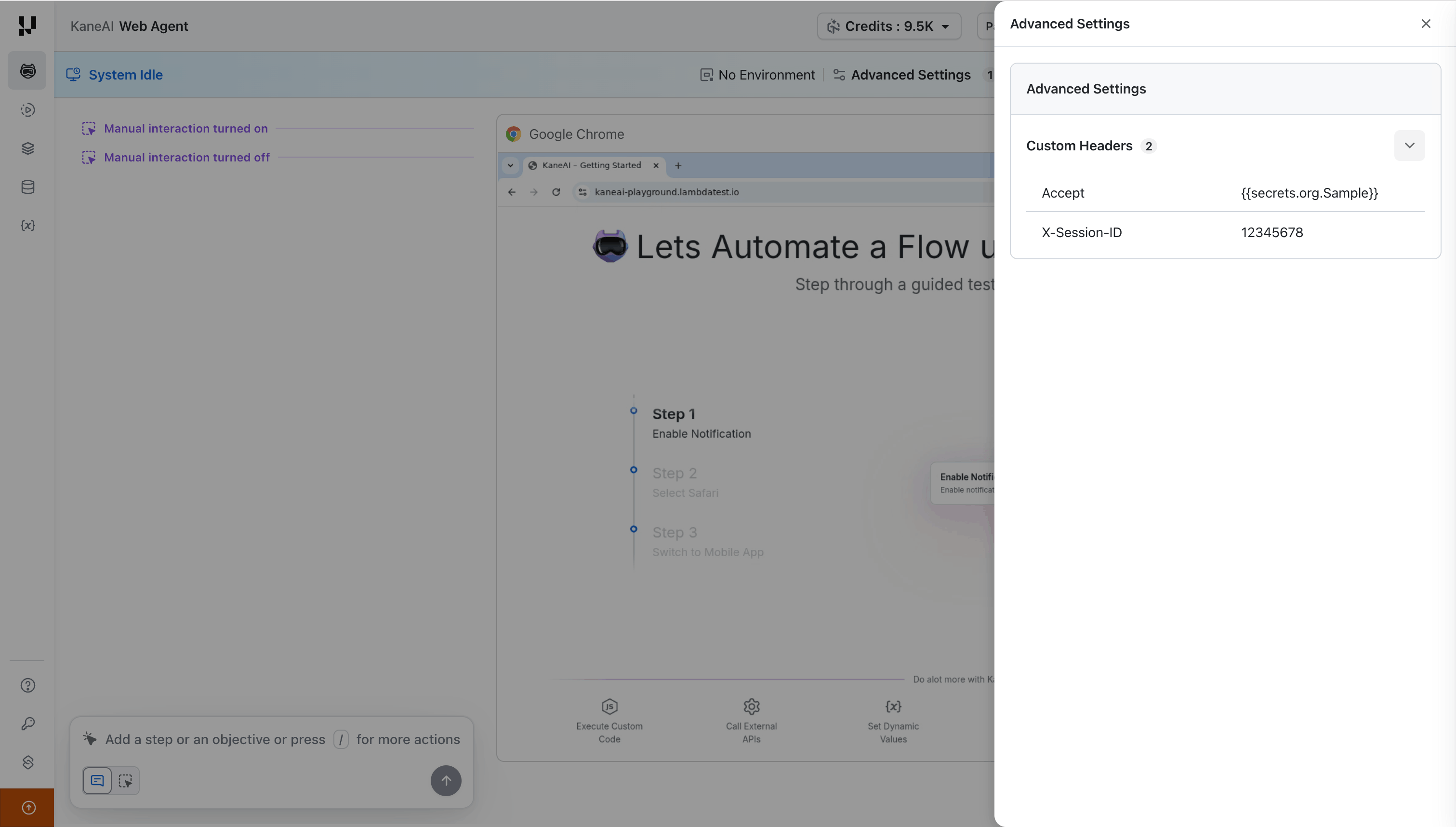
View Custom Headers on the Test Summary Page
After the session completes, the custom headers used during the session are displayed on the Test Summary page. Click on Advanced Settings to expand the panel and view the headers.
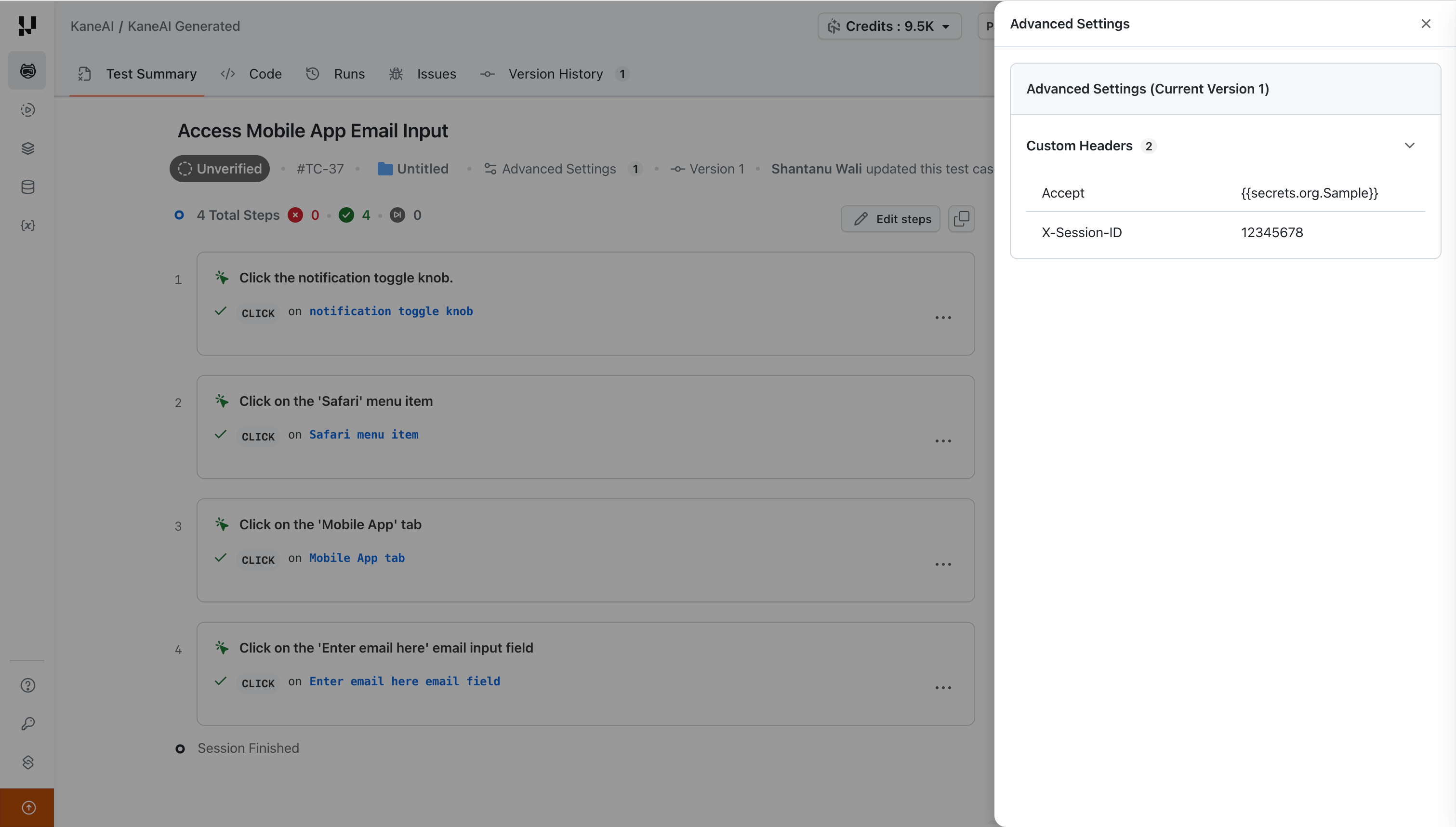
You can also click View details in the test case sidebar to see the full list of advanced settings including custom header in a side drawer.
Example Use Cases
- Session Management: Send a custom
X-Session-IDheader to track user sessions across requests:X-Session-ID: 1234567890 - Authentication Tokens: Use the Secret type to inject API keys or bearer tokens without exposing them in plain text:
Authorization: {{secrets.org.BearerToken}} - Content Negotiation: Override the
Acceptheader to test specific response formats:Accept: application/json


 Chat with Us