Visual Test Creation with KaneAI
This guide provides a detailed walkthrough on how to leverage KaneAI to create, manage, and automate visual regression tests. By integrating with SmartUI, you can capture screenshots, compare visual changes, and maintain UI consistency throughout your development lifecycle.
The Visual Comparison step works in both web tests and app tests. This guide first shows how to create a visual test in a web test, and then in an Android or iOS app test in Visual Comparison in App Tests. The later sections on baselines, automation and SmartUI results cover web tests first, followed by what is different for app tests.
| Web tests | App tests | |
|---|---|---|
| Start from | Author Browser Test | Author App Test |
| Screenshot Type | View Port or Full Page | View Port only |
| What is captured | The browser viewport or the full page | The full device screen, including the status bar |
| Visual Regression settings in Advanced Configurations | Custom browsers, viewports and devices | Not used. Screenshots come from the devices the test runs on |
| Baselines are kept per | Browser and viewport | Device |
Creating Your First Visual Test
Initiate a Web Test
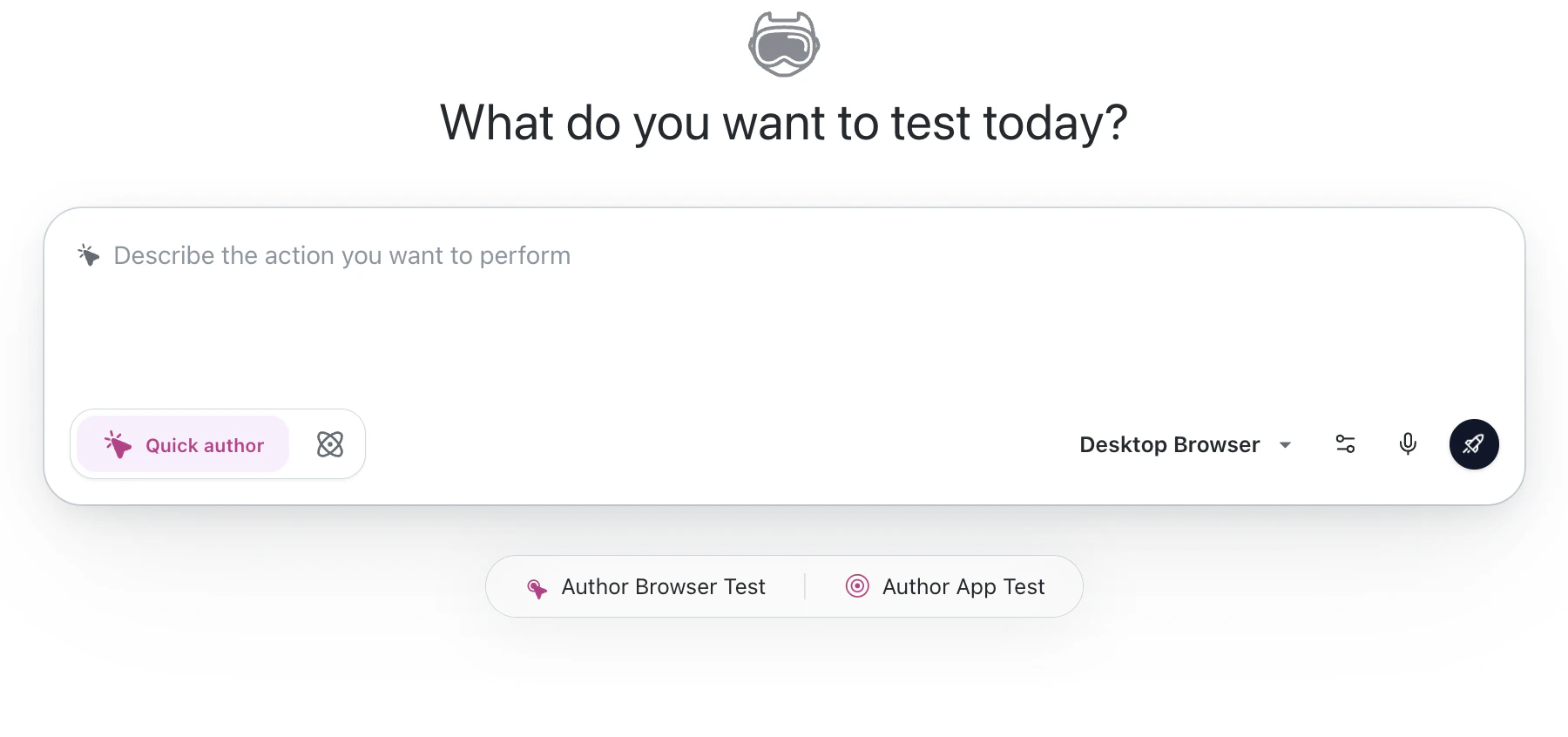
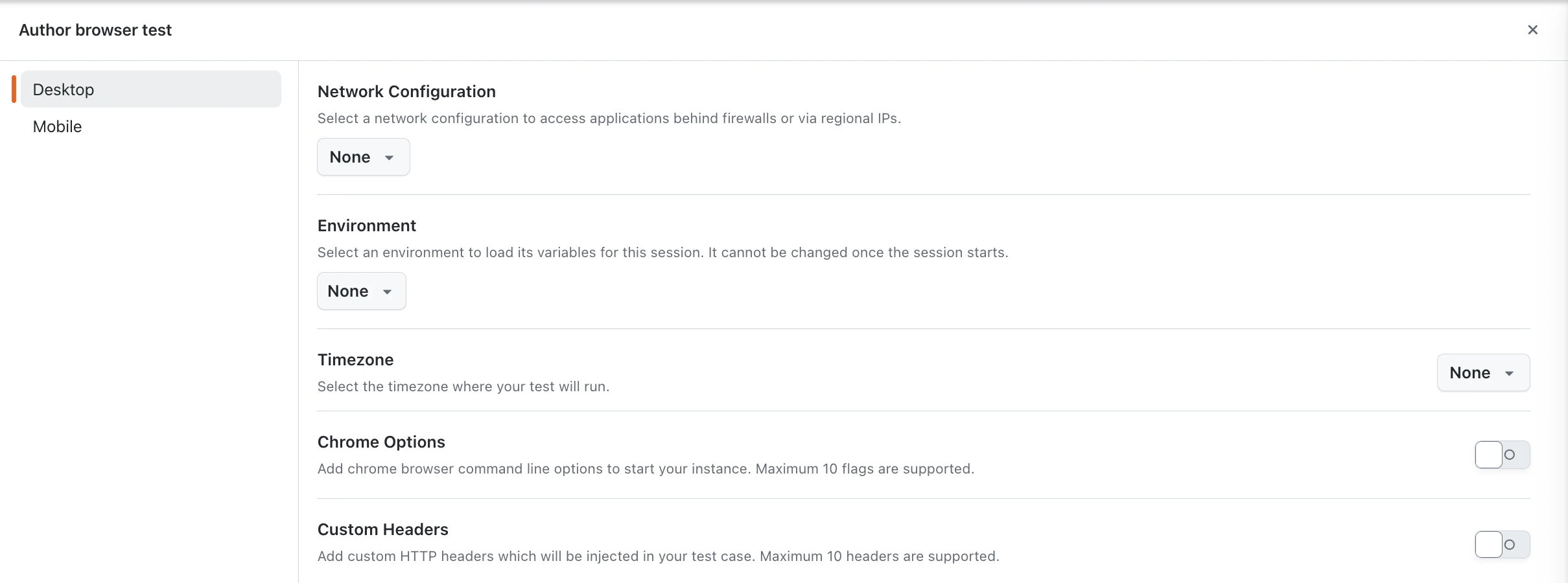
To begin, navigate to the KaneAI dashboard and click Author Browser Test. In the Author browser test panel, you can set the Network Configuration, Environment, Timezone, Chrome Options and Custom Headers. Click Author Test to launch the test authoring environment.
Add a Visual Comparison Step
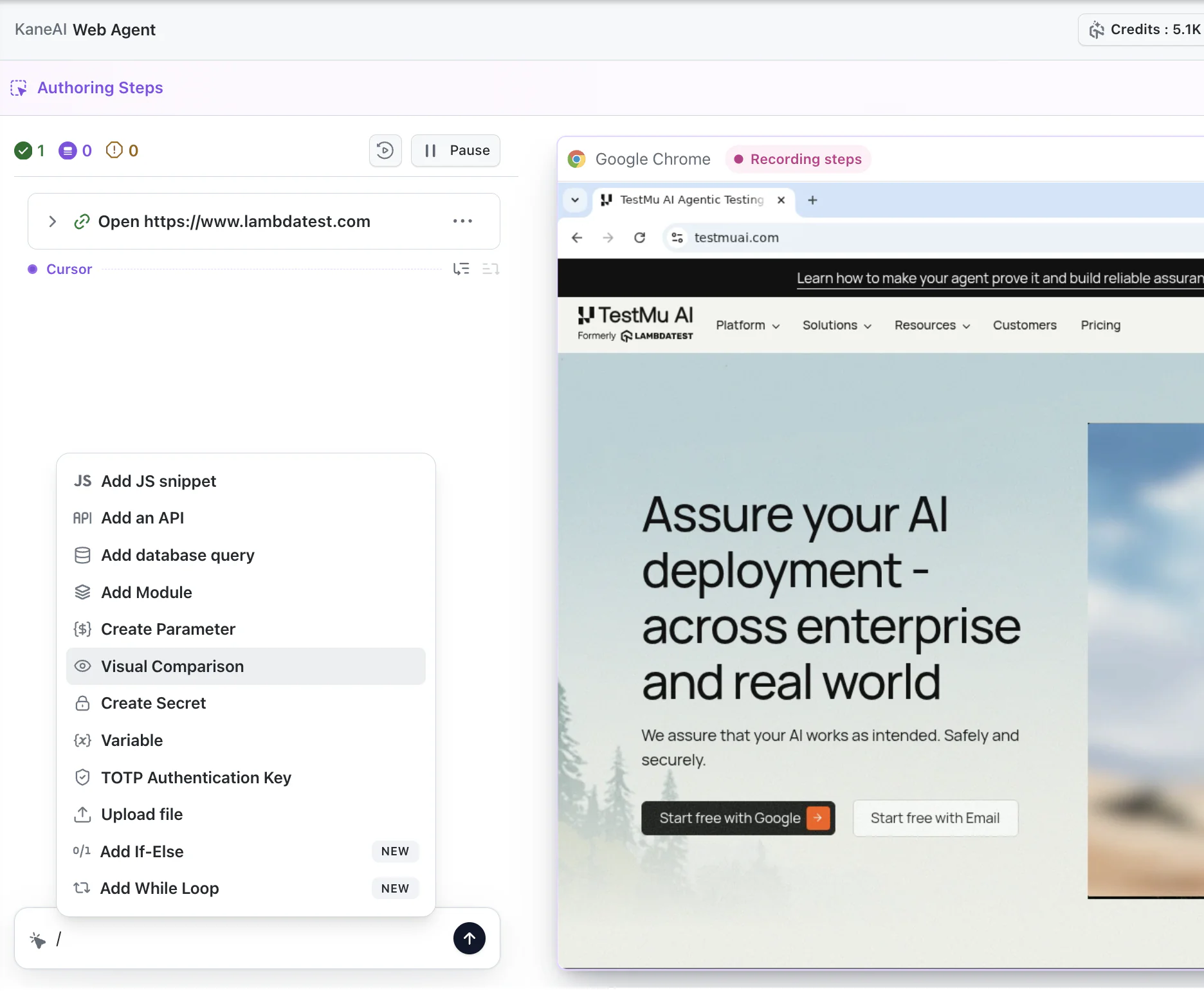
Author your test by writing steps in plain language, such as go to lambdatest.
To add a visual test step, type / in the step editor and select Visual Comparison from the command menu.
Configure Your Screenshot
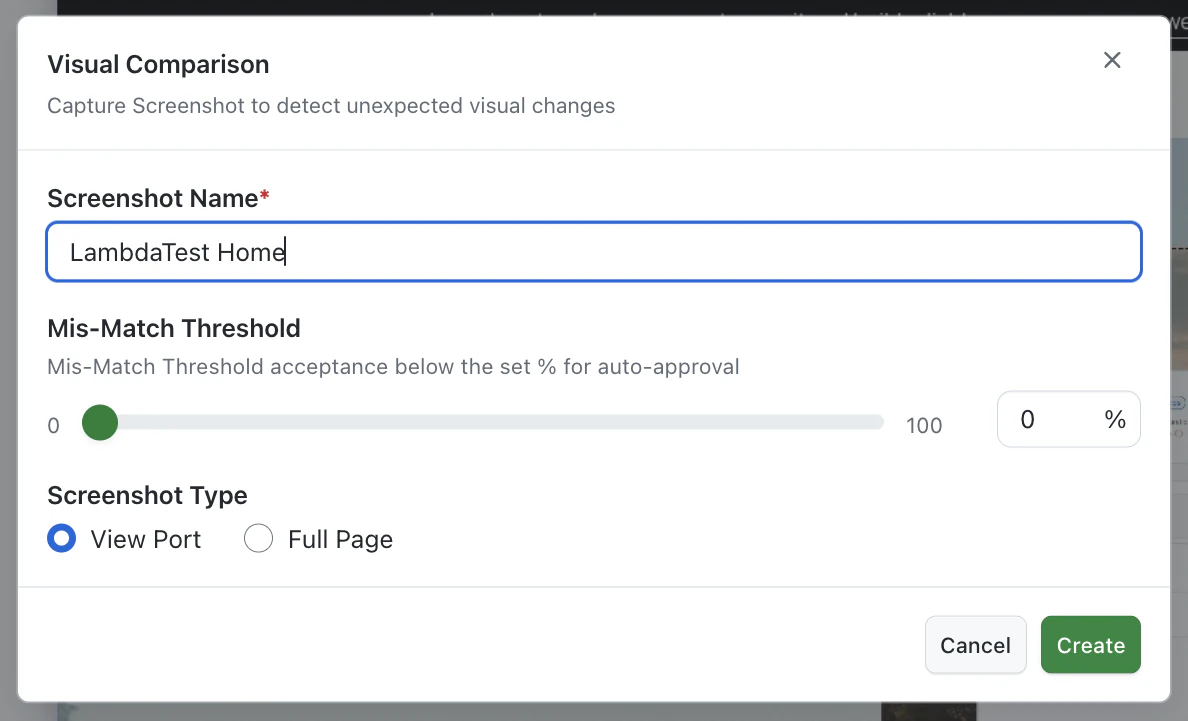
A configuration modal will appear for your screenshot.
- Screenshot Name (Required): You must provide a descriptive name for the screenshot.
- Mis-Match Threshold (Optional): Set an acceptable percentage of difference below which changes are auto-approved. The default is 0%.
- Screenshot Type (Optional): Choose between View Port (default) or Full Page.
Click Create to add the step to your test flow.
Visual Comparison in App Tests
You can add the Visual Comparison step to app tests on real Android and iOS devices. KaneAI takes a screenshot of the device screen and sends it to SmartUI, which compares it with the baseline for that screenshot name and device.
Start an App Test

- On the KaneAI dashboard, click Author App Test.
- Select the Android or iOS tab.
- Select your app from Uploaded Apps, or add one with URL or Upload.
- Select a device and click Start Testing.
Add a Visual Comparison Step
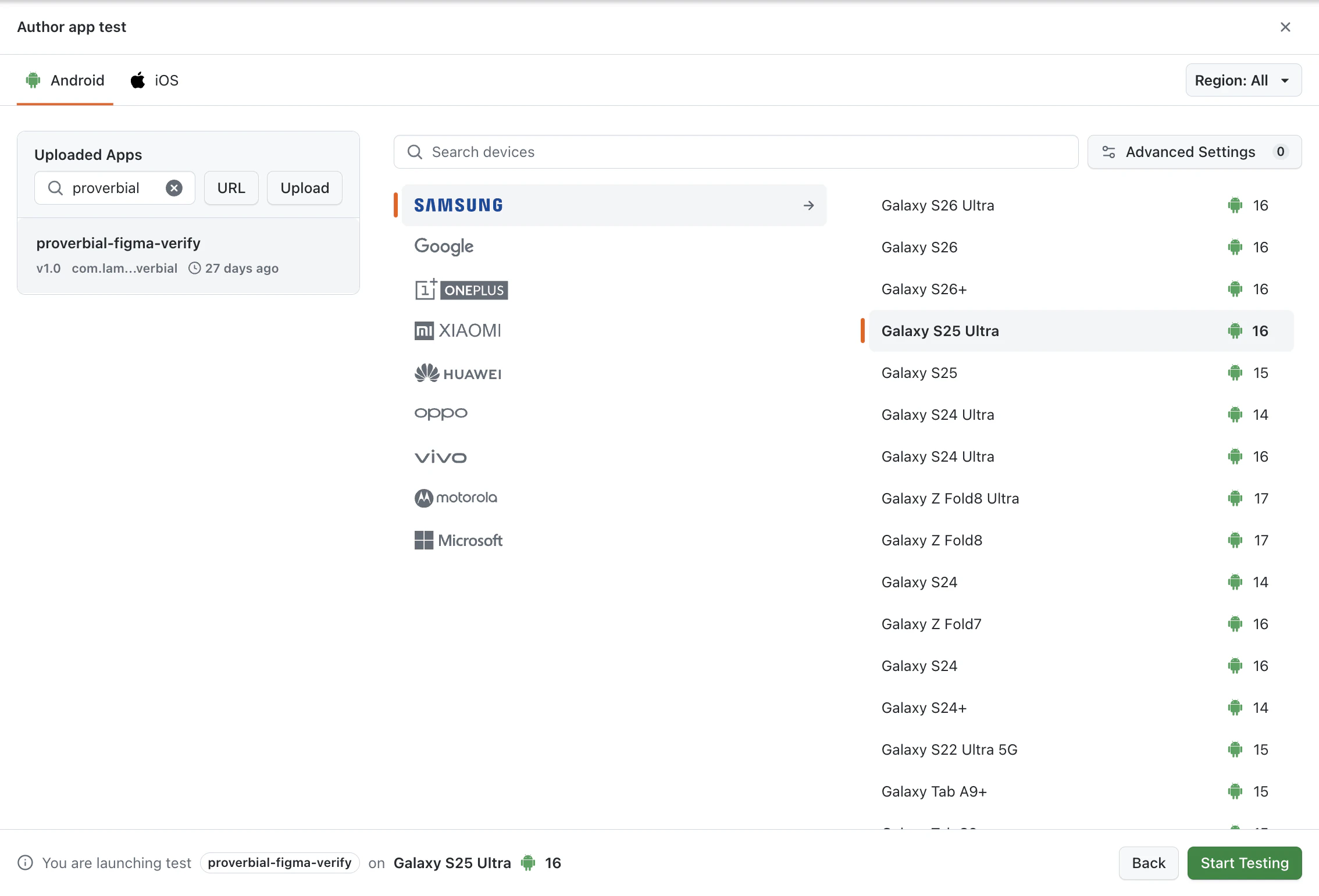
Bring the app to the screen you want to check. Then type / in the step editor and select Visual Comparison.
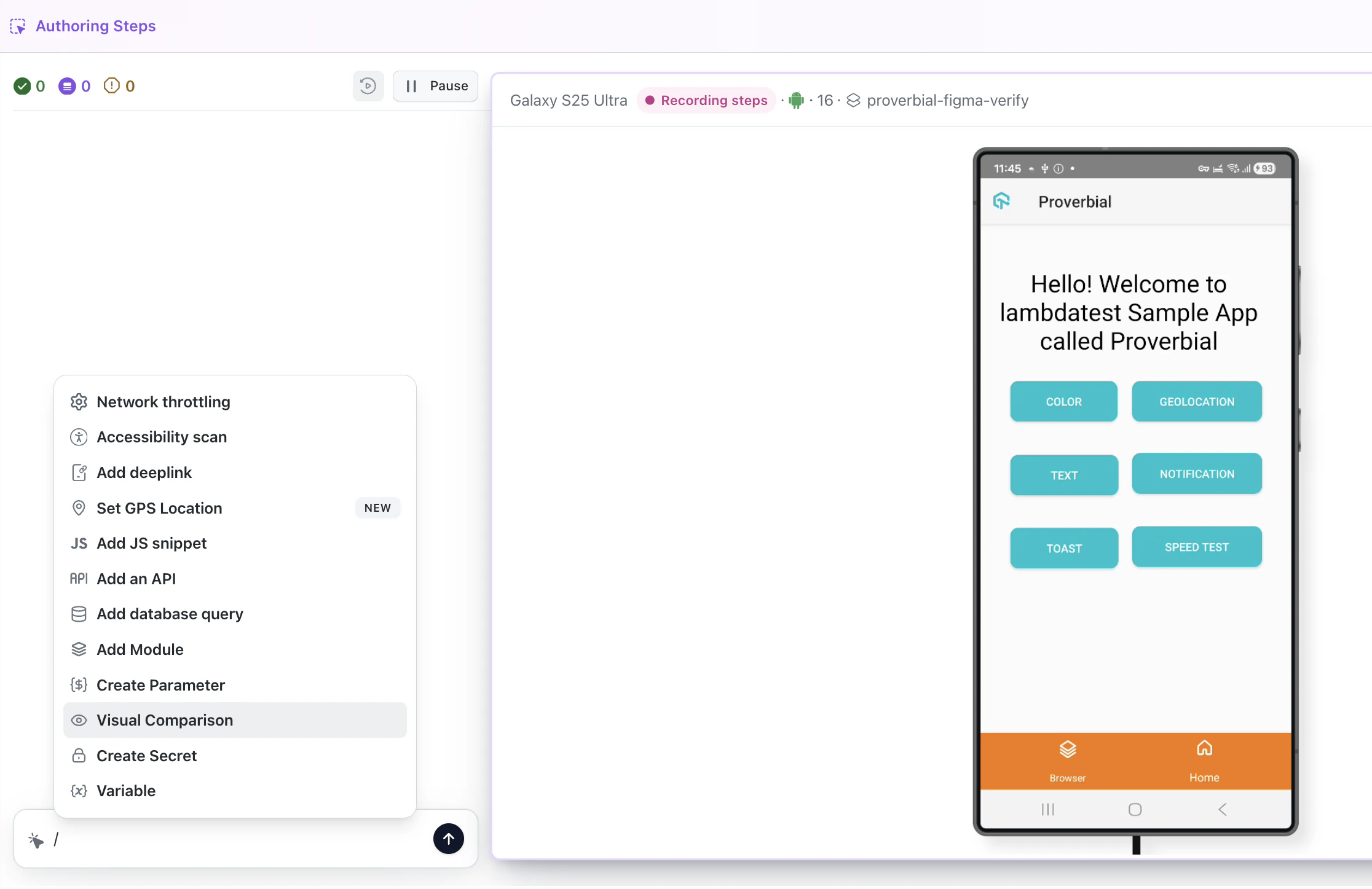
If Manual Interaction is on, a Visual Comparison step is added as Queued and does not run yet. Turn off Manual Interaction from the step editor toolbar, and the queued step runs.
Configure the Screenshot
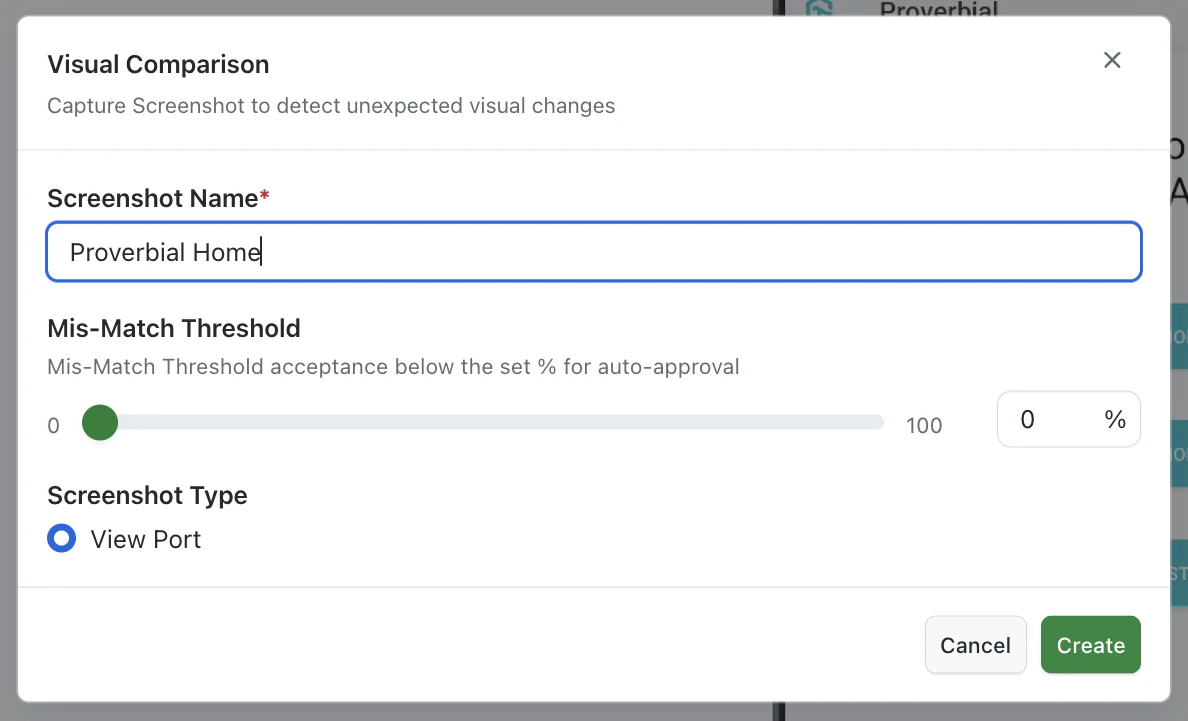
The configuration modal has the same fields as in web tests, with one difference: app tests support only View Port.
- Screenshot Name (Required): A name for the screenshot. Characters other than letters, numbers,
.,_and-are replaced with_. For example,Proverbial Homeis saved asProverbial_Home. - Mis-Match Threshold (Optional): The percentage of difference below which a change is approved automatically. The default is 0%.
- Screenshot Type: View Port is the only option. Full Page is not available for app tests, so screens that scroll are captured only as far as they show on the device.
Click Create to add the step.
SmartUI matches a screenshot to its baseline by name. If two steps in the same test use the same name, the later screenshot replaces the earlier one in the build, and only one screenshot is kept. Give every Visual Comparison step its own name, such as Home_Before_Login and Home_After_Login.
Analyzing Baselines and Regressions
Establish the Baseline
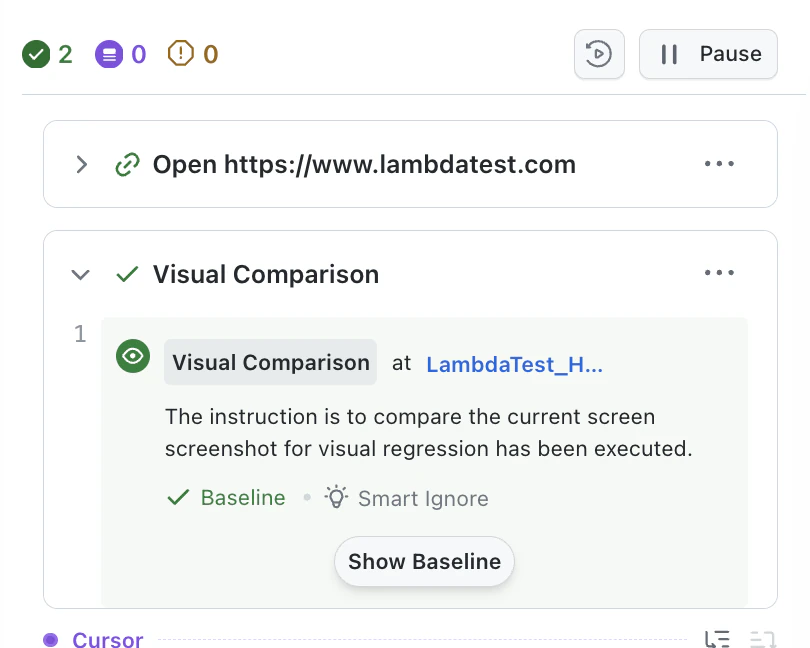
The first time the step runs, it captures an initial screenshot that becomes the Baseline for all future comparisons. The step shows Baseline and the comparison mode, such as Smart Ignore. You can view this image by clicking Show Baseline.
Rerun and Analyze the Comparison
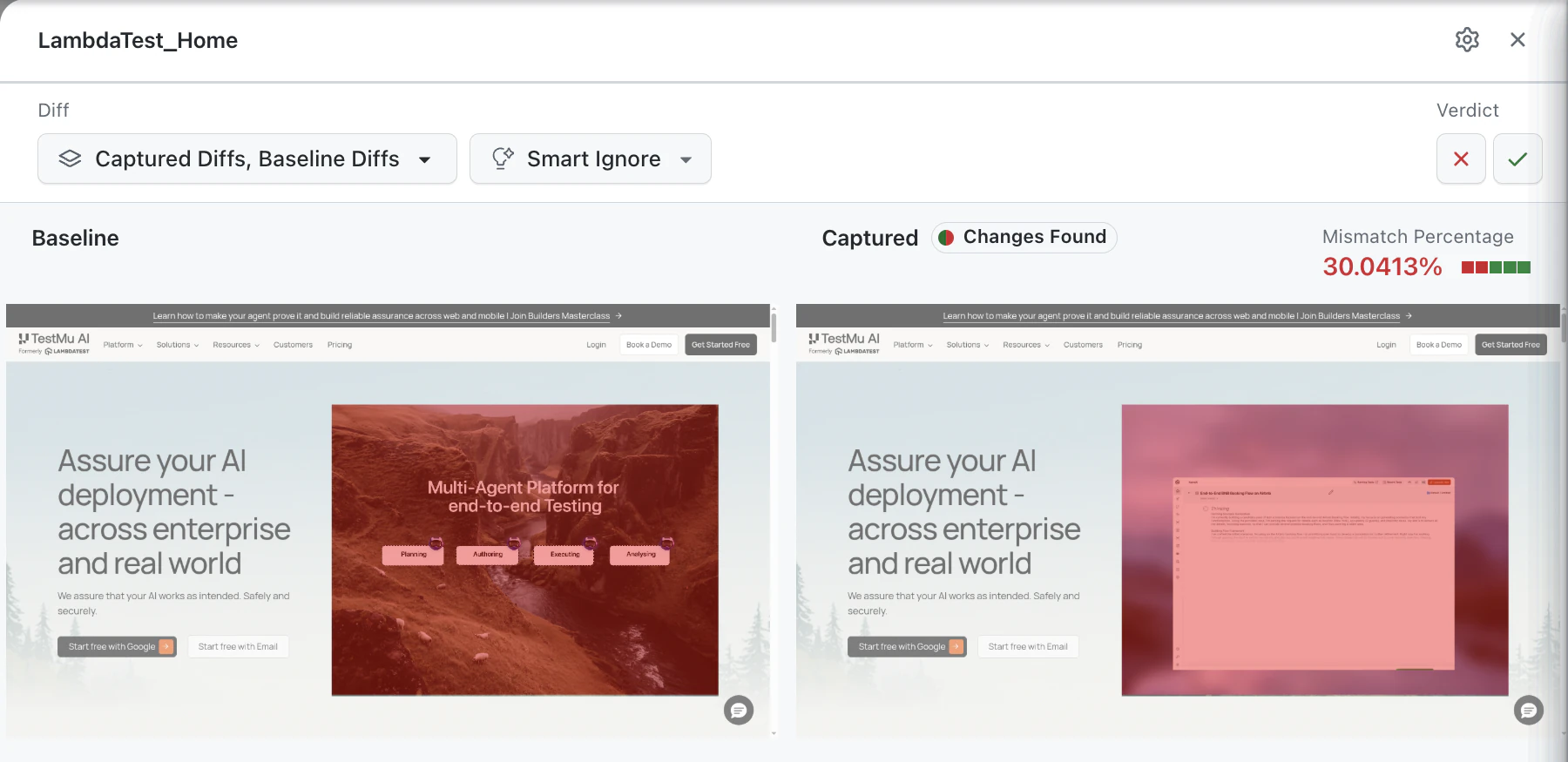
When the step is run again during authoring, for example with Run this step from the step's ... menu, a new screenshot is captured and compared against the baseline. If changes are found, click Show Comparison to open the comparison view. It shows the Baseline and Captured screenshots side by side, highlights the differences, and shows the Mismatch Percentage.
Approve or Reject Changes
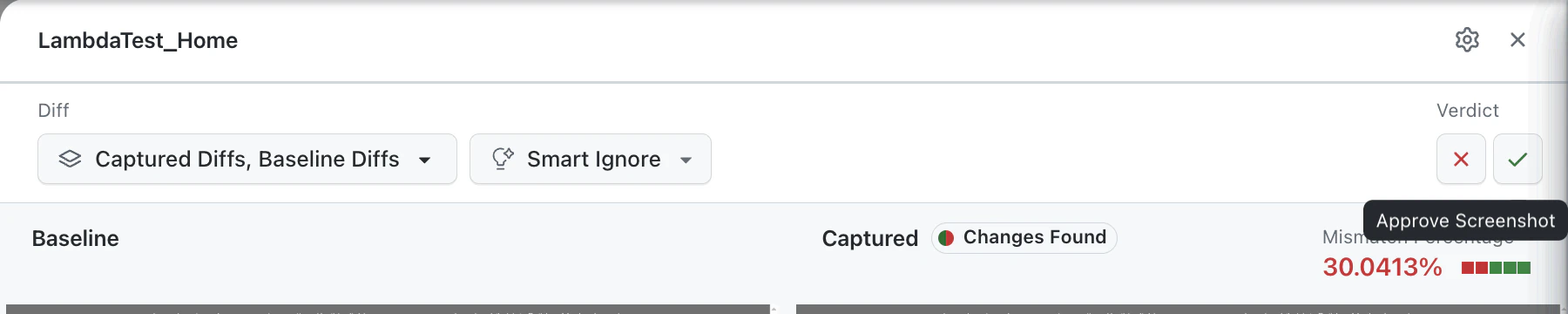
Within the comparison view, you can review the changes and decide on a verdict with the buttons under Verdict.
- Reject Screenshot: If the changes are unintended defects, you may reject the comparison.
- Approve Screenshot: If the changes are intentional, you may accept the comparison. This will update the baseline with the new image.
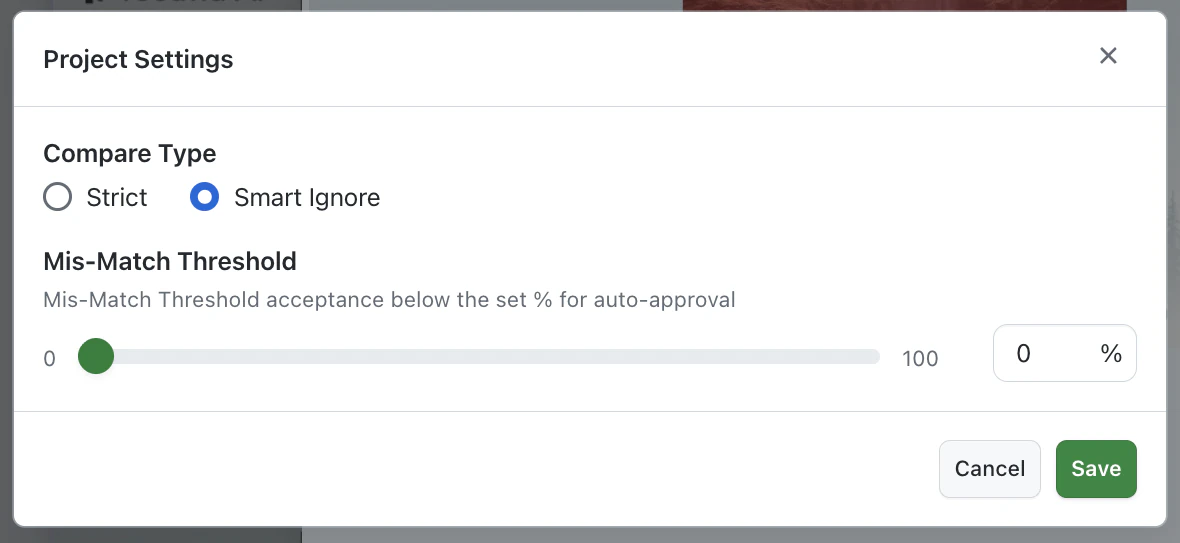
You can also click the settings icon in this view to open Project Settings and change the Compare Type (Strict or Smart Ignore) and the Mis-Match Threshold.
Review the Baseline in App Tests
The first time a Visual Comparison step runs, its screenshot becomes the Baseline. The step shows Baseline and the comparison mode, such as Smart Ignore. Click Show Baseline to open the captured image.
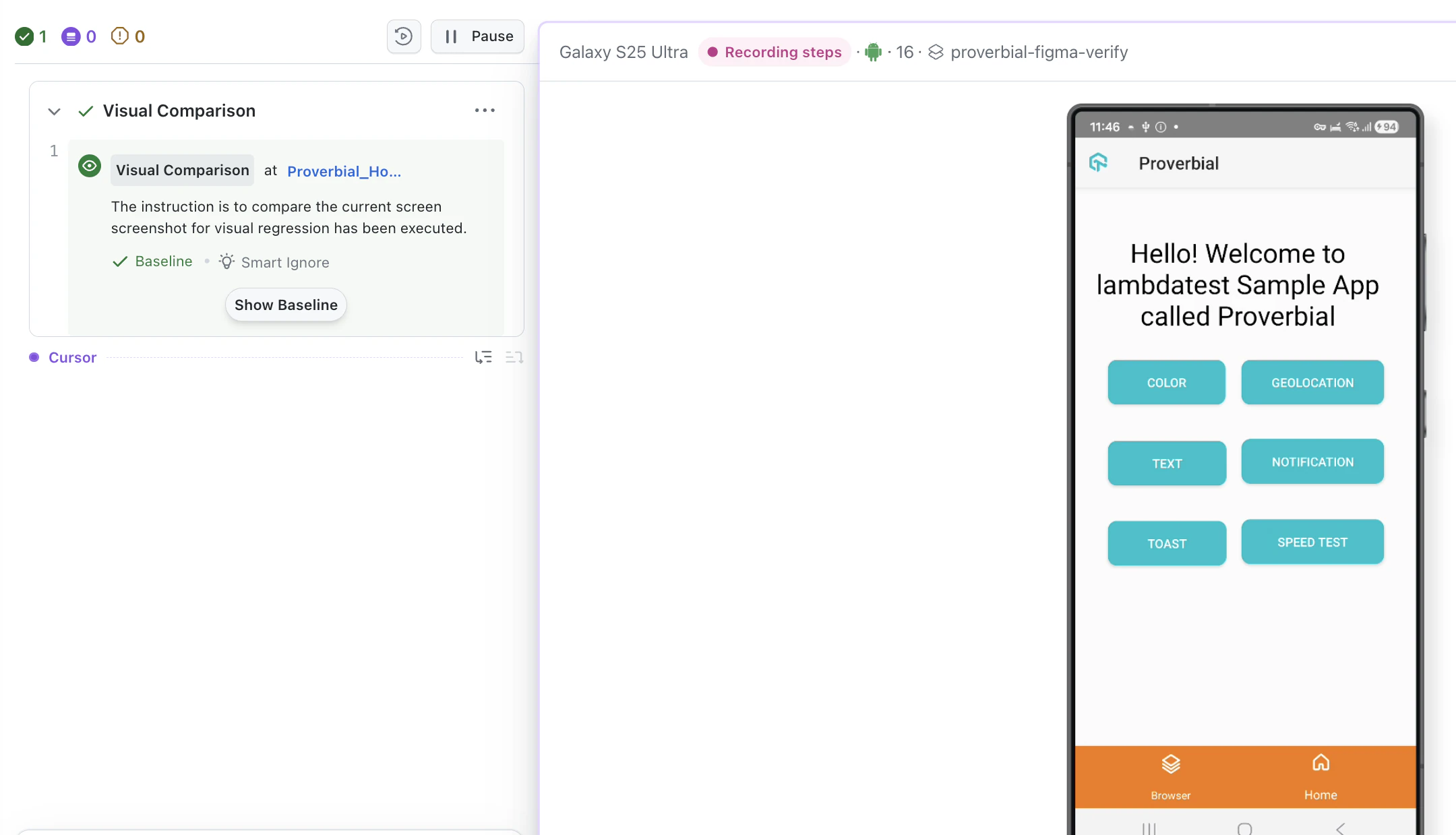
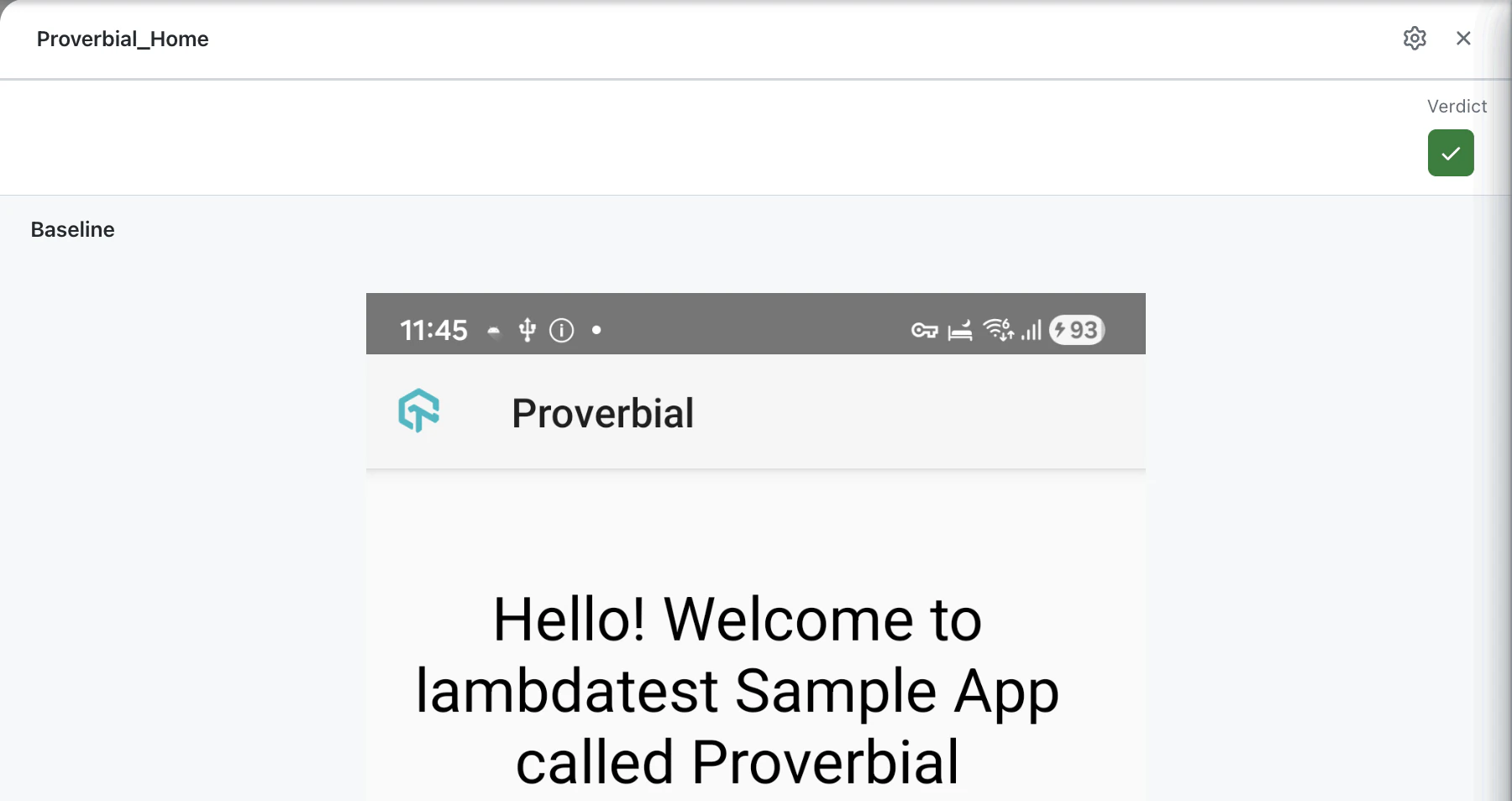
The screenshot covers the whole device screen, including the status bar with the clock, network and battery icons. These areas change between runs. See Handle the Device Status Bar.
Saving and Automating Your Visual Test
Save Your Test Case
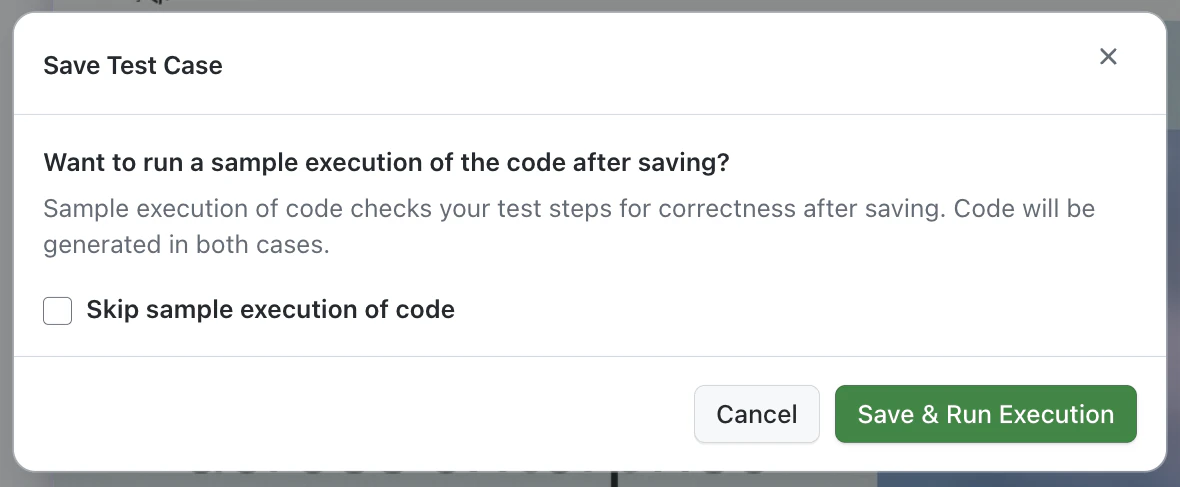
Once your test flow is complete, click Save in the top-right header. The Save Test Case dialog asks whether to run a sample execution of the generated code. Click Save & Run Execution to save the test and run it once on HyperExecute, or select Skip sample execution of code and click Save & Skip Execution to save it without running it.
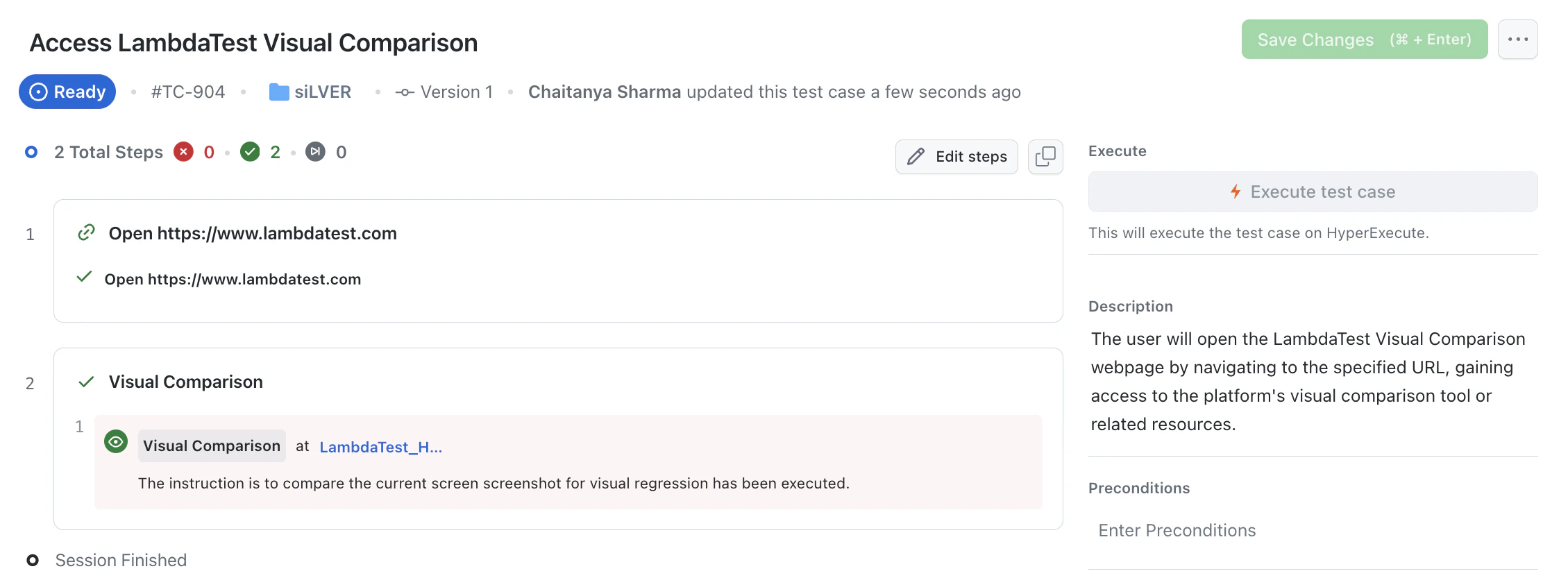
KaneAI opens the saved test case, with its steps, including the Visual Comparison step.
Execution and Scheduling
Once your test case is saved, navigate to the Test Runs tab to configure and launch its execution. For a complete guide on the initial setup, refer to our documentation on Test Run Execution.
Open the test run and click Run on HyperExecute. You can execute your test using one of two methods:
- Run Instance Now This option triggers an immediate, one-time execution of your test. It is ideal for quick validations or debugging a specific change.
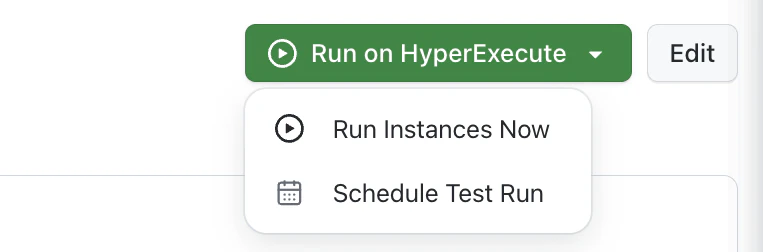
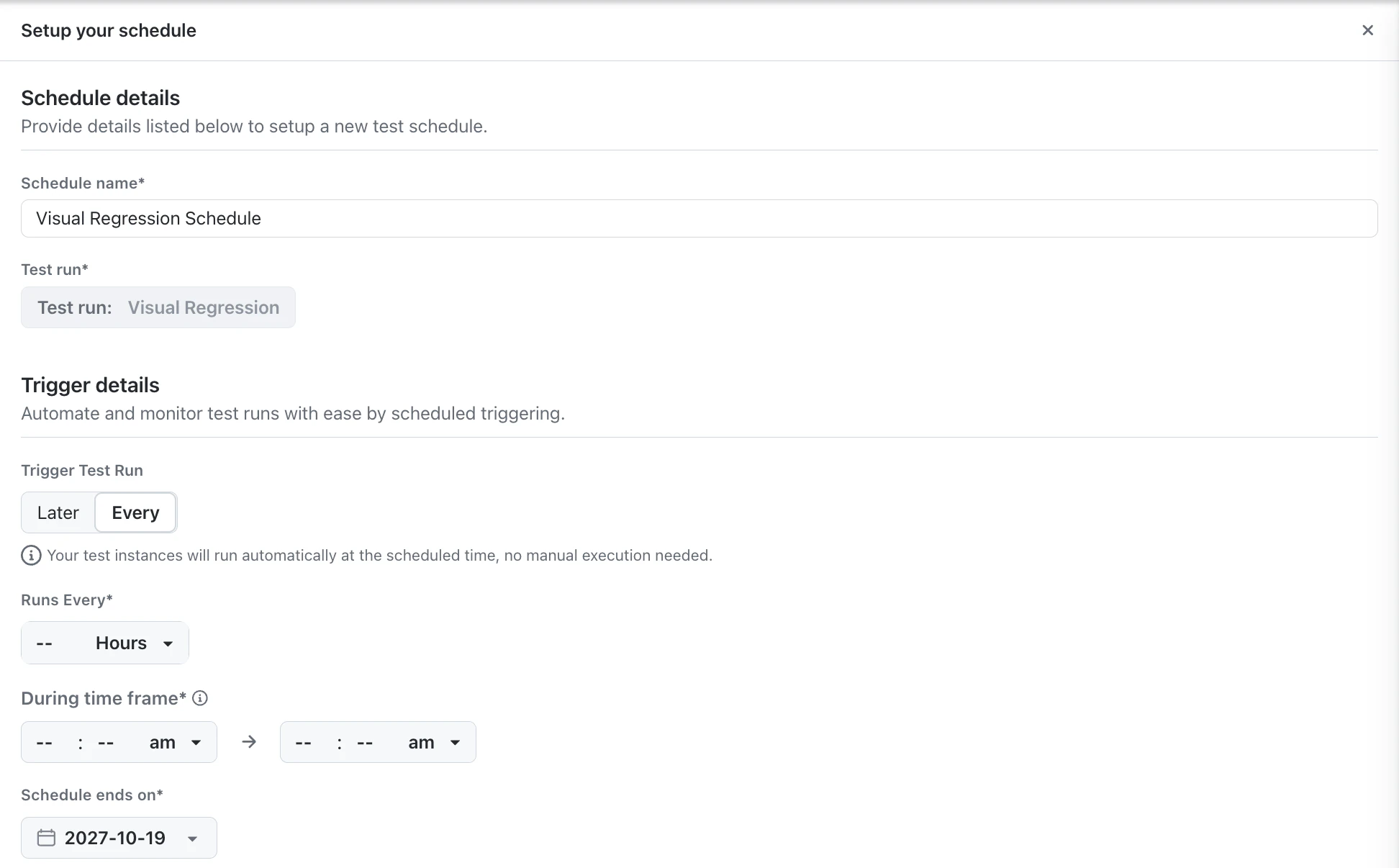
- Schedule Test Run This option allows you to automate your visual regression testing by setting up a recurring schedule. Learn more in our guide to Scheduled Test Runs.
Using Advanced Configurations for Visual Regression
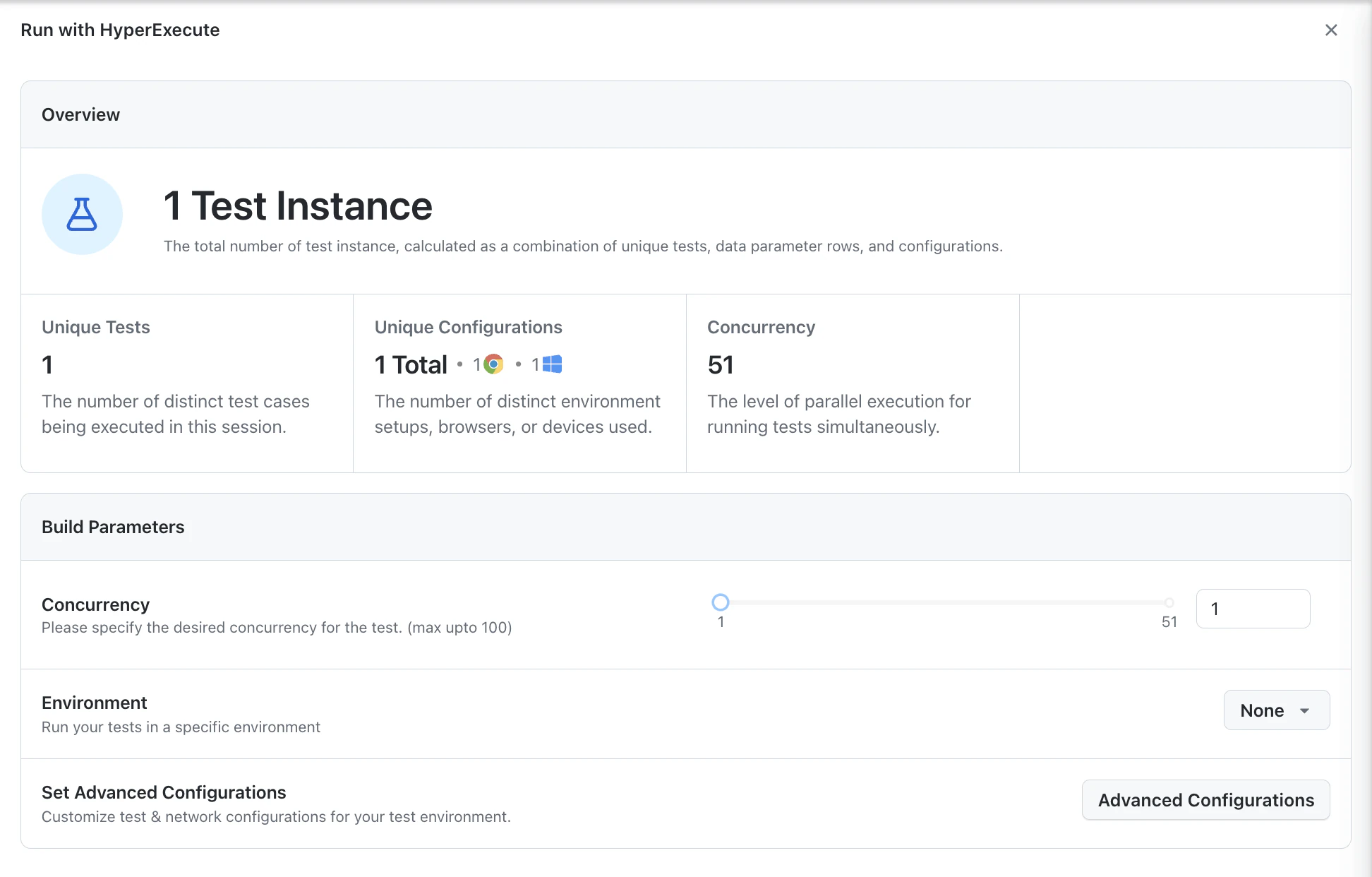
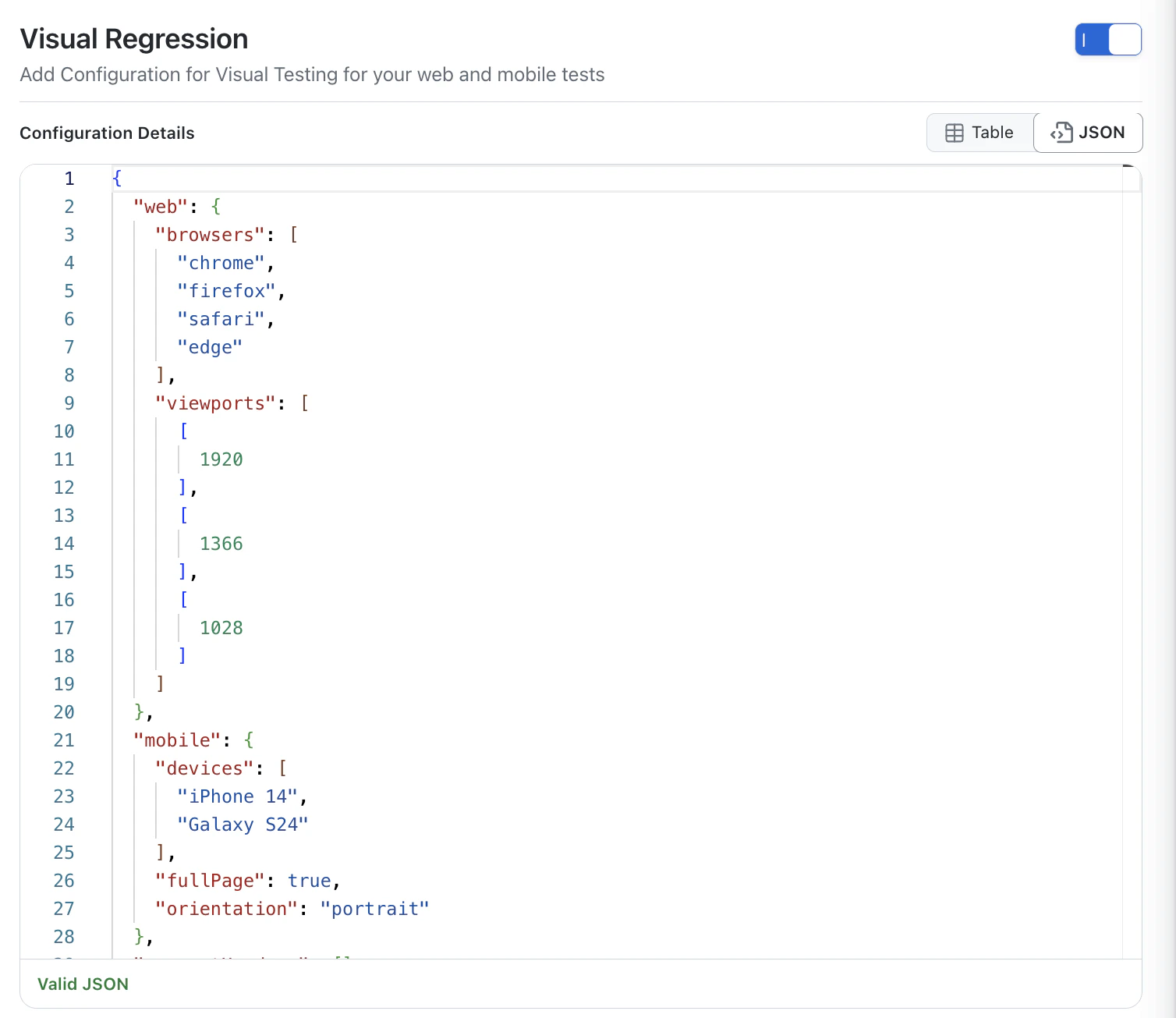
When you click Run Instances Now, the Run with HyperExecute panel opens. Click Advanced Configurations to open the Visual Regression settings.
Open the Visual Regression tab and turn on the toggle to use these settings:
- Custom Browsers (upto 4)
- Custom Viewports (upto 5)
- Custom Devices (upto 2) with Orientation (Portrait and Landscape)
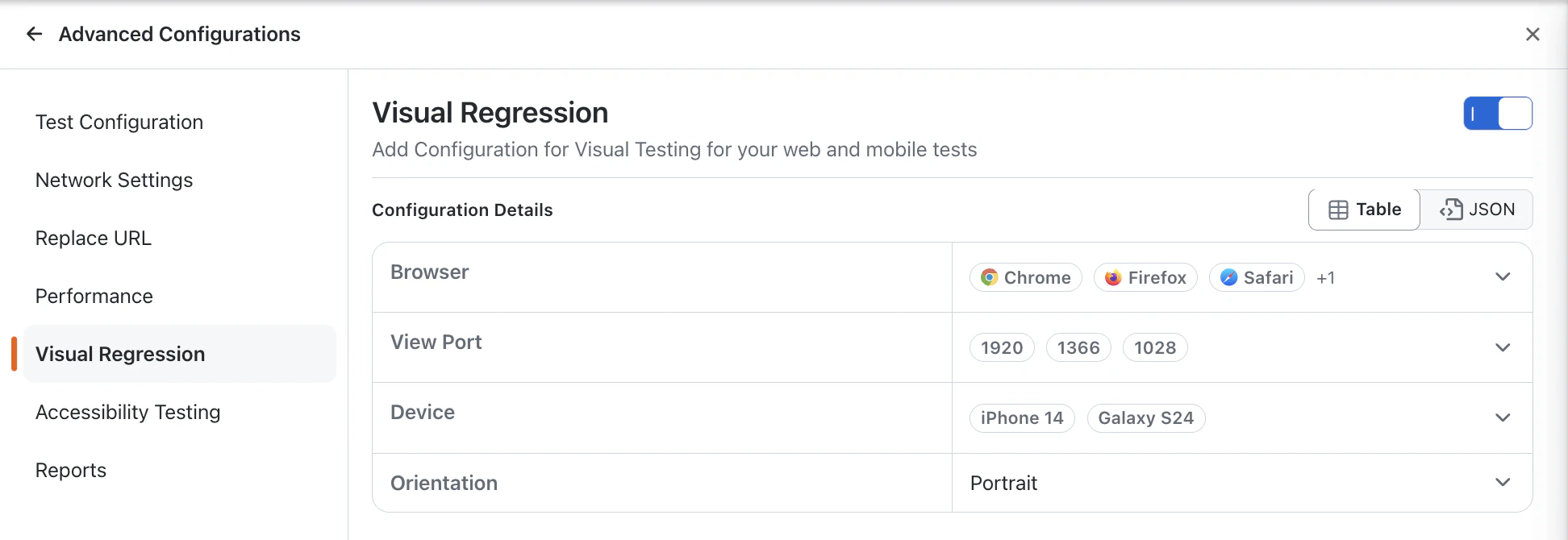
For a more flexible usage you may use the JSON tab where you can set your own parameters and configuration.
Save and Run the App Test
- Click Save. The Save Test Case dialog asks whether to run a sample execution of the generated code.
- Click Save & Run Execution to save the test and run it once on HyperExecute. To save without running it, select Skip sample execution of code first.
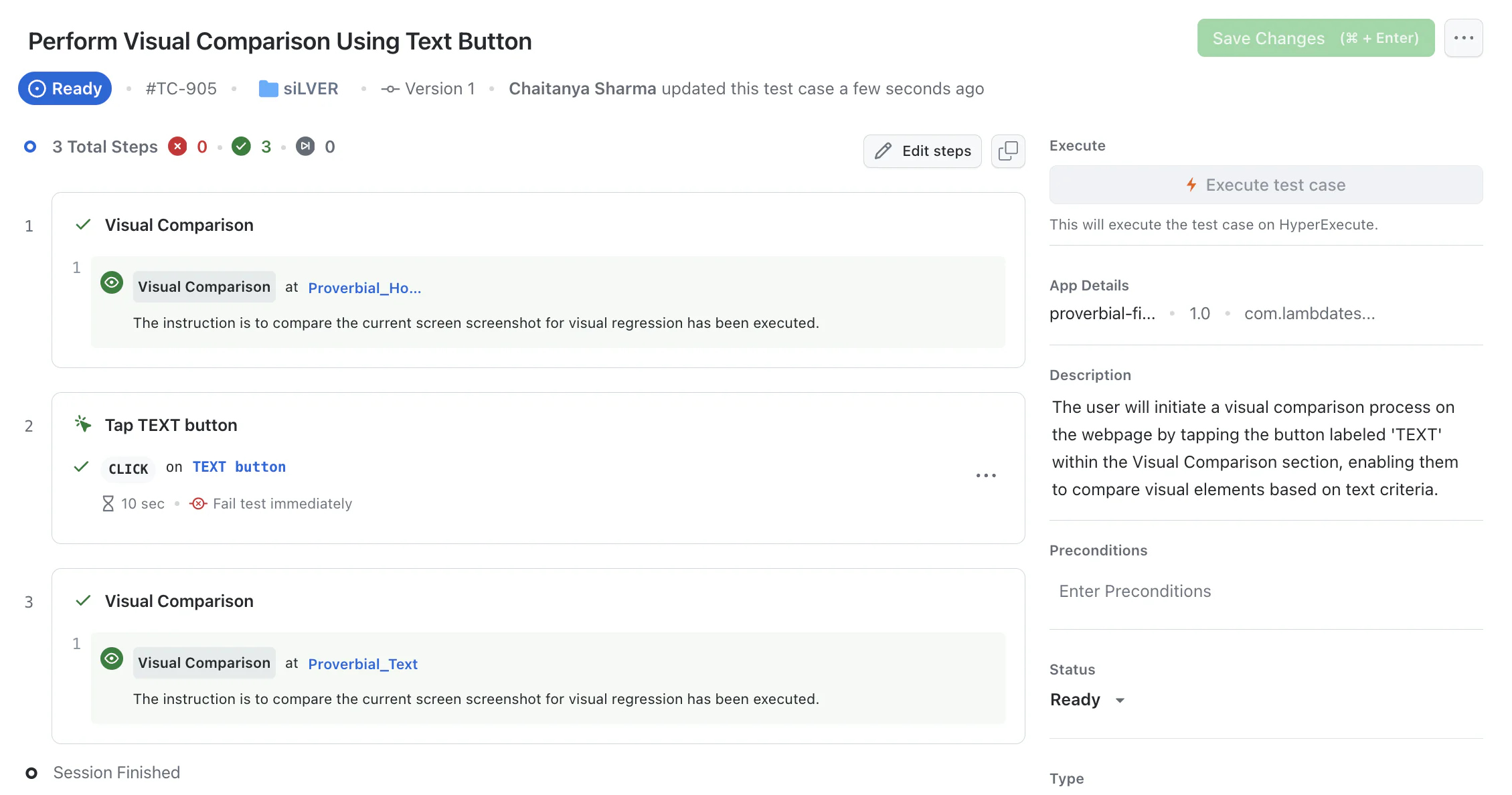
To run the test again, click Execute test case on the test case page, or create a test run as described in Test Run Execution. App test runs capture screenshots on the devices you run the test on. Execute test case can pick a different device on each run, and baselines are kept per device, so use a test run with a device configuration when you want every run compared on the same device. The Visual Regression settings in Advanced Configurations (custom browsers, viewports and devices) apply to web tests only.
View Your Visual Test Results on SmartUI
After the Test Run job is finished, all screenshots captured using the /Visual Comparison command via KaneAI will be available in your SmartUI project for review.
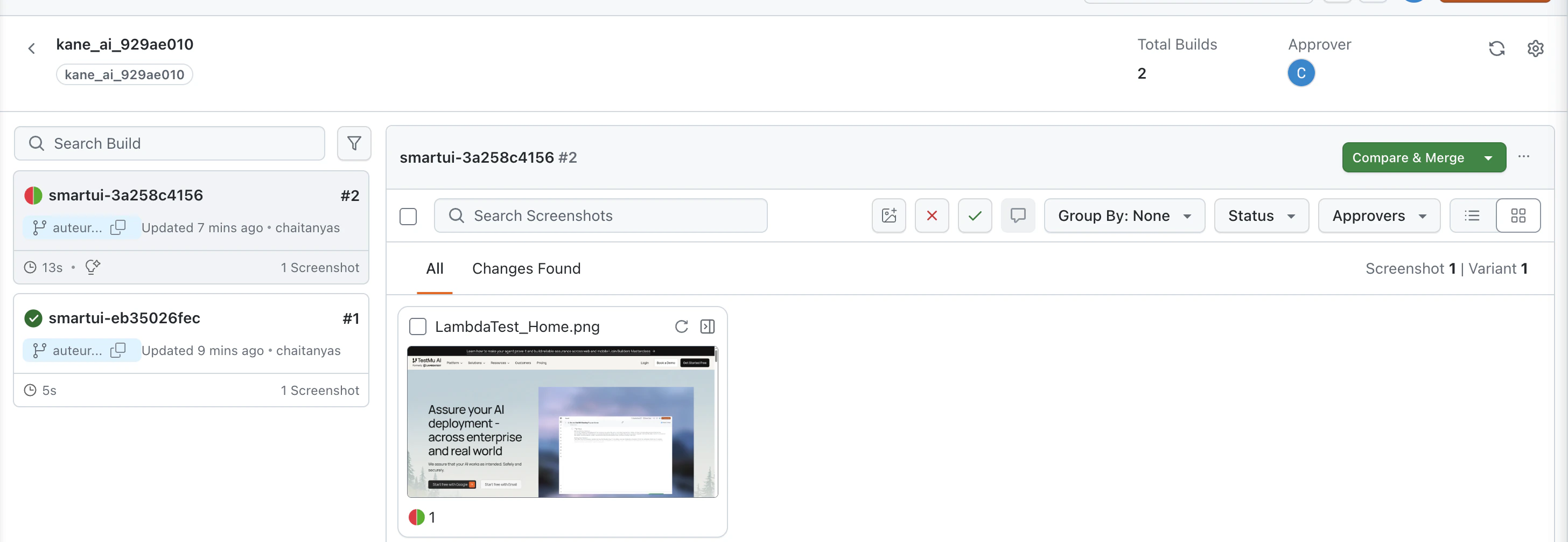
- Navigate to the SmartUI Dashboard.
- Select your project and the most recent build.
- Here, you can compare screenshots against the baseline, highlight differences, and approve or reject changes. You can use features like Smart Ignore to mask dynamic areas for more stable comparisons.
Find App Results in SmartUI
Open the SmartUI Dashboard. App screenshots from KaneAI are stored in these SmartUI projects:
| Where the step ran | SmartUI project | Device shown in SmartUI |
|---|---|---|
| Authoring session | kane_ai_<id>, created with the first Visual Comparison step of the test. Each authoring session is one build. | default |
| Sample execution after Save & Run Execution | The same kane_ai_<id> project, as a new build | The device used for the sample execution, which can differ from the authoring device |
| Execute and test runs | A project with the same name as your KaneAI project. Each run is one build. | The device the test ran on, for example Galaxy S26 Android |
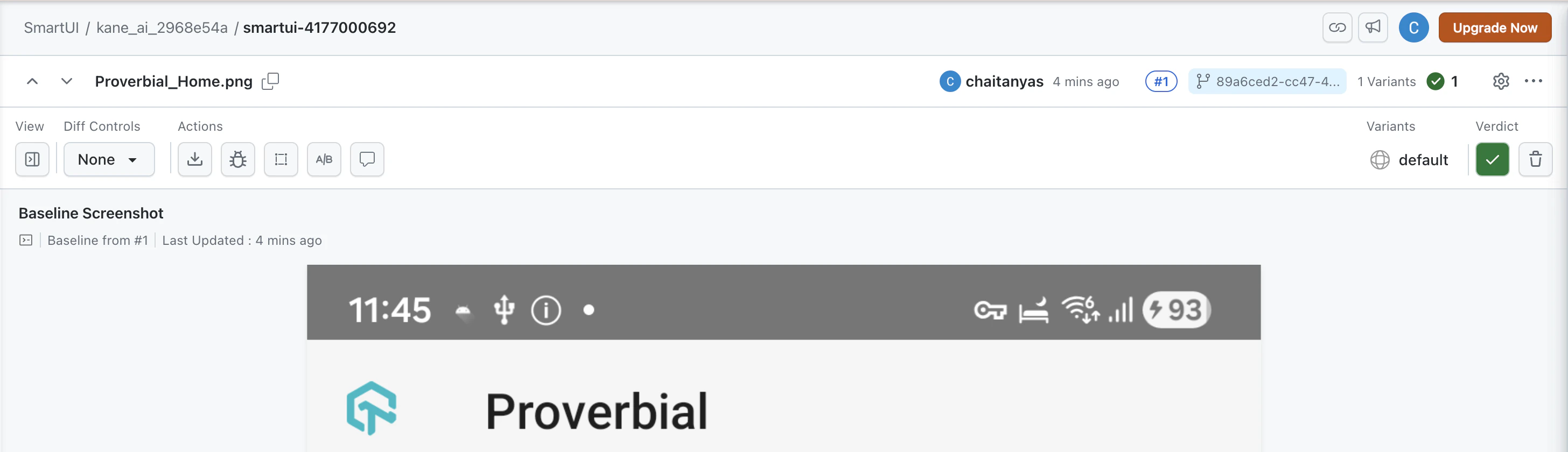
SmartUI compares an app screenshot only with a baseline of the same name taken on the same device. The first screenshot on a device has no baseline and is shown as a New Screenshot. It stays new in later runs until you approve it. After you approve it, later runs on the same device are compared with it.
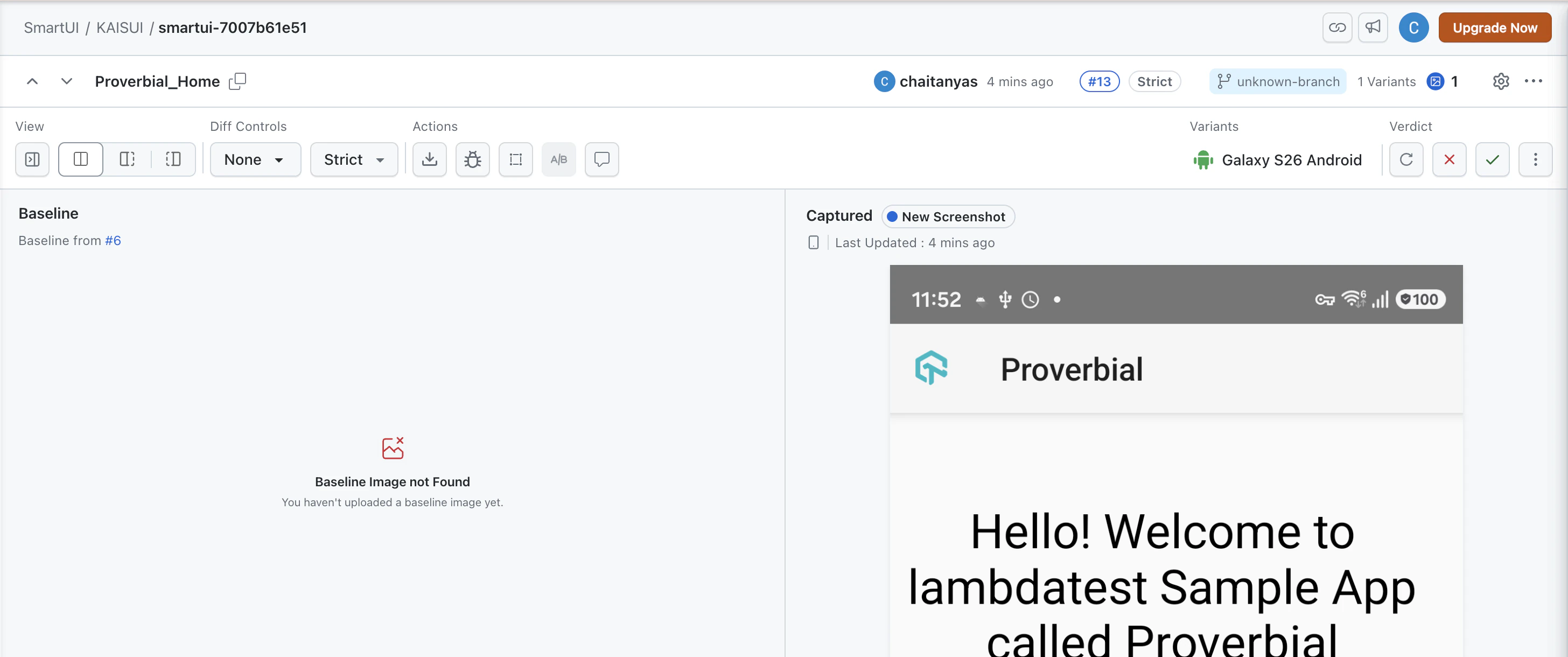
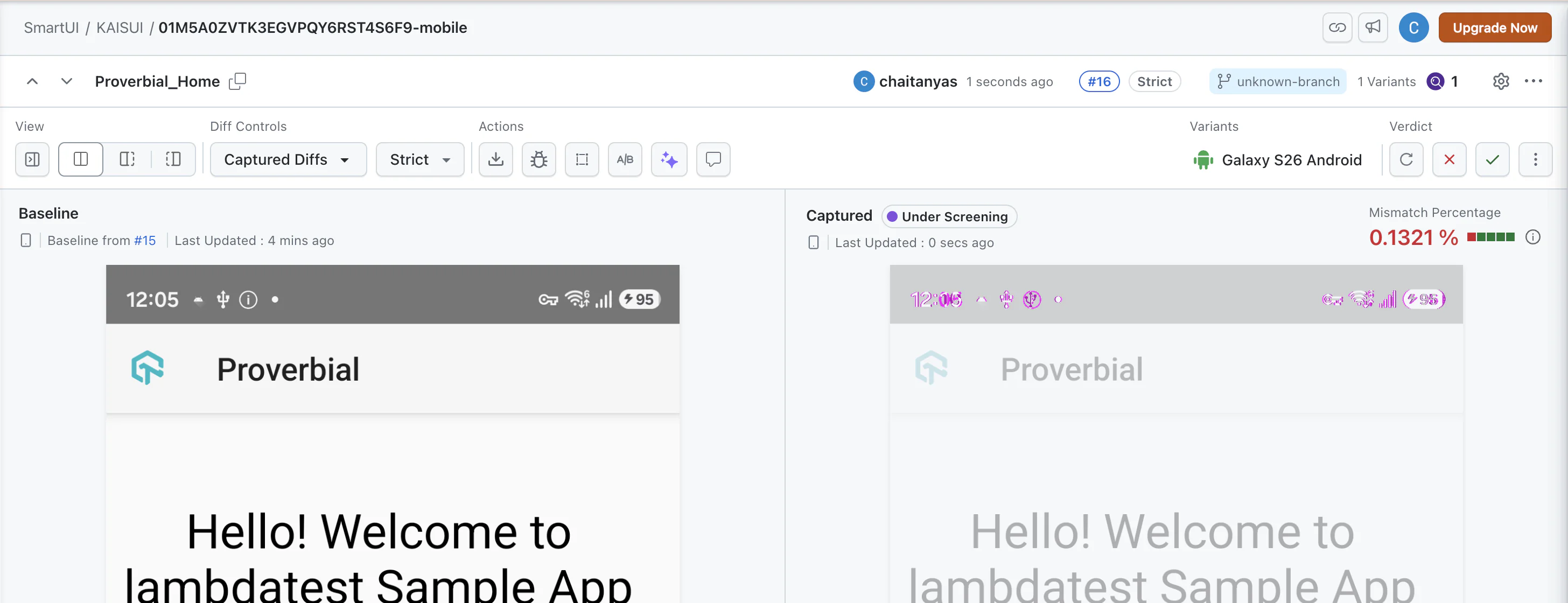
In the comparison view, the Variants field shows the device, and Mismatch Percentage shows how much of the screen changed. You can approve or reject the screenshot from Verdict.
Handle the Device Status Bar
Because the screenshot includes the status bar, the clock and status icons differ between runs even when the app has not changed. In the comparison above, the app is unchanged and the only highlighted area is the status bar, with a mismatch of 0.1321%.
To keep the status bar from failing your comparisons, open the SmartUI project's Settings > Comparison and use one of these options:
- Bounding Boxes: Click Add New Area to ignore the status bar region.
- Custom Mis-Match Acceptance: Set an accept percentage above the change the status bar causes.
Comparison settings belong to the SmartUI project. The Mis-Match Threshold and comparison mode you set in KaneAI apply to the kane_ai_<id> project used while authoring. Runs from Execute and test runs use the comparison settings of the project named after your KaneAI project, so set these options in that project too.


 Chat with Us