Link Linear Issues with Test Manager
Test Manager connects your testing work to the issues your team already tracks in Linear. Link a Linear issue to a test case, a test run, a test run instance, or an individual step, and the issue's current details travel with the test artifact, so you can trace a failing test back to the work item behind it without leaving Test Manager.
Before you begin
- Integrate Linear with your TestMu AI account. Follow the steps in Linear App Integration.
- Until Linear is connected, it cannot be selected as a source in the link dialog. The dialog shows the connection state of each tracker.
- Searching and linking are limited to the Linear projects you selected during setup. Issues from any other project are not returned.
Requirements and defects
Where you link a Linear issue decides what it is in Test Manager:
| Where the issue is linked | What it becomes | What it tells you |
|---|---|---|
| Test case or test run | Requirement | What the test validates |
| Test instance or step in a test run | Defect | What testing found |
The issue's labels and type in Linear do not change this. A Linear issue labelled as a bug and linked on a test case is a requirement, because the test checks that bug. To change the role of a link, unlink the issue and link it in the right place.
Issues you linked before this change were given a role automatically, using the same rule.
Requirements and defects are currently in slow rollout. To get early access, raise a request to our support team. Until they are enabled for your organization, linked issues appear in a single list.
Linking Linear Issues in Test Manager
Once the integration is complete, follow these steps to link a requirement to your test cases or test runs:
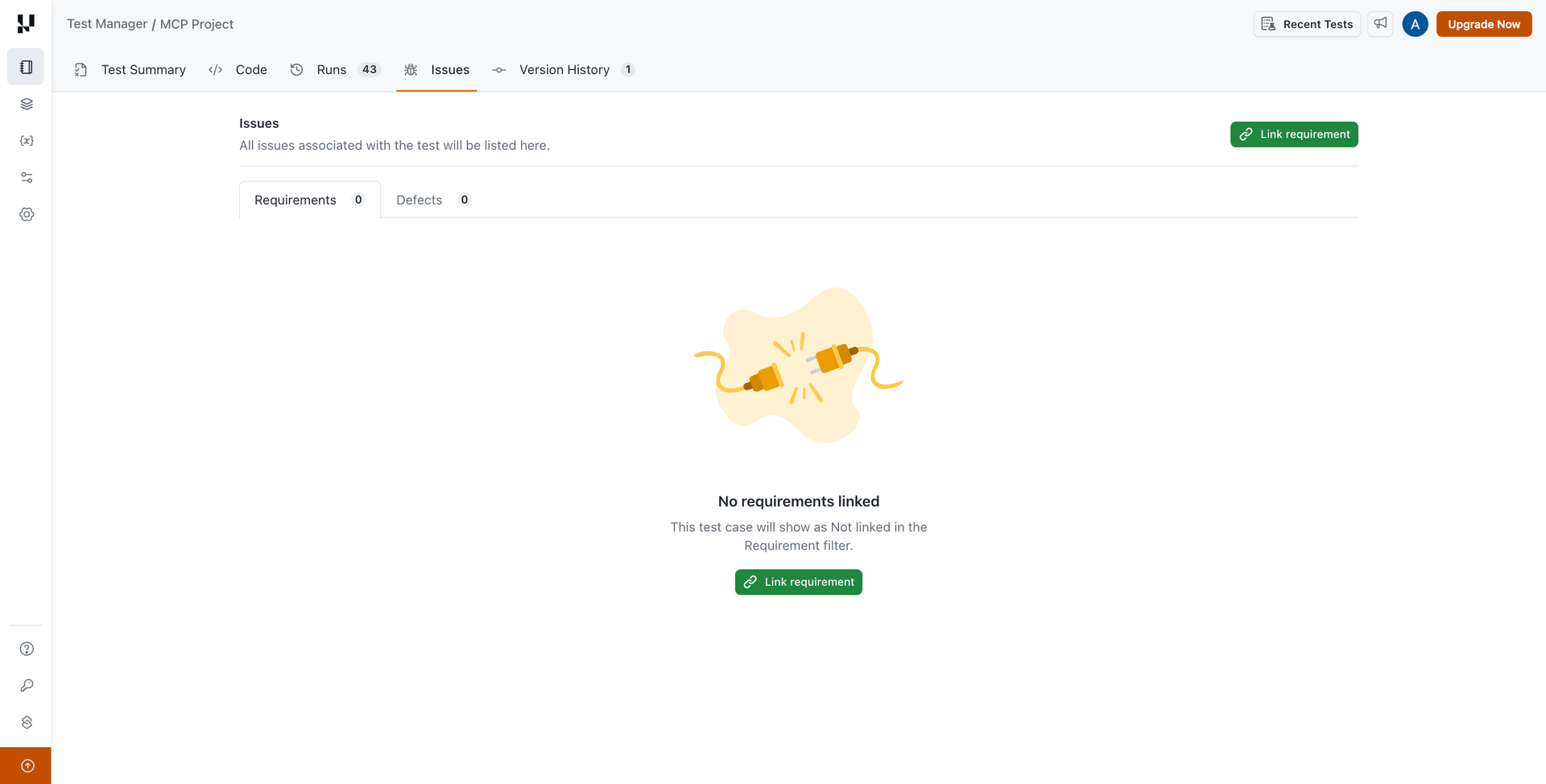
- Open the Issues tab of a test case and click Link requirement. On a test run, open its Issues tab and click Link requirement to run.
Note: To link a defect on a test instance or a step, see Track Bugs and Issues in Test Runs.
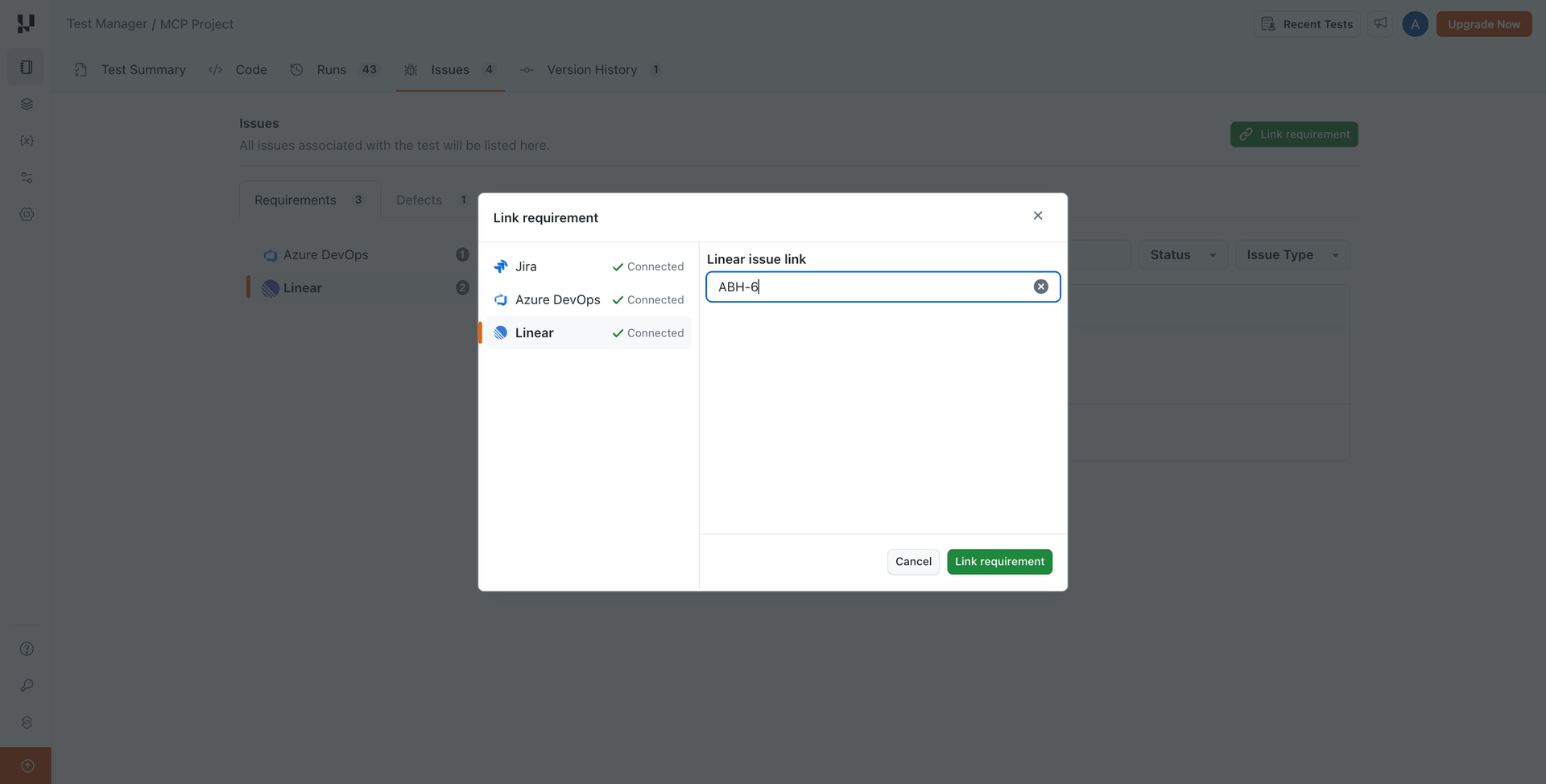
- Select Linear as the source, enter the Linear issue key or URL in the input field, and click Link requirement.
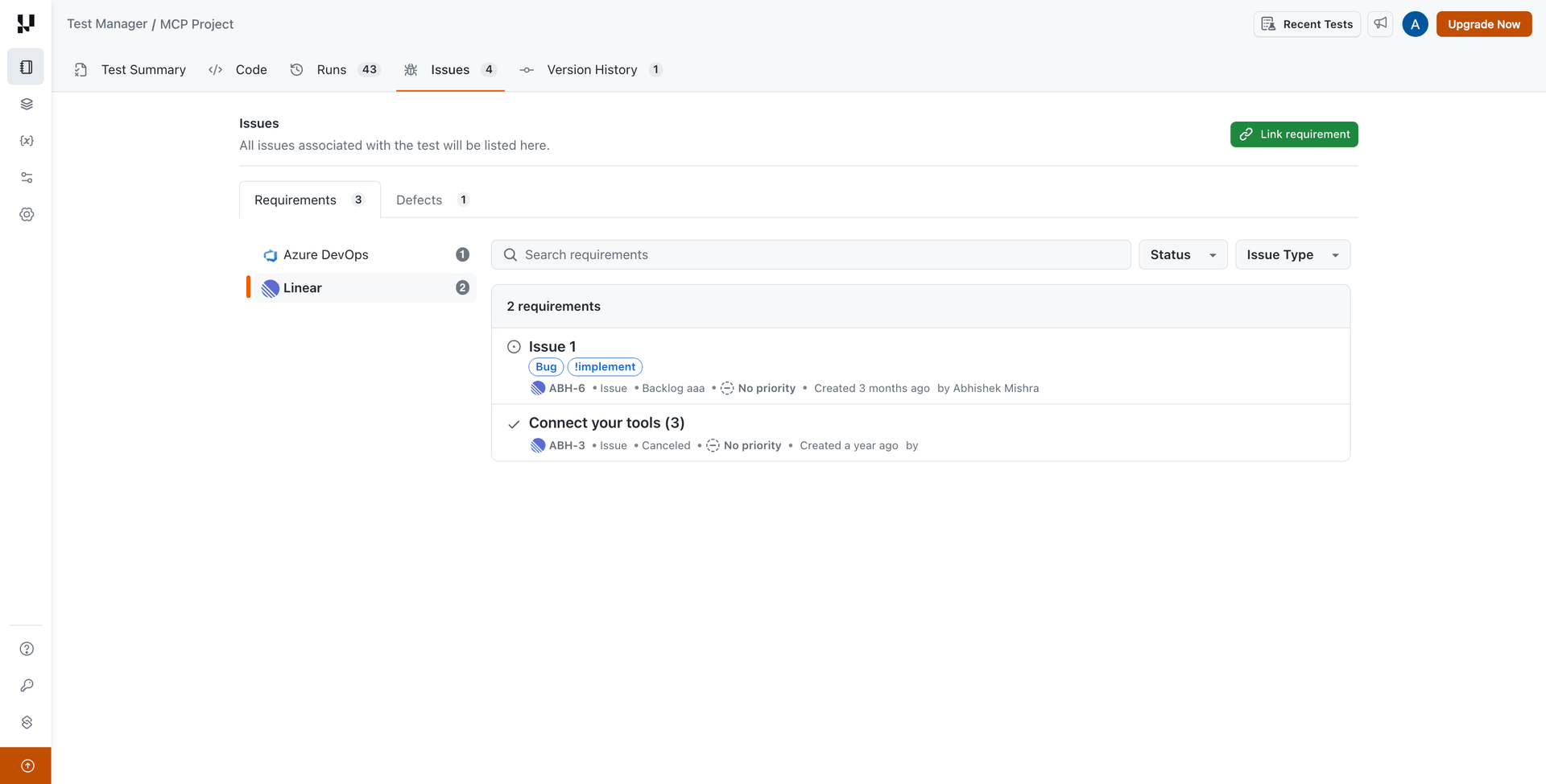
- The Linear issue from your integrated Linear project is linked and listed under Requirements.
Issues on a test case
The Issues tab of a test case has two tabs, each grouped by tracker:
- Requirements: the issues linked on this test case. You can link and unlink them here.
- Defects: the defects raised or linked on this test case's instances and steps, across its test runs. Each one shows where it was raised, and View in run opens that run. This list is read-only, so you add and remove defects from the test run.
A defect counts as open based on its status in Linear. A Linear issue in a Canceled status counts as an open defect.
What a linked Linear issue shows
A linked issue lists its title, identifier, issue type, status, priority, creation date, and creator. Click the linked issue to open it directly in Linear.
Linked issues are grouped by tracker, so Linear issues are listed under Linear alongside any Jira or Azure DevOps issues on the same test artifact. Use the search box and the Status and Issue Type filters to narrow a long list.
Test Manager does not store any of these details. They are fetched from Linear every time you view the test case, test run, or instance, so what you see always reflects the current state of the issue in Linear.
Linking is repeatable and many-to-many:
- Linking the same issue to the same test artifact again does not create a duplicate.
- One Linear issue can be linked to any number of test cases, test runs, and instances, and one test artifact can carry any number of Linear issues.
Unlinking a Linear issue
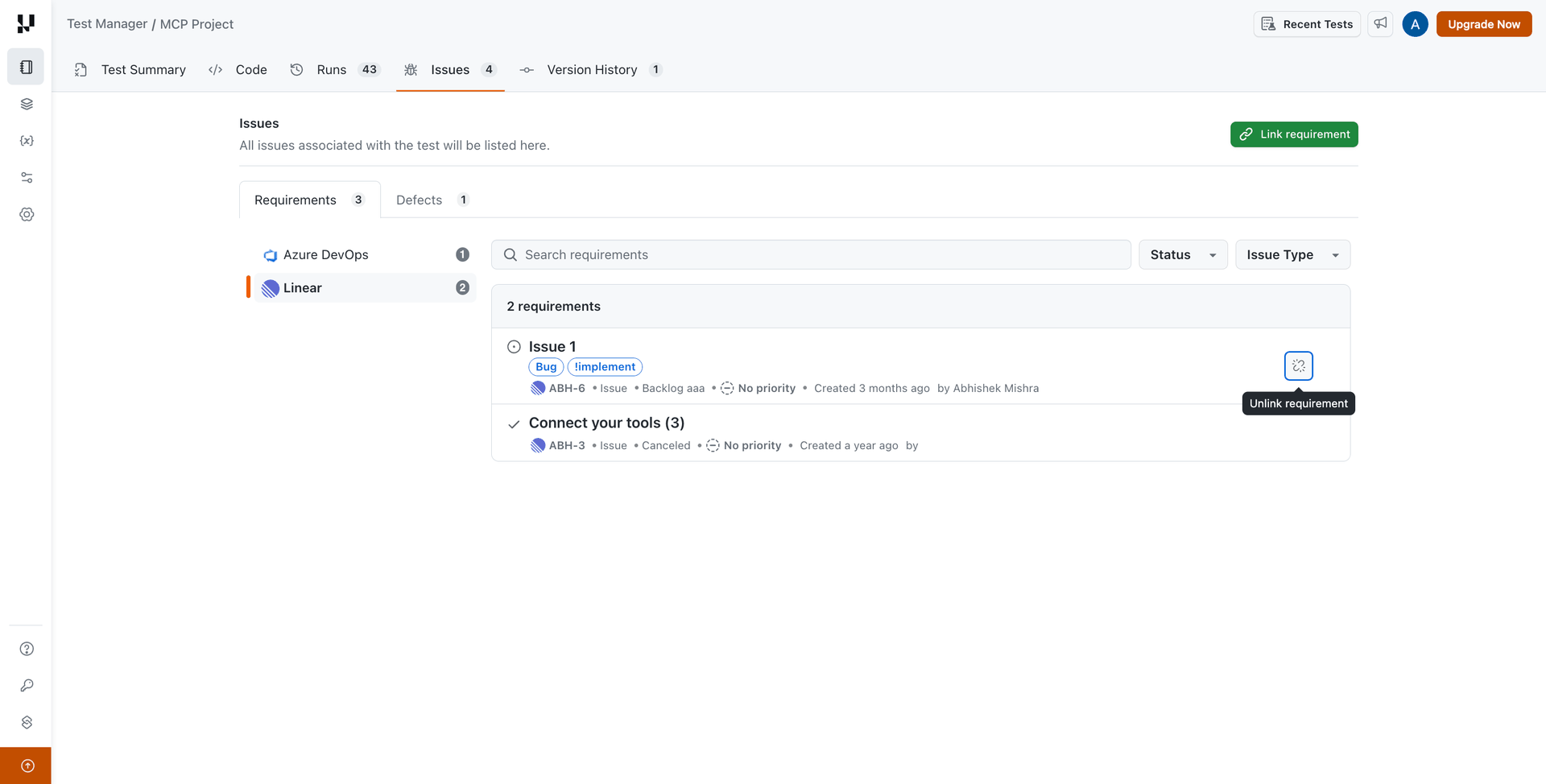
To unlink an issue, hover over the Linear issue and click Unlink requirement on the right side of its row.
Unlinking removes the association in Test Manager only. The issue itself stays in Linear.
Behaviour in specific situations
| Situation | What happens |
|---|---|
| Linear is not connected to your TestMu AI account | Linear cannot be selected in the link dialog until you connect it |
| The issue belongs to a Linear project you did not select during setup | It is not returned in results and cannot be linked |
| Linear is temporarily unreachable | The issue is shown with the details last retrieved, along with a notice that they could not be refreshed. The next view retries |
| The issue is archived in Linear | The issue is identified as archived and can still be linked |
| The issue has been deleted in Linear | The issue is reported as unavailable and can be unlinked |
| Linear is disconnected from your account | Linked Linear issues are no longer shown. They become visible again if you reconnect the same Linear workspace and projects |
 Chat with Us