Multi-Device Testing on Real Devices
Multi-Device Testing enables you to run multiple devices simultaneously in a single App Live session, allowing you to validate your application across different devices and OS versions faster and more efficiently. This approach simplifies cross-device testing by bringing multiple devices into a single session.
LambdaTest allows you to run up to 6 devices at a time within a single session, depending on your plan’s parallel limit. You can choose different applications for each device or test multiple versions of the same app concurrently, all from a single interface, without the need to start separate sessions.
Use Cases
- Cross-Device Functional Testing: Validate app functionality across multiple devices simultaneously.
- UI Consistency Check: Ensure your app displays correctly on different screen sizes and resolutions.
- Multi-App Workflow Testing: Test interactions between multiple apps in a single session.
- OS Version Verification: Verify app behavior across different OS versions.
- Faster Regression Testing: Reduce testing time by running multiple devices together.
Multi-Device Testing Workflow
Step 1: Open a Real Device Session
Log in to your App Live Dashboard, upload your app, and select a real device (Android or iOS).
Step 2: Add Devices Using Multi-Device Option
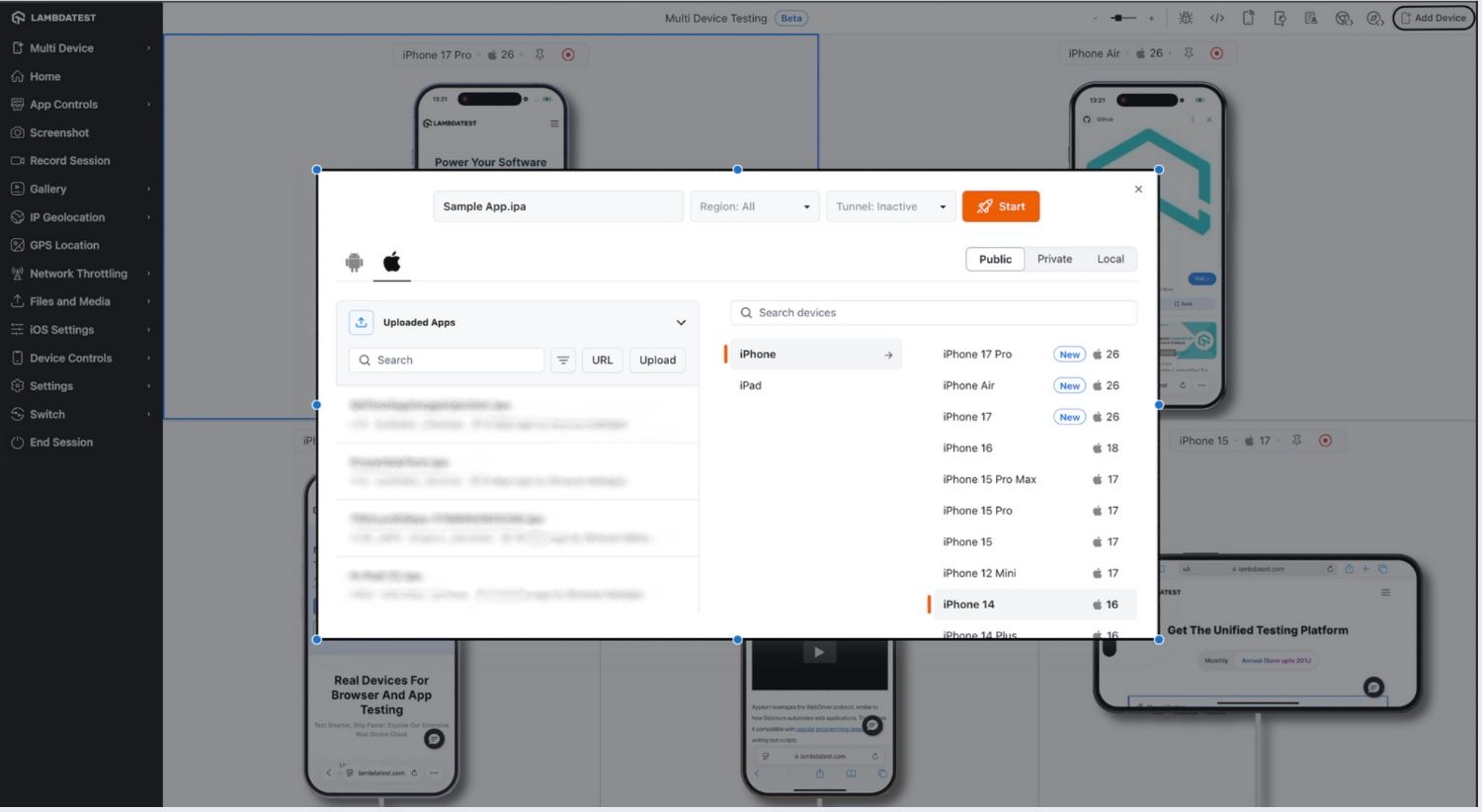
Once the session is open, click on the add device option to add more devices. You can set up to 6 devices per session and select the device and application for each.
Step 3: Apply Multi Device Control Settings
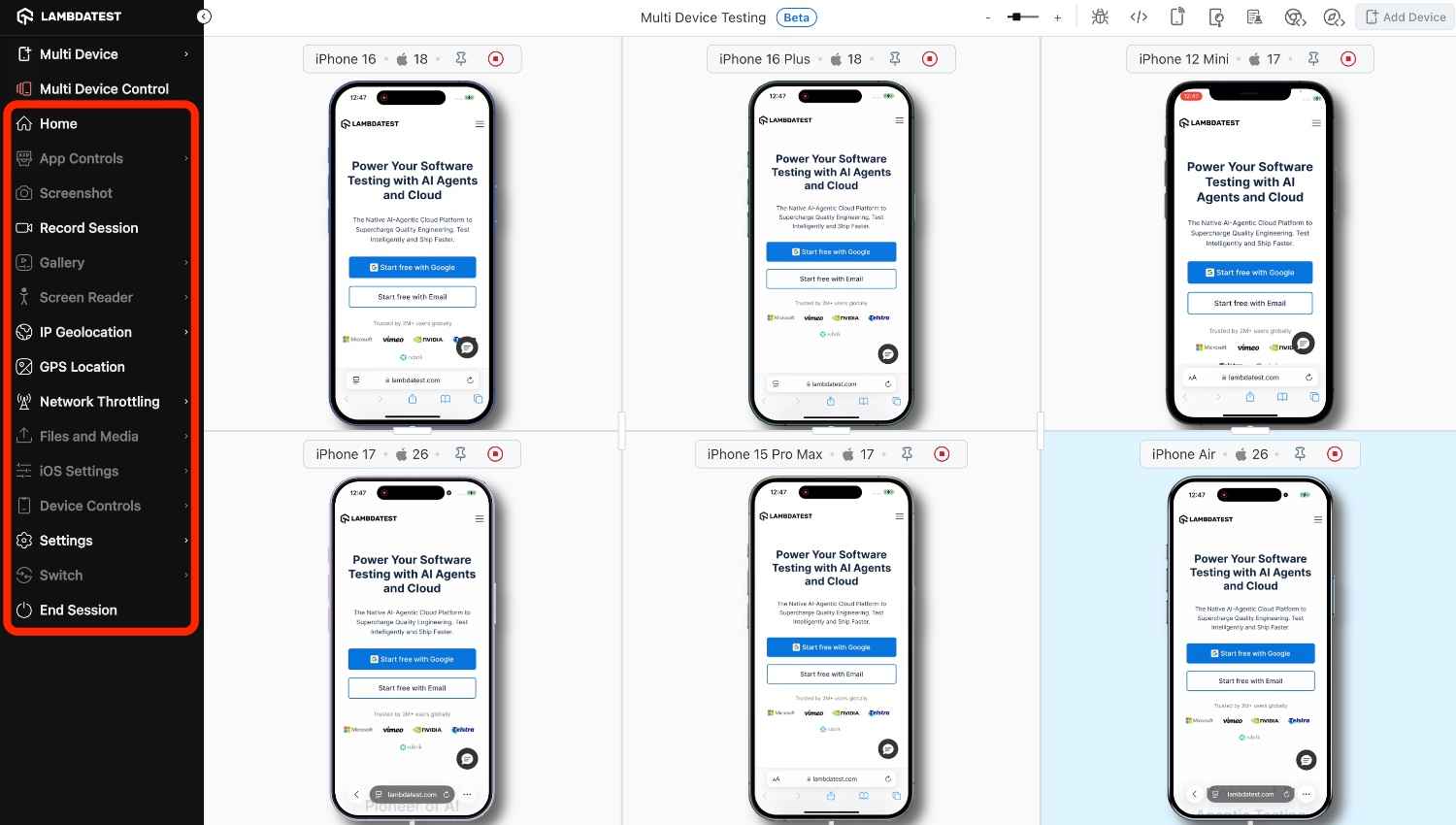
Once devices have been added to the session, you will see an option called Multi-Device Control. This feature allows you to apply common actions and settings across all connected devices simultaneously, reducing repetitive steps and ensuring consistent configurations.
Supported Multi-Device Controls
| Feature | Description |
|---|---|
| Home | Instantly navigate all devices to the Home screen with a single click |
| Record Session | Start recording on all devices together, instead of initiating recordings individually |
| IP Geolocation | Apply a unified IP geolocation to every device with one click |
| GPS Location | Set a common GPS location across all devices simultaneously |
| Network Throttling | Apply the same network throttling profile to all devices without configuring each device separately |
| Settings | Update global settings such as idle timeout, language and timezone for all devices at once |
- Currently, Record Session downloads are not compatible with QuickTime Player. If you are using macOS, you may need an alternative media player to view the recordings.

 Chat with Us
 Ask the Community