Re-Run Automation Tests
When a test fails, you often need to run it again, either to confirm a fix or to check whether the failure was a flake. The Re-Run button on the Test Detail Page lets you do this from the dashboard, without re-triggering your suite from CI or your local machine.
Re-Run offers two options:
- Replay - runs the test again on the grid.
- Reproduce - replays the test against the data captured from the original run. Requires HAR logging.
Re-Run is not generally available yet and may not be enabled for your account. Its behavior may change before general availability. To get it enabled for your organization, reach out to our 24/7 chat support or email us at support@testmuai.com.
Re-Run a Test
- Open the Automation Dashboard and select a build.
- Select a test from the Test List Panel to open its Test Detail Page.
- Click the dropdown arrow on the Re-Run button, in the top-right of the test summary.
- Choose Replay or Reproduce.

Replay
Replay runs the test again on the grid, against your application as it exists now. Unlike Reproduce, it does not use the captured data from the original run, so the result reflects the current state of your application and environment.
Use Replay to:
- Confirm a fix - re-run a previously failing test after deploying a change.
- Identify flaky tests - run the same test repeatedly to see whether failures are intermittent. For a broader view, see Flaky Test Detection.
- Re-test after an environment change - verify a test once a dependency or test environment issue is resolved.
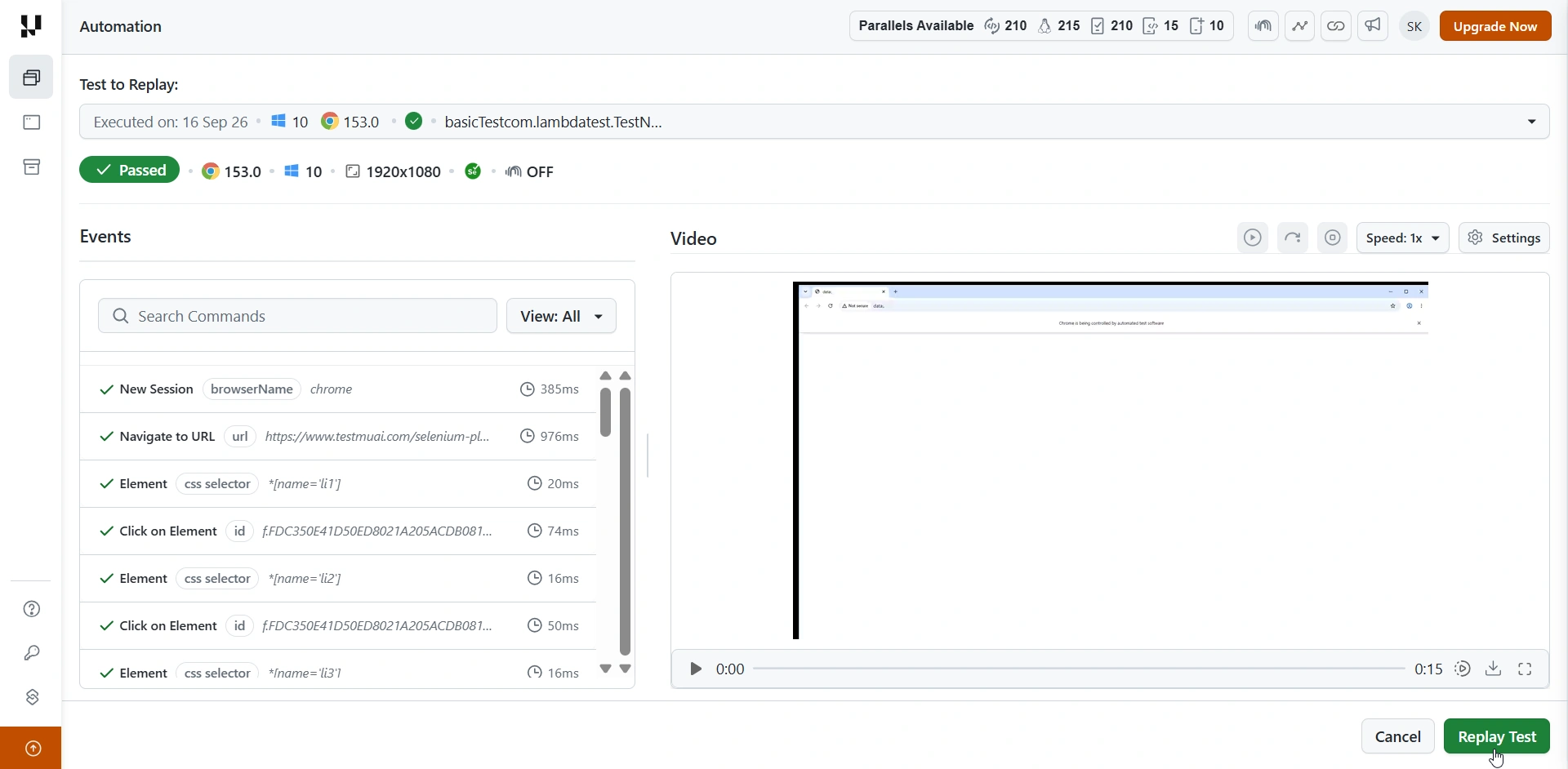
Reproduce
Reproduce replays the test against the network and DOM data captured during the original run, rather than against your live application. This replicates the conditions the test originally encountered, which is what makes it useful for intermittent failures that will not recur on demand.
Reproduce reads the HAR (HTTP Archive) network logs recorded during the original test. If those logs were not captured, the option is unavailable.
A test is eligible for Reproduce only if both of the following are true:
- It ran with the
network.full.harcapability set totrue. - It finished with a passed, failed, or completed status. Tests that did not run to completion cannot be reproduced.
Enable Reproduce
Reproduce requires HAR logging on the original run. Pass the following capability in your test:
"network.full.har" : true
If the original test ran without this capability, Reproduce appears greyed out in the Re-Run menu with the tooltip:
No Network Logs found, use network.full.har:true to replicate the test states.
In this case, add the capability and run the test again. The new run is then eligible for Reproduce.
network.full.har applies to web tests. Enabling it also populates the Network tab with a waterfall chart. See HAR Log Viewer With Waterfall for how to read it.
Choosing Between Replay and Reproduce
| Replay | Reproduce | |
|---|---|---|
| Runs against | Your live application | Network and DOM data captured from the original run |
| Prerequisite | None | network.full.har : true, and a passed, failed, or completed original run |
| Reflects | The current state of your app | The state at the time of the original run |
| Best for | Confirming fixes, detecting flakes | Investigating intermittent failures that will not recur |
If you are not sure which to use, start with Replay. Reach for Reproduce when a failure will not recur on a live run and you need the original conditions back.
View Run History
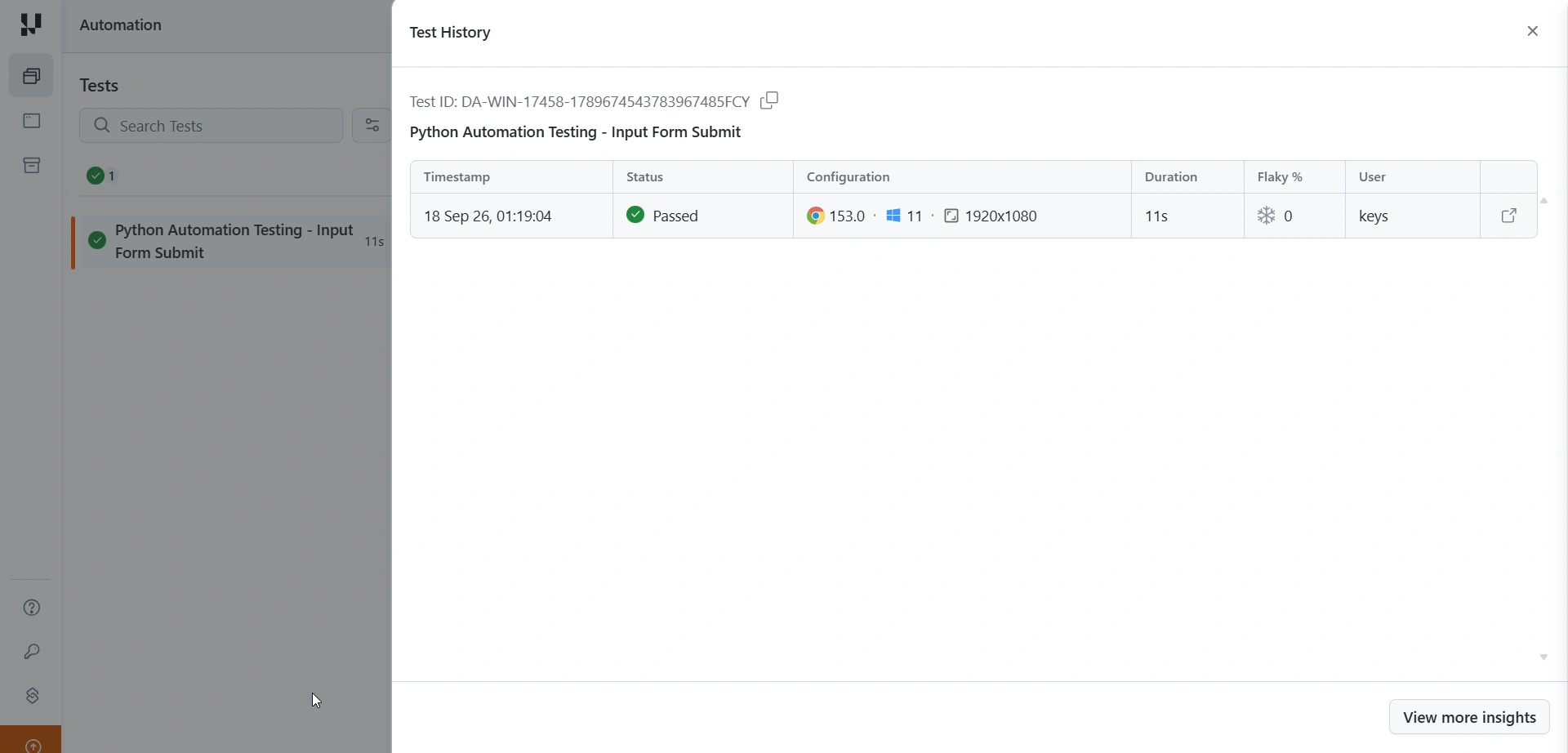
The Re-runs field in the test summary shows how many times a test has been re-run. Open the run history from the summary to see every previous run with its status, configuration, and duration.


 Chat with Us