Slack Integration with SmartUI
This document will guide you to integrate your SmartUI jobs and Slack, allowing you to receive real-time notifications and crucial job details directly within your Slack workspace.
Prerequisite
- An active TestMu AI account with Admin or User-level access.
- Set up a dedicated Slack channel where you want to receive notifications from SmartUI.
- Should have setup the SmartUI suite.
Step 1: Navigate to the Integration Page
- Login to your TestMu AI Account.
- Navigate to the Settings > Integration page.
- Select the Communication tab and search for Slack.
Step 2: Integrate the Slack with your TestMu AI Account
- Click on the Connect button and then Install for the Slack integration.
NOTE : If you are already logged into Slack, you'll be redirected to a page where you have to post to a channel to confirm your identity or else you will be asked to provide Slack URL of your workspace.
- Select the channel you want to post on. Click on Allow button.
A notification would be shared on to all the members belonging to that channel, informing about your integration.
Step 3: Update the Notification Settings and Trigger the Job
Once you integrate Slack, you need to configure notification settings to get test automation notifications on your integrated Slack channel.
- Go to your desired Project.
- Click on the Project Settings button.
- In the Notifications tab, toggle the slack alerts to true
- Click on the Update Settings button.
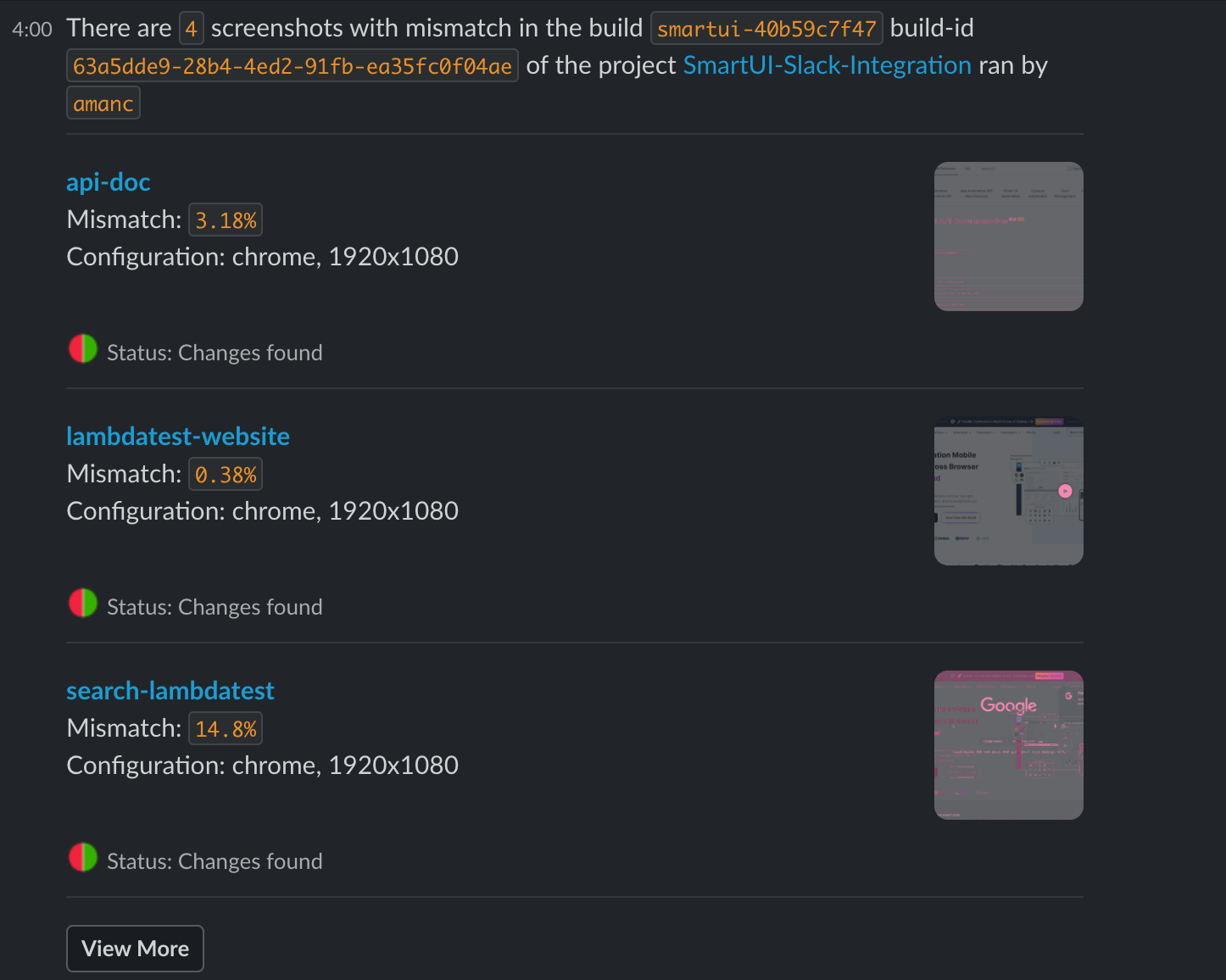
- Now again trigger the project with the changes and visit the Slack channel to view the notification containing meta information about the build.
- Once you save that configuration, you will start receiving the custom notifications in Slack!
Remove the Slack Integration
- Go to the Settings > Integration page.
- Select the Communication tab and search for Slack.
- Click on the Remove button.


 Chat with Us