TestingWhiz Integration With TestMu AI
TestingWhiz is a codeless automation testing tool that can be used for Software testing, Web testing, Mobile testing, Database testing, Cloud testing, Web Services testing, and API testing.
TestMu AI now integrates with TestingWhiz to help perform cross-browser testing of your website or web app, over 3000+ real desktop devices, mobile viewports, and operating system combinations. This document will help you learn how to integrate your TestingWhiz account with your TestMu AI account.
How To Integrate TestMu AI With TestingWhiz?
Below is the step by step guide to help you integrate TestMu AI with your TestingWhiz app.
-
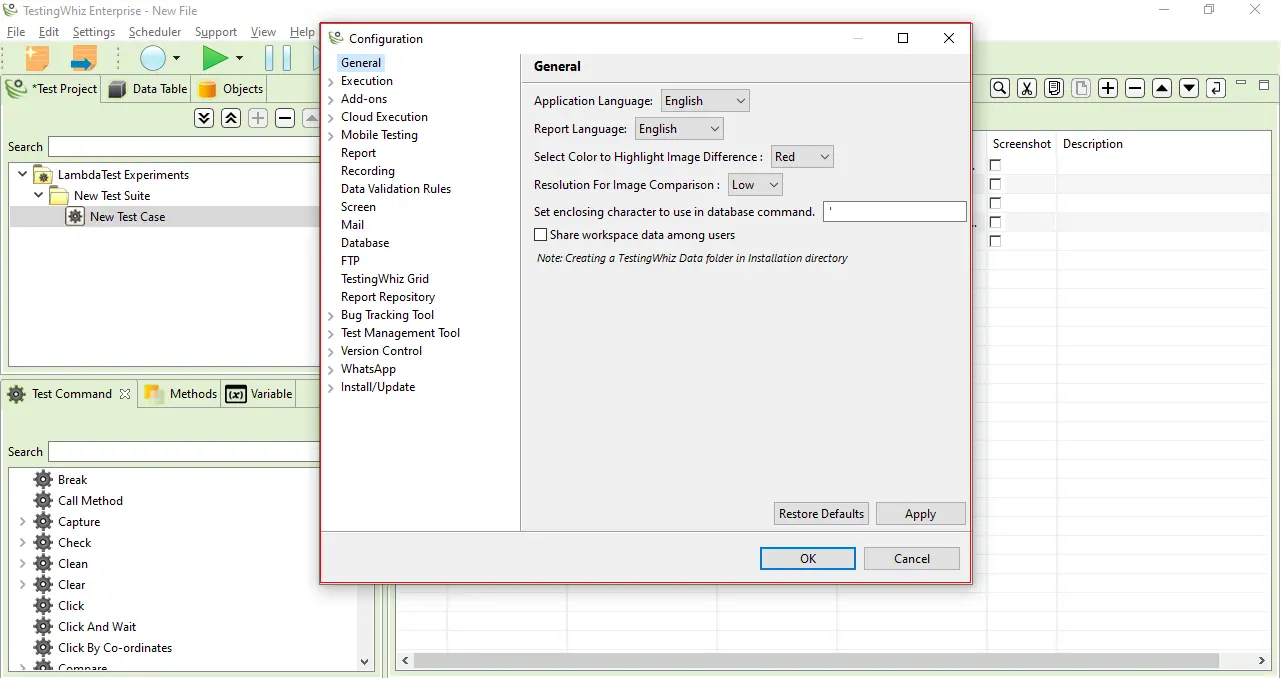
Go to Configurations from the Setting menu in your TestingWhiz app. A window will open with all the configuration settings in it, as shown below.
-
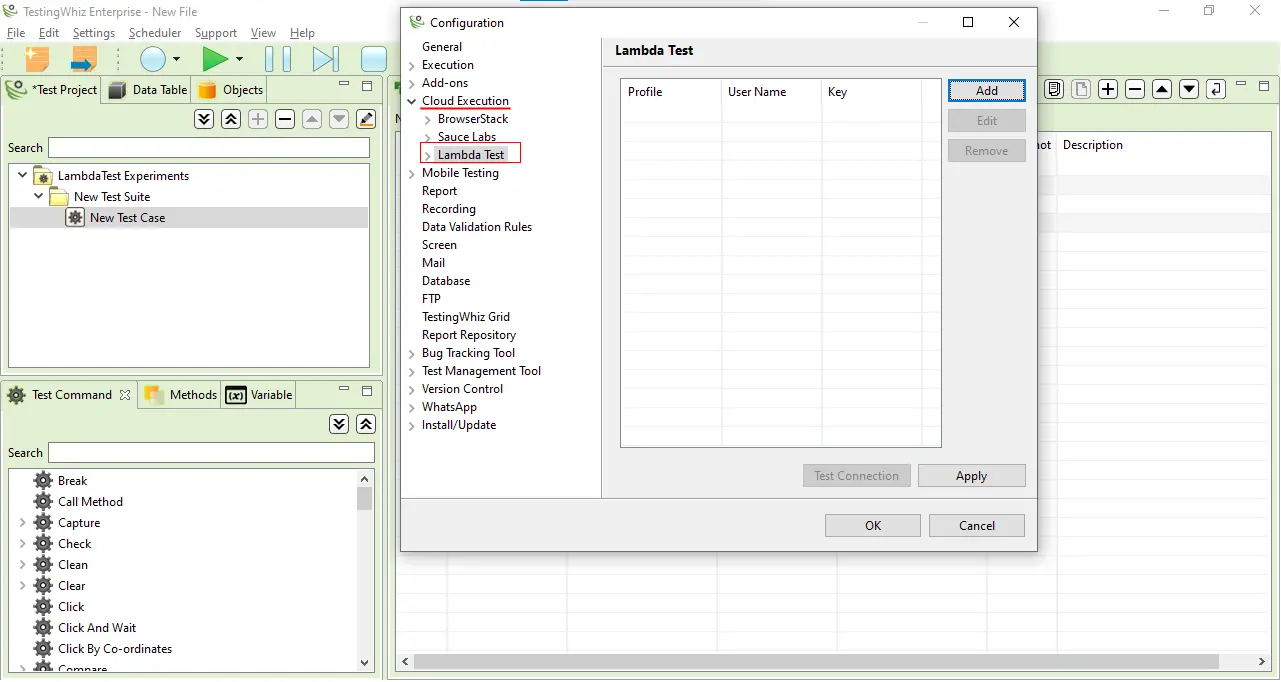
Go to Cloud Execution menu from the left bar, and you will find TestMu AI there.
-
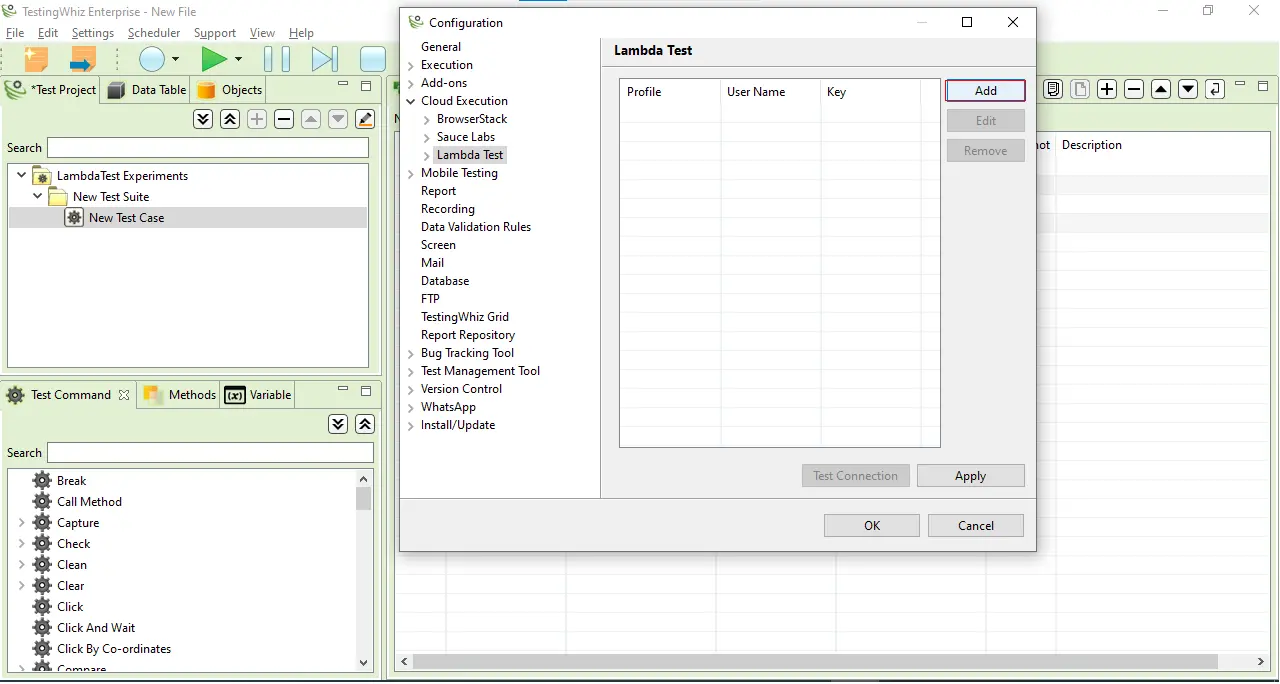
Now you need to provide access of your TestMu AI account to your TestingWhiz app. To do so, click on Add button.
-
In the open dialog box, you need to enter your Profile name, username, and access key. You can use any name for your profile on TestingWhiz.
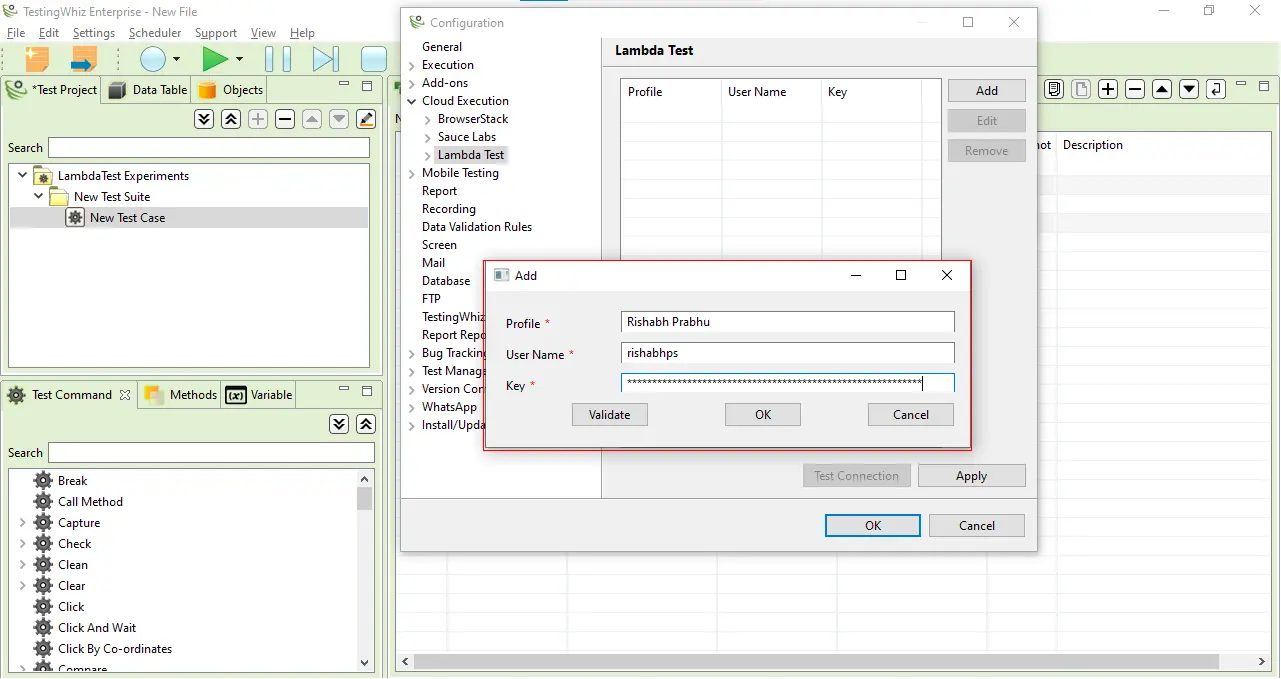
To get your Username and Access Key, go to your TestMu AI automation dashboard and click on the "key" icon left to the help button, on the top right corner.

-
Click on Validate and then on OK once the credentials are validated successfully.
-
Now apply your changes by clicking on Apply and then press OK.
That's it. Your TestingWhiz account has been integrated successfully with your TestMu AI account.
Running First Test From Your TestingWhiz App On Your TestMu AI Account
Consider a test scenario which includes:
- Opening [LambdaTest ToDo App](https://lambdatest.github.io/sample-todo-app/)
- Check first item in the list
- Check second item in the list
- Add a new item in the list
In TestingWhiz, record your test scenario. Once done, click on the Execute button. 
As soon as you do, an automation test will start instantly, and you can view its build running directly on your TestMu AI automation dashboard. Once the test is complete, you can view the result of the test on TestMu AI, with all its details, as shown in the image below: 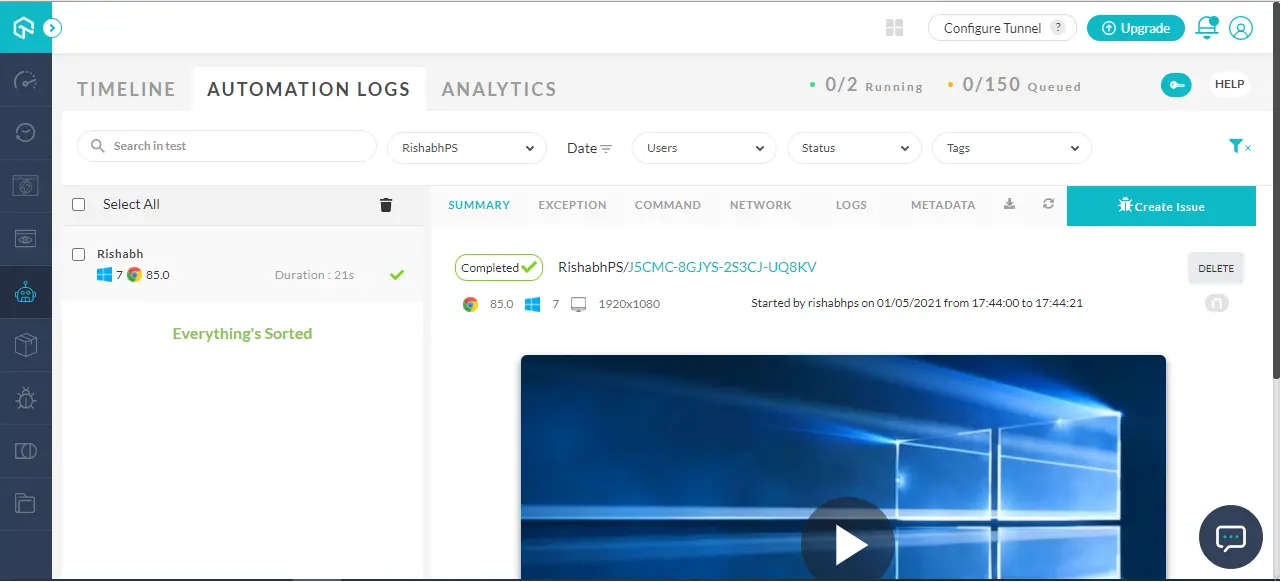
You can view logs, mark bugs, and do much more for each executed test from your TestMu AI platform.
That's it folks! Now you can run your codefree automation testing super easily with this TestingWhiz and TestMu AI integration. If you have any doubt or questions, feel free to contact our experts at 24/7 chat support or mail us at support@testmu.ai. Happy testing! 🙂

 Chat with Us
 Ask the Community