Local Testing For MacOS
TestMu AI tunnel feature allows you to test your private server URLs or locally hosted web-apps or websites on 3000+ real browsers through TestMu AI. You can test plain HTML, CSS, PHP, Python, or other similar web files saved on your local system, over combinations of operating systems, browsers, and screen resolutions that are available on TestMu AI. You can leverage the new TestMu AI tunnel binary for corporate firewalls and proxy settings without any restrictions. TestMu AI tunnel follows various protocols such as Web Socket, HTTPS, SSH(Secure Shell), etc. to help you establish a secure and unique tunnel connection through corporate firewalls between your system and TestMu AI cloud servers.
Feel more confident than ever, before deploying any UI specific change into Production. Test your development thoroughly with TestMu AI tunnel and experience the flexibility to securely test your website on 3000+ browsers and their assorted versions, running on real OS code for cross-platform and cross browser compatibility, even before it gets deployed over the Production environment.
You can download the binary file responsible for establishing a tunnel connection between your local device and our testing cloud by clicking on the downloadable link below.
| DOWNLOAD TestMu AI tunnel ZIP FOR MAC 64 BIT |
|---|
This file is supported for the below listed macOS:
- macOS Sonoma
- macOS Ventura
- macOS Monterey
- macOS Big Sur
- macOS Catalina
- macOS Mojave
- macOS High Sierra
- macOS Sierra
- OS X El Capitan
- OS X Yosemite
- OS X Mavericks
- OS X Mountain Lion
- OS X Lion
Configuring Connection With TestMu AI tunnel
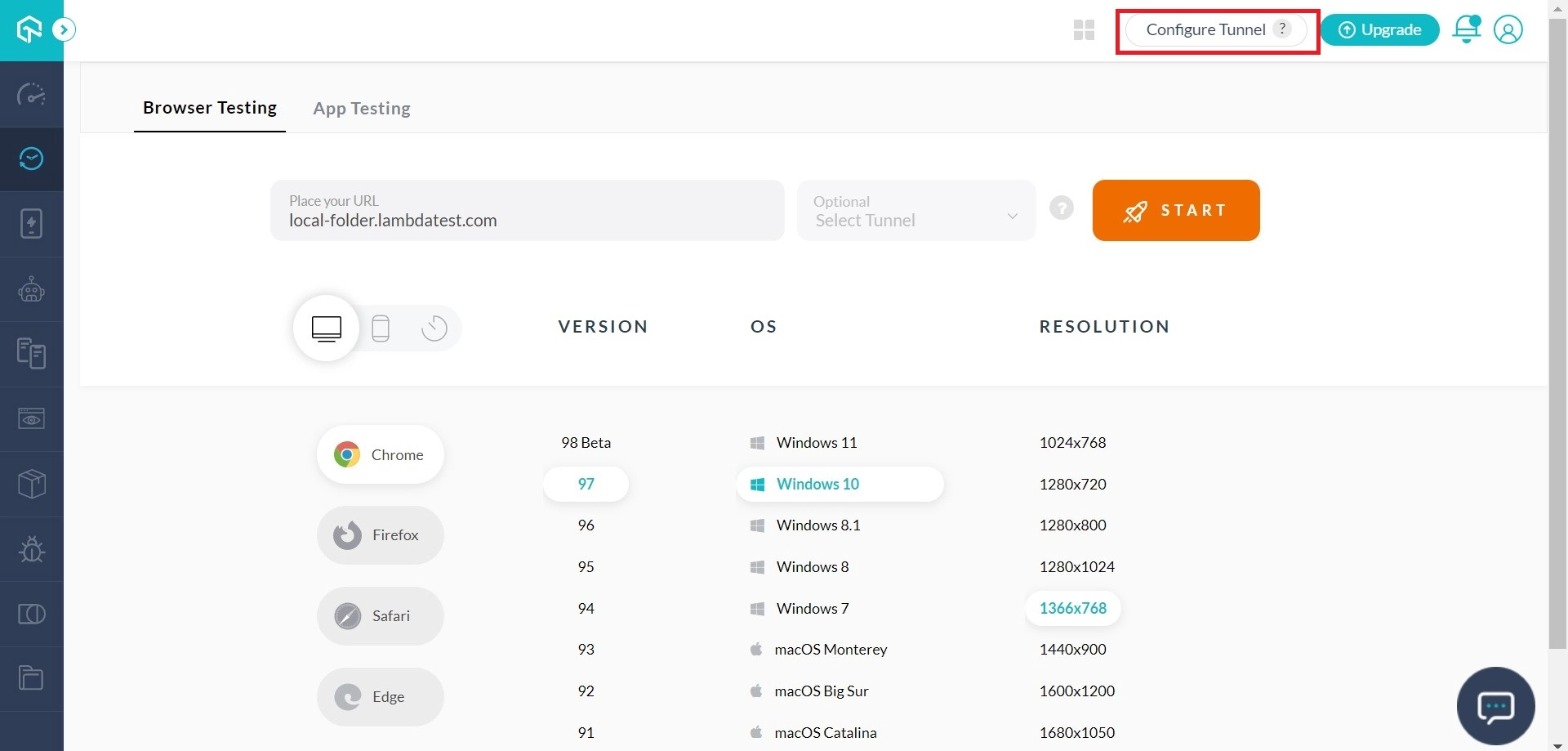
Step 1: Click the button ‘Configure Tunnel’. Download the binary zip file by clicking the ‘Download Link’. Press the ‘Copy’ button in the form that opens up to copy the complete string to your system’s clipboard.
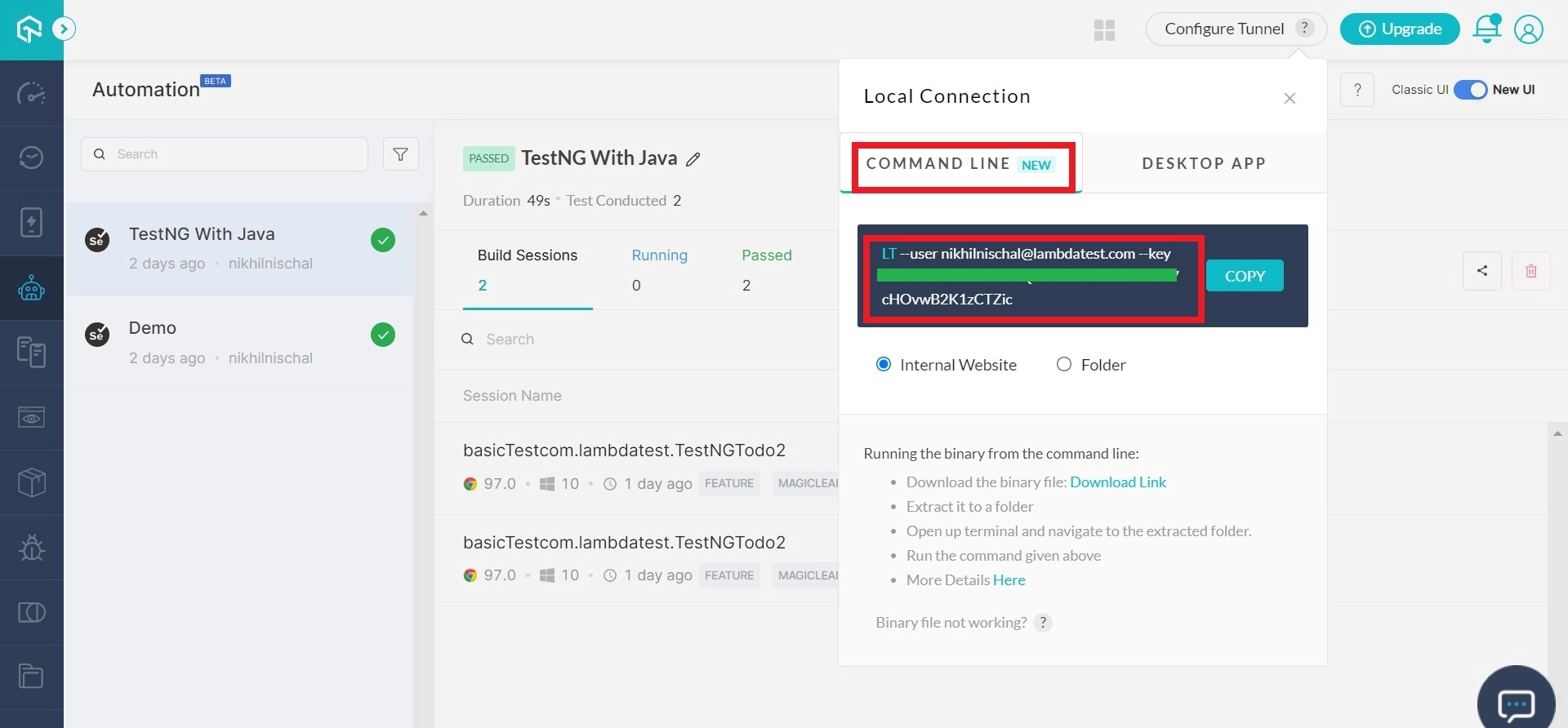
What is this zip file for?
This zip file contains the tunnel binary which will help in establishing a secure tunnel connection to TestMu AI cloud servers so you could test your locally hosted web pages over thousands of browsers and operating systems for desktop and mobile using TestMu AI.
Step 2: Extract the downloaded zip file. Go to the terminal and route your pointer to the same directory where you extracted the zip file.

Step 3: Paste the copied string to execute the downloaded binary file. The command will look like:
LT --user {user's login email} --key {user's access key} --tunnelName {user's tunnel name}
So for example, if your user login email is example@lambdatest.com, user key is 123456789abcdefghijklmnopqrstuv and tunnel name is TestMu AI, the command would be:
LT --user example@lambdatest.com --key 123456789abcdefghijklmnopqrstuv --tunnelName LambdaTest
Note: After you execute the command, you may be asked for user permission. Make sure you have administrator access to allow the file to run successfully.
In a few seconds, after you execute the command, a tunnel connection will be established. You will receive a message inside your command prompt mentioning "You can start testing now".
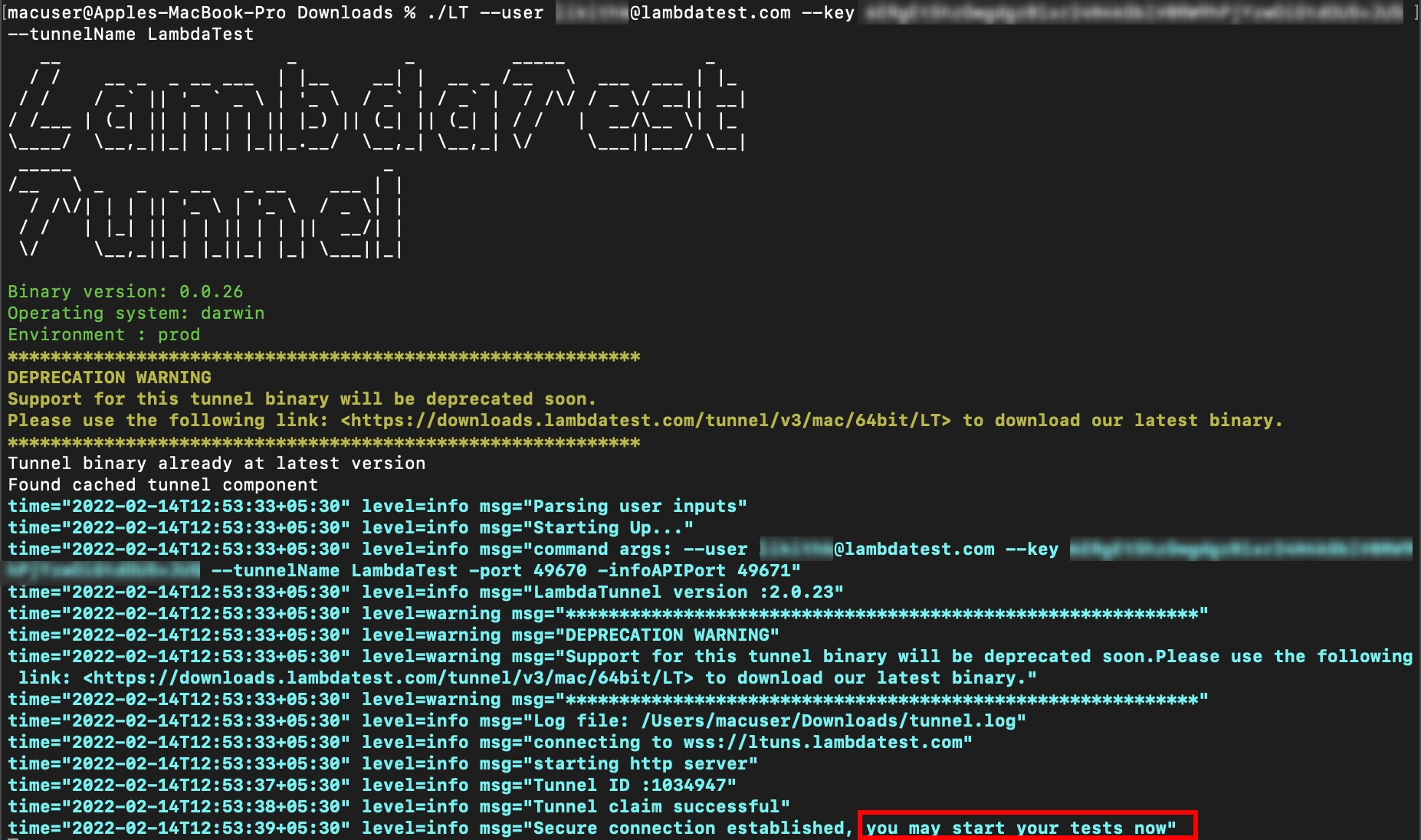
Testing Locally Hosted Web Pages Using TestMu AI tunnel
Step 1: Make sure you turn on XAMPP or any other web hosting tool to provide you an Apache test environment. If you are using XAMPP, Press the ‘Start’ button for ‘Apache’ under ‘Actions’. If you also want to test the back-end functionality for your website then Press the ‘Start’ button for ‘MySQL’ as well.

Step 2: Navigate to ‘Real Time Testing’ menu. Enter the localhost URL you want to test in the text field provided and Select the tunnel via which you want to run the test.
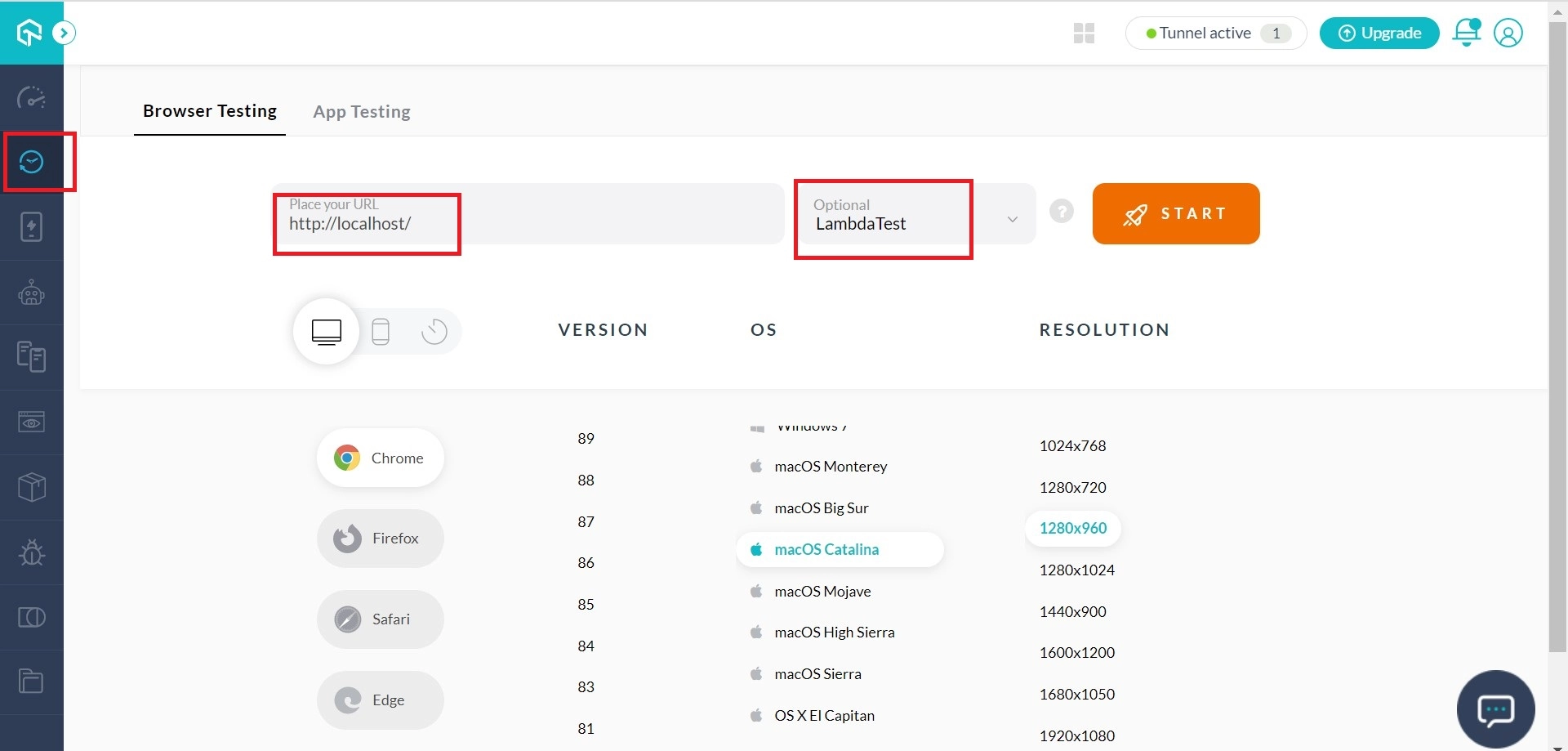
Step 3: Select the test configuration of your choice. You can select from various major browsers & their assorted versions to perform a test session. After selecting the configuration, click on the ‘Start’ button.
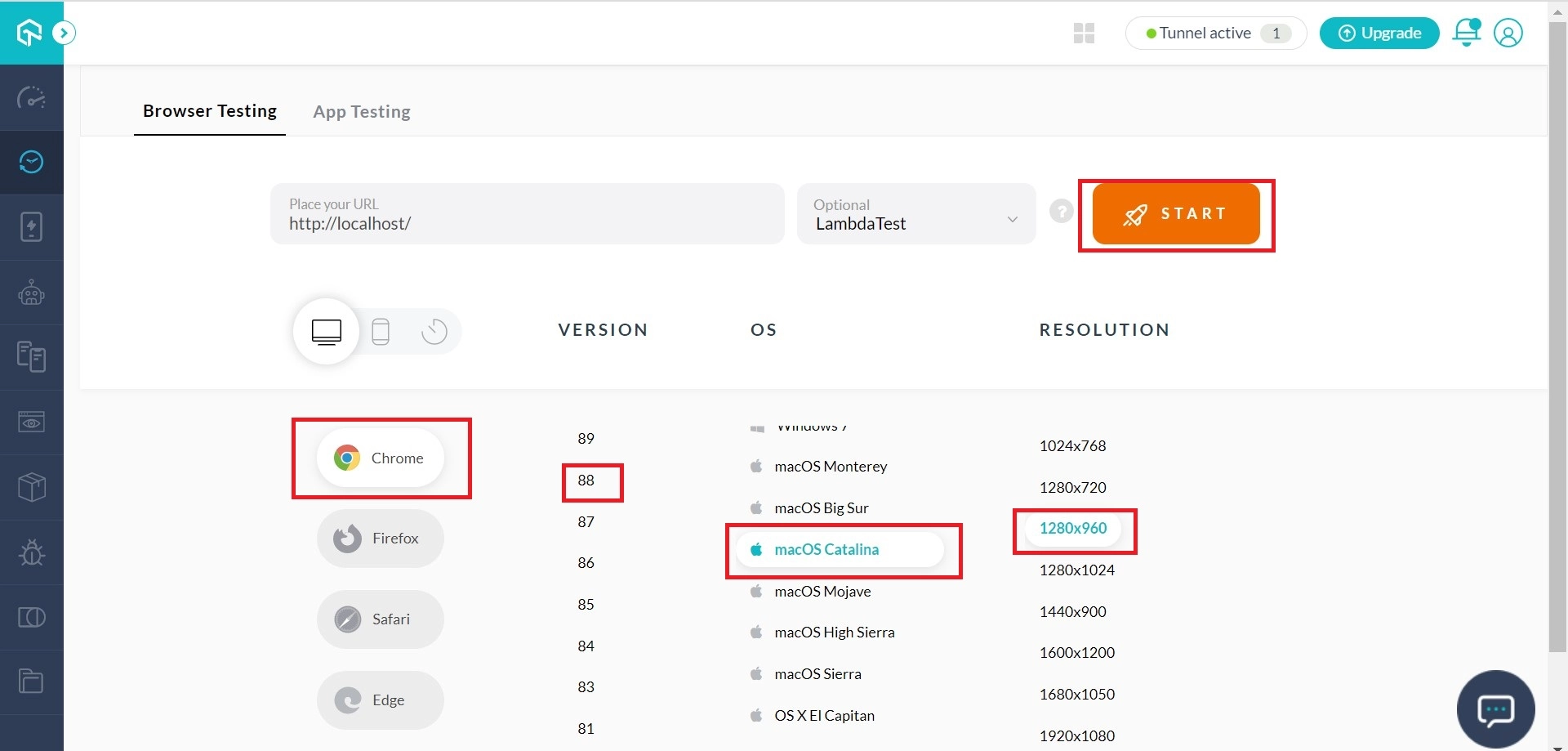
Once you press the ‘Start’ button, your test will start and you will be navigated to your localhost URL.
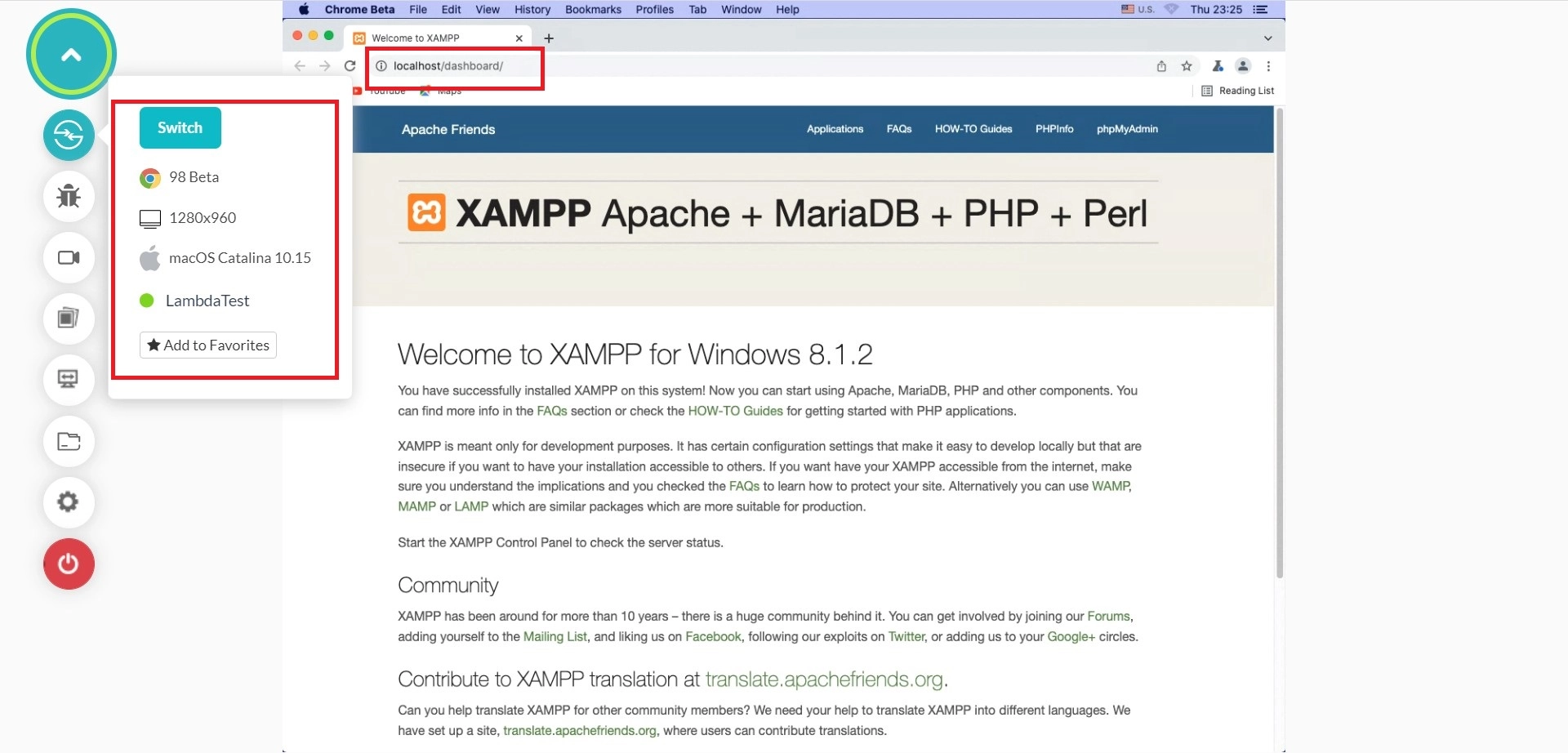
NOTE: If
http://localhost:{port}does not work then try with eitherhttp://localhost.lambdatest.com:{port}or your machine’s private IPhttp://{IP}:{port}.
Testing Local Folder Files Using TestMu AI tunnel
Note: If you were already running a test session through tunnel then you will have to terminate the existing tunnel connection in cmd before you re-establish it for a new directory.
Step 1: Navigate to ‘Configure Tunnel’ button.
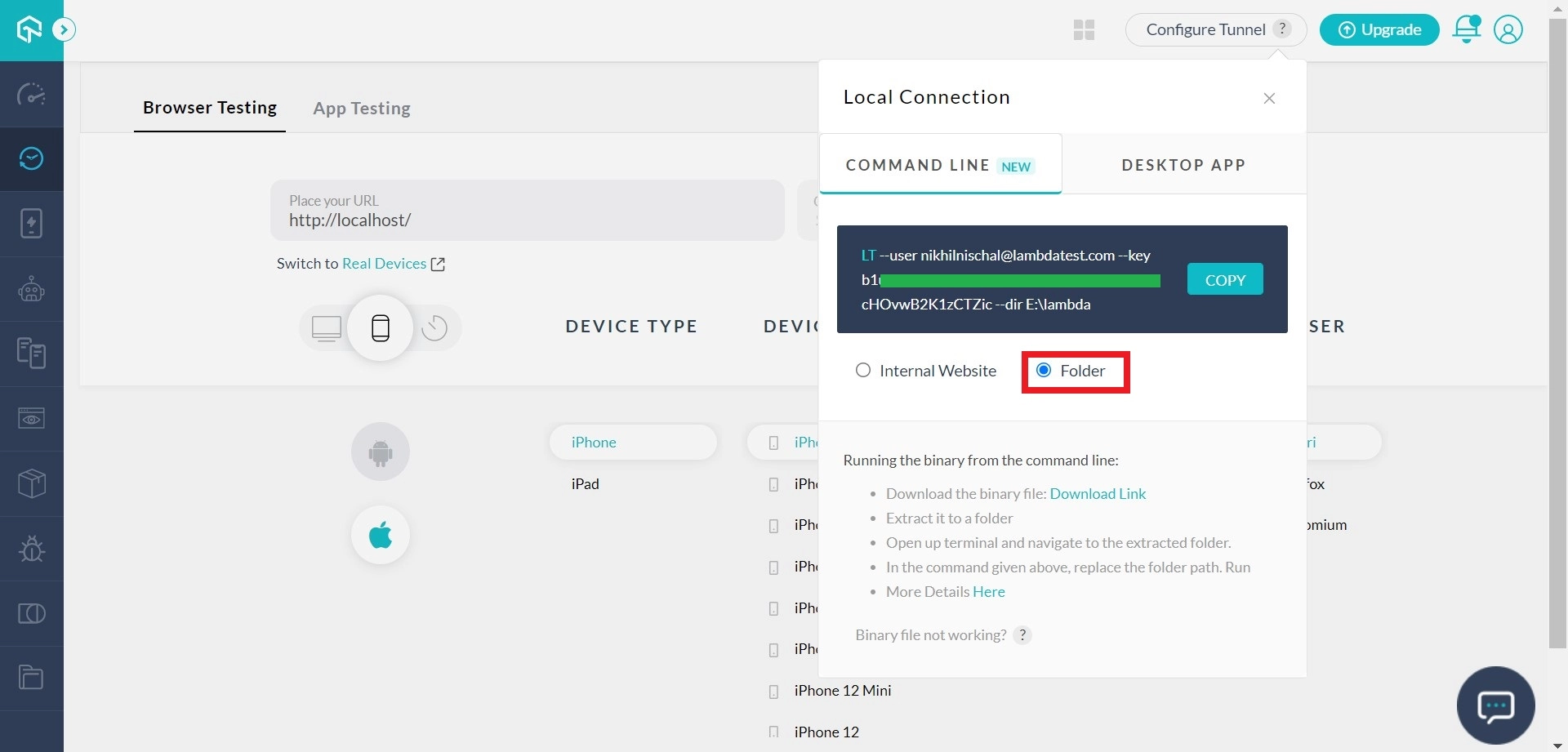
Step 2: Click on ‘Folder’ button and copy the string on your system’s clipboard.
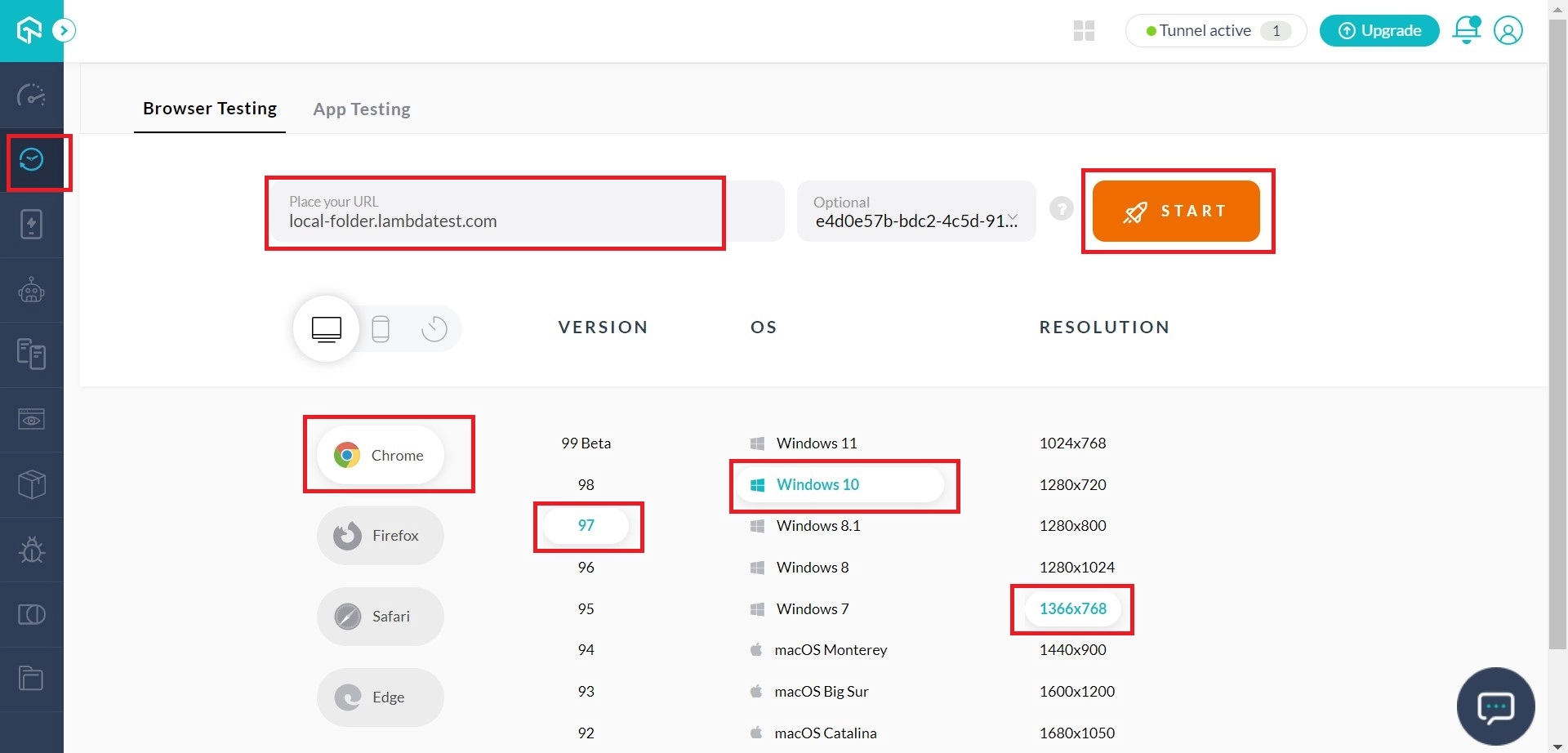
Step 3: After you establish a tunnel connection, go to TestMu AI and navigate to ‘Real Time Test’. Enter local-folder.lambdatest.com in URL bar. The list of all files/folders present under the selected directory will be displayed in the browser. Select the test configuration(OS, Browser and screen resolution) of your choice. Click on the ‘Start’ button.
Once the VM (Virtual Machine) is launched, you will be able to access your local folders on a testing environment hosted by our cloud servers.
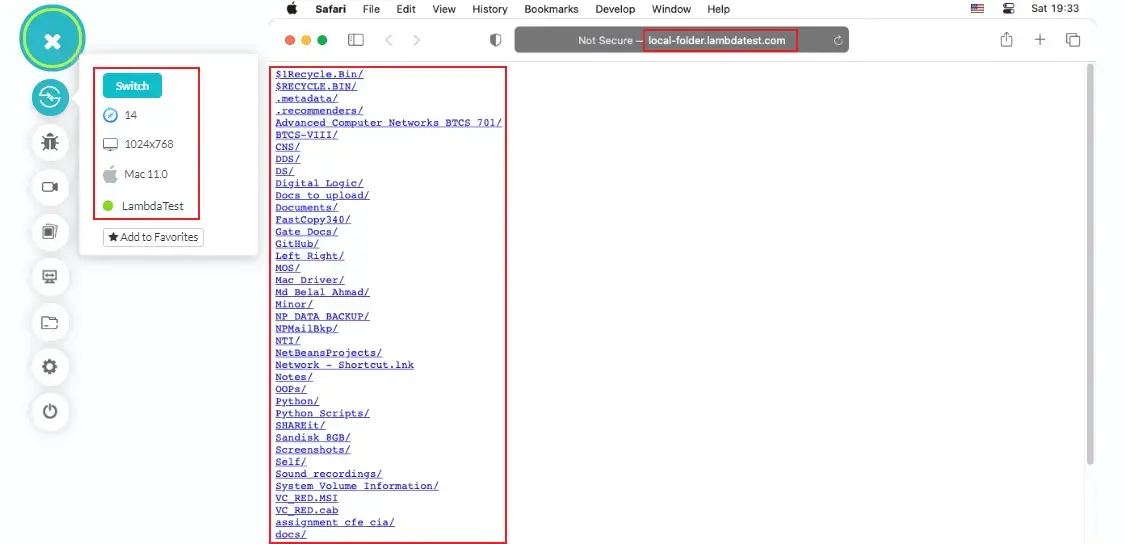
Note: Similarly, if you want to run any file in the specified directory, you need to give URL as
local-folder.lambdatest.com/filename.
For example: If you have a filetest.htmlin your folder. You need to give URL aslocal-folder.lambdatest.com/test.htmlto run the same file.
In this way, you can run any HTML, PHP, Python, or similar web files present in any folder of your system, directly in the TestMu AI browser.
Terminating The TestMu AI tunnel Connection
A secure tunnel connection is maintained unless you explicitly disconnect it. You can disconnect the tunnel in the following ways:
Option 1: You can kill the process by using ‘Ctrl+C’ in the terminal. You will receive the below-highlighted message ‘Tunnel stopped successfully’ indicating the termination of Tunnel Connection.

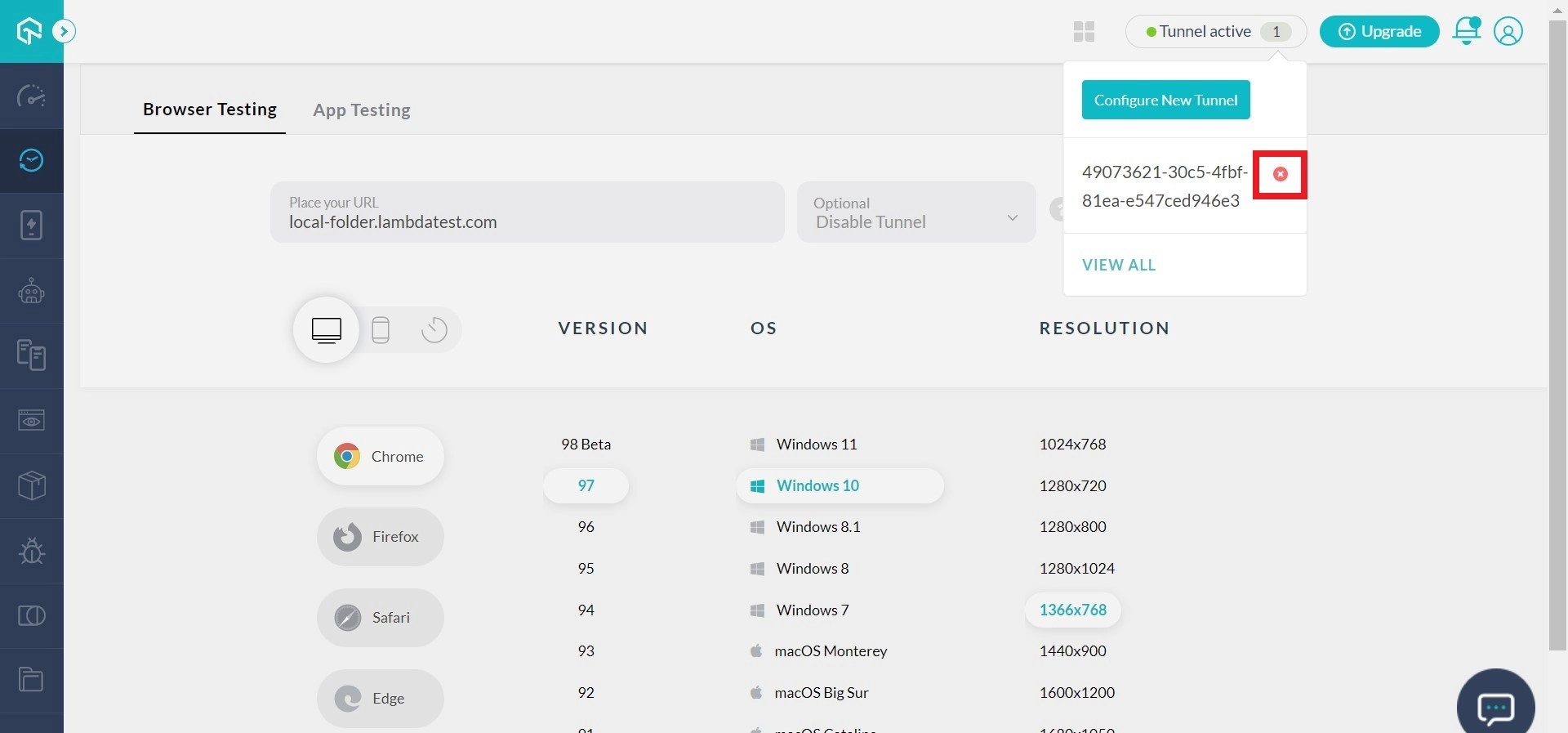
Option 2: You can also disconnect it using the option provided in the user interface. In the top right corner of the TestMu AI interface, you will find a button that says ‘Tunnel active’. This button displays the number of active tunnels. As you click on it, you will find your tunnel name along with an **‘x’**button. Press the ‘x’ button to terminate the tunnel connection.
Geolocation Testing Through VPN with TestMu AI tunnel
Test the performance of your web-app through different geographic locations using VPN in TestMu AI tunnel. Make sure your website delivers well to your targeted audience from all around the globe.
Use the following arguments in your command line.
| ARGUMENTS | EXAMPLES | DESCRIPTION |
|---|---|---|
--proxy-host | abc.wonderproxy.com | Full hostname for the proxy you’d like to use. |
--key | 123asd123 | Helps Lambdatest to map a tunnel connection with the right user. |
--proxy-port | 12345 | The port declared by you for fetching the proxy. |
--proxy-pass | hijklmnop | WonderProxy password of the user. |
--proxy-user | abcdefg | WonderProxy username of the user. |
Here is how the format of full command would look like:
LT --user {user login email} --key {user key} --proxy-host {full proxy hostname} --proxy-user {proxy username} --proxy-pass {proxy password} --proxy-port {port number}
Example of full command:
LT --user example@lambdatest.com --key 123asd123 --proxy-host abc.wonderproxy.com --proxy-user abcdefg --proxy-pass hijklmnop --proxy-port 12345
How Can Geolocation Testing Help You?
1. SERPs – Search Engine Result Pages: For a website that is targeting an audience from different parts of the globe. It is always recommended to have a constant check on SERPs to address your website according to the respective trends of different geographies. This is extremely necessary for clothing brands. Traditional wearing differs from one country to another.
2. GDPR compliance – General Data Protection Rule Compliance: Payment Gateways may differ from one geography to another due to different GDPR compliance for different geographies.
3. Billing – Your billing page should support currency conversion concerning the IP. So if a user from the US would show up at your website, then he/she should be billed in USD. Similarly, if one is visiting from France, then the bill should be presented in Euros.
4. Google Ads – They also differ from one geographic region to another. You need to check through IPs of different geolocations regarding which ads are visible and in what manner?
5. Bandwidth – 4G may or may not be available to every one of your targeted geography and even if it is available. The available bandwidth will usually be different. Meaning some countries would provide a faster download speed in 4G as compared to others. So, you'll need to be mindful of the content optimization according to your targeted geolocations. Testing from IPs belonging to different geolocations will help you get a realistic view of page loading speed. A faster page loading will not only help in pleasing your customers. It would also help in ranking higher in SERPs.
How Can You Test From An IP Of A Different Geolocation?
This is where a VPN comes to the rescue! VPN – Virtual Private Network – It helps in expanding a private network through a public network. Initially, VPNs were introduced and used among large enterprises, defense organizations, banking companies, etc. to keep their data secure. A VPN created a pathway through which people working in large organizations could access the data they want, remotely, in a secure manner. The data is securely transmitted through the process of Cryptography. In Cryptography, the data is encrypted from the sender’s end and then it gets decrypted with the help of a unique key on the receiver’s end.
Time has changed and with it the popularity of VPN too! These days VPNs are so widely available that they are used by almost every one of us. Some use it to surf the internet without worrying about the restrictions applied to their GeoIP. Some use it to maintain anonymity. Some use it without even realizing the meaning of a VPN.
Remember though, not all VPNs will work in the same manner. Few may provide you considerably more geolocations to choose from as compared to others. Few may provide less number of geolocations but more number of dynamic GeoIPs with respect to others. There are many more parameters related to the comparison.
Command References
Following is the list of command arguments which can be used as modifiers while executing the binary file:
| COMMAND | DESCRIPTION |
|---|---|
--user | Registered email ID of the user. |
--key | User access key for the user. |
--tunnelName | (optional) Name of the tunnel. |
--port | (optional) Local port to connect tunnel. |
--proxy-host | Full hostname for the proxy you’d like to use. |
--proxy-port | The port declared by you for fetching the proxy. |
--proxy-user | WonderProxy username of the user. |
--proxy-pass | WonderProxy username of the user. |
Regenerating Your Access Key or Access Token
What is an Access Key?
An Access Key is a unique string used for the identification of your account.
As we offer a cloud-based platform to host a testing ecosystem to everyone around the globe. Access key plays a crucial role in authenticating your TestMu AI account while mapping a secure tunnel connection for hosting your locally stored web pages online. They work as your IDs when you gain access to our cloud servers.
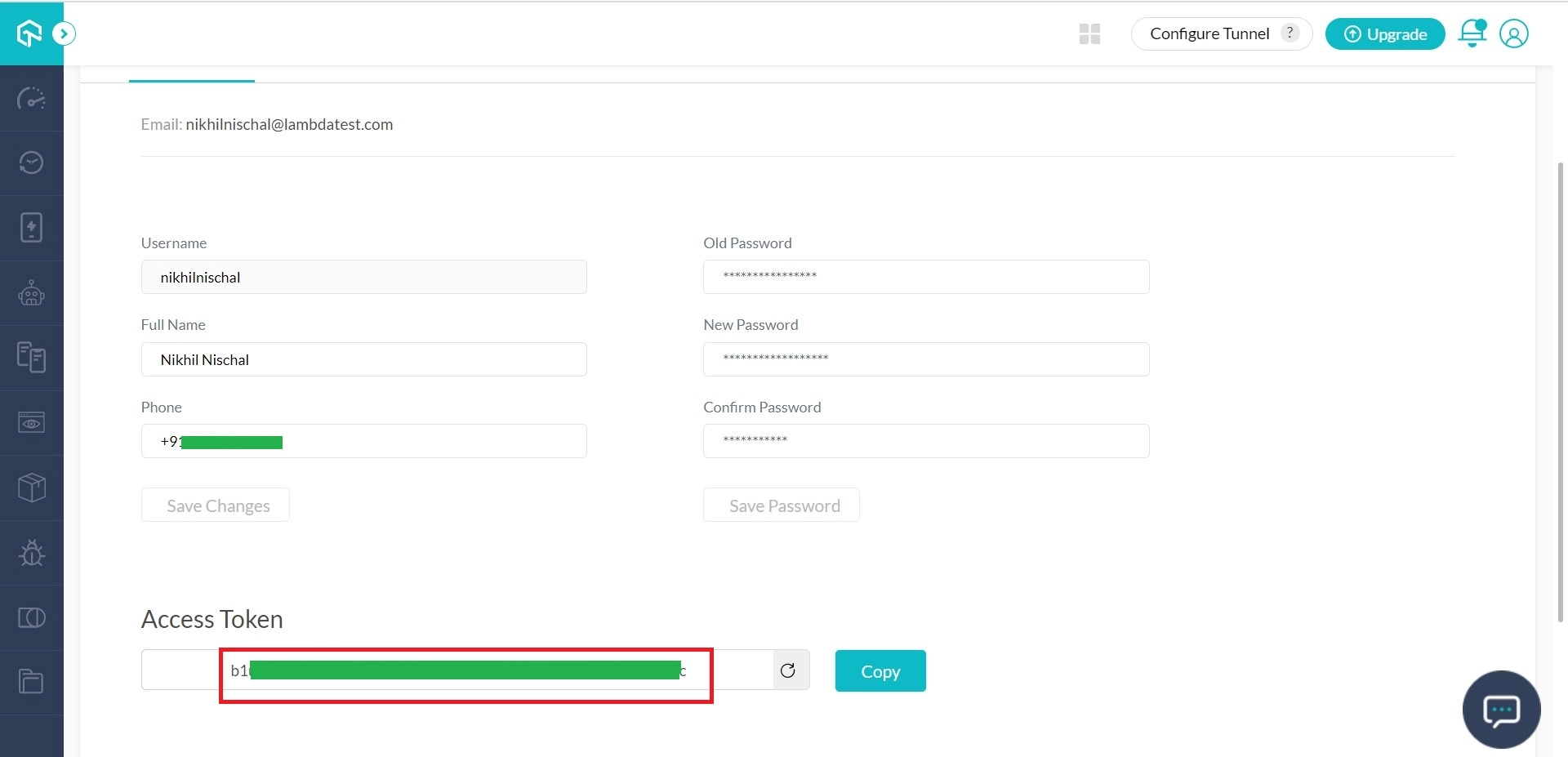
If you ever misplace your Access key in the hands of someone you don’t trust. You can always regenerate it by clicking the tilt arrow button.
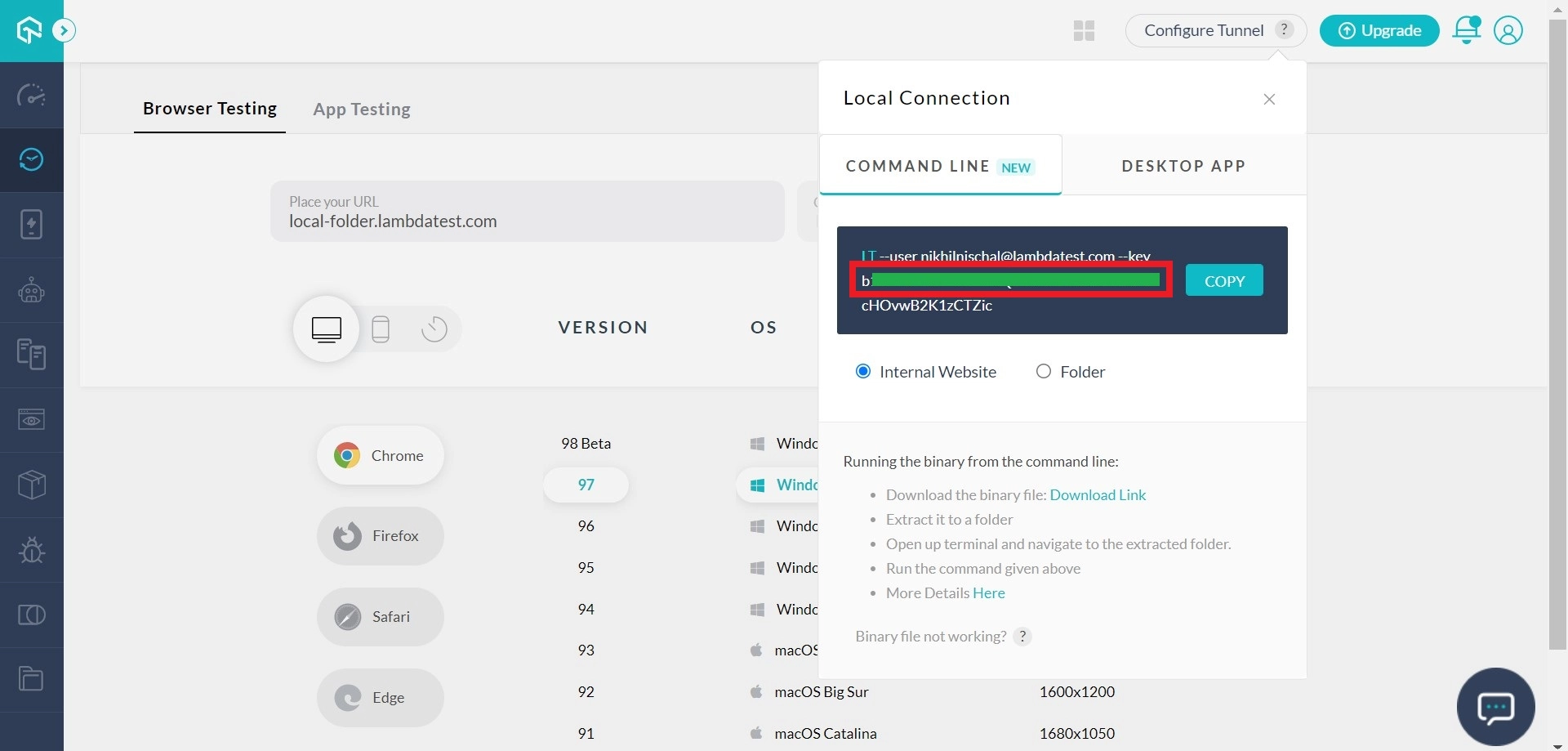
Find your Access Key while performing any type of testing, from the left navigation menu. You will find a button that says ‘Configure Tunnel’. Click on that button & a string containing your access key will be presented.
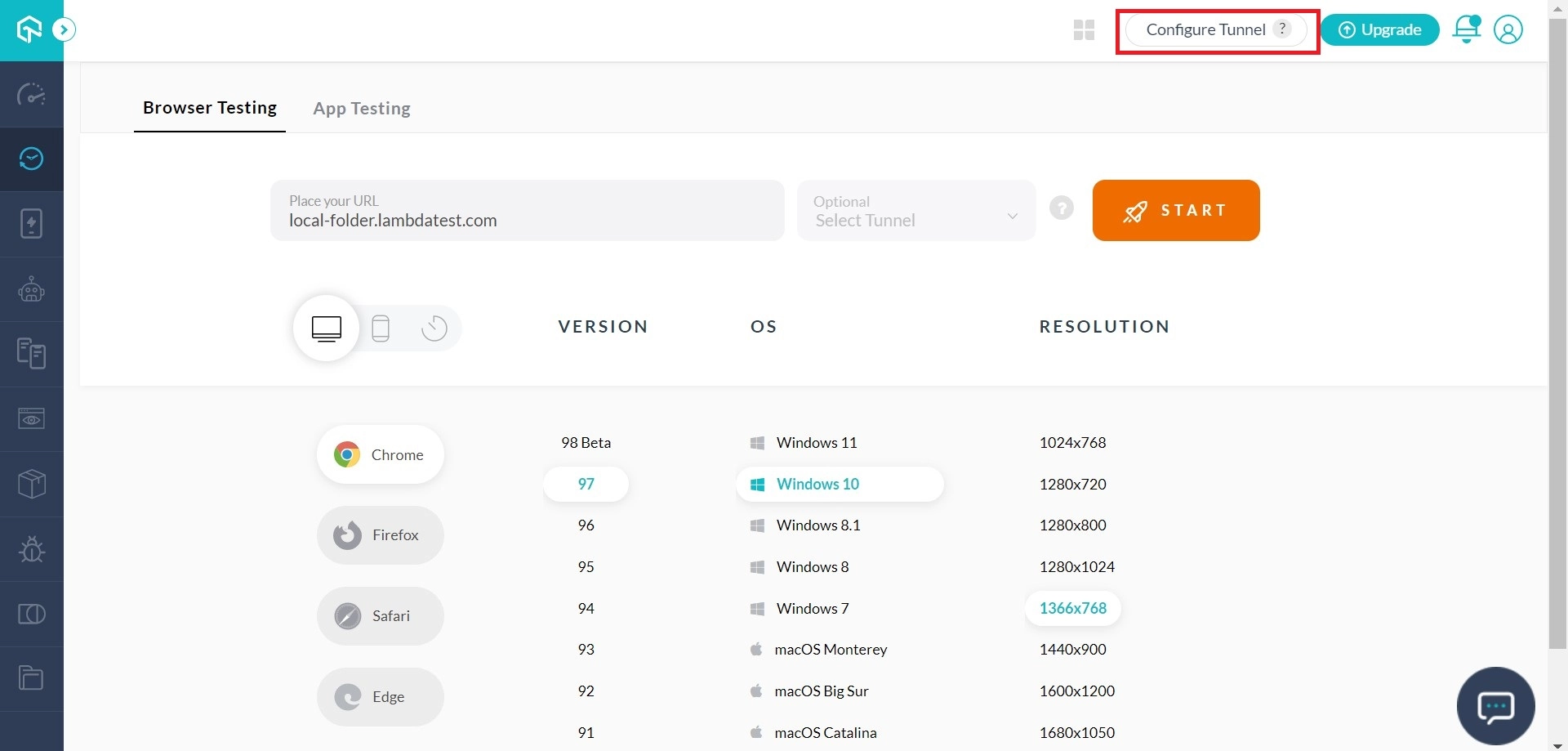
For instance, if you go to ‘Real Time Test’, you will observe a button that says ‘Configure Tunnel’ on the top-right area of the page. Click on that button and a form would open up through it, providing you with a string containing your access key. You will find the access key in the area underlined below.
You can also find your Access Key by going to ‘Settings’ in the left navigation menu and routing to ‘Profile’.
TestMu AI tunnel Update: Earlier, when our TestMu AI tunnel binary was updated with a new version, we requested our users to re-download the binary file for uninterrupted cross browser testing experience of locally hosted web pages. Not anymore! We have now updated the TestMu AI tunnel binary in a way that it auto-updates to the latest version every time you execute the TestMu AI tunnel from cmd/terminal.

 Chat with Us
 Ask the Community