OpsGenie Integration
OpsGenie is a modern incident management platform by Atlassian that ensures critical alerts are never missed. It offers intelligent alerting, on-call scheduling, and escalation policies to help teams respond to incidents faster. OpsGenie aggregates alerts from monitoring tools and custom applications, routing them to the right people through multiple notification channels.
With TestMu AI and OpsGenie integration, you can log incidents directly while performing cross browser testing of your websites (and web apps) from the TestMu AI platform to OpsGenie.
Integrating OpsGenie With TestMu AI
-
Login to your TestMu AI account. To setup integrations, make sure you have admin or user level access.
-
From the left menu, click Integrations then search for OpsGenie under Communication section and click on Connect.
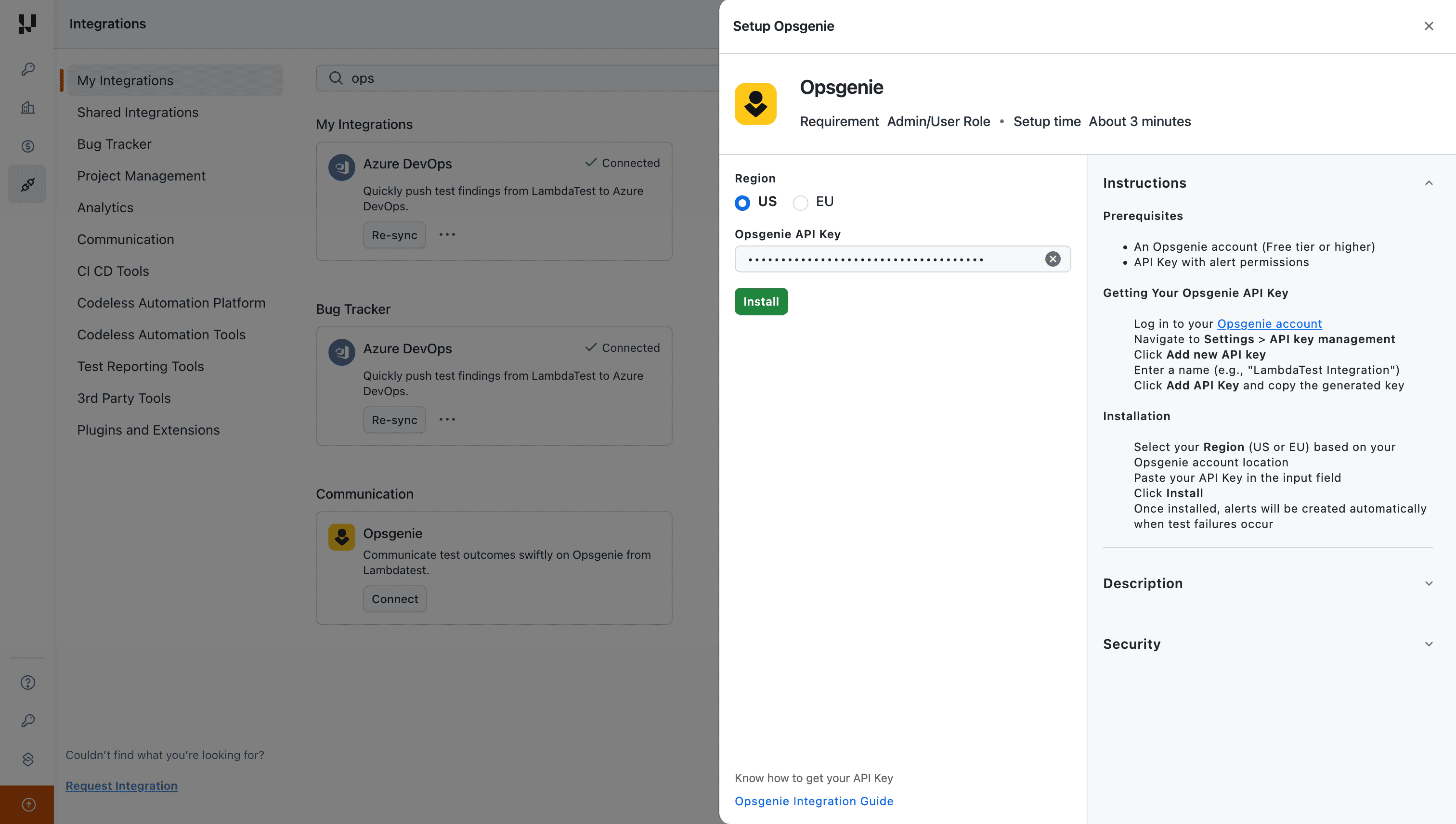
- Select your Region (US or EU) based on your OpsGenie account location and enter your OpsGenie API Key.
- What is an OpsGenie API Key?
The OpsGenie API Key is used to authenticate API requests to OpsGenie. API keys can be created from the OpsGenie Settings page. The API key grants access to create alerts, manage incidents, and interact with OpsGenie programmatically.
Important: The API key must have Create and update alert permissions enabled to allow TestMu AI to send alerts to OpsGenie.
Getting the OpsGenie API Key
-
Sign in to your OpsGenie account and navigate to Settings from the top navigation bar.
-
Click on API key management under the Settings section.

-
Click on Add new API key button.
-
Provide a name for your API key (e.g., "TestMu AI") and configure the access rights:
- Enable Read access
- Enable Create and update access

-
Click Add API key and copy the generated API Key.
-
Paste the generated OpsGenie API Key in the provided field on TestMu AI and click Install.
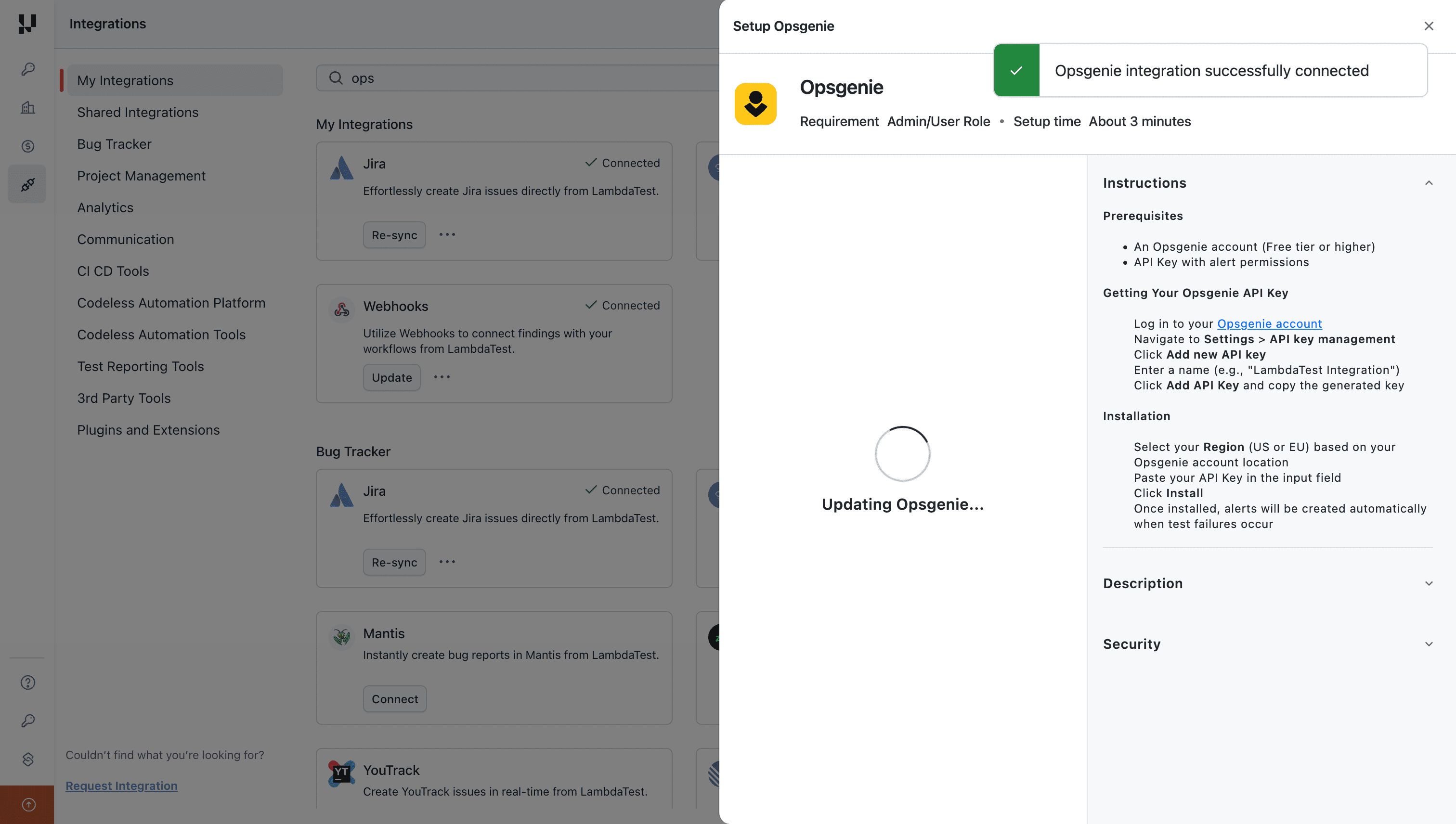
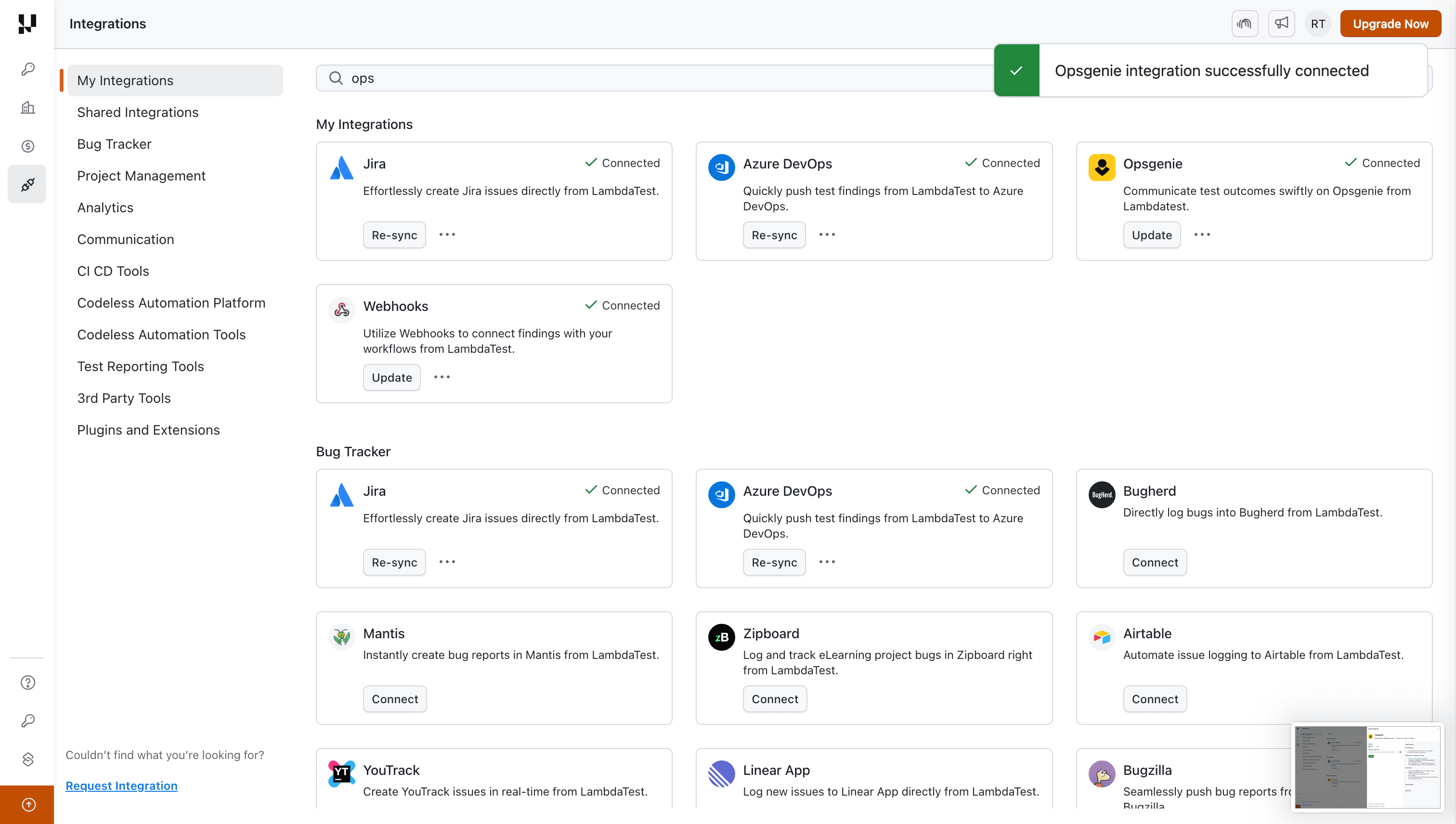
The OpsGenie integration will be successfully connected with your TestMu AI account.
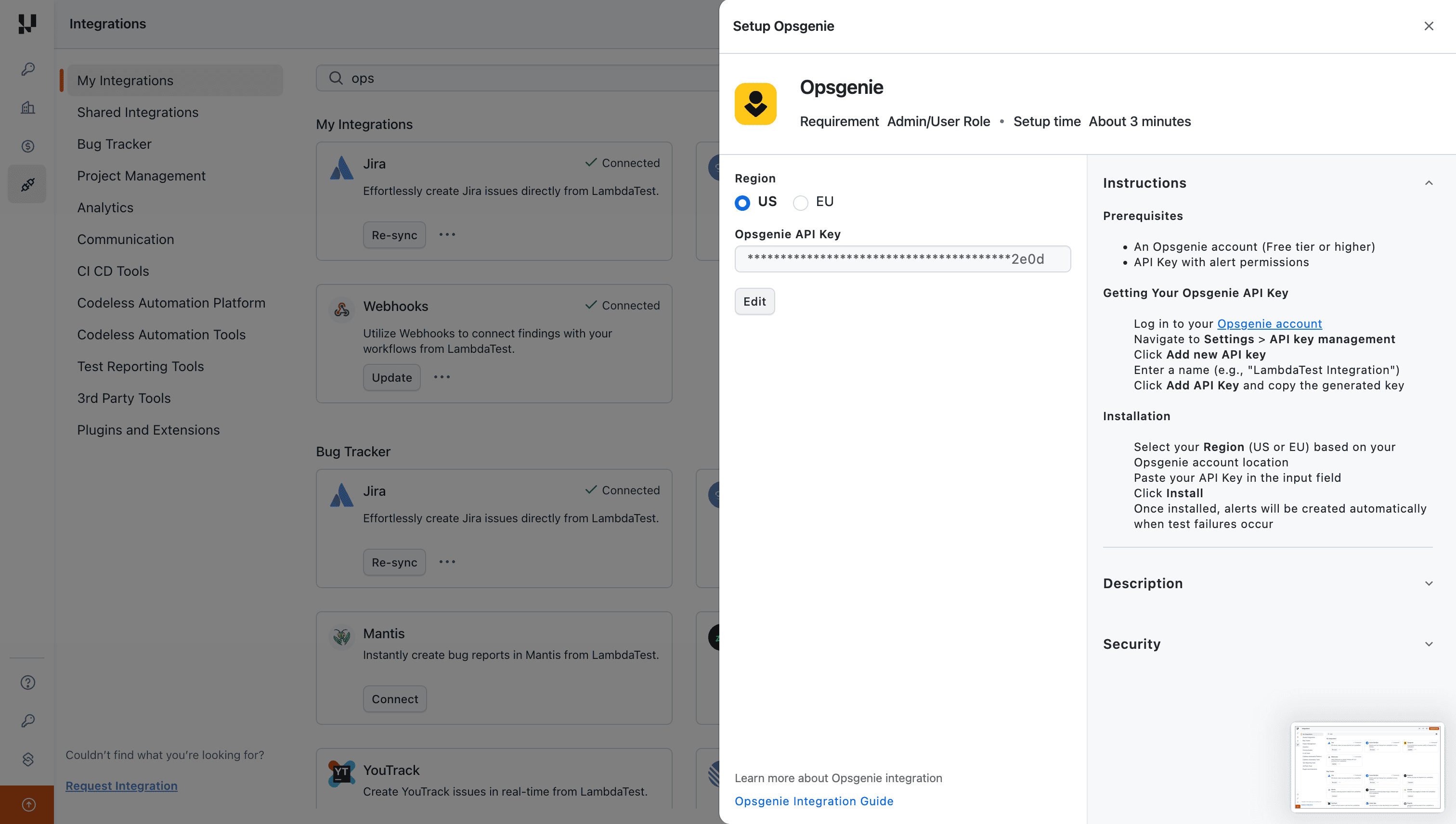
Editing the OpsGenie API Key
If you need to update your API key, click on the Edit button in the Setup OpsGenie dialog.
Configuring OpsGenie Integration
After connecting OpsGenie, you can configure notification preferences to customize which alerts are sent.
- Click on the three-dot menu next to the OpsGenie integration and select Settings.
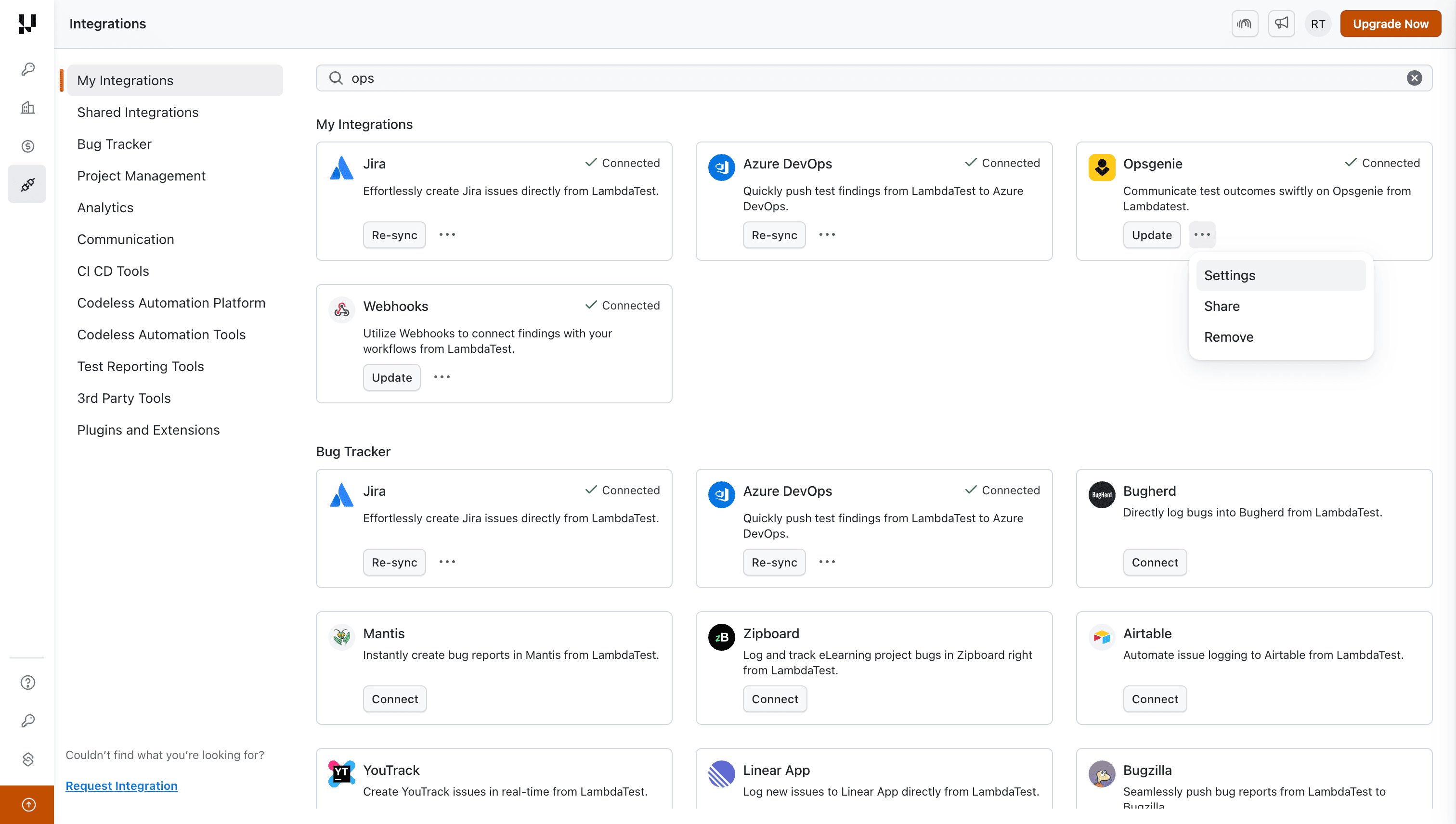
- In the Configure OpsGenie panel, you can set up the following notification preferences:
- Screenshot Test Completion Messages - Get notified when screenshot tests complete
- Build completion messages - Receive alerts when builds finish
- Test Fail messages - Get alerted on test failures
- Test Pass messages - Get notified on test passes
- Notification Time - Set the notification timing
- Linked Service Accounts - Link specific service accounts for routing alerts
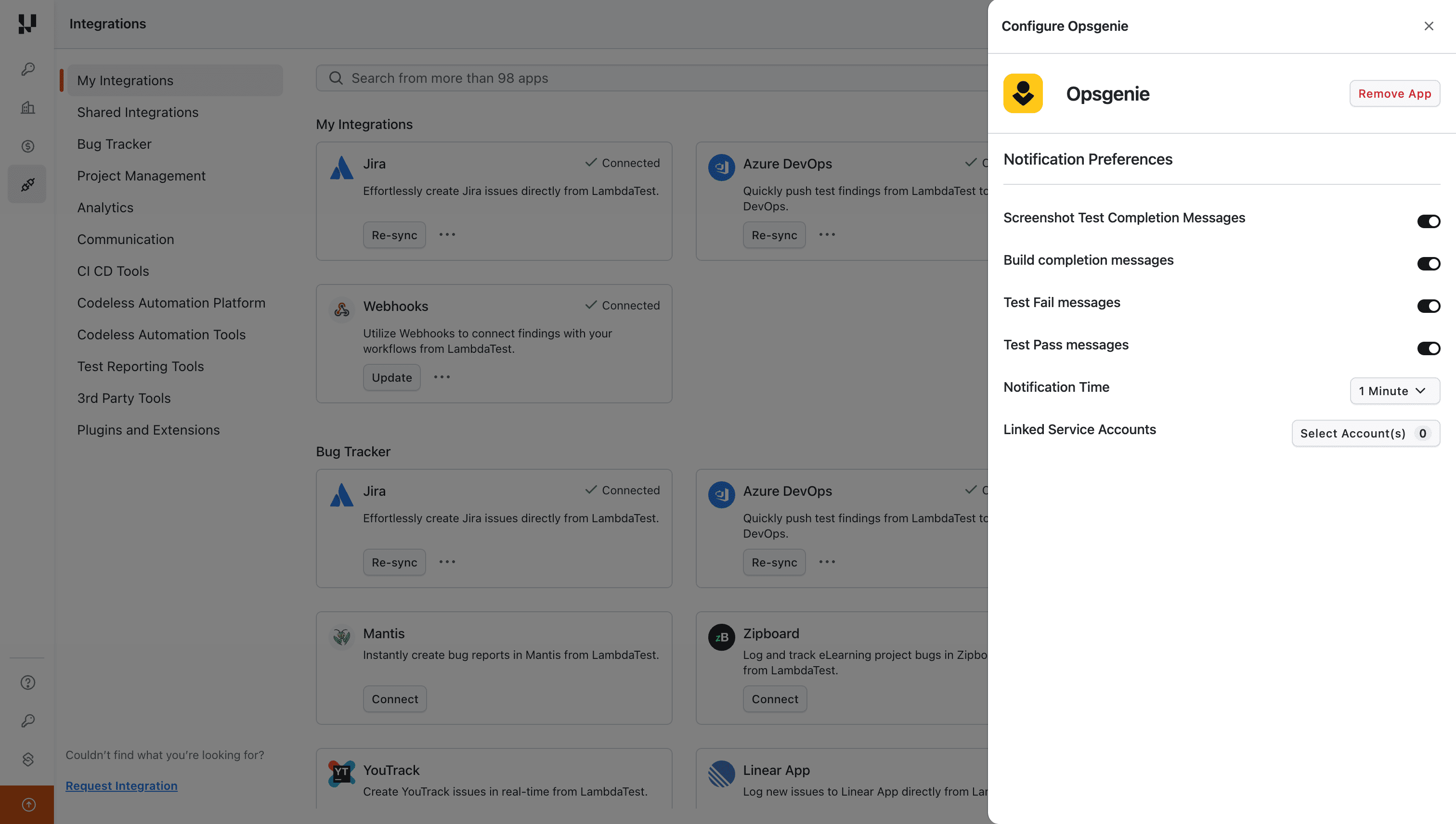
- To link service accounts, click on Linked Service Accounts and select the accounts you want to associate with OpsGenie alerts.
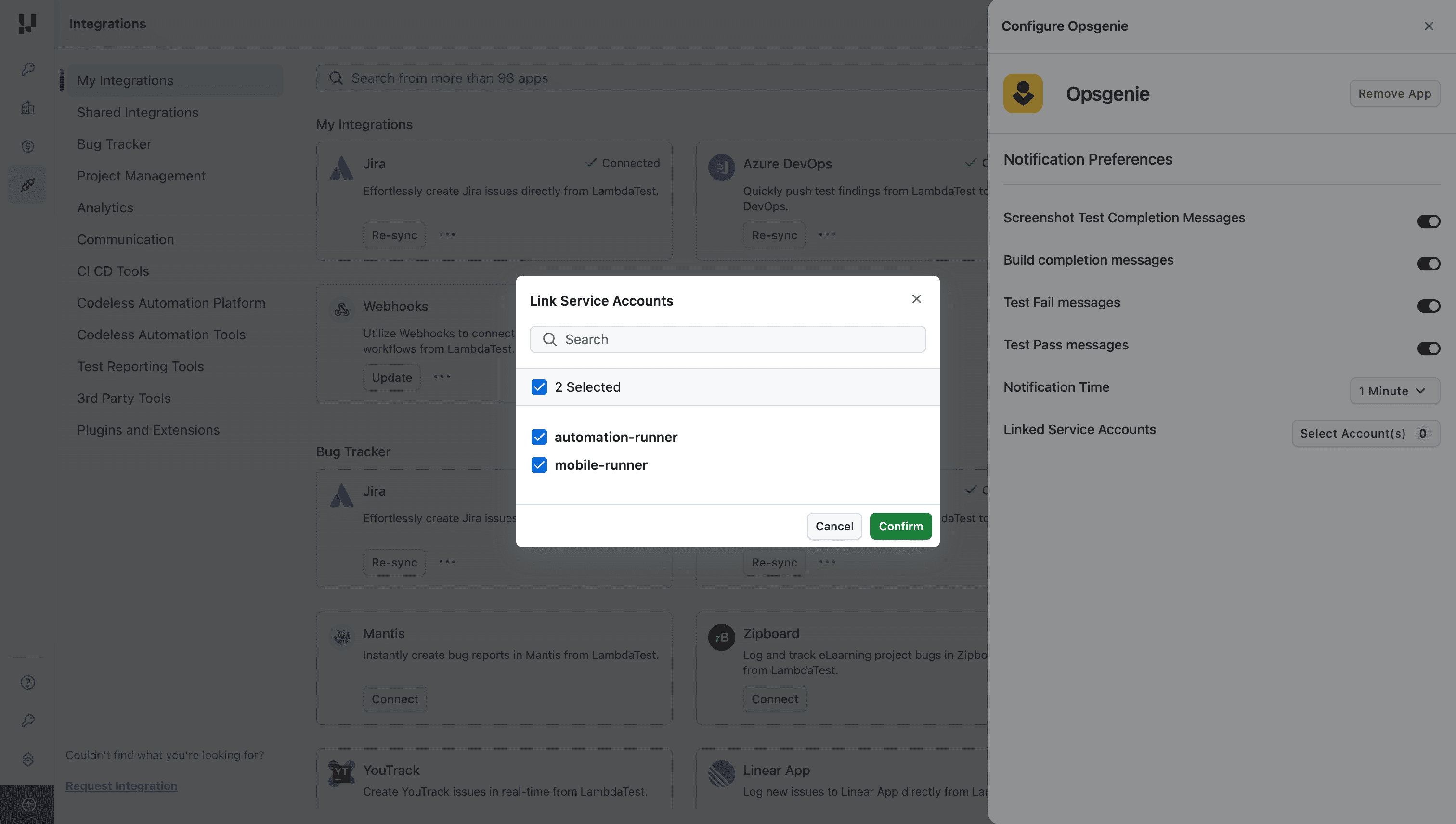
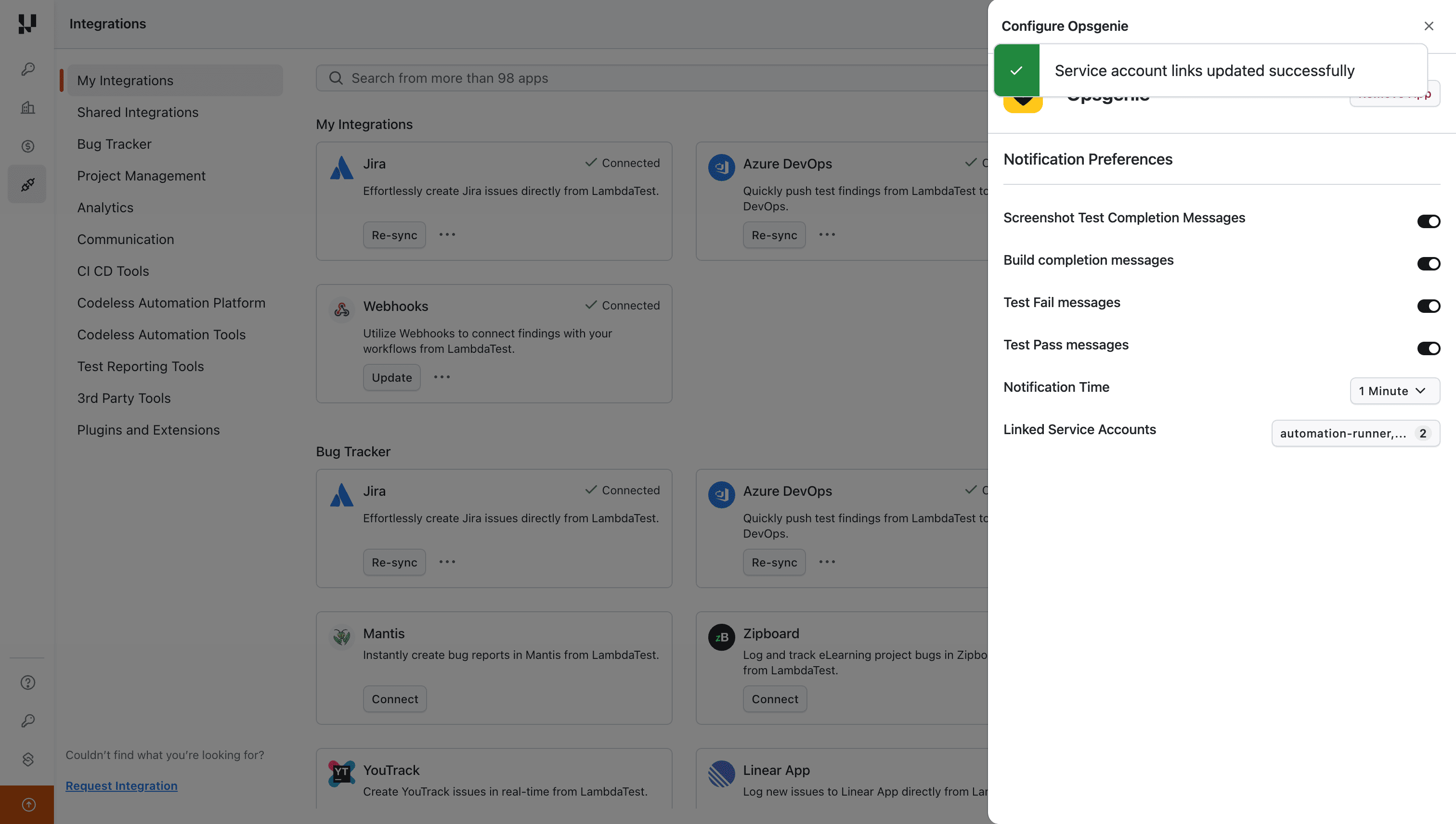
- Click Confirm to save your service account links.
Sharing OpsGenie Integration
You can share the OpsGenie integration with other team members in your organization.
Note: You must have Admin access to your organization to share integrations.
-
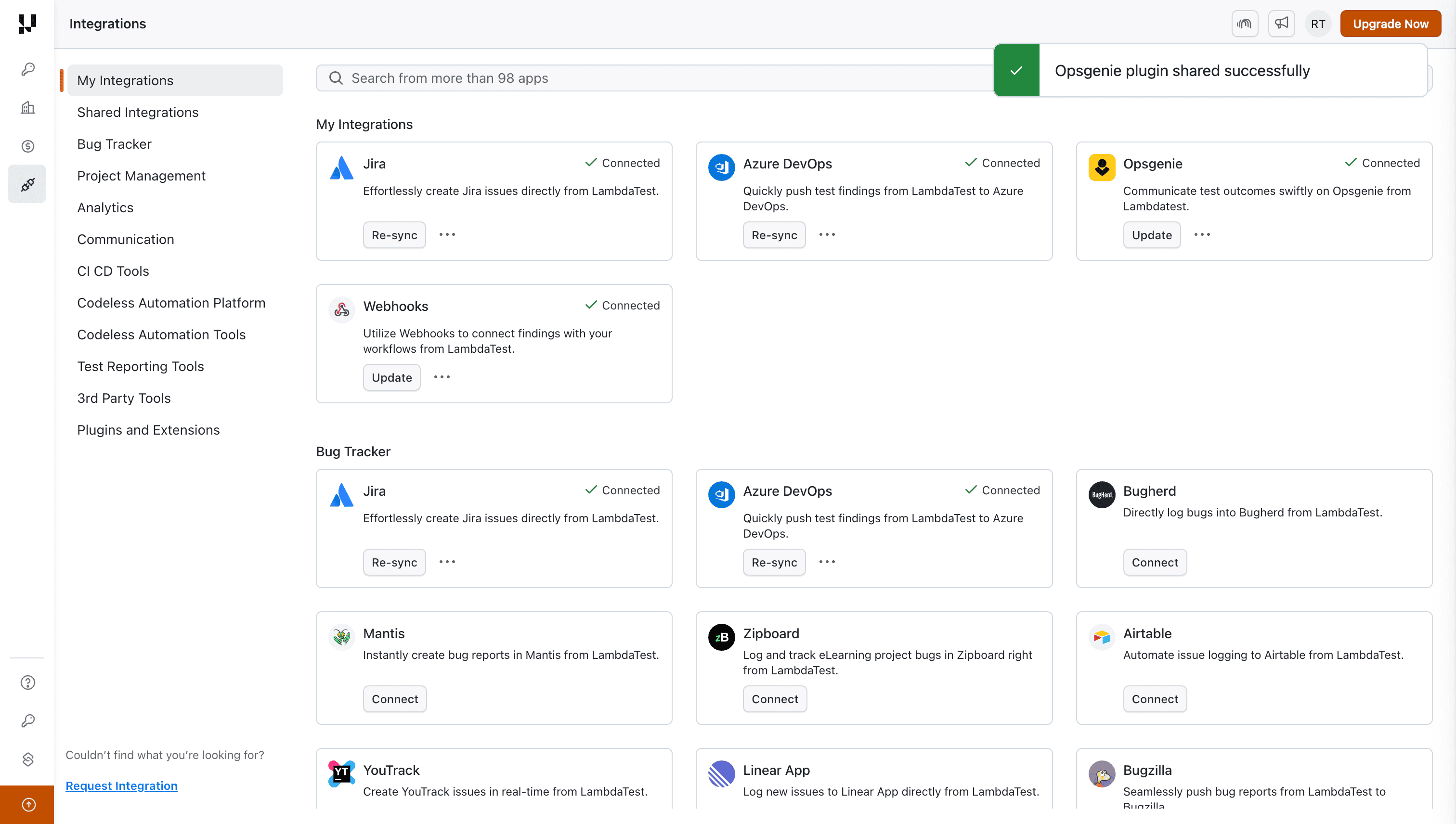
Click on the three-dot menu next to OpsGenie and select Share.
-
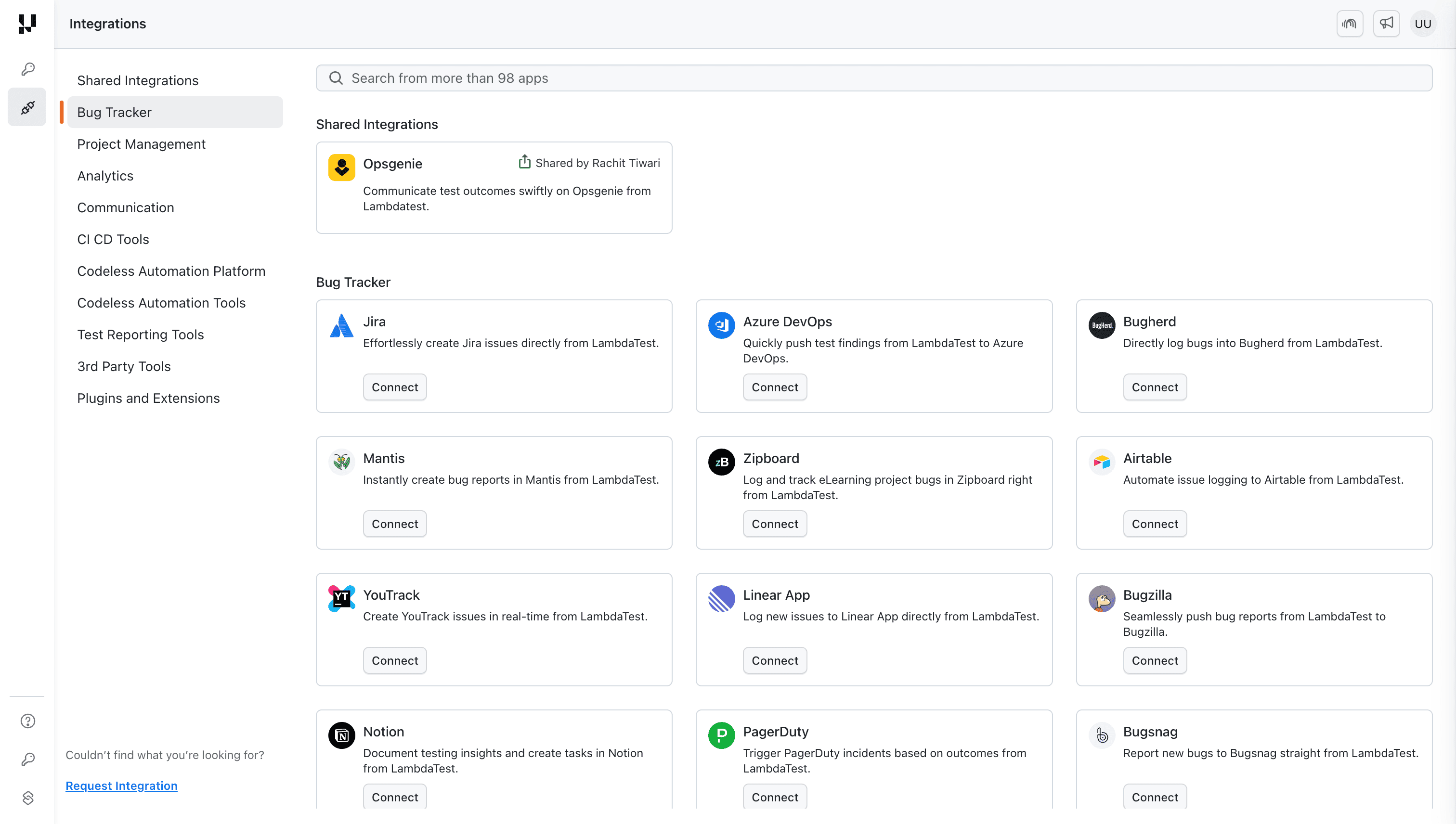
Once shared, other team members will see the OpsGenie integration under Shared Integrations.
Viewing Alerts in OpsGenie
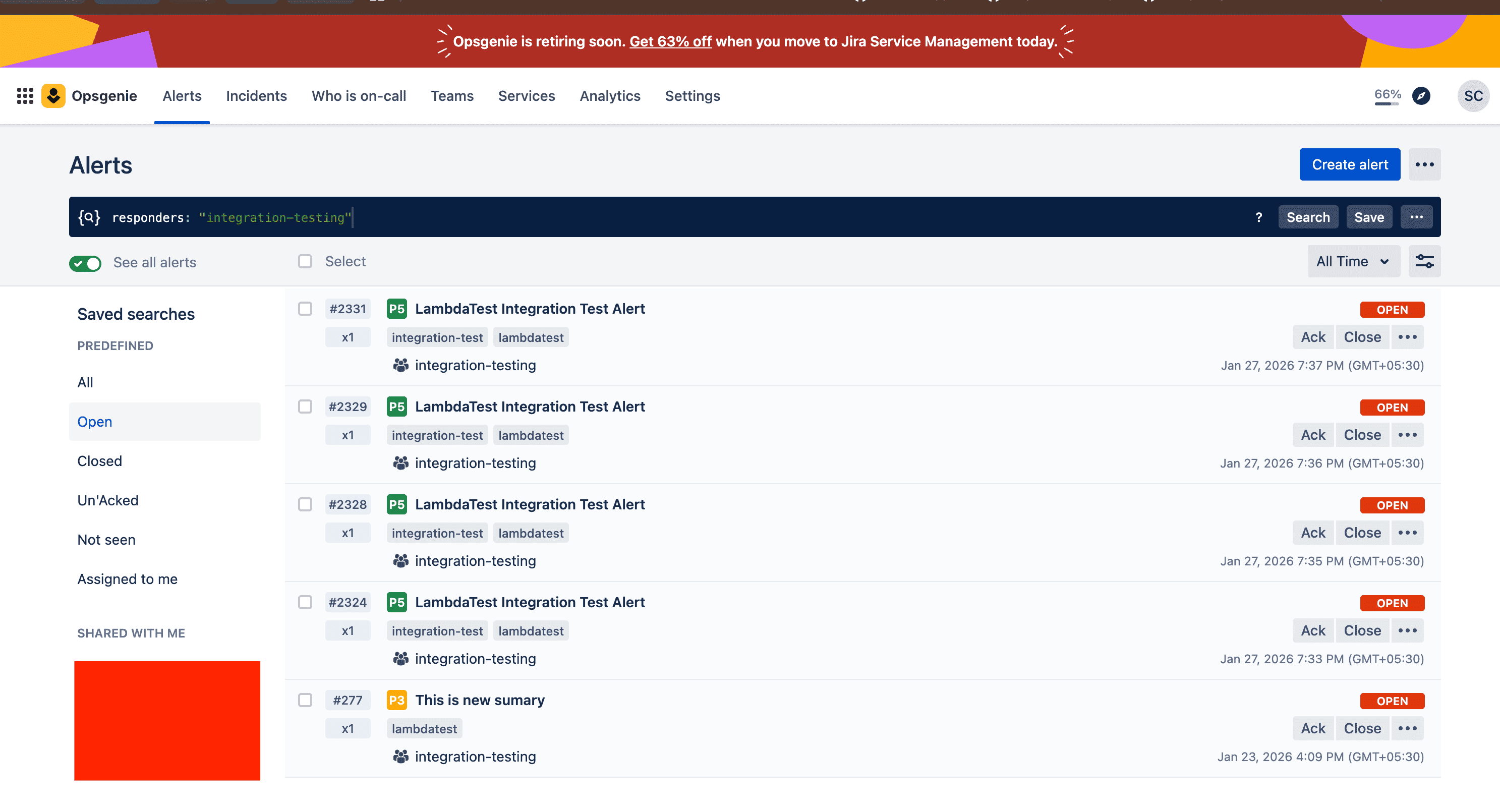
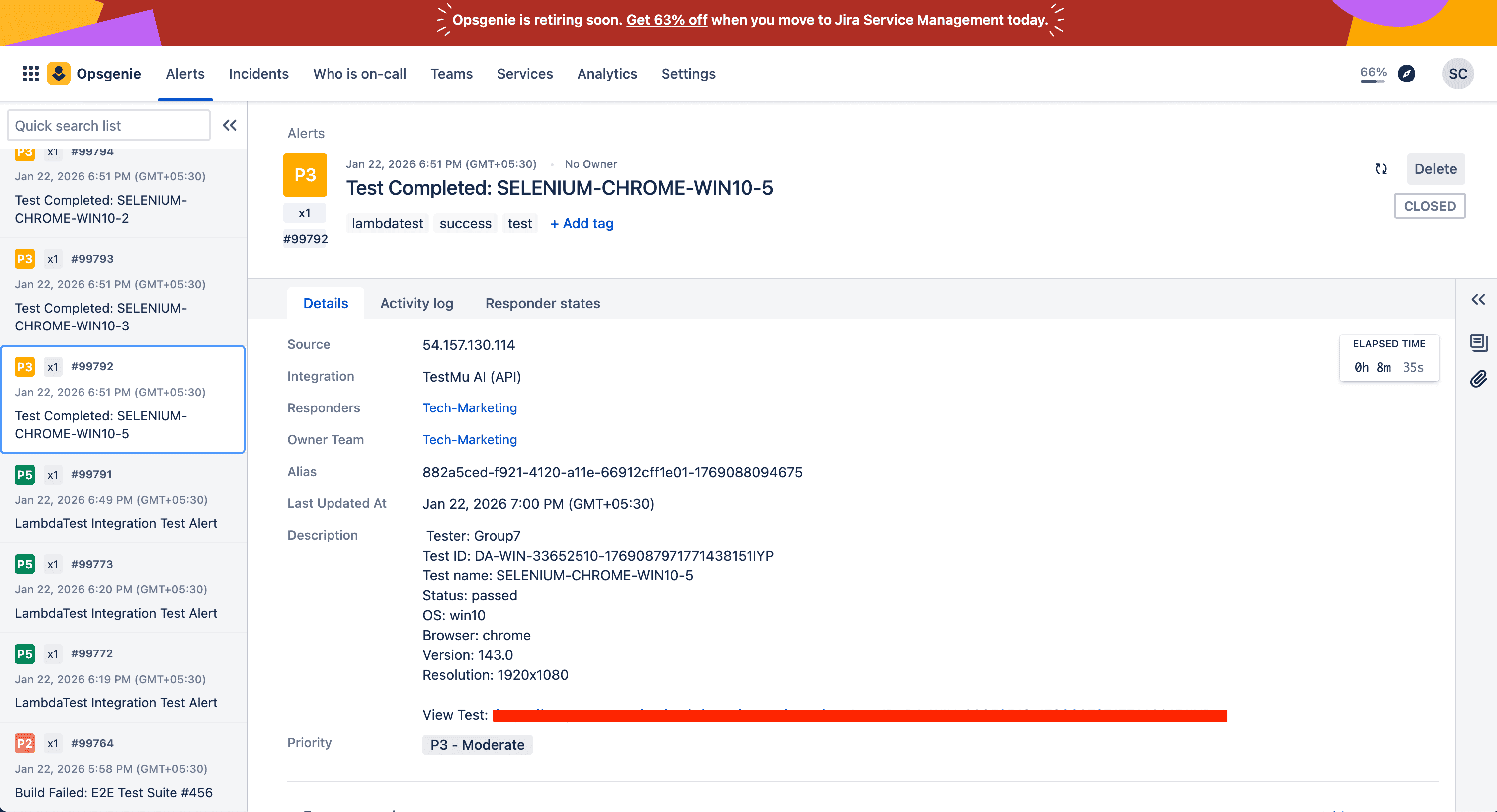
Once the integration is set up, alerts from TestMu AI will automatically appear in your OpsGenie dashboard.
- Navigate to the Alerts section in your OpsGenie account to view all incoming alerts.
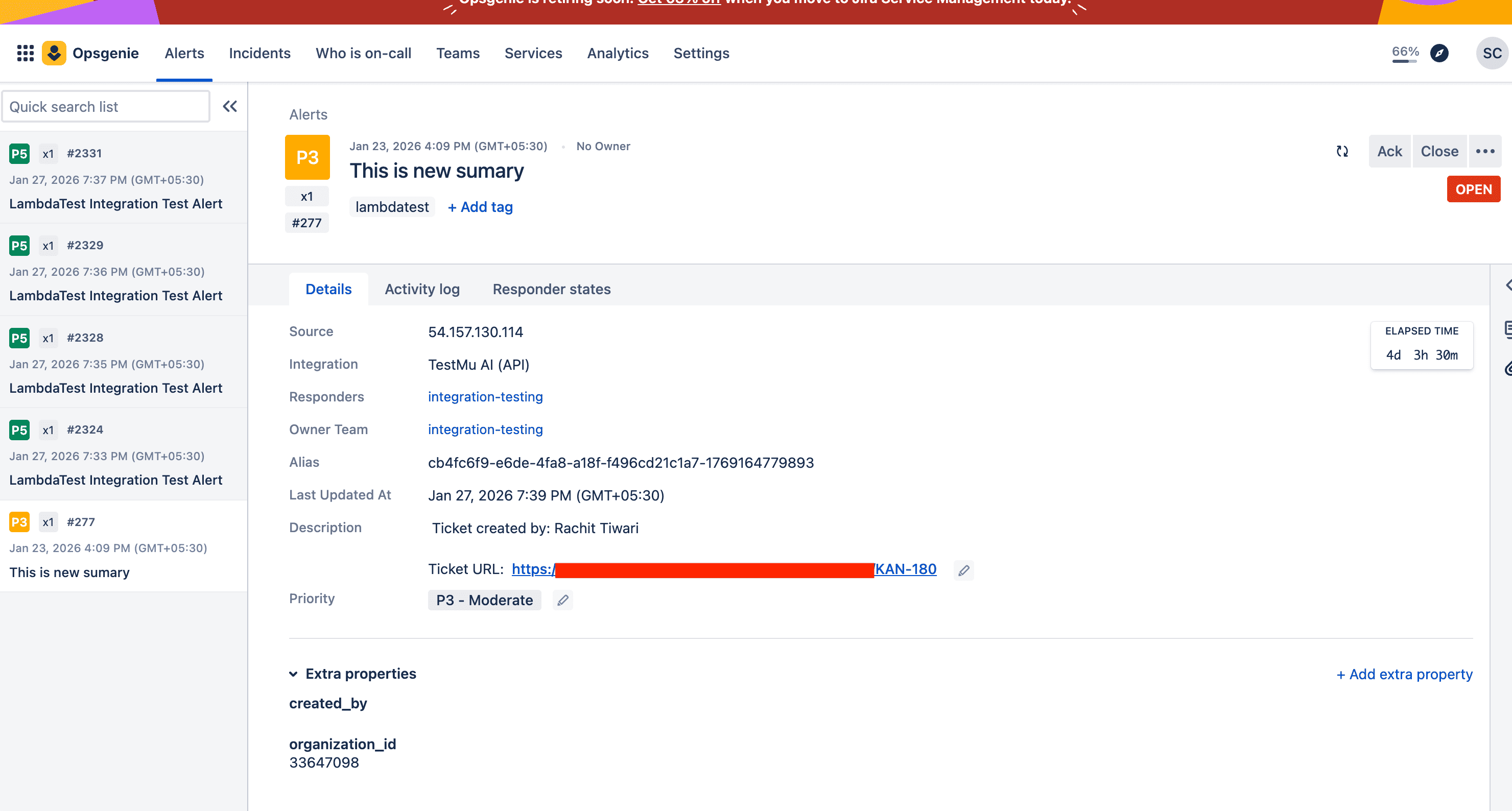
- Click on any alert to view detailed information including:
- Source IP and Integration details
- Responders and Owner Team
- Description with ticket information
- Priority level
- For test-related alerts, you'll find comprehensive test execution details including:
- Test ID and Test name
- Status (passed/failed)
- OS, Browser, and Version information
- Resolution details
- Direct link to view the test on TestMu AI
Uninstalling The OpsGenie Integration
-
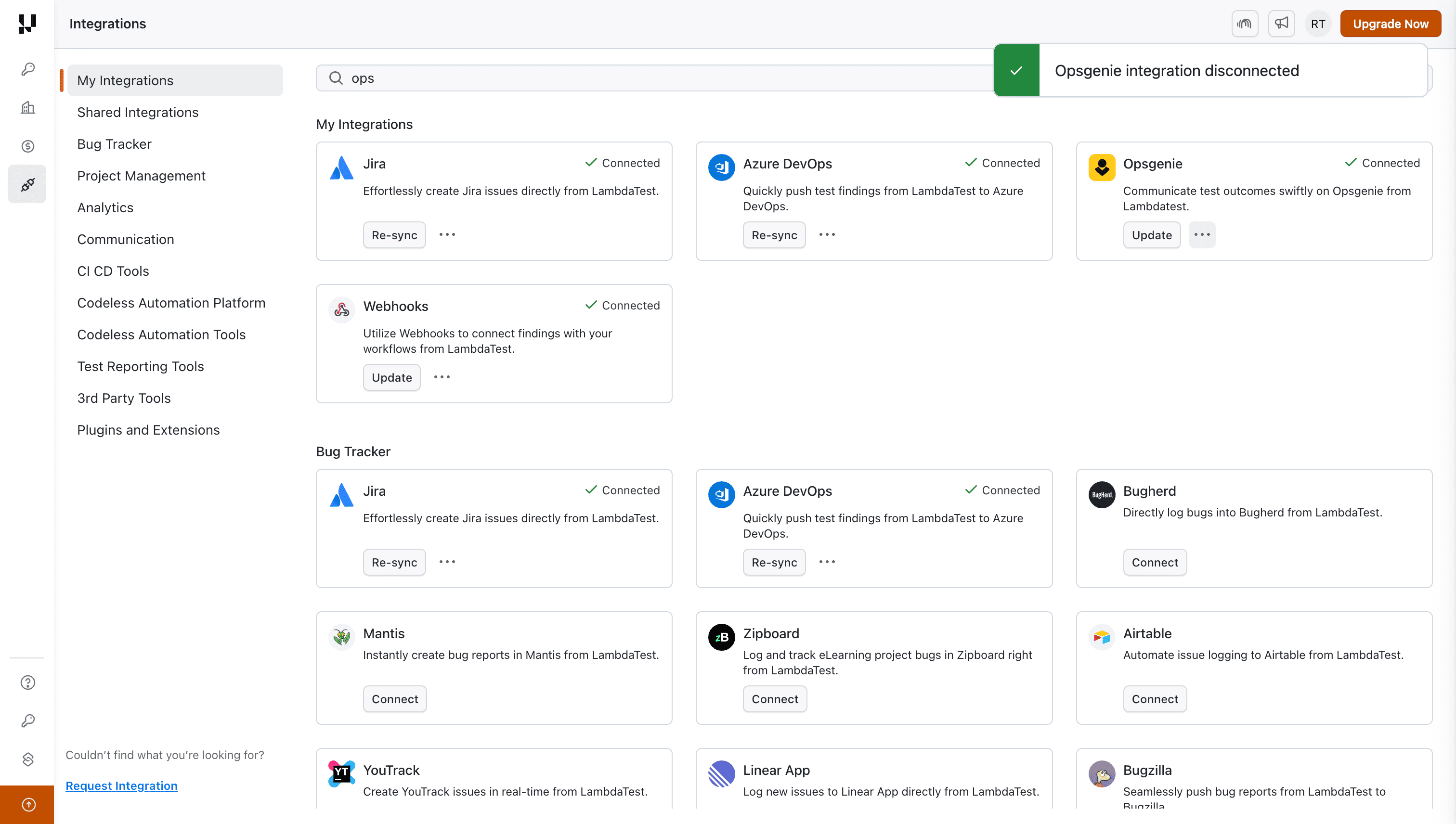
Login to your TestMu AI account and visit Integrations from the left menu.
-
Find the OpsGenie integration, click on the three-dot menu and select Remove.
For any queries, feel free to drop them at our 24x7 Chat Support or you could also mail us directly at support@testmu.ai.

 Chat with Us
 Ask the Community