Reqnroll with Selenium and Appium: Tutorial to Run Your First Test on LambdaTest
In this topic, you will learn how to configure and run your web and mobile automation testing scripts on LambdaTest Selenium cloud grid and LambdaTest Appium cloud grid using Reqnroll.
Objective
By the end of this topic, you will be able to:
- Set up an environment for testing your hosted web pages using Reqnroll framework with Selenium.
- Understand and configure the core capabilities required for your Selenium test suite.
- Run test cases in parallel using Reqnroll with Selenium to reduce build times.
- Test your locally hosted pages on LambdaTest platform.
- Explore advanced features of LambdaTest.
Note: All the code samples in this documentation can be found in the LambdaTest's Repository on GitHub. You can either download or clone the repository to quickly run your tests.
Prerequisites For Running Reqnroll Selenium
Note: This tutorial is specifically for Windows users using Microsoft Visual Studio.
Before you can start performing Reqnroll automation testing with Selenium, you would need to:
- Download and Install Selenium WebDriver from the official website.
- Make sure you work with latest version of Reqnroll.
- .Net framework to deliver guidelines while developing a range of application using C#.
- Download Selenium WebDriver Language Binding for C# and extract them to appropriate folder. A .NET Core SDK of 2.1 or greater version.
- You would also need LambdaTest tunnel binary file for testing your locally hosted or privately hosted projects.
Web Automation Testing with Reqnroll
Step 1: Create a virtual environment by triggering the virtualenv venv command on the terminal.
virtualenv venv

Step 2: Navigate the newly created virtual environment by triggering the source venv/bin/activate command on the terminal.
source venv/bin/activate
Step 3: You can fetch the LambdaTest Credentials from the LambdaTest Profile Section.
Update the LambdaTest Credentials - LT_USERNAME and LT_ACCESS_KEY in Makefile.
Alternatively, you can also export the environment variables LT_USERNAME and LT_ACCESS_KEY by triggering the following commands on the terminal:
For macOS:
export LT_USERNAME=LT_USERNAME
export LT_ACCESS_KEY=LT_ACCESS_KEY
For Linux:
export LT_USERNAME=LT_USERNAME
export LT_ACCESS_KEY=LT_ACCESS_KEY
For Windows:
set LT_USERNAME=LT_USERNAME
set LT_ACCESS_KEY=LT_ACCESS_KEY
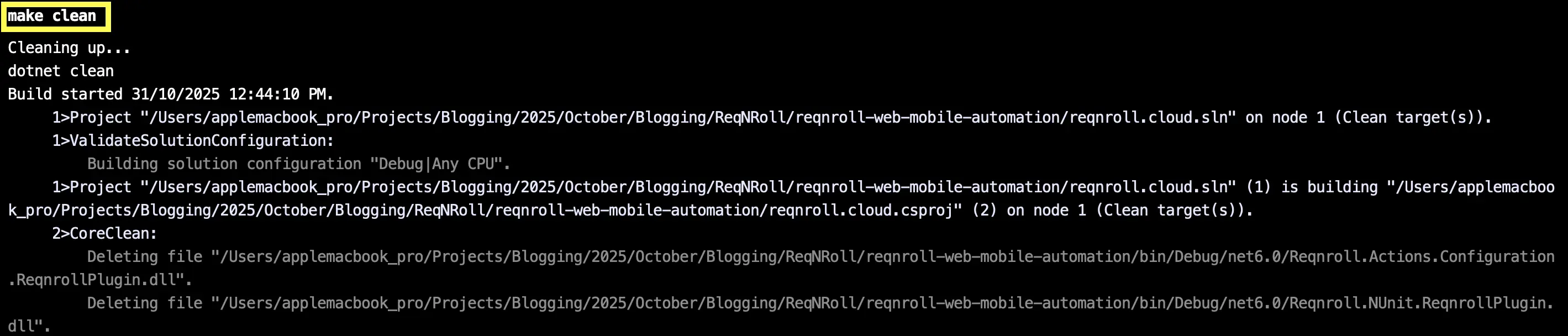
Step 4: Run the make clean command on the terminal to clean the temporary files.
make clean
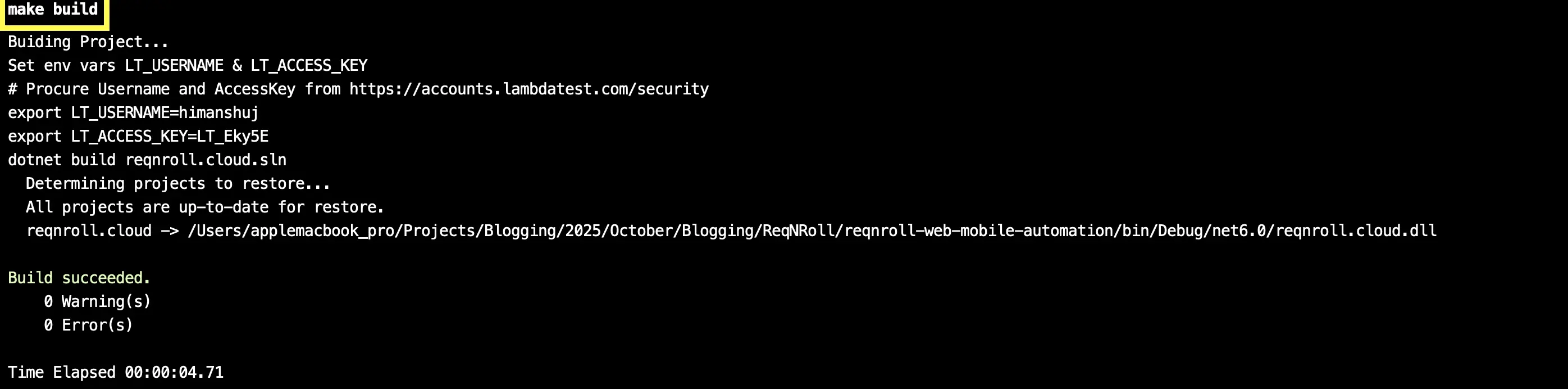
Step 5: Trigger the command make build on the terminal to build the automation project
make build
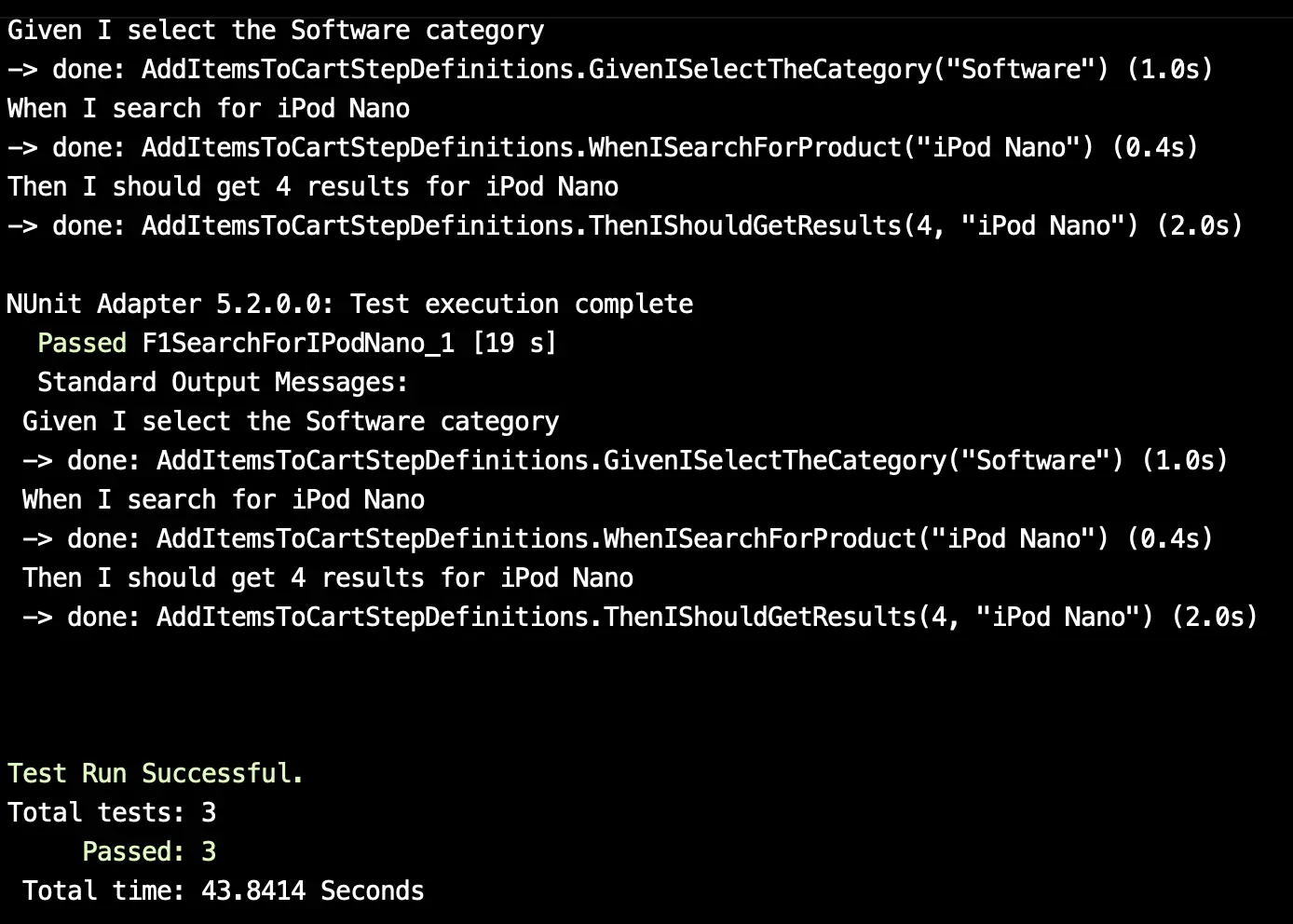
Step 6: Execution
Trigger the command make reqnroll-automation-test to run the Reqnroll tests on the LambdaTest platform

Step 7: Execution
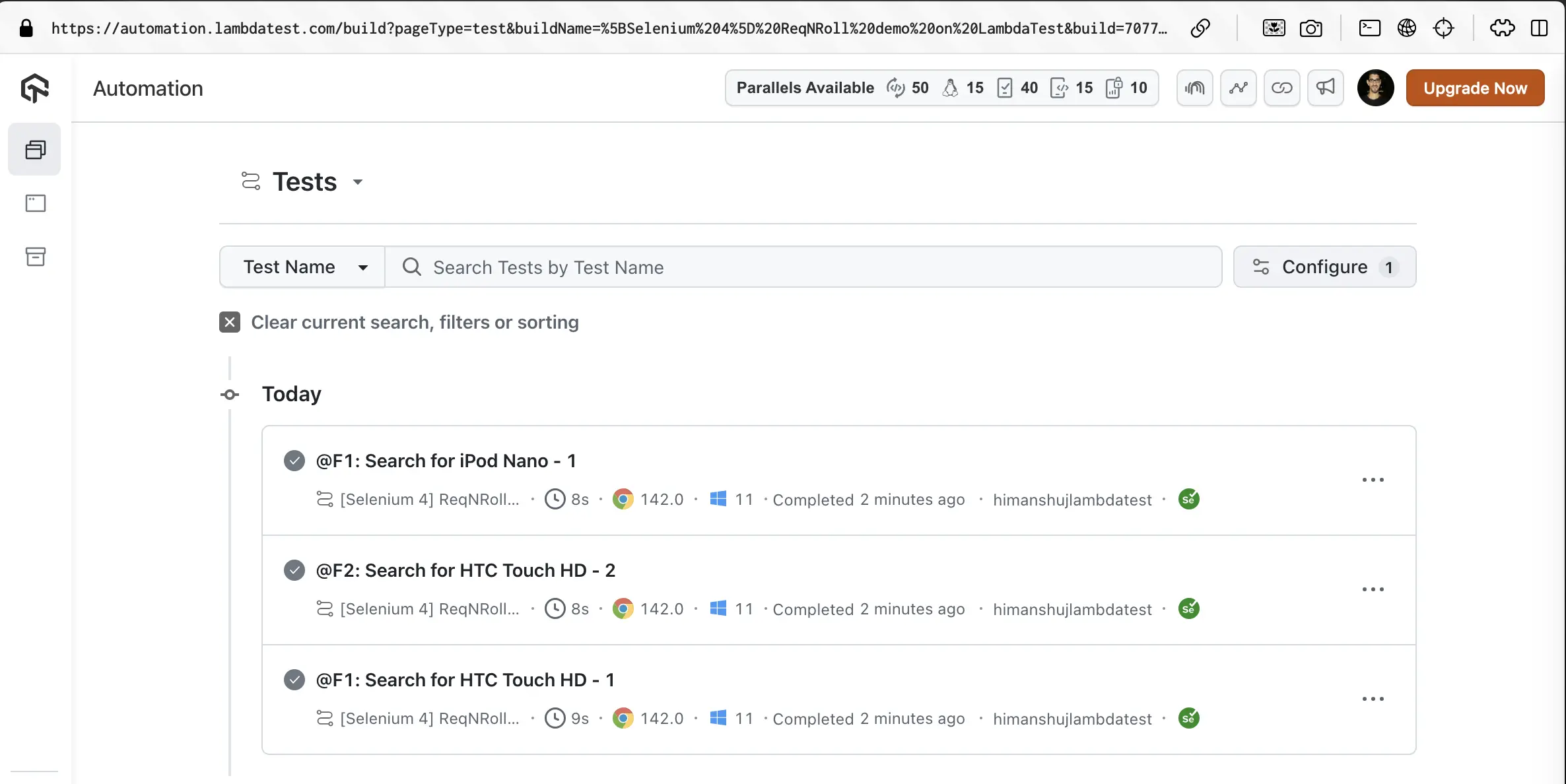
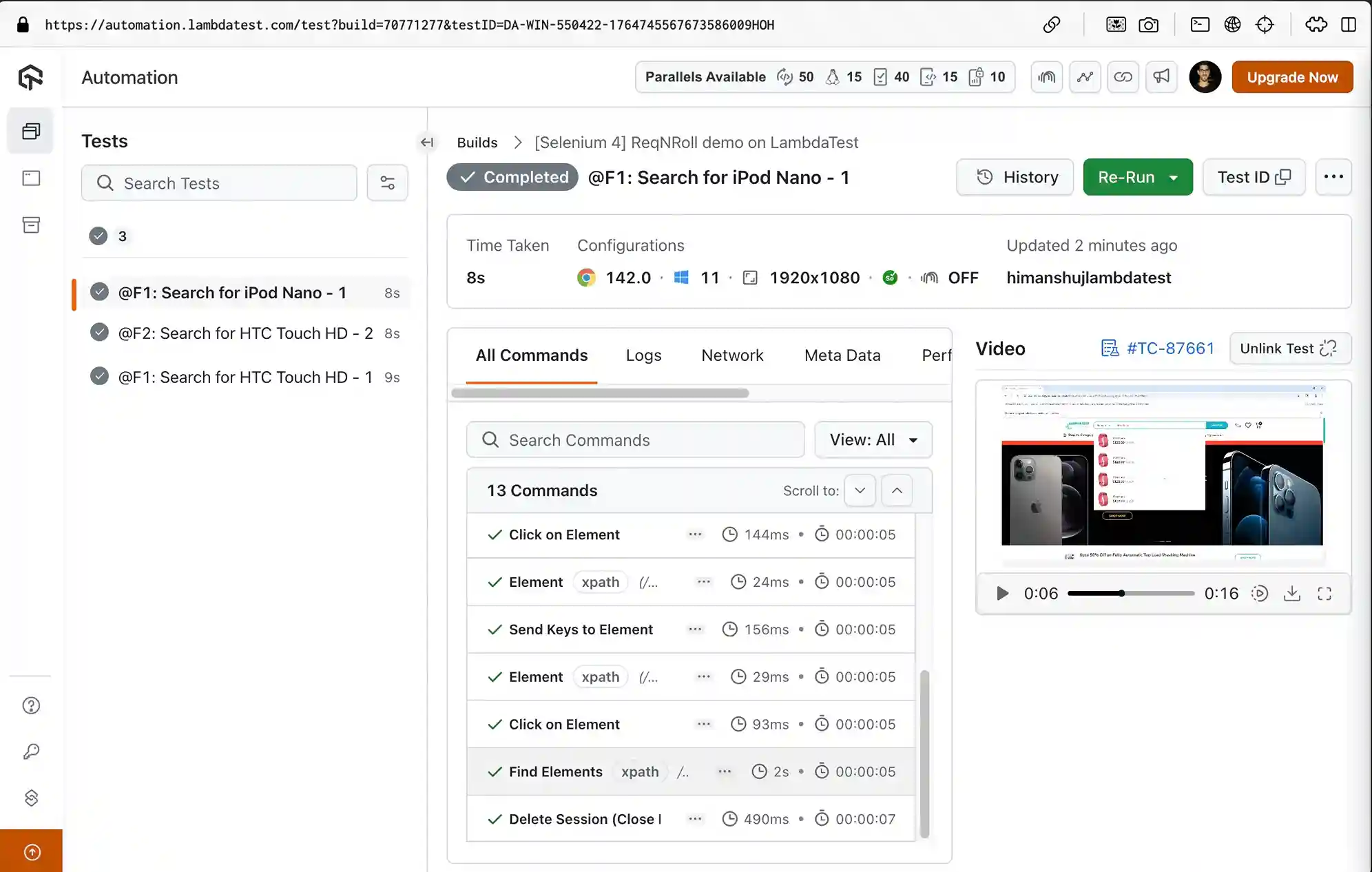
Navigate to the LambdaTest Automation Dashboard to check the status of the test execution:
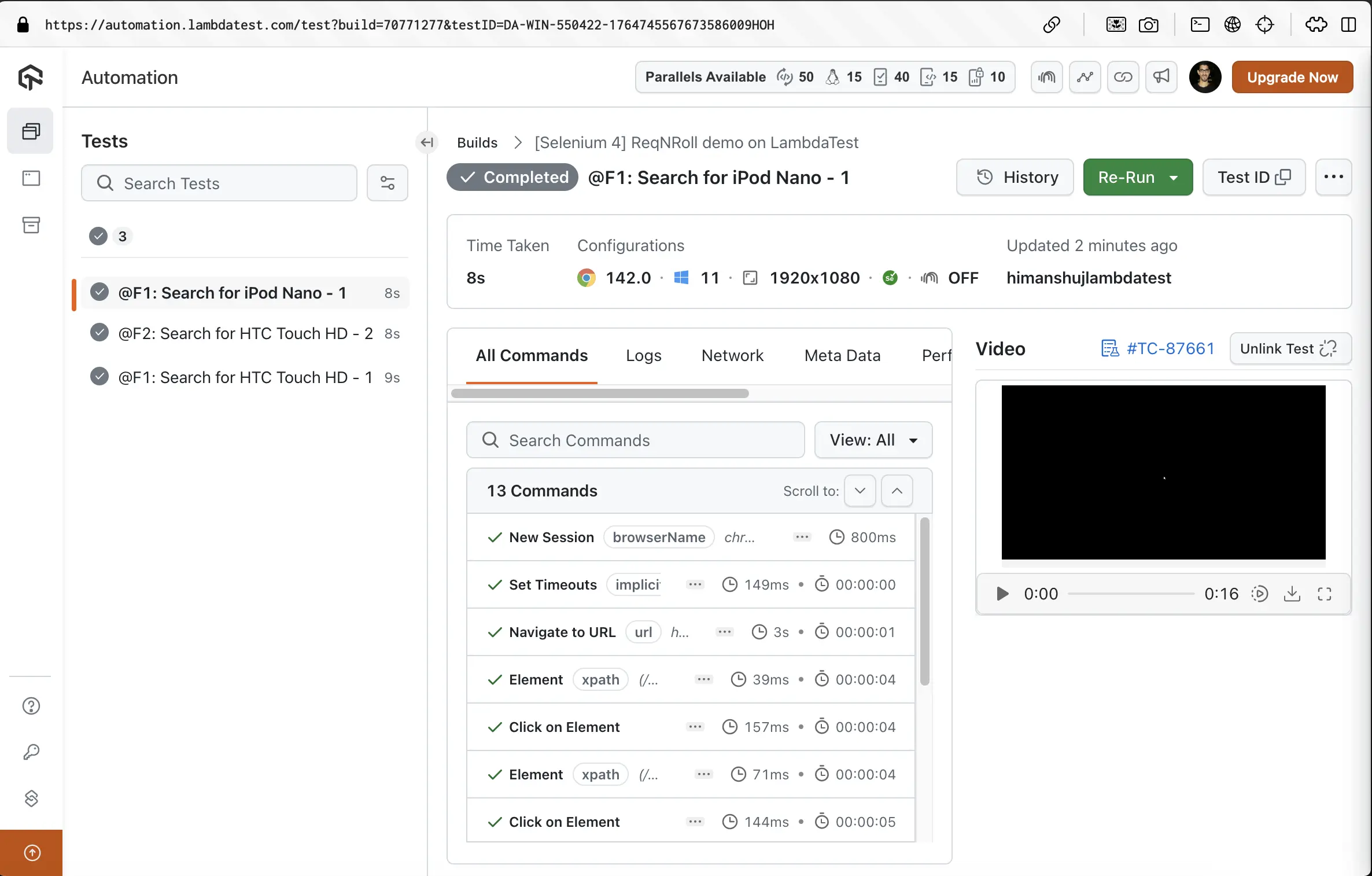
As seen below, all the scenarios that are a part of respective .feature(s) files successfully executed on LambdaTest.
Mobile App Automation Testing with Reqnroll
Step 1: Create a virtual environment by triggering the virtualenv venv command on the terminal
virtualenv venv

Step 2
Navigate the newly created virtual environment by triggering the source venv/bin/activate command on the terminal
source venv/bin/activate
Step 3
You can fetch the LambdaTest Credentials from the LambdaTest Profile Section section.
Update the LambdaTest Credentials - LT_USERNAME and LT_ACCESS_KEY in Makefile.
Alternatively, you can also export the environment variables LT_USERNAME and LT_ACCESS_KEY by triggering the following commands on the terminal:
For macOS:
export LT_USERNAME=LT_USERNAME
export LT_ACCESS_KEY=LT_ACCESS_KEY
For Linux:
export LT_USERNAME=LT_USERNAME
export LT_ACCESS_KEY=LT_ACCESS_KEY
For Windows:
set LT_USERNAME=LT_USERNAME
set LT_ACCESS_KEY=LT_ACCESS_KEY
Step 4
For the testing, we are using the Proverbial App (apk) from LambdaTest. The app needs to be uploaded to the LambdaTest cloud storage. Run the below command for uploading the app to the cloud:
Note: Please replace the LT_USERNAME and LT_ACCESS_KEY with the actual LambdaTest credentials that are available in the LambdaTest Profile Section section.
curl -u "LT_USERNAME:LT_ACCESS_KEY" -X POST "https://manual-api.lambdatest.com/app/upload/realDevice" -F "url=https://prod-mobile-artefacts.lambdatest.com/assets/docs/proverbial_android.apk" -F "name=proverbial-android" -F "custom_id=sampleName" -F "storage=url" -F "visibility=individual"
If the command execution is successful, you would see a APP ID in the command output:

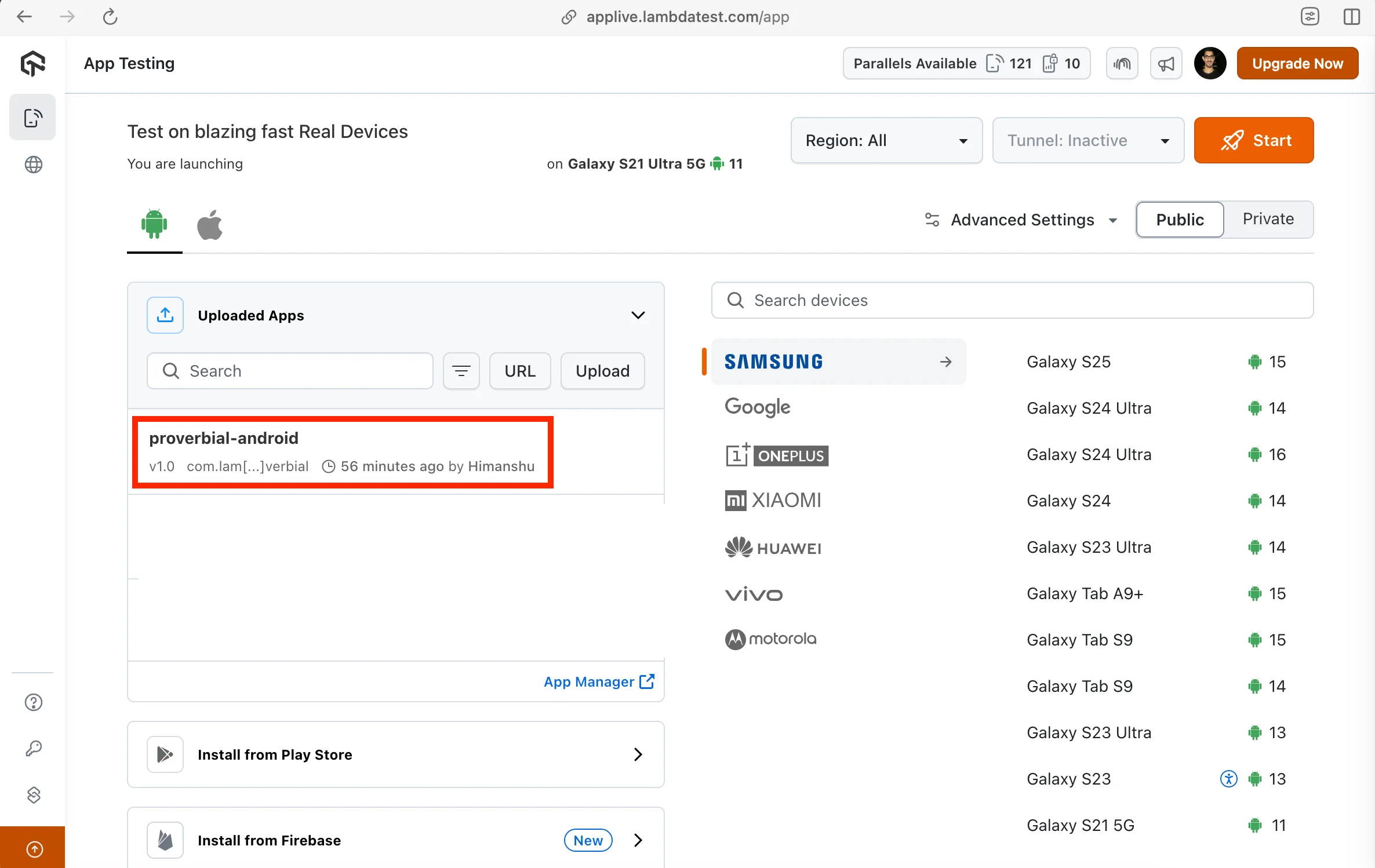
You would also see the app named 'proverbial-android' in the App Live App Dashboard.
Now that the app is available for testing, let's execute the other make commands
Step 5
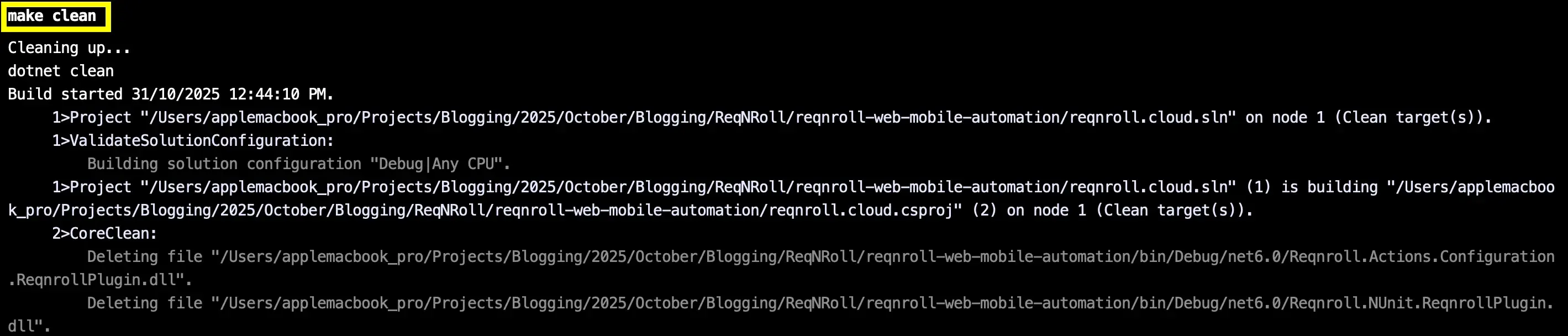
Run the make clean command on the terminal to clean the temporary files
make clean
Step 6
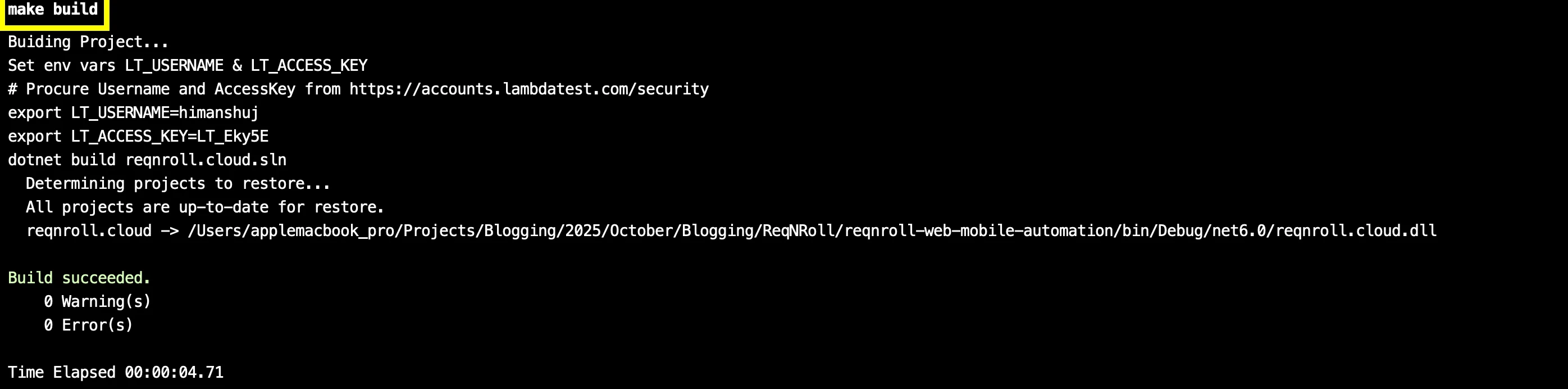
Trigger the command make build on the terminal to build the automation project
make build
Step 7
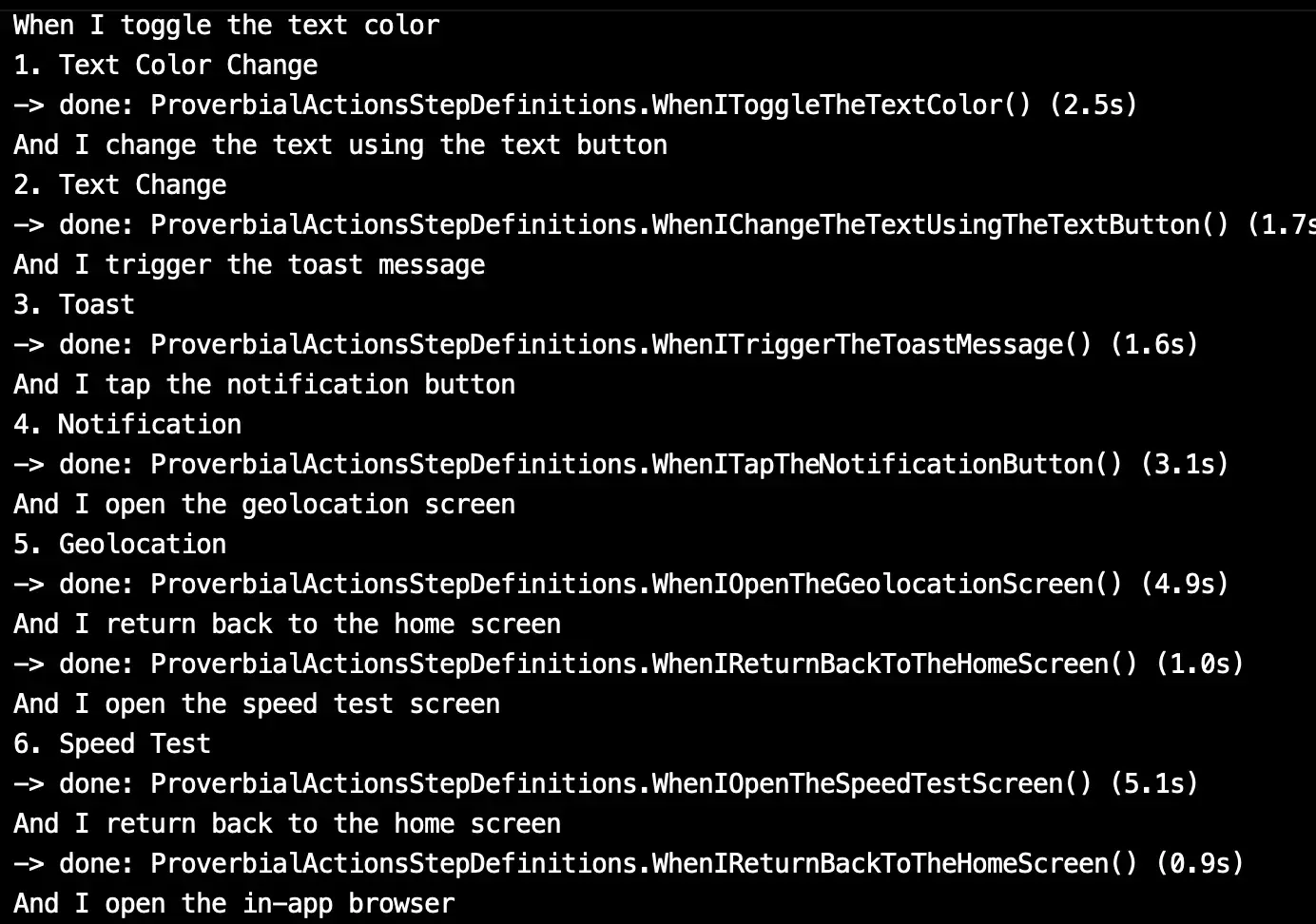
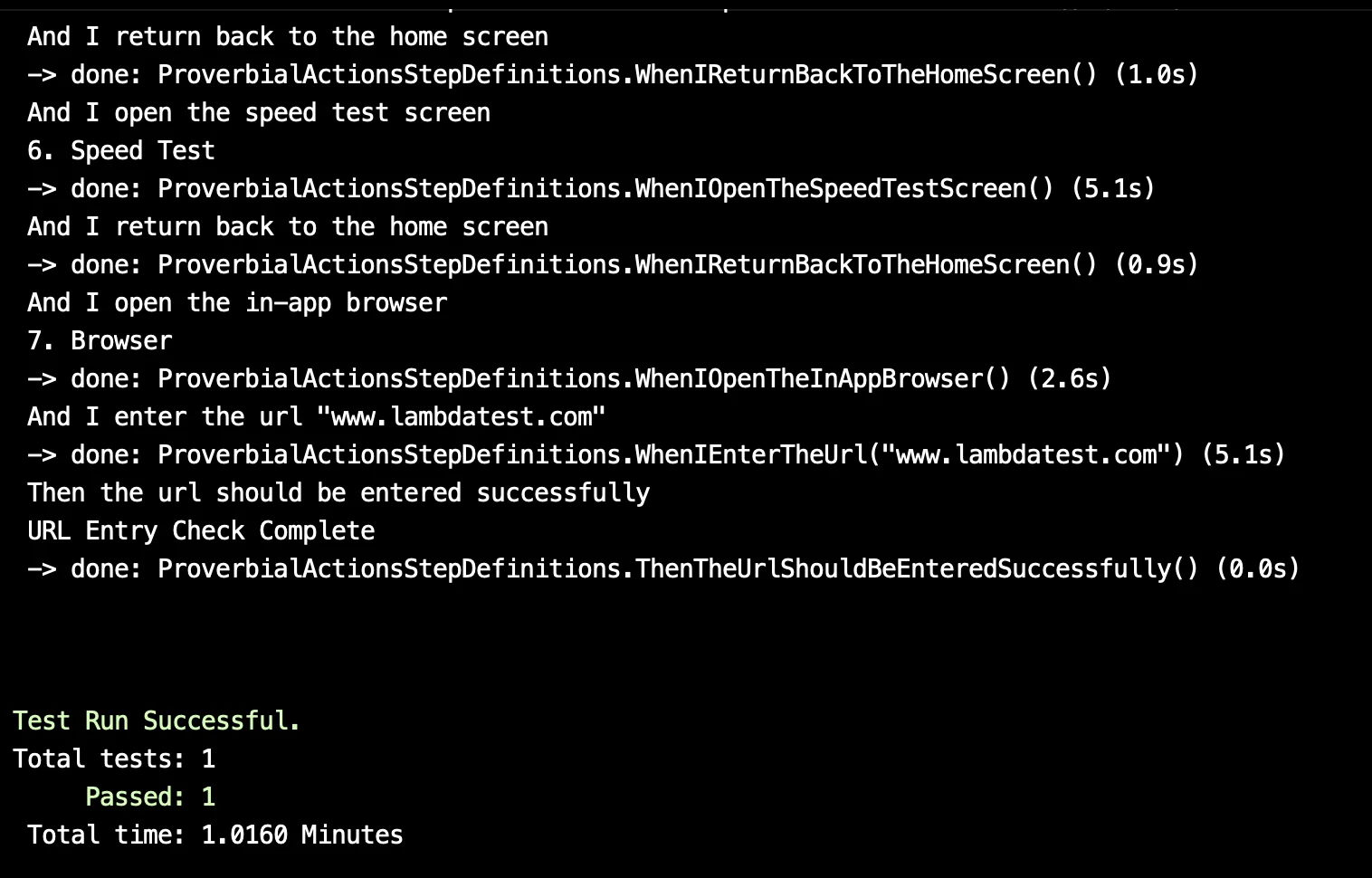
Trigger the command make reqnroll-automation-test to run the Reqnroll tests on the LambdaTest platform

Step 8
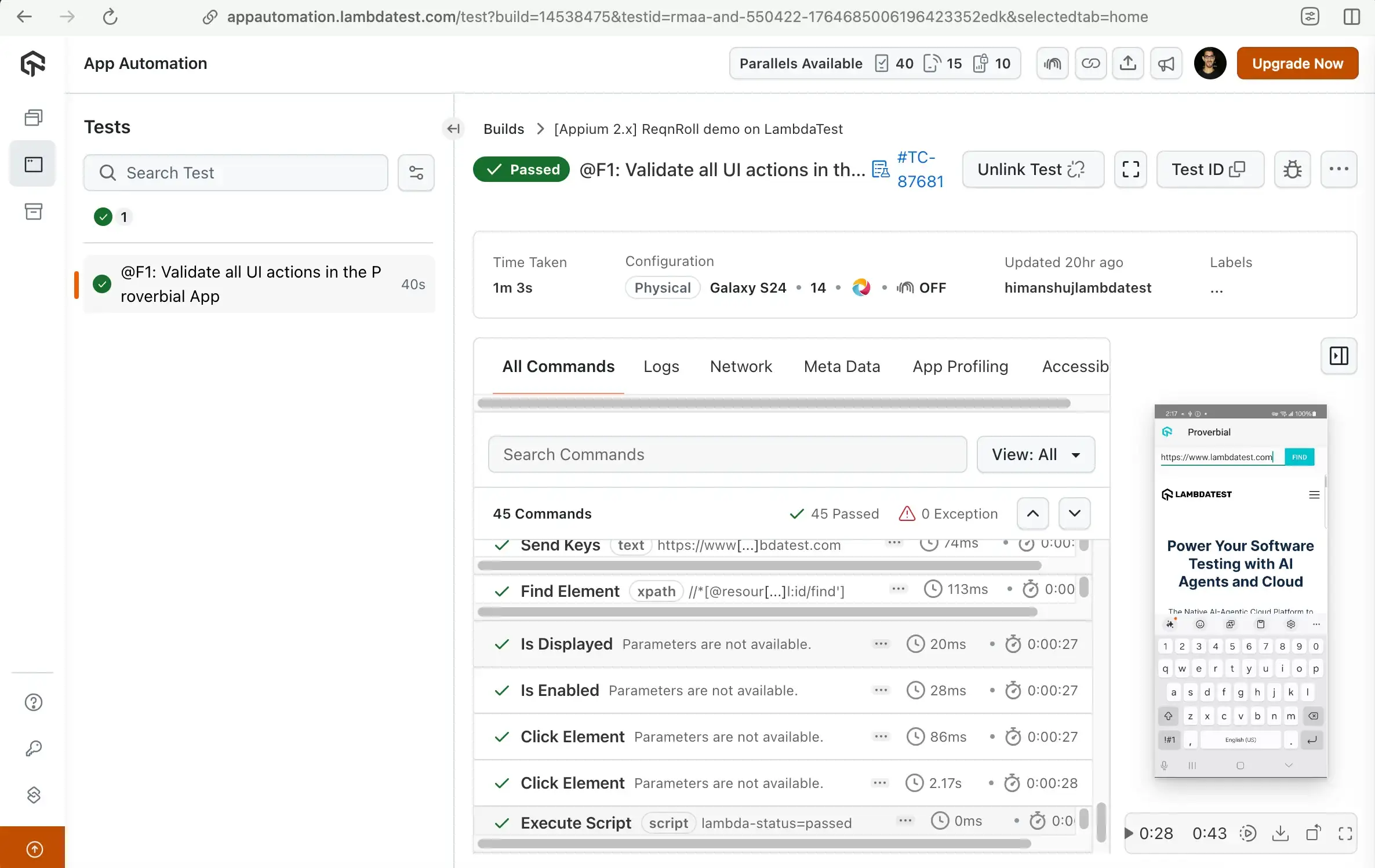
Navigate to the LambdaTest Automation Dashboard to check the status of the test execution. As seen below, all the scenarios that are a part of respective .feature(s) files successfully executed on LambdaTest.

 Chat with Us
 Ask the Community