Slack App Integration
The TestMu AI Slack App allows you to initiate real-time tests directly from Slack. Your team can collaborate more effectively by easily communicating on bugs, reducing the feedback loop, and troubleshooting web elements in real-time.
By integrating TestMu AI with Slack App,
- Perform Real time testing with access to 3000+ browser and operating systems on the TestMu AI cloud.
- Reuse the generated test cards and relaunch the test with the same configuration.
To perform the Real-time testing, you will need to login with your TestMu AI Account. If you don’t have an account on TestMu AI, visit the TestMu AI register page.
Integrating Slack With Your TestMu AI Account
Note: To push the Slack App alert notification of the logged bugs to your specified Slack channel, you will need to integrate Slack with your TestMu AI account.
-
Login to your TestMu AI account and visit Integrations.
-
From the COMMUNICATION category, select Slack.

- You'll be redirect to OAuth page. Enter the Slack channel on which you wish to receive Slack alert notifications.
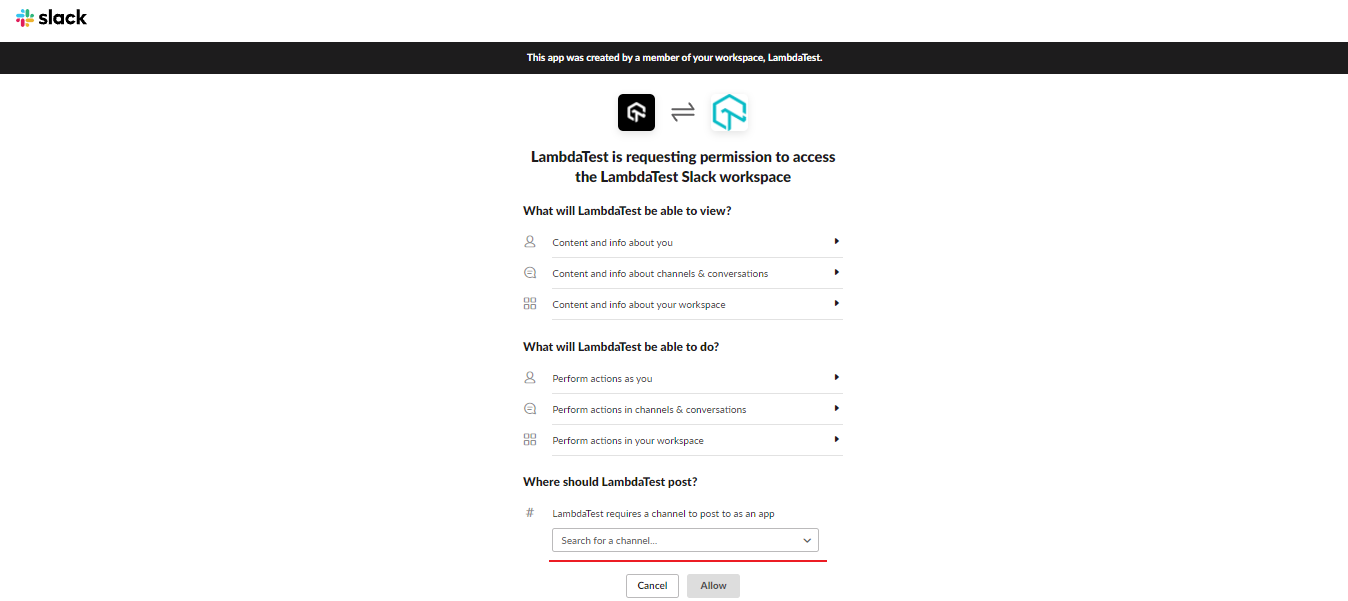
- Click on Allow.
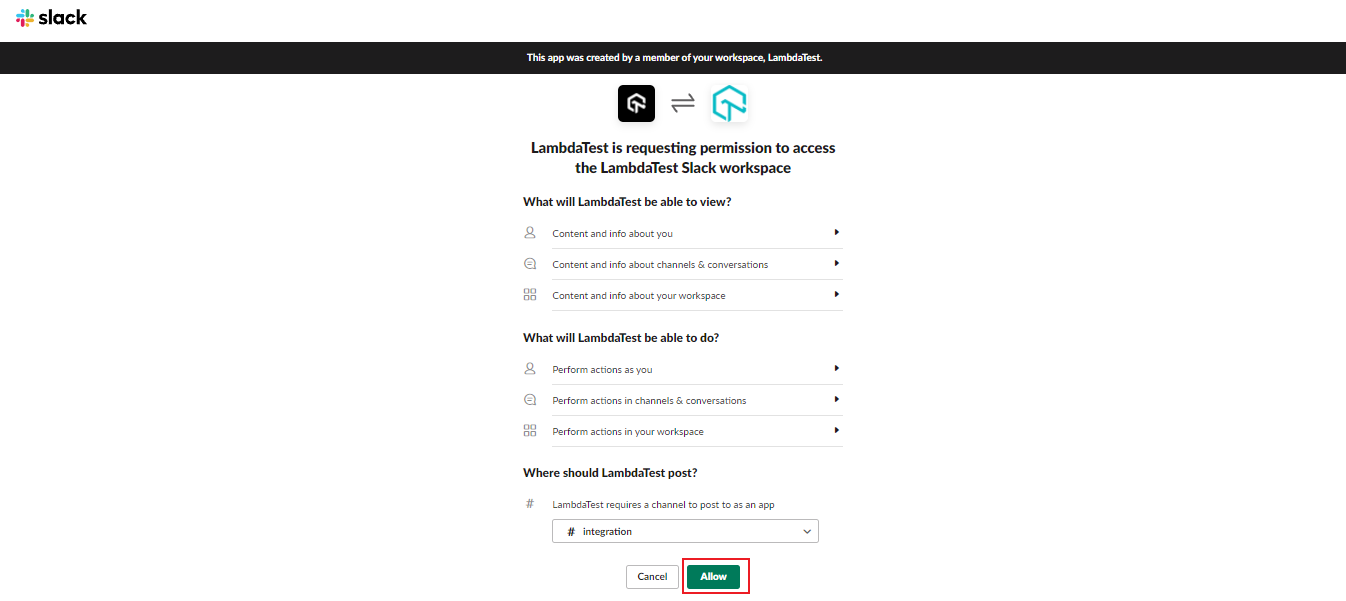
Slack will be integrated successfully with your TestMu AI account. You'll also receive the notification and the confirmation email of the same.
Adding TestMu AI From Slack App
Step 1: Open the Slack App.
Step 2: From the left menu, navigate to Apps and click on Add (+) icon.
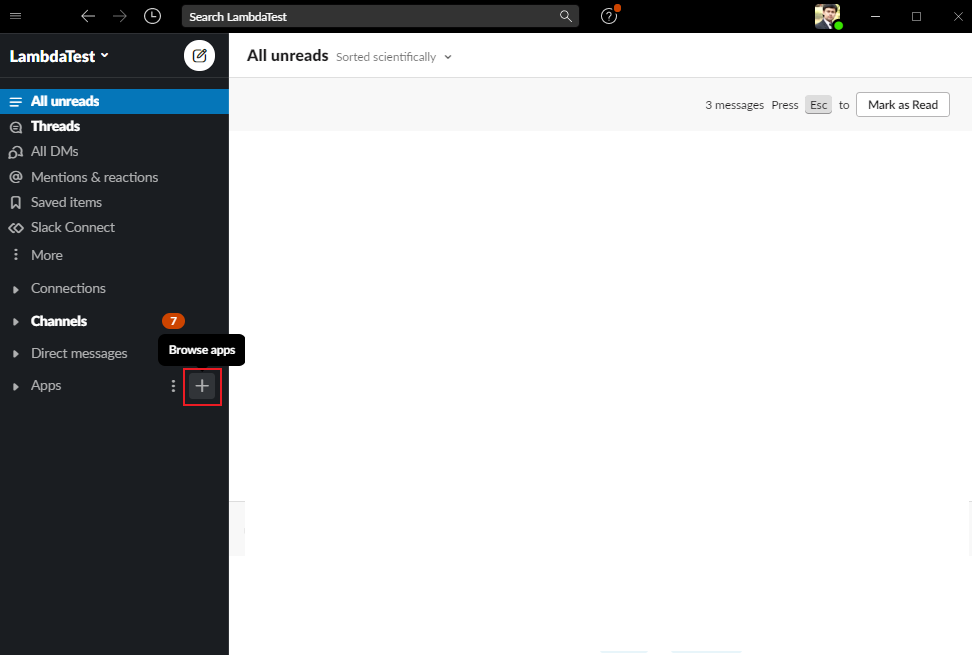
Step 3: Search for TestMu AI and then click on the TestMu AI block.
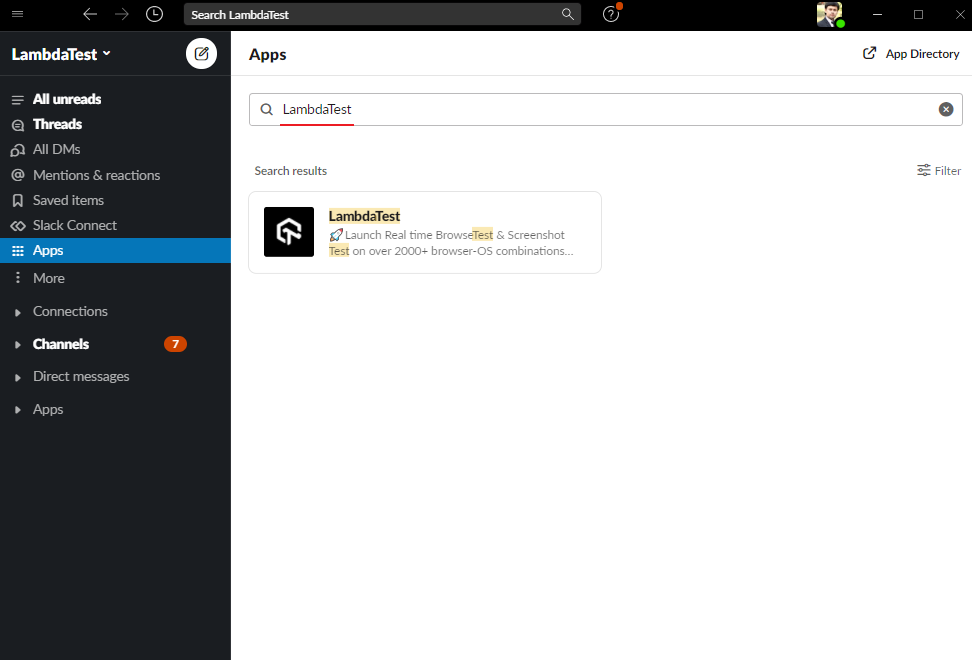
Upon successful integration, the TestMu AI App will be added to Slack.
Performing Real Time Testing From Slack App
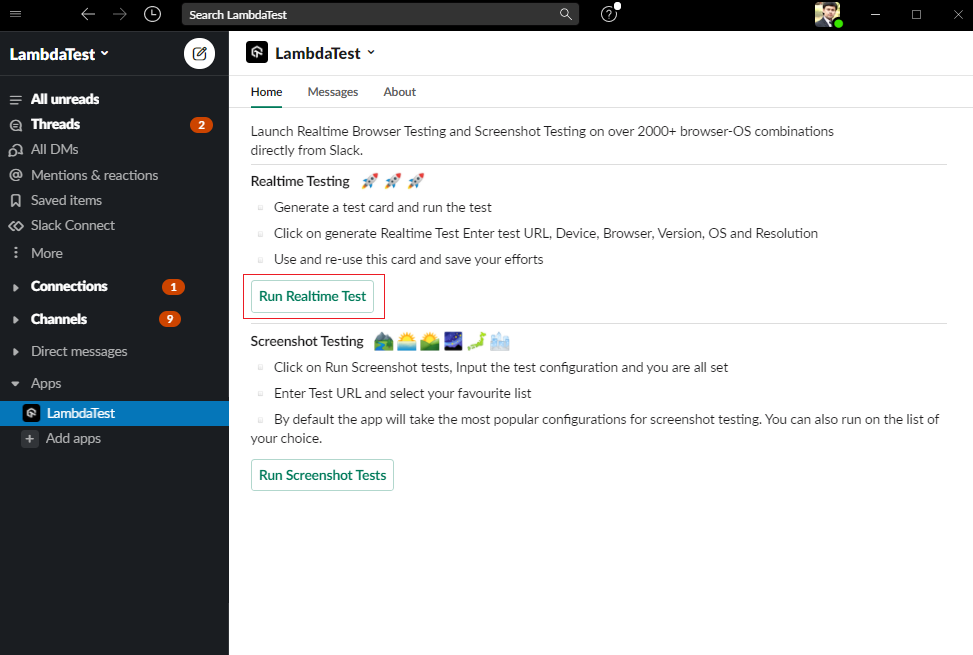
Step 1: From the Apps dropdown, click on the TestMu AI App and select Run Realtime Test.
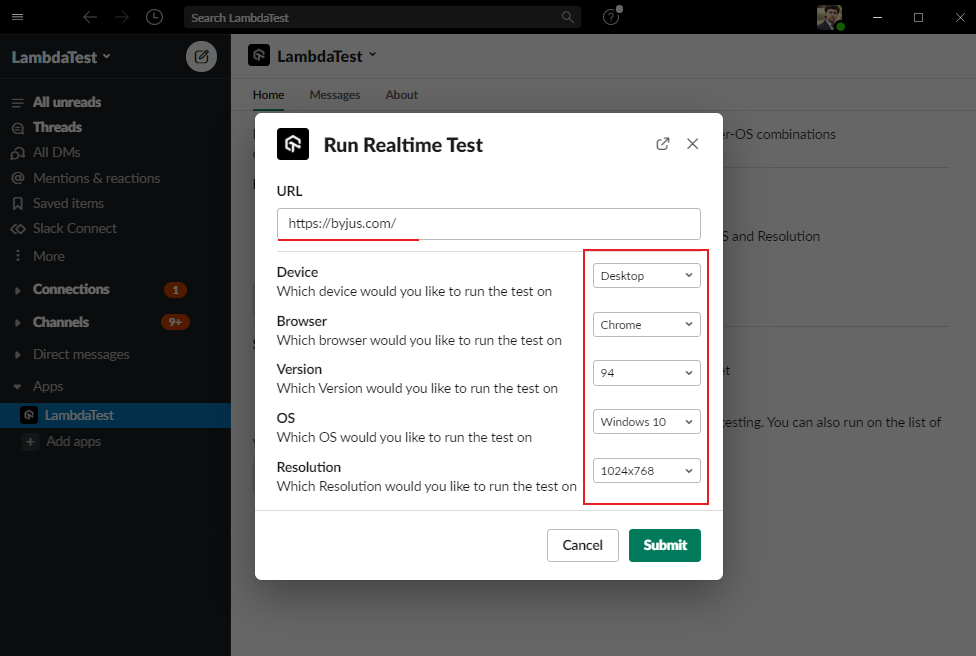
Step 2: A pop-up box will appear where you need to provide the test environment details like Test URL, Device, Browser, Version, OS and Resolution.
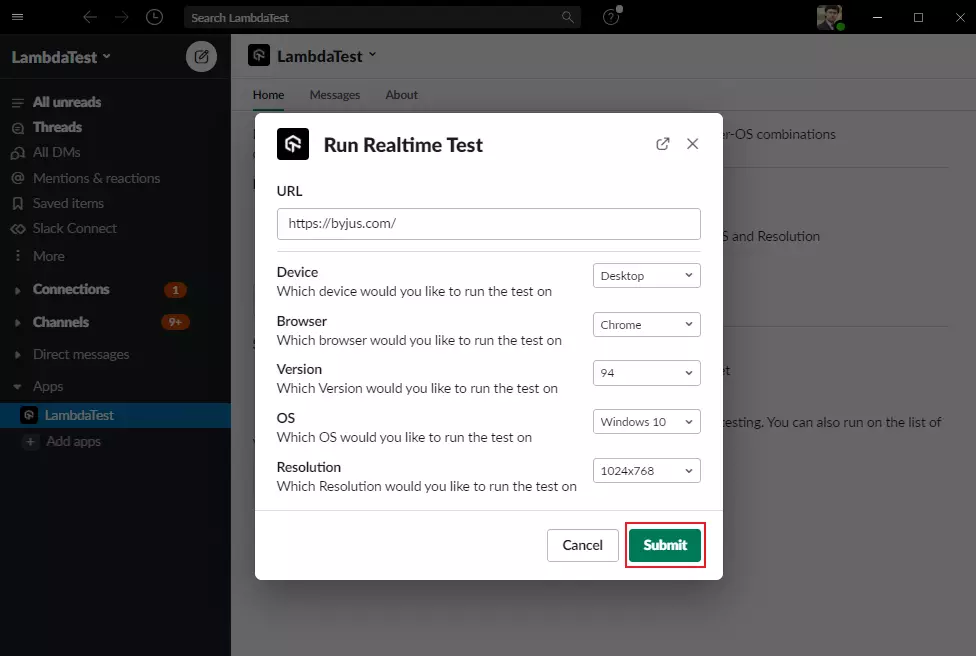
Step 3: After entering the test environment details, click on Submit.
Step 4: After clicking on Submit button, you'll receive a Slack notification
Open the notification and you'll find a Real-time test card that includes the test environment details that you just selected.
To launch the Realtime test, click on Run Test.

Step 6: You'll be redirected to the TestMu AI cloud-based VM where you can perform real-time testing of your websites and web apps. You can also perform one-click bug logging, capture full page screenshots, geolocation testing, and more.
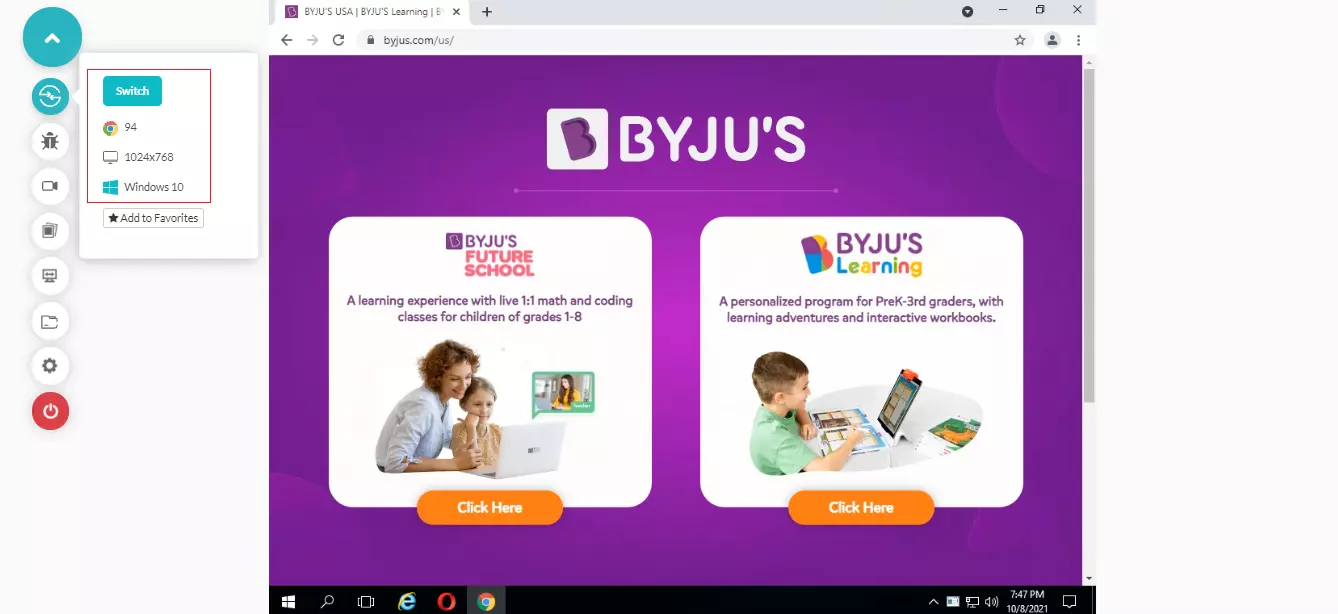
To know more about Real-time Testing, refer to the documentation Real Time Browser Testing.
Running Screenshot Tests From Slack App
Screenshot testing through the Slack App has been deprecated and is no longer available. This includes both the Run Screenshot Test button flow and the earlier /screenshot slash command.
To capture screenshots of a URL, use Web Scanner instead, which runs Visual UI scans across browsers and viewports.
Removing/Uninstalling The Slack App
Step 1: Navigate to Apps from the Slack left menu.
Step 2: Once you hover on TestMu AI App, a cross icon will appear. Click on the Cross icon.
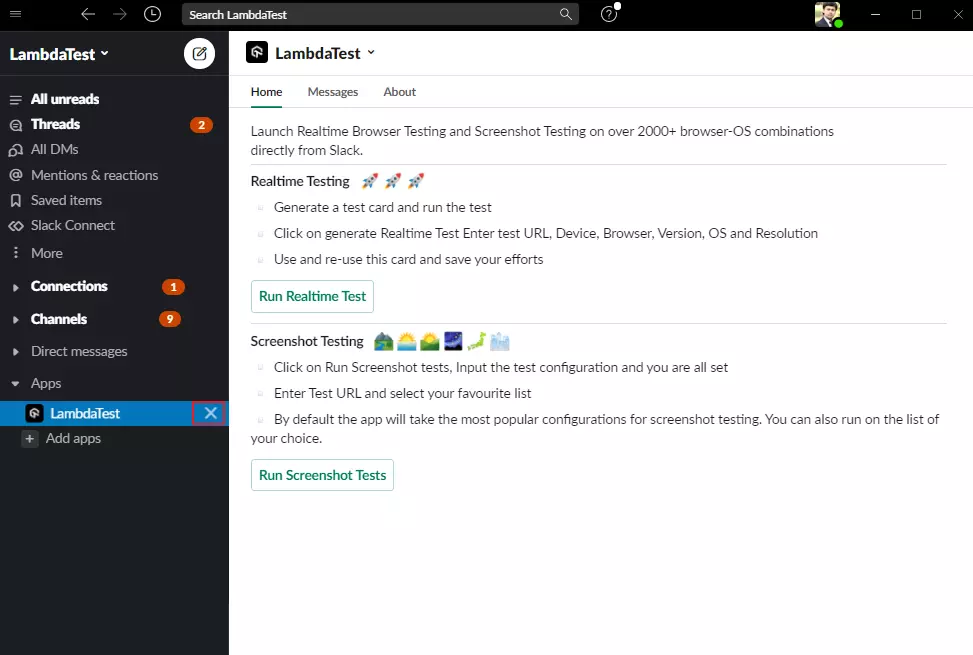
The TestMu AI Slack App will be removed successfully from Slack.
Step 3: Now visit Integrations. From the MY INTEGRATIONS section, click on Remove icon under the Slack block.
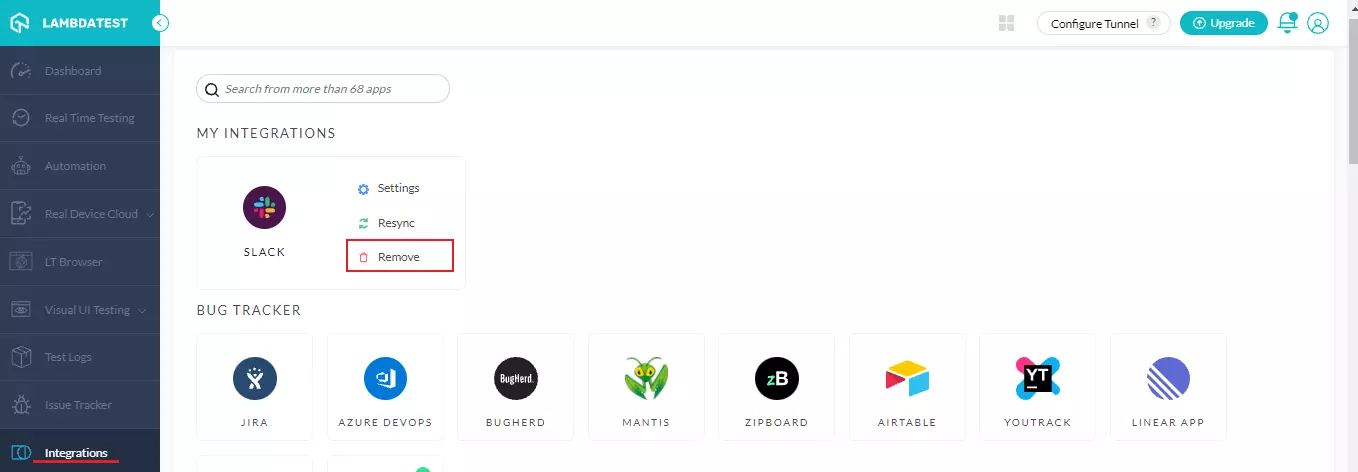
The Slack will be uninstalled from your TestMu AI account.
That’s all about TestMu AI+Slack App integration. If you have any questions or require any further information, you can reach out to us at our 24/7 chat portal or drop us a mail at support@testmuai.com.


 Chat with Us