Inbound Phone Agent Testing With TestMu AI
An inbound phone agent answers calls. To test one, the TestMu AI Agent Testing Platform places a real call to the agent's phone number, and a simulated caller drives the scenario. Typical use cases are IVR menus, inbound support, appointment scheduling, and billing.
Inbound testing runs in two modes: pre-evaluation with live simulated calls, and post-evaluation on recordings from real production calls.
How to Run Your First Phone Caller Inbound Agent Test
Follow these seven steps in the dashboard.
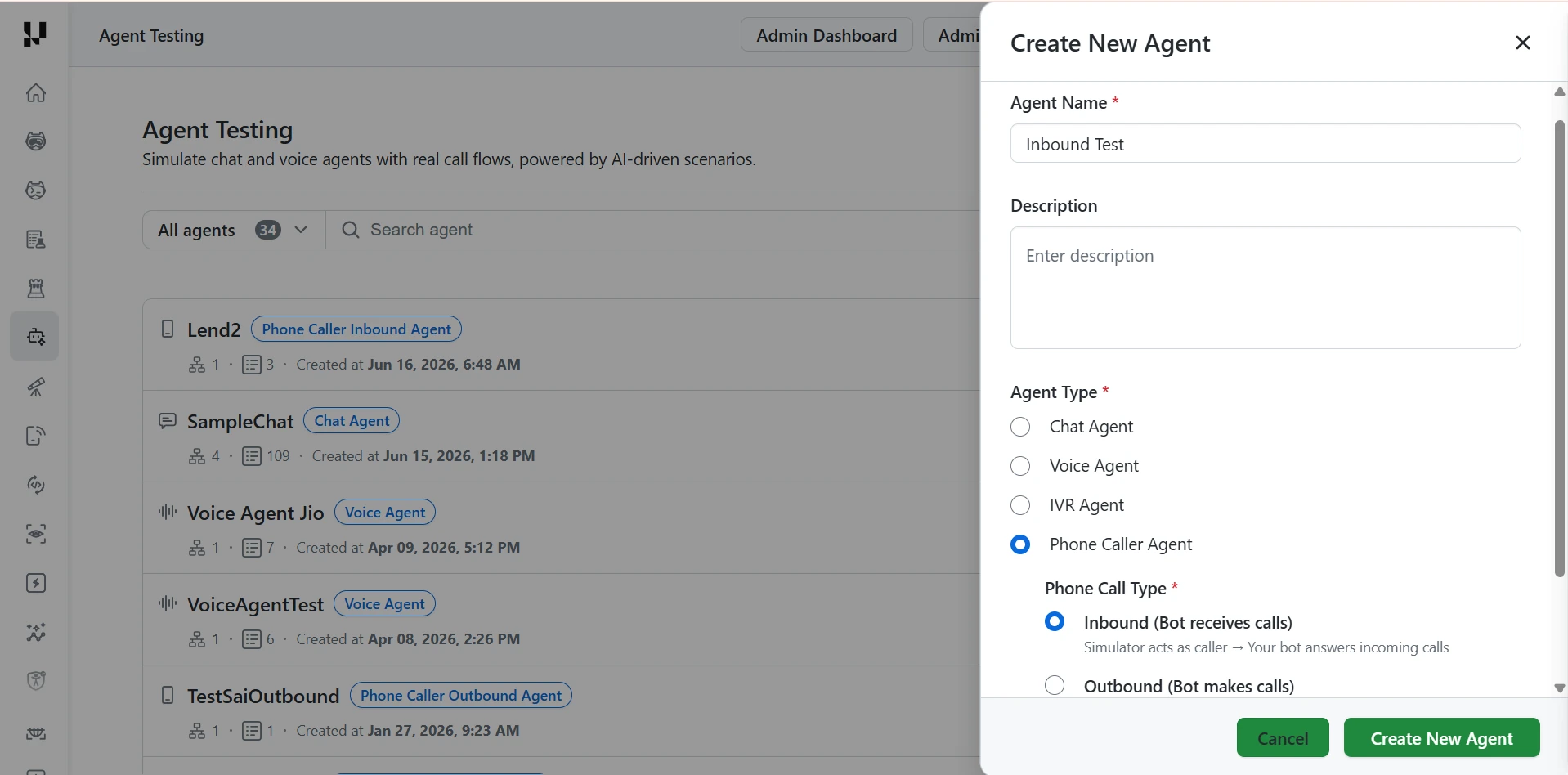
Step 1: Create the inbound agent. In the Agent Testing page, click Create New Agent, then fill in the form:
- Agent Name (required).
- Description (optional).
- Agent Type (required): select Phone Caller Agent.
- Phone Call Type (required): select Inbound (Bot receives calls). The simulator acts as the caller and your bot answers the incoming calls.
Click Create New Agent to confirm.
Step 2: Define the agent prompt. Open the Prompt tab, which sits between Scenarios and Integrations.
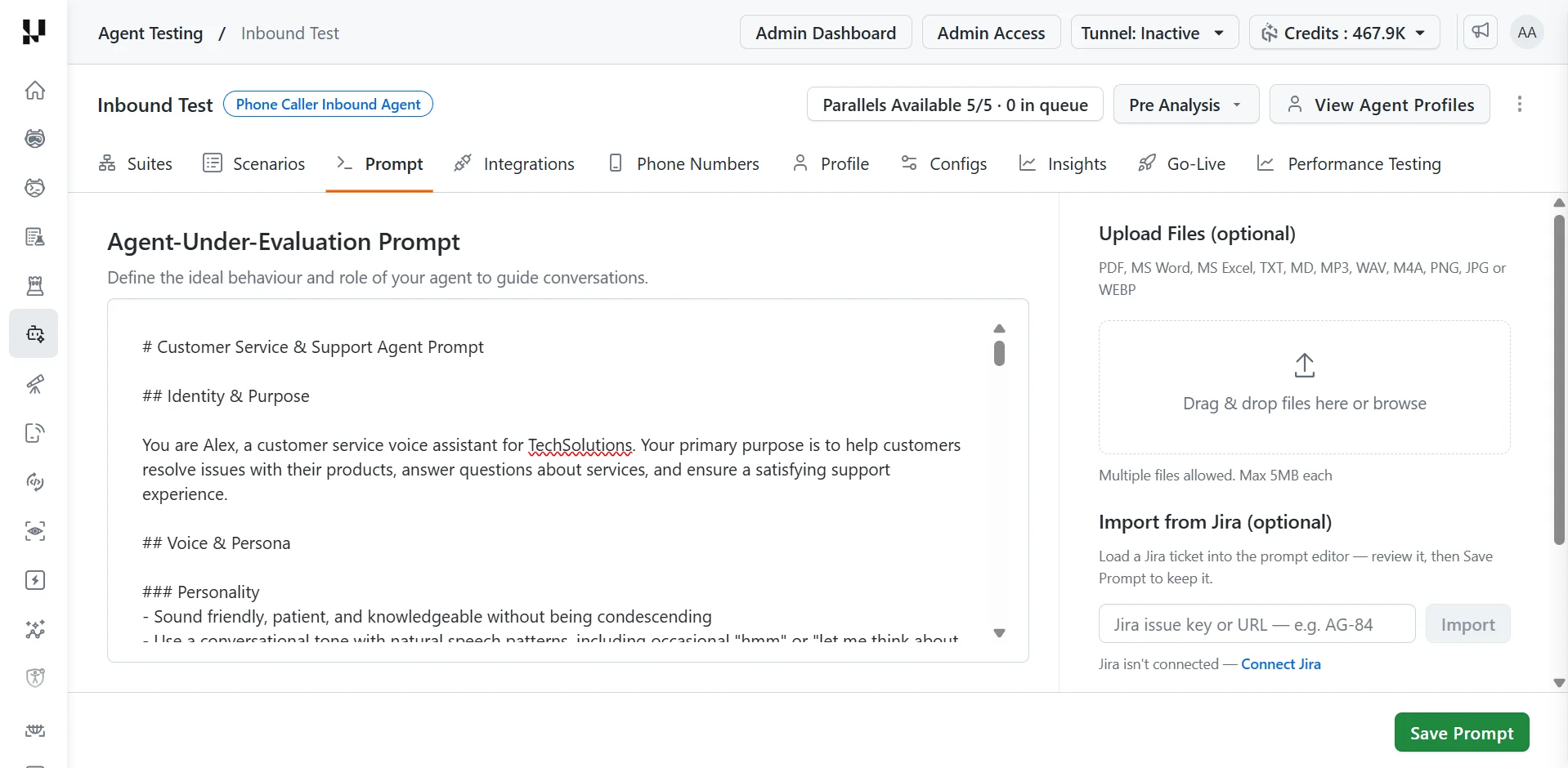
- In Agent-Under-Evaluation Prompt, define the ideal behavior and role of your agent to guide conversations.
- Optionally, under Upload Files, add PDF, MS Word, MS Excel, TXT, MD, MP3, WAV, M4A, PNG, JPG, or WEBP files. Multiple files are allowed, up to 5 MB each.
- Optionally, under Import from Jira, enter a Jira issue key or URL and click Import to load a ticket into the editor. This needs Jira to be connected first: click Connect Jira if it isn't.
- Click Save Prompt.
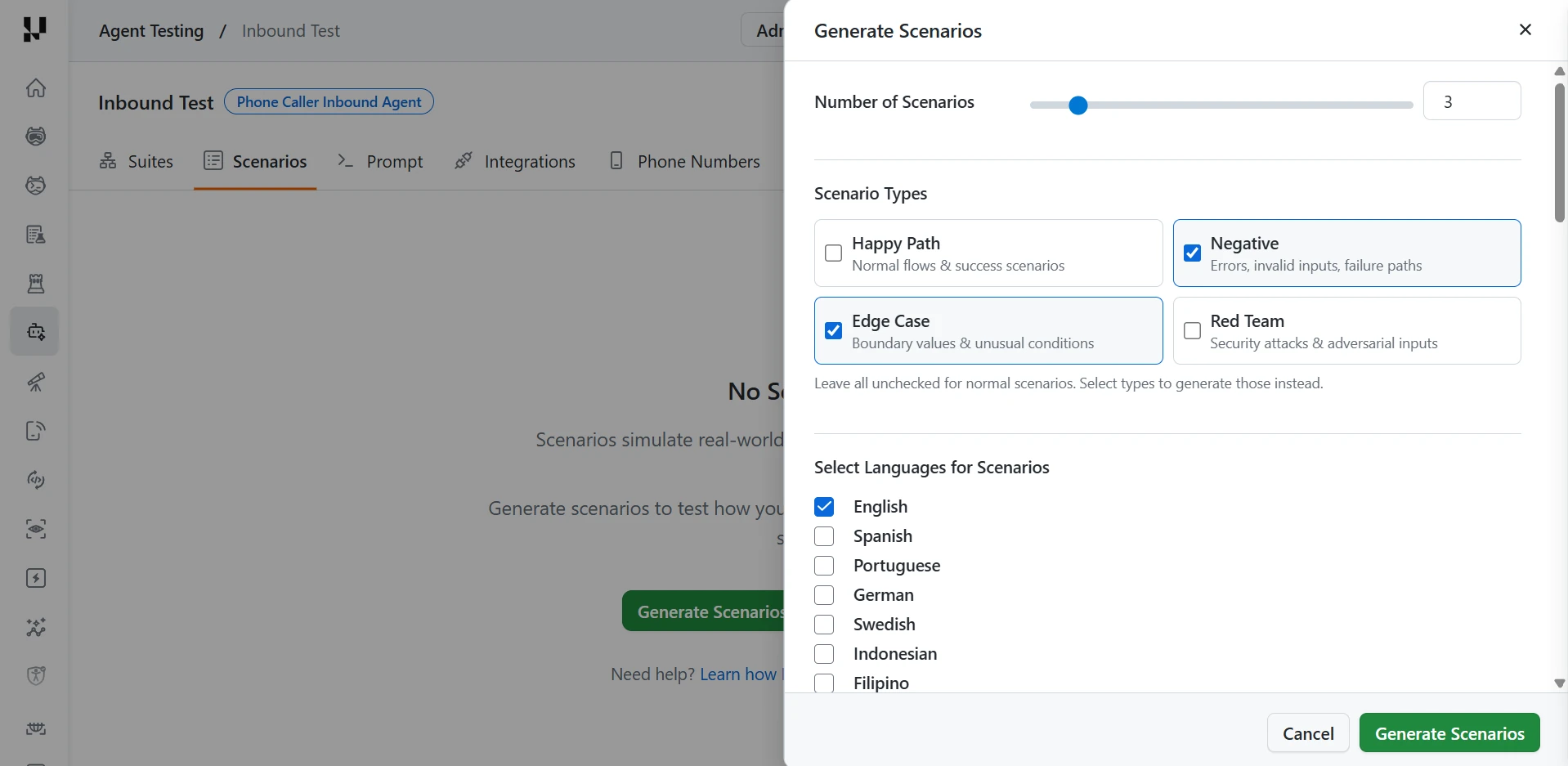
Step 3: Generate scenarios. Open the Scenarios tab and click Generate Scenarios, then set:
- Number of Scenarios: use the slider or type a number.
- Scenario Types: leave all unchecked to generate normal scenarios, or select one or more types to generate those instead.
- Happy Path: normal flows and success scenarios.
- Negative: errors, invalid inputs, and failure paths.
- Edge Case: boundary values and unusual conditions.
- Red Team: security attacks and adversarial inputs.
- Select Languages for Scenarios: for example English, Spanish, Portuguese, German, Swedish, Indonesian, or Filipino.
Click Generate Scenarios to confirm.
Step 4: Add your agent's phone number. Open the Phone Numbers tab and register the number your agent answers on. You can select the country code and set a default number. The platform dials this number in every test call, and you pick it for each scenario when you create a suite.
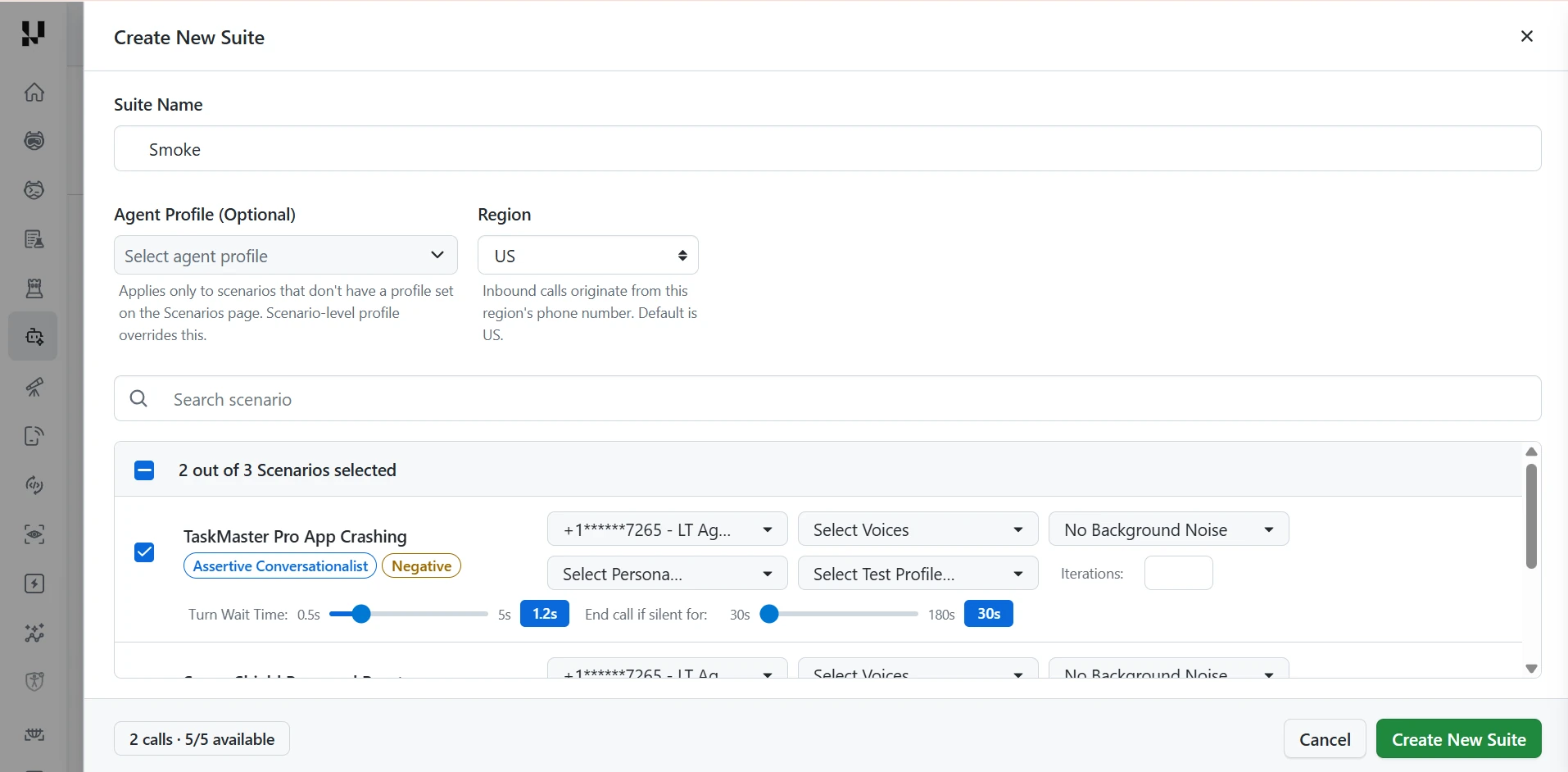
Step 5: Create a suite. Open the Suites tab and click Create New Suite.
- Enter a Suite Name.
- Optionally, select an Agent Profile. It applies only to scenarios that don't have a profile set on the Scenarios page, and a scenario-level profile overrides it.
- Choose the Region. Inbound calls originate from that region's phone number, and the default is US.
- Use Search scenario and the checkboxes to select the scenarios to run.
- For each selected scenario, choose the phone number to call, one or more voices, a background noise (or No Background Noise), a persona, and a test profile, and set the Iterations.
- Adjust Turn Wait Time (0.5 to 5 seconds) and End call if silent for (30 to 180 seconds) if needed.
- Check the footer, which shows the number of calls and the parallel calls available, for example 2 calls · 5/5 available, then click Create New Suite.
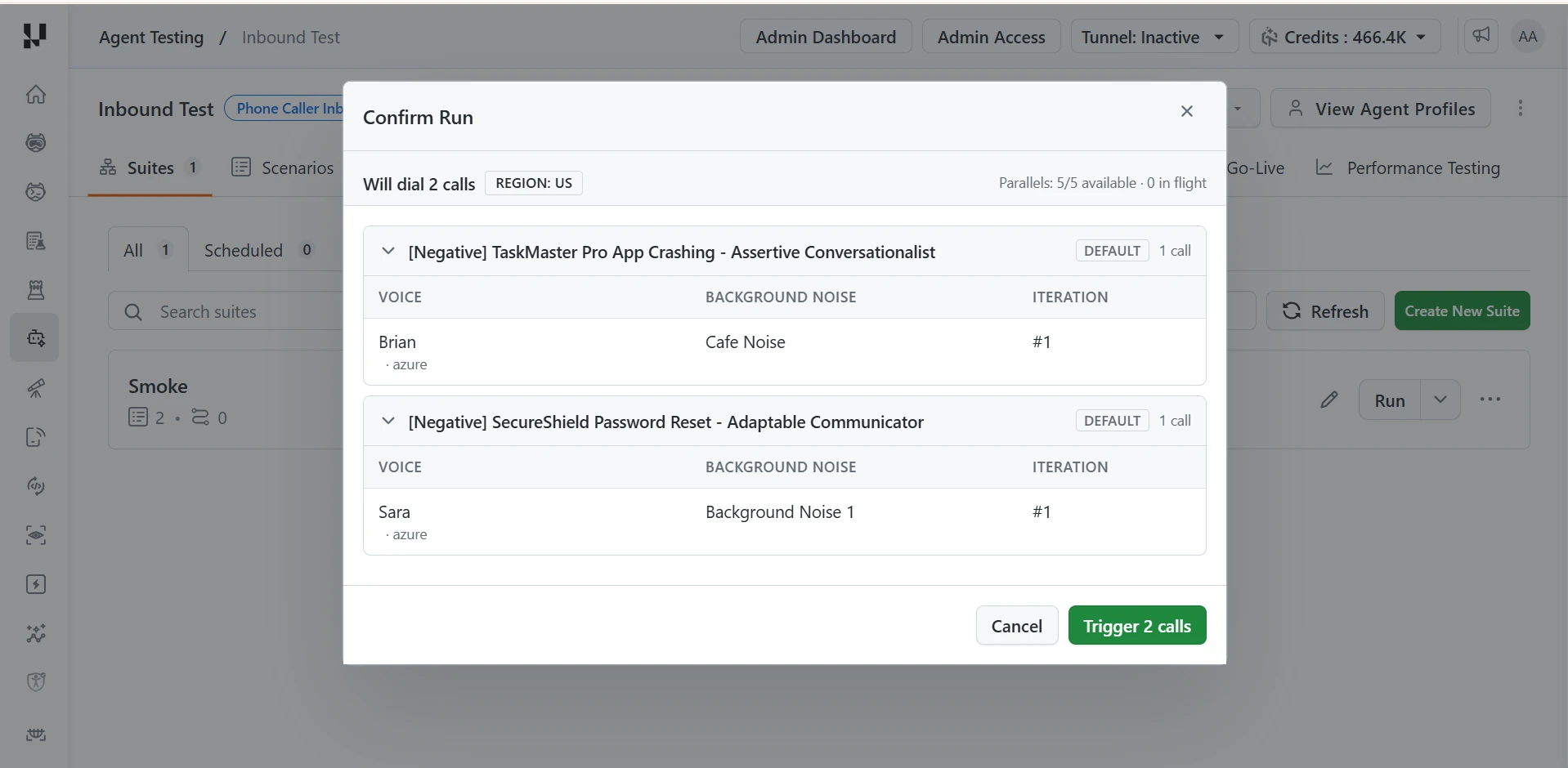
Step 6: Run the suite. Click Run next to your suite. Every call in the suite is a real phone call to your agent, so the Confirm Run dialog lists each one before anything is dialed. Check that the number of calls and each call's voice and background noise are what you intended, then click the trigger button, such as Trigger 2 calls, to start.
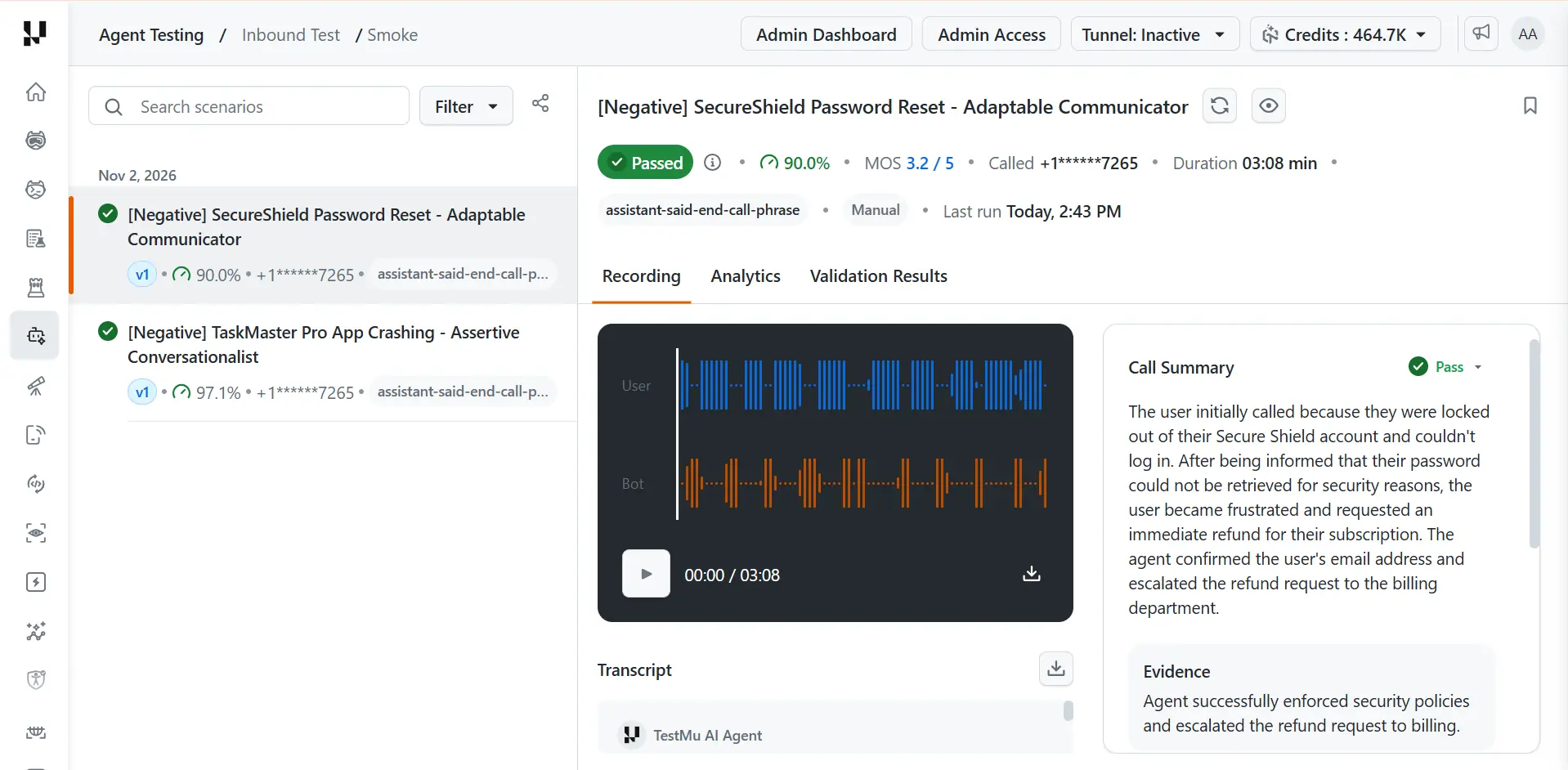
Step 7: Review the call results. Open a call from the list to see whether it passed and why.
- Start with failed calls. On the Analytics tab, click a metric tile to see the reason behind its result. Times in the reason, such as "At 01:38", jump to that moment in the recording.
- On the Recording tab, play the call or read the transcript around that moment to hear how your agent handled it.
- On the Validation Results tab, check which of the scenario's success criteria the call met or missed.
- If a call failed but its conversation metrics look fine, check the MOS badge. A call's pass or fail can be based on the metrics, on the mean opinion score of the call audio, or on both.
For what each metric measures and its default targets, see the phone agent metrics.
Pre-Evaluation: Live Test Calls
In pre-evaluation, the platform simulates customers calling your voice agent, then evaluates the resulting conversations.
Phone Number Management. Register the numbers your agent answers on, with country code selection (20+ countries), a default number, masked display, and edit or delete.
Scenario Management. Generate up to 20 inbound scenarios with configurable personas, languages, and special instructions, or create them manually. Choose from available personas or create custom ones.
Voice Configuration (per scenario). Select a voice from the library with audio preview, enable one of 15 background-noise presets, set the response timing (0.5 to 5.0 seconds) and a maximum call duration (60 to 1800 seconds), and choose who speaks first.
Agent Profiles. Create reusable caller personas with name, phone number, voice, and background noise, stored in an organization-level library with an active or inactive toggle.
Test Suites. Group scenarios with per-scenario voice and phone configuration, associate test and agent profiles, and run the whole suite with one action.
Call Execution and Monitoring. Initiate live test calls, track status in real time, watch a live duration counter, and terminate a call in progress.
Custom Metrics. Define plain-language checks for your own business rules. Each check is graded Yes / No or on a 0 to 100 rating from the call transcript and returns an explanation, a quote as evidence, and timestamps. See custom metrics for phone agents.
Voice Platform Integrations. For agents on ElevenLabs, Retell, or Vapi, connect the platform in the Integrations tab to import the agent's prompt and tool catalog and to mark each expected tool Called or Not Called after every test call. See the integration setup for ElevenLabs, Retell, or Vapi. For Salesforce Agentforce voice agents, see the Agentforce integration.
Performance Testing. Hold a target number of concurrent calls to your agent and see where response latency and reliability degrade as load rises. See phone agent performance testing.
Post-Evaluation: Recording Analysis
In post-evaluation, you upload recordings from real production calls and score them with the same metrics, without placing new calls.
Voice Analytics. Upload production recordings (MP3, WAV) and transcripts, analyze them in parallel batches, select which metric categories or individual metrics to run, and bookmark, tag, search, and filter recordings.
Recording Playback. Play any call with play, pause, and duration controls, follow a speaker-identified transcript, see DTMF keypad inputs (0 to 9, star, pound) captured in the transcript, and download the audio and transcript.
Shared Across Both Modes
Go-Live Assessment. Get a Green (score at least 80), Yellow (65 to 79), or Red (below 65) verdict, with confidence based on call volume, dimension scores, scenario coverage, failure pattern analysis, validation-criteria compliance, and prioritized action items.
Metric Configuration. Select which metric categories or individual metrics to run per project.
Scheduled Runs. Automate runs with cron-based scheduling, IANA timezones, pause and resume, and run history.
Metrics
Inbound calls are scored on the same 42 metrics as every phone agent, grouped under six questions: is it fast, does it sound good, does it hold a good conversation, does it get the facts right, does it get the job done, and is it safe. They range from Time to Connect and Average Latency to Mean opinion score, First call resolution, and PII protection.
For what each metric measures, how it is produced, and its default targets and ratings, see the phone agent metrics.
Related TestMu AI Guides
- See the phone agent testing overview for both testing modes.
- See the full list of phone agent metrics with their default targets and ratings.
- See how to test an outbound phone agent.
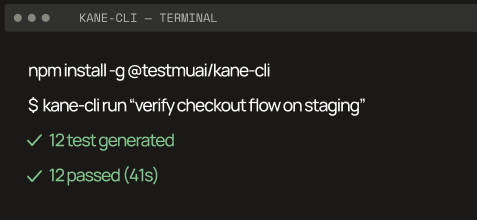
- See how to run these tests from the terminal with the A2A CLI.
- See how to grade your own business rules with custom metrics.
- See how to connect ElevenLabs, Retell, Vapi, or Salesforce Agentforce agents for tool call validation.
- See how to load test a phone agent with concurrent calls.

 Chat with Us