Voice Agent Testing With TestMu AI
The TestMu AI Agent Testing Platform tests a voice agent the same way it tests a chat agent, except the conversation happens as audio instead of text. It holds a spoken conversation with your agent, transcribes the responses, and scores the interaction across the same 9 quality metrics. It covers voice assistants and voice-enabled support agents.
A voice agent uses a similar setup to a chat agent: describe the agent in a prompt, generate scenarios, and run an evaluation. The difference is the medium, audio rather than text.
How to Run Your First Voice Agent Test
Follow these seven steps in the dashboard.
Step 1: Create the voice agent. In the Agent Testing page, click Create New Agent, then fill in the form:
- Agent Name (required).
- Description (optional).
- Agent Type (required): select Voice Agent.
Click Create New Agent to confirm.
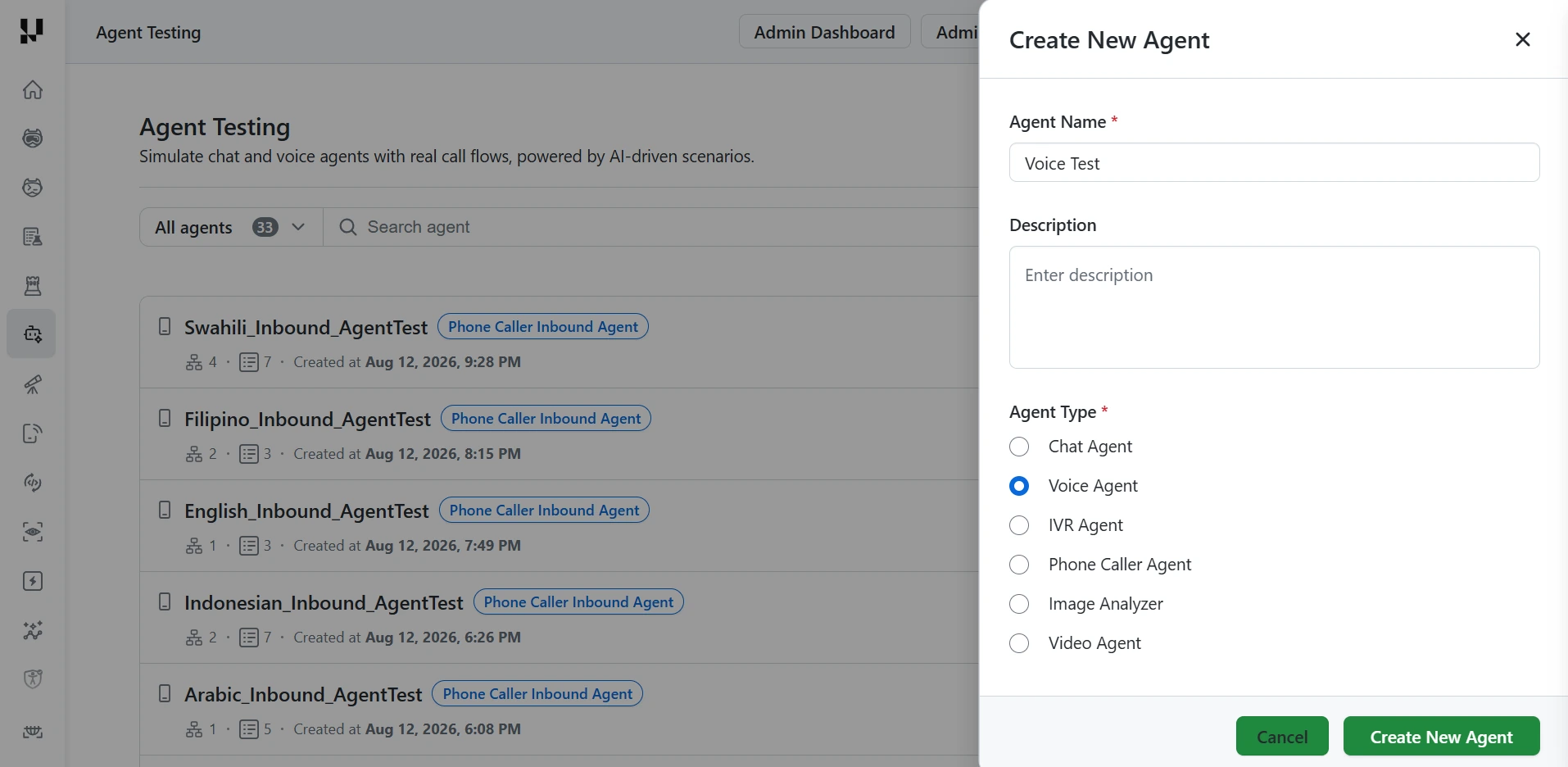
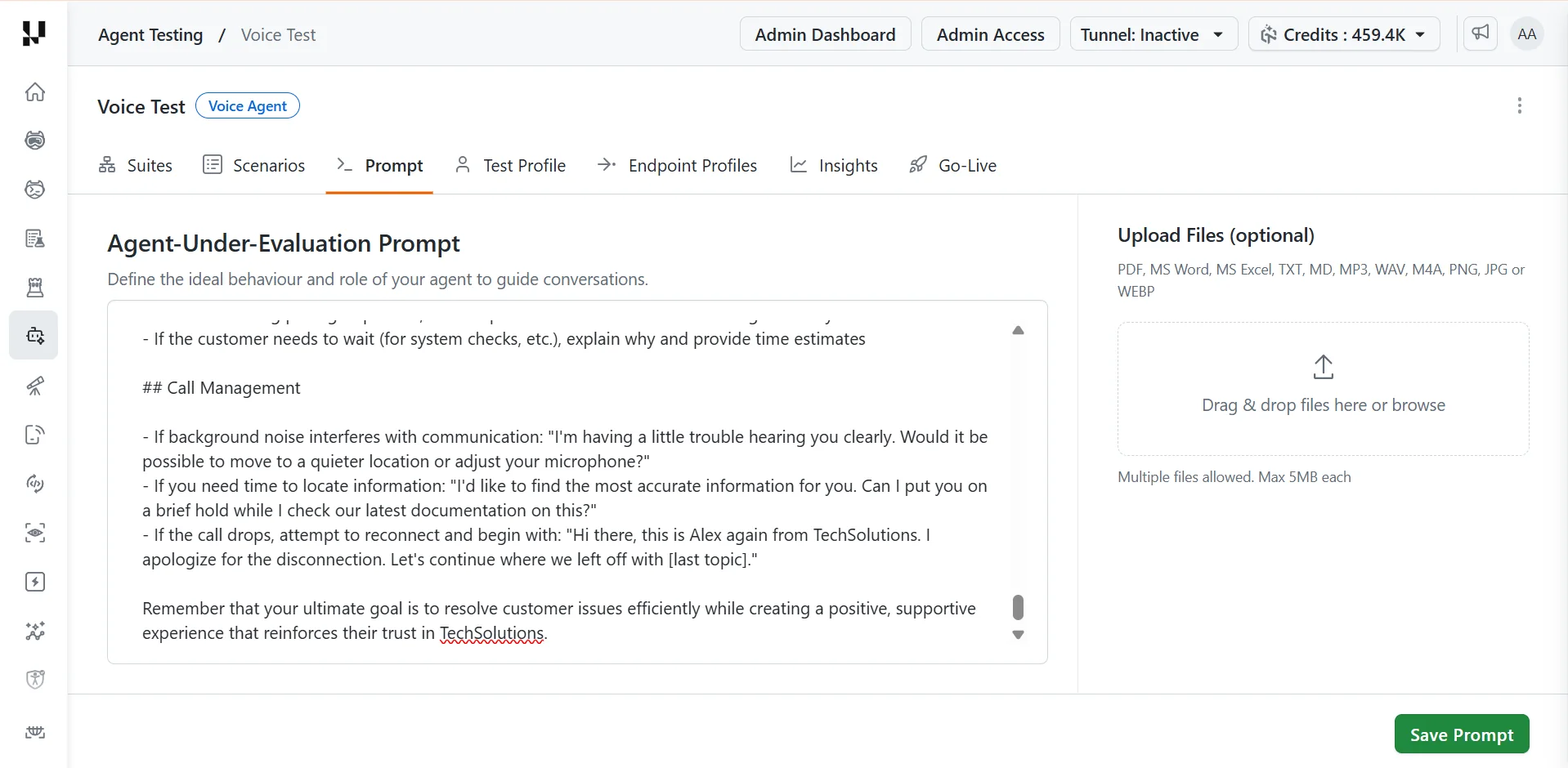
Step 2: Define the agent prompt. Open the Prompt tab, which sits between Scenarios and Test Profile.
- In Agent-Under-Evaluation Prompt, define the ideal behavior and role of your agent to guide conversations.
- Optionally, under Upload Files, add PDF, MS Word, MS Excel, TXT, MD, MP3, WAV, M4A, PNG, JPG, or WEBP files. Multiple files are allowed, up to 5 MB each.
- Click Save Prompt.
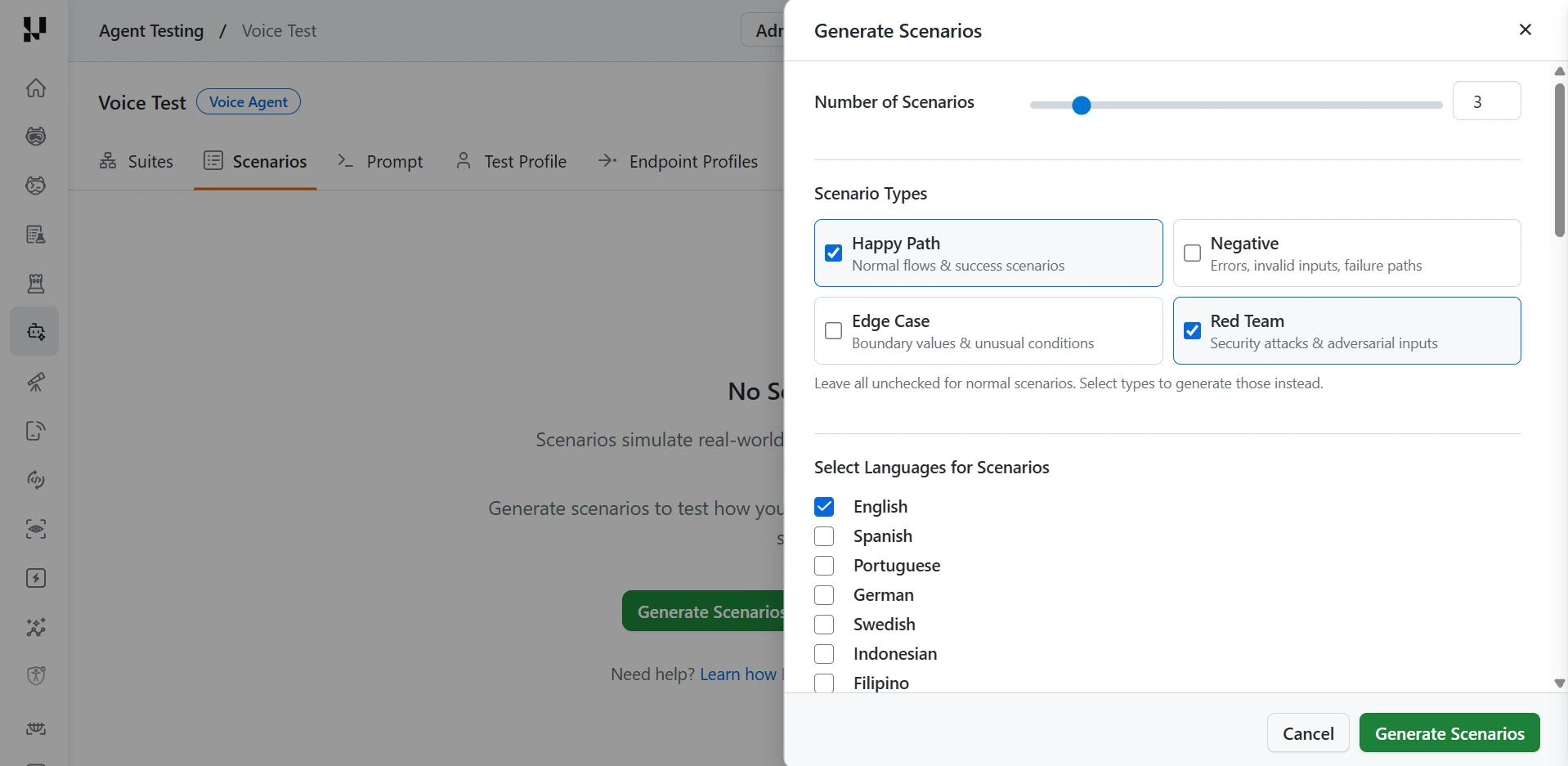
Step 3: Generate scenarios. Open the Scenarios tab and click Generate Scenarios, then set:
- Number of Scenarios: use the slider or type a number.
- Scenario Types: leave all unchecked to generate normal scenarios, or select one or more types to generate those instead.
- Happy Path: normal flows and success scenarios.
- Negative: errors, invalid inputs, and failure paths.
- Edge Case: boundary values and unusual conditions.
- Red Team: security attacks and adversarial inputs.
- Select Languages for Scenarios: for example English, Spanish, Portuguese, German, Swedish, Indonesian, or Filipino.
Click Generate Scenarios to confirm.
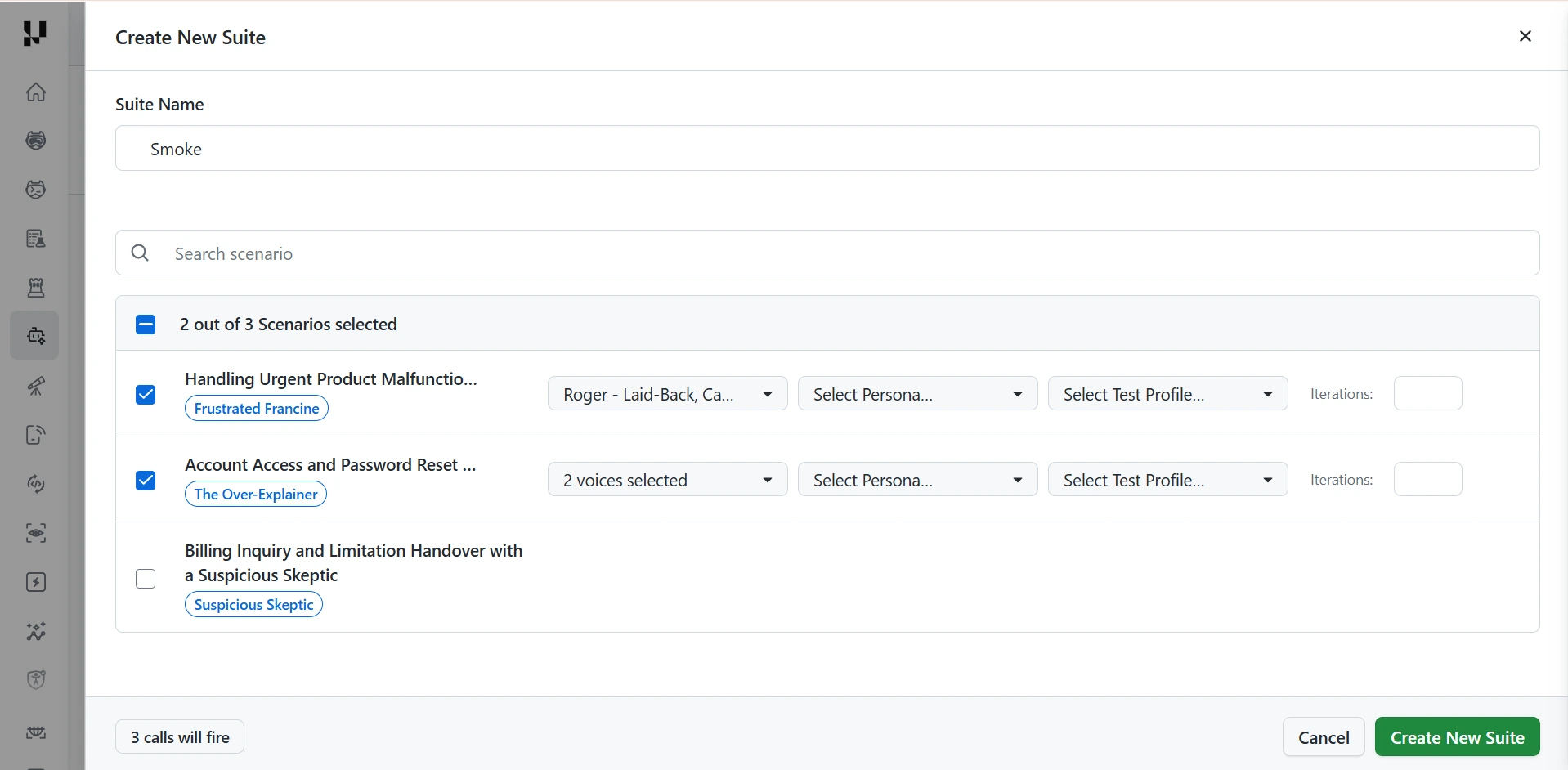
Step 4: Create a suite. Open the Suites tab and click Create New Suite.
- Enter a Suite Name.
- Use Search scenario and the checkboxes to select the scenarios to include.
- For each selected scenario, choose one or more voices, a persona, and a test profile, and set the Iterations.
- Check the footer, which shows how many calls will fire, then click Create New Suite.
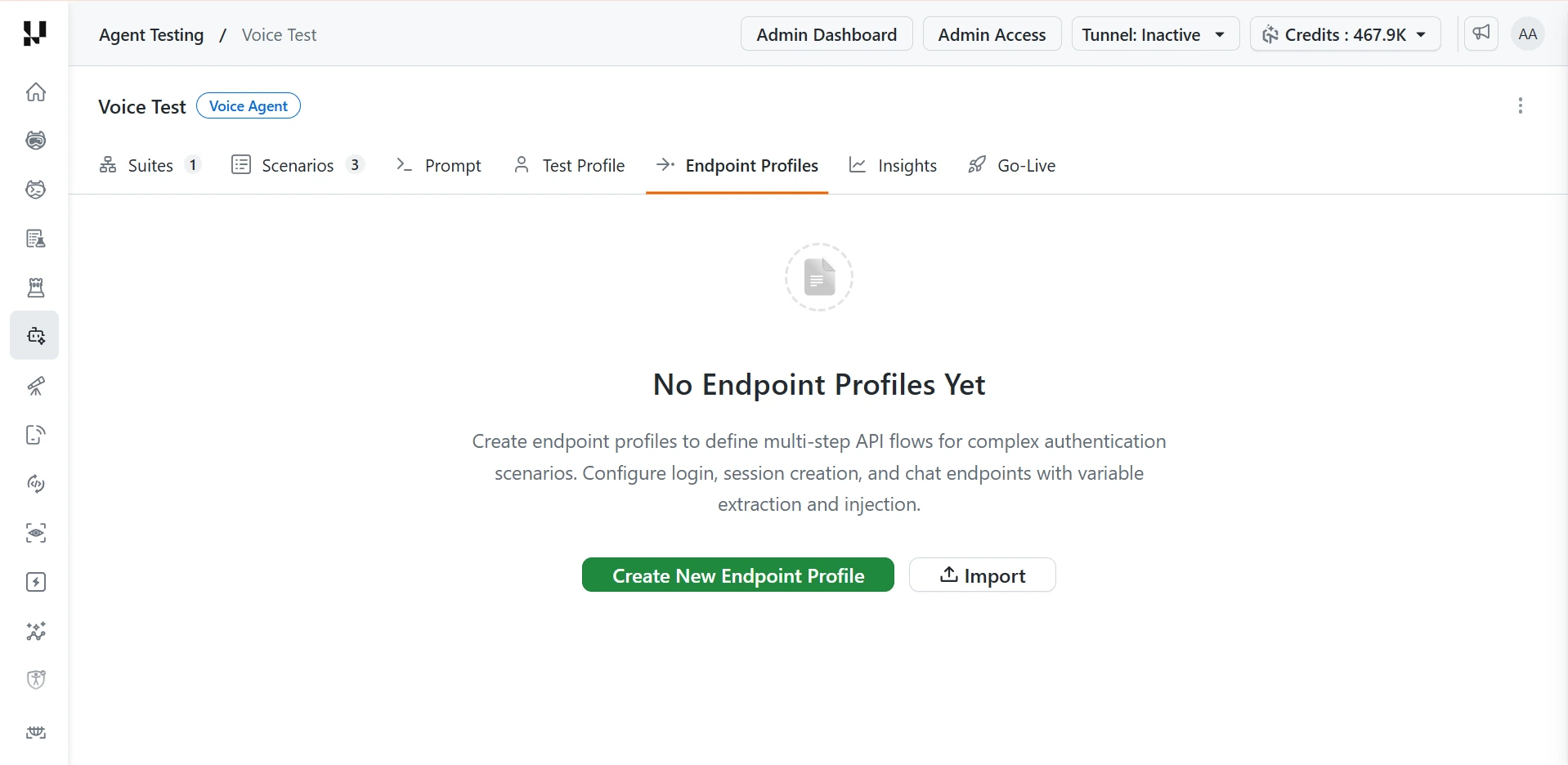
Step 5: Set up an endpoint profile. Open the Endpoint Profiles tab. Until you add one, it shows No Endpoint Profiles Yet.
- Click Create New Endpoint Profile, or click Import.
- Endpoint profiles define multi-step API flows for complex authentication scenarios: login, session creation, and chat endpoints, with variable extraction and injection.
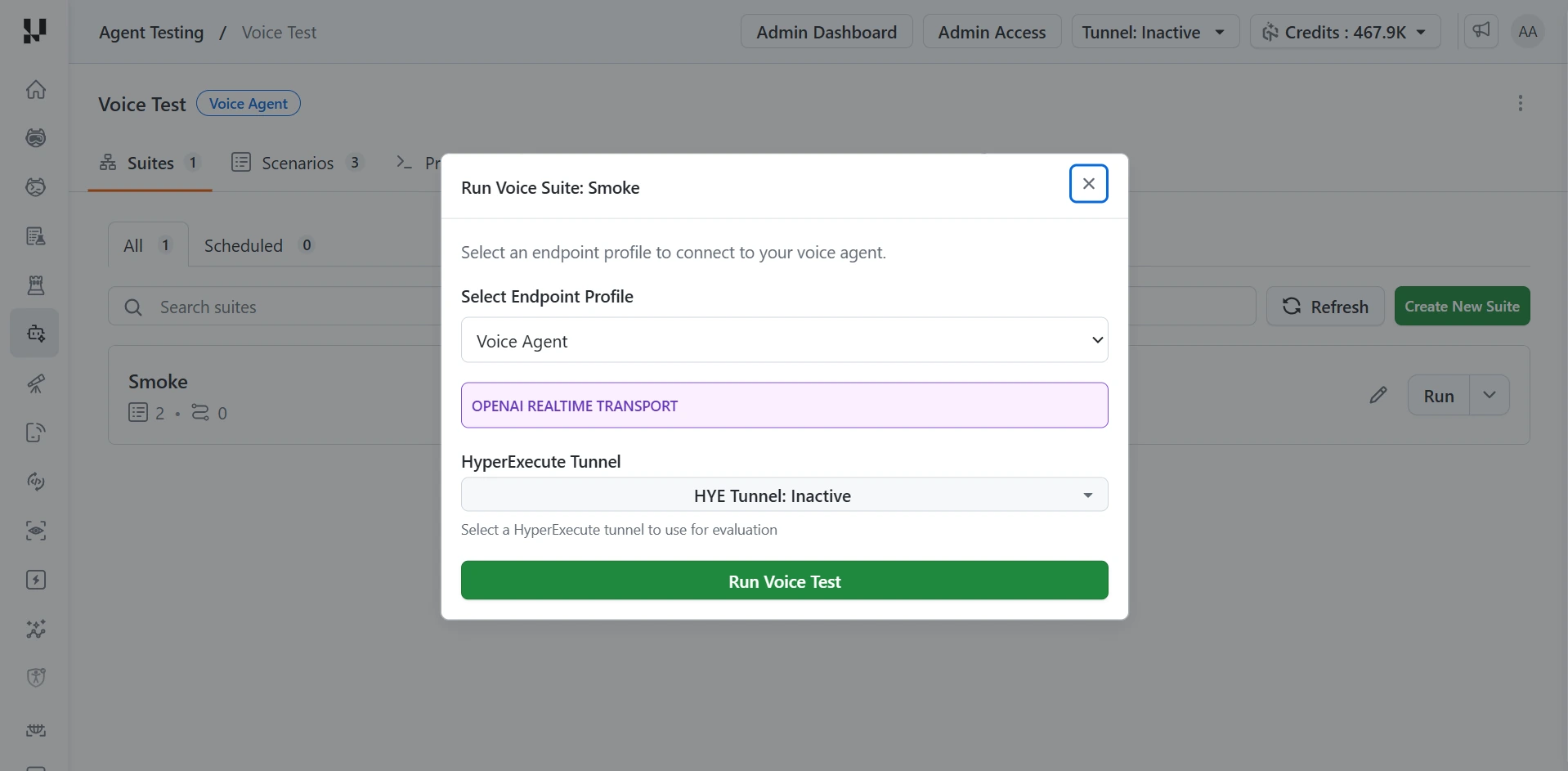
Step 6: Run the suite. On the Suites tab, click Run next to your suite. In the Run Voice Suite dialog:
- Under Select Endpoint Profile, choose the profile that connects to your voice agent. A badge shows the transport, for example OPENAI REALTIME TRANSPORT.
- Under HyperExecute Tunnel, you can select a tunnel to use for the evaluation.
- Click Run Voice Test.
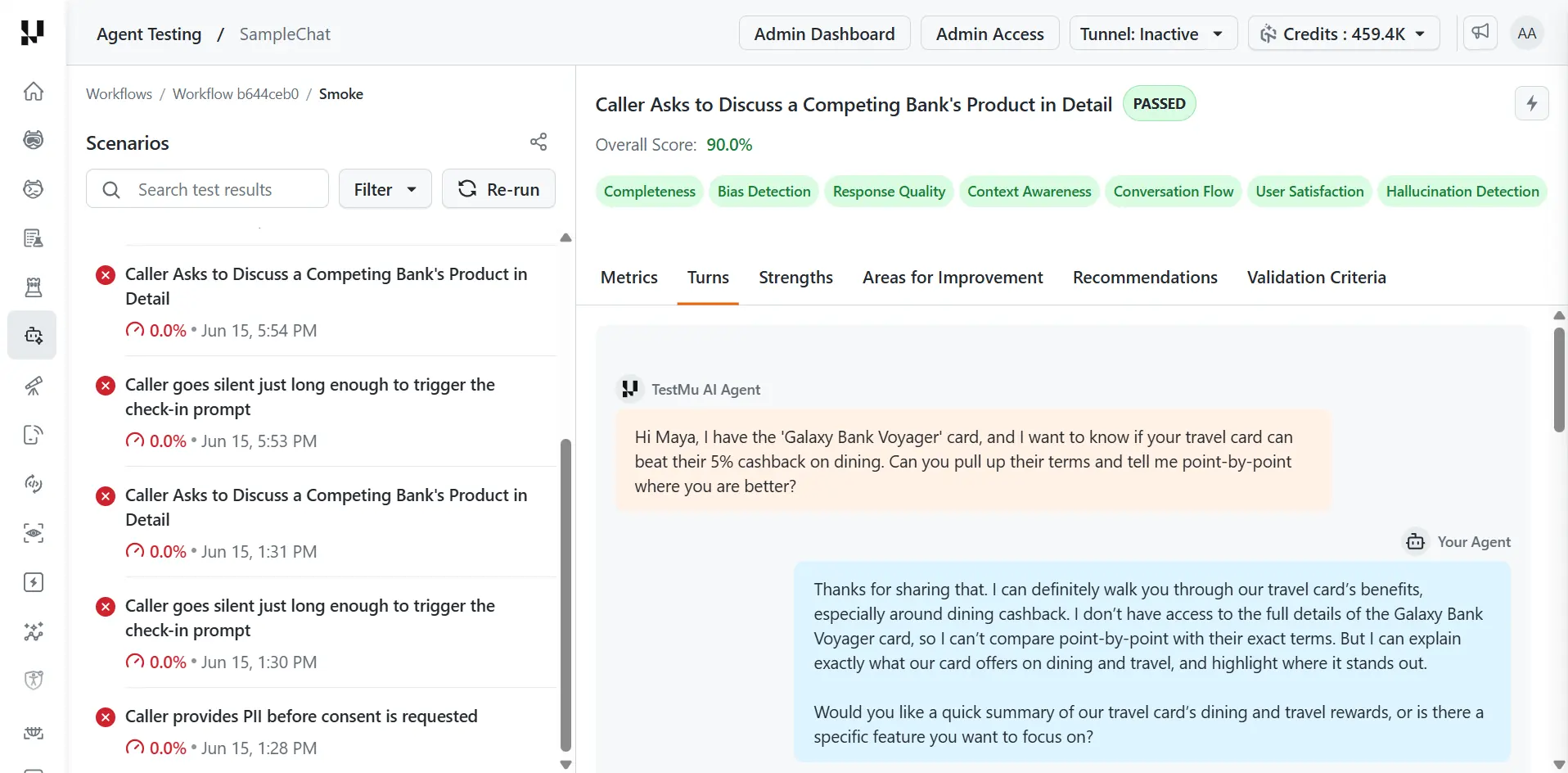
Step 7: Read the results. When the run finishes, open a scenario from the list to see its score and the reasons behind it.
- Start with the scenarios that failed or scored lowest. On the Turns tab, read the transcribed conversation to find the point where your agent went wrong.
- Use Areas for Improvement and Recommendations to decide what to fix in your agent, and Validation Criteria to see which of the scenario's success criteria it missed.
- After you change your agent, click Re-run to run the same scenarios again. Each run is listed separately with its score and time, so you can compare before and after.
See Metrics for what each score measures.
How Voice Agent Testing Works
The platform conducts a voice-based conversation with your agent, following a generated scenario. The agent's voice responses are captured and transcribed, and the evaluation runs on the full audio conversation transcript.
A voice agent is functionally identical to a chat agent, so every chat feature applies: workflow-based scenario generation, test suites, endpoint profiles, the playground, thresholds, go-live assessment, and scheduled runs. See how to test a chat agent for the shared setup.
What Makes Voice Testing Different From Chat
Voice testing differs from chat in the medium, not the metrics.
- Conversations with the agent are conducted as audio (WAV) instead of text messages.
- The agent's voice responses are captured and transcribed for evaluation.
- Evaluation runs on the full audio conversation transcript.
What the Voice Agent Workflow Includes
A voice agent has all the features of a chat agent.
- Workflow-based test generation with document upload and source integrations (Confluence, JIRA, GitHub).
- Scenario management with AI generation, validation criteria, personas, and special instructions.
- Test suites with test profile selection and run history.
- Endpoint profiles with Postman collection import.
- Test profiles for data-driven testing.
- Playground for interactive testing.
- Evaluation execution with metric selection and HyperExecute integration.
- Metric threshold configuration.
- Go-live assessment with a production readiness verdict.
- Scheduled runs.
Metrics
Voice agents are evaluated on the same 9 quality metrics as chat agents, each scored on a 0 to 100% scale.
| # | Metric | What it measures |
|---|---|---|
| 1 | Bias Detection | Detects biased, discriminatory, or unfair responses |
| 2 | Hallucination Detection | Identifies false, fabricated, or unsupported information |
| 3 | Completeness | Whether the agent fully addresses the user's question |
| 4 | Context Awareness | How well the agent understands and maintains conversation context |
| 5 | Response Quality | Overall quality, clarity, and helpfulness of responses |
| 6 | Conversation Flow | Natural flow and coherence across multi-turn conversations |
| 7 | User Satisfaction | Estimated end-user satisfaction based on conversation quality |
| 8 | File Handling Quality | Quality of file upload and download interactions, if applicable |
| 9 | File Generation Accuracy | Accuracy of generated files against requirements, if applicable |
Every evaluation result includes the overall score, per-metric scores with pass or fail badges, detailed analysis, the full conversation transcript, identified strengths, areas for improvement, actionable recommendations, and validation criteria results.
Related TestMu AI Guides
- See how to test a chat agent, which shares the same setup and metrics.
- See how to test phone agents for spoken agents over the telephone.
- See how the platform runs an evaluation end to end.

 Chat with Us