Conditional Logic (If / Else‑If / Else) in KaneAI
Introduction
KaneAI supports conditional branching in your test cases using If / Else‑If / Else blocks. This lets you handle dynamic application behavior, for example, clicking a login button only when it is visible, or choosing between different checkout flows based on a variable value.
Each branch can contain multiple steps, including regular actions, modules, JavaScript, API, and DB steps, giving you full flexibility to build complex, real‑world test scenarios.
How It Works
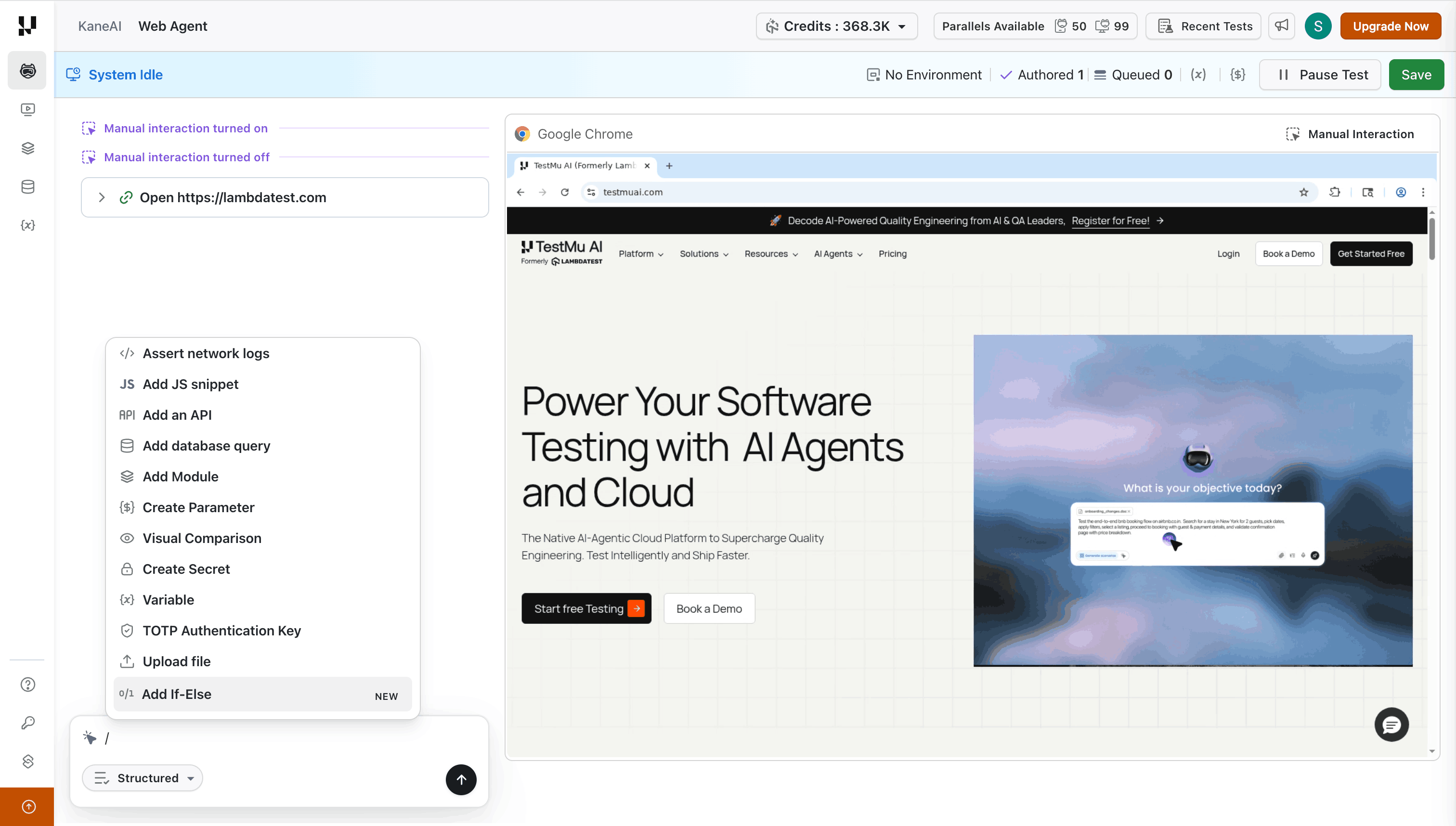
- Insert a conditional block from the / slash command menu while your session is in the Authoring Steps state.
- Define a condition using variables and comparison operators.
- Optionally add Else‑If branches for additional conditions.
- Add steps, including modules, JS, API, and DB steps, inside each branch.
- During authoring, only the branch whose condition is true gets executed. Steps in the remaining branches are queued.
- In automation, KaneAI evaluates the conditions top‑to‑bottom at runtime and executes the first matching branch automatically.
A conditional block can only be inserted while the session is in Authoring Steps, because KaneAI needs a live session to analyze the condition. Adding a conditional block while the session is Paused is not currently supported. Conditional blocks that already exist in the test can still be extended while paused, for example by adding an Else‑If branch.
Prerequisites
- A KaneAI session in the Authoring Steps state. Conditional blocks cannot be inserted while the session is Paused.
- Variables or element states available to build your conditions (e.g., smart variables, global variables, or extracted values).
Step‑by‑step Guide
Step 1: Add a Conditional Block
- In your authoring session, press / to open the slash command menu.
- Select Add If-Else option.
- KaneAI inserts an If / Else block into your test flow.
Step 2: Define the Condition
Click the If header to open the condition editor. You can define conditions in two ways. Toggle between them using the switcher icon (&&).
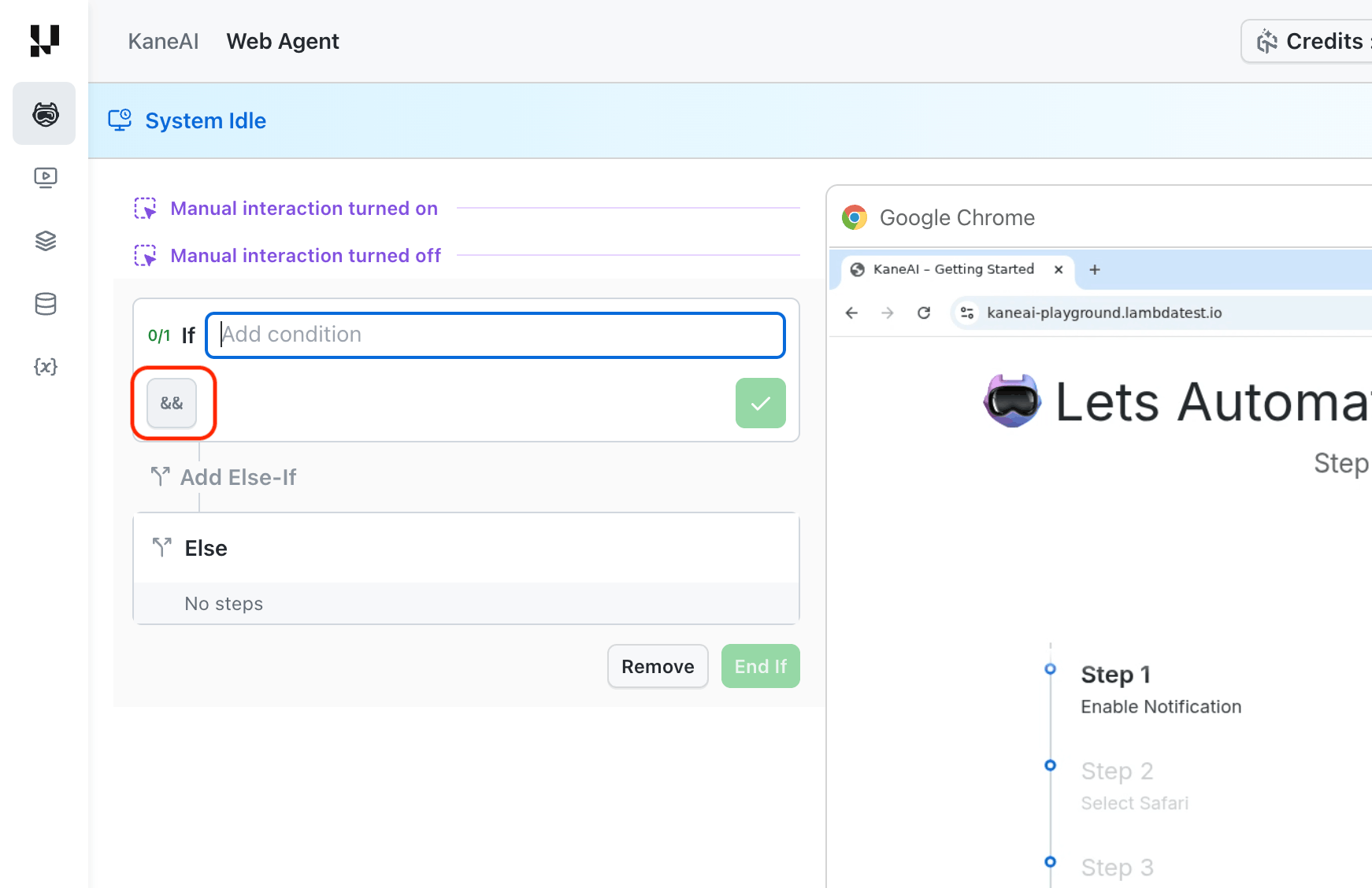
Option A: Natural Language
Type your condition as a plain-English sentence (e.g., "login button is visible"). KaneAI interprets the intent and evaluates it at runtime.
Option B: Operand & Operator
Build the condition explicitly using left operand, operator, and right operand:
- Enter a left operand: this can be a variable (e.g.,
{{login_button_visible}}), extracted text, or a literal value. - Choose a comparison operator from the dropdown:
| Operator | Description |
|---|---|
== | Equals |
!= | Not equals |
> | Greater than |
< | Less than |
>= | Greater than or equal to |
<= | Less than or equal to |
contains | Left operand contains the right operand |
not_contains | Left operand does not contain the right operand |
starts_with | Left operand starts with the right operand |
ends_with | Left operand ends with the right operand |
- Enter the right operand (e.g.,
true, a number, or another variable).
Adding Multiple Conditions
You can combine conditions using AND / OR logic:
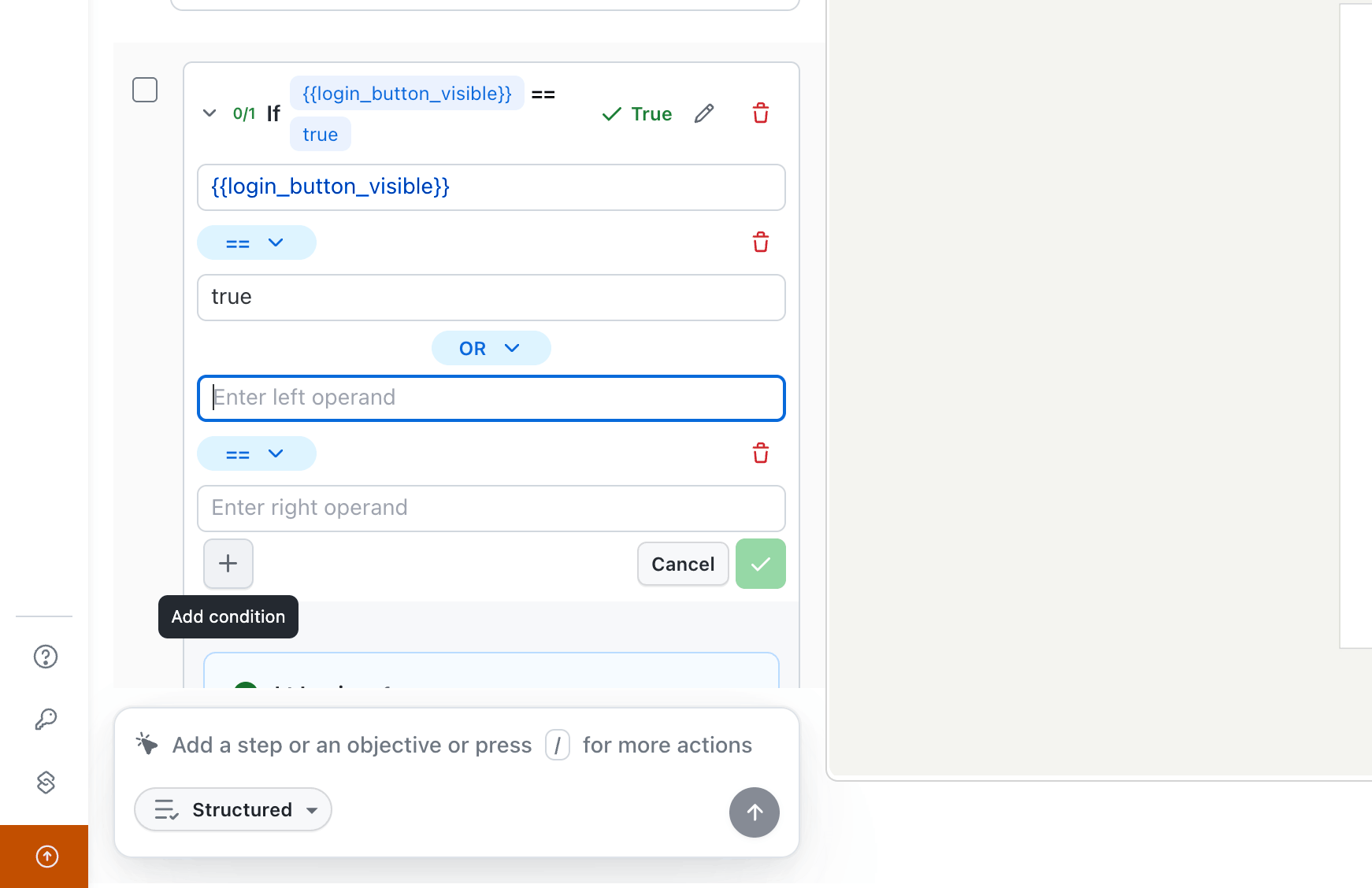
- After defining the first condition, click the + button (labeled Add condition).
- Toggle the logical operator between AND and OR using the dropdown.
- Fill in the additional condition's operands and operator.
- Click the green checkmark to confirm.
Step 3: Add Steps Inside a Branch
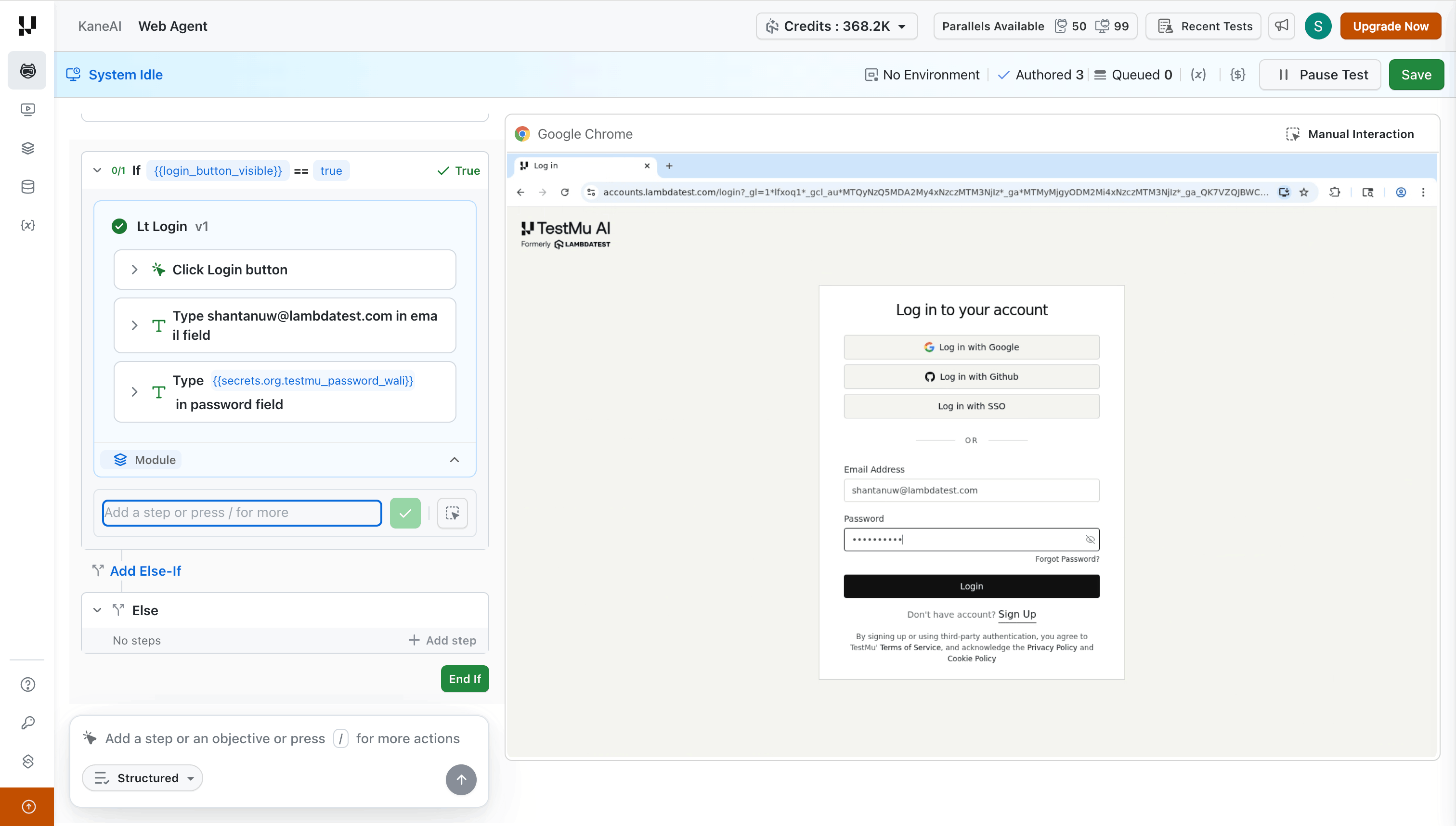
Each branch (If, Else‑If, Else) supports multiple steps. You can add:
- Regular test steps: type your instruction in the step input field.
- Modules: reuse existing modules by adding them inside any branch.
- JavaScript steps: execute custom JS within a branch.
- API steps: make API calls as part of a conditional flow.
- DB steps: run database queries conditionally.
Use the step input field or press / inside a branch to access the slash command menu.
Where steps land inside a block
The cursor decides which branch a new step belongs to. Inside an If / Else‑If / Else block it can sit at any step boundary:
| Cursor position | Allowed | The inserted step lands |
|---|---|---|
| Between two steps inside a branch | Yes | Inside that branch, at that point |
| Immediately after a branch header | Yes | As the first step of that branch, including empty branches |
| Immediately before the next branch header or End if | Yes | As the last step of that branch |
| Before the If header | Yes | Outside the block, above it |
| After End if | Yes | Outside the block, below it |
| On a condition row | No | The cursor snaps to the nearest valid position |
For the full set of cursor rules, see Cursor in conditional blocks.
Step 4: Add Else‑If Branches
To handle additional conditions beyond the initial If:
- Click Add Else‑If between the If and Else blocks.
- Define the condition for the new branch (same process as Step 2).
- Add steps inside the Else‑If block.
- Repeat to add as many Else‑If branches as needed.
During authoring only one condition can be true at a time, so only the matching branch's steps are executed. Steps under the remaining branches take the Queued (branch) status. These do not count towards the unverified total when you save, because they verify whenever their branch matches. When the test runs in automation, all branches are evaluated automatically and the first matching branch is executed.
Step 5: Add Steps to the Else Branch
The Else block executes when none of the preceding conditions are met. Click + Add step inside the Else block and add your fallback steps.
Step 6: Close the Block
Click End If at the bottom of the conditional block to finalize it. You can then continue adding steps after the conditional block as usual.
Using Modules Inside Conditional Branches
You can embed entire modules within any branch of a conditional block. This is useful for reusing login flows, setup routines, or shared workflows that should only run under specific conditions.
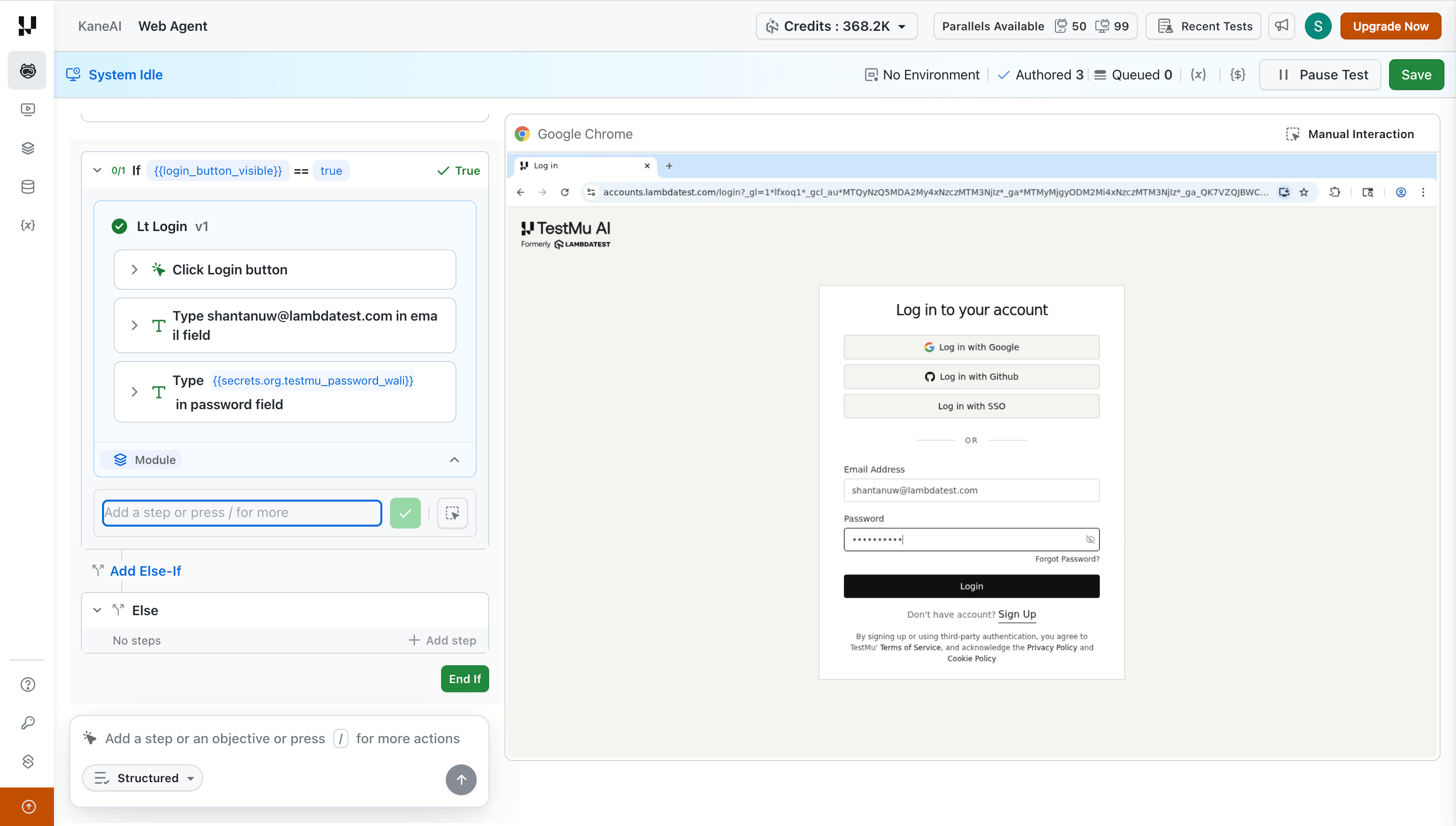
To add a module inside a branch:
- Click into the step input field within the branch.
- Press / and select the module you want to add, or type your instruction.
- The module and its steps appear inline within the branch.
Tips and Recommendations
- Keep conditions simple. Use clear, single‑purpose comparisons. Combine with AND / OR only when necessary.
- Use variables for dynamic values. Store extracted values or API responses in variables, then reference them in your conditions.
- Leverage modules for reusable logic. Instead of duplicating steps across branches, create a module and embed it.
- Test each branch independently. During authoring, verify that each branch executes the correct steps before saving.
Running a Conditional Block
A conditional block executes as a single unit. You can insert a step anywhere inside a branch, but you cannot run that step on its own.
- The block header carries a single Run block control. It evaluates the conditions and runs the branch that matches, to completion. Execution then continues past the block.
- Steps inside a branch have no individual run control. Anything that would run an interior step runs the whole block instead.
- When a run range passes over the block, the block runs as a whole in sequence. Steps in the matching branch become Verified; steps in the branches that did not match stay Queued (branch).
- If a run targets a step that turns out to be in a non‑matching branch at runtime, execution stops at the end of the block and you are told Target step was in a non-matching branch.
- If a step errors while the block runs, the session pauses with the Error flag and everything after the errored step is blocked until it is resolved.
See Blocks run as a unit for how this compares with While loops, generative instructions, and modules.
Limitations
- Nested conditions are not supported. You cannot place an If / Else‑If / Else block inside another conditional block. Inserting one while the cursor is inside a branch is refused with an explanation.
- New conditional blocks cannot be created while the session is Paused. The / slash command menu does not offer Add If-Else in that state. Conditional blocks that already exist in the test can still be extended while paused.
- Steps inside a branch cannot be run individually. Use the Run block control on the block header.
- Conditional blocks are read-only on the Modules page. In the Classic experience, a module can contain a conditional block, but changes to it must be made in the KaneAI test case it was authored from. Modules containing conditional blocks cannot be added to manual test cases in Test Manager.
FAQ
Can I add an Else‑If branch after I have already authored the test?
Yes. On a conditional block that already exists in your test, you can add Else‑If branches, including while the session is Paused. What you cannot do while paused is create a new conditional block, because Add If-Else is not offered in the / slash command menu in that state.
Can I run a single step inside a branch?
No. Conditional blocks execute as a whole through the Run block control on the block header. If you add a step inside a branch, run the block to verify it — the condition is evaluated and the matching branch runs in real context. Steps inside a module are the exception and do run individually.
How many Else‑If branches can I add?
You can add up to 5 Else‑If branches per conditional block.
Can I use modules, JS, API, and DB steps inside every branch?
Yes. All branch types (If, Else‑If, and Else) support the full range of step types including modules, JavaScript, API, and DB steps.
Are nested If / Else blocks supported?
No. Nested conditional blocks are not supported. If you need complex branching, consider splitting the logic across multiple test cases or using Else‑If branches instead.


 Chat with Us