Upload and Download Files in KaneAI
This guide provides a step-by-step process for uploading and downloading files within Kane AI, a cloud-based testing platform provided by TestMu AI. Users can easily upload files from their local system, access pre-uploaded files, and download files generated during a test session.
Prerequisites
- A valid TestMu AI account with access to Kane AI.
- An active test session on Kane AI.
- Supported file formats:
- Images : JPG, JPEG, PNG, GIF (Maximum size: 10 MB)
- Videos : MP4 (Maximum size: 50 MB)
- Files : XLS, XLSX, DOC, DOCX, PDF, CSV, TXT, CRT, CER, GED, GPX, XML, PBIX, ZIP, JSON (Maximum size: 15 MB)
Steps to Upload a File
Step 1: Initiate a Test Session
- Log in to your TestMu AI account.
- Click on Create a Web Test to start a new session within Kane AI.

Step 2: Navigate to the Upload Section
- Within the test session, navigate to the specific webpage where file uploads are required.
- Type a
slash (/)to access the file selection menu.

Step 3: Select Files for Upload
- Choose to either:
- Select from pre-uploaded files.
- Upload files from your local system.
- Ensure the upload limit does not exceed 5 files per session.
- Supported file formats:
- Images : JPG, JPEG, PNG, GIF (Maximum size: 10 MB)
- Videos : MP4 (Maximum size: 50 MB)
- Files : XLS, XLSX, DOC, DOCX, PDF, CSV, TXT, CRT, CER, GED, GPX, XML, PBIX, ZIP, JSON (Maximum size: 15 MB)
- Click Add File to confirm your selection.
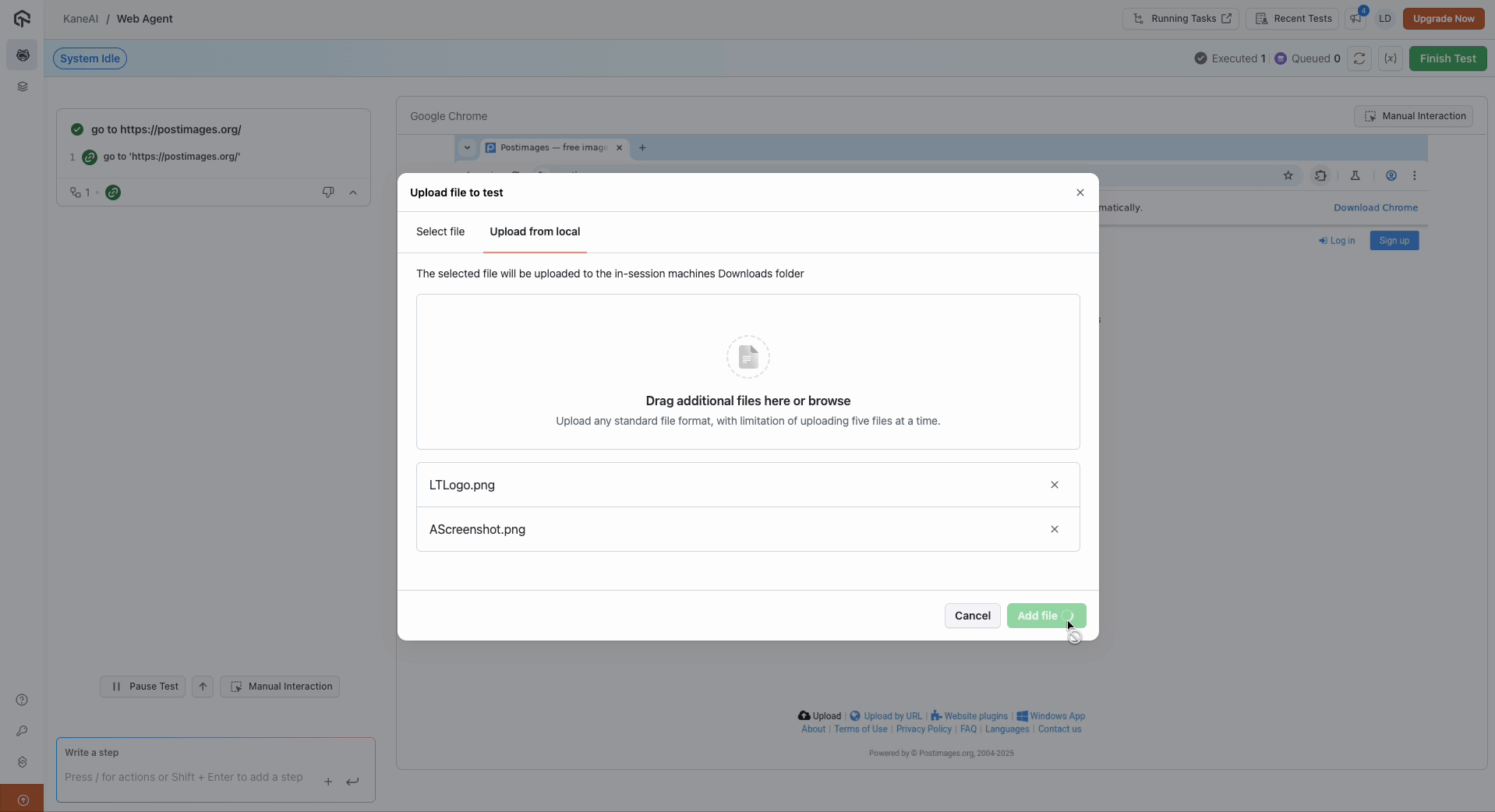
Step 4: File Upload Process
- Upon clicking Add File, the selected files are uploaded successfully to the downloads folder within the session.
- These files are treated as variables and their paths are dynamically assigned.
- These variables are named with prefix
FILE_
The FILE_ variable behavior described above applies to Web tests. In App tests no file variable is created. See File Upload in App Tests below for more information.
Step 5: Accessing Uploaded Files
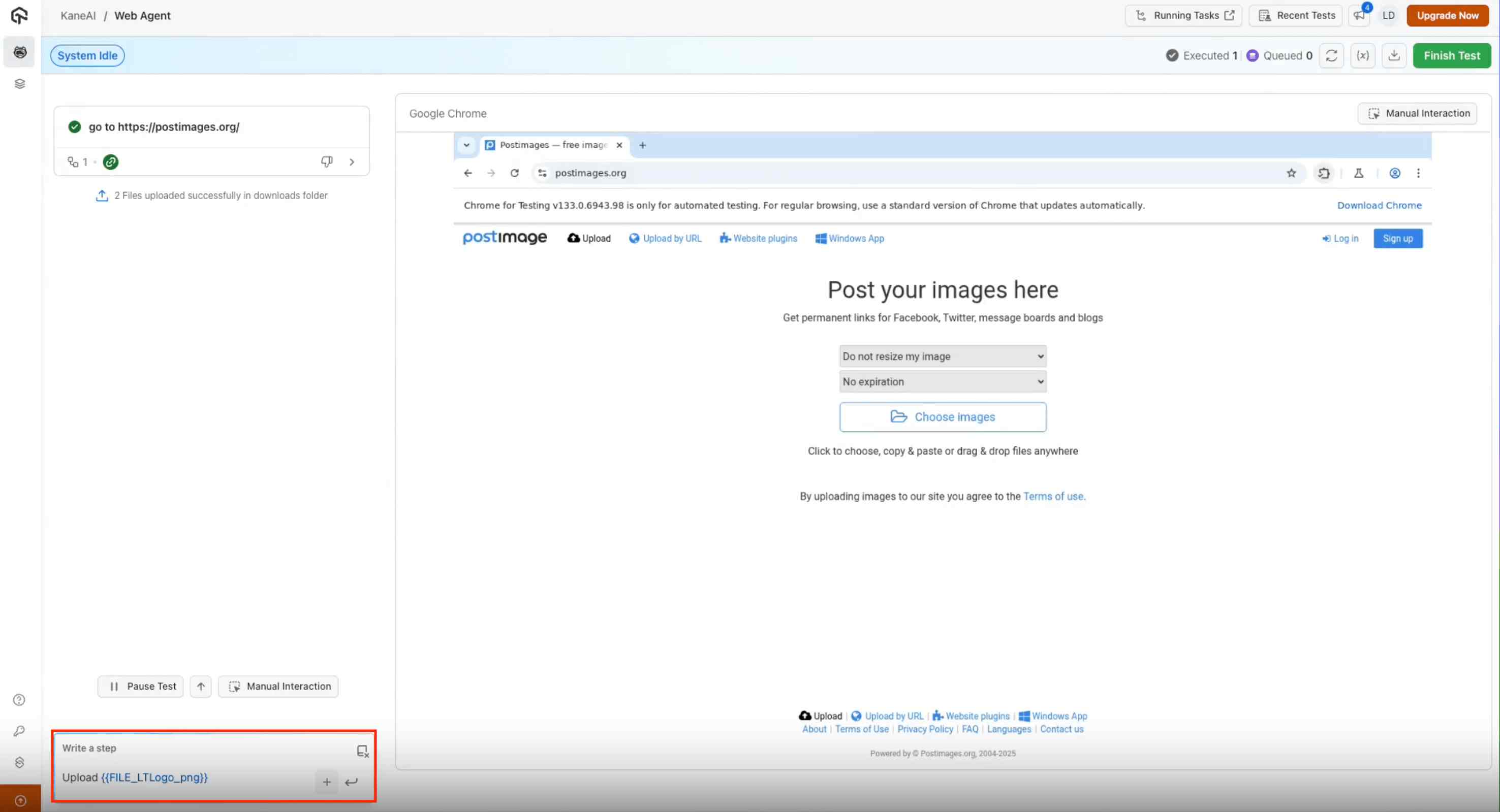
- In the test environment, type upload in the command field.
- Select the required file from the available list using double-curly braces syntax (e.g.,
upload {{FILE_IMAGE_1_PNG}} in upload section). - Kane AI will detect the appropriate action for uploading and provide relevant options.
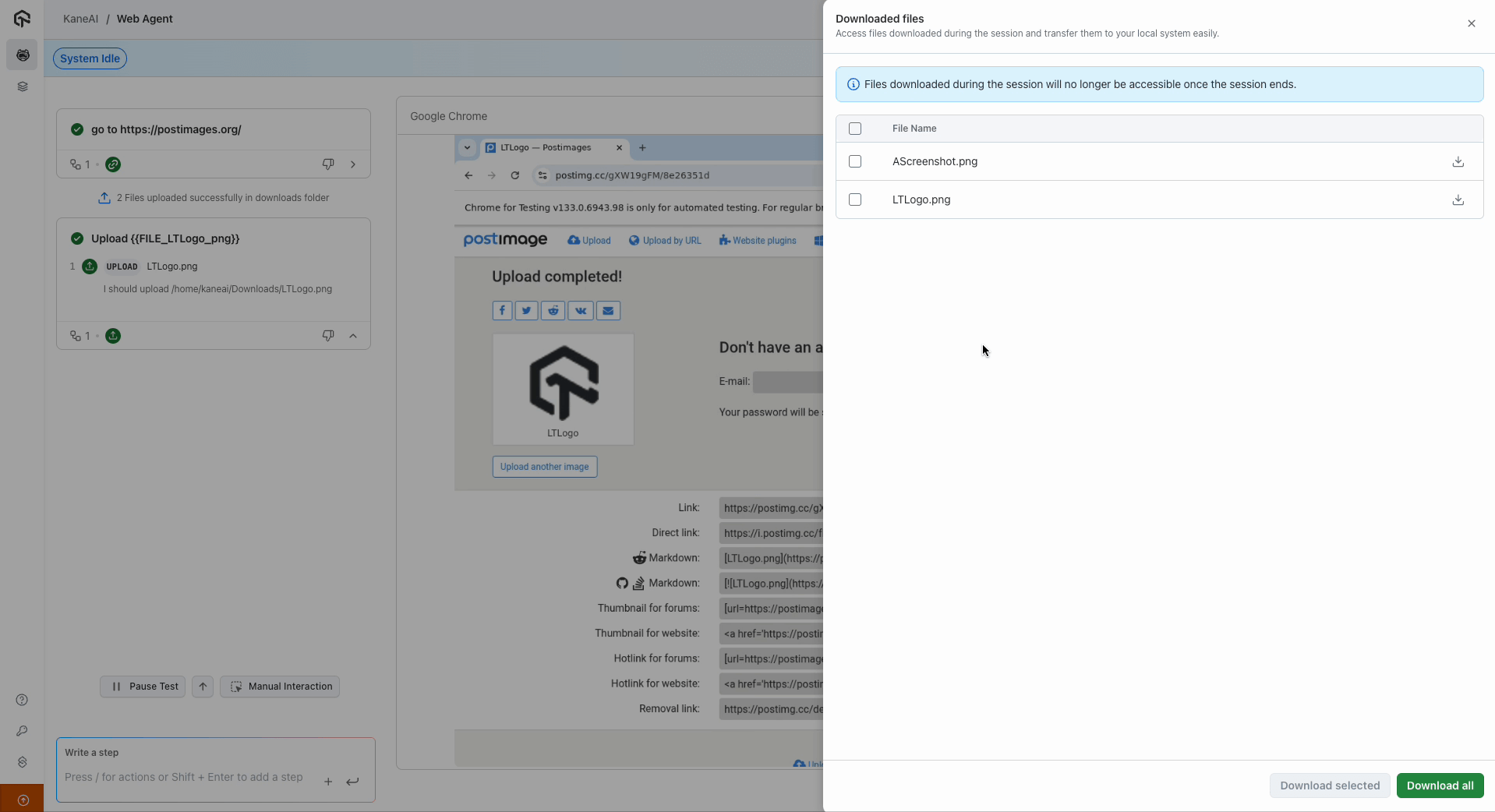
- On the right panel, all downloaded files in the session’s downloads folder will be displayed.
File Upload in App Tests
File upload behaves differently in App tests than in Web tests. In a Web test, TestMu AI creates a file variable for each upload. App tests skip this step entirely. No file variable is created, so you never reference uploaded files with double-curly-brace syntax.
How it works
When you upload files to an App test session, TestMu AI injects them directly into the device's storage. The files become part of the device itself, which is why there is no variable to assign, track, or reference in your instructions.
Working with injected files
Most native apps include their own file controls, such as an upload or attach button. Selecting one of these opens the device's system gallery or file picker, where your injected files are already available. You then choose the file you need and continue through the app's normal flow, exactly as a real user would.
Downloading Files from Kane AI
Step 1: Managing Downloaded Files
- Files added during the session will be visible in the downloads section.
- Users can either download all files at once or select specific files for download.
Step 2: Reviewing Uploaded Files Post-Test
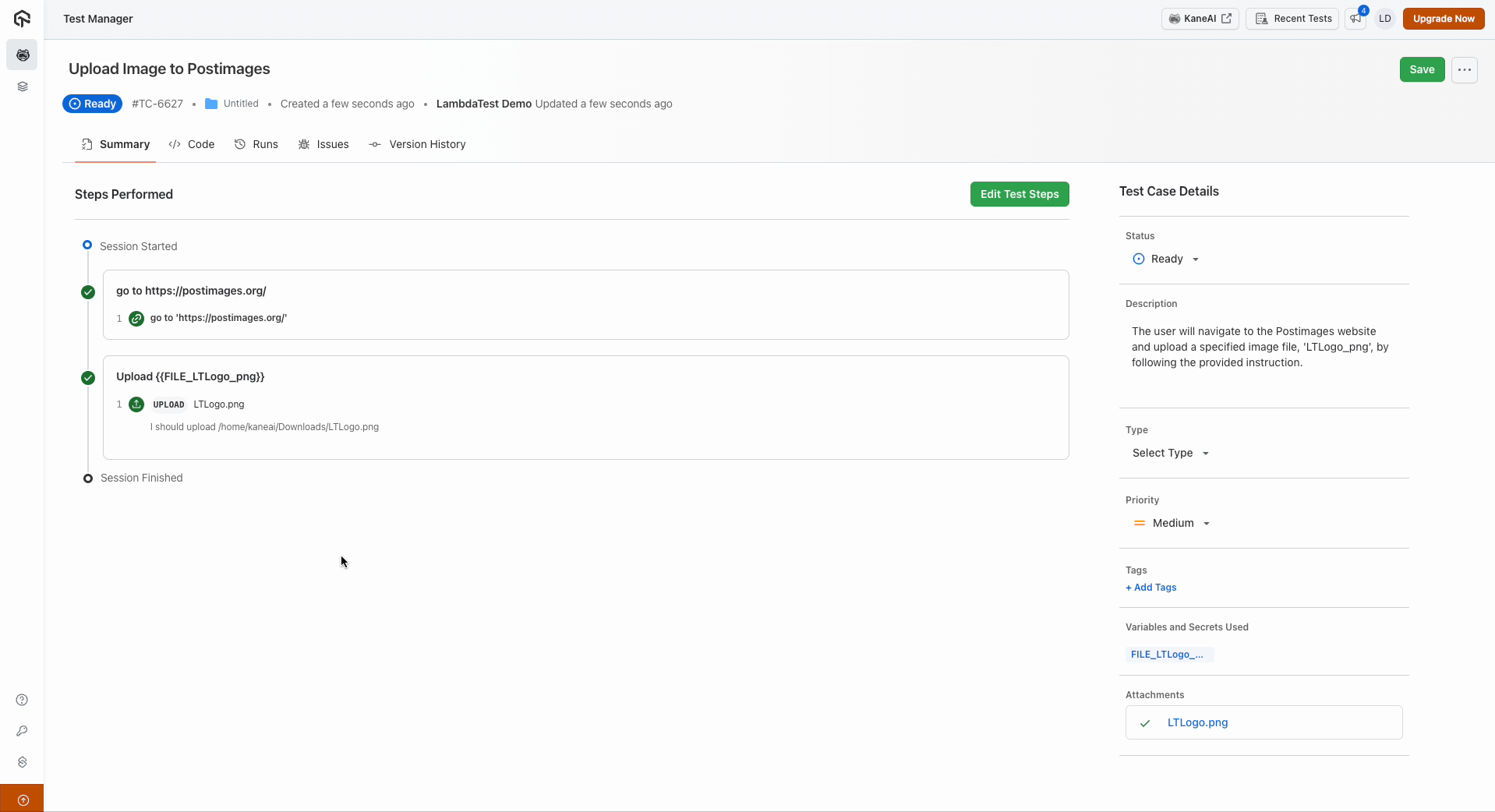
- After test completion, all uploaded files are recorded as variables.
- These files are also available as attachments in the test summary page for easy reference and download.
The file upload and download functionality in Kane AI enhances test automation by providing easy access to necessary files. By following these steps, testers can efficiently manage files during their test sessions.
Save a session download as a reusable File
If the website downloads a file during Web Agent authoring, you can save that downloaded item as a global File. Open the session's Download panel, choose the downloaded file, and save it to Files with a unique alias. The saved File then appears in KaneAI > Variables > Files and can be used by other test cases. A session download is not added to the global Files list until you save it there.
Create and use global Files
You can also create a global File from a local file before authoring a test:
- Open KaneAI > Variables > Files and click New File.
- Choose a local file, enter an alias, and click Create File.
- In a Web Agent instruction, reference it as
{{file.alias}}, such asUpload {{file.profile_image}} to the form.


An alias can contain 1–64 lowercase letters, digits, and underscores. The names register and resolve are reserved. The global alias syntax is separate from the session FILE_ variable syntax in the upload flow above. A global File becomes linked to a test case after a step that uses it is saved.
While authoring, you can type /Upload file to choose an existing File or upload a new one from your computer. Select the File in the picker, add it to the test, and run the upload step.


Open Variables & secrets > Files in the session to see available Files and download a local copy. The global Files list also lets you download or replace a File. Replacing its content can change the file type, so review tests that use the alias afterward.

A test run can save its CSV or XLSX output as a reusable File. See Test Run Output for that workflow.


 Chat with Us