Module Versioning and Enhancements
Every time you modify a module in KaneAI, a new version is created automatically. This version history lets you track what changed, compare any two versions side by side, and revert to a previous version when needed. Version control is especially valuable when multiple team members work with the same modules across test cases.
For an overview of creating, using, and managing modules, see Modules.
How Versioning Works
When you edit an existing module (for example, by adding, removing, or modifying a test step), KaneAI automatically increments the version number (e.g., from 1.1 to 1.2). You do not need to manually create versions.
In the Classic experience, some steps are locked on the Modules page and must be changed from the test case the module was authored from. See Editing Restrictions. Editing them there still increments the module version in the same way.
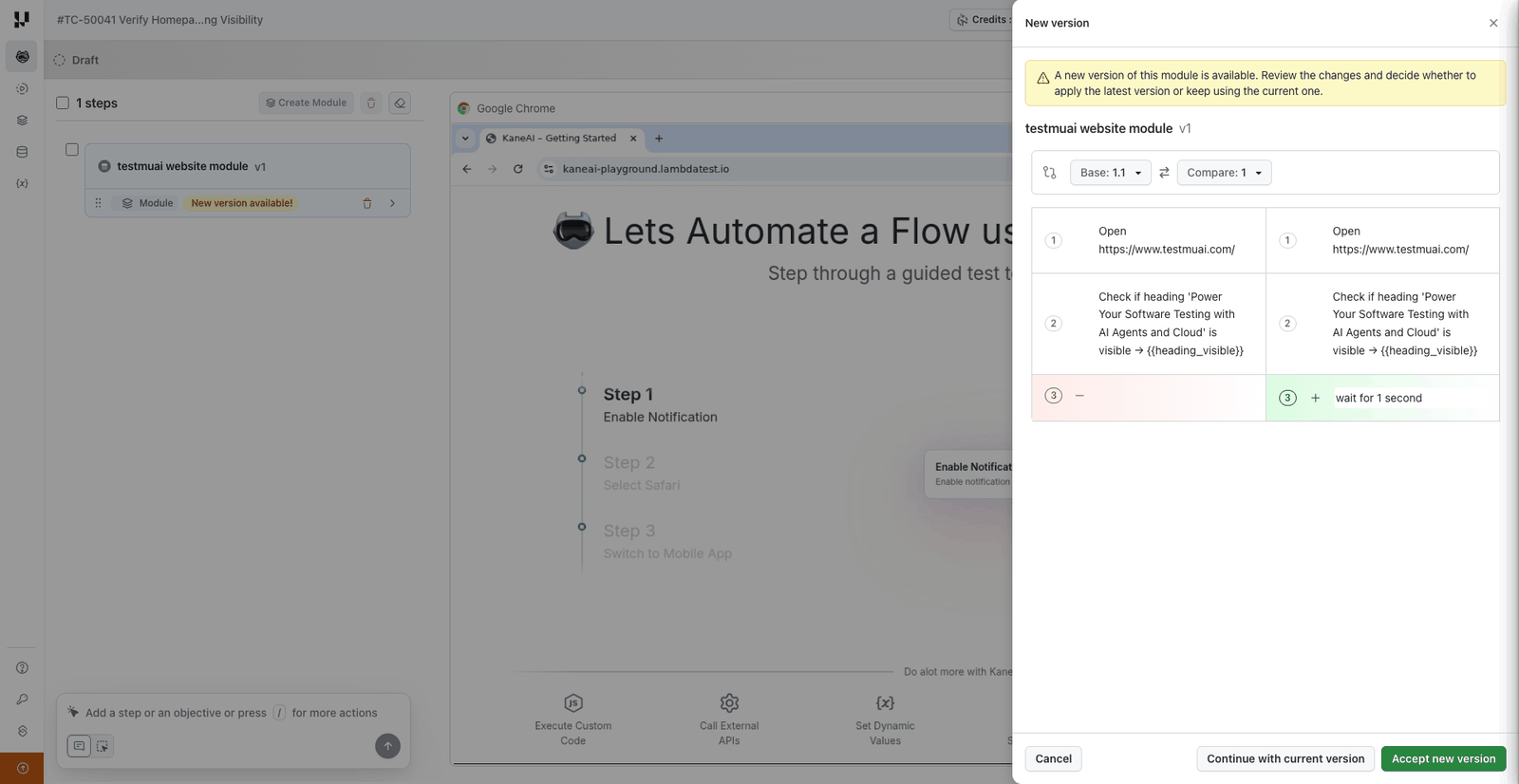
After a new version is created, test cases that use the module can either:
- Accept the new version: Update the test case to use the latest module version
- Continue using the current version: Keep the existing version without changes
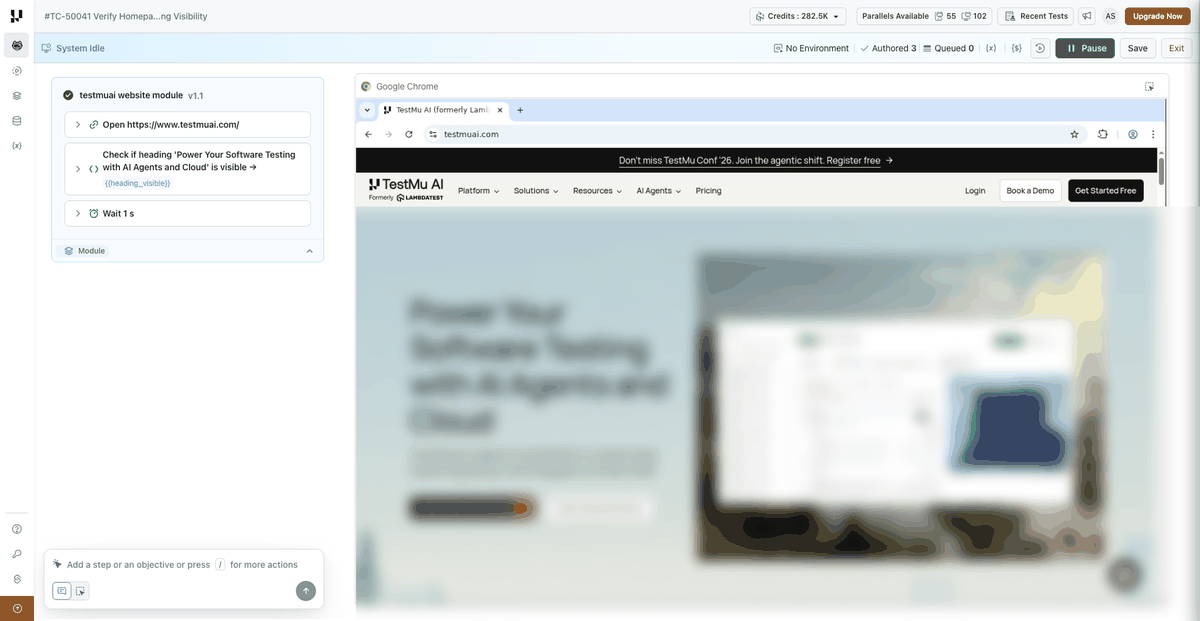
To update a module version across many test cases at once, use the Bulk Module Update feature.
Viewing Version History
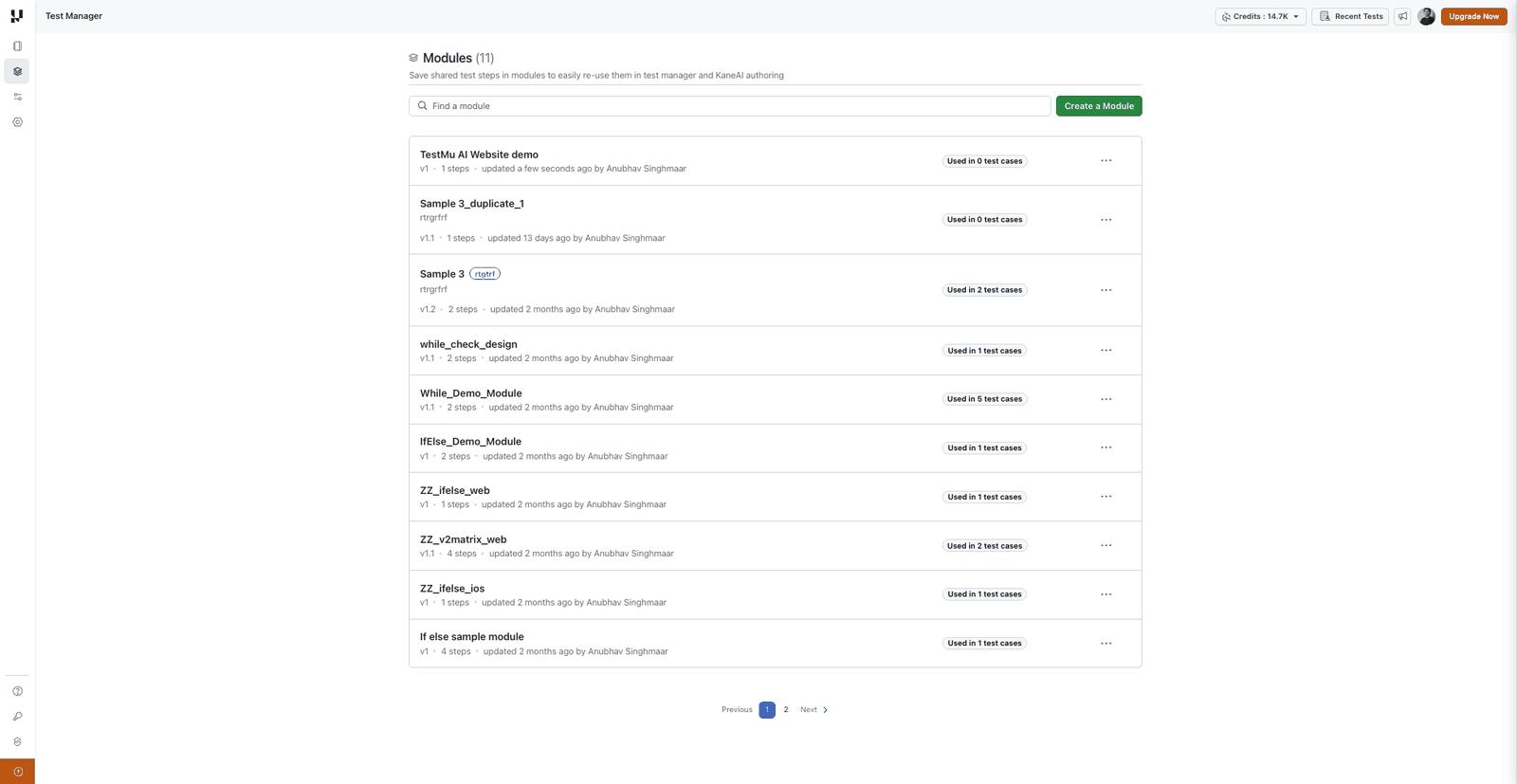
Open any module from the Modules listing page to see its complete details, including:
- Description and tags
- Full version history with timestamps
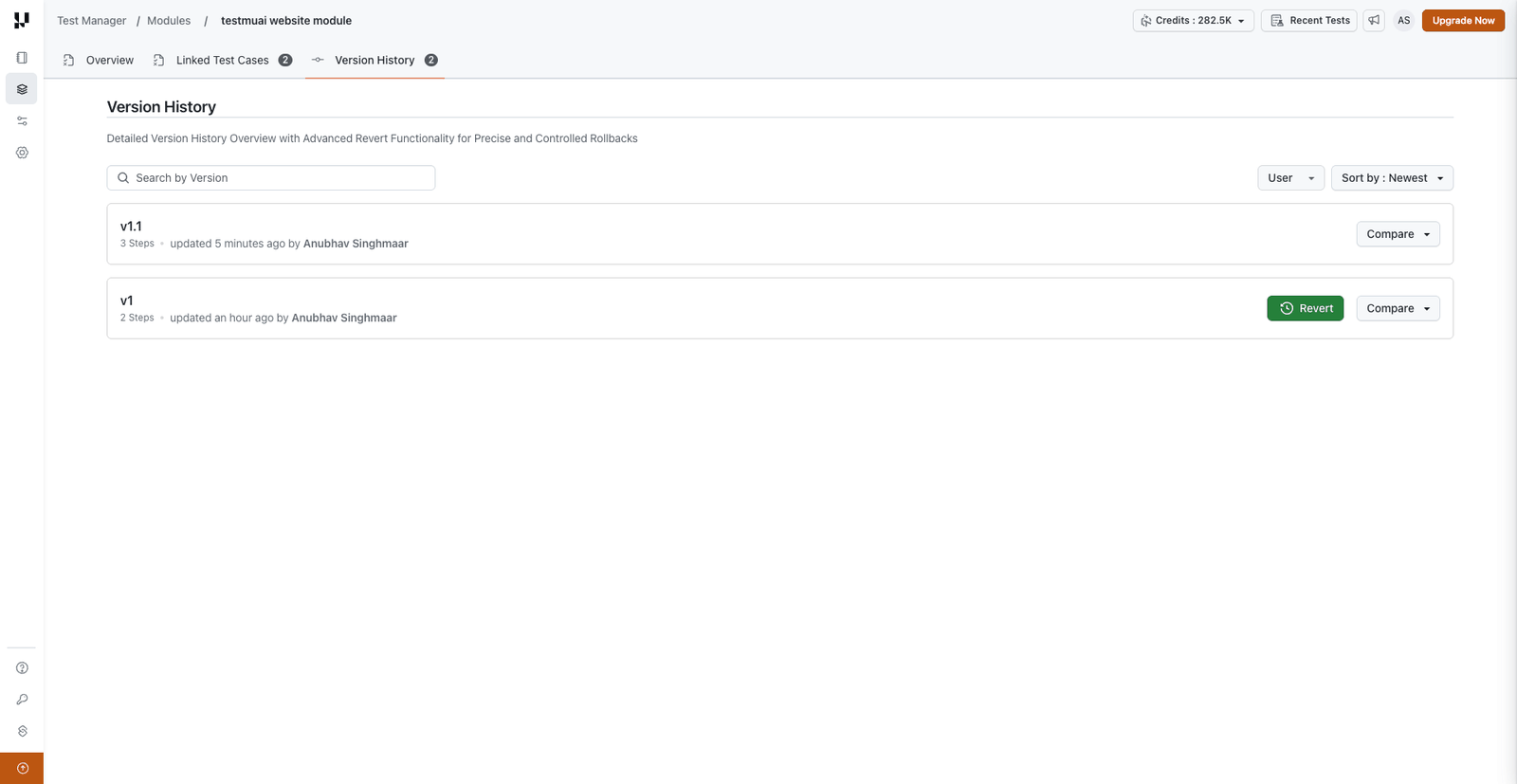
The version history shows every change made to the module, who made it, and when.
Comparing Versions
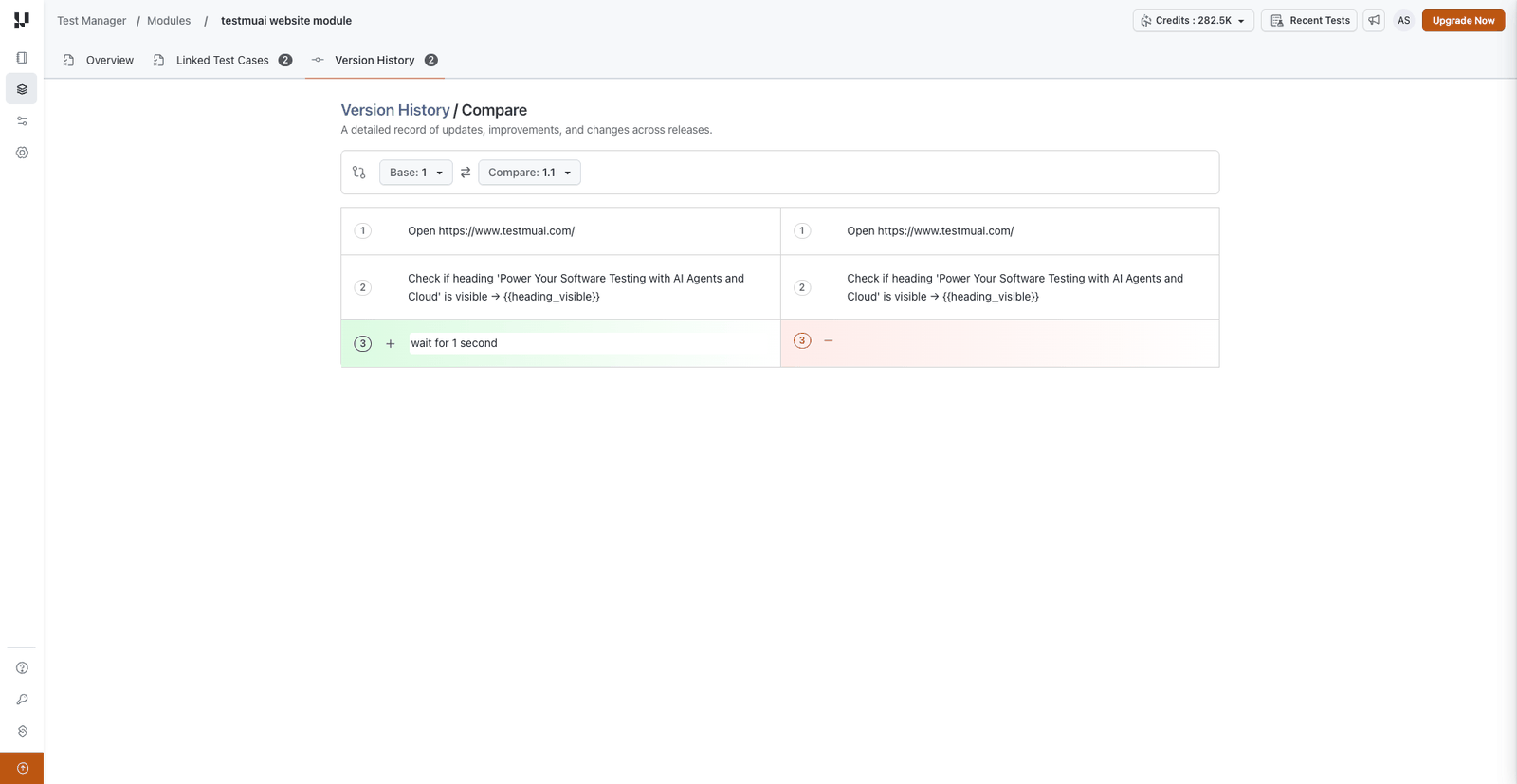
You can compare any two versions of a module to see exactly what changed between them.
- Open the module and navigate to the Version History section.
- Select the two versions you want to compare.
- Review the differences: added, removed, or modified steps are highlighted.
Reverting to a Previous Version
If a module update introduces problems, you can revert to any earlier version.
- Open the module and go to Version History.
- Select the version you want to restore.
- Confirm the revert.
Reverting creates a new version (it does not delete the intermediate versions), so you maintain a complete audit trail.
Linked Test Cases
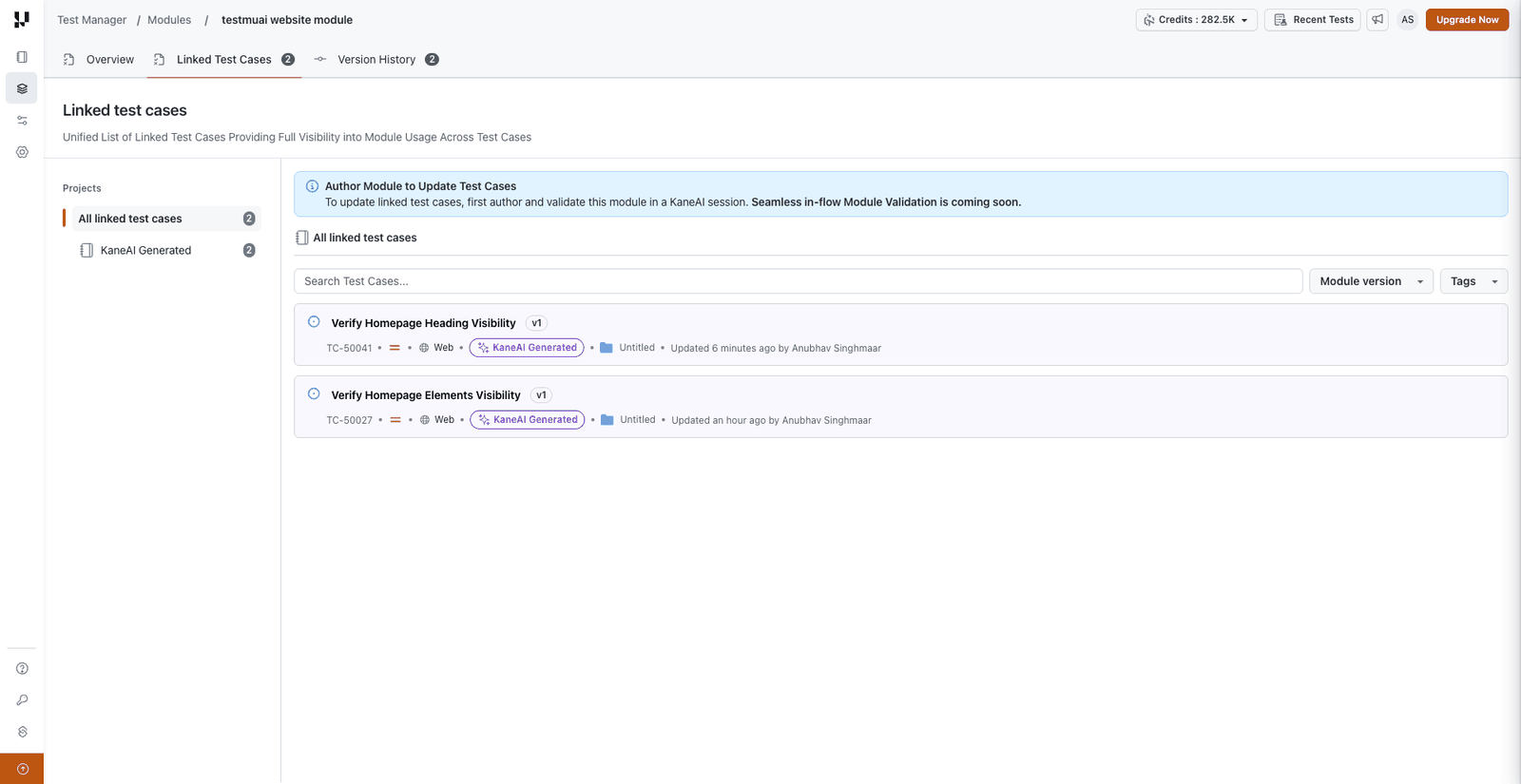
The module detail page includes a Linked Test Cases tab that shows all test cases using the module, grouped by version. This helps you understand the impact of a version change before making updates.
From this tab you can navigate directly to individual test case summary pages.
Related Guides
- Modules: Create, use, and manage modules
- Bulk Module Update: Update a module version across multiple test cases in one action


 Chat with Us