Build Comparison - Compare Test Builds and Track Regressions
Overview
Build Comparison allows you to compare two builds side by side to instantly see what changed - which tests started failing, which got fixed, and which remain stable. Use it to validate releases, debug regressions, and track test stability.
Accessing Build Comparison
- Navigate to Insights → Build Insights
- Click on any build to open the Build Details page
- Select the Compare tab
Selecting Builds to Compare
When you first open the Compare tab, you'll see an empty state prompting you to select a build for comparison.
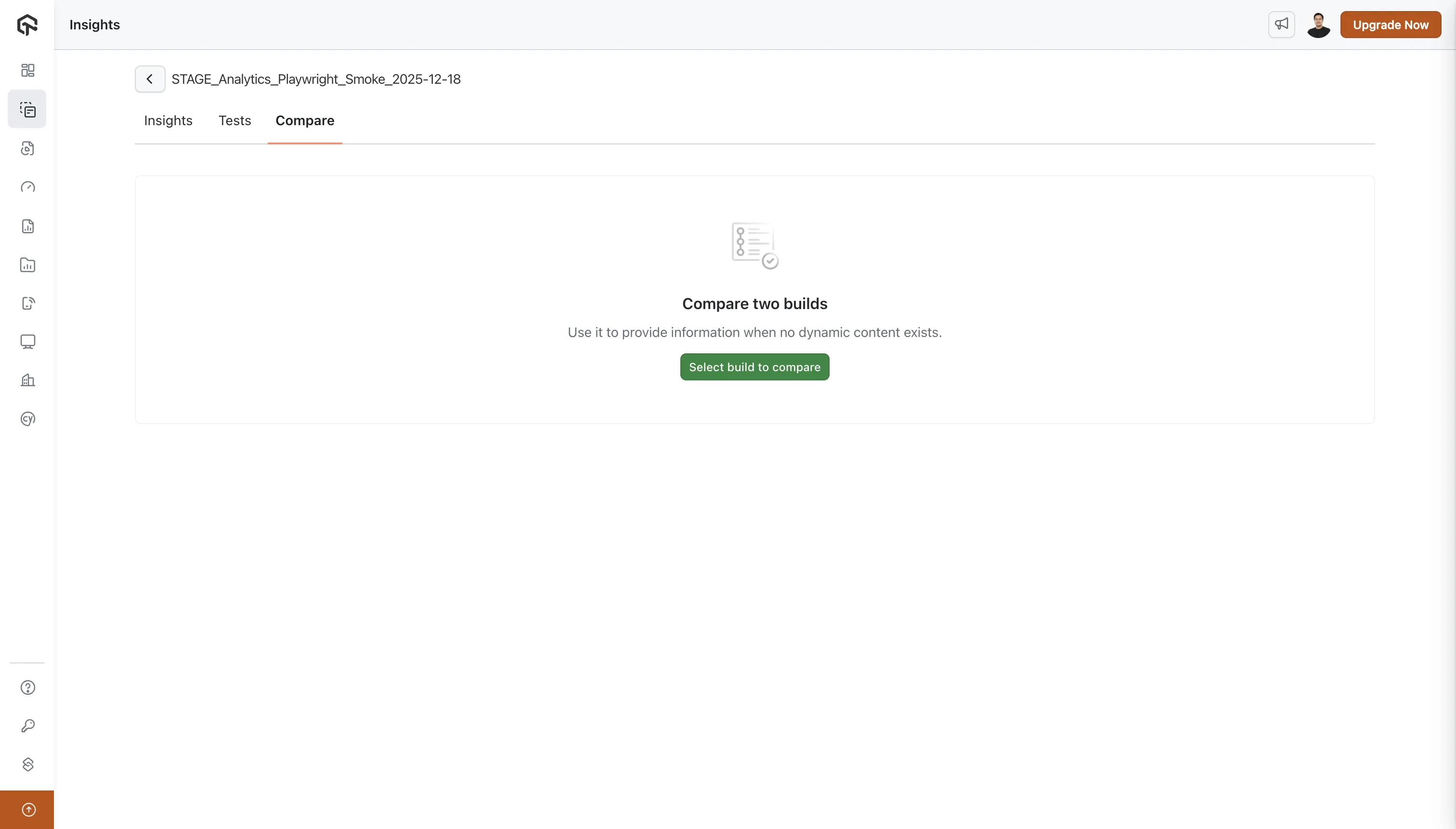
Click Select build to compare to open the build selection dialog.
Build Selection Dialog
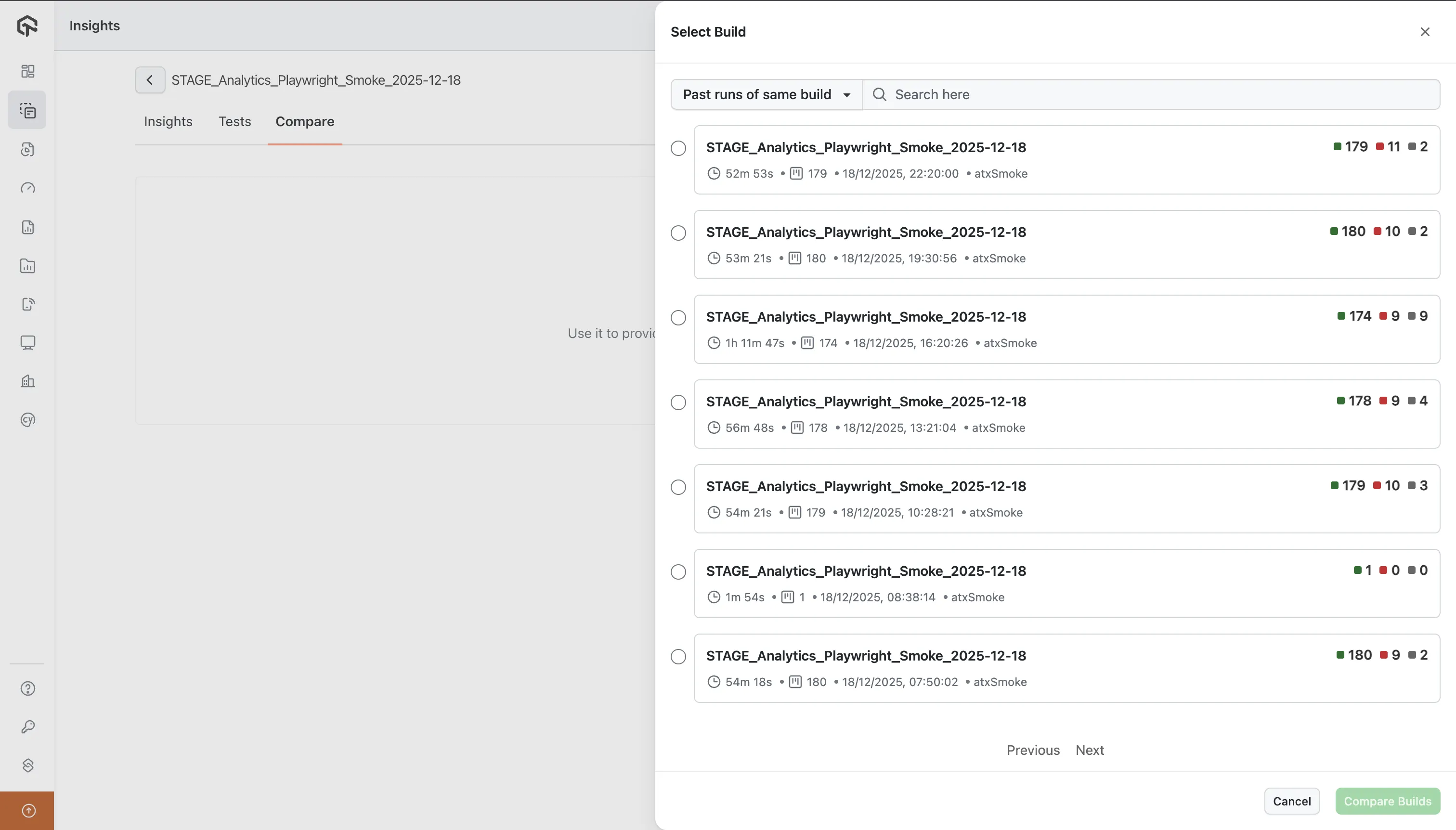
The dialog provides options to find builds:
| Option | Description |
|---|---|
| Past runs of same build | Shows previous executions of the current build (default) |
| All Builds | Shows all builds across your account for cross-build comparison |
| Search | Search bar to find builds by name |
Each build in the list displays:
- Build Name - Full build identifier
- Duration - Total execution time (e.g., 52m 53s)
- Test Count - Number of tests executed
- Execution Timestamp - Execution date and time
- User - Associated username who executed the build (e.g., atxSmoke)
- Results Summary - Quick pass/fail/other counts (🟢 passed, 🔴 failed, ⚫ other)
Select a build and click Compare Builds to run the comparison. The selected build becomes the Compare build, while the current build you navigated from becomes the Base build.
For release validation, select your last stable production build as Base and the release candidate as Compare.
Key Comparison Metrics

The following statuses are considered failed statuses: Failed, Error, Lambda Error, Idle Timeout, and Queue Timeout. Change detection is based on whether a test transitions to or from these statuses.
| Metric | Description | When to Act |
|---|---|---|
| New Failures | Tests not failing in Base but failing in Compare (see details below) | 🚨 Investigate immediately before release - these are regressions |
| Pass Rate | Percentage of passed tests with delta (↗ or ↘) from Base. | Set release gates (e.g., "Release only if >95%") |
| Fixed | Tests that failed in Base but passed in Compare. | Verify fixes are genuine, not flaky behavior |
| No Change | Tests with same non-passing status in both builds. | Review for persistent infrastructure issues |
| Additional Tests | New tests in Compare not present in Base. | Confirm new features have test coverage |
| Dropped Tests | Tests in Base but missing from Compare. | ⚠️ Investigate if not intentionally removed |
Understanding New Failures
The New Failures metric includes two scenarios:
| Scenario | Description | Label in Table |
|---|---|---|
| Regression | Test existed in Base with a non-failed status but has a failed status in Compare | New Failure |
| New test failing | Test did not exist in Base but has a failed status in Compare | New Failure (Additional) |
Both scenarios are counted together in the New Failures metric shown in the summary cards and charts. In the Test Instances table, tests that didn't exist in Base are labeled as New Failure (Additional) to help you distinguish between regressions in existing tests versus failures in newly added tests.
Results Comparison Chart

The horizontal bar chart compares test counts by status between builds:
- Purple bar: Base build
- Orange bar: Compare build
If the orange bar is longer for Failed/Error statuses, more tests are failing in the newer build.
Status Changes Chart
The donut chart categorizes tests by how their status changed:
| Category | Description | Action |
|---|---|---|
| New Failures | Non-failed → Failed (includes New Failure Additional) | Prioritize - check recent code changes |
| Fixed Instances | Failed → Passed | Verify fix is stable, not flaky |
| Stable Instances | Passed → Passed | No action - reliable tests ✓ |
| Consistent Failures | Failed in both builds | Triage - document or fix before release |
Test Instances Comparison Table
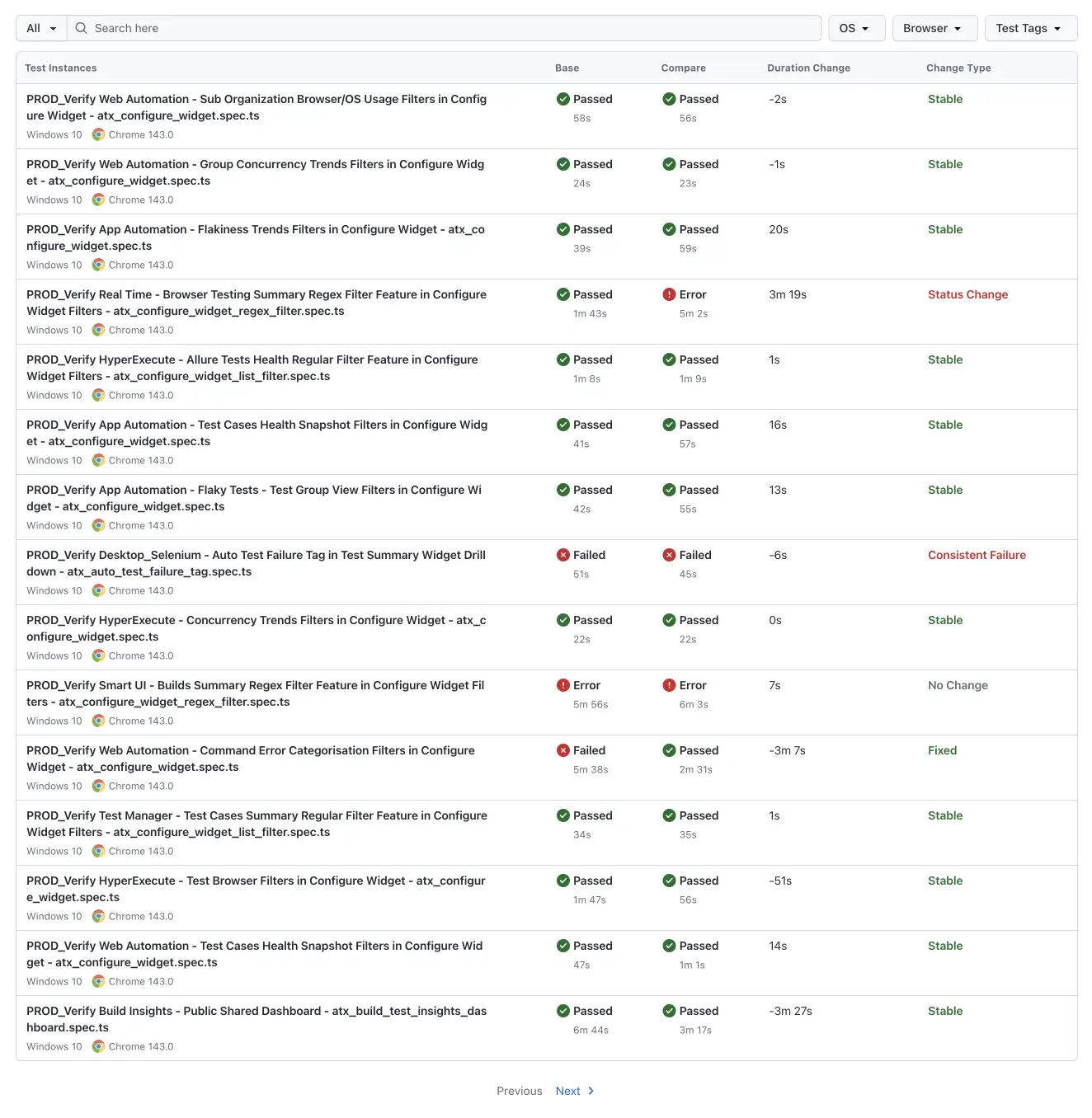
| Column | Description | Use Case |
|---|---|---|
| Test Instances | Test name, spec file, platform, browser | Click to view detailed logs and recordings |
| Base | Status and duration in Base build | Reference point for comparison |
| Compare | Status and duration in Compare build | Identify status changes at a glance |
| Duration Change | Time difference (+slower, -faster) | Flag tests with >30% increase for performance review |
| Change Type | Stable, Status Change, Fixed, New Failure (Additional), etc. | Filter to focus on specific change categories |
Filtering Options
| Filter | Description |
|---|---|
| All | Filter by change type |
| Search | Find tests by name or spec file |
| OS | Filter by operating system |
| Browser | Filter by browser type |
| Test Tags | Filter by custom tags |
Use filters to isolate platform-specific issues. If failures only occur on a specific browser or OS, it helps prioritize the fix.
Common Use Cases
Pre-Release Validation
Compare your last stable build (Base) with the release candidate (Compare). Proceed only if New Failures = 0 and pass rate meets standards.
Debugging a Broken Build
Compare the last passing build (Base) with the failing build (Compare). Review New Failures and use filters to isolate platform-specific issues.
Measuring Stabilization Progress
Compare the sprint-start build (Base) with the latest build (Compare). Use Fixed count and reduced Consistent Failures to demonstrate progress.
Environment Comparison
Compare production build (Base) with staging build (Compare) to identify environment-specific failures.
Cross-Browser Compatibility
Compare Chrome build (Base) with Firefox/Safari builds (Compare) to catch browser-specific issues.
Best Practices
- Compare similar test suites - Comparing different test sets leads to misleading Additional/Dropped counts.
- Investigate New Failures immediately - These are potential regressions.
- Verify Fixed tests - Run them multiple times to confirm stability.
- Monitor Duration Changes - Increases >20-30% may indicate performance issues.
- Document Consistent Failures - Maintain a list of known, accepted failures.
- Establish comparison baselines - Define standard comparison points (last production release, previous nightly, sprint-start).
FAQ
Can I compare builds from different projects? Yes, but for meaningful results, compare builds with similar test suites.
Why are tests showing as "Dropped"? Tests may be skipped in configuration, failed to execute, or removed from the suite.
How is Pass Rate calculated?
(Passed Tests / Total Tests) × 100. The delta shows the change from Base.
How far back can I compare? Any two builds within your data retention period.

 Chat with Us
 Ask the Community