Credits Usage & Management in TestMu AI
TestMu AI supports a credit management system as an add‑on over your active subscriptions for TestMu AI products. Many products include additional AI features that are powered by credits. This guide explains how credits work, how to view usage, and how admins can control consumption.
Who gets credits?
- Free users: Receive 1,000 complimentary credits to try AI‑powered features.
- Paid users: Receive complimentary credits based on subscription to try AI‑powered features and can purchase credits as an add‑on at any time. Credits are used only when AI features are invoked.
Once free credits are exhausted, AI features will be unavailable until you upgrade or purchase credits from the Billing page. Use this link to buy credits directly: Upgrade / Buy Credits.
View your current credit balance
- Your organization holds a single credit balance. Every credit-consuming feature draws from it, so products do not have separate wallets.
- Charges are proportional to what a run actually uses, not a flat fee per run. Fractional amounts such as
0.3or1.54credits are normal. - Credits are held when a run starts and settled when it finishes. The hold lowers your available balance straight away so the same credits cannot be spent twice, and the final charge replaces the hold once the run ends.
- If the run used less than was held, the difference returns to your balance. If it used more, the extra is charged. A failed or cancelled run releases its hold in full.
A run that starts but never reports back releases its hold on its own, usually within about 30 minutes of starting. The credits reappear in Available Credits at that point.
When a run is refused
TestMu AI stops a run before it starts if:
- your available balance is lower than the credits the run needs,
- your organization has hit the Block usage when balance falls below threshold, or
- the user belongs to a group whose budget for the current cycle is exhausted.
Nothing is charged for a refused run. Work that has already happened is always charged in full, even when the charge takes the balance below zero.
Credit types and expiry
Credits arrive in dated batches. Each batch carries its own type and, where one applies, its own expiry date.
| Credit type | Where it comes from | Validity |
|---|---|---|
| Subscription | The credits included with your plan, granted again at monthly renewal. The amount varies with the products you are subscribed to | One month from your renewal date. Whatever is unused lapses and a fresh grant replaces it |
| Purchased | Credits bought as a top-up from the Add Credits flow | One year from the date of purchase |
| Complimentary | A one-time grant issued when you sign up, plus any welcome, goodwill or promotional credits TestMu AI issues later | One year from the date of the grant |
Which credits are spent first
Spending always draws from the batch that expires soonest. Batches with no expiry date are spent last. This is why a purchased pack can sit untouched while a plan grant drains.
What removes credits
Reaching the end of a billing cycle does not by itself remove unused credits. A batch is removed only when its expiry date passes, or when the subscription or trial that produced it is cancelled or changed.
| Event | Effect on remaining credits |
|---|---|
| Subscription cancelled | Credits from that subscription are removed in full, with no proration |
| Plan upgraded, downgraded or changed | Credits from the old plan are removed and a fresh full grant is issued at the new rate |
| Trial ends | Remaining trial credits are removed |
When a batch expires, whatever is left in it is deducted and recorded as an Expired entry in Transactions. Credits you have already spent are never taken back.
Cancelling or changing a plan never touches credits you bought separately. Purchased and complimentary credits survive a plan change.
How subscriptions grant credits
Monthly plans grant the whole month of credits in one batch at the start of each billing period. The batch expires at the end of that period.
Annual plans do not load the year up front. The term is split into twelve consecutive one-month instalments anchored on your renewal date. Each instalment expires at the end of its own month, not at the end of the year.
Credits do not roll over. Whatever is unused when a batch expires is written off, and the next period arrives as a fresh grant rather than a top-up of the old one.
View your credit balance and usage
Everything to do with credits lives under Credits in the Billing console. Only users with the Admin role in your TestMu AI organization can open these screens, and only admins can change budgets and alerts.
Credits > Overview is the summary screen for your organization. The subtitle shows the plan cycle the figures cover, and the date range picker at the top right changes the window.
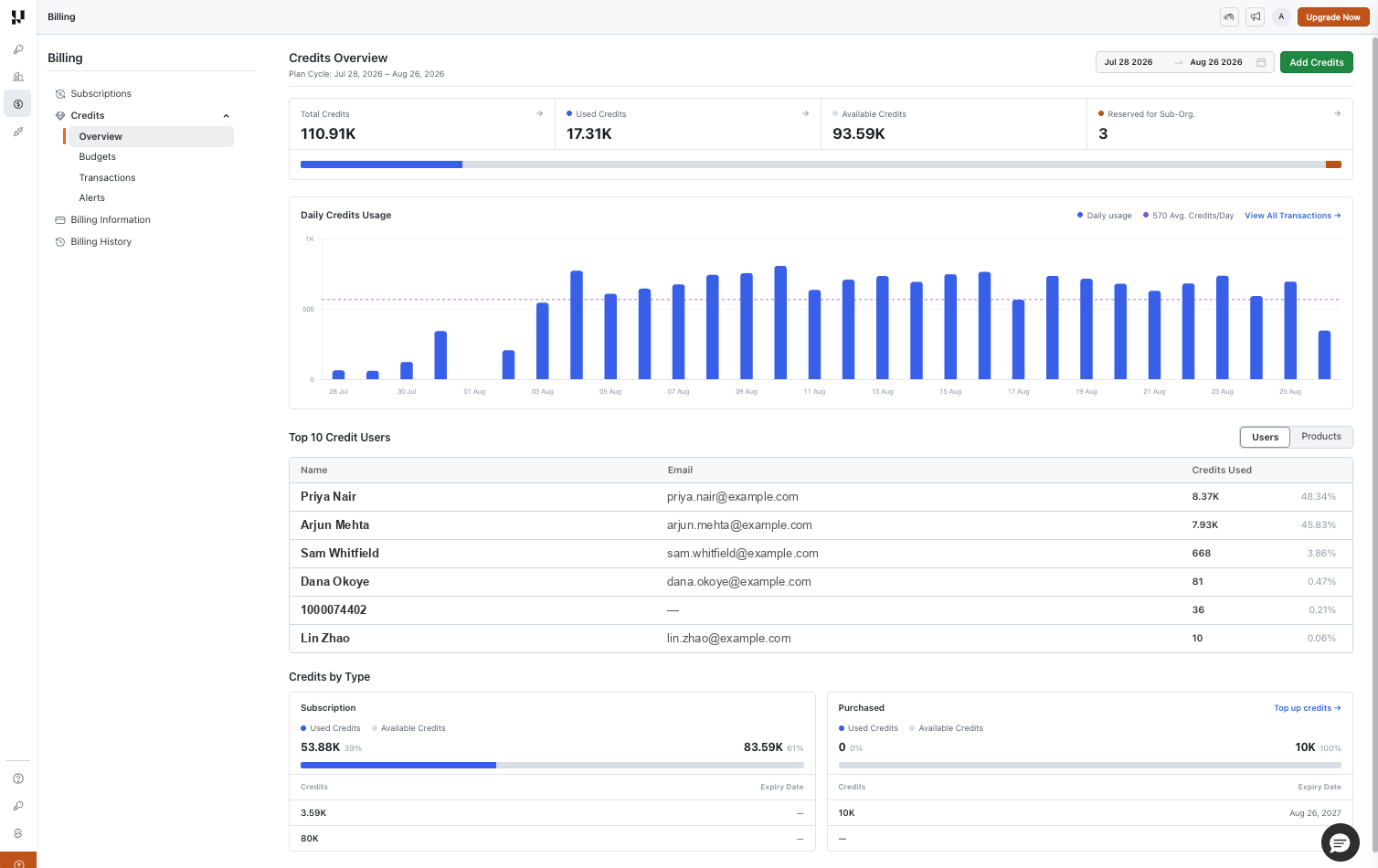
Four cards sit at the top, with a single composition bar underneath showing how the balance splits.
| Card | What it counts |
|---|---|
| Total Credits | Used plus Available plus Reserved for the selected window |
| Used Credits | Credits spent and charged in the selected window |
| Available Credits | Your live balance right now |
| Reserved for Sub-Org. | Credits handed to sub-organizations and not yet spent by them |
Each card has an arrow that opens Transactions already filtered to that type.
Below the cards:
- Daily Credits Usage plots finished, charged usage day by day, with the average credits per day in the legend. Credits currently held for a run in progress are not plotted.
- Top 10 Credit Users ranks consumption over the selected range and has a Users / Products toggle. Columns are Name, Email, and Credits Used with its share of the total.
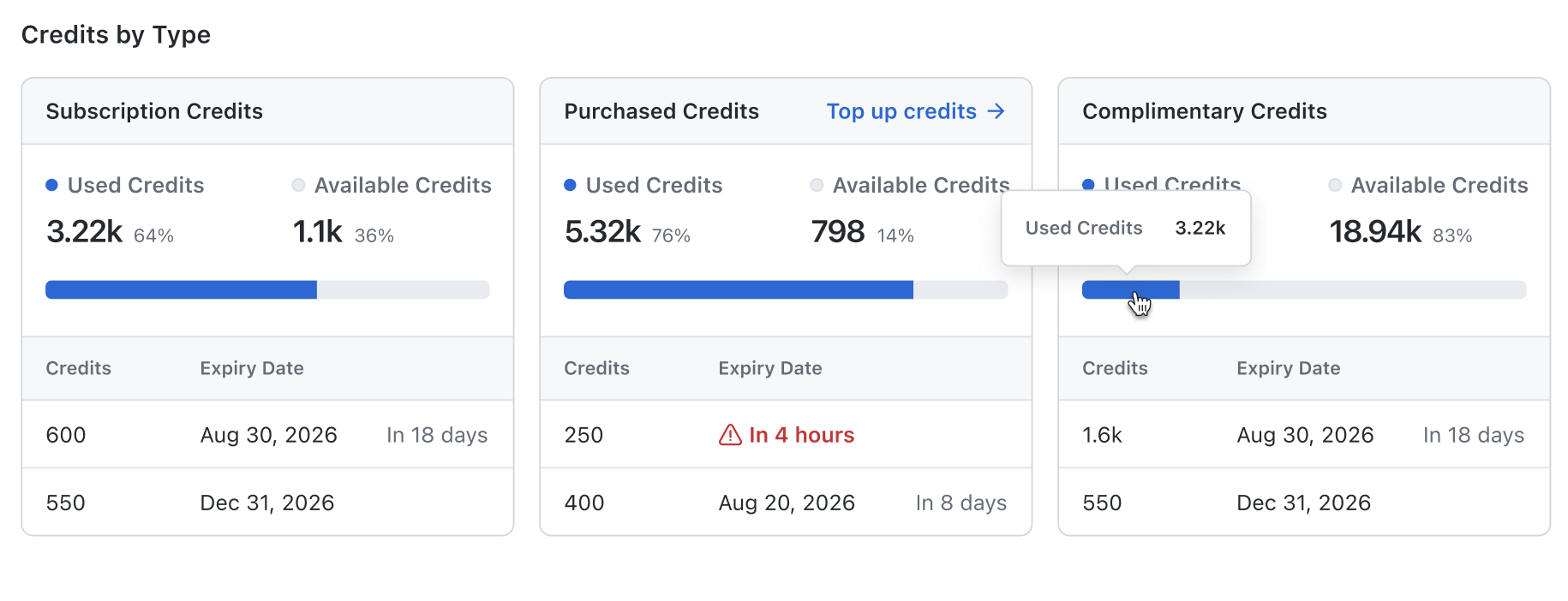
- Credits by Type shows a card for each type you hold, Subscription Credits, Purchased Credits and Complimentary Credits, with a Used and Available split bar over a table of the individual batches. Each batch lists its credits and expiry date.
Add credits
Select Add Credits at the top right of the Overview page.
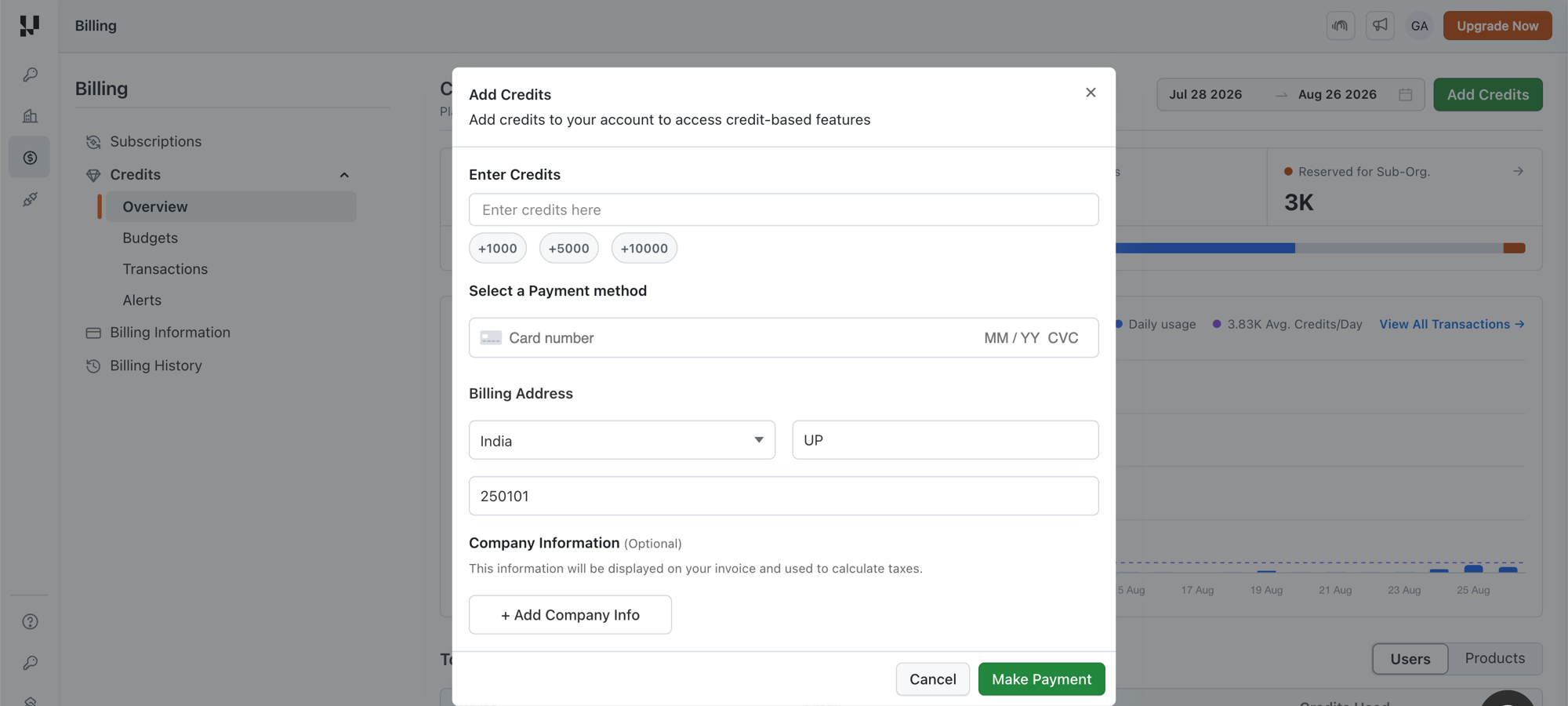
- Type the number of credits in Enter Credits, or use the +1000, +5000 and +10000 shortcuts.
- Pick a card under Select a Payment method.
- Complete Billing Address with the country, state and postal code.
- Optionally select Add Company Info under Company Information. These details appear on your invoice and are used to calculate taxes.
- Select Make Payment.
Credits are added as soon as the payment goes through, and the pack is valid for one year. Purchased credits are deliberately kept independent of your subscription, so a plan change or cancellation cannot remove them.
View credit transactions
Credits > Transactions lists every movement of credit in your organization.
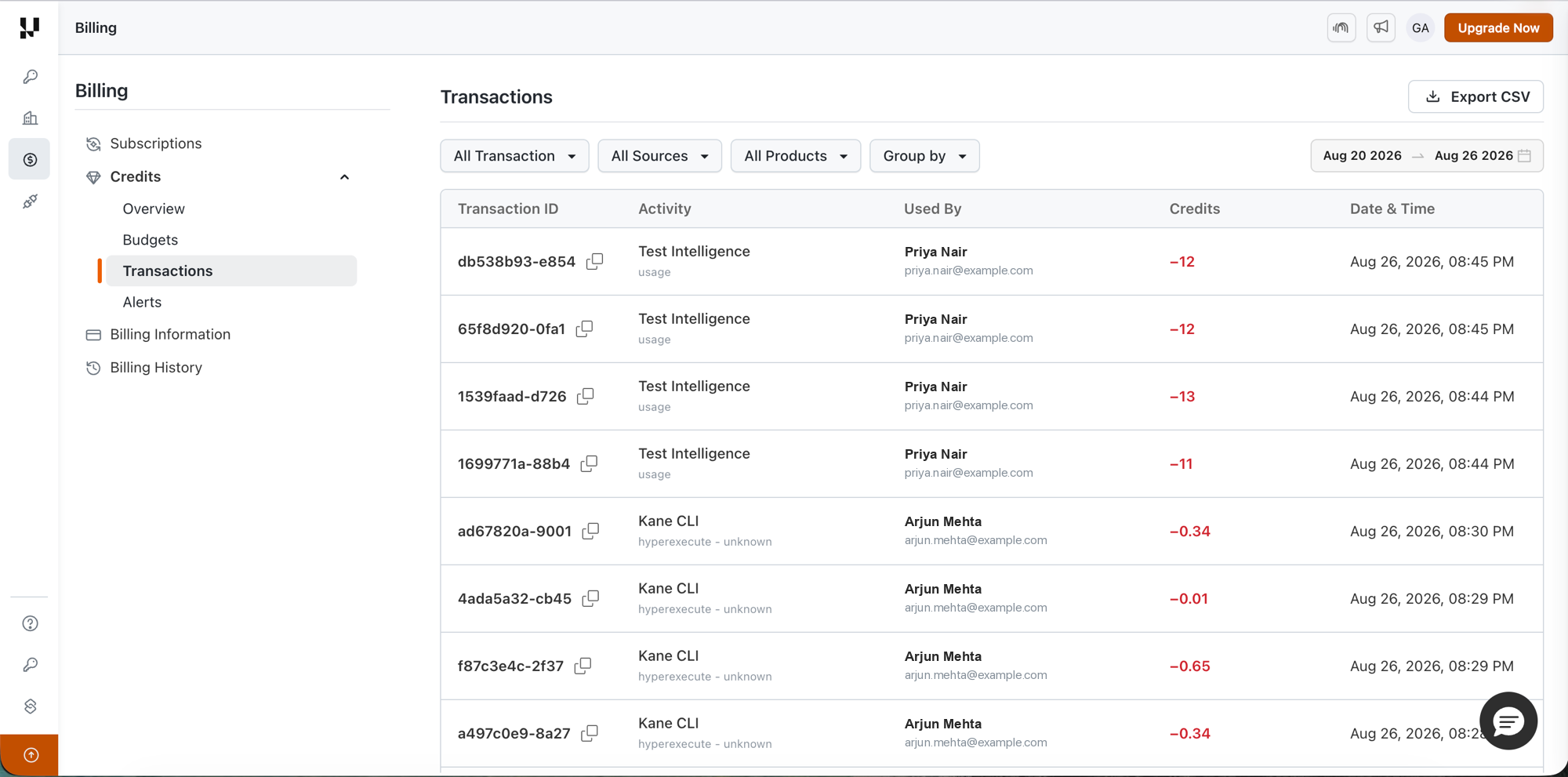
The transactions table shows:
- Date of the event
- Type (Debit / Credit)
- Credits (Amount of credits)
- Name of the user who did the transaction
Set credit usage limits (Admins Only)
Admins can define org‑wide controls to prevent unexpected consumption:
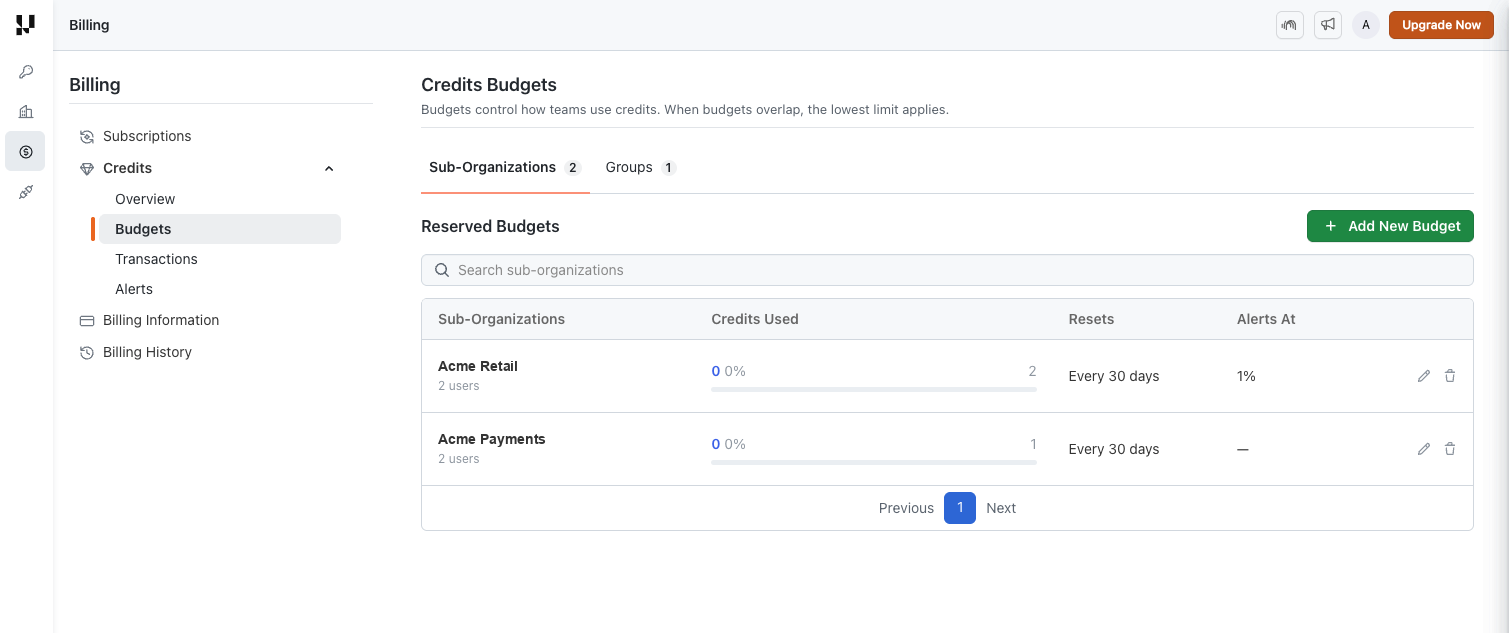
| Sub-organization budget | Group budget | |
|---|---|---|
| What it does | Reserves credits for a sub-organization | Caps what a group can spend |
| Do credits move? | Yes. They are carved out of the organization balance | No. Credits stay in the organization balance |
| Where the team spends from | Its own reserved balance | The organization balance |
| Shown on Overview as | Reserved for Sub-Org. | Nothing |
| When the limit is reached | Runs are refused for that sub-organization | Runs are refused for that group |
The Sub-Organizations tab lists these under Reserved Budgets and the Groups tab under Capped Budgets. Both tables show the team name and its user count, credits used against the cap, the reset cadence, and the alert thresholds, along with icons to edit or delete a budget.
Reserve credits for a sub-organization
Open the Sub-Organizations tab and select + Add New Budget.
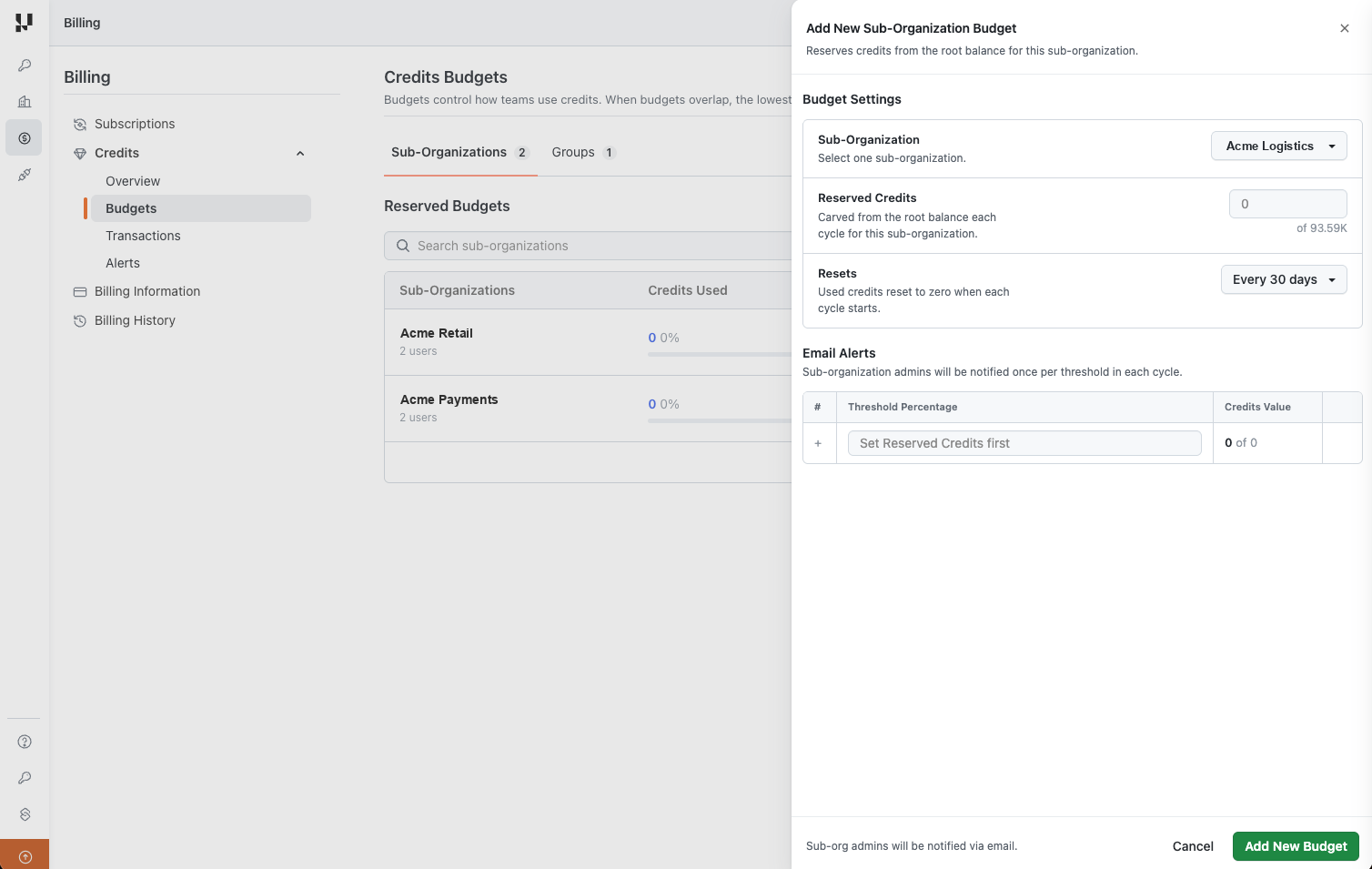
- Sub-Organization: the sub-organization the budget applies to. One budget covers one sub-organization.
- Reserved Credits: how many credits are carved from the root balance each cycle. The field shows how many are currently available to reserve.
- Resets: when the used total goes back to zero.
- Email Alerts: thresholds at which sub-organization admins are emailed, entered as a percentage of the reserved amount with the credit value shown alongside. Set Reserved Credits first, otherwise the table stays empty. Each threshold sends one email per cycle.
Once the budget is saved, the sub-organization spends from its own reserved balance:
- Reserved credits keep the expiry dates and types of the batches they came from.
- When the reserved balance is empty, runs in that sub-organization are refused. They do not fall back on the parent balance.
- Whatever is unspent shows on the parent organization Overview as Reserved for Sub-Org.
- Reserved credits return to the parent automatically if the sub-organization is deleted or moved to another parent.
Cap what a group can spend
Open the Groups tab and add a budget there.
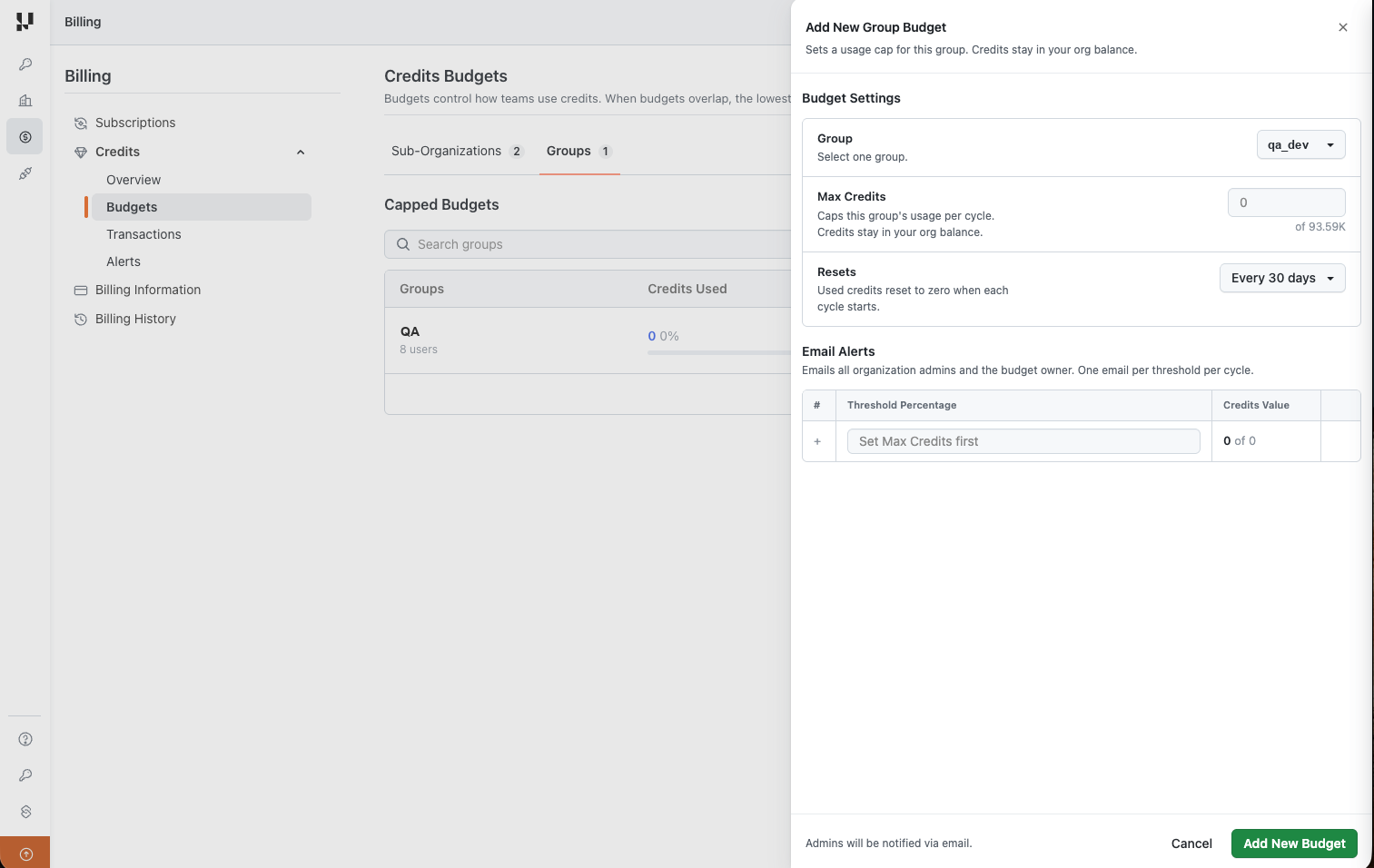
- Group: the group the cap applies to. One budget covers one group.
- Max Credits: the most the group can spend in a cycle. No credits are moved, so the amount stays in your organization balance and anyone outside the group can still spend it.
- Resets: when the used total goes back to zero.
- Email Alerts: thresholds at which all organization admins and the budget owner are emailed, one email per threshold per cycle. Set Max Credits first.
Reset cadence
Resets offers One time, Every 7 days, Every 15 days and Every 30 days. A one time budget applies once and never refreshes. On the other three, the used total returns to zero at the end of each interval and the team starts the next cycle with its full amount.
Set credit alerts and usage limits (Admins Only)
Credits > Alerts holds the organization-wide controls that prevent unexpected consumption. Turn on Email alerts, fill in the thresholds under Total Balance Alerts, then select Save Changes.
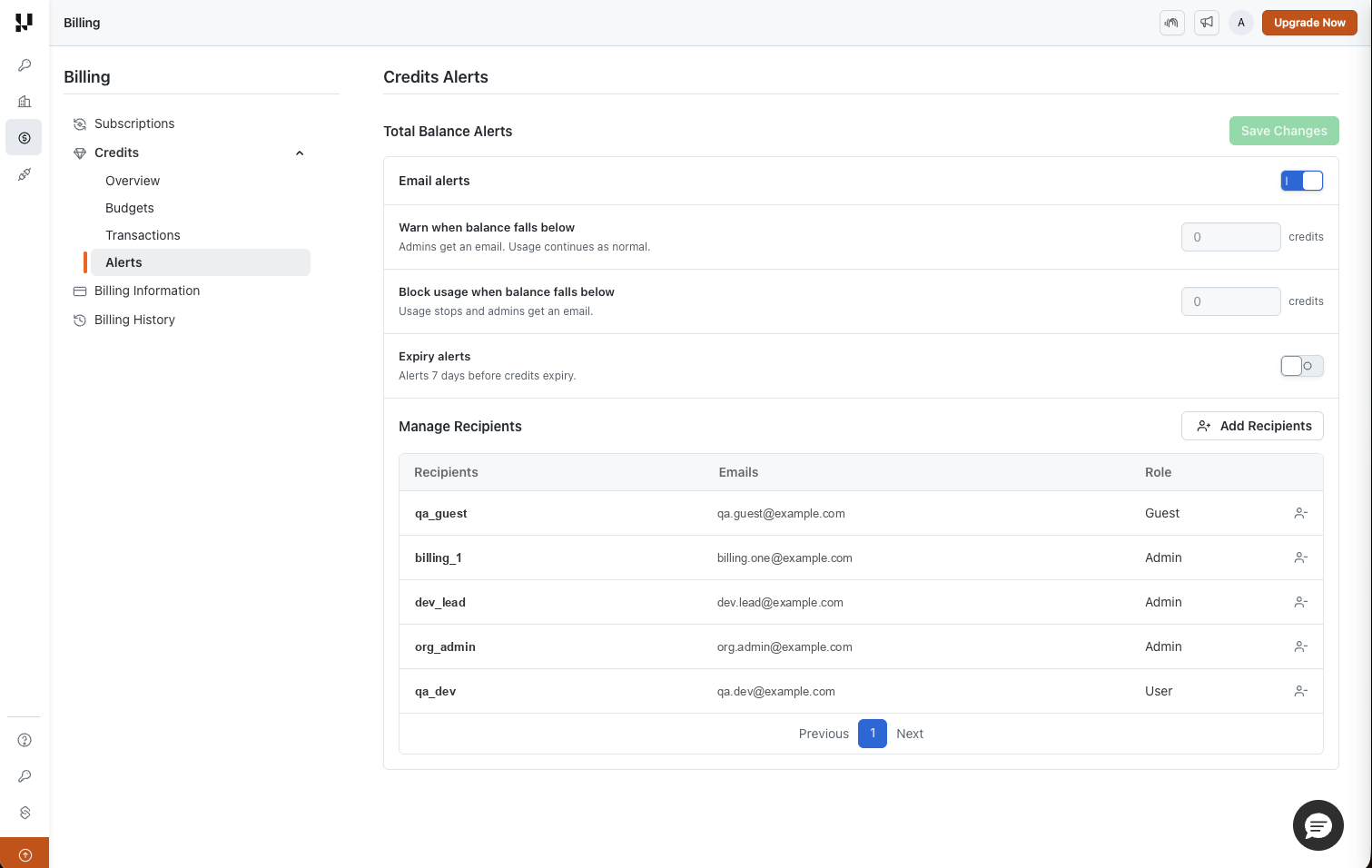
| Setting | What it does |
|---|---|
| Warn when balance falls below | Emails admins when the available balance drops under this many credits. Usage continues as normal |
| Block usage when balance falls below | Stops new runs and emails admins when the available balance drops under this many credits |
| Expiry alerts | Emails admins 7 days before credits are due to expire |
Both balance thresholds are entered as an absolute number of credits.
Recommendation: Start with a soft limit (e.g., 70–80% of your monthly plan) and a hard limit (e.g., 90%).
AI features that consume credits
Below are the currently supported features and how they consume credits.
SmartUI Visual AI
TestMu AI SmartUI Visual AI simulates human perception for visual regression. Rather than flagging every pixel change, it highlights meaningful, human‑relevant differences between baseline and new screenshots. Learn more.
How credits are consumed?
Small / Normal Screenshot
- A page or screen that fits within a typical device viewport (e.g., one laptop or mobile screen)
- Examples: login page, product details, simple dashboard
- Consumes ~1–4 credits (most common)
Large Screenshot
- A long or content‑heavy page beyond the standard viewport (full‑page scroll, data‑heavy dashboards)
- Examples: full home page, long reports, multi‑section dashboards
- Consumes ~5–8 credits (less common)
In summary: The bigger and more content‑heavy the screenshot, the more credits it consumes.
AI Test Case Generator
The AI Test Case Generator converts diverse inputs (text, PDFs, audio, videos, images, Jira tickets, and more) into structured, contextual test cases, accelerating authoring while improving coverage. Learn more.
How credits are consumed
- 10 credits per scenario generated.
- When you start generation, credits are tentatively consumed based on Max Scenarios you select (default 5). Example: Default 5 → 50 credits tentatively consumed when you begin.
- If fewer scenarios are produced (e.g., 4), 10 credits are credited back, so you only pay for what’s actually generated.
- Regeneration also consumes credits at 10 credits per scenario.
This ensures fair usage. You are charged only for actual output produced by the AI.
Conversational Layer
The AI Test Case Generator includes a Conversational Layer that lets you refine generated scenarios and test cases through natural‑language messages. Credits are consumed based on the scope of each refinement:
| Action | Credit Cost |
|---|---|
| Edit or modify a scenario (including its test cases) | 5 credits |
| Edit or modify a single test case | 1 credit |
- Credits are deducted per message based on the scope of the change.
- If your message affects multiple scenarios, credits are deducted for each scenario impacted.
Test Case Deduplication
The duplicate scan in Test Manager finds test cases that already exist in your repository more than once, groups them by similarity, and lets you review and delete the duplicates you no longer need. Learn more.
How credits are consumed
- 5 credits per scan, charged as a flat fee.
- Credits are deducted only if the scan produces at least one duplicate group. A scan that finds no duplicates costs nothing.
- The cost does not scale with the size of the scan. It is the same whether you scan 100 test cases or 5,000, and the same whether the scan returns one duplicate group or fifty.
- Changing the base test case re-runs the scan for that group at no additional cost.
You pay once per scan that returns a result, not per test case analyzed or per duplicate found.
KaneAI Authoring
KaneAI lets you author and edit automated tests in natural language. With the new pricing model, authoring is metered in credits — a single subscription plus a single credit balance covers each step you generate or edit, along with any remote browser or real‑device time and AI assists (vision validation, auto‑heal). Learn more.
How credits are consumed
| What draws credits | Rate |
|---|---|
| Step authoring / editing (steps created or edited using natural language or manual interaction) | ~1.5–2.5 credits / step |
| KaneAI Web Cloud (remote browser time) | 0.17 credits / min |
| KaneAI Mobile Cloud (real‑device time) | 10 / 8 / 6 / 4 credits / min, depending on the device category |
| Vision validation during execution | ~1.5–2.5 credits / step |
| Auto‑heal during execution | ~1.5–2.5 credits / step |
- Local authoring with Kane CLI uses step credits only — you author on local browsers and local emulators / simulators with no cloud infrastructure, so no per‑minute cloud time is charged.
- KaneAI Web Cloud and KaneAI Mobile Cloud add per‑minute credits for the remote browser or real‑device session while you author or edit test case in the cloud.
- Vision validation and auto‑heal draw credits even when they run during execution — they are not bundled into execution.
Real‑device rates by device category
Real devices in the TestMu AI cloud are grouped into four device categories based on how new the device is. Newer devices are in higher demand, so they consume more credits per minute. Choosing an older device for the same test lowers your credit spend.
| Device category | What it includes | Credits / min |
|---|---|---|
| Newest devices | Latest‑generation flagships, typically released within the last year | 10 |
| Recent devices | Recent‑generation devices, still widely used | 8 |
| Older devices | Previous‑generation devices | 6 |
| Oldest devices | Long‑standing legacy devices | 4 |
Credits are charged per minute of real‑device time while you author or edit, so a 10‑minute session on a newest device costs 100 credits, while the same session on an oldest device costs 40. If a test does not need the newest hardware, pick a lower device category.
FAQs
Q: What happens when my credits run out?
AI features that require credits will be disabled. You can purchase credits or upgrade here.
Q: Who can view balances and transactions?
Users with the Admin role in your TestMu AI organization.
Q: Do unused credits expire?
Each batch of credits expires on its own expiry date, shown against the batch under Credits by Type. Subscription (plan) credits renew every month, so they expire at the end of the period they cover and do not roll over, and a fresh grant arrives for the next month. Purchased and complimentary credits both expire after one year, measured from the date of purchase and the date of the grant. A batch issued without an expiry date never expires.
Q: Why were credits refunded after generation?
When fewer scenarios than the selected Max Scenarios are generated, the difference is credited back automatically.
Q: Can I cap my organization’s usage?
Yes, set Soft and Hard limits (Admins only).
Q: Is KaneAI test execution charged in credits?
No. Authoring (step generation/editing, cloud browser or real‑device time) and AI assists (vision validation, auto‑heal, AI RCA) are metered in credits. Test execution is billed separately on HyperExecute.
Q: Does the platform offer AI FinOps tools to control and manage AI testing costs?
Yes, it provides AI FinOps capabilities for cost control and spend management, enabling organizations to monitor, manage, and optimize costs across AI-driven testing workflows. This includes pre-execution credit controls, operation-level cost tracking, and detailed cost analytics to prevent overspending and ensure financial visibility.
Key capabilities include:
-
Credit reservation system with pre-operation credit checks, reservation IDs per operation, and automatic blocking when credits are insufficient.
-
Cost tracking per operation type, including phone scenario generation, phone call execution, chat scenario generation, chat evaluation, and image analysis.
-
Credit balance management with real-time credit monitoring, consumption tracking, and organization-level cost summaries.
-
Cost metrics and analytics covering operation-level breakdowns, project-level aggregation, and historical cost analysis.
What’s next
Additional AI features will join the credit system shortly. Watch the TestMu AI Changelog and Support Docs for updates.
If you have questions about credits, billing, or limits, reach out to support@testmuai.com.


 Chat with Us