Workflow Governance in HyperExecute
Workflows let a project schedule HyperExecute jobs on a cadence. Without any limits, teams can accumulate hundreds of workflows, schedule them years into the future, or leave broken schedules running unnoticed.
Workflow Governance sets org-level defaults and guardrails for every HyperExecute workflow. The three settings cap how many workflows a project can keep active, bound how far out a workflow can be scheduled, and auto-disable workflows that fail repeatedly. Changes apply to every project in the organization and cannot be modified by individual users.
Workflow Governance is admin-only. The settings page is reached from Settings → Settings → Org Product Preferences → HyperExecute → Workflow Governance (same path as the other HyperExecute preferences — see Org Product Preferences for the step-by-step).
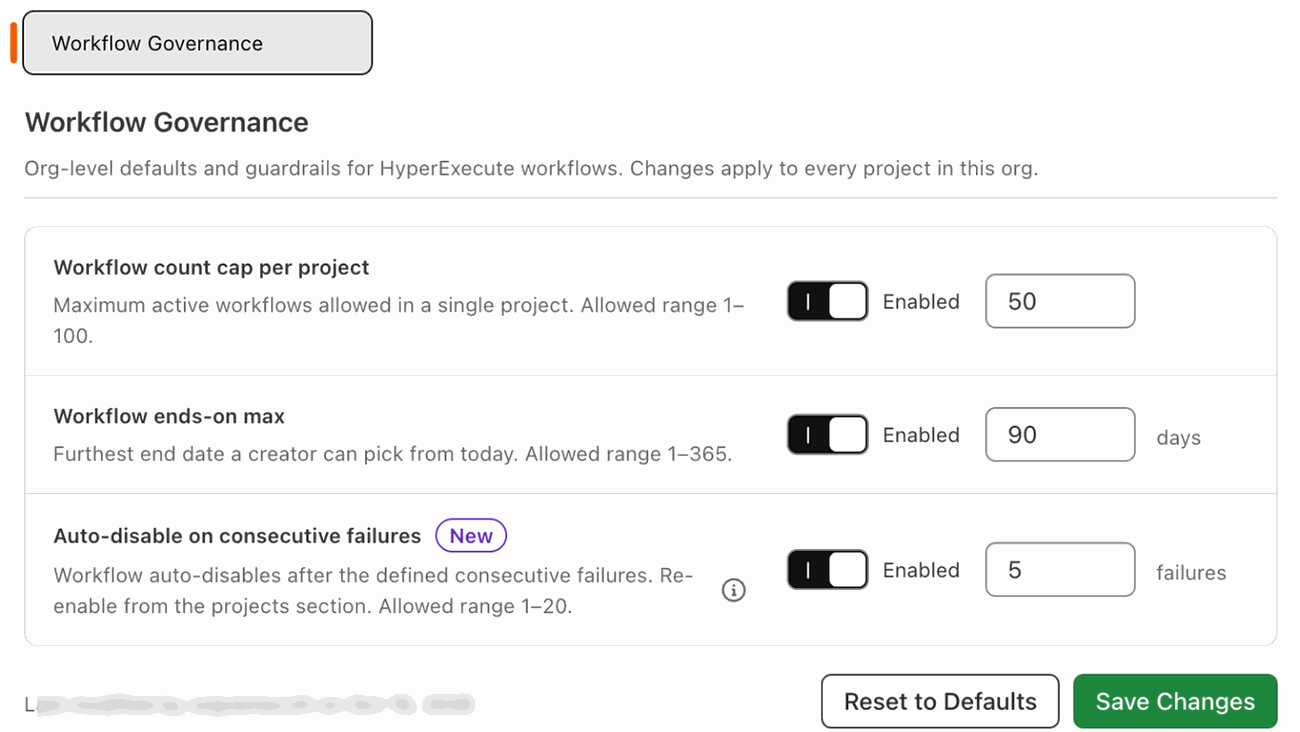
The three guardrails
Each setting has an Enabled/Disabled toggle and a numeric value. Leave a setting disabled to opt out of that specific guardrail; the other two remain in force.
| Setting | What it bounds | Allowed range | Default |
|---|---|---|---|
| Workflow count cap per project | Active workflows a single project can hold at once | 1–100 | 50 |
| Workflow ends-on max | Furthest end date a creator can pick from today | 1–365 days | 90 days |
| Auto-disable on consecutive failures | Consecutive failures tolerated before a workflow auto-disables | 1–20 | 5 failures |
Workflow count cap per project
Caps the number of active workflows a project is allowed to hold at the same time. Paused or expired workflows do not count against the cap, so the limit tracks workflows that are actually scheduling jobs.
- Allowed range: 1–100.
- When a creator hits the cap: workflow creation is blocked for that project. To free a slot the creator must pause or delete an existing workflow, or shorten its Workflow ends on date so it moves to Expired (Expired is derived from the end date and cannot be set manually). The cap applies to any action that would raise the active count — creating, cloning, and resuming a Paused workflow are all blocked while the project is at the cap, so a pause-then-create sequence does not bypass it.
- Disabled: no cap. A project can hold any number of active workflows.
Use this when a few projects have accumulated workflows that nobody is tracking, or when your scheduling capacity is tight and you want to force teams to retire old workflows before adding new ones.
Workflow ends-on max
Every workflow carries a Workflow ends on date, after which it stops triggering jobs and moves to the Expired state (see Workflow states). This guardrail bounds how far in the future that end date can be.
- Allowed range: 1–365 days from today.
- When a creator picks a date past the cap: the date picker rejects the choice and shows the cap. The creator must pick a closer date or ask an admin to extend the limit.
- Disabled: creators can pick any future date.
A short cap forces teams to revisit their workflows regularly. If a workflow is still useful, extending it is a one-field edit; if it isn't, letting it expire is the lightest-weight way to clean up.
Auto-disable on consecutive failures
A workflow auto-disables after the configured number of consecutive failures. The counter resets on the first successful run, so a workflow that fails intermittently keeps running; only one that is persistently broken is caught.
- Allowed range: 1–20 consecutive failures.
- What "disabled" means: the workflow is moved to the Paused state — no new jobs are triggered, the Play button is disabled, and the row shows the reason "disabled after N consecutive failures". Historical jobs and configuration are retained. Auto-disable reuses the Paused state rather than introducing a new one, so no extra entry is needed in the Workflow States table.
- Re-enabling: an Org Admin or Project Admin sets the workflow's Status back to Active from the Status dropdown → Apply Status, after fixing the underlying issue.
- Disabled (the guardrail itself): failures never auto-disable a workflow. It keeps triggering until a human intervenes.
Start with the default of 5 and tune down if too many broken workflows are slipping through, or up if normally-flaky workflows are being disabled too eagerly. Because the counter resets on success, this threshold is about persistence, not total failure rate.
Change the settings
- Open Settings → Settings → Org Product Preferences → HyperExecute → Workflow Governance (same path as the other HyperExecute preferences — see Org Product Preferences).
- Toggle the setting between Disabled and enabled using the switch on its row.
- When enabled, type the value into the input next to the toggle. Values outside the allowed range are rejected inline.
- Click Save Changes. Use Reset to Defaults on the right of the panel to revert all three settings — toggles and values — back to the shipped defaults (50 workflows, 90 days, 5 failures) in one click; it does not touch any existing workflow.
- Changes apply from the next workflow create or edit onward. Existing workflows are not retroactively re-validated against a tightened count cap or ends-on max, so projects already over the new count stay as-is. However, editing an existing workflow whose Workflow ends on date now exceeds the ends-on max will fail Save until the creator shortens the date, because the date picker enforces the current cap on every edit.
All three toggles can be set to Disabled independently, so you can opt out of a specific guardrail while keeping the others in force:
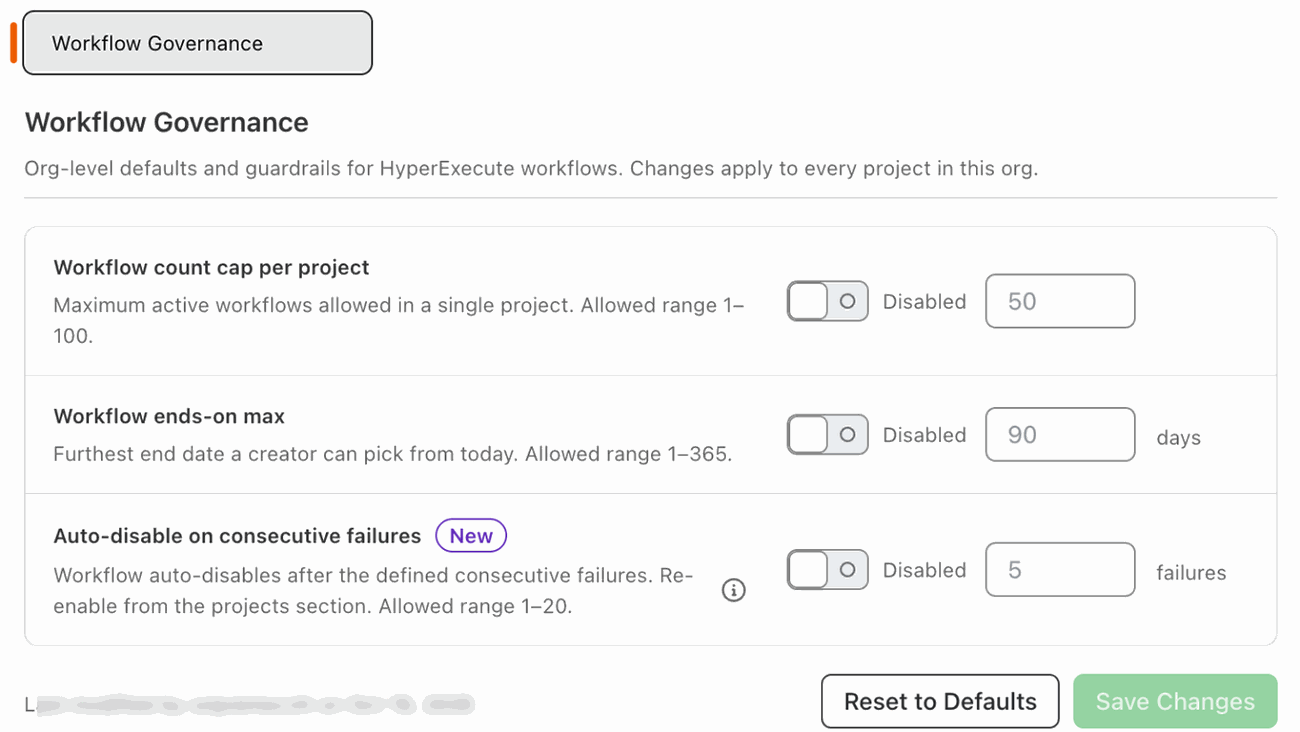
The page footer records the user who last changed the settings and the timestamp, so you can trace who adjusted a guardrail and when.
What creators see
Workflow Governance is designed so creators are never silently blocked.
- A count cap rejection names the limit and tells the creator to retire an existing workflow first.
- An ends-on max rejection shows the furthest selectable date in the picker.
- An auto-disable event moves the workflow to Paused in the project workflow list, with the reason "disabled after N consecutive failures". An Org Admin or Project Admin re-enables it by setting Status back to Active from the Status dropdown → Apply Status, after the fix lands. (The workflow row's three-dots menu only exposes Edit, Clone, and Delete — status changes always go through the Status dropdown.)
Related
- Workflows in HyperExecute — how creators schedule and manage workflows.
- Global Policies in HyperExecute — org-level rules that govern the YAML inside each job.
- Org Product Preferences — the parent settings page.


 Chat with Us