AI-Powered Smart Heal for Automation Tests
TestMu AI’s Smart Heal uses AI-powered algorithms to automatically detect and recover from locator failures during test execution. It intelligently detects missing elements, analyzes the UI in real time, and applies the closest valid match, keeping tests running smoothly despite UI changes. Both the original and recovered locators are logged for full visibility through the TestMu AI dashboard.
This feature is available exclusively with the Real Device Plus Automation Cloud Plan.
To unlock this feature, purchase or upgrade to the required plan. If you need assistance, please contact your TestMu AI support representative, reach out to our [24×7 Chat Support], or email us at support@testmuai.com.
Use Cases
- Frequent UI Updates: When product teams ship fast and locator changes are common, Smart Heal prevents brittle tests from breaking on every release and make shipments fast.
- CI/CD Reliability: Reduce flaky build failures by automatically recovering from locator issues in pipelines.
- Maintenance Reduction: Spend less time fixing scripts manually and more time building new coverage.Deploy first and fix later.
- Audit & Debugging: Use healed locator logs and screenshots to understand changes quickly and improve your scripts over time.
Smart Heal Workflow
-
Baseline Creation Smart Heal requires at least one successful (Passed) test run to establish a baseline. On this initial run, TestMu AI captures a baseline snapshot of all element locators in your script. Make sure to include the TestMu AI Hook to explicitly mark tests as passed during execution.
- The project name and test name must remain the same across runs for the baseline to apply.
- Since Smart Heal uses AI-driven analysis, expect executions to take slightly longer than usual.
-
Baseline Update After each successful test run, Smart Heal automatically updates your baseline to reflect the latest passed build. This ensures the most recent valid UI state is used as reference for future healing attempts.
-
Detection and Healing In subsequent runs, if an element cannot be found due to UI or DOM changes, Smart Heal triggers automatically, leveraging AI-driven analysis of element attributes, hierarchy, and visual cues to find the closest valid match in the updated UI.
-
Retry with Healed Locator When a likely match is found, the test step retries with the healed locator. These adjustments apply at runtime so the test flow continues without interruption. Both the original and healed locators are logged for full transparency.
-
Fallback and Suggestions If Smart Heal cannot confidently identify an alternative, it records AI-driven suggestions in the dashboard. These insights help you quickly update or strengthen your locators to avoid repeated failures in future runs.
Smart Heal in Automation Tests
1. Upload Your App
Before enabling Smart Heal, ensure your app is uploaded to TestMu AI.
- Follow the Upload Your Application guide.
- Once uploaded, note the App ID returned by the API or dashboard.
- Use this App ID in the
"app"capability in your automation script.
2. Enable Smart Heal with Capabilities
To enable Smart Heal, add "smartHeal": true to your desired capabilities in your Appium test script.
- iOS
- Android
desired_caps = {
    "deviceName": "iPhone 16",
    "platformName": "iOS",
    "platformVersion": "18",
    "isRealMobile": True,
    "app": "YOUR_APP_URL",
    "build": "Smart Heal iOS",
    "name": "Sample Smart Heal Test",
    "smartHeal": True
}
desired_caps = {
    "deviceName": "Galaxy S25",
    "platformName": "Android",
    "platformVersion": "16",
    "isRealMobile": True,
    "app": "YOUR_APP_URL",
    "build": "Smart Heal Android",
    "name": "Sample Smart Heal Test",
    "smartHeal": True
}
You can generate capabilities for your test requirements with the help of our inbuilt Capabilities Generator tool. For more details, please refer to our guide on Desired Capabilities in Appium.
3. Enable Smart Heal with Runtime Hooks
You can also control Smart Heal dynamically during test execution using runtime hooks. This is useful when you want healing active in specific phases or after major UI changes.
// Stop Smart Heal
driver.executeScript("lambda-heal-stop");

// Start Smart Heal
driver.executeScript("lambda-heal-start");
4. Running Your Tests
Once your app is uploaded and Smart Heal is enabled (either via capabilities or runtime hooks), execute your test script as usual with your preferred automation framework. Smart Heal will monitor for locator failures during the run, apply healing when possible, and log all details to the TestMu AI dashboard for review.
Viewing Results in Dashboard
Accessing the Dashboard
Your test results are displayed on the TestMu AI App Automation Dashboard.
Filtering Healed Builds
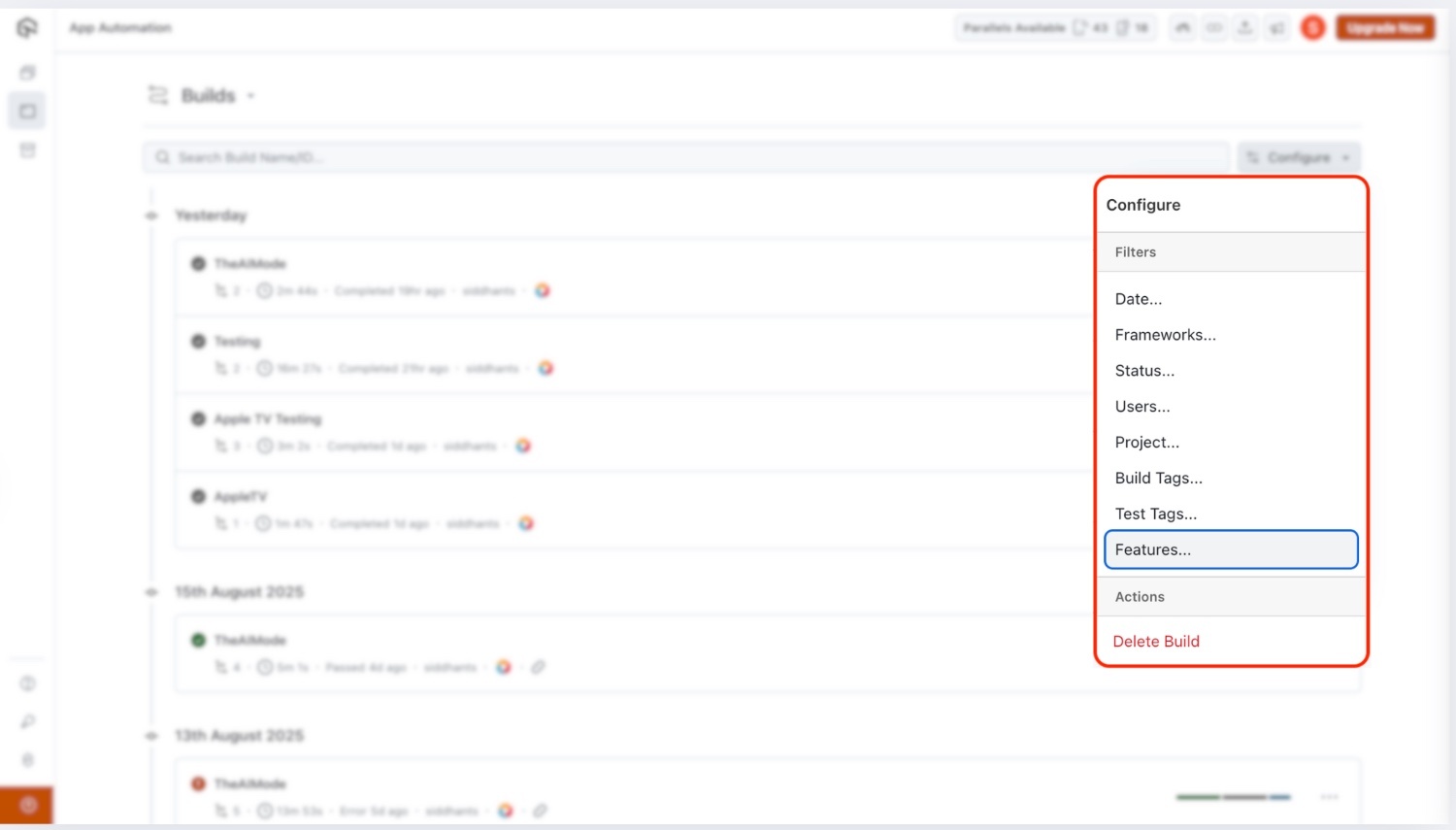
To display only healed builds, click on the Configure option at the top of the dashboard.
-
The following image shows the Configure box, with the Features tab highlighted:
-
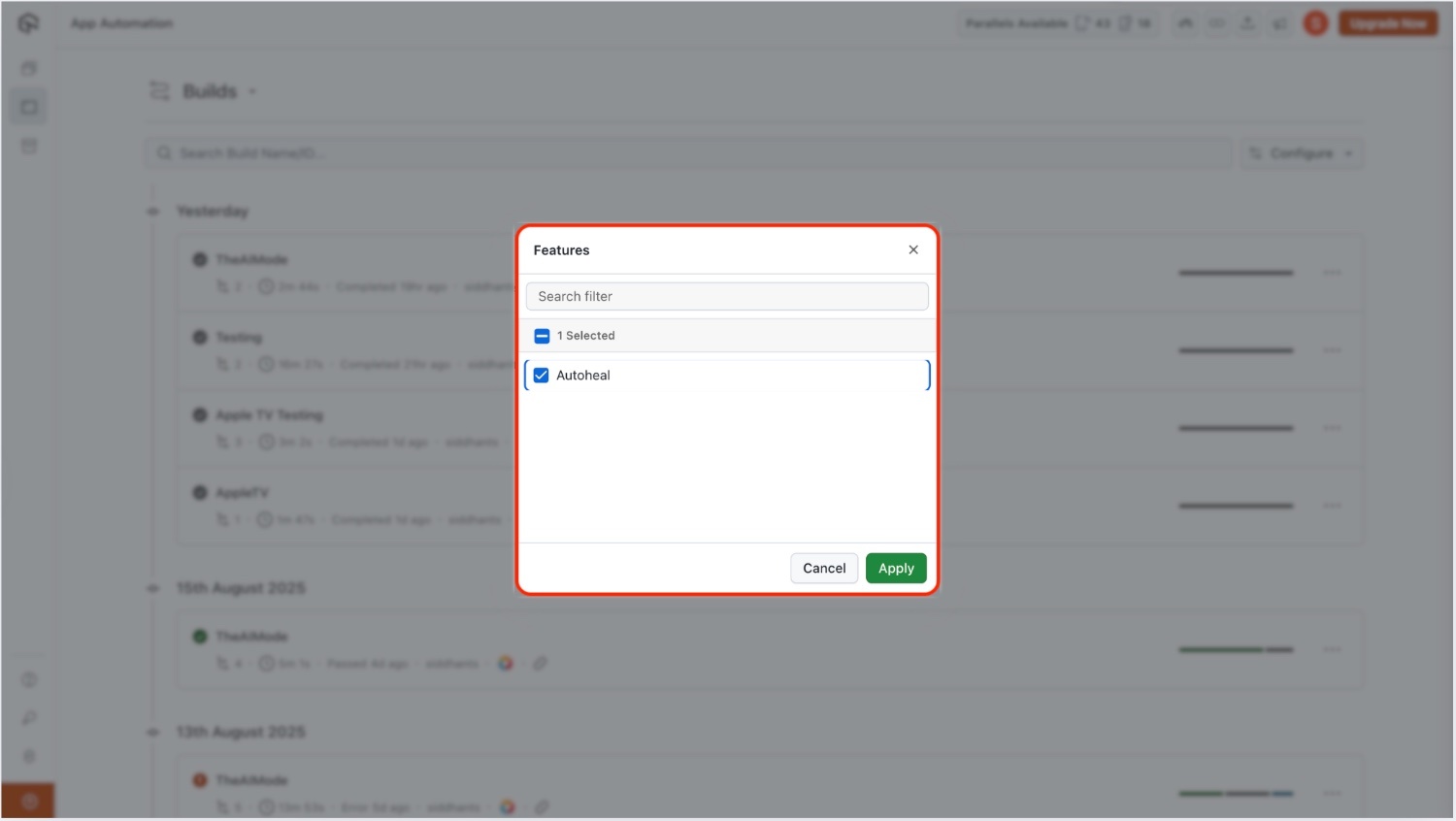
When you open the Features tab, a pop-up appears where you can enable Auto-Heal to filter and display only executions where Smart Heal was applied:
-
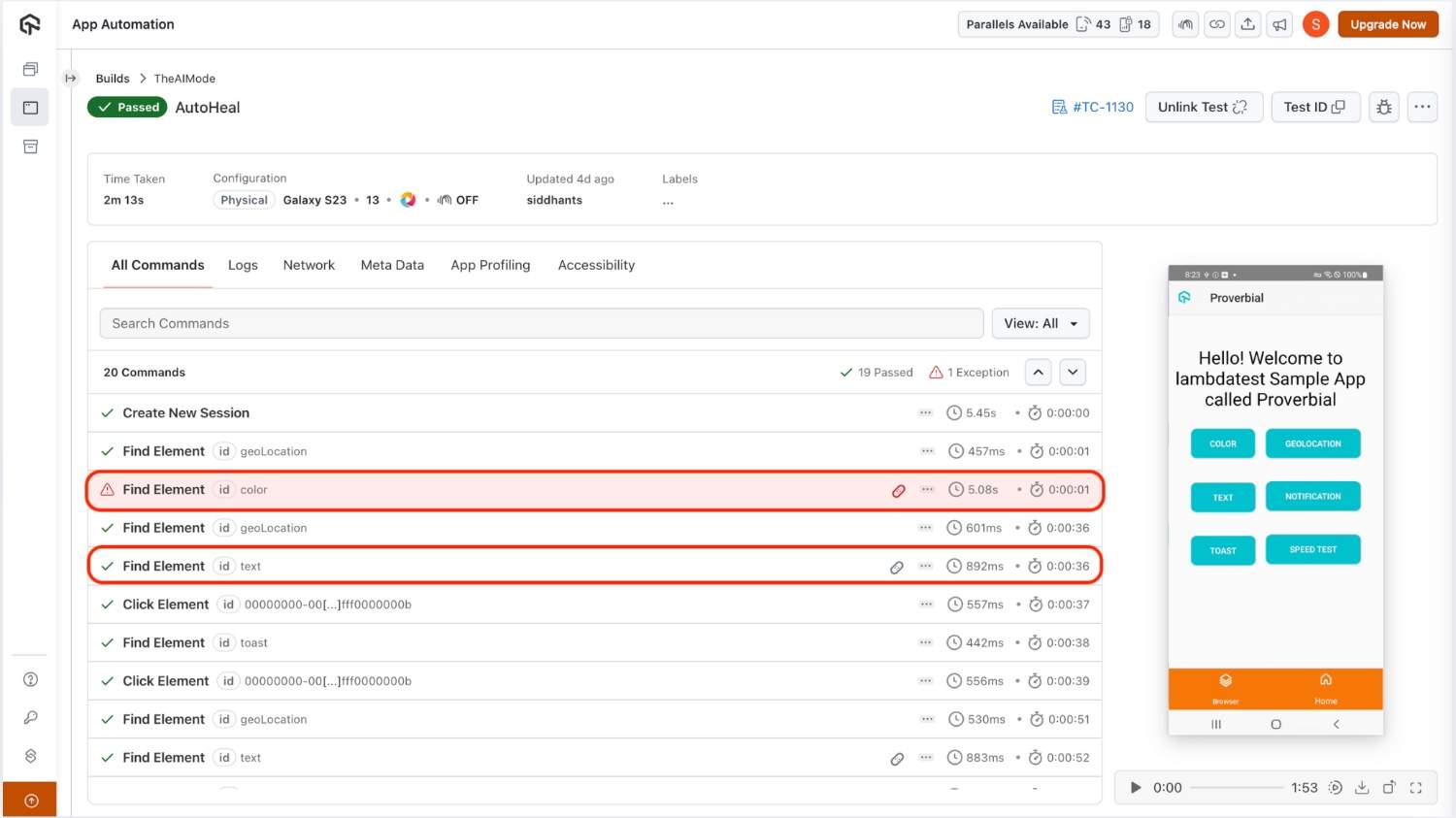
Once filtering is applied, the dashboard highlights all healed elements in your tests. In this view, healed elements are marked clearly, while those that could not be healed are highlighted in red:
Hovering Over Healed Builds
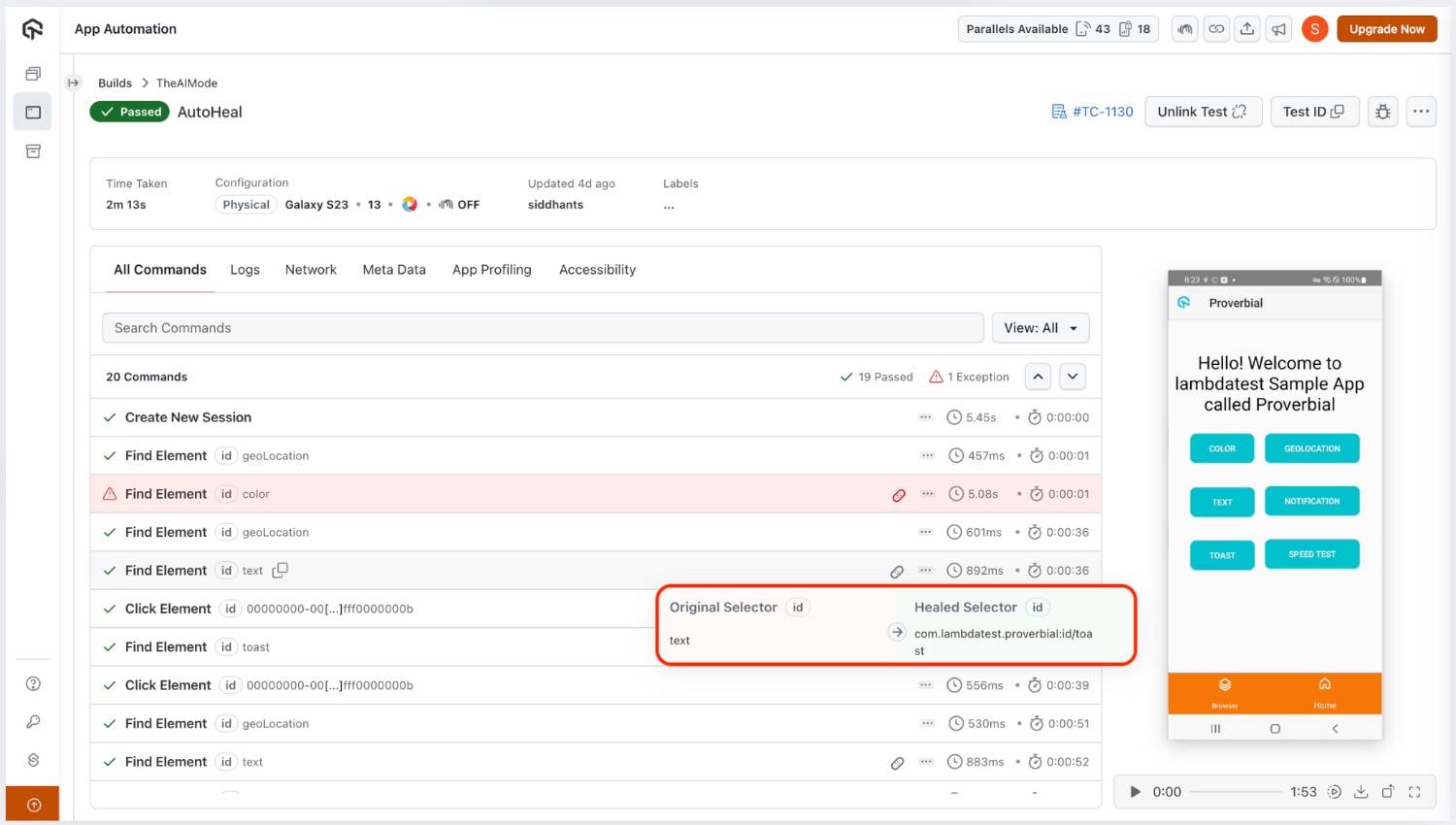
Each healed build has an associated icon. Hovering over this icon provides a tooltip that shows a brief summary of the session and the healing actions performed.
Session Details
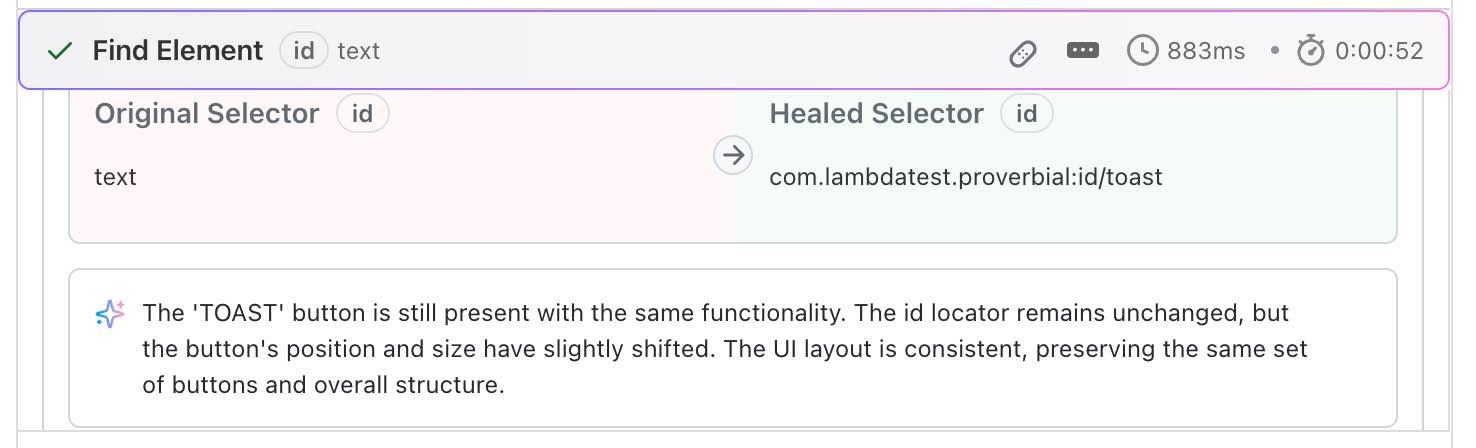
Access detailed execution logs that clearly differentiate between original and healed selectors, along with AI suggestions, and compare before-and-after screenshots. These insights help you understand how the Auto-Heal mechanism worked during execution and guide you in refining locators over time.
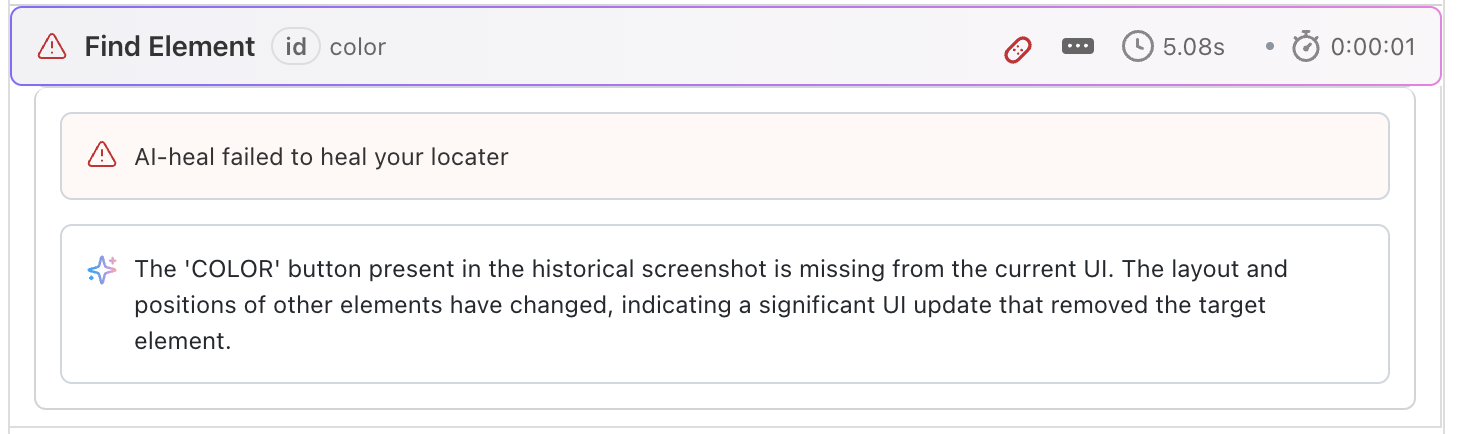
AI Review on Failures
When a test case fails, the dashboard provides AI-powered analysis and suggestions to help you quickly identify root causes and fix issues.
Smart Heal delivers the best results when applied to static components such as buttons or form fields, where locators remain relatively consistent across runs.
Related Docs
- Selenium Auto Healing:Auto-heal for Selenium web automation tests
- Playwright Auto Healing:Auto-heal for Playwright web automation tests
- Auto Healing in HyperExecute:Auto-heal for tests executed via HyperExecute
- Auto-Heal in KaneAI:AI-native auto-heal with natural language understanding for KaneAI-authored tests


 Chat with Us