Group Based Concurrency Distribution
The LambdaTest Group Management will help you in creating the different Groups and allot concurrency to those groups. In this way, you can perform the test automation by dividing the concurrency among the groups.
How to Create a New Group?
Step 1: Login to your LambdaTest account and navigate to Profile icon on the top-right. Click on Organization Settings.
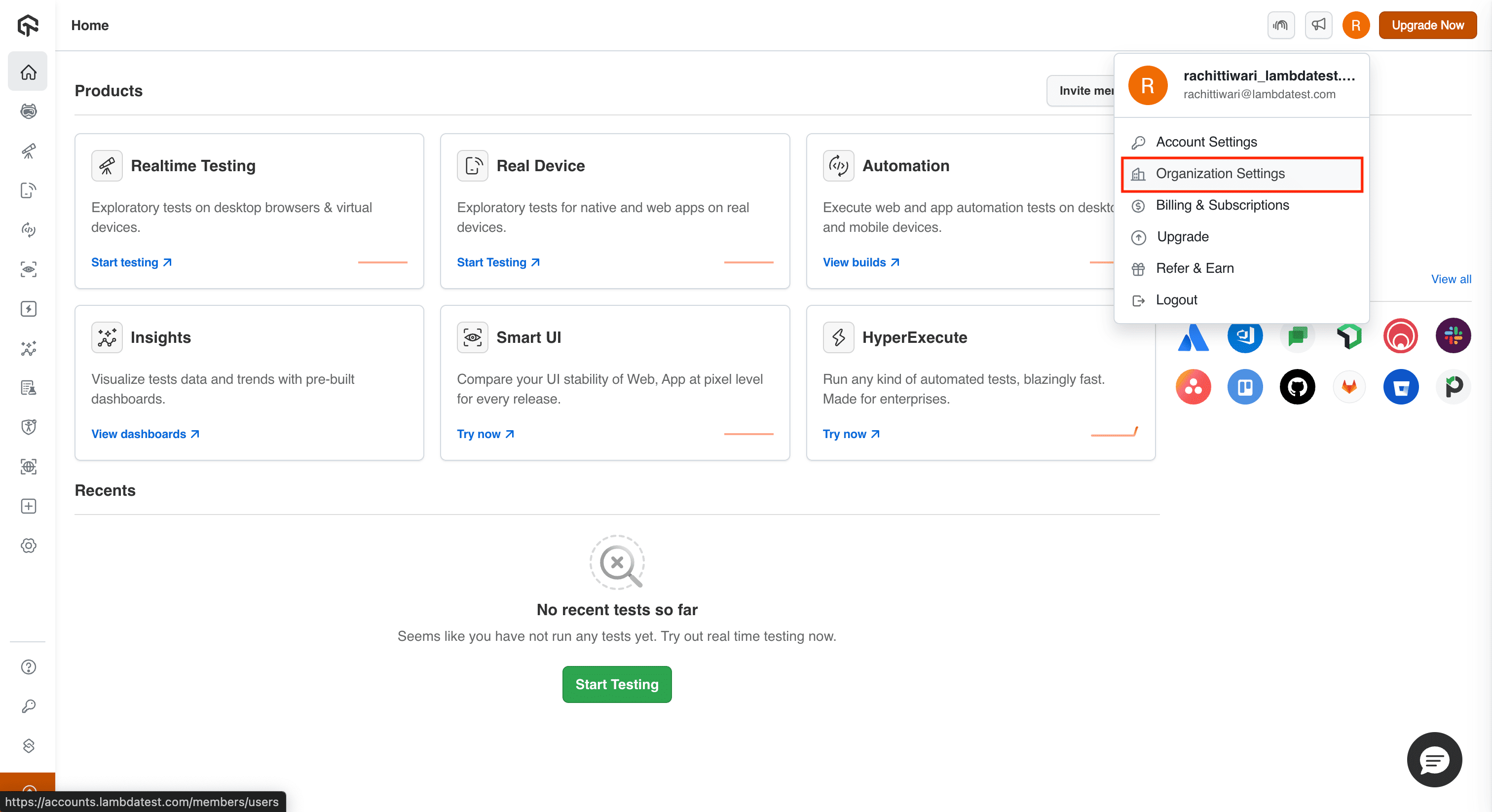
Step 2: Select the 'Groups' tab and click on '+ Create'.
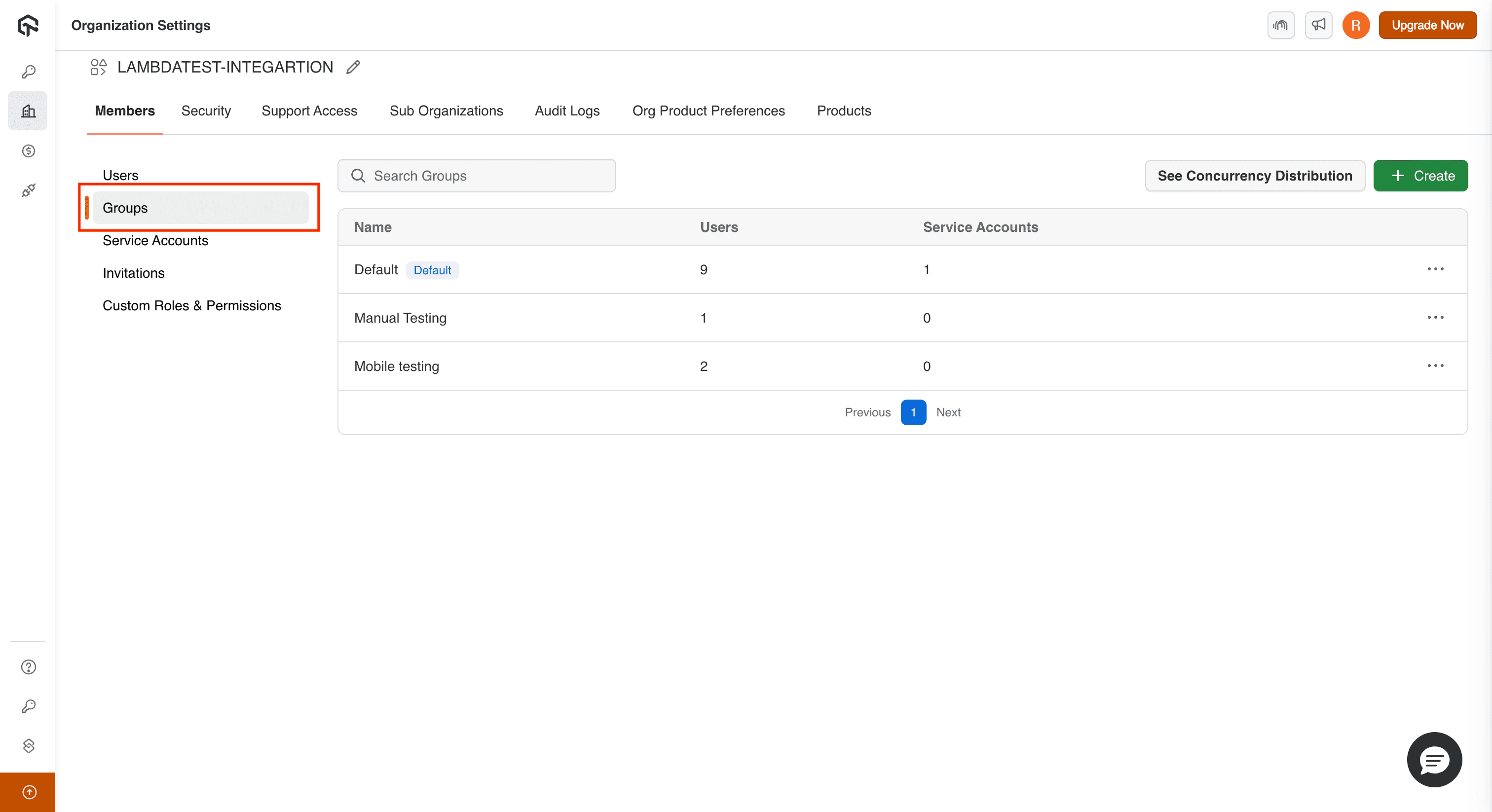
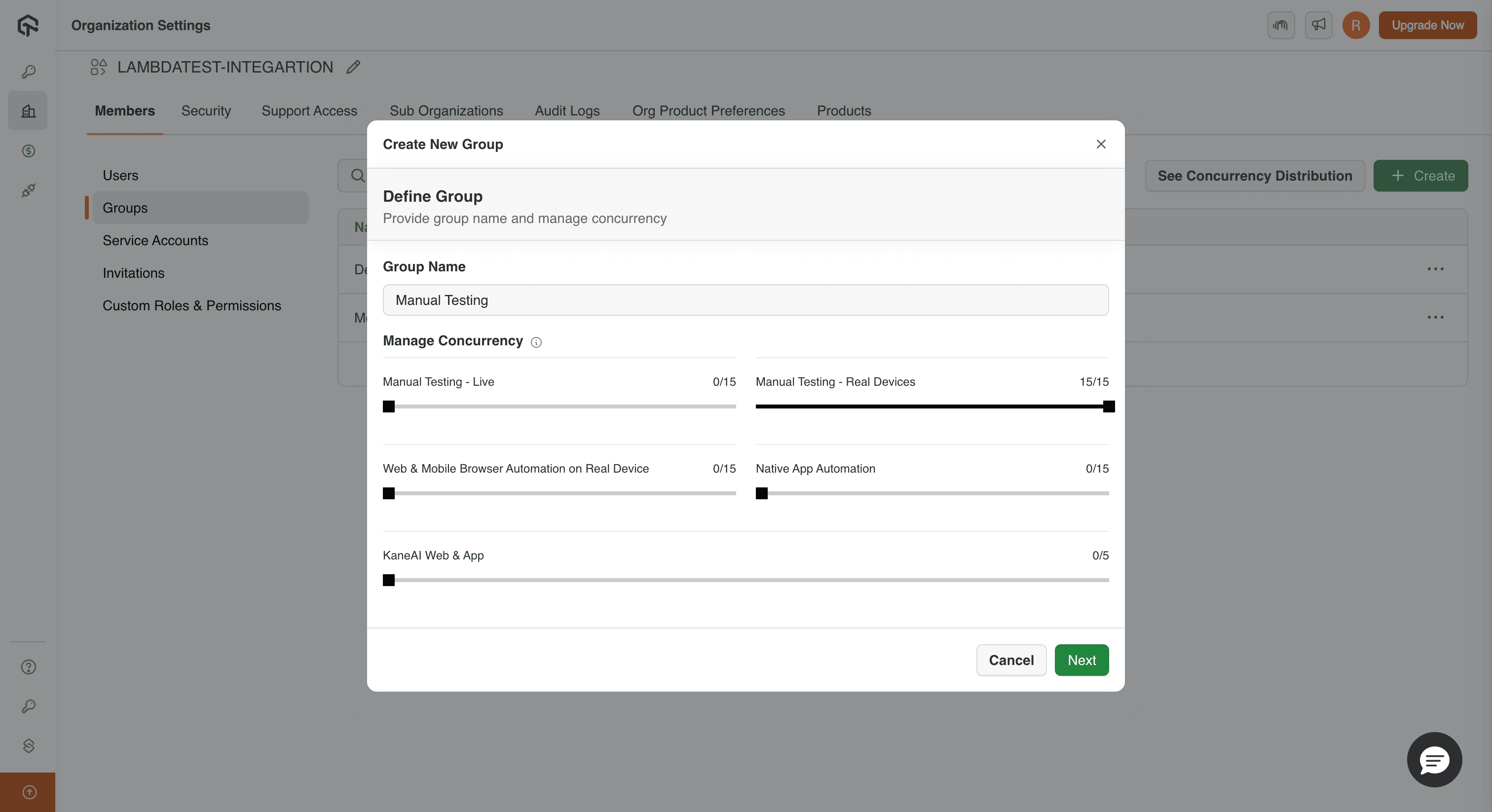
Step 3: Fill in the group name of your choice, allot the maximum concurrency using the sliders. After providing the details, click on 'Next'.
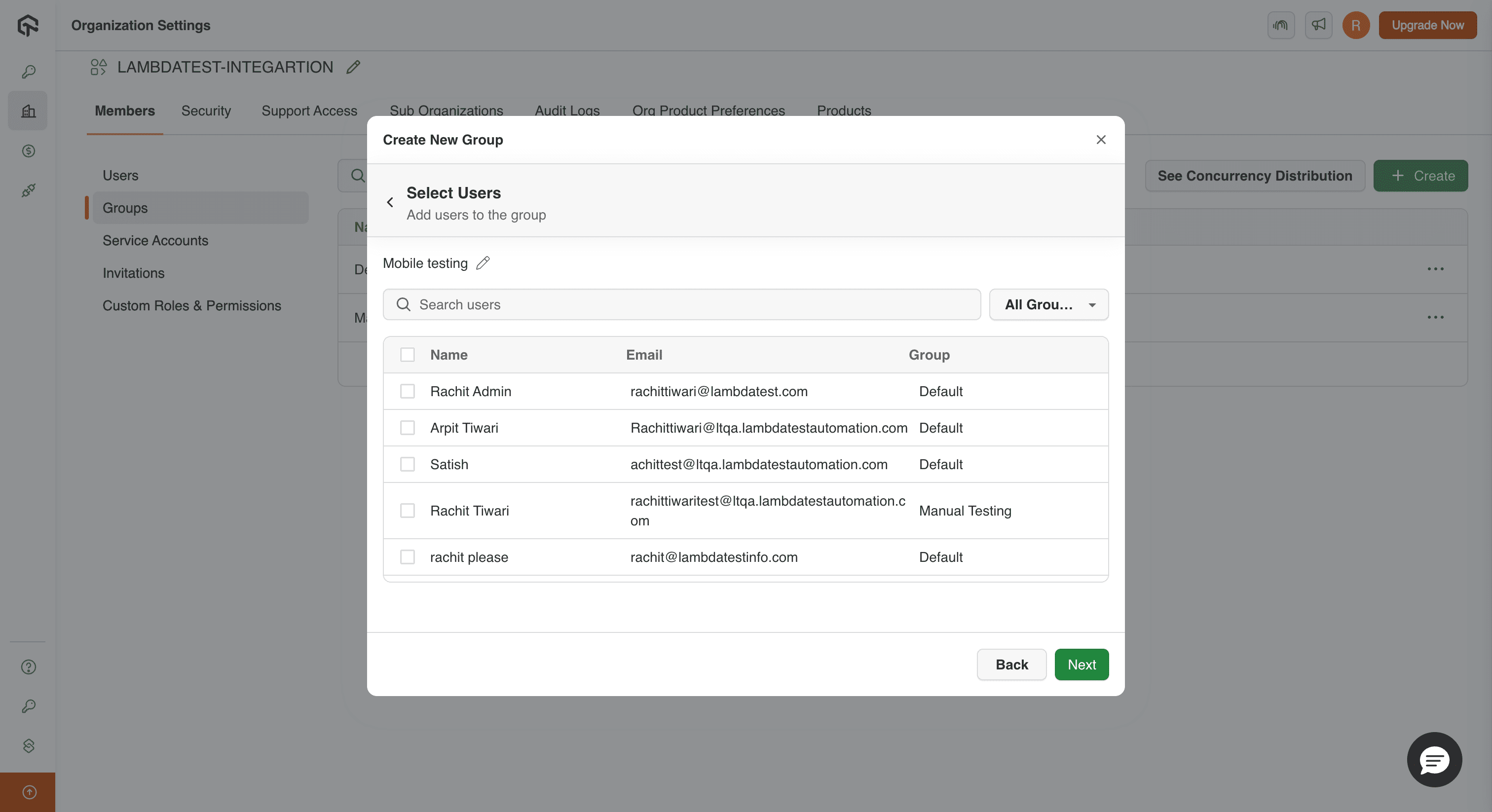
Step 4: Select users you want to add to the group, click on 'Next'.
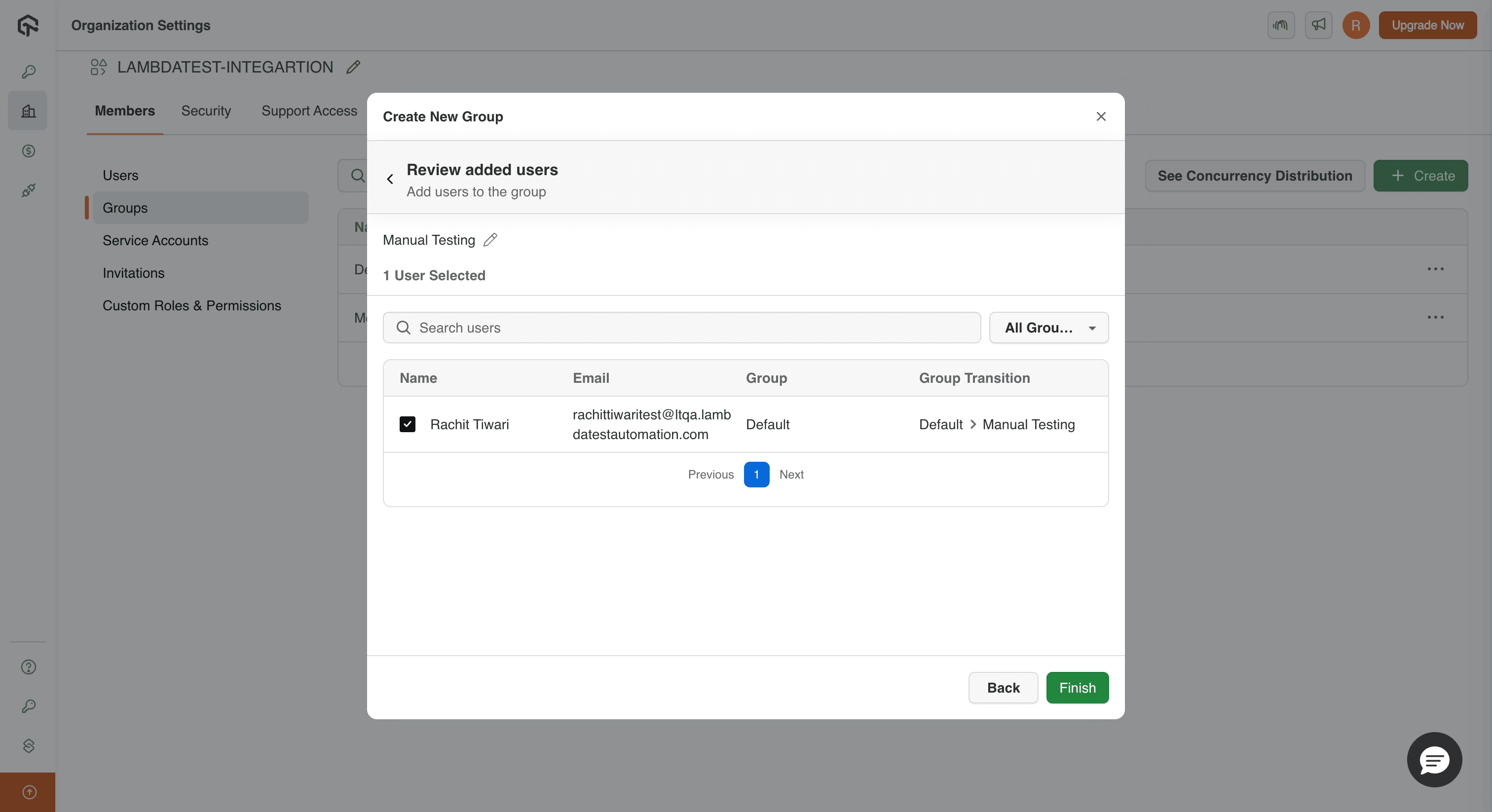
Step 5: Review the list of users you have selected to add to the group, then click on 'Finish'. Your new group will be created successfully.
How to View and Edit a Group?
Step 1: Login to your LambdaTest account and navigate to Profile icon on the top-right. Click on Organization Settings.
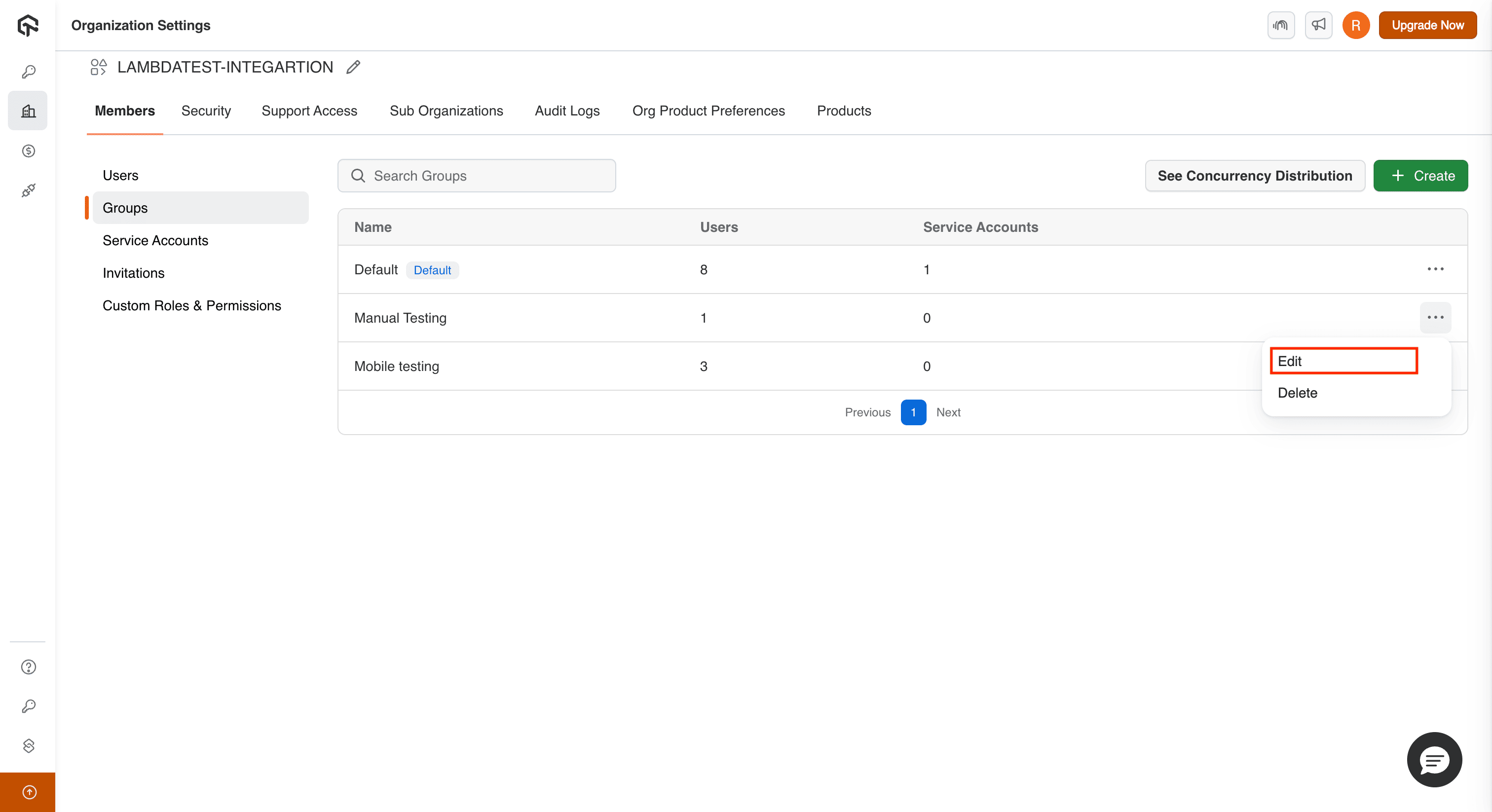
Step 2: Click on the 'Groups' tab, select the desired group you want to view and edit. Click on the 3 dots and then select 'Edit' button.
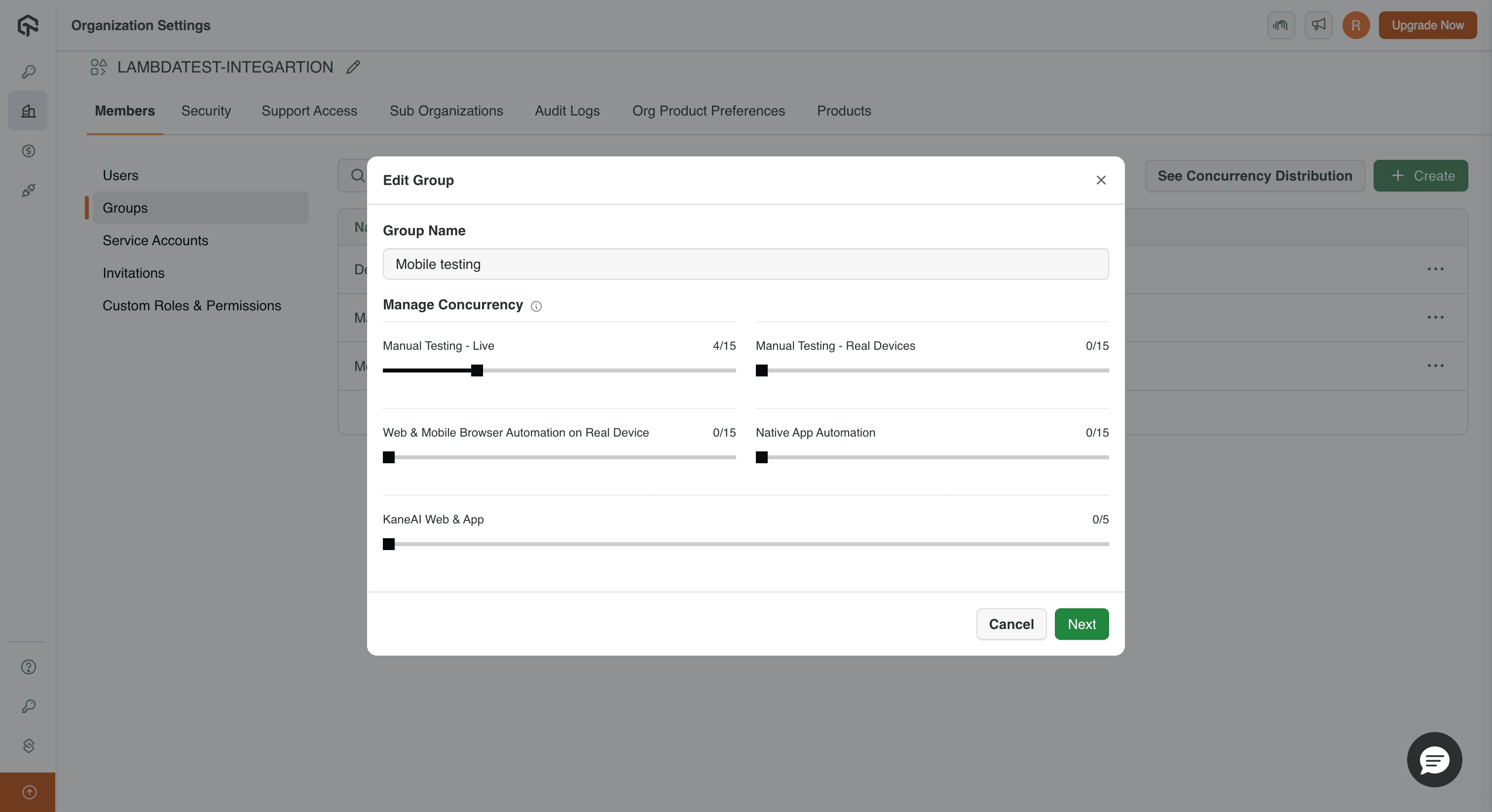
Step 3: You can view and edit the Group Name and Concurrency settings. After making changes, click on 'Next' to proceed.
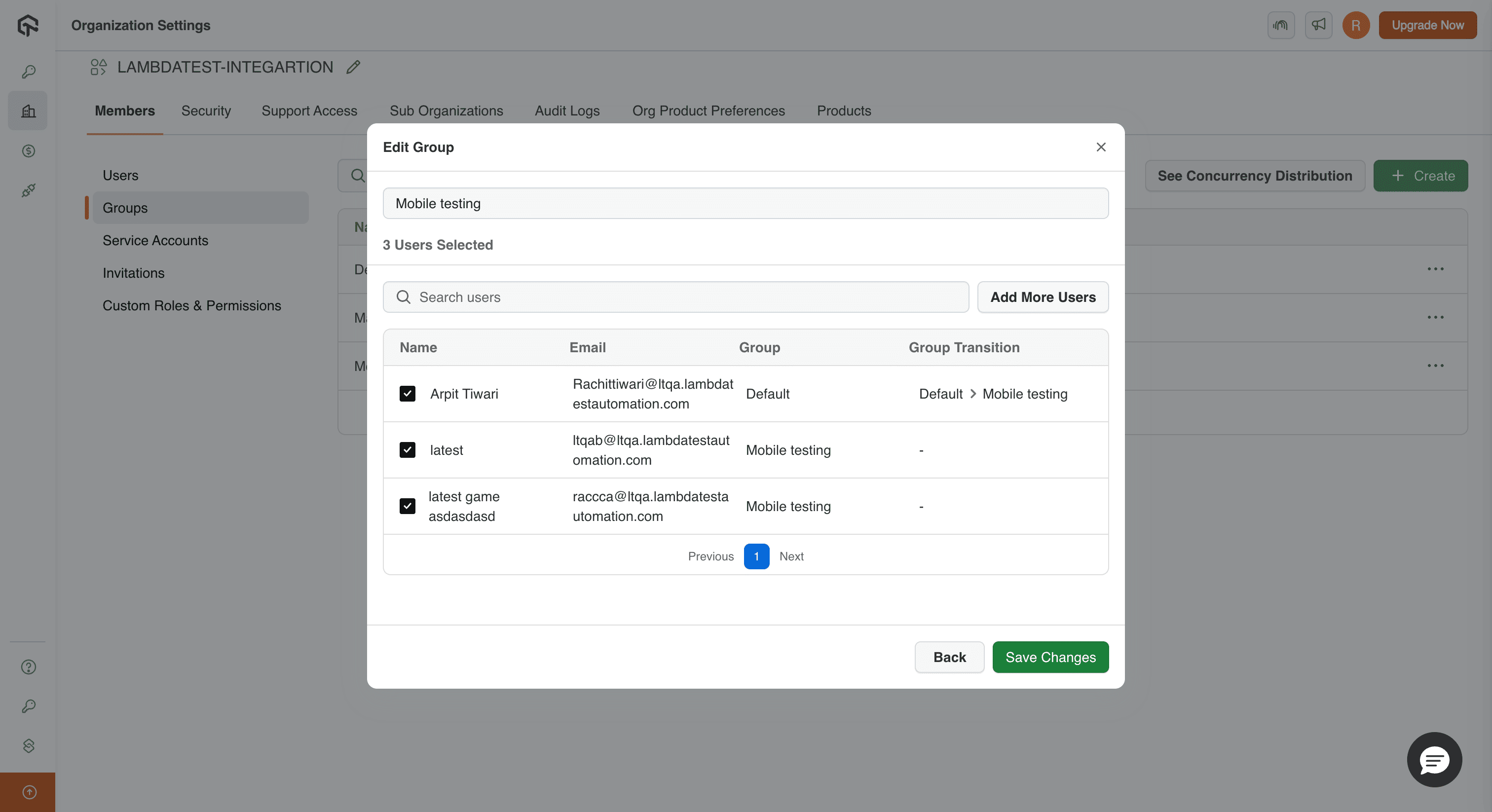
Step 4: You can add or remove users from the group. Select or deselect users as needed, then click on 'Add Users' or 'Save Changes' to save your modifications.
How to Delete a Group?
Step 1: Login to your LambdaTest account and navigate to Profile icon on the top-right. Click on Organization Settings.
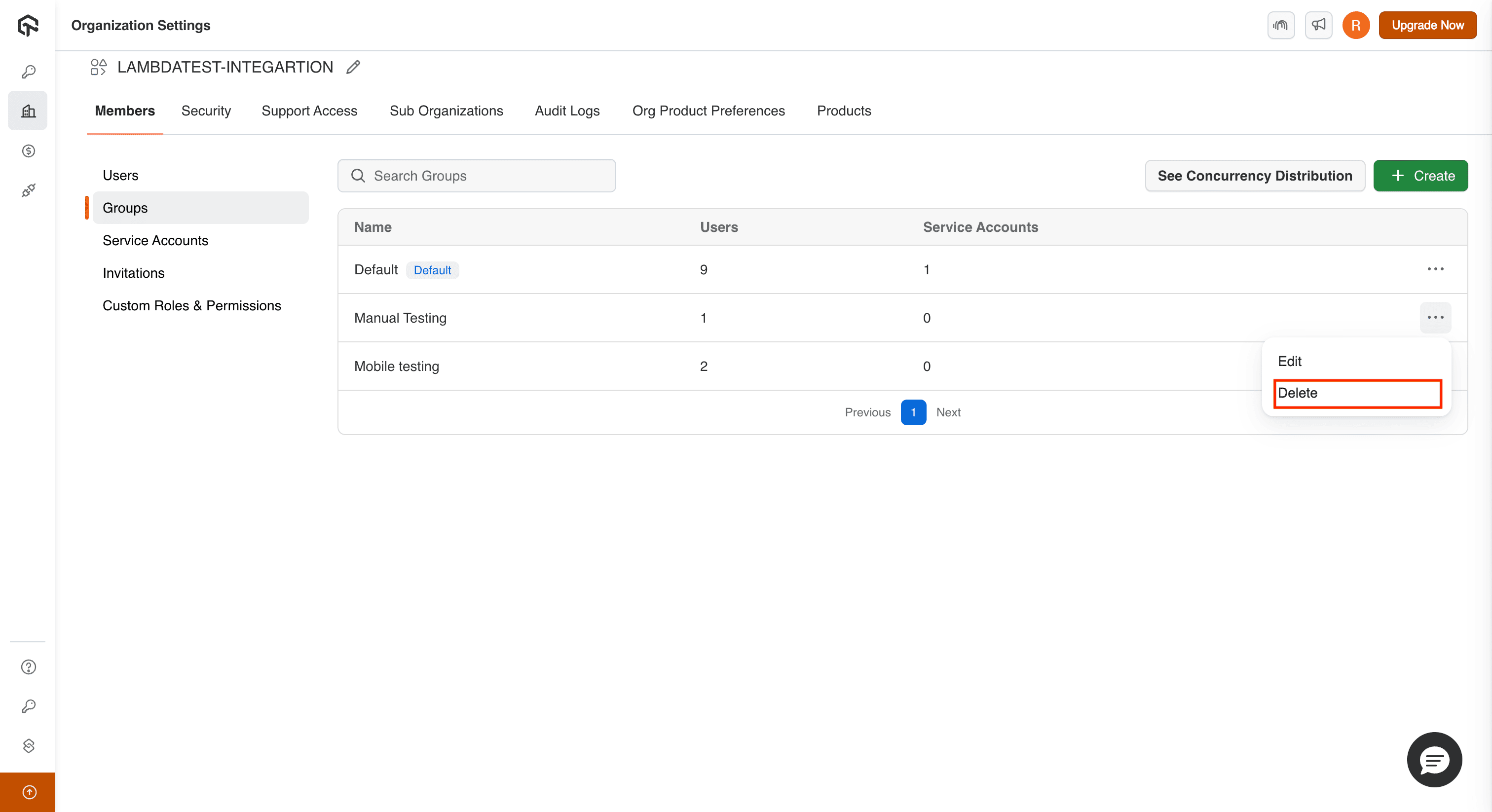
Step 2: Click on the 'Groups' tab, select the desired group you want to delete. Click on the 3 dots and then select 'Delete' button.
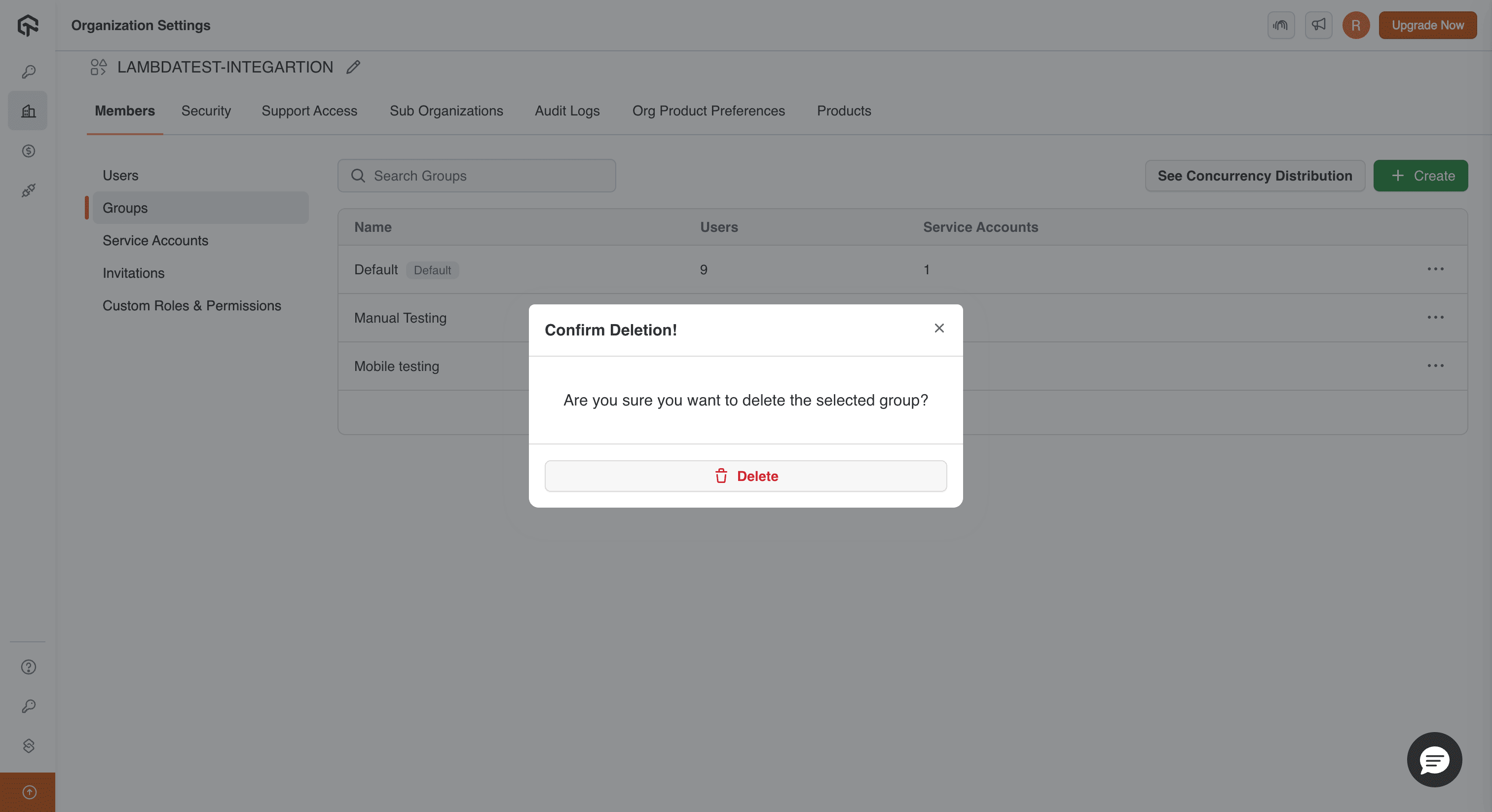
Step 3: A confirmation dialog will appear. Click on the 'Delete' button to confirm. Your selected group will be deleted.
In case you have any queries regarding LambdaTest Group Management or need any additional information, please reach out at our 24*7 Chat Portal or drop us a mail to support@lambdatest.com.

 Chat with Us
 Ask the Community