 Test your AI Agents with the all-new Agent to Agent Testing Platform.Learn More
Scale Your Automation Testing with AI
 Run end-to-end parallel tests & reduce test execution time by 5x
- Generate tests scripts using natural language with KaneAI
- Accelerate your testing process with Autoheal, SmartWait & RCA



- Selenium Java
- Home
- /
- Learning Hub
- /
- Cucumber Java Testing
Cucumber Java Testing: A Step-by-Step Tutorial
Learn Cucumber Java with this tutorial covering keywords, hooks, and practical steps to start efficient BDD testing from scratch.
Last Modified on: December 7, 2025
- Share:
Cucumber is an open-source framework for Behavior-Driven Development (BDD). By using Cucumber with Java, you can translate test scenarios written in natural language into test scripts.
This process turns plain-language descriptions into automated tests. It helps both technical and non-technical stakeholders understand how a software application should behave. It also ensures the software functions as intended.
Overview
What Is Cucumber Tool?
Cucumber is a testing tool that supports Behavior-Driven Development, letting teams write clear, readable scenarios that verify software behaves as expected.
How to Run Cucumber Tests Using Java?
Running Cucumber with Java involves setting up the required dependencies, writing feature files and step definitions, and executing tests using a test runner. Here is the step-by-step process:
- Install Required Tools: Set up the JDK, install IntelliJ IDEA or Eclipse, and add the Cucumber plugin to enable feature support in your development environment.
- Add Cucumber Dependencies: Use Maven to add cucumber-java plus cucumber-junit or cucumber-testng dependencies inside the pom.xml configuration for execution of your Cucumber based Java tests.
- Set Up Project Structure: Create separate folders for runners, stepdefinitions, and features under src/test to organize files and keep the structure clean for scalable test automation projects.
- Create a Feature File: Write scenarios in Gherkin language within a .feature file describing login behavior and expected application responses clearly for consistent understanding across teams.
- Generate Step Definitions: Execute the feature file once to generate step definition templates that match each written scenario step automatically inside your chosen Java package.
- Implement Steps in Java: Replace the generated templates with Selenium WebDriver code to perform browser actions and data input tasks according to your defined test steps.
- Add Hooks: Use the @Before hook to launch the browser, maximize the window, and apply implicit waits required for stable and reliable test execution.
- Create a Test Runner: Create a TestRunner class using @CucumberOptions to link features and stepdefinitions for execution through either TestNG or JUnit testing framework setup configuration.
- Choose Execution Framework: Use the @After hook to close the browser and clean up the WebDriver session after completion of each executed Cucumber test scenario.
- Run the Tests: Run the TestRunner class from the IDE to execute all scenarios and view results in the console with detailed execution logs displayed.
What Is Cucumber Framework?
Cucumber is a testing framework, written in Ruby, for Behavior-Driven Development that enables the creation of test cases in plain text using the Gherkin language.
For Cucumber testing, writing scenarios in plain text using Gherkin syntax helps bridge the gap between technical and non-technical teams. It allows developers, testers, and business stakeholders to collaborate effectively while ensuring automated tests remain readable and aligned with business goals.
Benefits:
- Encourages Collaboration and Shared Understanding: Cucumber uses a human-readable format for test scenarios. This allows developers, testers, and business stakeholders to see expected behavior clearly, reducing misunderstandings from the start.
- Supports Multiple Programming Languages and Tech Stacks: Cucumber works with Java, JavaScript, Python, and other languages, giving teams the flexibility to use it with the tools and languages their projects already rely on.
- Promotes Reuse and Maintainability of Tests: Common test steps can be reused across multiple scenarios, which reduces duplication and keeps test suites easier to maintain as projects evolve.
- Integration With Different Automation Tools: Cucumber can be used with a variety of automation tools for web, mobile, UI, and API testing, allowing teams to adapt it to their preferred automation stack.
Which Keywords Are Used in Cucumber?
Cucumber uses these main keywords: Feature, Scenario, Scenario Outline, Examples, Given, When, Then, And, and But. They define the behavior, flow, data, and expected outcomes of tests.
The following are the important keywords of the Cucumber framework:
- Feature: It provides a high-level description of the feature or functionality you’re testing. Every Gherkin file usually begins with a Feature section to set the context for the scenarios that follow.
Example:
Feature: Login functionality tests- Scenario: It represents a single test case that captures a specific function or behavior of a software. Each scenario should be unique and clearly named so it’s easy to understand what it is validating.
Example:
Scenario: User Login verification with valid credentials- Scenario Outline: It defines a scenario template that can be run multiple times using different data sets, known as scenario examples.
Example:
Scenario Outline: Valid and invalid login tests- Examples: It provides different sets of input data for a Scenario Outline. They include a table where each column header matches the placeholders used in the scenario, allowing the same test to run with multiple data combinations.
Example:
Examples:
| username | password | message |
| sarah    | qwerty   | Login successful |
| joseph | abc6534 | Invalid login |- Given: It sets up the starting point of the test. Their job is to get the system into a specific, predictable state before a user or another system begins doing anything with it.
Example:
Given that I am on the login page- When: It describes the actual action or event taking place. This could be something a user does in the software, or an action triggered automatically by another software.
Example:
When I enter a valid username and password- Then: It is used to describe the expected outcome or result. The step definition for a “Then” step should include an assertion that compares the actual system behavior with the expected behavior defined in the step.
Example:
Then I should be taken to my home page- And: It continues the flow of the previous step, whether it’s a Given, When, or Then, by adding more context, actions, or expected results.
Example:
And I click on the login button- But: It works the same way, but introduces a contrasting condition or exception.
Example:
But I do not check the "Remember Me" option.
Note: Run Cucumber Java tests on cloud Selenium Grid. Try LambdaTest Now!
What Are Cucumber Hooks?
Cucumber hooks run setup and cleanup code during tests. @Before and @After run around scenarios, @BeforeStep and @AfterStep run around steps, and @BeforeAll/@AfterAll handle global setup and teardown.
The following are the commonly used hooks in Cucumber:
- @Before: Methods annotated with @Before are executed before each scenario, ensuring that all necessary setup steps are completed before the test runs.
- @After: Methods annotated with @After run after each scenario, handling any required cleanup once the test has completed.
- @BeforeStep: Methods annotated with @BeforeStep are executed before each step, enabling any necessary preparation to occur before the step’s execution.
- @AfterStep: Methods annotated with @AfterStep run after each step, allowing any necessary post-step processing to occur after the step is executed.
- @BeforeAll: Each @BeforeAll hook runs once before any scenario is executed, ensuring that all global setup tasks are completed before the scenario execution begins.
- @AfterAll: Each @AfterAll hook runs once after all scenarios have finished executing, performing any required global cleanup.
How to Get Started With Cucumber Java Testing?
Install Java and Cucumber dependencies, create a feature file, and map steps in Java step definitions. Then, add hooks for setup/cleanup, and execute the tests through a JUnit or TestNG runner.
Prerequisites
To use Cucumber for Java, make sure you have the following set up:
- JDK (Java Development Kit): Required to compile and run web applications, including Cucumber tests.
- IDE (IntelliJ IDEA or Eclipse): Provides a development environment to write, manage, and execute your tests.
- Cucumber Plugin (for your chosen IDE): Adds support for creating and running Cucumber feature files and step definitions directly within the IDE.
Setting Up Project
To set up a Cucumber project using Maven, add the necessary dependencies to your pom.xml file.
- Add the core Cucumber Java library:
<dependency>
    <groupId>io.cucumber</groupId>
    <artifactId>cucumber-java</artifactId>
    <version>7.31.0</version>
</dependency>JUnit:
<dependency>
    <groupId>io.cucumber</groupId>
    <artifactId>cucumber-junit</artifactId>
    <version>7.31.0</version>
    <scope>test</scope>
</dependency>
TestNG:
<dependency>
    <groupId>io.cucumber</groupId>
    <artifactId>cucumber-testng</artifactId>
    <version>7.31.0</version>
</dependency>
With these dependencies in place, your project will be ready to write and execute Cucumber Java tests.
Project Structure
Here is the project structure. It is organized into three main folders: runners, stepdefinitions, and features.
cucumber-java
├── .idea
├── .mvn
├── src
│   ├── main
│   │   └── java
│   │       └── io.github.mfaisalkhatri
│   └── test
│       ├── java
│       │   └── io.github.mfaisalkhatri.lambdatestecommerce
│       │       ├── runners
│       │       │   └── TestRunner
│       │       └── stepdefinitions
│       │           └── LoginSteps
│       └── resources
│           └── features
│               └── Login.feature
├── target
├── .gitignore
├── pom.xml
Writing Tests
Let’s consider the following login test scenario from the LambdaTest eCommerce Playground website for writing tests using Cucumber for Java automation testing:
Test Scenario:
- Navigate to the Login page of the LambdaTest eCommerce Playground website.
- Enter a valid username and password.
- Click on the Login button.
- Verify that the valid user is logged in successfully.
Implementation:
For automation testing using Selenium Cucumber in Java, create a Login.feature file under the Feature package, located in the src/test/resources directory, with the content shown below:
Feature: Login Functionality tests

 In order to perform Online Shopping
 As a valid LambdaTest e-commerce user
 I want to login successfully

 Scenario: Login to the website with a valid user
   Given I am on the login page
   When I enter a valid username and password
   And click on the login button
   Then I should be taken to My Account page
   And the logout button should be displayed
After creating the feature file, the steps will appear with warnings indicating that their step definitions have not yet been implemented.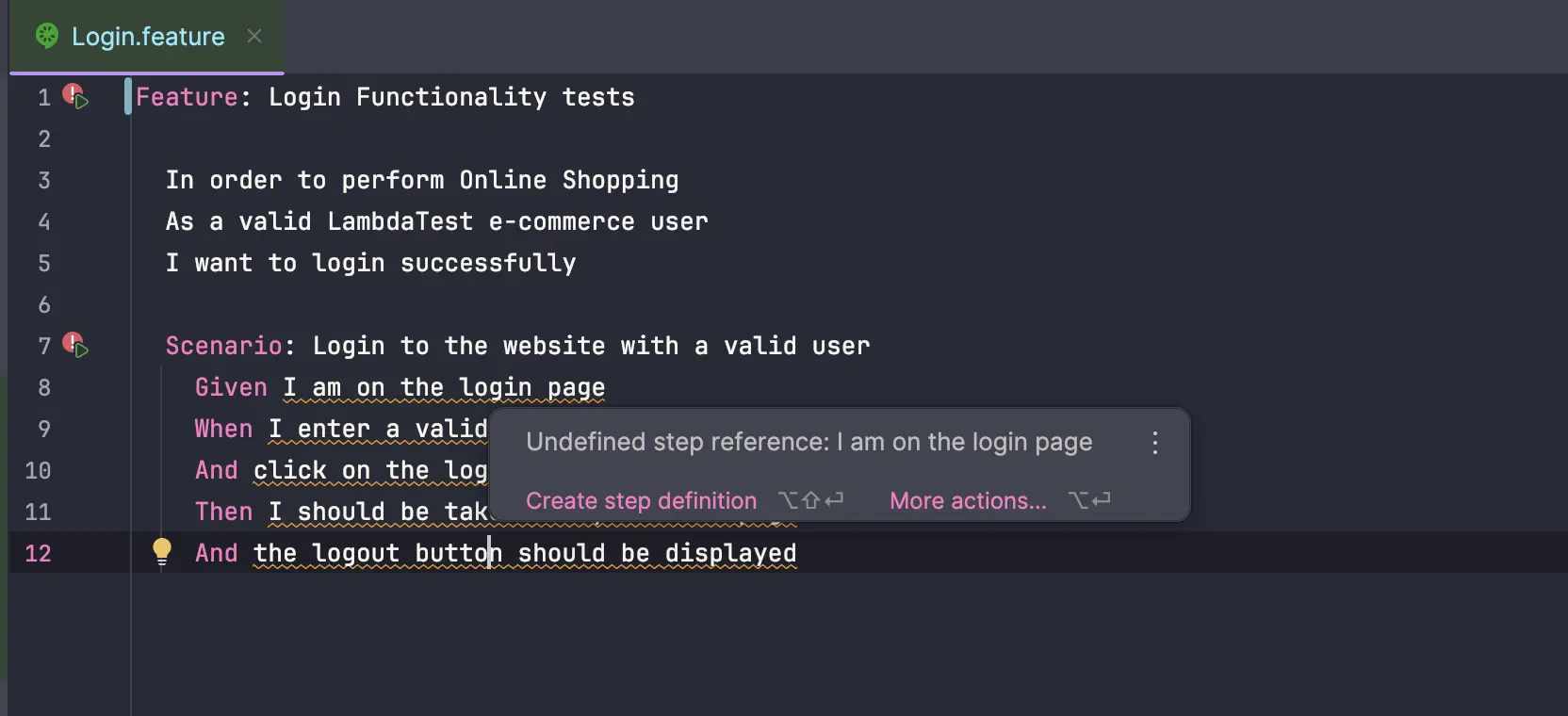
And if you try to run the feature file without implementing the step definitions, Cucumber will throw errors highlighting that the steps have not been implemented.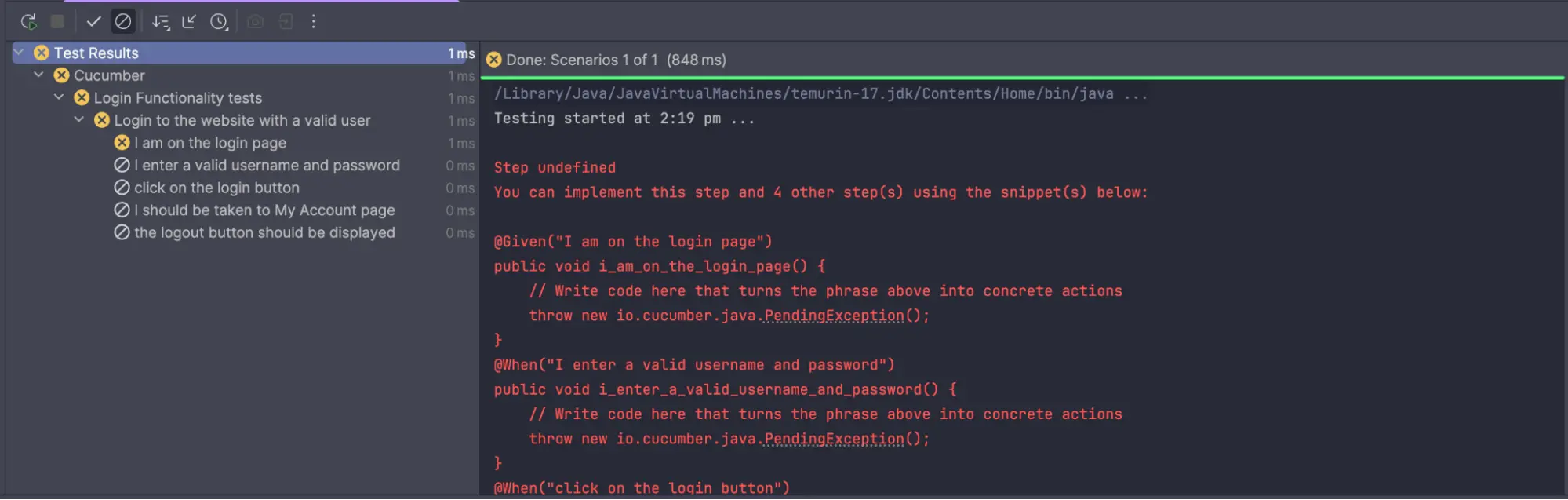
To resolve these errors, navigate to the step definition file and add the corresponding code for each step. When creating step definitions, a template can be generated by simply running the feature file, even if it still shows warnings.
This will generate a basic structure for the step definitions, which can then be used as a starting point for writing the code, as shown below:
@Given("I am on the login page")
public void i_am_on_the_login_page() {
    // Write code here that turns the phrase above into concrete actions
    throw new io.cucumber.java.PendingException();
}

@When("I enter a valid username and password")
public void i_enter_a_valid_username_and_password() {
    // Write code here that turns the phrase above into concrete actions
    throw new io.cucumber.java.PendingException();
}

@And("click on the login button")
public void click_on_the_login_button() {
    // Write code here that turns the phrase above into concrete actions
    throw new io.cucumber.java.PendingException();
}

@Then("I should be taken to My Account page")
public void i_should_be_taken_to_my_account_page() {
    // Write code here that turns the phrase above into concrete actions
    throw new io.cucumber.java.PendingException();
}

@And("the logout button should be displayed")
public void the_logout_button_should_be_displayed() {
    // Write code here that turns the phrase above into concrete actions
    throw new io.cucumber.java.PendingException();
}
Tip: An easy way to implement the steps using IntelliJ IDE is to hover over the steps and click on the Create step definition link. It will prompt for a filename and location, and create an empty step definition where the code can be added.
Let’s create a new package named stepdefinitions in the src/test/java folder and add the step definition - LoginSteps.java file to it.
Below is the LoginSteps.java file generated with the steps implemented:
public class LoginSteps {
   private WebDriver driver;

   @Before
   public void setup() {
       driver = new ChromeDriver();
       driver.manage()
           .window()
           .maximize();
       driver.manage()
           .timeouts()
           .implicitlyWait(Duration.ofSeconds(30));
   }

   @And("click on the login button")
   public void clickOnTheLoginButton() {
       WebElement loginButton = driver.findElement(By.cssSelector("input[value=Login]"));
       loginButton.click();
   }

   @Given("I am on the login page")
   public void iAmOnTheLoginPage() {
       driver.get("https://ecommerce-playground.lambdatest.io/index.php?route=account/login");
       String headerText = driver.findElement(By.cssSelector("#content div:nth-child(2) h2"))
           .getText();
       assertEquals(headerText, "Returning Customer");
   }

   @When("I enter a valid username and password")
   public void iEnterAValidUsernameAndPassword() {
       WebElement emailIdField = driver.findElement(By.id("input-email"));
       emailIdField.sendKeys("david.thomson@gmail.com");
       WebElement passwordField = driver.findElement(By.id("input-password"));
       passwordField.sendKeys("Secret@123");
   }

   @Then("I should be taken to My Account page")
   public void iShouldBeTakenToMyAccountPage() {
       String myAccountHeaderText = driver.findElement(By.cssSelector("#content h2"))
           .getText();
       assertEquals(myAccountHeaderText, "My Account");
   }

   @And("the logout button should be displayed")
   public void theLogoutButtonShouldBeDisplayed() {
       WebElement logoutLink = driver.findElement(By.linkText("Logout"));
       assertTrue(logoutLink.isDisplayed());
   }

   @After
   public void tearDown() {
       driver.quit();
   }
}
All the steps written in plain English within the feature file are translated into executable code through the step definition file.
Cucumber Hooks have also been added to the LoginSteps.java for the easy setup and teardown of the tests. The @Before hook will set up the WebDriver session, start the Chrome browser, maximize the browser window, and apply an implicit wait of 30 seconds.
Likewise, the @After hook will perform the teardown activity by closing the WebDriver session. The Test Runner.java file specifies the locations of feature files and step definitions using @CucumberOptions.
The following TestRunner.java file is created and stored in the runners package within the src\test\java package.
package io.github.mfaisalkhatri.lambdatestecommerce.runners;

import io.cucumber.testng.AbstractTestNGCucumberTests;
import io.cucumber.testng.CucumberOptions;

@CucumberOptions(
   features = "src/test/resources/features",
   glue = {"io.github.mfaisalkhatri.lambdatestecommerce.stepdefinitions"},
   plugin = {"pretty"}
)
public class TestRunner extends AbstractTestNGCucumberTests {}
Since we are using Selenium, Cucumber and TestNG to run tests, we need to extend the AbstractTestNGCucumberTests class. This will allow us to run the Cucumber tests using TestNG.
Test Execution:
The TestRunner class should be run to execute the tests. As we are using TestNG as a runner, Cucumber execution depends on TestNG, not the default JUnit runner.
Right-click on the TestRunner class and select Run TestRunner.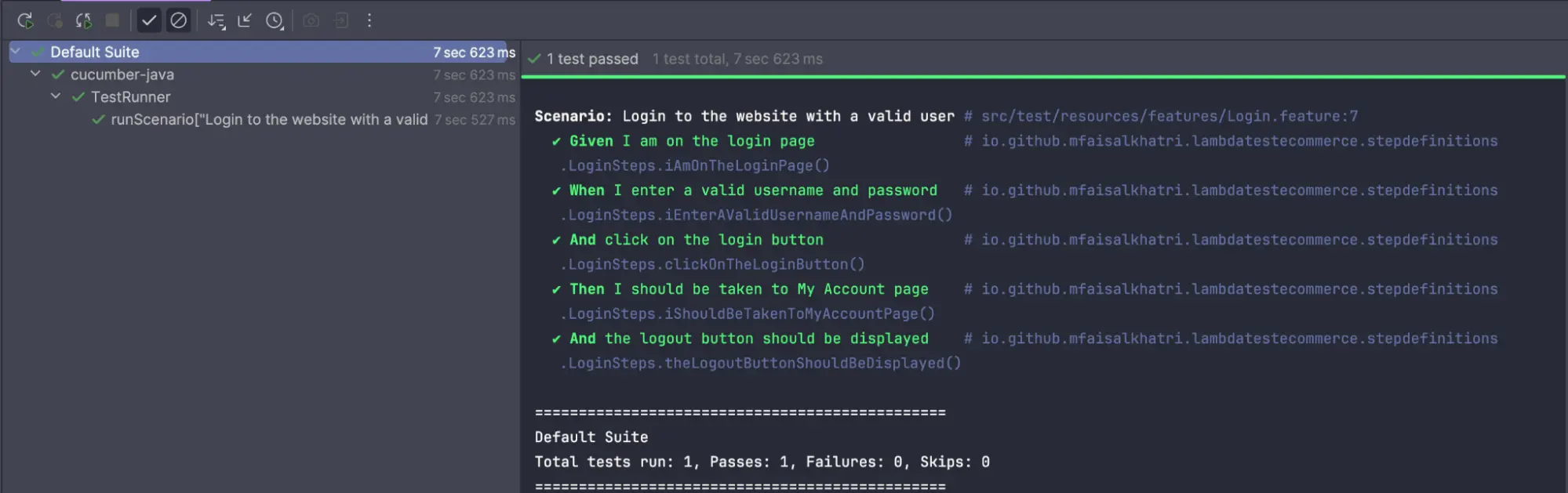
How to Run Cucumber Java Tests At Scale With LambdaTest?
You can scale your Selenium Cucumber tests across different browsers and operating systems using a cloud grid. Cloud-based platforms like LambdaTest offer an online Selenium Grid, providing instant access to multiple environments and scalable infrastructure.
This allows you to perform Selenium automation with Cucumber remotely on real browsers and operating systems without the need to maintain local machines, saving time and resources.
Features:
- Parallel Testing With Online Selenium Grid: Maximize efficiency and test coverage by running multiple Cucumber scripts simultaneously across real desktop and mobile browsers.
- Geolocation Testing With Cucumber: Deliver globally consistent experiences by testing websites across various countries using cloud-based Cucumber scripts.
- AI-Native Test Insights: Optimize test performance with detailed AI-native metrics, error tracking, and actionable insights from automation analytics.
To get started, check out this guide on Selenium Cucumber testing with LambdaTest.
How to Enhance BDD Workflows With LambdaTest KaneAI?
You can enhance your Selenium Java testing without constantly writing new scripts or managing test infrastructure by leveraging Generative AI testing tools like LambdaTest KaneAI.
It lets you plan, author, and evolve end-to-end tests from natural language prompts, which can also be integrated into Cucumber step definitions, and run across real browsers and devices.
To get started, head over to this LambdaTest KaneAI guide.

Follow the given steps below to get started with LambdaTest KaneAI and write automation tests in natural language:
- From the LambdaTest dashboard, navigate to KaneAI > Agent.
- Click on Author Browser Test.
- Select Desktop or Mobile and your preferred network configuration. Then, click Author Test.
- In the textarea, enter your test steps one-by-one and press the Enter button.
- Navigate to “https://ecommerce-playground.lambdatest.io/index.php?route=account/login”.
- Enter david.thomson@gmail.com in the E-Mail Address field.
- Enter Secret@123 in the Password field.
- Click on the Login button.
- Assert that the text My Account is displayed as H2 on the screen.
- Assert that the Logout link is displayed below the Newsletter link.
- Approve the test steps before proceeding to run the test.
- After all the test steps are executed successfully, the test case can be saved by clicking on Save located at the top right of the screen.
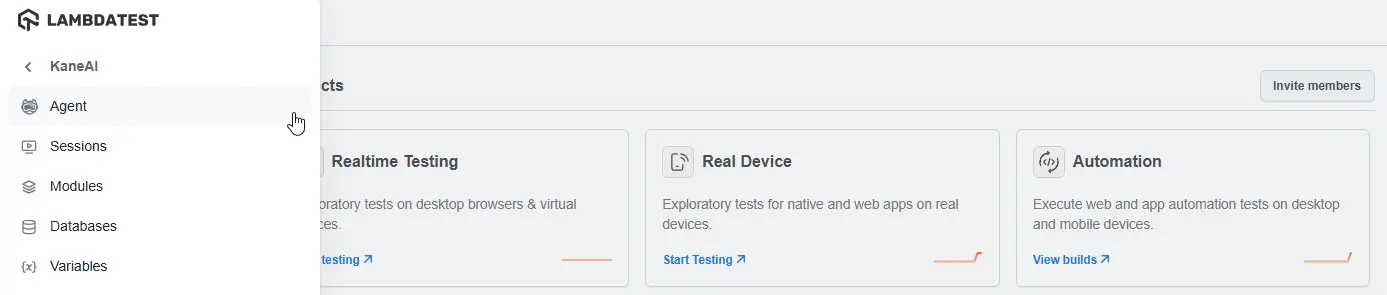
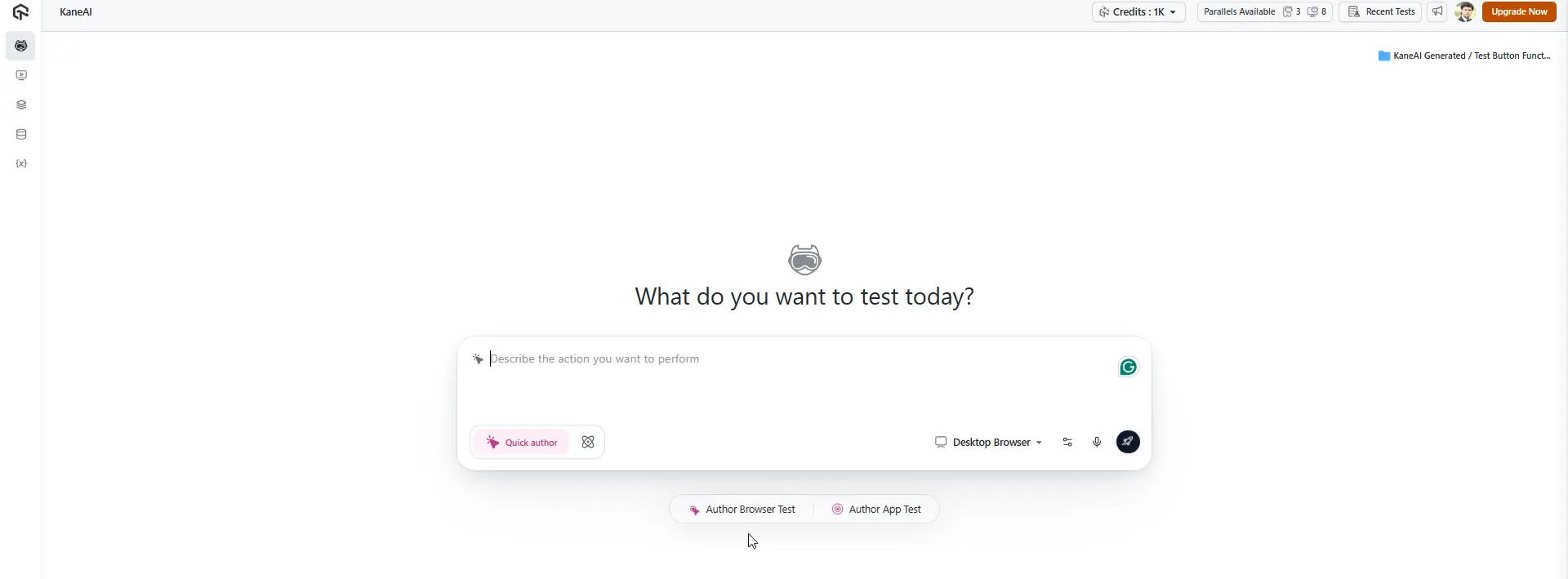
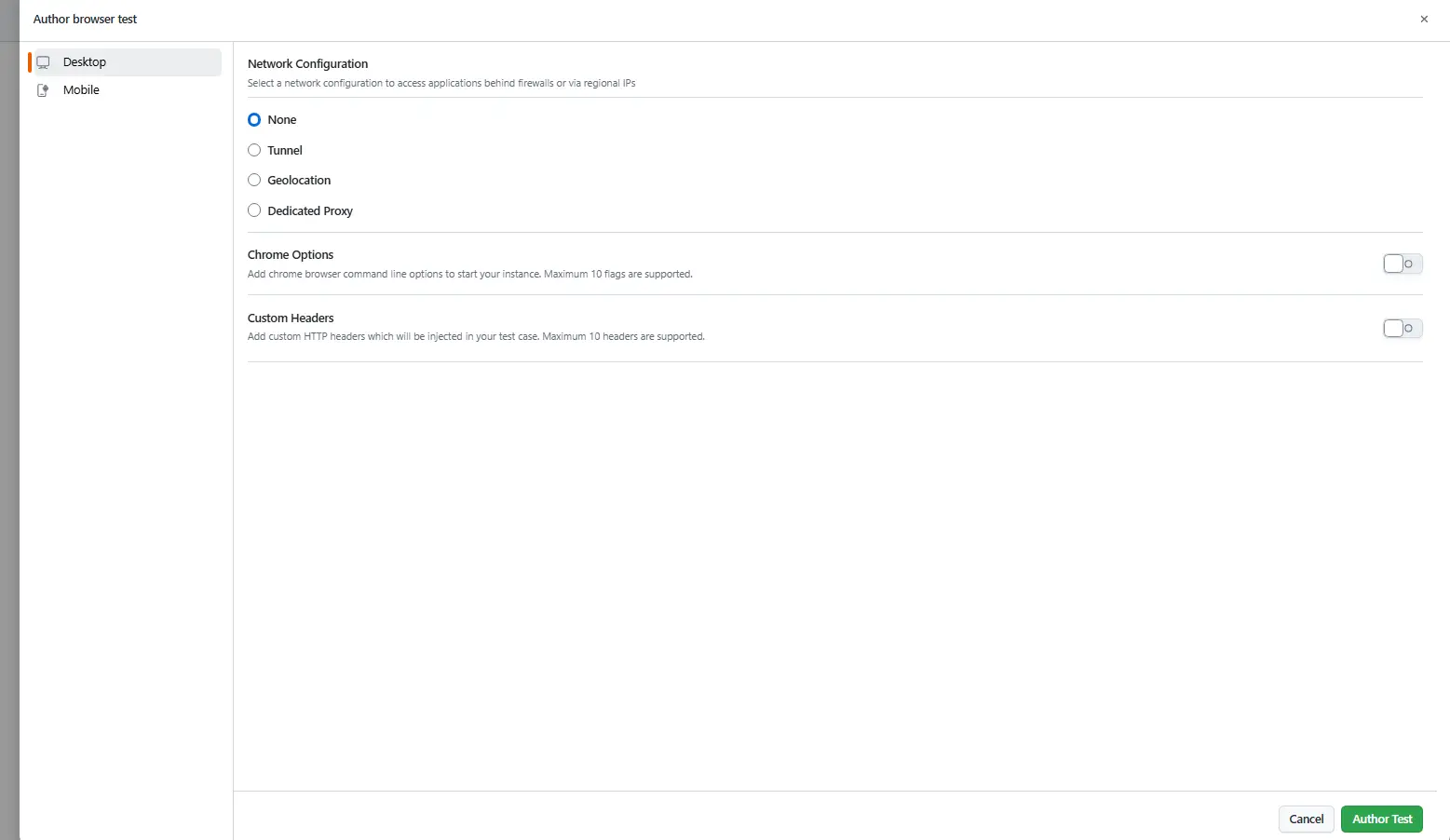
Let’s type the same login test scenario that we wrote in the feature file. However, as we are using an AI agent to generate and run tests, we need to be specific about the test steps and test data.
The following text will be entered in the prompt box provided by LambdaTest KaneAI:
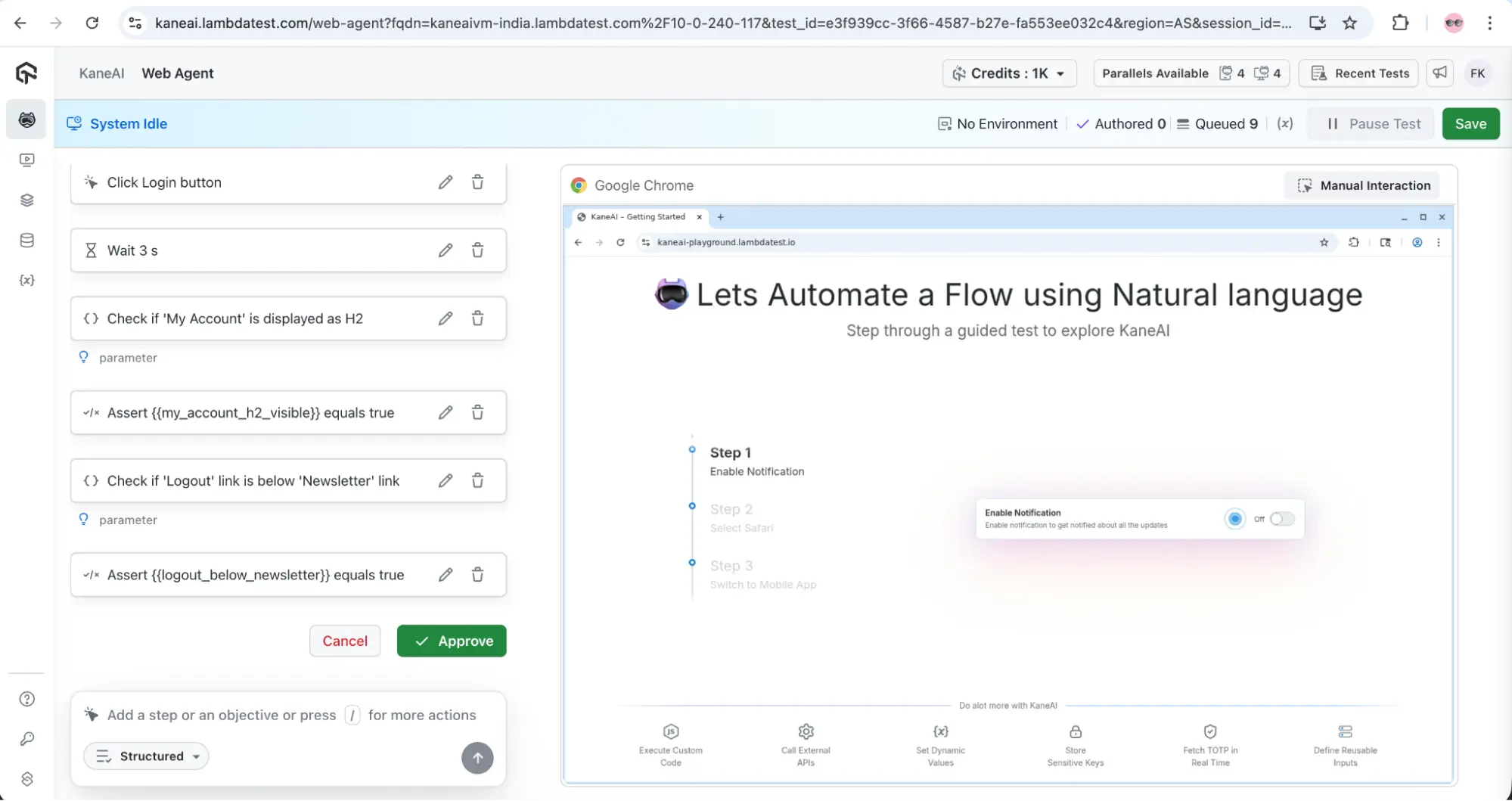
Once approved, KaneAI will begin executing the test, which can be seen live on the right-hand side of the screen.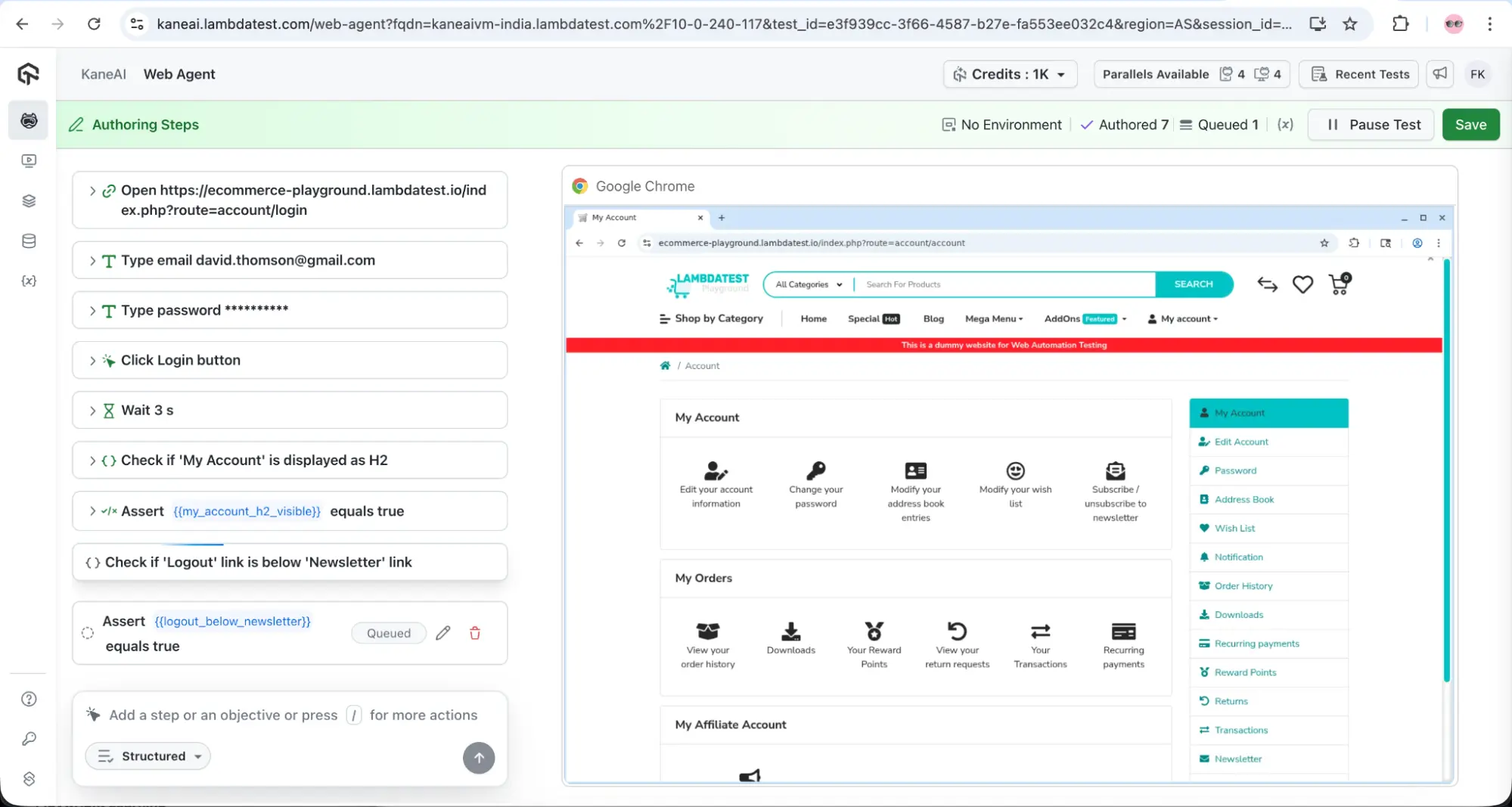
KaneAI allows adding or editing steps to the test case by using the prompt text box at the bottom left-hand side of the screen.
KaneAI provides a detailed test summary of the test execution, including the test steps, test data, and pass/fail status.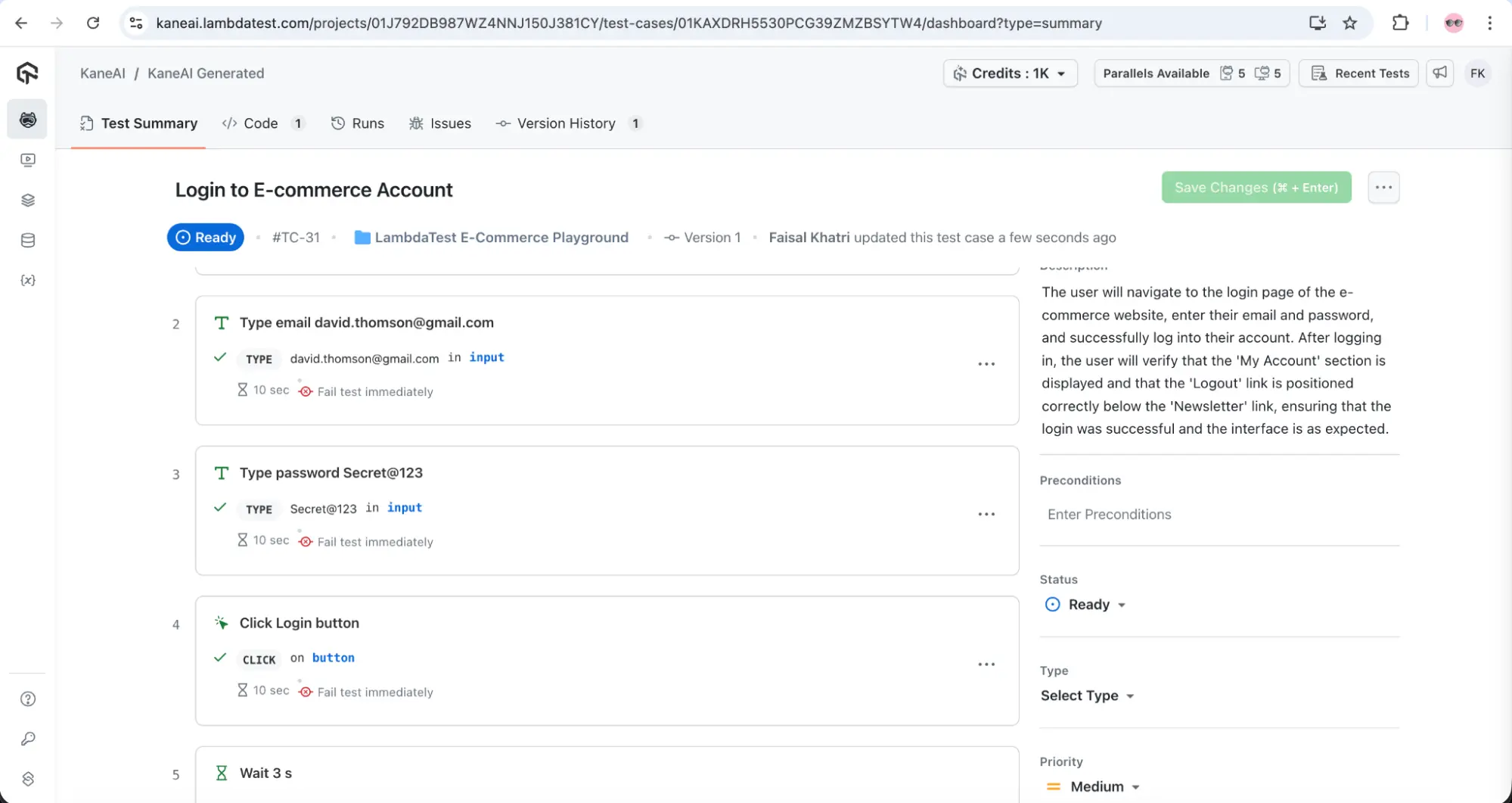
It also generates the test script (by default in Python), with an option to download and use it to run the automation tests. However, you can also generate in other programming languages and frameworks, such as Selenium with Java.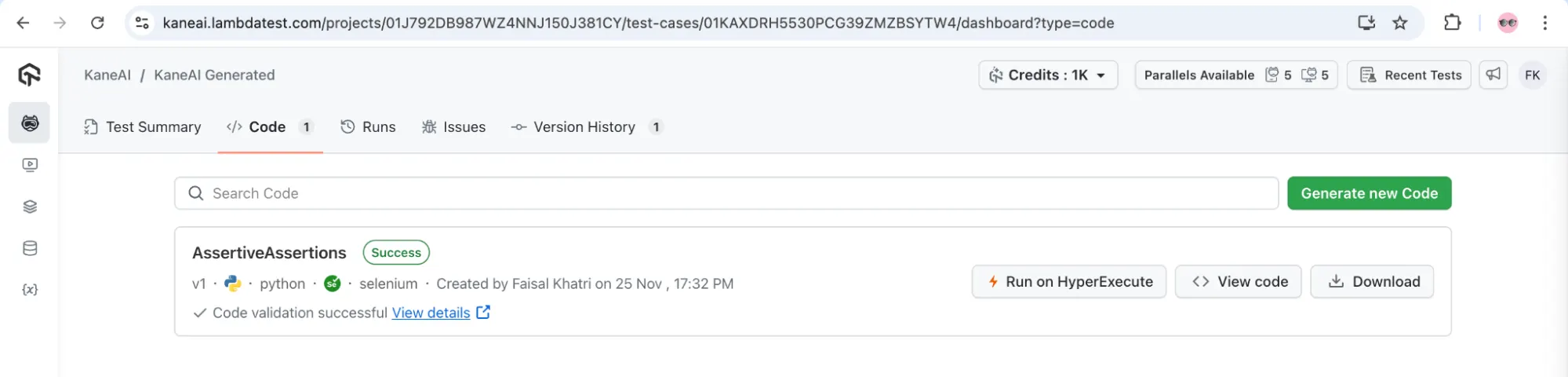
The details of the test run, including the OS, browser, browser version, window size, and automation framework, can be viewed in the Run screen.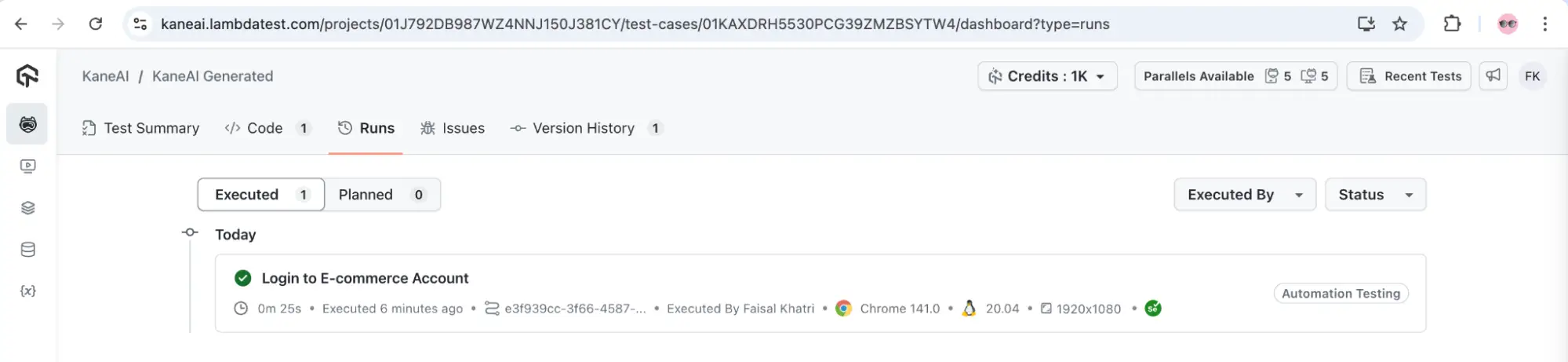
Furthermore, the LambdaTest Test Manager manages all test steps executed by KaneAI. Using the Test Manager, new test cases can be added, or existing test cases can be edited. It also allows organizing and grouping tests by creating folders.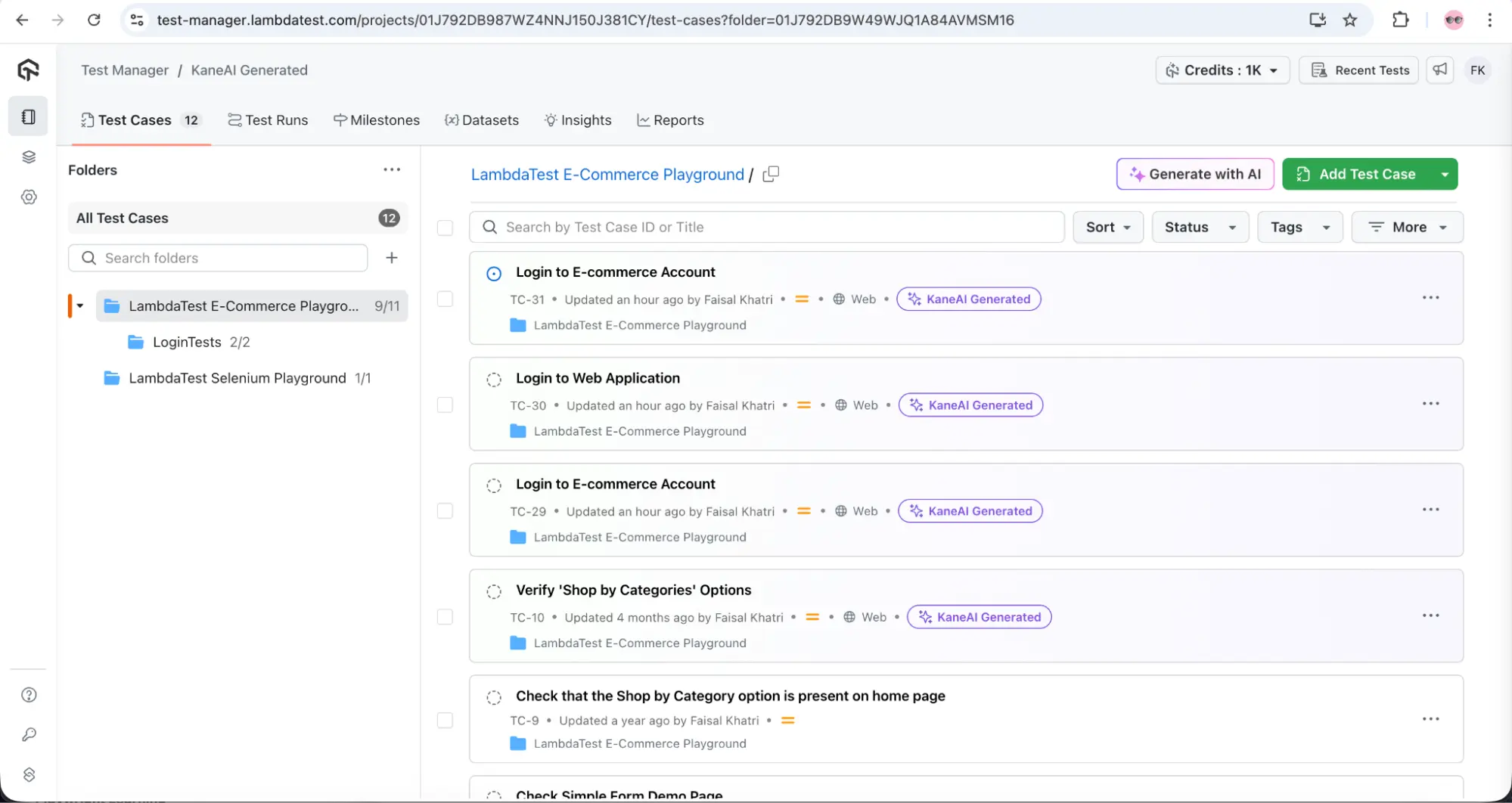
Conclusion
Cucumber framework provides a clear, collaborative approach to BDD, using keywords and hooks to structure and control tests. Using Cucumber in Java, you can write readable, maintainable automation test scripts.
Scaling tests becomes seamless with LambdaTest cloud infrastructure, while LambdaTest KaneAI enhances BDD workflows with smarter, faster test design and execution.
Other than that, following Cucumber best practices such as keeping scenarios concise, reusing step definitions, and maintaining clear feature files ensures tests are readable, maintainable, and scalable.
Citations
- Cucumber Documentation: https://cucumber.io/docs/installation/java/
Frequently Asked Questions (FAQs)
Did you find this page helpful?





More Related Hubs


Start your journey with LambdaTest
Get 100 minutes of automation test minutes FREE!!