 Test your AI Agents with the all-new Agent to Agent Testing Platform.Learn More
Power Your Software Testing with AI and Cloud
Supercharge QA with AI for Faster & Smarter Software Testing


- Automation
- Home
- /
- Learning Hub
- /
- Snapshot Testing with Jest
How to Perform Snapshot Testing to Detect UI Changes
Learn how to set up and run snapshot testing with Jest in React to detect UI changes, prevent regressions, and maintain consistent, reliable components.
Last Modified on: December 1, 2025
- Share:
Snapshot testing helps catch unexpected UI changes in web applications. As many modern apps are built with frameworks like React, Vue, Angular, and Next.js, even small component changes can cause visual regressions. To see snapshot testing in action, you can use Jest, a widely adopted front-end framework.
By using snapshot testing with Jest, you can automatically capture snapshots of your components and compare them on each test run, immediately highlighting any differences.
Snapshot testing with Jest also helps you detect regressions early, refactor code safely, update libraries confidently, and maintain a consistent user interface without relying on manual checks.
Overview
Why Should You Use Jest for Snapshot Testing?
Snapshot testing with Jest ensures your UI stays consistent over time, catching unintended changes while simplifying component validation.
- Quick Component Validation: Automatically verifies that your UI renders as expected after each change, reducing manual testing effort.
- Readable Snapshots: Generates human-friendly snapshots that make it easy to understand component structure at a glance.
- Efficient Change Tracking: Highlights differences clearly when updates occur, so you can focus only on what actually changed.
- Seamless Automation: Integrates with test runners and pipelines to catch regressions without slowing down development.
- Flexible Extensibility: Allows customization for unique components, making snapshots adaptable to any UI framework or data shape.
- Collaborative Reviews: Snapshots are text-based, making them easy to review in pull requests and track across team contributions.
How Do You Configure Snapshot Tests in React With Jest?
Snapshot testing in React with Jest helps you catch unintended UI changes early and ensures your components render consistently. By integrating Jest with React Testing Library, you can validate both structure and user interactions efficiently.
- Environment Prep: Ensure Node.js is installed and dependencies are set up with npm install or yarn install.
- React Project Setup: Use Vite for faster builds. Configure Jest with vite-jest or consider Vitest for Jest-compatible testing.
- Testing Library Integration: Install React Testing Library and user-event to simulate real user interactions.
- Jest Installation: Add Jest and supporting libraries: npm install --save-dev jest @testing-library/react @testing-library/jest-dom.
- Global Setup: Configure setupTests.js to include @testing-library/jest-dom and mock window.matchMedia.
- Static Assets Handling: Mock images, SVGs, and stylesheets with a fileMock.js to prevent test failures.
- Verify Setup: Render a simple component like <App /> to confirm Jest and React Testing Library are working.
- Snapshot Testing: Capture component structure and compare automatically on each test run.
Why Perform Snapshot Testing with Jest?
When building web applications, maintaining UI consistency across changes can be challenging. Snapshot testing, a form of visual testing, helps you detect unintended UI changes across different states of your components.
With frameworks like Jest, this process is simplified as Jest captures snapshots of your components on every test run and immediately highlights any differences.
Reasons to Perform Snapshot Testing With Jest:
- Automatic Snapshot Management: Jest generates and updates .snap files, so you don’t need to manually track component outputs.
- Built-in Serialization: Complex React trees, DOM nodes, or JSON structures are converted into readable snapshot formats for accurate comparisons.
- Smart Diffing Engine: Only the changed parts of snapshots are highlighted, making it easy to spot unexpected updates.
- CI/CD Compatibility: Snapshot tests run automatically in pipelines, catching regressions before code reaches production.
- Custom Matchers and Serializers: Extend snapshot testing to handle unique UI libraries or data structures.
- Version Control Friendly: Text-based snapshots integrate with Git, making pull request reviews of UI changes straightforward.
To learn more about how the Jest framework supports effective unit testing, check out the Jest tutorial.
How to Set Up Snapshot Testing in React Using Jest?
To implement snapshot testing with Jest in your React project, you first need to prepare a proper environment. This ensures your tests run smoothly and that component snapshots are accurately captured and compared.
Setting Up the Environment
Let's begin setting up a complete environment for snapshot testing with Jest.
- Install Node.js: Make sure Node.js is installed on your system, as it’s required to run and manage your React project and Jest tests. If it’s not installed, download it from the official website: Node.js. After installation, verify it using the CLI commands:
node -vTo verify if node package manager is alreay present in your local machine run the following command:
npm -vnpm installNow that you have the dependencies installed, let’s proceed with setting up a new React project.
Setting Up a New React Project
For new projects, it’s recommended to use Vite instead of Create React App, as Vite offers faster setup and build times.
Why Create a React Project?
React’s component-based architecture makes it ideal for snapshot testing with Jest. Each component renders a predictable UI, allowing Jest to capture and compare snapshots efficiently. This helps detect unintended visual or structural changes quickly.
However, Jest requires additional configuration to work with Vite because of their module system differences; Vite uses ES Modules (ESM), while Jest defaults to CommonJS.
You have two options:
- Configure Jest for Vite: Use tools like vite-jest to make Jest compatible with Vite’s ES Modules, allowing you to run snapshot tests without issues.
- Use Vitest: Vite’s native testing framework provides a Jest-compatible API, offering faster execution and seamless integration within the Vite ecosystem.
Once your React project is set up with Vite, the next step is to integrate snapshot testing with Jest. This allows you to capture snapshots of your components and automatically compare them on each test run, ensuring any unintended changes in the UI are detected early and helping maintain a consistent interface across updates.
Before you start writing snapshot tests, you’ll need to add Jest along with supporting libraries like React Testing Library, which complements snapshot testing by enabling user-focused component testing.
Once installed and configured, you can start creating and running tests efficiently.
Installing React Testing Library
When setting up snapshot testing with Jest, it’s equally important to test how your components behave from a user’s perspective. React Testing Library provides the tools you need to simulate real user interactions like clicks, typing, and form submissions, ensuring that your components not only look right but also function as intended.
- Install dependencies: Use a package manager like npm or yarn to add React Testing Library and its user-event package. For example, run:
npm install --save-dev @testing-library/react @testing-library/user-eventTogether, they provide a complete and reliable testing approach for your React components.
Adding Jest to the React Project
To add snapshot testing to your React project, you first need to install Jest and configure it properly. This setup ensures that your components can be tested reliably, and any unintended visual changes are detected early.
- Install dependencies: Use a package manager like npm or yarn to add Jest and supporting libraries for snapshot testing. For example, run:
npm install --save-dev jest @testing-library/react @testing-library/jest-domOr if you prefer yarn, run the following command below:
yarn add --dev @testing-library/react @testing-library/jest-dom
module.exports = {
  testEnvironment: "jsdom",
  setupFilesAfterEnv: ["<rootDir>/src/setupTests.js"],
  moduleNameMapper: {
    "\.(css|less|scss|sass)$": "identity-obj-proxy",
    "\.(jpg|jpeg|png|gif|svg)$": "<rootDir>/__mocks__/fileMock.js",
  },
  collectCoverageFrom: [
    "src/**/*.{js,jsx}",
    "!src/index.js",
    "!src/reportWebVitals.js",
  ],
  transform: {
    "^.+\.(js|jsx)$": "babel-jest",
  },
  // Transform ES modules from LambdaTest and SmartUI packages
  transformIgnorePatterns: [
    "node_modules/(?!(@lambdatest|smartui|axios)/)",
  ],
  // Add module directories to help Jest find modules
  moduleDirectories: ["node_modules", "<rootDir>"],
  testPathIgnorePatterns: ["/node_modules/"],
};
Code Walkthrough:
- Browser-like Environment: Configures Jest to simulate a browser for running React component tests.
- CSS & Image Mocks: Ensures Jest can handle style and asset imports without errors.
- Coverage Files: Includes all source files except index.js and reportWebVitals.js for test coverage.
- Babel Transformation: Use transforms modern JavaScript so Jest can execute your tests properly.
Verifying Your Setup
Before diving deeper into snapshot testing with Jest, it’s essential to confirm that your testing environment is correctly configured. This initial verification ensures that Jest, React Testing Library, and your component setup are working smoothly before you begin capturing snapshots.
Create a simple test file, src/App.test.js, and add the test below:
import React from "react";
import { render } from "@testing-library/react";
import App from "./App";


test("renders app", () => {
  render(<App />);
});
Code Walkthrough:
- Render Validation: Ensures the main App component renders successfully without crashing.
- Testing Tools Integration: Uses React Testing Library to confirm component rendering within Jest’s environment.
- Environment Verification: Confirms that your setup for snapshot testing with Jest is correctly configured and ready for use.

Note: Run your visual tests across 3000+ browsers and OS combinations. Try LambdaTest Now!
How to Perform Snapshot Testing With Jest in React?
Let’s demonstrate snapshot testing with Jest by building a realistic React component called UserCard, which consists of various visual elements such as images, text, and more, covering most scenarios you’ll encounter in a production application.
Configuring Global Setup File
To ensure your snapshot testing with Jest works consistently across your React project, you need a global setup file. This file configures the testing environment, sets up helpful extensions, and mocks certain browser APIs that Jest cannot access directly, such as window.matchMedia.
By doing this, you ensure that all your components render correctly during tests and that your snapshots reflect the real UI without unexpected errors.
Code Implementation:
import '@testing-library/jest-dom';
// Mock window.matchMedia
Object.defineProperty(window, 'matchMedia', {
writable: true,
value: jest.fn().mockImplementation(query => ({
matches: false,
media: query,
onchange: null,
addListener: jest.fn(),
removeListener: jest.fn(),
addEventListener: jest.fn(),
removeEventListener: jest.fn(),
dispatchEvent: jest.fn(),
})),
});
Code Walkthrough:
- DOM Matchers Support: Provides helpful DOM matchers through @testing-library/jest-dom for more readable and accurate assertions.
- Media Query Compatibility: Mocks window.matchMedia so components using media queries or responsive designs don’t break during snapshot testing.
- Stable Snapshot Results: Keeps snapshot tests reliable by ensuring consistent component structure and behavior across test runs.
Handling Static Assets
When running snapshot testing with Jest, static files like images, SVGs, and stylesheets can cause unexpected issues since Jest doesn’t process them the same way as a browser. To handle this, you can mock these assets so that Jest can focus only on component structure during snapshot comparisons.
Create a __mocks__ folder in your project root and add a fileMock.js file inside it. This mock ensures that asset imports are replaced with a simple stub during testing, preventing unnecessary test failures caused by missing files or formats.
module.exports = 'test-file-stub';
This setup ensures that your snapshot testing with Jest remains clean and predictable, focusing purely on the rendered output of your components instead of external resources like images or styles.
Now that your setup file is ready and can handle images, SVGs, and other static assets, let's create a UserCard React component that we can later use for snapshot testing with Jest.
Creating a User Profile Card Component
Firstly, let's create the component folder and a UserCard folder and add the UserCard.js file to it: src/components/UserCard/UserCard.js. Add the following basic card component to it:
Code Implementation:
import React from "react";
import PropTypes from "prop-types";
import "./UserCard.css";
const UserCard = ({
user,
showEmail = true,
showBio = true,
theme = "dark",
onContactClick,
}) => {
if (!user) {
return (
<div className="user-card user-card--empty">
<p>NO USER DATA DETAILS</p>
</div>
);
}
const { name, email, bio, avatarUrl, role, isActive } = user;
return (
<div className={`user-card user-card--${theme}`}>
<div className="user-card__header">
{avatarUrl ? (
<img
src={avatarUrl}
alt={`${name}'s avatar`}
className="user-card__avatar"
/>
) : (
<div className="user-card__avatar-placeholder">
{name.charAt(0).toUpperCase()}
</div>
)}
<div className="user-card__status">
<span
className={`status-indicator ${
isActive
? "status-indicator--active"
: "status-indicator--inactive"
}`}
/>
{isActive ? "Active" : "Inactive"}
</div>
</div>
<div className="user-card__body">
<h2 className="user-card__name">{name}</h2>
{role && <p className="user-card__role">{role}</p>}
{showEmail && email && (
<p className="user-card__email">
<span className="user-card__label">Email:</span> {email}
</p>
)}
{showBio && bio && <p className="user-card__bio">{bio}</p>}
</div>
<div className="user-card__footer">
<button
onClick={onContactClick}
className="user-card__button"
aria-label={`Contact ${name}`}
>
Contact
</button>
</div>
</div>
);
};
UserCard.propTypes = {
user: PropTypes.shape({
name: PropTypes.string.isRequired,
email: PropTypes.string,
bio: PropTypes.string,
avatarUrl: PropTypes.string,
role: PropTypes.string,
isActive: PropTypes.bool,
}),
showEmail: PropTypes.bool,
showBio: PropTypes.bool,
theme: PropTypes.oneOf(["light", "dark"]),
onContactClick: PropTypes.func,
};
export default UserCard;

This component supports multiple states and optional display controls. PropTypes help ensure that the correct data types are passed, catching potential errors early in development.
Code Walkthrough:
- Render User Avatar or Placeholder: Checks if avatarUrl is provided. If yes, renders the image; if not, displays the first letter of the user’s name as a placeholder. This ensures snapshot testing with Jest captures both scenarios.
- Display User Status: Shows an active or inactive indicator based on the isActive prop. Snapshot tests validate different user states.
- Render User Name and Role: Displays the name and role of the user. Helps snapshot tests confirm that essential user information is always rendered correctly.
- Conditional Email Display: Checks showEmail prop before rendering the email. Snapshot tests capture variations when the email is shown or hidden.
- Conditional Bio Display: Checks showBio prop before rendering the bio. Snapshot tests capture both the presence and absence of the bio section.
- Apply Theme Classes: Uses theme prop (light or dark) to apply CSS classes. Snapshot tests validate visual differences across themes.
- Render Contact Button: Renders a button with the onContactClick handler. Snapshot tests ensure the button renders correctly and remains functional.
- Fallback for Missing User Data: If no user object is provided, it renders a placeholder message: "NO USER CARD DETAILS". Snapshot tests confirm the empty state renders consistently.
- PropTypes Validation: Checks that all props are of the expected type. Helps maintain snapshot integrity and catch potential errors during development.
Result:
The image below shows the output of the User profile card component. Run the following command
npm start
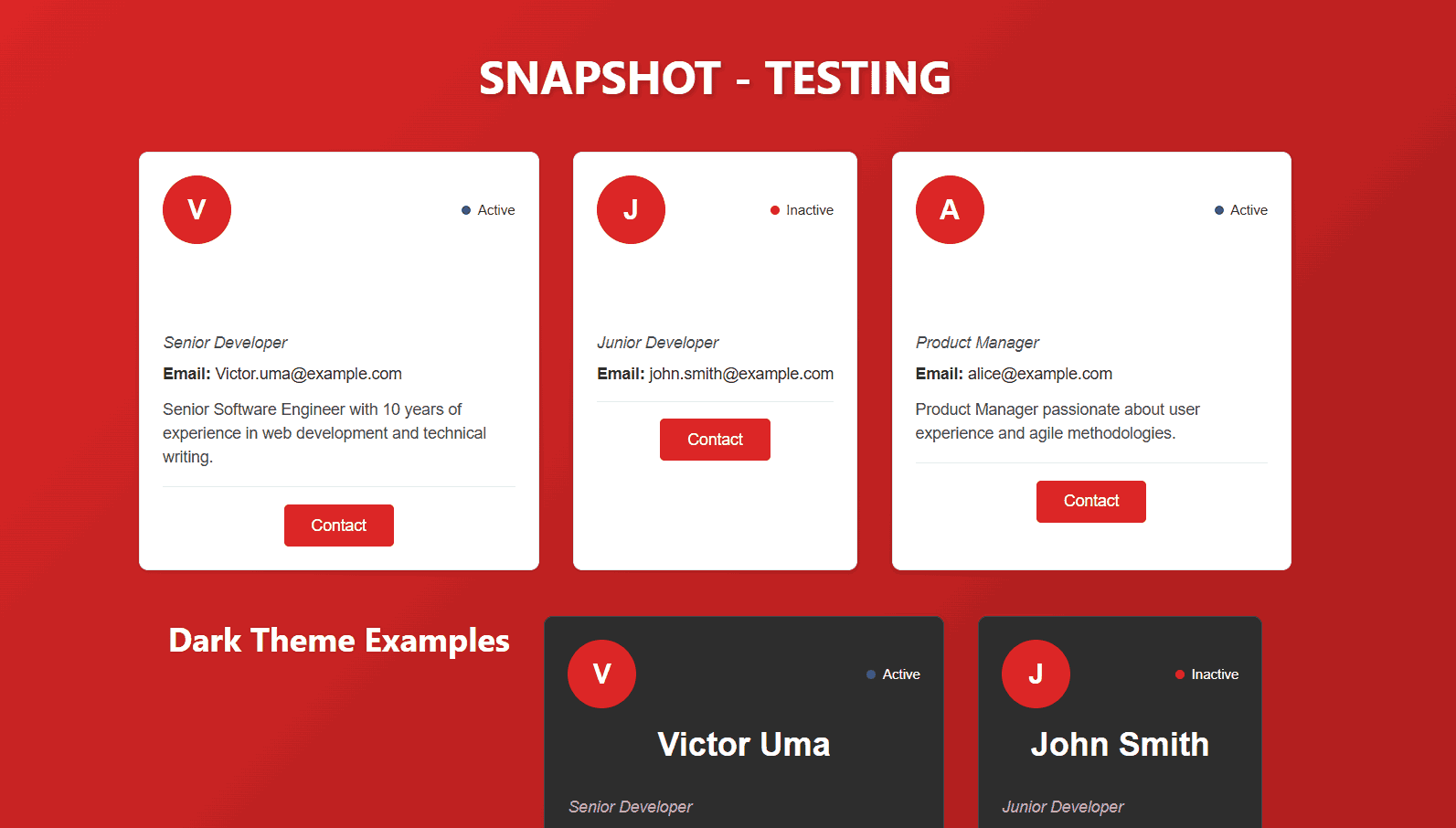
This UserCard component above demonstrates multiple user scenarios and themes, showing how different props (avatar, status, role, email, bio) render. It provides a clear example of the variations that snapshot testing with Jest will capture.
Once you have created the UserCard component, you can perform snapshot testing with Jest on this reusable React component. However, before that, you need to create the test data.
Creating the Test Data
Let’s create a __mock__ file and add testData.js src/__mocks__/testData.js for reusable test fixtures:
const completeUser = {
  id: 1,
  name: "Victor Uma",
  email: "Victor.uma@example.com",
  avatar: "https://i.pravatar.cc/150?img=1",
  bio: "Senior Software Engineer with 10 years of experience in web development and technical writing.",
  role: "Senior Developer",
  isActive: true,
};


const minimalUser = {
  id: 2,
  name: "John Smith",
  email: "john.smith@example.com",
  role: "Junior Developer",
  isActive: false,
};


const withoutAvatarUser = {
  id: 3,
  name: "Alice Johnson",
  email: "alice@example.com",
  avatar: null,
  bio: "Product Manager passionate about user experience and agile methodologies.",
  role: "Product Manager",
  isActive: true,
};


// Export both formats
export const mockUsers = [completeUser, minimalUser, withoutAvatarUser]; // Array for components that need to iterate


export const mockUserObjects = {
  complete: completeUser,
  minimal: minimalUser,
  withoutAvatar: withoutAvatarUser,
}; // Objects for testing
Code Walkthrough:
- Define Mock Users: The mockUsers array contains multiple user objects representing different states and roles.
- Name & Email: Provides the primary identifiers for each user card. Used in the component to display user information.
- Bio: Optional field to test conditional rendering. Snapshot tests will capture cards with and without a bio.
- Role: Helps demonstrate different user roles visually in the component.
- isActive: Boolean flag representing the user’s active status, used to conditionally render status indicators in the UserCard.
- Avatar Handling: Some objects intentionally omit avatarUrl to test rendering of placeholder initials, ensuring snapshots reflect fallback behavior.
- Reusability: Centralizing this test data makes it easy to reuse across multiple tests and components, keeping your snapshot tests consistent and maintainable.
Now that you have our UserCard component, let's write comprehensive snapshot tests to cover different rendering scenarios and learn how to run them effectively.
Creating the Test File
To perform snapshot testing with Jest on the UserCard component, you need to create a dedicated test file. In your project, add UserCard.test.js inside the src/components/UserCard/ folder:
Code Implementation:
import React from 'react';
import { render } from '@testing-library/react';
import UserCard from './UserCard';
import { mockUserObjects } from '../../__mocks__/testData';


describe('UserCard Snapshot Tests', () => {


  test('renders complete user card with all props', () => {
    const { container } = render(
      <UserCard
        user={mockUserObjects.complete}
        showEmail={true}
        showBio={true}
        theme="light"
      />
    );
    expect(container.firstChild).toMatchSnapshot();
  });


  test('renders user card in dark theme', () => {
    const { container } = render(
      <UserCard
        user={mockUserObjects.complete}
        theme="dark"
      />
    );
    expect(container.firstChild).toMatchSnapshot();
  });


  test('renders user card without email', () => {
    const { container } = render(
      <UserCard
        user={mockUserObjects.complete}
        showEmail={false}
      />
    );
    expect(container.firstChild).toMatchSnapshot();
  });


  test('renders user card without bio', () => {
    const { container } = render(
      <UserCard
        user={mockUserObjects.complete}
        showBio={false}
      />
    );
    expect(container.firstChild).toMatchSnapshot();
  });


  test('renders minimal user card', () => {
    const { container } = render(
      <UserCard user={mockUserObjects.minimal} />
    );
    expect(container.firstChild).toMatchSnapshot();
  });


  test('renders user card without avatar', () => {
    const { container } = render(
      <UserCard user={mockUserObjects.withoutAvatar} />
    );
    expect(container.firstChild).toMatchSnapshot();
  });


  test('renders empty state when no user provided', () => {
    const { container } = render(
      <UserCard user={null} />
    );
    expect(container.firstChild).toMatchSnapshot();
  });


  test('renders inactive user', () => {
    const inactiveUser = { ...mockUserObjects.complete, isActive: false };
    const { container } = render(
      <UserCard user={inactiveUser} />
    );
    expect(container.firstChild).toMatchSnapshot();
  });


  test('renders with onClick handler', () => {
    const mockHandler = jest.fn();
    const { container } = render(
      <UserCard
        user={mockUserObjects.complete}
        onContactClick={mockHandler}
      />
    );
    expect(container.firstChild).toMatchSnapshot();
  });
});
Code Walkthrough:
- Import Dependencies: Load React, React Testing Library’s render, the UserCard component, and mock user data.
- Define Test Suite: Use describe() to group all snapshot tests for clarity.
- Render Component: Each render() mounts the UserCard in a virtual DOM for inspection.
- Snapshot Assertion: expect(container.firstChild).toMatchSnapshot() captures the component’s rendered output for comparison.
- Test Variations: Includes complete card, dark theme, without email/bio, minimal card, without avatar, empty state, inactive user, and click handler scenarios.
- Purpose: Ensures snapshot testing with Jest catches unintended UI changes across all common variations of the UserCard component.
Running Snapshot Test :
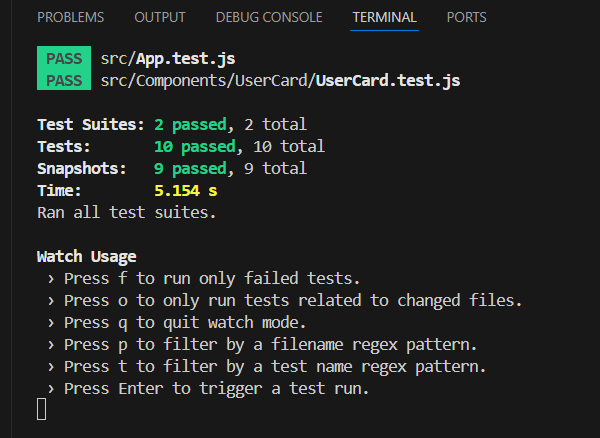
Run the following command in your terminal to execute the snapshot tests:
npm test
On the first run Jest by default generates a __snapshots__ folder in the test file's directory __snapshots__/UserCard.test.js.snap. The creation of this folder does not need to be done manually.:
Managing Snapshot Updates
When a component changes, snapshot tests may fail by showing the differences between the previous snapshot and the new output. This helps you quickly identify unintended UI changes during Jest unit testing.
Handling Snapshot Changes:
Jest highlights changes in the component’s rendered output when it differs from the saved snapshot. For example, modifying the testData.js or component structure may cause test failures, showing exactly what changed.

Updating Snapshots:
If the changes in your component are intentional, you can update the saved snapshots to reflect the new output.
- Interactive Mode: In watch mode, press u to update failing snapshots.
- Command Line: Run npm run test:update to update all snapshots.
- Specific Test: Update only a particular test with: npm test -- -u -t "renders complete user card"
With all the setup completed above, you’ve successfully run your snapshot tests locally; however, you can also use screenshot comparison tools that will help you detect UI changes based on he base image set.
Visual testing tools, you can have limited control over what aspect of UI you would like to check; however, for in-depth visual challenges, such as timestamps, randomly generated IDs, or animation states, may cause snapshot failures, since these values change each time the test runs and no longer match the saved snapshot.
Such major challenges, performing snapshot testing using a cloud-based platform is beneficial, and one such platform is LambdaTest, which ensures that your snapshot tests run across multiple browsers, OS versions, and resolutions, while maintaining stability for dynamic content and properly handling assets.
Let’s now execute the UserCard React component to see how you can use LambdaTest for performing visual testing at scale.
Running Snapshot Testing With Jest on Cloud
Performing visual testing on a cloud platform allows you to validate your UI across different browsers, devices, and operating systems simultaneously.
You can quickly identify layout inconsistencies, broken elements, or unexpected visual changes without relying on your local environment. This approach not only saves time but also ensures consistent results, especially when testing large applications with multiple components and responsive designs.
LambdaTest, a cloud testing platform allows you to perform automated visual testing across 3000+ browsers and OS combinations.
This offers a scalable approach to testing web applications across various OS and browser combinations. Its SmartUI testing feature allows testers to validate the visual appearance of web applications by comparing screenshots, detecting pixel-level differences, analyzing PDF files, and identifying DOM rendering issues.
To get started with LambdaTest, follow the steps below.
- Create .env File:Securely store your LambdaTest credentials by creating a .env file in the root of your project and adding the following values:
LT_USERNAME="<your_username>"
LT_ACCESS_KEY="<your_access_key>"
const capabilities = {
  browserName: "Chrome",
  browserVersion: "latest",
  "LT:Options": {
    username: username,
    accessKey: accessKey,
    platformName: "Windows 10",
    project: "Snapshot Testing",
    build: "Build 1",
    name: "User Card Test",
    w3c: true,
    plugin: "node_js-node_js",
  },
};
https://${username}:${accessKey}@hub.lambdatest.com/wd/hubThis ensures your Jest tests connect to the LambdaTest cloud grid for executing snapshot comparisons across different browsers and devices.
npm install @lambdatest/selenium-driver selenium-webdriverThe command npm install @lambdatest/selenium-driver selenium-webdriver is used for automating the testing of browsers on LambdaTest, which is different from Jest snapshot testing, purpose-wise.
These packages allow for running automated browser tests (performing clicks, entering data, page transitions) on LambdaTest's cloud infrastructure across various browsers and devices automatically.
This is entirely different from Jest snapshot testing. On the one hand, Jest snapshots verify the component structure of the application under test locally; on the other hand, the Selenium packages conduct testing of the actual browser's behavior in the real browsers powered by LambdaTest.
This ensures UI consistency across browsers while integrating seamlessly with your existing functional tests.
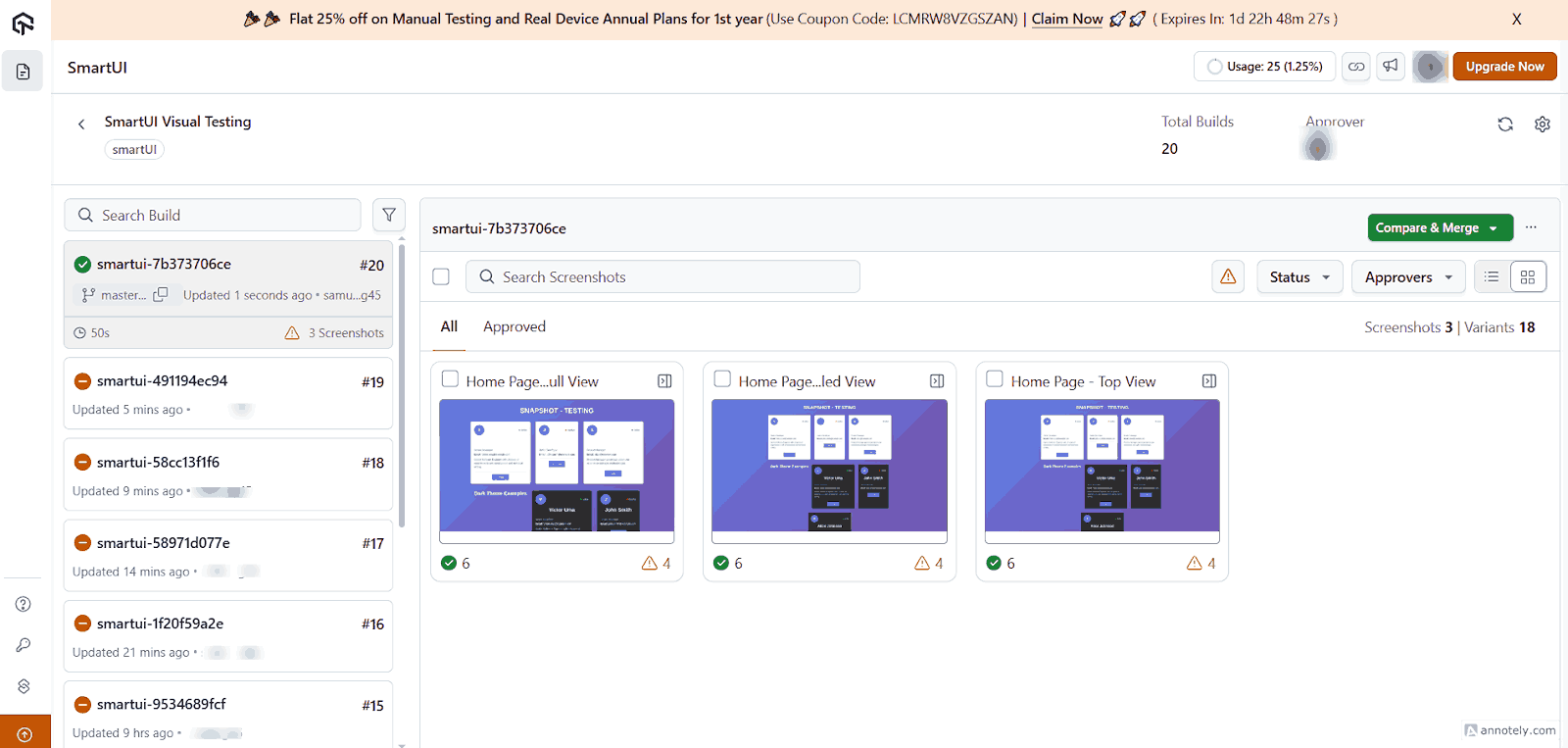
The above image shows the display of a newly approved build on the smartUI dashboard. Under the 'Approved' label, you can see all the screenshots beautifully presented.

The above image shows how LambdaTest SmartUI performs a comparison of the current and past builds, followed by the display of all impacted screenshots in the “Changes Found” area. The snapshots are arranged by the dashboard under the tab “Changes Found,” which enables seamless variations review, expected updates confirmation, and UI regressions potential identification.
Test Execution:
With all the proper configuration, run the command below to execute your snapshot testing with Jest.
npm run test:smartui
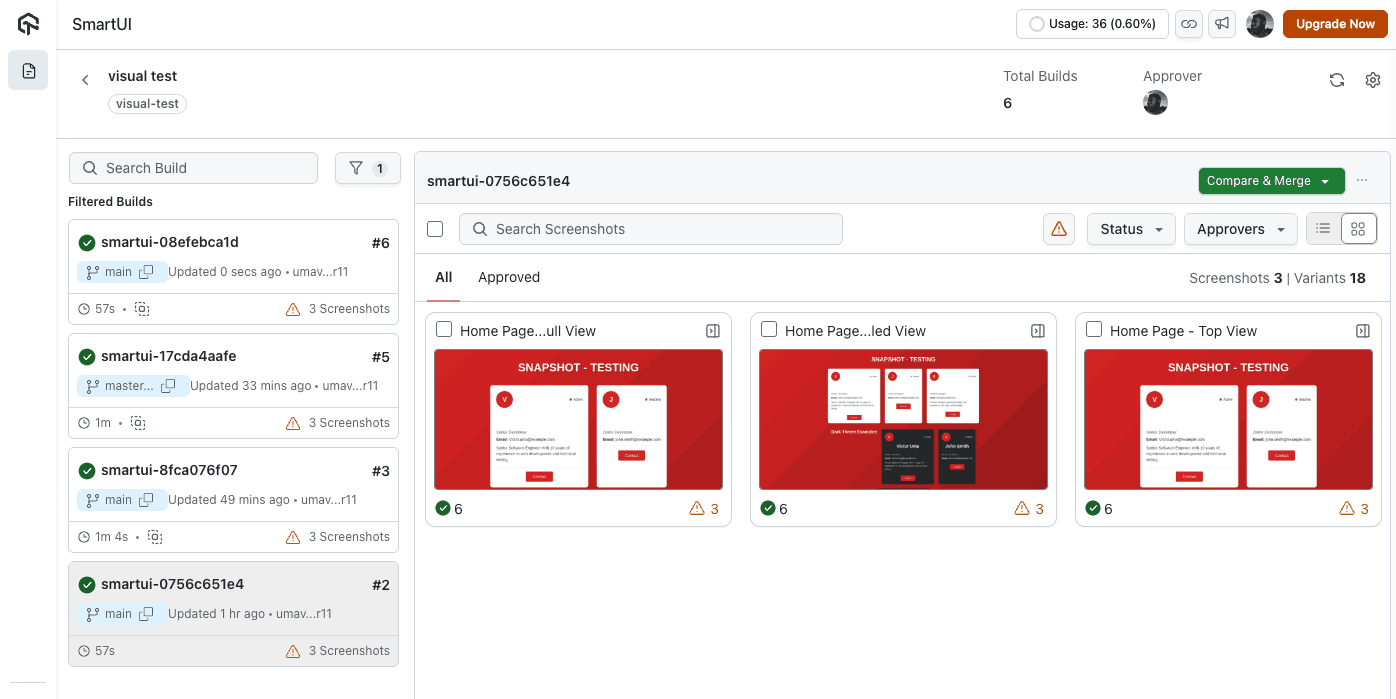
To get started with the snapshot testing with LambdaTest, follow this support documentation on Visual Regression tests with SmartUI.
Best Practices for Snapshot Testing With Jest
To ensure your snapshot tests remain accurate, maintainable, and meaningful over time, follow these key best practices. These guidelines help you catch real UI regressions while avoiding unnecessary snapshot noise and false positives.
- Review Before Updating: Always review the diff before updating snapshots. Blind updates can hide bugs.
- Keep Snapshots Small: Test individual components rather than entire pages. Smaller snapshots are easier to review and maintain.
- Use Descriptive Test Names: Good: "renders user card in dark theme". Bad: "test 1". Clear names help identify purpose and intent.
- Test Multiple Scenarios: Cover different prop combinations, edge cases, and states to ensure comprehensive snapshot validation.
- Combine With Unit Tests: Use snapshot tests for structure verification and unit tests for logic verification, ensuring full component reliability.
- Commit Snapshots: Always commit snapshot files to version control alongside your component code to track UI changes accurately.
- Be Mindful of Testing Framework Differences: While Jest provides built-in snapshot testing, other unit testing frameworks like Jasmine and Mocha do not include this functionality out of the box.
- Mock External Dependencies: To avoid flaky snapshots, mock APIs, timers, or random data that could change between test runs.
- Regularly Clean Up Outdated Snapshots: Remove snapshots for deprecated components to prevent clutter and maintain test relevance.
Using Jest can simplify visual regression testing for React components, whereas Mocha or Jasmine may require additional libraries. For a detailed comparison of how each testing framework supports snapshot testing, check out this blog on Jest vs Mocha vs Jasmine.
Conclusion
You set up snapshot testing in this tutorial with Jest for your React application. You learned how snapshots work: They take your UI and tell you when it changes. If the change was intentional, you then update the snapshot.
If it was not, you may have just caught a new bug. Test cases for the UserCard component were written and connected to LambdaTest's cloud platform (though your local tests should suffice for the bulk of development).
A big thing to remember is: never blindly update your snapshots whenever a test fails. Look at what changed and examine if it is supposed to look different; therein lies actual value. The testing setup is ready for you to catch UI bugs before your users do.
Frequently Asked Questions (FAQs)
Did you find this page helpful?


More Related Hubs


Start your journey with LambdaTest
Get 100 minutes of automation test minutes FREE!!