 Test your AI Agents with the all-new Agent to Agent Testing Platform.Learn More
Scale Your Automation Testing with AI
 Run end-to-end parallel tests & reduce test execution time by 5x
- Generate tests scripts using natural language with KaneAI
- Accelerate your testing process with Autoheal, SmartWait & RCA



- Automation
- Home
- /
- Learning Hub
- /
- Cypress React
How to Test React Applications With Cypress React
Learn to test React apps with Cypress React, covering setup, writing tests, running end-to-end flows, and best practices for reliable UI testing.
Last Modified on: November 18, 2025
- Share:
Testing React applications requires validating not only component logic but also real user interactions involving dynamic state updates, routing, and asynchronous API calls. Unit tests alone are often insufficient for ensuring that these behaviors work correctly together in the browser.
Cypress React testing enables reliable end-to-end testing by running React applications in a real browser environment. Cypress provides direct access to the DOM, automatic handling of asynchronous updates, and built-in waiting mechanisms, allowing developers to test user workflows such as navigation, form submission, and UI state changes with confidence.
Overview
Why Use Cypress React?
Cypress integrates seamlessly with React’s component-driven architecture, simplifying testing of dynamic UIs while reducing flakiness and maintenance effort.
- Real-time DOM Access: Provides direct, live access to the DOM and network, enabling accurate observation of UI behavior and updates.
- Handles Dynamic UI Naturally: Efficiently manages frequent React re-renders and asynchronous changes without requiring manual waits or complex workarounds.
- Faster and Less Flaky Tests: Real-time observation of component updates helps reduce test failures and accelerates overall test execution.
- Simpler Test Maintenance: Requires minimal custom code, lowering maintenance overhead and ensuring test reliability across evolving React components.
- Automatic Waiting: Automatically synchronizes element availability and network requests, reducing flaky results and unnecessary test retries.
- Single-Browser Context Limitation: Tests run in one browser instance, so multi-tab workflows or broader browser coverage are not supported.
How to Setup Cypress React?
Setting up Cypress in a React project involves installing dependencies, configuring the test runner, and writing tests simulating real user actions.
- Verify Prerequisites: Ensure Node.js v16+ and a package manager like npm, yarn, or pnpm are installed correctly.
- Install Cypress: Add Cypress as a dev dependency to your project using npm or yarn for test execution capabilities.
- Launch Cypress: Open Cypress with
npx cypress opento access the test runner and configure browser environments. - Select Testing Type: Choose E2E for full workflow tests or Component testing to validate individual React components in isolation.
- Start Writing Tests: Create tests simulating navigation, forms, and dynamic UI changes to validate application behavior accurately.
What Are Some Common Issues With Cypress React?
Cypress React tests can face synchronization, selector, and environment challenges, leading to unreliable results if not handled properly.
- Elements Not Found/Test Fails Too Fast: DOM may not be ready; wait for elements naturally instead of using fixed delays.
- Navigation Works in Browser, but Fails in Cypress: Ensure correct base URL configuration and consistent routing paths in Cypress.
- Failing API-Dependent Tests: Intercept and wait for API responses to stabilize tests involving dynamic data from asynchronous calls.
- Click Doesn’t Work: Scroll or make elements visible before interaction to prevent click failures due to overlap or off-screen positioning.
- Tests Work Locally but Fail in CI: Set consistent viewport sizes and wait for initial render to accommodate slower CI environments.
Why Use Cypress for Testing React Applications?
React doesn’t follow the traditional request/response model used in classic MVC applications. Instead, it relies on a virtual DOM and a component-driven architecture where the UI frequently re-renders based on state and props.
Why Use Cypress React:
- Real-time DOM Access: Cypress runs directly in the browser alongside your React app, giving it immediate access to the DOM and network layer.
- Handles Dynamic UI Naturally: React’s frequent re-renders and asynchronous updates are managed without complex waits or workarounds.
- Faster and Less Flaky Tests: Tests are easier to write and debug because Cypress can observe real-time changes in the UI.
- Simpler Test Maintenance: Less custom code and fewer brittle workarounds are needed compared to traditional frameworks.
- Automatic Waiting: Cypress automatically waits for elements and network requests, reducing flakiness in tests.
While Cypress React testing is highly effective for most React applications, Cypress runs within a single browser context and does not support multi-tab workflows or the full range of browser types supported by Selenium. This can be a limitation for certain end-to-end testing scenarios.
To learn more about Cypress testing, refer to this Cypress tutorial for step-by-step installation, writing, and running your first test.
How to Set Up Cypress React in Your Project?
To test React applications with Cypress React, you first configure Cypress in your React project and run the application in a real browser environment. You then write end-to-end tests that simulate real user interactions, such as navigation, form submissions, and UI state changes, to validate application behavior.
Setting up Cypress in a React project is pretty easy and quick. You just need a few basic things to get started.
Pre-requisites
Before setting up Cypress React testing, ensure the following requirements are met.
- Package Manager: You should have at least one package manager available.
- npm
- yarn
- pnpm
- Node.js Installation: Confirm that Node.js v16 or later is installed on your system. Node.js is required to run the React development server and Cypress. Run the following command to verify:
Any of these can be used to install Cypress and manage dependencies in your React project.
node -vnpm -vSetting Up Cypress React Project
Cypress can be added to a React project like any other dev dependency. Once installed, it provides a test runner UI where we can write and execute tests.
Below are the steps to set up Cypress in a React project:
- Install Cypress Using npm: Open your terminal and run f the following commands inside your React project directory, depending on your package manager.
{npm install cypress --save-dev yarn add cypress --devnpx cypress openRunning the command npx cypress open opens a new window where you are prompted to choose the type of testing to run:
- End-to-End (E2E): Runs full UI workflows and user journeys across the application.
- Component: Tests individual React components in isolation.
For typical UI testing, pick the End-to-End (E2E) option and then select Chrome or your preferred browser to run your tests.
With this, you are done setting up Cypress in your React project. From here, you can move to write your first Cypress test.

Note: Run your Cypress tests at scale across 3000+ browsers and OS combinations. Try LambdaTest Today!
How to Write and Run Your First Cypress Test?
To write and run your first Cypress React test, create a test file inside the Cypress e2e directory and define a test that simulates a real user interaction. Start the React application, run Cypress, and execute the test in a browser to validate the expected UI behavior.
Before jumping into code, here is a quick reference of the demo app you're working with:
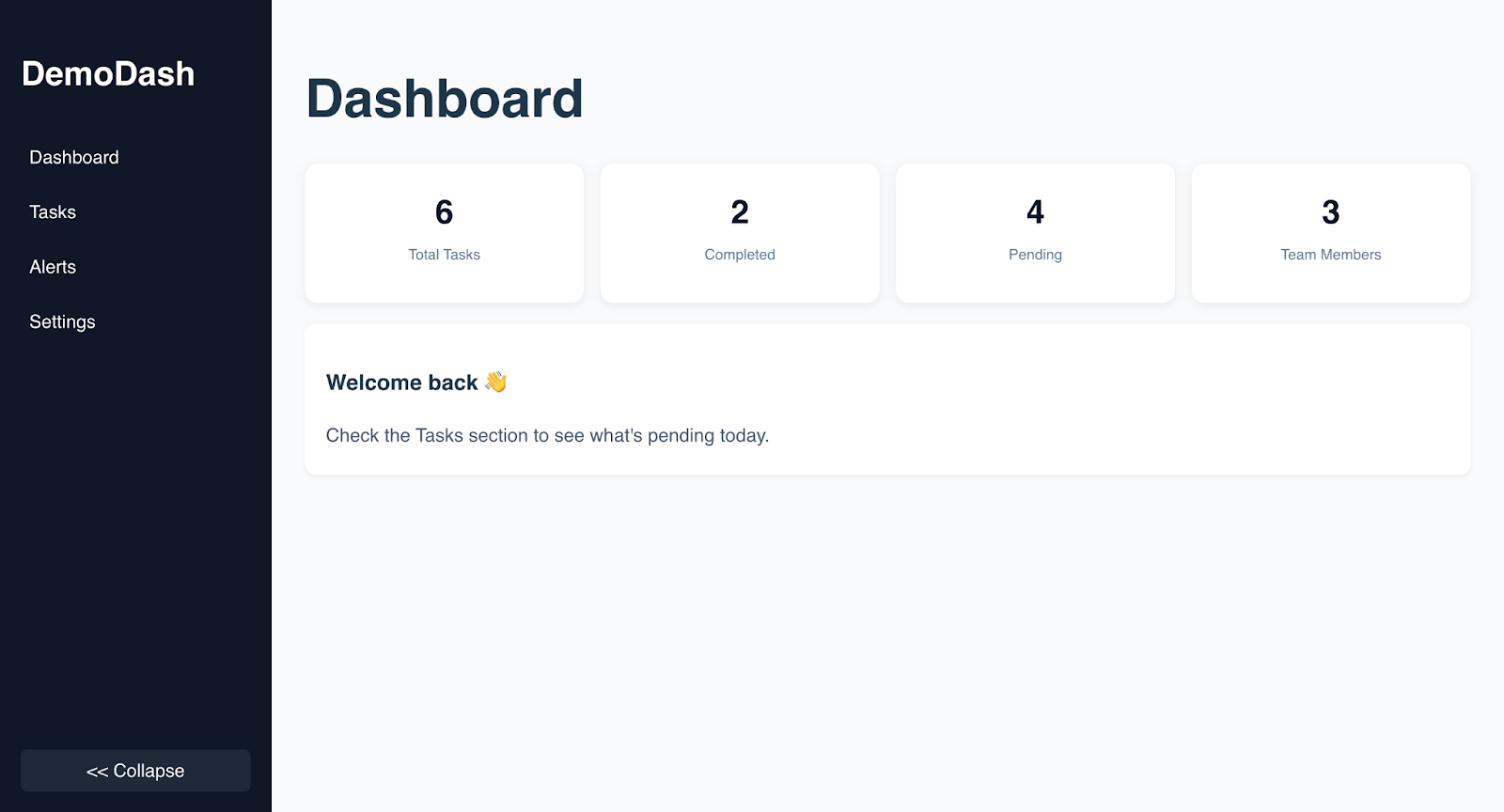
You have a simple React application that includes a sidebar layout, a Dashboard page, a Tasks page that displays a table of tasks, and a couple of placeholder pages (Alerts and Settings).
Once your React application is ready, write your first Cypress test to verify that the application loads successfully and that navigation links render the correct pages.
- Create a Test File: Create a new test file inside the cypress/e2e/ directory.
cypress/e2e/navigation.cy.jsdescribe("App Navigation", () => {
beforeEach(() => {
cy.visit("http://localhost:5173/");
});
it("loads the application successfully", () => {
cy.contains("Dashboard").should("be.visible");
});
});In this test, Cypress launches the application in the browser using cy.visit() and then uses the cy.contains() command to locate a DOM element containing the text “Dashboard”, confirming that the page has loaded correctly.
Code walkthrough:
- describe(): Groups related tests together. "App Navigation" is the name of the test suite and helps organize and structure your Cypress tests.
- beforeEach(): Runs before every test inside the describe block. Ensures the application is loaded fresh before each test.
- cy.visit(): Opens the specified URL in the browser, launching your React application so tests can interact with it.
- it(): Defines an individual test case. The description explains what behavior is being tested.
- cy.contains(): Searches the DOM for an element containing the specified text. Automatically retries until the element appears or the test times out.
- .should(): Asserts that a condition is true. For example, "be.visible" checks that the element is rendered and visible to the user.
Test execution:
Run the following command to run your Cypress test:
npx cypress openThe above command opens the Cypress test runner as shown below:
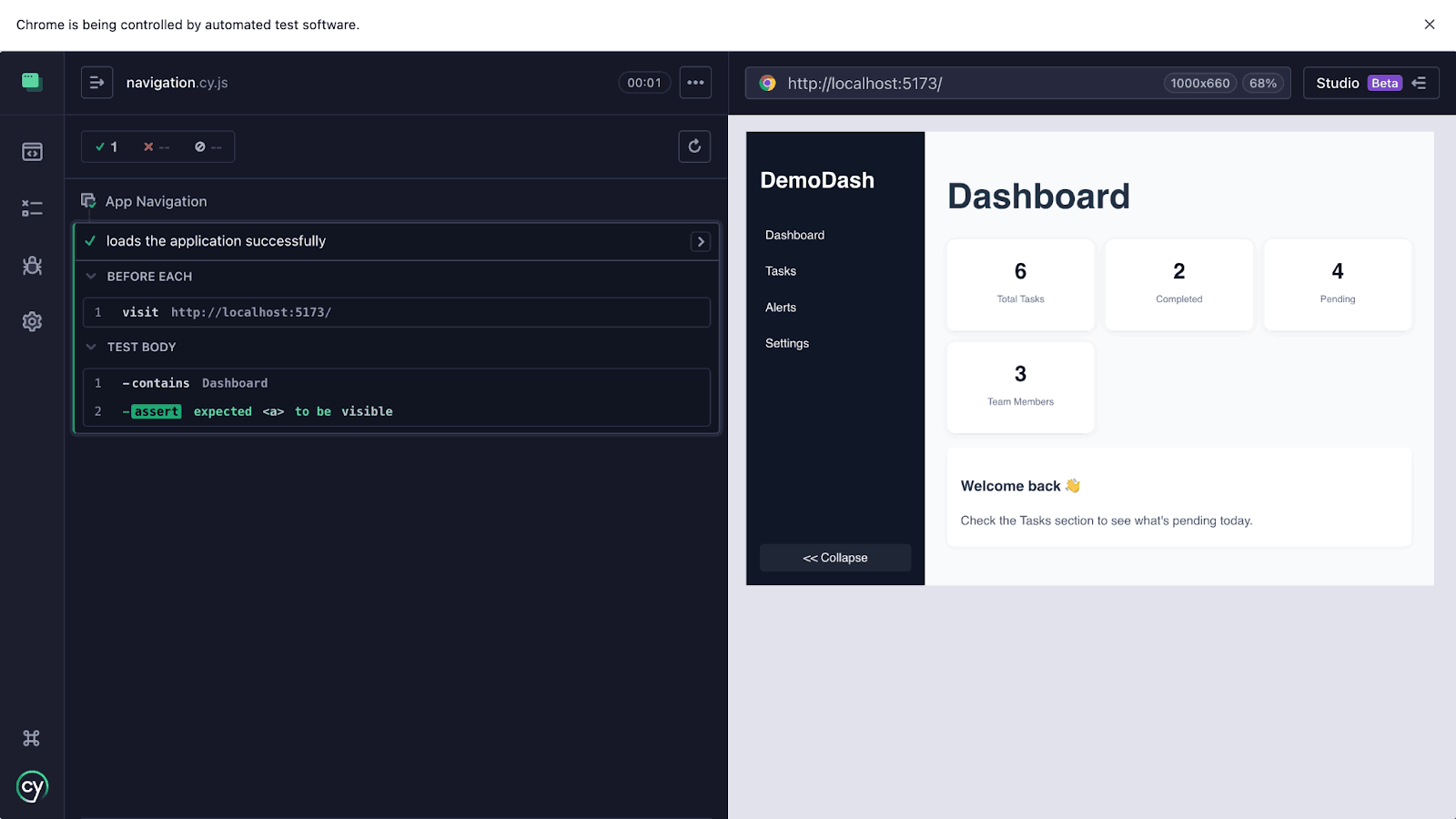
Now that your Cypress test has successfully run and loaded the dashboard, it’s time to create a test for the navigation links. First, locate the element that contains all the links, in this case, the <nav> element.
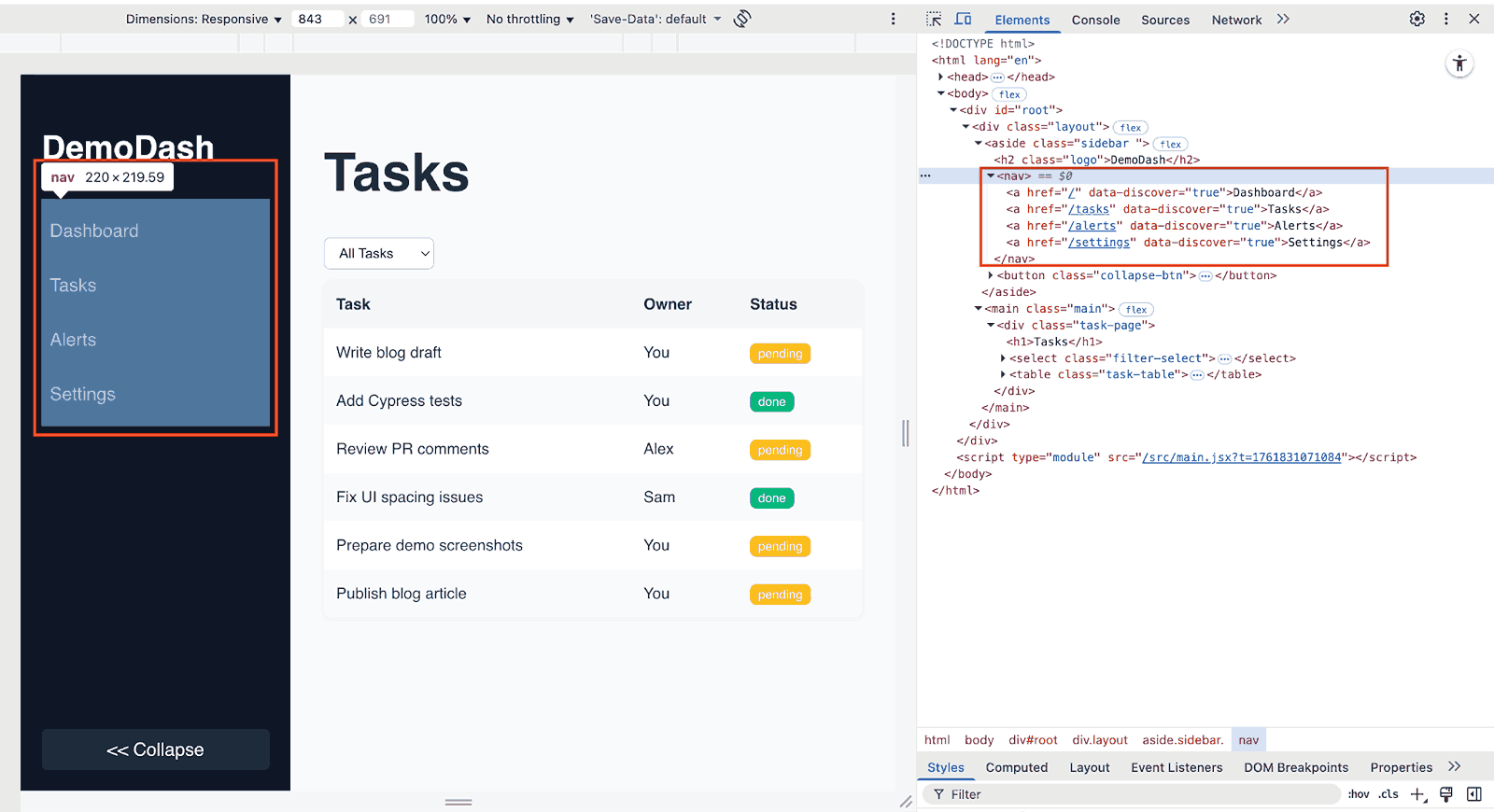
Your goal is simple: verify that the page loads correctly, displays the expected number of tasks, and filters them accurately when you select a status such as pending or completed.
Test scenario:
- Visit and verify that the Tasks page loads successfully.
- Check and validate that the tasks table is visible and displays the correct data.
- Confirm that applying a status filter (e.g., pending or completed) displays only the matching tasks.
Code implementation:
describe("Tasks Page", () => {
   beforeEach(() => {
     cy.visit("/tasks");
     cy.contains("Tasks").should("be.visible");
   });
it("renders the tasks table and the expected number of tasks", () => {
   // The component exists
   cy.get(".task-table").should("exist");
   cy.get(".task-table tbody tr").should("have.length", 6);
 });
 });
// test filter function
 it("filters tasks by done status", () => {
   // Ensure all tasks are visible before filtering
   cy.get(".task-table tbody tr").should("have.length", 6);
   // Apply the filter: Done
   cy.get("select.filter-select").select("done");
   // After filtering, every visible row should contain "done"
   cy.get(".task-table tbody tr").each(($row) => {
     cy.wrap($row).contains("done");
   });
 });
 it("filters tasks by pending status", () => {
   // Ensure all tasks are visible before filtering
   cy.get(".task-table tbody tr").should("have.length", 6);
   // Apply the filter: Pending
   cy.get("select.filter-select").select("pending");
   // Each visible row should contain "pending"
   cy.get(".task-table tbody tr").each(($row) => {
     cy.wrap($row).contains("pending");
   });
 });
Code walkthrough:
- Open the Tasks Page Before Each Test: Using beforeEach(), Cypress opens the /tasks page in the browser before every test. This ensures that each test starts with a fresh page. You can also verify that the page loaded correctly by checking that the text “Tasks” is visible:
beforeEach(() => {
  cy.visit("/tasks");
  cy.contains("Tasks").should("be.visible");
});
cy.get(".task-table").should("exist");
cy.get(".task-table tbody tr").should("have.length", 6);
cy.get(".task-table tbody tr").should("have.length", 6);
cy.get("select.filter-select").select("done");
cy.get(".task-table tbody tr").each(($row) => {
  cy.wrap($row).contains("done");
});
cy.get(".task-table tbody tr").should("have.length", 6);
cy.get("select.filter-select").select("pending");
cy.get(".task-table tbody tr").each(($row) => {
  cy.wrap($row).contains("pending");
});
Now you’ve confirmed that the pending filter correctly displays only pending tasks.
Test execute:
To execute this test, open your terminal and run the following command:
npx cypress openYou'll see Cypress open your browser and confirm the test case passed as shown below:
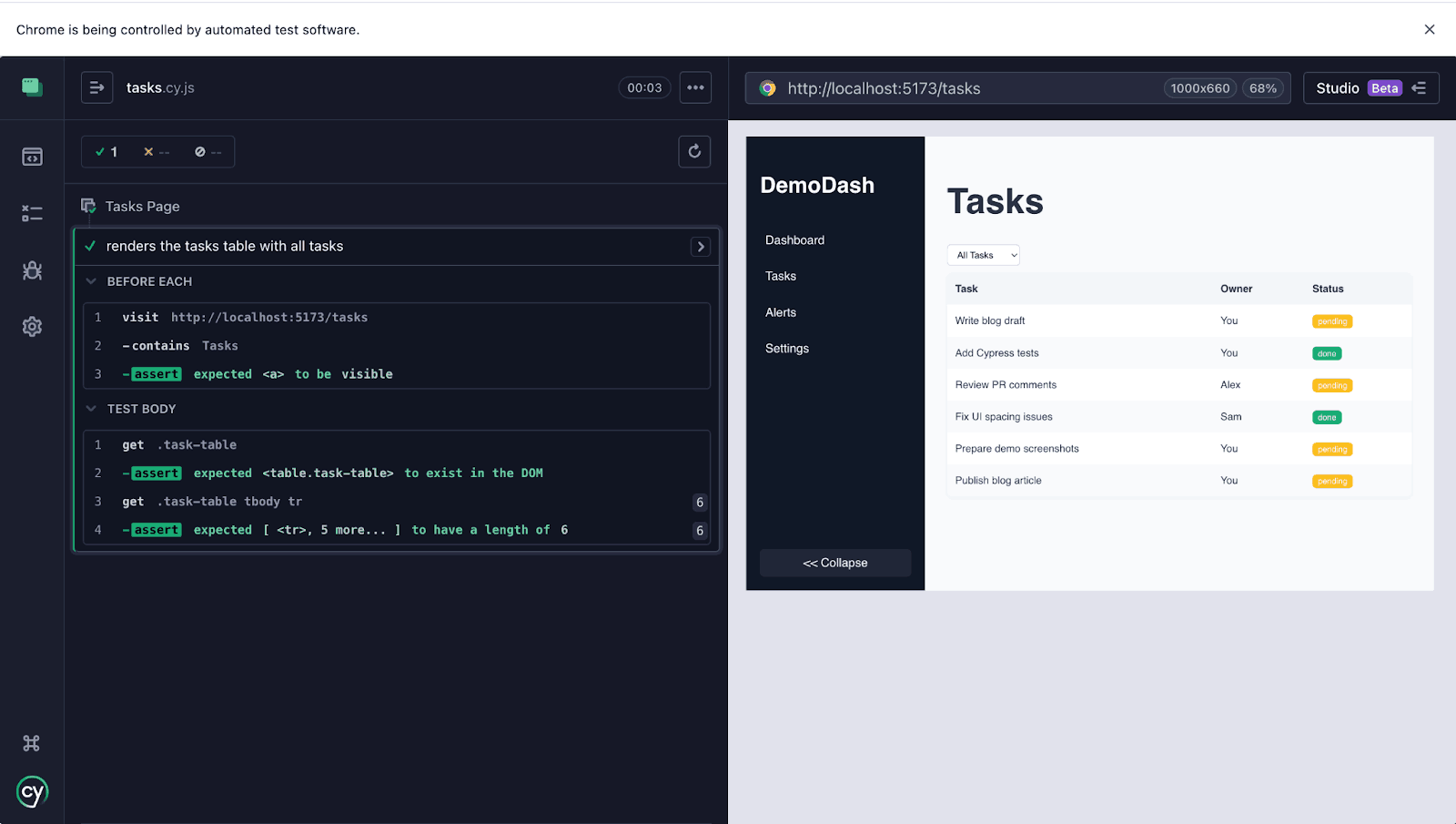
With this, you have successfully tested the Tasks page of your application and made sure that the filter only displays relevant tasks based on status.
Running Cypress React tests locally is convenient, but testers often face slow execution, flaky tests due to asynchronous updates, difficulty reproducing cross-browser issues, and the overhead of managing the React app and test runner. Debugging is also time-consuming since logs and videos are stored only locally.
Cloud-based platforms like LambdaTest solve these challenges by enabling parallel testing across browsers and OS, automatically capturing logs, screenshots, and videos, and integrating with CI/CD pipelines. This helps teams scale tests reliably, detect issues early, and accelerate feedback.
How to Run Cypress React Tests at Scale for Faster End-to-End Testing?
Scaling your Cypress React tests ensures faster feedback, higher reliability, and easier maintenance.
LambdaTest is a cloud testing platform that allows you to perform Cypress testing at scale across 3000+ browsers and OS combinations.
To get started with Cypress React tests on LambdaTest, follow the given steps:
- Install Cypress CLI: Install the LambdaTest Cypress CLI by running the command below:
npm install lambdatest-cypress-cli --save-dev
npx lambdatest-cypress init
This creates a file named lambdatest-config.json in your project root.
{
  "lambdatest_auth": {
    "username": "<Your  username>",
    "access_key": "<Your  access key>"
  },
  "run_settings": {
    "reporter_config_file": "base_reporter_config.json",
    "build_name": "cypress-react-demo",
    "parallels": 1,
    "specs": "./cypress/e2e/tasks.cy.js",
    "ignore_files": "",
    "network": false,
    "video": true,
    "headless": false,
    "npm_dependencies": {
      "cypress": "15.5.0"
    }
  }
}
You can generate the necessary capabilities using the LambdaTest Automation Capabilities Generator.
Test execution:
Run the following command:
npx lambdatest-cypress runYou can check the result from your LambdaTest dashboard, view the recording, logs, and network traces, exactly like a real browser session.
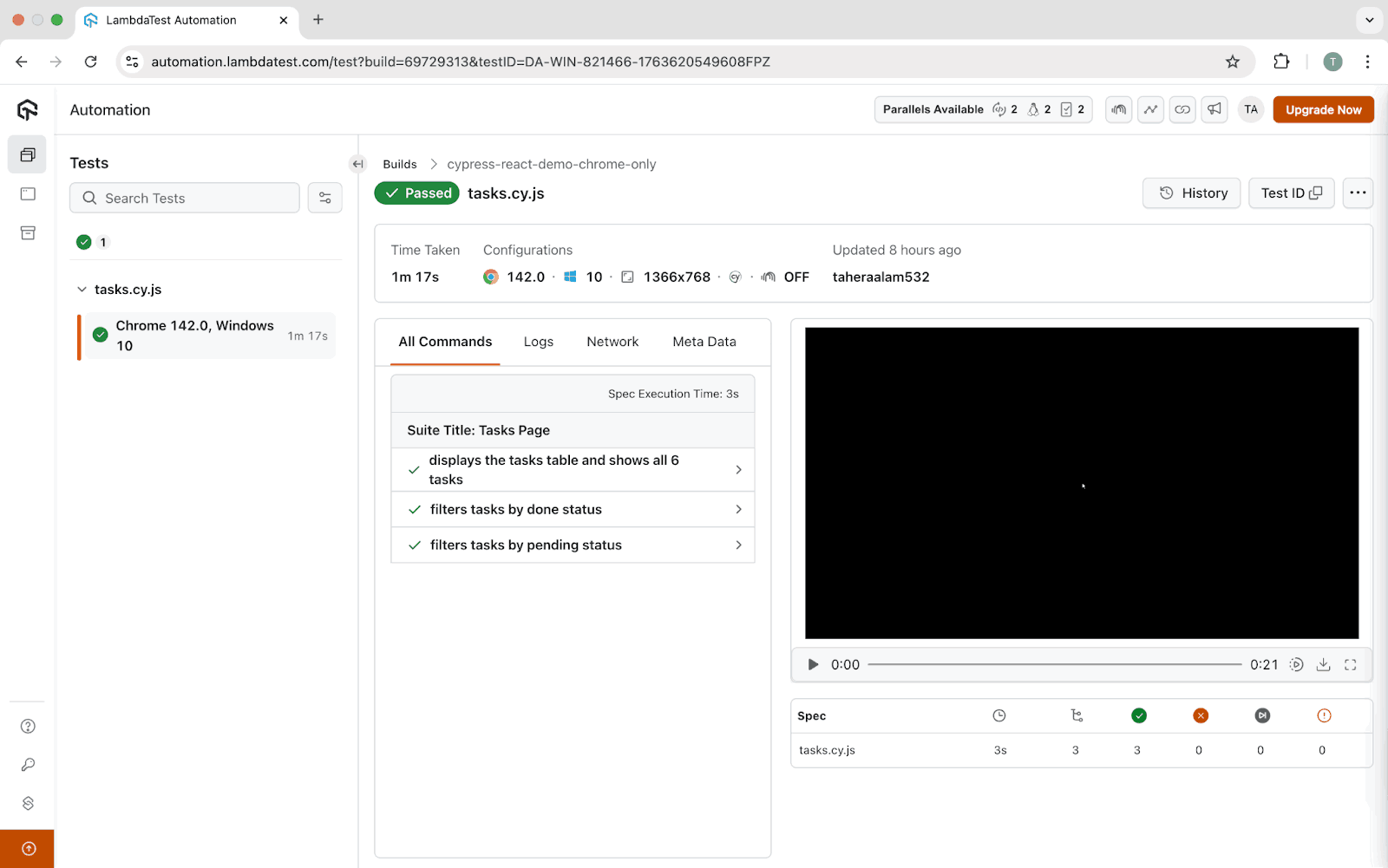
To run your Cypress tests on LambdaTest, refer to the Cypress testing with LambdaTest support documentation.
How to Fix Common Cypress React Test Issues?
When working with Cypress React testing, you may encounter issues such as flaky tests, timing problems, or failing selectors caused by frequent UI updates.
This section explains how to identify and fix common problems in Cypress automation related to synchronization, selectors, and test structure to create more stable and reliable tests.
Below are some of the most common problems beginners run into and how you can fix them:
Elements Not Found/Test Fails Too Fast
The test fails even though the UI works in the browser. This is because React renders asynchronously, so sometimes the DOM isn't ready yet.
To fix this, let Cypress wait for the element to appear naturally:
cy.get('.sidebar').should('be.visible');Don’t fix this with cy.wait(2000), it will lead to flaky tests, tests that work one day and fail the next.
Navigation Works in the Browser, but Fails in Cypress
Sometimes, clicking a link doesn’t change the page in tests. This is usually due to router base path issues, where you either have hard-coded URLs or Cypress isn't using your dev server’s base path.
To fix this, set up a base URL in cypress.config.js and simple paths:
cy.visit('/');
cy.get('[data-cy=tasks-link]').click();
cy.url().should('include', '/tasks');
Failing API-Dependent Tests
When pages load data from an API, sometimes tests may break due to network delays or inconsistent APIs. This is because UI makes async API calls and Cypress gets there before the data arrives.
To fix this, you need to tell Cypress to wait for the network request by intercepting API calls:
cy.intercept("GET", "/api/tasks").as("getTasks");
cy.visit("/tasks");
cy.wait("@getTasks");
This makes tests stable without slowing them down.
Click Doesn’t Work
Sometimes an element is not clickable even though it’s there. This might be because the element is either off-screen or overlapped, and Cypress requires visible, interactable elements to work.
To fix this, you need to ensure it’s visible:
cy.get('[data-cy=tasks-link]').scrollIntoView().click();
Tests Work Locally but Fail in CI
This is often caused by a viewport or slower DOM rendering. To fix this, you can set a consistent viewport and wait for the first render:
cy.viewport(1280, 720);
cy.get(".sidebar").should("exist");
Best Practices for Cypress React Test
The dynamic nature of React applications makes it important to follow Cypress best practices to ensure consistent, reliable, and maintainable test automation.
Use Data-* Attributes for Selecting Elements
The most crucial factor for stable Cypress tests in React is element selection. Avoid selectors that are coupled to styling or component implementation details.
Use data-* attributes like data-cy, data-testid, or data-test for your selectors. These attributes are purely for testing and are isolated from CSS class names or structural changes.
Do not use #id, .class, or generic tag selectors unless the element is unique and unlikely to change.
Example:
<button data-cy="add-task-btn">Add Task</button>
Use it in Cypress:
cy.get('[data-cy="add-task-btn"]').click();
This pattern keeps tests resilient and avoids accidental breakage when CSS classes or wording are updated.
Mock Network Requests When Validating UI Behavior
When the goal is to test front-end behavior, mock API calls. Mocking API responses removes dependency on the server, making test execution faster and more reliable.
For E2E tests, use cy.intercept() to mock network requests. This ensures your tests are fast, reliable, and not dependent on the back-end being up or returning specific data.
Example:
// Mock the GET request for tasks and return test data instead of calling the real API
cy.intercept("GET", "/api/tasks", {
  fixture: "tasks.json", // load mock data from cypress/fixtures/tasks.json
}).as("fetchTasks"); // give the request a name so we can wait for it later

cy.visit("/tasks"); // open the Tasks page
cy.wait("@fetchTasks"); // wait until the mocked API response is returned
cy.contains("Task A").should("be.visible"); // confirm a task from the mock data is shown on screen
Use real API calls only for dedicated integration flow tests, not for every UI test.
Keep Test Cases Independent
Each test should be able to run in isolation. If a test depends on another test for setup (like creating data first), it becomes difficult to debug failures and run tests selectively.
Instead, establish the required state within each test or inside a beforeEach block.
Example:
beforeEach(() => {
  cy.visit("/dashboard");
});
When a test requires specific data, create or mock it within that test rather than assuming it exists from previous steps.
Use beforeEach() and afterEach() for Shared Setup
When multiple tests need the same setup, like opening the app or making sure you start on the same page, repeating the same code in every test becomes messy.
To keep things clean, Cypress provides beforeEach() and afterEach() blocks.
- beforeEach() runs before every test in that group.
- afterEach() runs after every test (only if you need cleanup).
Example:
describe("Navigation tests", () => {
  // This runs before every test below
  beforeEach(() => {
    // Visit the homepage before each test
    cy.visit("/");
  });

  it("loads the Dashboard by default", () => {
    // Check that the Dashboard text appears on screen
    cy.contains("Dashboard").should("be.visible");
  });

  it("navigates to the Tasks page", () => {
    // Click the Tasks link
    cy.contains("Tasks").click();

    // Confirm Tasks page content appears
    cy.contains("Tasks Table").should("be.visible");
  });
});
This makes tests shorter and ensures each test starts from a consistent state.
Use cy.contains() to Verify Text
When you need to check that something is visible on the page, the easiest and most reliable method is to look for the text the user sees. Cypress gives us a simple command for that, cy.contains(). It searches the screen for specific text and confirms it exists.
Example:
// Assert a page heading exists
cy.contains("Tasks").should("be.visible");

// Click a button by its label
cy.contains("Add Task").click();
This makes your test less fragile than selecting deep DOM nodes by class names, and it reads well in tests.
Keep Tests Small and Purpose-Driven
Each test should focus on one behavior or use-case. One test should serve only one purpose. Tests that attempt to verify too many things at once are harder to understand, maintain, and debug.
Instead of one long sequence that navigates multiple pages and performs many actions, break it down into separate tests for navigation, adding tasks, filtering tasks, and so on.
Conclusion
Testing React applications requires confidence that real user interactions, asynchronous data, and dynamic UI updates work correctly together in the browser. Cypress React testing makes this possible by running tests in a real browser with direct DOM access, automatic waiting, and simple APIs that reduce flakiness and improve reliability.
In this guide, you learned how to set up Cypress, write meaningful tests for navigation and data-driven UI behavior, fix common testing issues, and apply best practices such as using data-* selectors, mocking network requests, and keeping tests small and independent.
As your test suite grows, platforms like LambdaTest help scale Cypress tests with parallel execution, cross-browser coverage, and rich debugging artifacts. By following these practices, you can build a stable, maintainable Cypress testing strategy that speeds up development and boosts confidence in every release.
Citations
- Cypress Documentation: https://docs.cypress.io
- React Official Documentation: https://react.dev
Frequently Asked Questions (FAQs)


Did you find this page helpful?


More Related Hubs


Start your journey with LambdaTest
Get 100 minutes of automation test minutes FREE!!